
Introduction
You want your Echo Dot and your phone to work together, but the first setup can feel confusing. The process is actually simple once you understand the sequence: set up the Echo Dot in the Alexa app, turn on Bluetooth, then pair it with your phone.
When you connect Echo Dot to your phone, you can stream music, podcasts, and videos, use it as a hands-free speakerphone, and control smart home devices from your pocket. The key is to follow each step in order so you avoid common connection errors.
This guide explains exactly how to connect Echo Dot to phone on both iPhone and Android. You will also learn how to use it as a Bluetooth speaker, link your phone number, manage multiple devices, solve connection issues, and protect your privacy. Follow along and your Echo Dot and phone will feel like one connected system.
What You Need Before Connecting Echo Dot to Your Phone
Before you start pairing, you should confirm that your hardware, software, and network are ready. This preparation prevents most of the problems people face when their Echo Dot will not connect.
Compatible Echo Dot Models and Smartphones
Most recent Echo Dot models support Bluetooth and work well with smartphones. This includes Echo Dot 3rd generation and newer, Echo Dot with clock, and Echo Pop.
Your smartphone should be one of the following:
- An iPhone running a current, supported version of iOS
- An Android phone running a current, supported version of Android
Both platforms support the Alexa app and Bluetooth pairing, so they can connect smoothly to an Echo Dot.
Apps, Accounts, and Network Requirements
To connect your Echo Dot to your phone successfully, you need:
- The Alexa app installed on your phone (from the App Store or Google Play)
- An Amazon account to sign in to the Alexa app
- A stable Wi‑Fi network for the first-time Echo Dot setup
- Bluetooth enabled on your phone for audio pairing
Wi‑Fi allows you to register the Echo Dot, manage it from the Alexa app, and use voice commands. Bluetooth lets your phone stream audio to the Echo Dot as if it were a wireless speaker.
Quick Pre-Connection Checklist
Before moving on, check these points:
- Echo Dot is plugged in and powered on
- Alexa app is installed and you are signed in
- Your Wi‑Fi is working and your phone is online
- Bluetooth is turned on in your phone settings
When this checklist looks good, you are ready to use your phone to set up the Echo Dot itself. That first link through Alexa prepares the device for Bluetooth pairing and calling features.
Set Up Your Echo Dot Using Your Phone
The first connection between your Echo Dot and your phone does not use Bluetooth. It uses the Alexa app over Wi‑Fi. Once the Alexa app recognizes your Echo Dot and brings it online, you can then pair it over Bluetooth and unlock more features.
Plug In and Power On Your Echo Dot
Start by placing your Echo Dot near a power outlet and within range of your Wi‑Fi router. Then:
- Plug the Echo Dot into a power source using the included adapter.
- Wait for the light ring to turn on and for Alexa to announce that it is ready for setup.
- If you do not hear a prompt, press and hold the Action button until the light ring turns orange to enter setup mode.
Having the Echo Dot in the right mode is essential. The Alexa app can only discover the device when it is powered, listening, and ready for configuration.
Install and Open the Alexa App on Your Phone
Next, prepare your phone to find and manage the Echo Dot:
- Open the App Store on iPhone or Google Play Store on Android.
- Search for ‘Amazon Alexa’.
- Install the official Alexa app from Amazon.
- Open the app and sign in with your Amazon account.
If you do not have an Amazon account yet, create one within the app. When prompted, allow basic permissions such as Bluetooth access and local network access. These permissions help the app detect and set up your Echo Dot correctly.
Add Your Echo Dot in the Alexa App
Once the Echo Dot is in setup mode and the Alexa app is open, you can connect them:
- In the Alexa app, tap Devices at the bottom of the screen.
- Tap the + icon in the top-right corner.
- Select Add Device.
- Choose Amazon Echo, then select Echo Dot from the list.
- Follow the on-screen instructions to connect the Echo Dot to your Wi‑Fi network.
When the app confirms that your Echo Dot is online and ready, the basic setup is complete. The device is now linked to your Amazon account and can respond to Alexa commands. The next step is to pair it with your phone via Bluetooth so you can stream audio.
How to Connect Echo Dot to Phone via Bluetooth (Core Steps)
With the Echo Dot online and registered in your Alexa account, you are ready for the part most people care about: pairing it with your phone as a Bluetooth device. This step is central when you want to know how to connect Echo Dot to phone for everyday audio.
Put Echo Dot into Bluetooth Pairing Mode
You can start Bluetooth pairing using your voice or through the Alexa app. The fastest way is to use a voice command:
- Say: ‘Alexa, pair Bluetooth’ or ‘Alexa, pair my phone.’
- Wait for Alexa to confirm that the Echo Dot is in pairing mode.
- Your Echo Dot should now appear in your phone’s Bluetooth device list.
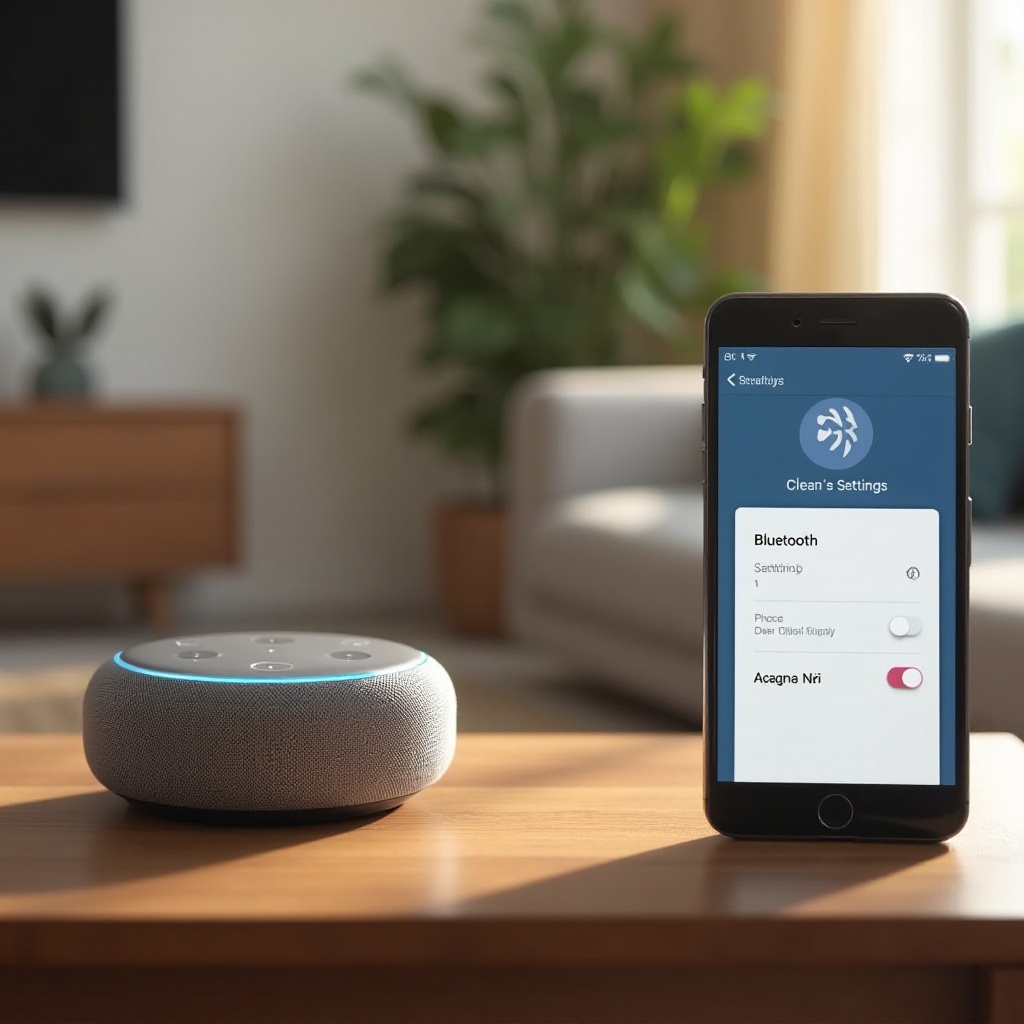
If you prefer using the app, open the Alexa app, go to Devices → Echo & Alexa → [Your Echo Dot] → Bluetooth Devices → Pair a New Device. The Echo Dot will then be discoverable to your phone.
Pair Echo Dot with an iPhone (iOS)
To pair your Echo Dot with an iPhone:
- Open the Settings app on your iPhone.
- Tap Bluetooth.
- Make sure Bluetooth is turned on.
- Under Other Devices, look for your Echo Dot’s name.
- Tap the Echo Dot entry to start pairing.
After a few seconds, your Echo Dot will move to the My Devices list and show as Connected. Alexa may also announce that your phone is connected. You can now play audio from your iPhone and hear it through the Echo Dot.
Pair Echo Dot with an Android Phone
To connect your Echo Dot to an Android phone:
- Open the Settings app on your Android device.
- Tap Connections or Bluetooth & device connection, then tap Bluetooth.
- Turn on Bluetooth if it is not already enabled.
- Look for your Echo Dot in the list of available devices.
- Tap the Echo Dot name to pair.
Once paired, the status should show Connected. You may hear a short tone from the Echo Dot or a confirmation from Alexa. At this point, your phone and Echo Dot are linked for audio streaming, and you can start using it like a wireless speaker.
Use Echo Dot as a Bluetooth Speaker for Your Phone
Now that your Echo Dot and phone are paired, you can enjoy better sound for your media and calls. Treat the Echo Dot like a compact smart speaker that your phone can use anywhere within Bluetooth range.
Stream Music, Podcasts, and Videos from Your Phone
With Bluetooth connected, almost any audio app on your phone can send sound to the Echo Dot. For example, you can:
- Open Spotify, Apple Music, Amazon Music, YouTube Music, or another music app and press play.
- Start a podcast episode or audiobook in your favorite app.
- Play videos in apps like YouTube or streaming platforms and listen through the Echo Dot.
The Echo Dot handles all the audio while your phone controls what plays. This setup is ideal when your phone’s built-in speaker sounds weak or you want more room-filling sound without a large speaker.
Control Volume and Playback from Phone and Echo Dot
You have flexible control over volume and playback:
- Use your phone’s volume buttons to turn the sound up or down.
- Use the physical volume buttons on the Echo Dot or say, ‘Alexa, volume 4’ or ‘Alexa, turn the volume down.’
- Pause, play, and skip tracks or episodes within the app on your phone.
- In many cases, you can also say, ‘Alexa, pause’ or ‘Alexa, next’ to control playback.
This dual control makes it easy to manage your listening whether your phone is in your hand, on a desk, or across the room.
Switch Audio Output Back to Phone When You are Done
When you want to stop using the Echo Dot as a speaker, you can switch the audio back to your phone quickly:
- Turn off Bluetooth on your phone, or
- In your phone’s Bluetooth settings, tap the Echo Dot and select Disconnect, or
- Say, ‘Alexa, disconnect my phone.’
After you disconnect, your phone routes audio back to its own speakers or to another output you select, such as headphones. This makes it simple to move from room audio to private listening without changing many settings.
Connect Echo Dot to Your Phone for Calls and Messaging
Streaming music is only one benefit of pairing your phone with an Echo Dot. You can also link your phone number and contacts so you can make and receive calls using the Echo Dot as a hands-free speakerphone.
Link Your Mobile Number in the Alexa App
To enable calls through Alexa, you need to connect your mobile number:
- Open the Alexa app on your phone.
- Tap Communicate at the bottom of the screen.
- Follow the prompts to set up calling and messaging.
- Enter your mobile number when asked and verify it by SMS if requested.
This links your number with your Alexa account. It allows Alexa to place and receive supported calls using your Echo Dot, using your phone number as the caller ID in many cases.
Sync Contacts Securely from Your Phone
Alexa can use your contacts to place calls by name. To make that work:
- In the Alexa app, go to More → Settings → Communication.
- Enable contact sync if you see the option.
- Grant the Alexa app permission to access contacts on your phone.
After you sync contacts, you can say things like ‘Alexa, call Mom’ or ‘Alexa, call John Smith’. Alexa uses the information stored in your phone’s contact list to place the call.
Make and Receive Calls Using Echo Dot
Once calling and contacts are enabled, you can use your Echo Dot like a hands-free phone:
- Make outgoing calls by saying: ‘Alexa, call [contact name or phone number].’
- Answer compatible incoming calls by saying: ‘Alexa, answer.’
- End a call with: ‘Alexa, hang up.’
This is useful when your hands are busy, your phone is not nearby, or you want a louder, clearer speaker for your conversations.
Manage Multiple Phones and Echo Devices
Many homes have several smartphones and more than one Echo device. The Alexa system can handle these setups as long as you manage Bluetooth connections and preferences carefully.
Connect More Than One Phone to the Same Echo Dot
You can pair multiple phones to one Echo Dot over Bluetooth. To add another phone:
- Put the Echo Dot in pairing mode by saying, ‘Alexa, pair Bluetooth.’
- On the new phone, open Bluetooth settings and select the Echo Dot from the available devices.
- Complete the pairing process.
Each phone will now appear in the Echo Dot’s Bluetooth devices list. Only one phone can stream audio at a time, but switching is easy.
Choose Which Phone Echo Dot Connects to Automatically
If several paired phones are nearby, your Echo Dot may try to reconnect to one of them automatically. To control which phone connects:
- Turn off Bluetooth on phones you do not want to connect right now.
- On the phone you prefer, go to Bluetooth settings and tap the Echo Dot to connect.
- In the Alexa app, open your Echo Dot settings and remove older or unused devices from Bluetooth Devices if they cause confusion.
Managing this list keeps your Echo Dot from constantly choosing the wrong phone when multiple users are in the same room.
Use One Phone with Multiple Echo Devices
You might also want to connect a single phone to several Echo devices in different rooms:
- Pair your phone with each Echo device one at a time, following the normal pairing steps.
- When you move to another room, open your phone’s Bluetooth settings and select the Echo in that room.
- Optionally, rename devices in the Alexa app so you can tell them apart easily, such as ‘Bedroom Echo Dot’ or ‘Kitchen Echo Dot’.
This approach lets you keep using your phone as the main audio source while enjoying sound from whichever Echo is nearest.
Troubleshooting: Echo Dot Not Connecting to Phone
Even when you know how to connect Echo Dot to phone, problems can still happen. Bluetooth devices sometimes fail to appear, audio routes incorrectly, or connections drop. These simple fixes solve most issues.
Echo Dot Not Showing Up in Bluetooth List
If your phone cannot see your Echo Dot in the Bluetooth menu:
- Say, ‘Alexa, pair Bluetooth’ again to be sure the Echo Dot is in pairing mode.
- Confirm Bluetooth is turned on in your phone’s settings.
- Move your phone closer to the Echo Dot to avoid range issues.
- Turn Bluetooth off and on again on your phone to refresh the scan.
If none of that works, restart the Echo Dot by unplugging it for about 30 seconds and then plugging it back in. When it restarts, put it in pairing mode and try scanning again from your phone.
Echo Dot Connected but No Sound from Phone
Sometimes the devices show as connected, but no audio plays through the Echo Dot. If that happens:
- Check that your phone’s volume is turned up and not muted.
- Check the volume on the Echo Dot and increase it if needed.
- Confirm the app on your phone is actually playing audio.
- Look in your phone’s audio output or media route options to be sure the Echo Dot is selected.
If audio still does not play, disconnect and reconnect the Bluetooth connection. This often refreshes the audio route and restores sound.
Reset Bluetooth or Echo Dot When Nothing Works
If you have tried basic fixes and the connection still will not behave, you may need to reset the connection:
- On your phone, open Bluetooth settings, tap your Echo Dot, and choose Forget or Unpair. Then pair it again from scratch.
- In the Alexa app, go to your Echo Dot device page, open Bluetooth Devices, and remove the phone. Then start a new pairing.
- If problems continue, reset the Echo Dot using the Alexa app or the hardware button sequence recommended for your model, then repeat the full setup and pairing steps.
A clean reset clears out old, corrupted pairings and brings your Echo Dot and phone back to a fresh state.
Privacy, Security, and Permission Settings
Connecting your phone and Echo Dot means sharing data such as contacts and call activity. Understanding how to manage permissions and privacy settings helps you stay comfortable with what Alexa can access.
Control What Echo Dot Can Access from Your Phone
You control which permissions the Alexa app gets on your phone. To review and adjust access:
- Open your phone’s app settings and find the Alexa app.
- Check permissions such as contacts, microphone, Bluetooth, and local network.
- Turn off contact access if you do not want Alexa to use your address book.
You can still use Bluetooth streaming even if you limit some permissions, though certain features like calling by contact name may not work without contact access.
Manage Voice History and Activity in the Alexa App
Alexa may store recordings of your voice commands and other activity to improve responses. You can review and control this data:
- Open the Alexa app on your phone.
- Go to More → Settings → Alexa Privacy.
- Review your voice history and delete specific entries if desired.
- Adjust how long Alexa keeps voice recordings or choose not to save them.
Taking a few minutes to customize these settings gives you better control over how your Echo Dot handles your information.
Best Practices in Shared or Family Households
When several people share the same Echo Dot, you should think about how it interacts with each person’s phone and account:
- Avoid linking sensitive accounts or payment methods if many people can issue voice commands.
- Turn off voice purchasing or protect it with a code in the Alexa settings.
- Set up voice profiles where available so Alexa can recognize different voices and apply the right account or contact list.
These habits keep shared Echo devices convenient without giving every user full access to your phone-related data and services.
Quick Recap: How to Connect Echo Dot to Phone in Under a Minute
You have now walked through the whole process in detail, from preparation to troubleshooting. To close the loop, here is a short summary of how to connect Echo Dot to phone:
- Plug in your Echo Dot and wait for setup mode.
- Install the Alexa app on your phone and sign in with your Amazon account.
- Add your Echo Dot in the Alexa app and connect it to your Wi‑Fi.
- Say, ‘Alexa, pair Bluetooth.’
- On your phone, open Bluetooth settings and tap your Echo Dot in the list to pair.
After these steps, you can stream audio, use the Echo Dot as a hands-free speaker, and enable calling and messaging. If you run into issues, use the troubleshooting tips to reset Bluetooth, remove old pairings, or restart the device.
Conclusion
Connecting your Echo Dot to your phone is a straightforward process once you know the order of steps. You prepare your devices, set up the Echo Dot in the Alexa app, then pair it over Bluetooth from your phone. With that connection in place, your Echo Dot becomes a powerful extension of your phone.
You learned how to connect Echo Dot to phone on both iPhone and Android, how to stream music and video audio, and how to enable calling and messaging. You also saw how to manage multiple phones and Echo devices, fix common connection problems, and adjust privacy and security settings so the setup matches your comfort level.
Now you can enjoy clearer sound, easier calls, and smarter control, all by combining the phone you already use with the Echo Dot in your home.
Frequently Asked Questions
Can I connect Echo Dot to my phone without Wi‑Fi?
You need Wi‑Fi for the first-time Echo Dot setup in the Alexa app. After setup, you can pair your phone over Bluetooth and use the Echo Dot as a speaker without active Wi‑Fi, but most Alexa features still require an internet connection.
Why does my Echo Dot keep disconnecting from my phone?
Echo Dot may disconnect if your phone moves out of range, Bluetooth is unstable, or another paired device takes over. Keep your phone closer, toggle Bluetooth off and on, forget and re-pair the Echo Dot, and remove unused devices from the Echo Dot’s Bluetooth list in the Alexa app.
Can I connect more than one phone to the same Echo Dot?
Yes. You can pair several phones with one Echo Dot by repeating the Bluetooth pairing steps for each phone. Only one phone can stream audio at a time, but you can switch by connecting from the desired phone’s Bluetooth settings or asking Alexa to connect to that phone.