
Introduction
Running out of storage on an iPhone happens faster than most people expect. 4K video, RAW photos, downloaded movies, and large games or work apps eat gigabytes in no time. Buying a higher-capacity iPhone is one option, but it is expensive and not always possible if you already own your device.
A memory card adapter for iPhone offers a flexible alternative. It lets you move photos, videos, and files onto SD or microSD cards, or import content from a camera or drone straight to your phone. This does not replace internal storage, but it helps you manage large files and free up space without a laptop or desktop.
This 2024 guide explains how memory card adapters work with iPhone, the different types available, and what features you should look for before buying. You will also learn step by step how to set them up, common workflows for creators and travelers, and how to keep your data safe. By the end, you will know exactly which memory card adapter for iPhone fits your needs and how to use it with confidence.
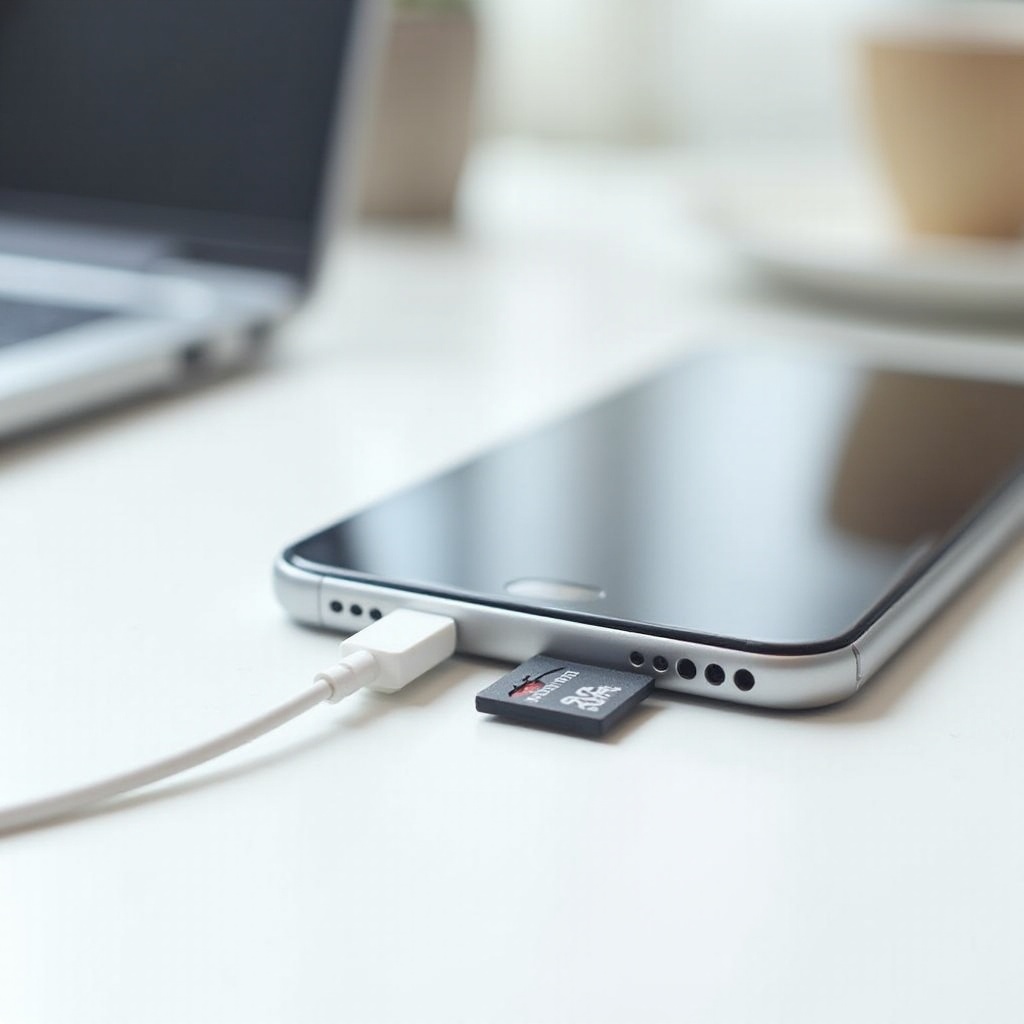
Can You Really Use a Memory Card With an iPhone?
Many iPhone owners still believe they cannot use memory cards at all. That used to be almost true, but recent versions of iOS now support external storage in a practical way. Understanding what is possible and what is not will help you avoid disappointment and pick the right memory card adapter for iPhone.
How iPhone Handles External Storage in 2024
Modern iPhones running recent iOS versions can read and write to external storage devices such as SD cards, microSD cards, and USB drives. You access these devices through the Files app. From there, you can:
- Copy files between iPhone and the memory card
- Open documents, photos, and videos directly from the card
- Move large items off your phone to free space
However, you cannot install apps on external storage. iPhone still keeps apps and system files on internal memory only. External storage works best for media and documents, not for core system tasks.
Lightning vs. USB-C iPhones: What Changes
Current iPhones use two port types:
- Lightning port: common on many slightly older and some current models
- USB-C port: present on the latest iPhone models
Lightning iPhones usually need specific Lightning-based card readers designed for iOS. USB-C iPhones can use a wider range of USB-C hubs and card readers, often the same ones used with laptops and tablets. USB-C tends to provide faster transfer speeds and more power for accessories, which matters if you handle large files or use multi-port hubs.
Before you buy a memory card adapter for iPhone, confirm which port your phone has and choose an accessory built for that connector.
Expanding Storage vs. Offloading Files
A memory card adapter for iPhone does not expand internal storage the way a built-in microSD slot does on some Android phones. Instead, it gives you a convenient place to:
- Offload large files when your iPhone storage gets full
- Store project-based media like video clips or photo shoots
- Keep copies of files that you do not need on your phone all the time
Think of external storage as a flexible extension for your files rather than a permanent upgrade to your iPhone capacity. Once you understand this difference, it is easier to pick an adapter that fits your workflow instead of expecting it to replace a higher-capacity phone.
With the basics clear, the next step is to understand the types of memory card adapters you can choose from.
Types of Memory Card Adapters for iPhone
Not all memory card adapters work the same way. Some are tiny, single-purpose readers, while others are powerful hubs or wireless devices. Your ideal choice depends on whether you are a casual user, a traveler, or a content creator.
Direct Lightning or USB-C to SD/MicroSD Card Readers
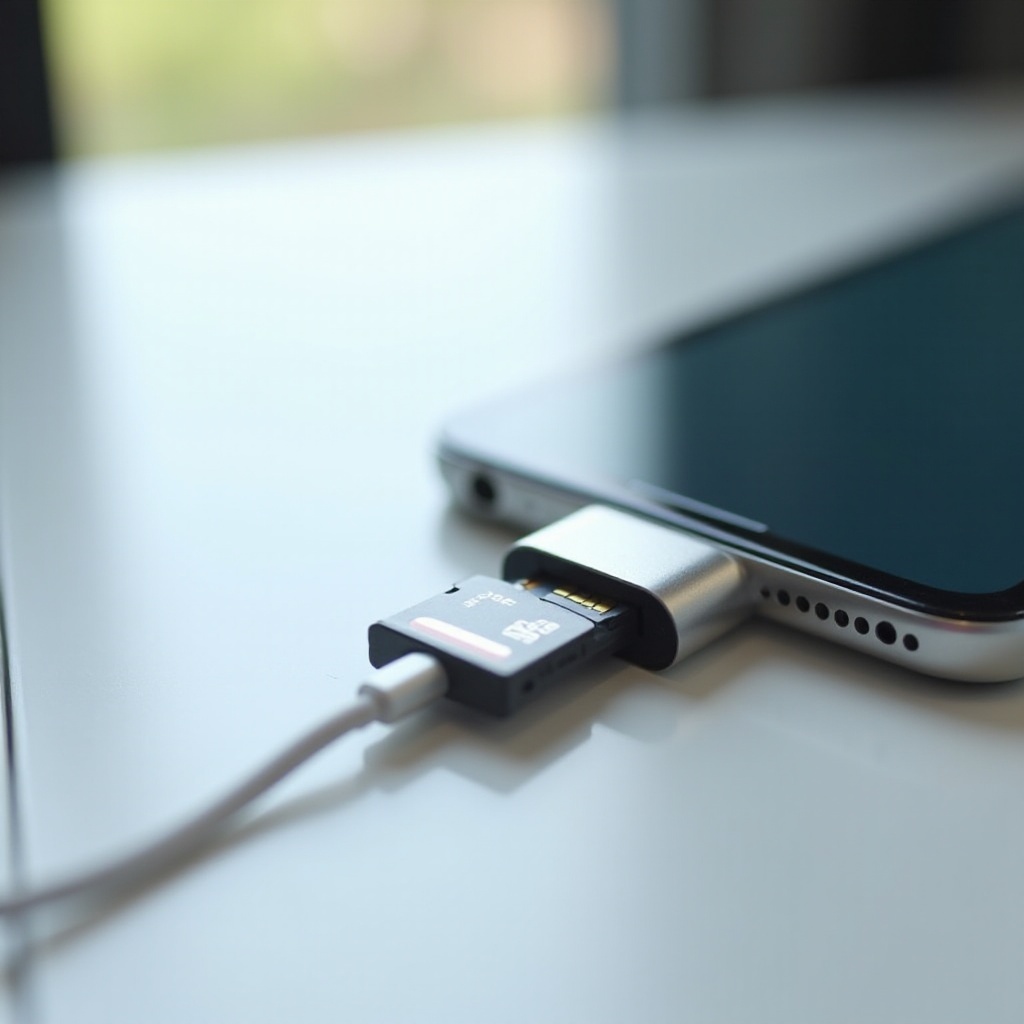
Direct card readers are the simplest option. They plug straight into your iPhone and offer one or two card slots:
- Lightning to SD or microSD readers for Lightning iPhones
- USB-C to SD or microSD readers for USB-C iPhones
They are compact, simple to use, and usually affordable. You insert your SD or microSD card, open the Files app, and access your media. This type is ideal if you mainly want to import photos and videos from a camera or move a few large files to clear space.
Multi-Port USB-C Hubs With SD and MicroSD Slots
Multi-port hubs work with USB-C iPhones and typically include:
- SD and microSD card slots
- USB-A and additional USB-C ports
- HDMI or DisplayPort for external displays
- Sometimes Ethernet or audio ports
These hubs turn your iPhone into a more capable workstation. You can connect card readers, external SSDs, keyboards, and monitors all through one hub. They are great for creators who edit video on their iPhone or move files between multiple devices, such as cameras, drives, and laptops.
Wireless Memory Card Readers and Portable Drives
Wireless card readers create their own Wi-Fi network that your iPhone can join. The usual process is:
- Insert a memory card into the wireless reader.
- Turn on the reader and connect your iPhone to its Wi-Fi network.
- Use a companion app or web interface to move files between the card and your phone.
Some portable drives combine Wi-Fi with built-in storage and SD or microSD slots. These devices are useful when several phones and tablets need access to the same memory card or when you do not want to plug any cable into your iPhone.
Pros and Cons of Each Adapter Type
Each type of memory card adapter for iPhone offers trade-offs:
- Direct readers
- Pros: Small, light, simple setup, often inexpensive.
-
Cons: Limited ports, can be slower, usually serves only one device at a time.
-
Multi-port hubs
- Pros: Very versatile, more ports, better for USB-C iPhones and complex workflows.
-
Cons: Bulkier in a bag, higher cost, may require external power.
-
Wireless readers
- Pros: No physical connection to iPhone, easy multi-device access, flexible placement.
- Cons: Slower than wired connections, depend on battery power, require extra app setup.
Once you know which type fits your style, you still need to look closely at compatibility and performance specs. That is where key features become important.
Key Features to Look For in a Memory Card Adapter
Two adapters can look similar but behave very differently once you connect them to an iPhone. Paying attention to compatibility, supported formats, and speed will help you choose a memory card adapter for iPhone that works smoothly instead of causing frustration.
iPhone and iOS Compatibility Checklist
Before you purchase any adapter, confirm these points:
- Port type: Make sure the adapter uses Lightning or USB-C to match your iPhone.
- iOS version: Check that the adapter supports recent iOS versions. Many makers list specific versions.
- Certification: For Lightning devices, MFi (Made for iPhone) certification usually improves reliability.
Review the product description to see that iPhone and iOS support are clearly mentioned. Avoid generic adapters that only list computers or Android devices with no reference to iOS.
Supported Card Formats and Maximum Capacities
Most adapters support:
- SD, SDHC, SDXC cards
- microSD, microSDHC, microSDXC cards
However, capacity limits can vary. Some budget readers handle up to 256GB, while others support 512GB or 1TB cards. Modern iPhones can use large cards when they are formatted correctly, usually in exFAT for capacities above 32GB.
If you shoot a lot of 4K or high frame-rate video, choose an adapter and card combination that supports high capacities so you do not run out of space on the card itself.
Transfer Speeds and Performance Considerations
Speed matters when you are moving large files. To avoid bottlenecks, look at:
- Card rating: UHS-I vs. UHS-II and speed classes like V30, V60, or V90.
- Adapter interface: USB 3 speeds are faster than USB 2; USB-C usually beats Lightning.
- Real-world reviews: User feedback often reveals if an adapter underperforms.
For basic photo backups, almost any decent adapter will work. For 4K or ProRes workflows, combine a fast card with a high-speed USB-C adapter to cut transfer times and keep your projects moving.
Power, Pass-Through Charging, and Portability
Some adapters draw more power than the iPhone can comfortably supply:
- Simple single-slot readers often work fine with iPhone power alone.
- Multi-port hubs and wireless readers may need extra power during heavy use.
If you plan long transfers or use several accessories at once, look for an adapter or hub with pass-through charging. This lets you charge the iPhone while using the adapter, so you do not run out of battery mid-transfer. Also consider size and weight; creators in the field often prefer a small dedicated reader in their pocket rather than a heavy hub in their bag.
Once you know what features matter, you can match specific adapter styles to different user needs.
Best Memory Card Adapter Options for iPhone in 2024
The best memory card adapter for iPhone depends on how you use your phone. A casual user who wants simple backups does not need the same hardware as a filmmaker working with large ProRes files. Thinking in terms of user types makes it easier to narrow your choices.
Best Overall Memory Card Adapter for Most iPhone Users
Most iPhone users want a reliable way to move photos, videos, and documents without dealing with complex hubs. For this group, a straightforward Lightning or USB-C to SD/microSD card reader is ideal.
Look for:
- A single or dual card slot that supports SD and microSD.
- Clear iPhone and iOS compatibility in the product description.
- Solid build quality and plenty of positive user reviews.
This kind of adapter offers enough speed to handle typical 1080p and 4K clips, vacation photos, and everyday files without extra clutter.
Best High-Speed Adapter for Creators and Photographers
Content creators and photographers often move huge files. They benefit from:
- USB-C card readers with UHS-II support for higher throughput.
- Strong connectors that resist wear from frequent use.
- Stable performance during long transfers, especially with large RAW or high-bitrate video files.
Pair these readers with high-quality UHS-II SD cards or fast microSD cards. This setup can significantly reduce import and offload times, which is important when you work on tight deadlines or shoot all day.
Best Compact Budget Adapter for Everyday Use
If you are mainly interested in offloading photos or backing up a few videos and you do not want to spend much, a compact budget adapter can do the job.
When choosing a budget option:
- Pick a small, single-slot Lightning or USB-C reader.
- Check current reviews for comments about iOS recognition and connection stability.
- Avoid adapters with many negative reports of random disconnects or card errors.
You might sacrifice some transfer speed or extra features, but you will still gain an affordable way to relieve your iPhone storage pressure.
Best Multi-Port Hub for Travel and Remote Work
Remote workers and digital nomads often rely on their iPhone as a mobile computer. A USB-C hub with card slots can be a powerful tool here. Useful features include:
- SD and microSD card slots for cameras and drones.
- USB-A ports for older accessories and flash drives.
- HDMI output for connecting to hotel TVs, monitors, or projectors.
- USB-C power delivery for charging while using the hub.
This type of adapter makes it easy to move files between multiple devices and present work on bigger screens, all while keeping your iPhone at the center of your setup.
Best Wireless Adapter for Multi-Device Households
Families and small teams often share photos and videos between different phones, tablets, and laptops. In this situation, a wireless memory card reader or Wi-Fi-enabled portable drive can be more convenient than a wired adapter.
Look for:
- iOS-compatible apps or browser-based access.
- Dual-band Wi-Fi for more stable and faster connections.
- A decent battery life so the device can back up several phones before charging.
Everyone can connect to the same memory card over Wi-Fi to upload or download files, which is great for group trips or collaborative projects.
After choosing the adapter that fits your needs, the next step is learning how to set it up and use it without errors.
How to Use a Memory Card Adapter With Your iPhone
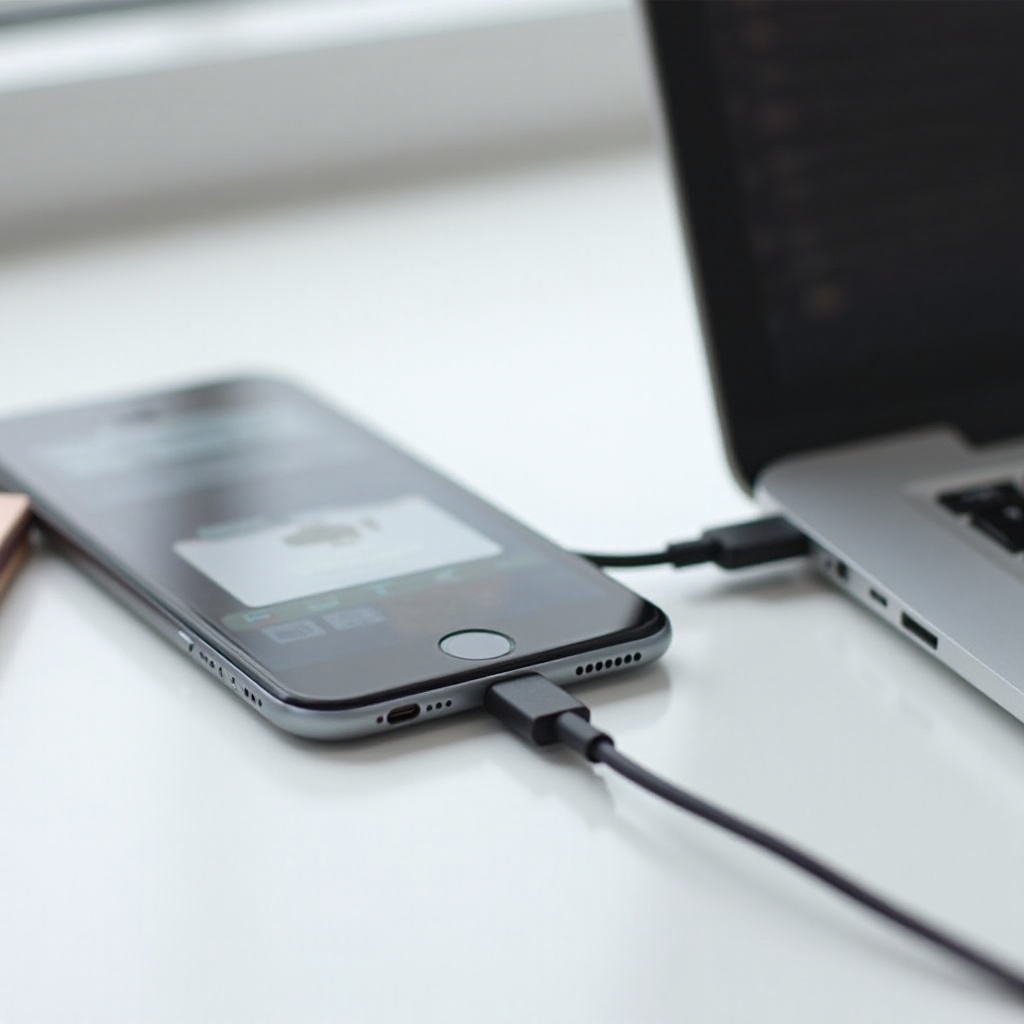
Setting up a memory card adapter for iPhone is usually simple, but following a clear process reduces the risk of problems or corrupted files. The steps differ slightly between Lightning and USB-C models, yet the basic idea stays the same.
Step-by-Step Setup for Lightning iPhones
- Plug the Lightning memory card adapter into your iPhone.
- Insert the SD or microSD card into the adapter, making sure it clicks into place.
- Unlock your iPhone and open the Files app.
- Tap ‘Browse’ at the bottom of the screen.
- Look under ‘Locations’. You should see the memory card listed by name or as a generic external drive.
- Tap the card to view its folders and files.
If nothing appears, unplug and reconnect the adapter, then reopen Files. If the card still does not show, test the card in another device to make sure it works.
Step-by-Step Setup for USB-C iPhones
- Connect the USB-C adapter or hub directly to your iPhone.
- Insert the SD or microSD card into the appropriate slot.
- Open the Files app and tap ‘Browse’.
- Check the ‘Locations’ section for the card or external drive.
- Tap it to open and navigate through the contents.
If you use a multi-port hub, start with only the card inserted to keep things simple. Some hubs work more reliably when you connect external power to the USB-C power port, particularly during long transfers or when several accessories are attached.
Using the Files App to Move Photos, Videos, and Documents
To copy files from the card to your iPhone:
- In Files, open the memory card under ‘Locations’.
- Navigate to the folder containing the files you want.
- Tap ‘Select’ and choose the files or folders.
- Tap the ‘More’ button (three dots) and select ‘Copy’.
- Go to ‘On My iPhone’ or ‘iCloud Drive’.
- Tap and hold an empty area, then tap ‘Paste’.
To offload files from your iPhone to the memory card:
- Open ‘On My iPhone’ or another storage location in Files.
- Tap ‘Select’ and choose the items to move.
- Tap ‘Move’ or ‘Copy’, depending on whether you want a second copy.
- Navigate back to the memory card in ‘Locations’.
- Choose or create a folder and tap ‘Move’ or ‘Paste’.
This process lets you clear space on your iPhone while keeping copies of important files on external storage.
Common Error Messages and Quick Fixes
You might encounter a few common errors:
- ‘This accessory uses too much power
-
Fix: Disconnect any extra accessories, use a powered hub, or connect a charger to the adapter if it supports pass-through charging.
-
Card not showing in Files
-
Fix: Check the card in another device, reformat the card to exFAT or FAT32 (after backing up data), then try again. Also ensure the adapter is fully inserted.
-
‘Content unavailable’ or unexpected file corruption
- Fix: Avoid unplugging the adapter while files are copying. Replace low-quality cards if issues repeat. Keep your iPhone and adapter firmware (if applicable) up to date.
Once you can reliably connect and transfer files, you can build practical workflows around photos, videos, and backups.
Workflows: Photos, Videos, and Backups on External Storage
A memory card adapter becomes far more valuable when it fits your daily or travel workflow. Whether you are a casual shooter or a professional creator, a clear routine helps you stay organized and avoid lost files.
Importing Photos and Video From Cameras to iPhone
If you shoot with a DSLR, mirrorless camera, or drone and prefer to edit on your iPhone, a card adapter streamlines your workflow:
- Power off the camera and remove the SD or microSD card.
- Insert the card into your iPhone adapter.
- Open the Files app or the Photos app, depending on your import method.
- Select the images or clips you want to import.
- Copy them to ‘On My iPhone’ or directly into the Photos library.
This lets you review, edit, and share your best shots on the go, without carrying a laptop. Many creators use this process during travel or events to post content in near real time.
Offloading 4K and ProRes Video From iPhone to Memory Card
High-quality video recording is one of the fastest ways to fill iPhone storage. A memory card adapter for iPhone gives you a safety valve:
- Connect the adapter and insert a fast, high-capacity card.
- Open Files and locate your large video files under ‘On My iPhone’.
- Use ‘Select’ and ‘Move’ or ‘Copy’ to send them to a folder on the card.
- Verify the files on the card before deleting them from your phone.
This workflow is especially helpful after long shoots or when you use formats like 4K, high frame rates, or ProRes that create huge files.
Editing Media From External Storage: When It Works Best
Some apps let you open and edit files directly from external storage, but performance depends on file size, card speed, and app design. For smoother editing:
- Use a fast card and a high-speed USB-C adapter, especially on USB-C iPhones.
- Keep only active project files on internal storage and leave archives on memory cards.
- Work with proxy or lower-resolution copies when full-resolution editing becomes sluggish.
This hybrid approach balances speed, storage, and battery life, letting you handle bigger projects while staying mobile.
Travel and Backup Strategies Without a Laptop
When you travel without a laptop, a memory card adapter for iPhone can act as the center of your backup strategy:
- Back up camera footage to your iPhone, then offload to a second card or external drive.
- Move each day’s photos from your iPhone to a dedicated travel card to clear space.
- Keep at least two copies of critical files in separate places, such as one on the iPhone and one on a card.
A simple routine might be:
- At the end of each day, connect your adapter.
- Offload all new photos and videos from your iPhone and camera to a memory card.
- Verify that files open correctly from the card.
- Only then delete unneeded items from your iPhone to free space.
To get the most from this approach, you also need to think about security, reliability, and long-term protection.
Security, Reliability, and Long-Term Tips
A memory card adapter for iPhone handles your personal and professional data, so reliability matters as much as speed. Good hardware and smart habits reduce the risk of lost or corrupted files.
Avoiding Fake or Unreliable Memory Cards and Adapters
Cheap or counterfeit memory cards often:
- Claim a larger capacity than they actually provide.
- Fail or slow down dramatically after light use.
- Corrupt data silently, leaving you with unreadable files.
To stay safe:
- Buy from trusted brands and reputable sellers.
- Check user reviews, ideally from other iPhone owners.
- Test new cards by copying sample files and verifying them on another device.
Apply the same caution to adapters. Poor build quality can cause loose ports, unstable connections, and random disconnects during transfers.
Preventing Data Corruption and Card Failure
You can greatly reduce the risk of data loss by following a few simple habits:
- Avoid removing the adapter while files are copying.
- Do not bend or stress the connector while it is plugged into the iPhone.
- Store cards in protective cases, away from water, dust, and extreme temperatures.
- Periodically back up and then reformat cards in a camera or computer to refresh the file system.
These habits extend the life of your cards and keep your memory card adapter working more reliably.
Using Memory Card Adapters in a Broader Backup Strategy
A solid backup plan usually combines several layers:
- Local backups: memory cards, external SSDs, or hard drives.
- Cloud backups: iCloud, Google Drive, Dropbox, or similar services.
- Redundancy: at least two copies of important files in different locations.
Use your memory card adapter for iPhone as one link in this chain. Offload large files to cards, then sync irreplaceable files such as family photos or client work to a cloud account whenever you have a stable internet connection. This way, even if a card is lost or damaged, your data still lives elsewhere.
By combining a good adapter, high-quality cards, and smart backup habits, you can keep your iPhone storage under control and your data safe over the long term.
Conclusion
A memory card adapter for iPhone gives you more control over storage, media workflows, and backups without forcing you to buy a new device. By understanding how iOS handles external storage, choosing the right type of adapter, and following clear workflows for importing, offloading, and backing up files, you can avoid full-storage warnings and keep your data organized.
Whether you are a casual user looking to back up vacation photos or a creator handling 4K and ProRes video, the right adapter and routine can transform how you use your iPhone. Pair reliable hardware with simple, consistent backup habits, and your iPhone becomes a far more flexible tool for work, travel, and creativity.
Frequently Asked Questions
Can a memory card adapter increase my iPhone’s internal storage?
No. A memory card adapter does not increase internal storage. It adds external storage that you access through the Files app. You can move photos, videos, and documents to a memory card to free space, but apps and system files still stay on your iPhone’s built-in memory.
Do I need a special app to access files on a memory card with my iPhone?
In most cases, you do not need a special app. The built-in Files app lets you see, copy, move, and open files on supported memory cards. Some wireless readers and advanced adapters provide companion apps with extra features, but for basic transfers and management, the Files app is usually enough.
Will my memory card adapter still work with future iPhone and iOS updates?
Most well-made adapters continue working across new iOS versions, especially if they use standard protocols and are clearly marked as compatible with iPhone. To reduce risk, choose reputable brands and avoid very old or unbranded accessories. Before a major iOS upgrade, check the adapter maker’s notes or recent user reviews to confirm ongoing compatibility.