
Introduction
You unlock your iPhone or pull it out of your pocket and suddenly YouTube is blasting audio on its own. No tap, no warning, just random playback. If YouTube starts playing by itself on your iPhone, you are not alone. Many users report the app waking up on the Lock Screen, over Bluetooth in the car, or even when the screen is off.
This behavior can come from several places: YouTube’s own autoplay features, iOS media controls, Bluetooth auto-resume, or browser tabs in Safari or Chrome. Sometimes, it is a bug in the app or iOS. Other times, it is the result of a small setting you switched on without noticing.
This guide explains why YouTube starts playing by itself on iPhone and walks you through practical, step-by-step fixes. You will learn how to control autoplay, stop random background play, and prevent your phone from embarrassing you with surprise videos again.
Why YouTube Starts Playing By Itself on iPhone
Before you start turning off random settings, it helps to understand what is actually happening when YouTube auto-plays. iOS has a media system that any audio or video app can use. YouTube ties into this system so you can control playback from the Lock Screen, Control Center, your car, or headphones. That convenience can sometimes backfire.
Common Scenarios iPhone Users Report in 2024
Most users describe one or more of these situations:
- YouTube starts playing as soon as you connect your iPhone to Bluetooth in the car.
- A YouTube video resumes on the Lock Screen after you bump the power button.
- YouTube audio starts from your pocket when the screen is off.
- A video begins to play again when you open Control Center or swipe on a notification.
- You hear audio even though you thought you closed the app.
These cases might look random, but they usually follow a pattern once you understand triggers like Bluetooth, Lock Screen widgets, and browser tabs.
Is It a Bug, a Feature, or a Misconfiguration?
The cause usually falls into one of three buckets:
- Feature behavior: Autoplay, background play (with YouTube Premium), Picture-in-Picture (PiP), and Lock Screen controls are all intended features that can look like the app starting by itself.
- Misconfiguration: A setting such as Autoplay, Handoff, or certain notifications may be turned on without you realizing how it behaves.
- Bug or glitch: Sometimes a specific version of the YouTube app or iOS mismanages media sessions and causes stuck playback or ghost sessions.
Your goal is to turn off or adjust these features so they work on your terms instead of surprising you.
How iOS Handles Media Apps Like YouTube
iOS treats YouTube much like Apple Music, Spotify, or Podcasts:
- It keeps a Now Playing session in memory for quick resume.
- It exposes that session on the Lock Screen and in Control Center.
- It lets external devices (car systems, Bluetooth headphones) send play and pause commands.
If YouTube is the last media app you used, many of these play commands will wake YouTube, not other apps. That is why the problem often looks like YouTube is haunted when in fact your car or earbuds are telling the phone to play.
Now that you know the basic mechanics, start with simple checks to rule out obvious causes before you change deeper settings.
Quick Checks Before Changing Any Settings
Many YouTube starts playing by itself iPhone issues come from a stuck media session or another app, not YouTube itself. These quick checks can save you time and help you narrow down the real trigger.
Confirm It’s Really the YouTube App (Not Safari or Another App)
First, make sure YouTube itself is responsible:
- Open the App Switcher by swiping up from the bottom and pausing, or double-pressing the Home button on older models.
- Look for YouTube. If you see Safari, Chrome, or another app with YouTube open in a tab, that may be the actual source.
- Close any app that could be playing a YouTube video by swiping it up off the screen.
If the audio stops when you close Safari or another browser, your issue is likely a web autoplay problem, which we will tackle later.
Force-Close YouTube and Restart Your iPhone
A stuck media session can keep trying to resume until you fully quit the app:
- Open the App Switcher.
- Swipe up on the YouTube app to force-close it.
- Restart your iPhone:
- Press and hold the side button and a volume button, then slide to power off.
- Wait 10–15 seconds, then turn it back on.
After the restart, use your phone as usual and see if random playback returns. If it does, move on to the next check.
Test in Airplane Mode or with Wi-Fi Turned Off
This step helps you see if the trigger comes from network-related features:
- Turn on Airplane Mode, or turn off both Wi-Fi and cellular data.
- Keep the phone idle for a while and watch for random playback.
If the issue disappears without a network connection, a remote trigger such as a notification, web tab, or network glitch is likely involved. That clue will help you focus on the right settings in later sections.
With the obvious checks out of the way, you can now focus on YouTube’s own settings inside the app, which are common culprits.
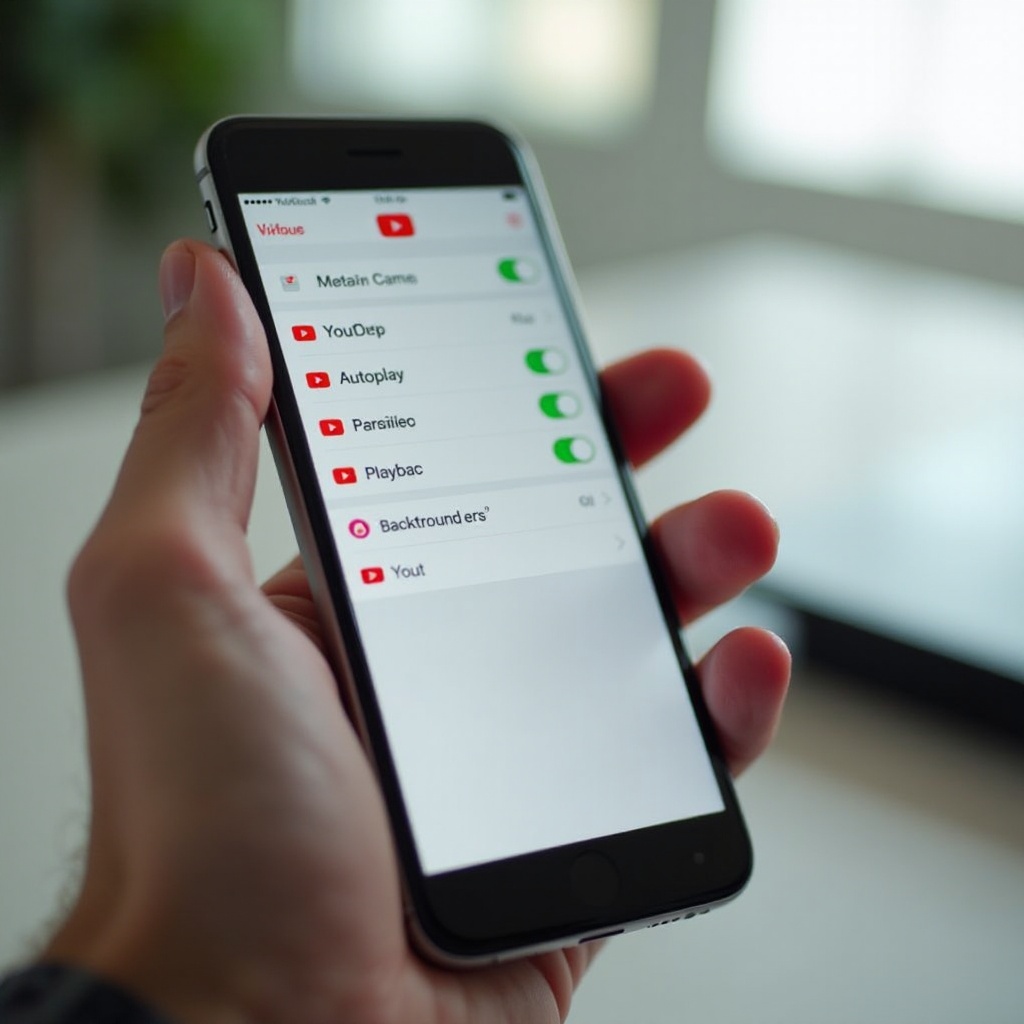
Turn Off YouTube Autoplay and Background Features
YouTube has several autoplay and background features that can feel like the app is starting on its own. Disabling or limiting them often brings immediate relief and gives you more control over when videos start.
Disable Autoplay for Next Video in the YouTube App
The main Autoplay toggle automatically queues and plays the next video, even if you only meant to watch one:
- Open the YouTube app.
- Start playing any video.
- Look for the Autoplay switch near the top of the Up Next list.
- Turn Autoplay off.
Also check your general autoplay preferences:
- Tap your profile icon in YouTube.
- Go to Settings > Autoplay.
- Turn off any options that continue playback automatically.
This stops YouTube from chaining videos when you only meant to watch one clip.
Stop Background Play and Picture-in-Picture Behavior
If you use YouTube Premium, the app can keep playing audio when you leave it or lock your screen. That can easily be mistaken for the app starting on its own.
To manage background play inside YouTube:
- Open YouTube and tap your profile icon.
- Go to Settings > Background & downloads.
- Under Background play, choose Off or Headphones or external speakers only.
To control Picture-in-Picture on iOS:
- Go to Settings > General > Picture in Picture.
- Turn off Start PiP Automatically if you do not want videos to keep playing in a floating window.
These changes help ensure YouTube stops when you leave the app instead of quietly running behind other screens.
Log Out of Your Account and Test in a Clean State
Sometimes account-level settings or experiments cause strange behavior, especially if you use the same account across many devices:
- Open YouTube.
- Tap your profile icon and select Sign out.
- Use the app signed out for a while and see if auto-play issues continue.
If autoplay stops when you are signed out, something about your account preferences, history, or experimental features may be at fault. Later, when you sign back in, keep Autoplay disabled and avoid reenabling features you do not need.
Once you have adjusted YouTube itself, the next step is to control how the Lock Screen and Control Center interact with the app, because many surprise playbacks begin there.
Stop YouTube From Playing on the Lock Screen
The Lock Screen and Control Center show media controls for your last used app. One accidental tap can restart YouTube, even in your pocket or bag.
Clear the Now Playing Widget on the Lock Screen
If you see YouTube media controls on the Lock Screen, iOS still considers it the active media app:
- Unlock your iPhone.
- Open any other media app, such as Apple Music or Podcasts.
- Play a short track, then pause it.
This replaces YouTube as the active media app. Now YouTube is less likely to resume when a stray play command comes from headphones or your car.
Remove Stuck YouTube Sessions in Control Center
Sometimes the Control Center player gets stuck on a YouTube session and keeps trying to resume it:
- Swipe down from the top-right corner (or up from the bottom on older iPhones) to open Control Center.
- If YouTube appears in the Now Playing panel, tap pause.
- If an X or close gesture is available, clear the session or switch to another app by playing and pausing a different source.
If the player disappears or switches to another app, that stuck YouTube session should no longer restart on its own.
Adjust Lock Screen and Notification Settings to Reduce Accidental Taps
You can also reduce how often YouTube touches the Lock Screen:
- Go to Settings > Notifications > YouTube.
- Change the style to Banners only, or turn off Lock Screen if you do not need YouTube alerts there.
- Disable Sounds if loud notifications push you to tap quickly and accidentally resume videos.
You may also set a strict Focus mode, such as Do Not Disturb, during meetings or work. This hides many visual cues that might prompt quick taps on YouTube notifications.
With the Lock Screen under control, the next common source of auto-play is Bluetooth and CarPlay, especially when you get into your car.
Fix YouTube Autoplay Triggered by Bluetooth and CarPlay
Many users notice that YouTube starts playing by itself when the iPhone connects to a car stereo or Bluetooth speaker. That happens because these devices often send a play command to the last media app.
How Car Stereos and Headphones Auto-Resume YouTube
Car systems and Bluetooth headphones usually follow a simple pattern:
- They connect to your iPhone.
- They automatically send a Play command.
- iOS passes that command to the last used media app, which may be YouTube.
If YouTube was the last thing you watched, it will start again when you start the car or power on your headset. That can feel like random behavior even though it is a predictable system feature.
Change Settings on Your iPhone for Problem Bluetooth Devices
While iOS does not offer a single system-wide ‘ignore auto-play’ button, you can still reduce the impact:
- Go to Settings > Bluetooth.
- Tap the ‘i’ next to your car or headset.
- If available, disable any Media Audio or similar options you do not need.
- If the device keeps forcing playback, consider forgetting it: tap Forget This Device and re-pair it with custom settings.
You can also use another media app as a buffer. Before connecting to the car, briefly play and pause a silent track in another app so that it becomes the default media target instead of YouTube.
Tweak Auto-Play and Media Settings in Your Car System
Many car stereos and head units have their own auto-play option:
- Check your car’s infotainment menu for Autoplay, Auto start media, or similar terms.
- Turn this feature off if possible.
On CarPlay systems, look in the media or audio section for options that control whether the last media app resumes automatically. Reducing auto-resume at the car level often makes the biggest difference.
Once you tame Bluetooth triggers, it is worth ruling out more unusual causes like ghost touch or hardware issues that can mimic random taps.
Check for Ghost Touch, Screen Issues, and Accessory Problems
If YouTube starts playing by itself even when the phone is resting on a table, your screen or accessories might be sending phantom input.
Test for Ghost Touch on the Display
Ghost touch happens when the screen registers taps or swipes you did not make. To test the display:
- Open a drawing app or Notes with a blank page.
- Lay the phone flat on a table.
- Watch for random marks or movements without touching the screen.
If you see phantom input, your screen may need service. Ghost touch can certainly open YouTube, press play on the Lock Screen, or interact with notifications.
Remove Screen Protectors and Cases as a Trial
Some cheap or poorly aligned screen protectors can:
- Press against the screen edges.
- Create pressure points that register as touches.
Remove the protector and case, clean the screen, and test for a while. If the issue goes away, consider a higher-quality protector or a better-fitting case that does not press on the display.
Inspect Charging Cables, Docks, and Stands That Might Trigger the Screen
Low-quality cables or docks can interfere with the touchscreen when charging:
- Unplug your iPhone from the charger or dock.
- Use it on battery power and see if random playback stops.
If the problem exists only while charging, replace the cable, adapter, or dock with an MFi-certified accessory. This is a simple change that often improves touchscreen stability.
If hardware checks out, the next area to review is deeper iOS settings that influence how media apps behave and resume.
Review iOS Settings That Can Cause Random Playback
Some core iOS features can contribute to YouTube starting on its own. Adjusting them can stabilize media sessions and stop surprise resumes across your Apple devices.
Disable Background App Refresh for YouTube
Background App Refresh lets apps update in the background. Turning it off for YouTube can reduce odd activity and save battery life:
- Go to Settings > General > Background App Refresh.
- Tap Background App Refresh and choose Wi-Fi or Off globally if you prefer.
- In the list of apps, find YouTube and turn it off.
This does not usually control playback itself, but it can reduce the chance of weird background behavior and constant network waking.
Turn Off Handoff and Continuity for Media Apps
Handoff lets apps move between your Apple devices, such as a Mac, iPad, and iPhone. If YouTube or Safari on your other devices starts a video, Handoff could prompt playback on your iPhone:
- Go to Settings > General > AirPlay & Handoff.
- Turn off Handoff to stop cross-device session transfers.
This prevents your iPhone from trying to resume media that started on your Mac, iPad, or other Apple device.
Reset All Settings Without Erasing Your Data
If the issue still persists and you suspect a deep configuration problem, you can reset settings without deleting your data:
- Go to Settings > General > Transfer or Reset iPhone > Reset.
- Choose Reset All Settings.
- Enter your passcode and confirm.
This resets system preferences such as Wi-Fi networks, layout, and some privacy settings but keeps your apps, photos, and files. After the reset, test YouTube before you customize too many settings again, so you can see if the reset helped.
At this stage, if YouTube still behaves oddly, you should also consider the specific version of the app you are using and whether an update or reinstall can help.
Update, Reinstall, or Roll Back From Buggy YouTube Versions
Sometimes a particular YouTube build or outdated iOS version causes unwanted autoplay issues. Keeping both iOS and YouTube updated often fixes them quietly.
Update iOS and YouTube to the Latest Versions
To update iOS:
- Go to Settings > General > Software Update.
- Install any available updates.
To update YouTube:
- Open the App Store.
- Tap your profile icon.
- Scroll to YouTube and tap Update if it is available.
Many playback bugs vanish after the developer ships a new build, so staying up to date is one of the simplest long-term fixes.
Offload and Reinstall the YouTube App to Clear Cache
To clear cached data without losing the app entirely:
- Go to Settings > General > iPhone Storage.
- Scroll to YouTube and tap it.
- Tap Offload App and confirm.
- Then tap Reinstall App.
If problems persist, delete YouTube fully, restart your iPhone, and reinstall it from the App Store. A fresh install removes corrupt data that may be causing strange behavior.
Leave Beta Programs if You’re Using Test Builds
If you joined a YouTube beta via TestFlight, you might be using an experimental build:
- Open the TestFlight app.
- Select YouTube and choose to stop testing.
- Then reinstall the regular version from the App Store.
Beta builds can introduce new autoplay or background features that are not fully stable. Returning to the public version often restores more predictable behavior.
If your YouTube app checks out and you still hear random audio, the source may be a browser tab, so it is time to look at Safari and other browsers.
When YouTube Autoplays in Safari or Other Browsers
Sometimes YouTube starts playing by itself because a browser tab reloads or an embedded video auto-plays on a site. The sound may continue even when Safari is in the background, which makes it look like the main app is to blame.
Disable Video Autoplay for Websites in Safari
Safari lets you control autoplay behavior for websites:
- Open Settings > Safari.
- Scroll down to Settings for Websites.
- Tap Auto-Play.
- Choose Never Auto-Play or Stop Media with Sound.
This limits sites from playing YouTube videos automatically, especially those with video ads or embedded clips.
Close Problem Tabs and Clear Website Data for YouTube
If a specific tab keeps causing issues:
- Open Safari.
- Tap the tabs icon and close all open tabs, especially those with YouTube.
- Go to Settings > Safari > Clear History and Website Data.
- Confirm to clear your browsing history and website data.
This resets many stubborn web sessions that might be silently replaying videos or running scripts in the background.
Test YouTube in a Private or Incognito Window
You can also test in private mode:
- In Safari, tap Tabs > [x] Tabs > Private, then open youtube.com.
- In Chrome, open a New Incognito Tab and visit YouTube.
If autoplay behaves better in private mode, browser extensions, cookies, or your logged-in state in the browser may be part of the issue. Cleaning those up or using private mode for certain sessions can keep YouTube more contained.
If you reach this point and YouTube still starts playing by itself, you may need deeper isolation or help from Apple or Google support.
Advanced Troubleshooting and When to Contact Support
By now, you have tried app settings, iOS controls, hardware checks, and browser changes. If YouTube still auto-plays, it is time to isolate whether the issue is tied to your device, your account, or a hidden system problem.
Test on Another iPhone or Another YouTube Account
This step helps you find out if the problem is device-specific or account-specific:
- Sign into your YouTube account on another iPhone, if possible, and see if autoplay issues follow you there.
- Or create a temporary YouTube account on your current iPhone and test that one in the app.
If only your main account triggers the issue, something about its history, subscriptions, or experiment flags may be involved. If every account has the same problem on your phone, the device or its configuration is more likely to blame.
Record the Issue for YouTube or Apple Support
Support staff can help more when they see the behavior instead of just reading a short description:
- Enable Screen Recording: go to Settings > Control Center and add Screen Recording if needed.
- Reproduce the issue while screen recording is active.
- Save the video and note the exact time, YouTube app version, and iOS version.
You can send this evidence to YouTube support via the app’s Help & feedback section or show it to Apple Support during a chat or store visit. Clear evidence speeds up diagnosis.
When to Consider a Factory Reset or Hardware Diagnosis
As a last resort, if nothing else works:
- Back up your iPhone via iCloud or a computer.
- Perform a factory reset and set up your iPhone as new (at least temporarily) to test without restoring your old settings.
- If ghost behavior persists even on a fresh system with only the YouTube app installed, contact Apple Support or visit an Apple Store for a hardware check.
This process is more work, but it is sometimes the only way to rule out deep system corruption or subtle hardware faults that make your phone behave unpredictably.
Conclusion
When YouTube starts playing by itself on iPhone, the cause usually lies in a mix of autoplay features, iOS media behaviors, Bluetooth auto-resume, or browser tabs. In rarer cases, ghost touch or hardware issues are involved. By working through basic checks, adjusting YouTube’s autoplay and background settings, cleaning up Lock Screen and Bluetooth triggers, and fine-tuning iOS and Safari options, you can almost always stop random playback.
Start with the simplest fixes: disable Autoplay, clear the Now Playing widget, and update both iOS and YouTube. Then move to more advanced steps only if needed. If the issue persists, test other accounts and devices, then contact support with a clear recording of the problem. With the right settings in place, your iPhone will stop surprising you with sudden videos and sound, and YouTube will behave the way you expect — only when you actually press play.
Frequently Asked Questions
Why does YouTube start playing by itself on my iPhone when it’s in my pocket?
This usually happens because the Lock Screen or side buttons get pressed in your pocket. The Lock Screen media controls can revive the last app that played audio or video, which is often YouTube. In some cases, Bluetooth devices or CarPlay send a play command when they connect, and your iPhone hands that to YouTube. To reduce this, disable YouTube Autoplay, clear the Now Playing widget by playing and pausing another app, and tighten your Lock Screen notification settings for YouTube so there are fewer controls to accidentally tap.
Can I stop YouTube from starting automatically when my iPhone connects to my car?
You can’t fully block all auto-play commands from every car, but you can reduce them. Turn off any Autoplay or Auto start media options in your car’s infotainment settings. On your iPhone, forget and re-pair the Bluetooth connection and disable any media options you don’t need. Also, make sure YouTube isn’t the last media app you used before getting in the car—play a short track in another app and pause it, so that app becomes the default instead of YouTube.
Is there a way to completely stop YouTube from running in the background on iPhone?
You can get very close. Turn off Autoplay inside YouTube and, if you use YouTube Premium, set Background play to Off. In iOS, disable Picture in Picture auto-start and turn off Background App Refresh for YouTube. Then make a habit of force-closing the app when you finish watching. While iOS still keeps a light media session available for the Lock Screen, these steps prevent YouTube from actively playing audio or video in the background unless you explicitly choose to.