
Introduction
Many iPhone users tap ‘Download’ or ‘Save’ and then have no idea where the file went. You look in your Photos app, check your Home Screen, even search your email again. Still nothing. That simple question — ‘where does downloads go in iPhone?’ — suddenly turns into a small mystery.
The confusion comes from how iOS handles files. On many phones, there is a clear ‘Downloads’ folder. On iPhone, downloads may go to the Files app, to Photos, or stay inside the app that downloaded them. The good news: once you understand the logic behind it, you can find almost any file in seconds.
This guide explains, step by step, where different kinds of downloads go on your iPhone in 2024. You will learn how Safari, Chrome, Mail, Messages, streaming apps, and cloud apps store files. You will also learn how to search, organize, and fix the most common problems, so you stop losing downloads for good.
How iPhone Handles Downloads Differently from Other Phones
Before you jump into folders and settings, it helps to know why iPhone downloads feel different from downloads on other devices. Apple builds iOS so that most users do not need to manage files at all. Apps often ‘own’ their files, and you rarely see a shared file system like you do on a computer.
This design is good for security and simplicity, but it also means downloads may not land where you expect. Many people expect a single universal ‘Downloads’ folder. Instead, iPhone uses a mix of:
- The Files app
- The Photos app
- Individual apps’ internal storage
Once you know which app handled the download, you can usually guess where the file is. That foundation will make the next section on the Files app easier to follow.
Why There’s No Obvious ‘Downloads’ Folder on iPhone
On a Windows PC or Android phone, a ‘Downloads’ folder sits front and center. On iPhone, there is no system-wide Downloads icon on the Home Screen.
The reason is that iOS keeps things app-focused. When you download a song in Spotify, Apple assumes you will look in Spotify for it. When you download a PDF from Safari, Apple expects you to use the Files app. The system does have a Downloads folder, but it lives inside the Files app, not on the Home Screen.
The Role of the Files App in iOS 17 and iOS 18
The Files app is Apple’s built‑in file manager in iOS 17 and iOS 18. Think of it as your Finder or Explorer on iPhone. Many downloads from browsers, email, and chat apps end up here.
In Files, you see:
- ‘On My iPhone’ (stored locally on the device)
- ‘iCloud Drive’ (stored in your iCloud account)
- Third‑party cloud locations like Google Drive or Dropbox
The system Downloads folder usually sits under ‘On My iPhone’ or ‘iCloud Drive.’ That folder is your main starting point when you look for downloaded files. Now that you understand why the Files app matters, let's look at how to use it as your main download hub.
The Files App: Your Main Downloads Hub on iPhone
Now that you know the Files app plays a key role, you can use it as your first stop when asking ‘where does downloads go in iPhone?’ Whenever you download documents, PDFs, ZIP files, or other file types from Safari, Mail, or other apps, those files often land here.
If you get into the habit of opening Files first and checking the Downloads folder, you will find most general downloads without much effort. Understanding its layout and locations will save you a lot of time.
Where to Find the Files App and Basic Layout
You can find the Files app by:
- Swiping down on the Home Screen to open Spotlight.
- Typing ‘Files’ in the search bar.
- Tapping the blue folder icon labeled ‘Files.’
Inside Files, the bottom tabs usually show:
- Browse
- Recents
Tap ‘Browse’ to see locations such as ‘On My iPhone,’ ‘iCloud Drive,’ and any connected cloud apps. You can also see the Downloads folder, either under ‘On My iPhone’ or ‘iCloud Drive,’ depending on your settings.
‘On My iPhone’ vs. ‘iCloud Drive’ Explained
On My iPhone’ means the file sits directly on your device. It will not sync automatically to your other Apple devices.
iCloud Drive’ means the file is in your iCloud storage and can sync to your other Apple devices that use the same Apple ID. If you save downloads to iCloud Drive, you can also access them from a Mac or iPad.
Both locations can contain a Downloads folder. The Safari settings you choose decide which one your browser uses by default.
Understanding the Default Downloads Folder
The default Downloads folder is a regular folder that iOS uses as the main target for browser downloads. When you tap ‘Download’ in Safari and do not change anything, the file goes into this folder.
You can open the Downloads folder by:
- Opening Files.
- Tapping ‘Browse.’
- Selecting ‘On My iPhone’ or ‘iCloud Drive.’
- Tapping ‘Downloads.’
If you lose track of a file, this is the first place to check. Next, we'll look at how Safari interacts with this folder and how you can control where browser files go.
Where Safari Downloads Go on iPhone
Safari is the default browser on iPhone, so it handles a lot of downloads. Understanding Safari's behavior will solve a big part of the ‘where does downloads go in iPhone’ puzzle.
Safari has its own download manager, and it links directly to the Downloads folder in the Files app. You can see recent downloads while browsing, then find them later through Files.
Using the Safari Download Manager (Download Arrow Icon)
When you download a file in Safari:
- Tap a link to a document, PDF, or file.
- Safari shows a small arrow icon near the address bar.
- The arrow fills in while the file downloads.
- Tap the arrow to see a list of recent downloads.
From this download list, you can:
- Open the file directly.
- Show it in the Files app.
- Clear the list if you no longer need quick access.
This manager is useful right after you download something and want to open it quickly.
Finding Safari Downloads Later in the Files App
After some time, the Safari download list clears out, but the files still live in your Downloads folder. To find them later:
- Open the Files app.
- Go to ‘Browse.’
- Tap ‘On My iPhone’ or ‘iCloud Drive,’ based on your Safari setting.
- Open the ‘Downloads’ folder.
You can also tap ‘Recents’ at the bottom of the Files app to see the latest downloaded files if you do not remember the folder.
Changing Safari’s Default Download Location in Settings
You can change where Safari saves downloads:
- Open the Settings app.
- Scroll down and tap ‘Safari.’
- Tap ‘Downloads.’
- Choose ‘iCloud Drive,’ ‘On My iPhone,’ or ‘Other…’ to pick a custom folder.
If you often lose downloads, pick a single location and always remember it. Many people choose ‘On My iPhone’ > Downloads for easy offline access. If you use Chrome or another browser, you will see a similar pattern, but with a few small differences.
Where Chrome and Other Browser Downloads Go
Not everyone uses Safari. If you use Chrome, Firefox, or another browser, their downloads also tend to go into the Files app. They may store files in their own folders, but the logic is similar.
Because there is no system-wide Downloads icon, you must know how each browser saves files so you can find them again. Once you see how Chrome and others behave, you will be able to apply the same idea to photos, videos, and email attachments.
How Chrome Saves Files on iPhone
When you download a file in Chrome on iPhone:
- Tap the file link.
- Chrome shows a small download bar or icon.
- When the download finishes, you can tap ‘Open in…’ or ‘Download.’
Chrome usually saves files into:
- ‘On My iPhone’ > ‘Chrome’
- Or the standard Downloads folder, depending on the file and options you choose.
You can open Files, then browse to ‘On My iPhone’ and look for a ‘Chrome’ folder or check the Downloads folder.
Locating Files Downloaded from Other Browsers
Other browsers, like Firefox or Edge, often:
- Save to their own folder in ‘On My iPhone’
- Or hand the file to the Files app when you choose ‘Save to Files’
If you use a non‑Safari browser and cannot find a file:
- Open Files.
- Tap ‘Browse.’
- Check ‘On My iPhone’ for a folder with the browser's name.
- Also check the Downloads folder and the Recents tab.
This approach works for most third‑party browsers. Browser downloads usually give you documents and archives, but what about pictures and videos? The next section covers how iPhone handles media downloads.
Where Downloaded Photos and Videos Go on iPhone
Many people expect photos and videos to appear in the Photos app, not in Files. Sometimes that happens, and sometimes it does not. The result depends on the option you choose when you save the image or video.
If you want to know where photos and videos go, remember the main rule: ‘Save Image’ or ‘Save Video’ usually sends them to Photos. ‘Save to Files’ sends them to the Files app.
Images Saved from Safari, Mail, and Messages
When you see an image in Safari, Mail, or Messages, you often have two choices:
- Save Image / Save Video — sends it into the Photos app.
- Save to Files — sends it into the Files app.
For example, in Safari:
- Press and hold on the image.
- Choose ‘Add to Photos’ or ‘Save Image’ to put it in Photos.
- Choose ‘Save to Files’ to pick a folder in Files.
The same basic options appear in Mail and Messages when you tap and hold an image attachment.
Finding Downloaded Media in the Photos App
If you chose ‘Save Image’ or ‘Add to Photos,’ you can find the media in the Photos app:
- Open Photos.
- Tap ‘Library.’
- Go to ‘Recents’ at the bottom.
Downloaded photos and videos almost always show up in Recents. If you import them from another device or app, they may also appear in ‘Imports’ or in a dedicated album, depending on the app.
When Photos and Videos Are Saved to Files Instead of Photos
If you choose ‘Save to Files,’ the media behaves like any other file. It goes to:
- The location you pick in the Files app, such as Downloads or a custom folder.
To find it:
- Open Files.
- Go to ‘Recents’ or the folder you selected.
This is useful when you want to send images in email, upload them to websites, or organize them by folders rather than albums. Media is only one part of the picture, though. Many users also receive PDFs and documents through email and chats, which we will explore next.
Where Email Attachments and Message Files Are Stored
Email and messaging apps send many different file types: PDFs, Word documents, spreadsheets, ZIP files, and more. These downloads may stay inside the app, or you can save them to Files or Photos.
Understanding the difference between opening and saving will help you track them down and avoid frustration later.
Opening vs. Saving Attachments in the Mail App
When you tap an attachment in the Apple Mail app, Mail often just opens a preview. This does not always save the file to Files by default.
To save the attachment:
- Open the email.
- Tap the attachment.
- Tap the share icon (square with an arrow).
- Choose ‘Save to Files’ to store it in a folder.
If you only preview the file and close Mail, you may not find it in Files later.
Using ‘Save to Files’ vs. ‘Save Image’ from Email or Messages
From Mail or Messages, you can:
- Use Save Image for pictures and videos to send them to Photos.
- Use Save to Files for documents, PDFs, and other file types to send them to Files.
This choice decides where you must look later. If you forget what you tapped, check both Photos (for images) and Files (for everything else).
Locating PDFs, ZIPs, and Documents from Chats
Chat apps like iMessage, WhatsApp, or Telegram may:
- Keep files inside the app's own storage.
- Save files to Files when you choose ‘Save to Files.’
If you download a PDF in Messages and choose ‘Save to Files,’ you can find it in:
- Files > Recents
- Or in the folder you chose during saving
If you only opened the file and never saved it, you may need to return to the chat and save it again. Attachments and chat files still do not cover everything, though. Many apps download content that never appears in Files at all, which is what we will cover next.
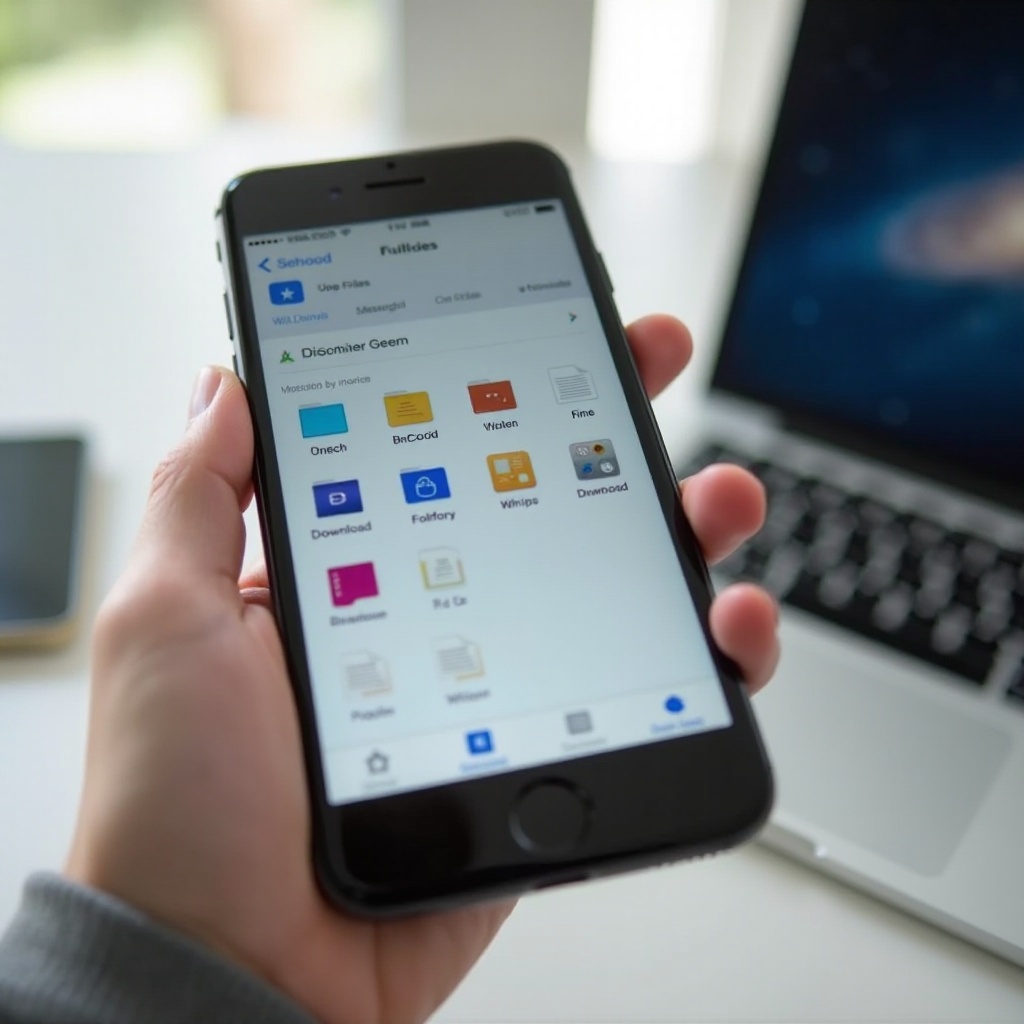
In‑App Downloads: Music, Video, and Document Apps
So far, the focus has been Files and Photos. But many apps handle downloads privately. Music apps, video streaming apps, and some document apps keep offline content inside their own sandbox. These files do not appear in the Downloads folder at all.
This is another reason the question ‘where does downloads go in iPhone?’ has more than one answer. Some downloads are system files, and some are locked inside apps.
Offline Content in Streaming Apps (Spotify, Netflix, YouTube, etc.)
When you download media for offline use in streaming apps, the files stay in the app. For example:
- Spotify offline songs stay inside Spotify.
- Netflix offline episodes stay in Netflix.
- YouTube offline videos stay in the YouTube app.
You cannot see these files in Files or Photos. To manage them:
- Open the app.
- Go to its ‘Downloads’ or ‘Library’ section.
- Delete or redownload items from there.
Downloads in Cloud Storage and Office Apps (Google Drive, OneDrive, Docs)
Cloud apps like Google Drive, OneDrive, Dropbox, and productivity apps like Microsoft Word or Google Docs may:
- Keep files in the cloud by default.
- Offer an option to ‘Make available offline’ inside the app.
These offline copies are in the app's private storage, not in the Files Downloads folder, unless you explicitly export or ‘Save to Files.
If you cannot find a file, open the app where you originally downloaded it and check its offline or downloads section.
Why Many In‑App Downloads Don’t Appear in Files
Apple's security model keeps apps separated. Each app has its own private space. Those private files do not show in Files unless the app supports file sharing to the system.
This is why you cannot simply copy Netflix videos from Files or move Spotify tracks around. The apps manage their own downloads and protect them with DRM and access rules. When you need to find a general file rather than media, search tools become more important, which brings us to the next section.
How to Quickly Find Any Downloaded File on iPhone
You now know the main places where downloads go. But sometimes you just want the fastest way to find a file without guessing the app or folder. Search tools in iOS and in Files make this easier.
Use a mix of Spotlight search and the Files app search to locate any file you remember by name, type, or timing.
Using Spotlight Search from the Home Screen
Spotlight can find:
- Apps
- Messages
- Emails
- Some documents and files
To use Spotlight:
- Swipe down on the Home Screen.
- Type the file name, or at least part of it.
If the file is linked to an app that supports Spotlight, you may see it in the results or at least find the app where it lives (for example, a document in Word or a file in Drive).
Searching Within the Files App by Name or File Type
The Files app has a built‑in search bar:
- Open Files.
- Go to ‘Browse’ or ‘Recents.’
- Tap the search bar at the top.
- Type the file name or extension (like ‘.pdf’ or ‘.zip’).
You can also filter by:
- Name
- Date
- Size (with some apps and views)
If you remember roughly when you downloaded a file, the Recents tab is often the quickest way to locate it.
Using Recents, Favorites, and Tags to Locate Files Faster
To avoid searching every time:
- Use Recents to see the last files you opened or downloaded.
- Favorite important folders in Files by tapping and holding them and choosing ‘Favorite.’
- Use Tags to mark groups of files with colors or labels, like ‘Work’ or ‘Receipts.’
These tools turn Files into a more efficient file manager, making your downloads much easier to track. Once you can find files quickly, the next step is to keep them organized so they don't pile up.
Organizing and Managing Downloads to Avoid Clutter
Finding downloads is one thing. Keeping them organized so you do not lose them again is another. With a few small habits, you can keep your Downloads folder tidy and your storage under control.
As you start using Files more, try to create a simple structure that matches how you work or study. Good organization also makes it easier to spot and delete old files when you need space.
Creating Folders and Renaming Files in the Files App
To create folders:
- Open Files and go to ‘Browse.’
- Choose ‘On My iPhone’ or ‘iCloud Drive.’
- Tap the three‑dots icon.
- Tap ‘New Folder’ and give it a clear name.
To rename a file:
- Tap and hold the file.
- Tap ‘Rename.’
- Type a better name and tap ‘Done.’
Rename important downloads (like ‘invoice‑April.pdf’) so you can find them easily with search.
Moving Files Between ‘On My iPhone’ and ‘iCloud Drive’
You can move files to balance local storage and cloud storage:
- Open Files and find the file.
- Tap and hold it.
- Choose ‘Move.’
- Pick ‘On My iPhone’ or ‘iCloud Drive,’ then a folder.
Use iCloud Drive for files you want on multiple devices. Use ‘On My iPhone’ if you need the file offline all the time and want to control data usage.
Deleting Unneeded Downloads to Free Up Storage
Old downloads can consume a lot of space. To clean them up:
- Open Files > ‘On My iPhone’ > ‘Downloads.’
- Tap the three dots and choose ‘Select.’
- Tap files you no longer need.
- Tap the trash icon to delete them.
You should also open large apps like Netflix or Spotify and clear offline content there if storage is low. Even with good organization, things can still go wrong, so let's look at common download issues and how to fix them.
Fixing Common Problems with Downloads on iPhone
Even when you know where downloads go, things can still go wrong. Files may not show up, downloads may fail, or the Files app itself may misbehave.
A few simple checks solve most problems without needing a full reset. These fixes also help you understand whether the issue is with the file, the app, or your device.
Downloaded File Not Showing Up Anywhere
If you cannot find a file:
- Confirm which app you used to download it.
- Check that app's history or downloads list.
- Open Files and check Recents and Downloads.
- Use the Files search bar and Spotlight.
If you still cannot find it, the download may never have completed. Try downloading the file again, but this time watch the progress and confirm it finishes.
Downloads Failing or Stuck Due to Storage or Network Issues
If downloads pause or fail:
- Check your Wi‑Fi or cellular connection.
- Make sure Low Data Mode is not blocking large downloads.
- Go to Settings > General > iPhone Storage to confirm you have space.
Free some space if your iPhone storage is almost full. Large videos, offline playlists, and old apps are good targets for cleaning.
What to Do If the Files App Is Missing or Not Working
If you cannot find Files:
- Swipe down on the Home Screen.
- Search for ‘Files.’
If it still does not appear, it may have been removed. You can:
- Open the App Store.
- Search ‘Files.’
- Reinstall the Apple Files app.
If Files crashes or behaves oddly, restart your iPhone and make sure iOS is updated to the latest version. In most cases, that fixes the issue.

Conclusion
The question ‘where does downloads go in iPhone?’ has several answers, but they follow a clear pattern. Safari and many apps send files to the Downloads folder in the Files app. Images saved as photos go to the Photos app. Streaming and cloud apps keep offline downloads inside their own spaces.
When you remember which app handled the download and you know how Files and Photos work, you can find almost anything on your iPhone. Use the Downloads folder, Recents, search tools, and simple organization habits to keep your files easy to reach and your storage under control. After a short learning curve, finding downloads on iPhone becomes quick and stress‑free.
Frequently Asked Questions
Why can’t I find my downloaded file on my iPhone even after using the Files app?
The file may not have fully downloaded or may be stored inside the app that downloaded it. First, confirm which app you used, then open that app and look for a ‘Downloads,’ ‘Offline,’ or ‘Files’ section. Also try the Files app Recents tab and use the search bar. If the file still does not appear, try downloading it again while watching the progress.
How do I change where downloads go on my iPhone in Safari and other apps?
For Safari, open Settings > Safari > Downloads and choose ‘On My iPhone,’ ‘iCloud Drive,’ or a custom folder. Other apps often let you choose ‘Save to Files’ and then pick a folder. Some apps, like Netflix or Spotify, do not let you change the download location and always store offline content inside the app itself.
Do offline songs and videos from streaming apps save to a downloads folder on iPhone?
No. Offline songs and videos from streaming apps like Spotify, Netflix, and YouTube stay inside each app’s private storage. They do not appear in the Files app or Photos. To manage or delete them, open the app, go to its library or downloads section, and use the app’s own options to remove or re-download content.