
Introduction
Voice messages in iMessage help you say more with less effort. You tap a button, speak, and your contact hears your real voice instead of reading a block of text. It feels more personal, faster for long thoughts, and easier when you cannot type.
Many iPhone users still feel unsure about where the voice message button is, why messages disappear, or why the microphone icon sometimes vanishes. Others worry about storage, privacy, or whether these messages use data or SMS.
This guide explains exactly how to send voice messages in iMessage, how to listen and save them, and how to adjust the key settings on your iPhone. You will also see troubleshooting steps for common problems and tips to keep your audio clear, polite, and secure.
Before you test your first recording, it helps to understand what iMessage voice messages are and how they fit into your normal texting habits.
What Are Voice Messages in iMessage?
Voice messages in iMessage are short audio clips that you record and send inside the Messages app. Instead of typing, you press a button, speak, and iMessage sends your voice as a small audio bubble in the chat.
These voice messages travel over the internet using Apple's iMessage service, not your normal SMS text plan. When both people use Apple devices and iMessage is active, your audio messages appear as blue bubbles. This means they use Wi‑Fi or cellular data, not SMS minutes.
Voice messages are different from voicemail. Voicemail lives in your Phone app and comes from missed calls. iMessage voice messages live in your chats, right next to texts, emojis, and photos, and they are part of the same conversation history.
You can:
- Send them in one‑to‑one conversations or group chats.
- Listen through the speaker or earpiece.
- Save them so they do not expire.
- Delete them to reclaim space.
Now that you know what these audio clips are and how they behave, you need to confirm that your iPhone and settings support voice messages properly before you start sending them.
Requirements Before You Start Sending Voice Messages
Before you learn how to send voice messages in iMessage step by step, make sure your iPhone and settings are ready. A few quick checks prevent many common issues and save you from frustration later.
Supported iPhone Models and iOS Versions
Most recent iPhone models support iMessage voice messages. To avoid glitches and missing features, update to the latest iOS version:
- Open Settings.
- Tap General.
- Tap Software Update.
- Install any available update.
A current iOS version gives you the latest iMessage layout, better microphone handling, and fewer bugs with audio messages, which makes the sending process smoother.
Checking That iMessage Is Activated
iMessage must be active for blue‑bubble voice messages:
- Go to Settings.
- Tap Messages.
- Turn on iMessage.
Wait a moment. You should see it activate. If it does not turn on, check your Apple ID, Wi‑Fi, or cellular data and try again. Without iMessage, you cannot send voice messages the way this guide describes.
Allowing Microphone Access for Messages
If Messages cannot access the microphone, the audio icon may not work as expected:
- Open Settings.
- Tap Privacy & Security.
- Tap Microphone.
- Ensure Messages is turned on.
With these basics in place, your iPhone is ready to record and send audio. Next, you can walk through the exact steps to send a voice message inside iMessage.
How to Send a Voice Message in iMessage on iPhone
Now you can learn the exact steps for how to send voice messages in iMessage. The process is simple once you know where everything is in the Messages app.
Opening the Messages App and Choosing a Conversation
Follow these steps to open the right chat:
- Open the Messages app on your iPhone.
- Tap an existing conversation or tap the compose icon to start a new one.
- Make sure the text field shows a blue send arrow, which means you are using iMessage, not SMS.
You are now in the right place to record and send an audio message to your chosen contact or group.
Finding the Voice Message (Audio) Icon in iMessage
Depending on your iOS version, the voice message icon may appear as:
- A small waveform or microphone icon inside the text bar, or
- A plus (+) icon that opens extra features, including Audio.
If you see a + button:
- Tap +.
- Look for Audio or a waveform/microphone option.
- Tap it to open the voice message tool.
If the icon is already visible next to the text field, you can tap it right away to start recording.
Recording, Previewing, and Sending Your Voice Message
To record a message:
- Tap and hold the voice message icon (or follow the on‑screen hint if it is a tap‑to‑record button).
- Speak clearly into the microphone at the bottom of your iPhone.
- Release your finger or tap again when you finish, depending on your version of iOS.
After you record, you normally see options to:
- Play the recording to preview it.
- Send it using the blue arrow.
- Delete it if you want to try again.
Listen to make sure your message is clear, then tap Send. Your contact will see an audio bubble that they can tap to hear your voice.
Canceling or Re‑Recording Before You Send
If you make a mistake or change your mind:
- Tap the X or trash can icon to delete the recording.
- Record again using the same voice message button.
This lets you control the final version and send only what you want the other person to hear.
Once you know how to send voice messages, you also need to manage the audio you receive from others so your chats stay organized and useful.
How to Listen to and Manage Received Voice Messages
When someone sends you a voice message in iMessage, it appears as a small audio bubble in the conversation. Managing these messages is just as important as sending your own, especially if you receive many clips every day.
Playing Voice Messages Through Speaker or Earpiece
To listen to a voice message:
- Open the conversation in Messages.
- Tap the play button on the audio bubble.
Your iPhone usually plays it through the speaker. If you want more privacy, raise the iPhone to your ear. With 'raise‑to‑listen' enabled, the sound may switch to the earpiece, similar to a phone call.
You can also control volume with the side buttons while the message is playing.
Saving Important Voice Messages So They Don't Expire
By default, audio messages can expire and disappear after a short time to save space. If you receive an important message that you want to keep:
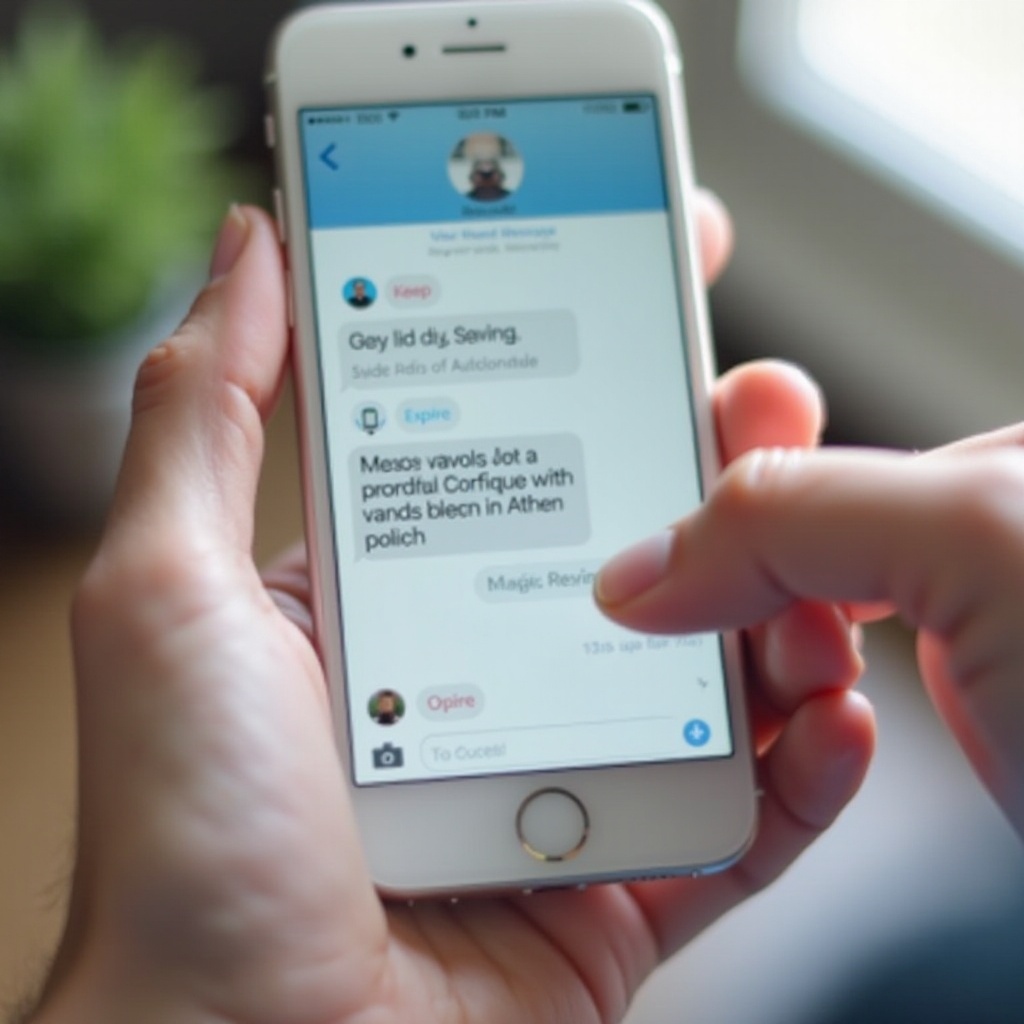
- Tap Keep below the audio bubble, if that option appears.
- This prevents that specific message from auto‑deleting after you listen.
You can also change the general expiration setting for all audio messages, which you will see in the next section on customization.
Deleting Audio Messages to Free Up Space
To remove audio you no longer need:
- Press and hold the audio bubble.
- Tap More or Delete, depending on your iOS version.
- Confirm Delete.
If you need to clear a lot of storage, you can also delete multiple messages or manage them in Settings under iPhone Storage. This helps keep your device running smoothly.
Now that you know how to send, play, save, and delete voice messages, you can fine‑tune how iMessage handles audio on your device with a few helpful settings.
Customizing iMessage Voice Message Settings on iPhone
Changing a few settings makes voice messages work the way you prefer. You can control how long they last, how you listen to them, and how much space they use on your iPhone.
Changing How Long Voice Messages Are Kept (Expire vs Never)
To adjust expiration for all audio messages:
- Open Settings.
- Tap Messages.
- Scroll to Audio Messages.
- Tap Expire.
- Choose After 2 Minutes or Never.
- After 2 Minutes: Audio messages vanish soon after you listen, which saves storage.
- Never: iMessage keeps them until you delete them manually.
Pick the option that matches how often you keep important audio and how much space you want to save.
Using or Disabling Raise‑to‑Listen and Raise‑to‑Reply
Raise‑to‑listen lets you play messages by lifting the iPhone to your ear. To adjust it:
- Go to Settings.
- Tap Messages.
- Turn Raise to Listen on or off.
When it is on, you can sometimes reply by raising the phone and speaking after listening. If you find this triggers by accident, turn it off to avoid unwanted playback or recordings.
Managing Storage Used by Audio Messages
To see how much space audio uses:
- Open Settings.
- Tap General.
- Tap iPhone Storage.
- Tap Messages.
You may see sections for Audio. From there, you can delete large attachments, including old voice messages, to free up space and keep your storage under control.
With the basics and settings covered, you can now focus on making your voice messages clear, pleasant, and easy for others to listen to.
Tips for Clear, Effective Voice Messages in iMessage
Good voice messages are easy to hear and easy to follow. A few simple habits make a big difference in how people receive your audio and how they respond to you.
Speaking Clearly and Reducing Background Noise
To improve sound quality:
- Hold the bottom of your iPhone close to your mouth.
- Speak at a normal, steady pace.
- Avoid covering the microphone with your hand.
- Move to a quieter spot if possible.
If you often send messages outdoors or in noisy rooms, consider using wired or Bluetooth headphones with a good microphone. This keeps background noise lower and makes your voice clearer.
Keeping Voice Messages Short and Easy to Follow
Long, rambling messages can be hard to follow. Try to:
- Keep a single message under a minute when possible.
- Break long stories into several shorter clips.
- Focus on one main point per message.
Short, clear messages are easier for people to replay, understand, and respond to, especially if they are busy.
Using Text, Emojis, and Reactions Alongside Audio
Voice messages work even better with a little context:
- Add a short text before or after (for example: 'Quick update about the meeting').
- Use emojis to show tone or emotion.
- React to messages with tapback reactions (thumbs up, heart, and more).
This combination makes your meaning clear, even if someone listens later or in a noisy place. If something does not work as expected, the next section covers how to fix the most common problems with iMessage voice messages.
Troubleshooting Common iMessage Voice Message Problems
If voice messages in iMessage stop working as expected, you can often solve the problem with a few quick checks. These simple fixes cover most everyday issues.
Microphone Icon Missing or Not Working
If you cannot find or use the voice message icon:
- Confirm iMessage is turned on in Settings > Messages.
- Check Settings > Privacy & Security > Microphone and make sure Messages has permission.
- Restart your iPhone to refresh the system.
- Update iOS again if an update is available.
If the icon still does not appear, it may be hidden in the + menu, so tap + in the chat bar and look for Audio or a waveform option there.
Voice Messages Not Sending, Stuck, or Sending as SMS
If messages will not send or show as green bubbles instead of blue:
- Check that you have Wi‑Fi or cellular data available.
- Make sure the other person also uses an Apple device with iMessage turned on.
- Toggle iMessage off and on in Settings > Messages.
- If nothing else works, go to Settings > General > Reset > Reset Network Settings and then test again.
Green bubbles mean SMS or MMS, which do not support iMessage audio in the same way. Both sides must use iMessage to send voice messages as blue audio bubbles.
Audio Too Quiet, Distorted, or Not Playing
If you cannot hear messages well or they sound bad:
- Use the volume buttons on the side while the message plays.
- Remove phone cases or screen protectors that might block the speaker or microphone.
- Disconnect any Bluetooth speakers or headphones that might take over audio output.
- Test the microphone and speaker with a normal phone call or the Voice Memos app.
If problems continue after these tests, it may be a hardware issue, and you might need Apple Support or a repair. Once your messages work reliably, it is important to use them in a way that respects privacy and social norms.
Privacy, Etiquette, and Best Practices for Voice Messages
How to send voice messages in iMessage is only part of the story. How you use them with others matters just as much if you want people to enjoy receiving your audio.
When It's Appropriate to Send Voice Messages
Voice messages are helpful when:
- You are walking, cooking, or cannot type easily.
- You need to explain something complex that is hard to type.
- You want to share emotion, tone, or nuance that does not come through in plain text.
Avoid sending long audio messages late at night or in formal, professional settings unless you know the person prefers them. Some people cannot always listen with sound on, so be mindful of their situation.
Protecting Your Privacy and Sensitive Information
iMessage uses end‑to‑end encryption, including for audio, but you should still be careful:
- Avoid sharing passwords, bank data, or very sensitive details in any message.
- Lock your iPhone with Face ID, Touch ID, or a strong passcode.
- Turn off message previews on the lock screen if you share your device with others.
Treat voice messages with the same care you give to important texts or emails, especially when you talk about private topics.
Backing Up Messages with iCloud Without Filling Storage
If you want to keep your conversations and voice messages:
- Go to Settings.
- Tap your Apple ID name at the top.
- Tap iCloud.
- Turn on Messages.
This syncs messages, including audio, across Apple devices. If storage runs low, consider deleting old audio and large attachments or upgrading your iCloud plan. With privacy and etiquette in mind, you can now explore how voice messages fit into your wider device setup.
Using Voice Messages with Headphones, Car, and Other Devices
Voice messages work well beyond just holding your iPhone in your hand. With the right devices, you can send and listen safely and comfortably in more situations.
Sending and Listening with AirPods or Bluetooth Headphones
When you connect AirPods or other Bluetooth headphones:
- iMessage plays voice messages through your headphones instead of the speaker.
- Your headphone mic can record your voice for new audio messages.
This often gives clearer audio and keeps your messages private in public places like buses, cafes, or offices.
Using Voice Messages Safely While Driving (Hands‑Free)
Avoid typing or holding your phone while driving. Instead:
- Use CarPlay if your vehicle supports it.
- Use your car's steering wheel controls or Siri to send and play messages.
- Keep messages short and focused so you stay attentive.
Safety comes before any message, even a voice one. Use hands‑free tools whenever you are in the car.
Syncing Voice Messages Across iPhone, iPad, and Mac
If you enable Messages in iCloud, your conversations and voice messages can sync across your devices:
- iPhone
- iPad
- Mac
You can start listening on one device and finish on another, as long as each uses the same Apple ID and iCloud settings. This keeps your chats consistent wherever you are.
With the core skills, settings, and best practices covered, you are ready to make voice messages a natural part of your everyday communication.
Conclusion
You have seen how to send voice messages in iMessage, how to listen and save them, and how to adjust settings to match your habits. With a few taps, you can record your voice, share emotion, and explain complex ideas faster than you could type them out.
You learned how to check your iPhone setup, manage received audio, and control expiration and storage. You also saw tips for clear, short, and polite messages, plus fixes for problems like missing icons, stuck messages, or quiet audio.
Use these tools to make your conversations smoother, more personal, and more convenient. Start by sending a short test voice message to a friend or family member, adjust your settings, and then build voice messages into your daily messaging routine whenever they make communication easier.
Frequently Asked Questions
Why can’t I send voice messages in iMessage on my iPhone?
First, make sure iMessage is turned on in Settings > Messages and that you have Wi‑Fi or cellular data. Check that Messages has microphone access in Settings > Privacy & Security > Microphone. If the icon is still missing, update iOS, restart your iPhone, and look for the Audio option inside the + menu in a chat.
How do I stop iMessage voice messages from disappearing automatically?
Go to Settings > Messages and scroll to Audio Messages. Tap Expire and change the setting from After 2 Minutes to Never. This keeps new voice messages until you delete them. For messages you already received, tap Keep under each audio bubble so they do not auto‑delete after playback.
Do iMessage voice messages use my cellular data or my texting plan?
Voice messages in iMessage use data, not your standard SMS text plan. When you see blue bubbles, your audio sends over Wi‑Fi or cellular data through Apple’s iMessage service. On Wi‑Fi, they do not use mobile data; on cellular, they count toward your data plan, especially for many or long messages.