
Introduction
Read receipts divide people. Some users like seeing that a message was read. Others dislike the pressure to respond the moment someone gets that ‘Read’ confirmation. If you use an iPhone and keep hearing about RCS on Android, it is easy to get confused about what you can actually control.
Many iPhone owners search for how to ‘turn off read receipts RCS iPhone’ because they want more privacy when messaging across iPhone and Android. The problem is that RCS is still mainly an Android and carrier technology, while iPhone relies on iMessage and SMS/MMS. That mix creates myths, half-truths, and a lot of frustration.
This guide explains in clear language how read receipts work on iPhone and Android, what RCS really is, and what you can and cannot control on your iPhone right now. You will get step-by-step instructions to turn off read receipts in iMessage, understand how RCS read receipts work on Android, and see what happens in mixed iPhone–Android chats.
By the end, you will know exactly which settings to change on your iPhone for better privacy, which parts depend on your friends Android settings, and how to avoid confusion when different phones and standards are involved.
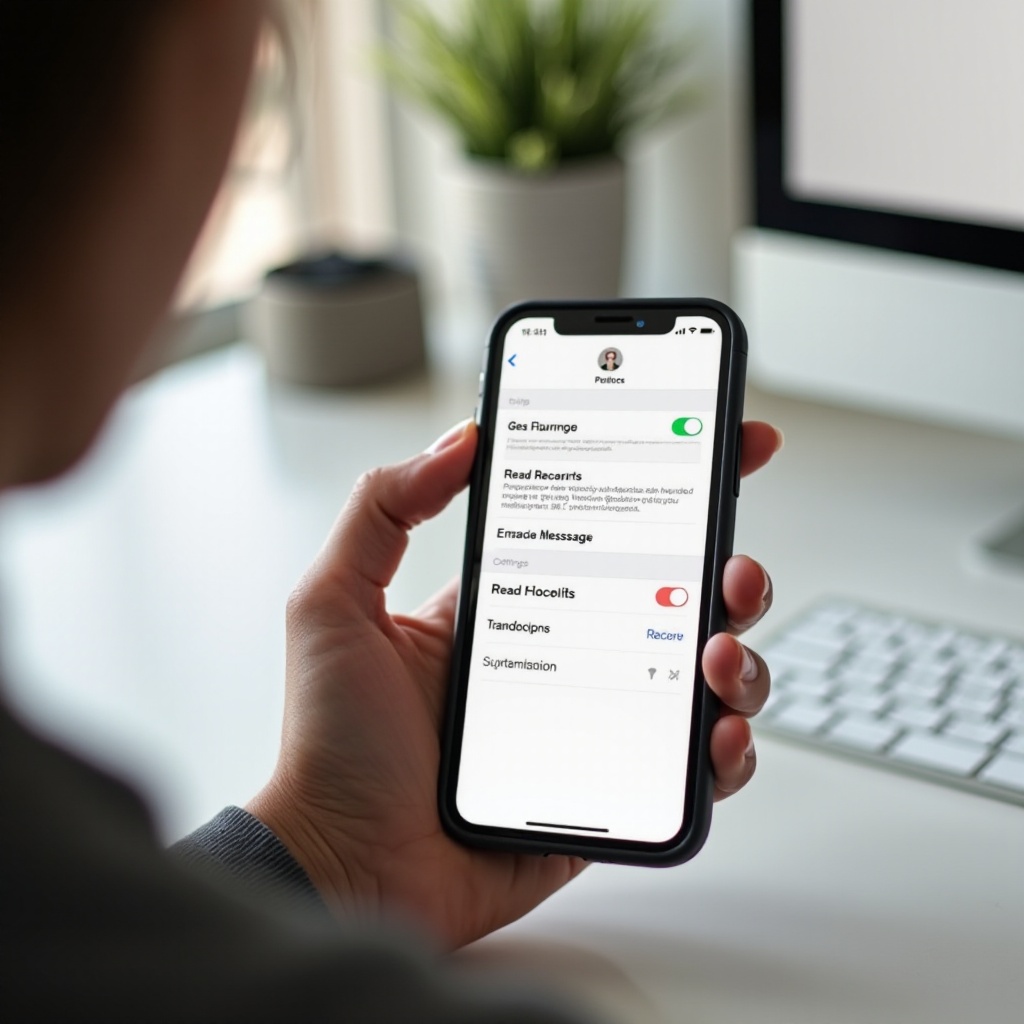
What Are Read Receipts, RCS, and iMessage?
To control read receipts properly, you need to understand the systems that power your messages. Much of the confusion around ‘turn off read receipts RCS iPhone’ comes from mixing up RCS, SMS, MMS, and iMessage, or assuming they all behave the same way. They do not.
Read receipts sit on top of these messaging systems, and each one handles them differently. Once you see how they connect, it becomes clear what is possible on an iPhone and what is only available on Android.
What Read Receipts Actually Do
A read receipt is a small status update that tells the sender you opened their message. It usually changes the message status from:
- Sent
- Delivered
- Read
On iPhone, ‘Read’ appears under blue-bubble iMessage texts when you allow read receipts. On some Android RCS apps, you may see ‘Read’ or a double-check icon. Read receipts do not show the full content of your message to anyone else, but they do confirm you saw it, which is what many people want to avoid.
RCS vs SMS/MMS vs iMessage on iPhone
Here is how the main messaging types differ:
- SMS: Basic text messaging over the cellular network. No rich features such as typing indicators or high-quality media.
- MMS: Multimedia messaging, used for pictures and larger attachments, still over the carrier network.
- RCS (Rich Communication Services): A newer standard that upgrades SMS/MMS with chat features like typing indicators, better group chats, high-quality images, and read receipts. It is used heavily on Android through apps like Google Messages.
- iMessage: Apple own messaging system, used between Apple devices. It supports read receipts, typing indicators, reactions, editing, and more.
On your iPhone, blue bubbles are iMessage, while green bubbles are SMS/MMS. True RCS is not the default for iPhone Messages yet, even though RCS is becoming more common on Android.
Why iPhone Users Care About RCS Read Receipts in 2024
The search phrase ‘turn off read receipts RCS iPhone’ appears a lot because:
- Android users talk about RCS and its read receipts constantly.
- iPhone users want the same level of control over who sees their activity.
- Mixed iPhone–Android groups want to understand what each side can see.
Even though RCS is not yet deeply integrated into iPhone Messages, read receipts are already a key part of iMessage. That is why learning to control them is so important. Once you understand those basics, the next step is to clarify what RCS support on iPhone looks like right now.
Can You Use RCS on iPhone Today?
Before you try to tweak RCS read receipts on your iPhone, you need to know what is actually available. At the moment, iPhones still rely on iMessage and SMS/MMS inside the built-in Messages app. RCS is becoming more visible as a standard, but its presence on iPhone is not the same as on Android.
Understanding this current situation will help you avoid wasting time chasing settings that do not exist on iOS and focus on the controls you do have.
Apple Messaging System: iMessage and SMS/MMS
On an iPhone, the Messages app handles two main types of messages:
- iMessage (blue bubble):
- Sent between Apple devices (iPhone, iPad, Mac).
- Uses Wi-Fi or mobile data.
- Supports read receipts, reactions, editing, and more.
- SMS/MMS (green bubble):
- Sent between iPhone and non-Apple devices such as most Android phones.
- Uses your cellular connection and carrier text plan.
- Does not support iMessage-style read receipts.
The key point is simple: read receipts on your iPhone are tied to iMessage only. They do not apply to traditional SMS/MMS green-bubble chats, and they are not the same as Android RCS receipts.
The Current Status of RCS Support on iPhone
RCS is a carrier and Android-driven upgrade to SMS/MMS that brings modern chat features to phone numbers. Many Android users already enjoy RCS inside Google Messages, where they get read receipts, typing indicators, and better group messaging.
On iPhone, Apple still runs its own iMessage system and falls back to SMS/MMS for non-Apple devices. Apple has announced plans to support the RCS standard, but full, seamless RCS support in the Messages app is only beginning to roll out and remains limited as of 2024.
This means there is no universal, easy RCS settings screen in iOS today in the same way Android users have in Google Messages. When you pick up your iPhone, your realistic privacy controls still center on iMessage.
What People Really Mean by ‘RCS Read Receipts on iPhone’
When people say ‘turn off read receipts RCS iPhone’, they usually mean one of three things:
- Turn off read receipts for iMessage conversations on their iPhone.
- Make sure Android users cannot see when they read texts.
- Understand which read receipts are even possible between iPhone and Android.
So while there is not a direct ‘RCS read receipts’ switch on iPhone yet, you can still control what you share via iMessage and learn what Android users can and cannot see when they text you. The most practical step is to adjust iMessage read receipts, which we will cover next.
How to Turn Off Read Receipts on iPhone (iMessage)
Now that you know read receipts on iPhone are tied to iMessage, you can adjust them with confidence. Apple gives you two levels of control:
- Turn read receipts off for everyone.
- Turn read receipts off on a per-conversation basis.
Both options help you regain privacy, especially when you want to read messages without feeling rushed to answer.
Turn Off Read Receipts for All Contacts in iMessage
To disable iMessage read receipts for all contacts on your iPhone:
- Open the Settings app on your iPhone.
- Scroll down and tap Messages.
- Find the option Send Read Receipts.
- Toggle Send Read Receipts off.
Once you do this, your iPhone will no longer send ‘Read’ confirmations in any iMessage conversations. People will still see ‘Delivered’, but not ‘Read’.
This global toggle is the best option if you want a simple, consistent privacy setting that applies to all contacts and you do not want to manage each chat one by one.
Turn Off Read Receipts for Specific Contacts or Threads
If you prefer more control, you can turn off read receipts only for some conversations while leaving them on for others:
- Open the Messages app.
- Choose the conversation (blue bubble) where you want to change the setting.
- Tap the contact name or group name at the top of the screen.
- Tap the info (i) button if needed.
- Look for Send Read Receipts for that contact or group.
- Toggle Send Read Receipts off for that conversation.
This approach lets you:
- Keep read receipts on for close family or key work chats where they are useful.
- Turn them off for people who tend to pressure you to reply instantly.
You can repeat these steps for each conversation where you want custom behavior. If something looks odd later, always check both the global Messages setting and the per-thread setting.
What Others See After You Disable iMessage Read Receipts
After you turn off read receipts in iMessage:
- Senders still see that messages were Delivered.
- They will no longer see Read, even if you open and read the message.
- In some group chats, behaviour may vary if others still have read receipts turned on. They might see their own read statuses but not yours.
Remember: this only affects iMessage (blue bubbles). When you text Android users, those messages use SMS/MMS, and there are no standard iMessage-style read receipts in those green-bubble chats.
With your iMessage behaviour under control, it helps to understand what happens on the Android side, so you know what your friends can and cannot see from their phones.
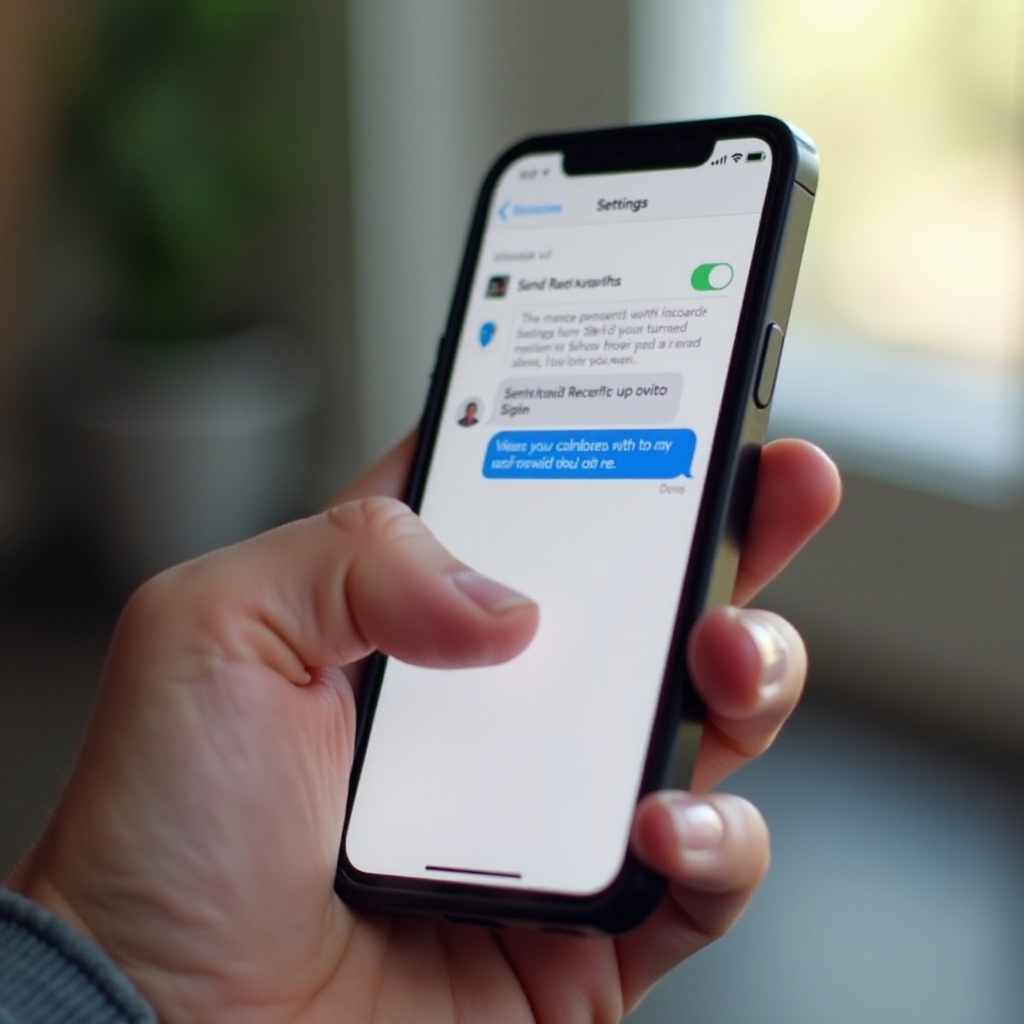
How RCS Read Receipts Work on Android (For iPhone Users to Understand)
You cannot directly change RCS settings on someone else Android phone, but understanding how their system works helps you know what they see. When Android users talk about RCS read receipts, they usually mean Google Messages with chat features turned on.
Knowing this will help you interpret what Android friends mean when they say they can or cannot see that you read something, and it will help you answer questions in mixed-device conversations.
RCS Read Receipts in Google Messages
On Android devices that use Google Messages as the default texting app:
- RCS chat features can be enabled.
- Those features include read receipts, typing indicators, and improved group messaging.
- When both sides of a conversation use RCS, the sender may see a ‘Read’ status similar to iMessage.
However, RCS only works when both participants have RCS turned on and are using compatible apps. If one side does not, the conversation falls back to SMS/MMS with no RCS read receipts.
How Your Android Contacts Can Turn Off RCS Read Receipts
Your friends on Android can turn off RCS read receipts in Google Messages with these steps:
- Open Google Messages.
- Tap the profile icon or menu in the top right.
- Go to Messages settings.
- Tap Chat features.
- Toggle off Send read receipts.
Once they do this, you will not see when they read your messages in RCS-enabled chats. This is similar to your ability to turn off iMessage read receipts on your iPhone.
Why You Might Not See ‘Read’ Even When Messages Are Delivered
Even if an Android user has RCS available:
- They might have read receipts turned off, just like you do in iMessage.
- Their phone might temporarily fall back to SMS/MMS instead of RCS.
- Their carrier or region settings might limit RCS features.
If you only see ‘Delivered’ and not ‘Read’, it may be due to their settings, network limits, or a fallback to older messaging standards, not a problem with your iPhone.
All of this becomes even more complex when you mix iPhones and Android devices in the same chat. That is where the next section comes in.
Mixed iPhone–Android Chats: What Read Receipts You Actually Control
Most confusion around ‘turn off read receipts RCS iPhone’ comes from mixed-device chats. People expect iPhone settings to control everything, but that is not how messaging standards work. Each side manages its own settings and features, and the network often falls back to the simplest common option.
When you understand what really happens when iPhones and Android phones talk to each other, you can set realistic expectations about what you control from your side.
iPhone Texting Android: Green Bubbles and No True RCS
When your iPhone sends a text to an Android phone in the default Messages app:
- The conversation shows green bubbles.
- The message uses SMS/MMS, not iMessage and not full RCS.
- Standard read receipts are not part of basic SMS/MMS.
From your iPhone perspective:
- Your iMessage read receipt settings do not affect green-bubble chats.
- You cannot send or stop true RCS read receipts in these SMS/MMS exchanges.
- Your Android contact might see delivery information from their carrier, but that is different from RCS or iMessage read receipts.
So, turning off iMessage read receipts mainly changes how other Apple users see your activity. It does not add or remove read receipts in basic SMS conversations.
Group Chats With Both iPhone and Android Users
Mixed groups add another layer of complexity:
- If the group includes Android users, it usually runs over SMS/MMS, not full iMessage.
- iMessage features such as reactions and read receipts may be limited or unavailable.
- RCS features on Android may not work consistently in the same group.
This means:
- Your iPhone read receipt settings mostly matter in all-Apple (blue-bubble) groups.
- In mixed groups, the system often falls back to the lowest common feature set, which usually means no reliable read receipts.
If someone in a mixed group insists they see something like a read receipt from you, they may be misreading delivery timestamps or using a third-party app instead of the default texting app.
Why Your Settings Do not Always Match What Others See
Because each platform uses its own system:
- Your iPhone settings control iMessage behaviour.
- Android settings control RCS behaviour.
- SMS/MMS sits in the middle with fewer features.
You might turn off read receipts on your iPhone and:
- Apple users see no ‘Read’ from you, only ‘Delivered’.
- Android users never had iMessage read receipts from you in those green-bubble chats.
- Some people still believe read receipts exist in every chat, which leads to misunderstandings.
Once you understand these limits, you can focus on broader privacy steps, not just iMessage toggles. The next step is to look at privacy across all your messaging apps.
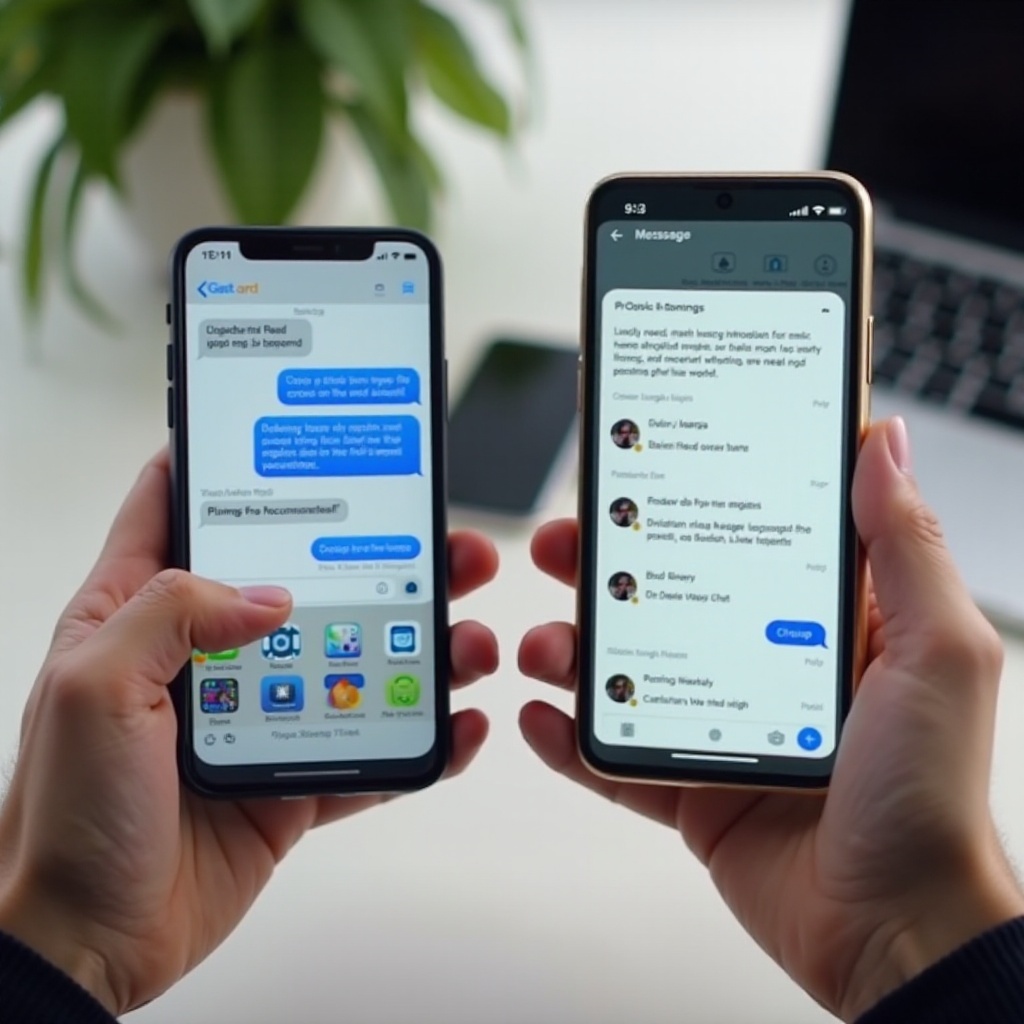
Privacy Tips: Beyond Just Turning Off Read Receipts
Turning off read receipts gives you back some control, but it is only one piece of your privacy settings. Many messaging apps share other signals, such as typing indicators or online status, that can also make you feel watched or rushed.
Taking a broader look at your settings across apps helps you create a consistent privacy experience, whether you use iPhone, talk to Android users, or rely on third-party apps.
Manage Typing Indicators, Delivery Reports, and ‘Send Read Receipts’
On iPhone and Android, you can often manage several related features:
- Typing indicators: Show when you are composing a reply.
- Delivery reports: Confirm that a message reached the recipient device.
- Read receipts: Confirm that the recipient opened the message.
Consider these tips:
- Turn off read receipts in iMessage if you do not want people to know when you read messages.
- Accept that delivery reports are usually less private but also less stressful than read receipts.
- On Android (for your contacts), similar controls exist in the RCS chat features menu in Google Messages.
The goal is to choose a level of visibility that matches your comfort level, not necessarily to hide everything.
Check Privacy Settings in Other Messaging Apps (WhatsApp, Messenger, etc.)
Most people use more than one messaging app. Common choices include:
- WhatsApp: Blue check marks indicate read receipts. You can turn them off in Settings → Privacy → Read Receipts.
- Facebook Messenger: Shows ‘Seen’, which you cannot fully disable, but you can limit other signals such as active status.
- Instagram DMs: Show ‘Seen’ for read messages; you can adjust activity status and notifications.
- Signal, Telegram, and others: Offer detailed privacy options, including read receipts and last seen.
To keep your privacy consistent across all apps:
- Open each app you use for messaging.
- Go to Settings → Privacy or Settings → Account → Privacy.
- Review options for read receipts, last seen, online status, and typing indicators.
This app-by-app review ensures that turning off iMessage read receipts is just one part of a broader, coherent privacy setup.
Setting Expectations With Friends, Family, and Coworkers
Changing these settings can confuse people unless you explain them. To avoid misunderstandings:
- Tell close friends or family: ‘I turned off read receipts so I can respond when I am free, not immediately.’
- Let coworkers know how to reach you for urgent matters, for example by using a work chat app or phone call.
- Encourage others to adjust their own privacy settings if they feel similar pressure.
Clear communication about boundaries often matters as much as the toggles themselves. Once your privacy preferences are set, the only remaining challenge is fixing issues when things do not behave as expected.
Troubleshooting Common Read Receipt Issues on iPhone
Sometimes, even after you change settings, read receipts do not behave the way you expect. You might still see ‘Read’ appearing for some people or notice inconsistent behaviour across your devices.
These issues usually have simple causes, such as syncing across Apple devices, iOS updates, or per-conversation settings overriding global ones. A quick checklist can help you fix most of them without stress.
Read Receipts Still Showing After You Turn Them Off
If someone still sees read receipts from you after you turned them off:
- Confirm the global setting:
- Go to Settings → Messages → Send Read Receipts and make sure it is off.
- Check the specific conversation:
- Open the chat, tap the contact name, and confirm Send Read Receipts is off there as well.
- Ask if the other person is looking at older messages from before you changed the setting.
Often, people misread older timestamps or assume they are seeing new read receipts when the messages were sent earlier.
Problems After an iOS Update or Device Change
After a major iOS update or when you get a new iPhone, your settings might:
- Reset to defaults for some features.
- Sync differently across your Mac, iPad, and Apple Watch.
To fix this:
- After any major update, revisit Settings → Messages → Send Read Receipts.
- Check iMessage settings on your other Apple devices and align them with your iPhone.
- If behaviour is inconsistent, sign out of iMessage on all devices, then sign back in and recheck settings.
This helps ensure all your Apple devices use the same privacy preferences and do not send read receipts by accident.
When to Reset Settings or Contact Apple Support
If read receipts still act strangely after all those checks:
- Try a general settings reset (this does not erase your data but resets system settings):
- Go to Settings → General → Transfer or Reset iPhone → Reset → Reset All Settings.
- If the problem continues, contact Apple Support through the Support app or the Apple website.
- Explain that read receipts are not matching your chosen settings across conversations and devices.
Most users will never need this last step, but it is useful to know there is a path forward if something truly breaks.
Conclusion
You came looking for a way to ‘turn off read receipts RCS iPhone’ because you want more control over your messaging privacy. The main lesson is that, on iPhone, read receipts belong to iMessage, while RCS lives mostly in the Android world for now.
You have learned how to:
- Turn off read receipts globally in iMessage.
- Turn them off per conversation for specific contacts or groups.
- Understand what RCS does on Android and how your contacts control their own read receipts.
- Recognise the limitations of SMS/MMS in mixed iPhone–Android chats.
- Adjust privacy settings in other apps and troubleshoot common issues on iPhone.
You cannot yet manage RCS on iPhone in the same way Android users can in Google Messages, but you can decide how much information you share about when you read messages. Combining those settings with clear communication about your boundaries lets you enjoy messaging without feeling watched or rushed.
As Apple continues to evolve messaging and expand RCS support, it is wise to review your Messages and privacy settings after major updates. A quick check ensures your iPhone always reflects the balance between convenience and privacy that works best for you.
Frequently Asked Questions
Can I completely turn off RCS on my iPhone?
You cannot fully manage RCS on an iPhone the way Android users do in Google Messages. The built-in Messages app uses iMessage for Apple-to-Apple chats and SMS/MMS for others. Full RCS support is only starting to appear and remains limited. For now, focus on controlling iMessage read receipts and using third-party apps if you want different behaviour.
If I turn off read receipts on my iPhone, will Android users still see when I read messages?
No. When you text Android users in the default Messages app, your iPhone sends SMS/MMS messages, not iMessage. Standard SMS/MMS does not support iMessage-style read receipts. Your iMessage read receipt setting only affects blue-bubble conversations with Apple devices. Android users will not see iMessage ‘Read’ indicators from you in green-bubble chats.
Do third-party apps use the same read receipt settings as iMessage or RCS?
No. Each third-party app, such as WhatsApp, Signal, Telegram, Instagram, or Facebook Messenger, uses its own read receipt system and settings. The iMessage read receipt toggle and Android RCS settings do not control those apps. To manage read receipts there, open each app settings and adjust its privacy options individually.