
Introduction
You say ‘Siri,’ but your iPhone answers in silence. The screen shows a response, yet there is no voice. Or maybe Siri used to talk, and after a recent update, it just stopped. This ‘Siri is not talking’ issue is common and usually comes down to a simple setting or audio conflict.
Siri relies on several pieces working together: volume, speakers, Bluetooth, Focus modes, Siri responses, language, and software. If any of those goes wrong, Siri can go quiet while still working in the background. That is why people often see text replies with no sound.
This guide walks you through clear, actionable steps to bring Siri’s voice back. You will start with basic sound checks, then move to Siri settings, audio output, Focus modes, accessibility, and software. If needed, you will also test your microphone and speaker and know when to contact Apple Support. Follow the steps in order for the fastest fix.
Understand the ‘Siri Is Not Talking’ Problem
Before changing settings at random, it helps to understand what is actually happening when Siri goes silent. Once you know whether Siri cannot hear you, cannot speak, or is speaking somewhere else, you can focus on the right fix instead of guessing.
When you separate the possible causes into clear categories, the rest of the troubleshooting becomes easier. You can eliminate entire groups of problems instead of chasing one-off tweaks that do not address the real issue.
Common Symptoms When Siri Goes Silent
The ‘Siri is not talking’ problem can show up in several ways:
- You say ‘Siri,’ the waveform appears, and a text answer shows, but you hear no voice.
- Siri only talks when you use headphones, not from the iPhone speaker.
- Siri used to speak in every situation but now only speaks when you are not in Silent mode.
- Siri used to speak with a specific voice, and now the voice is gone or seems missing.
- You changed phones or updated iOS and, after that, Siri stopped talking.
Noticing how Siri behaves in different situations (with Bluetooth, in Silent mode, on the lock screen) gives useful clues. Those clues will guide you through the next sections.
Siri Not Listening vs. Siri Not Speaking
You need to separate two issues:
- Siri not listening
- Siri not speaking
If Siri does not respond at all (no waveform, no text), you likely have a microphone, activation, or network issue. If Siri listens and shows text but does not speak, the problem is usually:
- Voice feedback settings
- Volume and speaker output
- Focus or accessibility settings
- Corrupt or missing Siri voice files
This guide focuses on the second case: Siri works, but you cannot hear it. You will still test microphone and network later, but first you will handle sound and settings that directly control Siri’s voice.
With that difference in mind, you can start with the simplest, most common cause of a silent Siri: basic volume and sound controls.
Start With Basic Sound and Volume Checks
Most Siri voice issues come from simple sound settings. Before diving into complex fixes, you should confirm your iPhone is not muted and that Siri’s own volume is loud enough.
These checks are quick, and they often fix the problem without further changes. Even if you think your volume is correct, it is worth verifying because Siri uses a combination of ringer and system sound levels.
Check the Ring/Silent Switch and System Volume
First, check the hardware controls:
- Look at the ring/silent switch on the side of your iPhone.
- If you see orange, Silent mode is on.
- Flip it to turn the ringer back on.
- Press the volume up button while on the home screen.
- Watch the volume indicator on screen.
- Make sure it is not near the lowest level.
- Go to Settings > Sounds & Haptics.
- Check the Ringer and Alerts slider.
- Move it to the middle or higher.
Some Siri response options only speak when Silent mode is off. So this basic check often solves the problem if you accidentally turned Silent mode on.
Make Sure Siri’s Own Volume Is Turned Up
Siri has its own volume level, which can be different from your music or ringer volume. You adjust it while Siri is active:
- Press and hold the Side or Home button to activate Siri.
- While Siri is on-screen, press the volume up button.
- Watch the volume overlay and increase it to at least around 70 percent.
If Siri’s volume was low or muted, you may have found the issue. Try asking Siri a question again and see if you hear a voice. If Siri still stays silent, the next step is to inspect Siri’s own response settings.
Confirm Siri Voice Feedback Settings
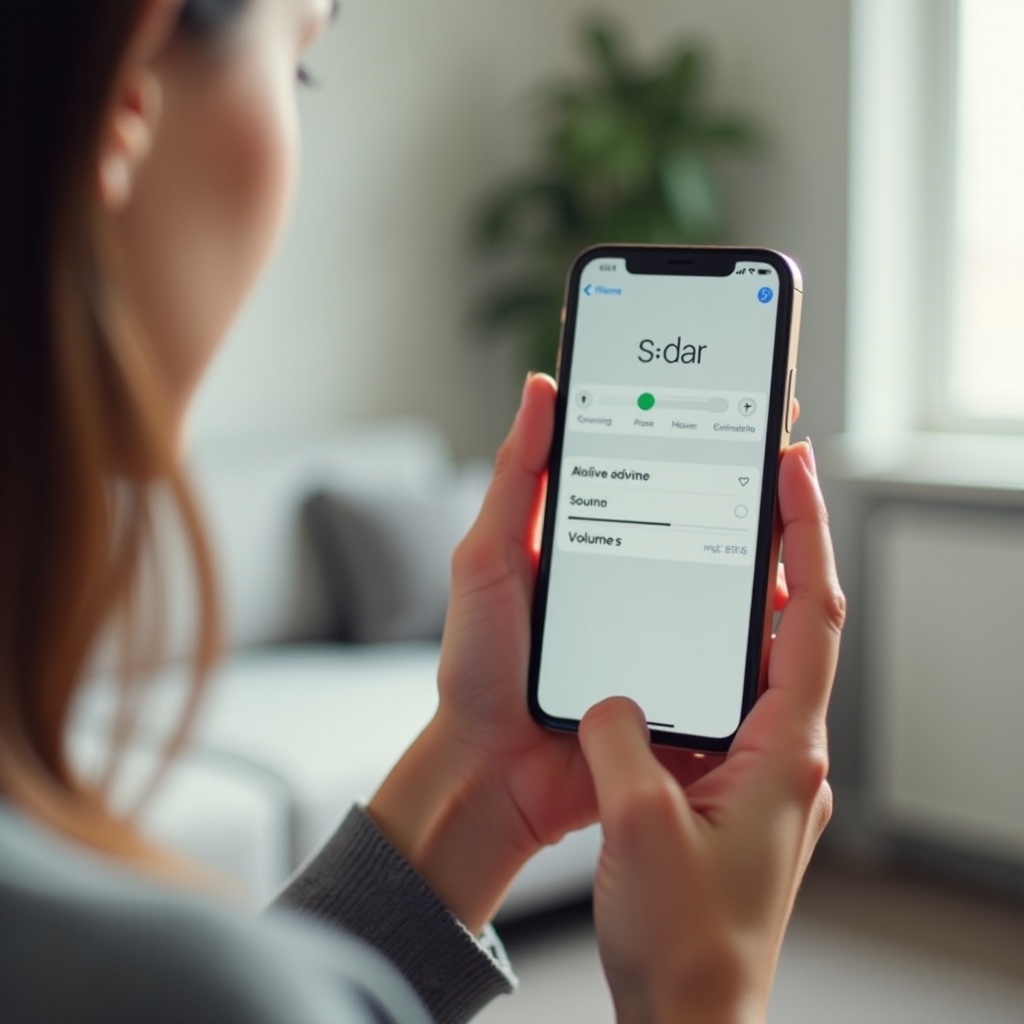
If your iPhone sound is fine, Siri itself might be set not to talk in certain situations. Apple lets you control when Siri speaks, and the wrong options can make it seem like Siri is broken.
Adjusting these settings ensures Siri behaves the way you expect, whether you use the wake word, the Side button, or both. Once you confirm them, you can rule out configuration choices as the cause and move on to where your audio is going.
How to Check Siri Responses Options
Go through these steps:
- Open Settings > Siri & Search.
- Tap Siri Responses (or similar wording depending on your iOS version).
- Review options such as:
- Always or Always Speak Responses
- When Silent Mode is Off
- Only with ‘Siri’ or similar labels
If Siri is set to only speak when Silent mode is off, or only when triggered by voice, it may stay quiet in other contexts. Change the setting to a more talkative option.
Best Siri Response Settings If You Want Voice Every Time
If your goal is clear spoken responses whenever possible, use these tips:
- Set Siri Responses to Always Speak Responses or the closest equivalent.
- Turn on options that allow spoken responses even when using the Side or Home button.
- Make sure any options that limit voice feedback when muted align with your needs.
After updating these settings, ask Siri a direct question such as ‘What time is it?’ and check if you hear a voice. If Siri still seems muted, the sound may be going to the wrong device, which leads to the next step.
Check Audio Output: Speaker, Bluetooth, and Car Systems
When Siri is not talking, it may actually be talking somewhere else: through AirPods, a Bluetooth speaker, a car stereo, or another audio output. This is especially common if you often use wireless accessories.
Before you assume something is wrong with Siri itself, make sure your iPhone is not sending Siri’s voice to a device that is turned off, out of range, or using a different input.
Turn Off Bluetooth and Disconnect Accessories
Start by ruling out Bluetooth conflicts:
- Open Control Center and tap the Bluetooth icon to turn it off.
- Or go to Settings > Bluetooth and toggle Bluetooth off.
- Ask Siri a question again.
If Siri now speaks through the iPhone speaker, then one of your Bluetooth devices was capturing the audio. You can then turn Bluetooth back on later and check which device is active.
Fix Siri Talking Through AirPods, Speakers, or Car Stereo
If you want to keep using Bluetooth but control where Siri speaks:
- With Siri active or while playing audio, open Control Center.
- Tap the audio output icon (a triangle with circles).
- Choose iPhone if you want Siri from the phone speaker, or select your intended accessory.
For car systems or CarPlay, check your vehicle audio source. Make sure it is set to the correct input. If Siri’s voice is set to come from the car but the car is on another source, you will hear nothing. Fixing the output often restores Siri’s ‘missing’ voice.
When audio routing looks correct and Siri still will not talk, it is time to verify whether Siri is using the right language and a fully downloaded voice.
Verify Siri Language, Region, and Voice Downloads
If Siri’s language or region does not match your settings, or if the voice files did not download properly, Siri might stop speaking or use a default voice that behaves oddly.
Making sure language and region match your usage helps Siri understand you better and respond consistently. It also ensures that the correct voice packs are in place and ready to speak.
Choose the Correct Siri Language and Region
Follow these steps:
- Go to Settings > Siri & Search.
- Tap Language.
- Select the language you actually use with Siri, such as English (United States).
- Make sure Settings > General > Language & Region also matches your location.
A mismatch between Siri language and system region can cause unexpected behavior. Aligning them ensures Siri uses the correct voice and features for your area.
Download and Switch to a Different Siri Voice
Next, check the voice itself:
- In Settings > Siri & Search, tap Siri Voice.
- Choose a voice variety and specific voice.
- Wait for any voice download to complete.
- You may see a spinner or ‘Downloading’ status.
After the download finishes, ask Siri a question again. If the previous voice file was corrupt or missing, choosing a new voice often restores spoken responses. If not, the issue may relate to system-wide controls such as Focus and Do Not Disturb.
Review Focus, Do Not Disturb, and Driving Modes
Focus modes are powerful but can cause confusion. When active, they can silence alerts and affect how and when Siri speaks. If Siri stopped talking around the time you changed Focus settings, this may be the cause.
Understanding how Focus interacts with notifications and sound helps you decide whether the mode is too strict for how you use Siri. If you rely on spoken cues, you may need to relax some restrictions.
How Focus Modes Can Silence Siri
To review Focus settings:
- Open Settings > Focus.
- Look at each Focus profile: Do Not Disturb, Driving, Work, Sleep, and any custom modes.
- Check:
- Who is allowed to notify you
- Which apps can send notifications
- Whether certain sound settings are restricted
While Focus does not directly mute Siri in every case, it can change how and when Siri announces information, especially notifications and calls. If you expect Siri to speak caller names or read alerts, Focus may interfere.
Adjust Driving or Work Focus So Siri Can Speak
To keep Focus but let Siri talk more freely:
- Open a Focus mode like Driving.
- Tap the options or settings section and review allowed notifications and calls.
- Enable settings that allow important calls and specific apps to alert you.
- Turn off automatic activation triggers if they come on when you do not need them.
You can also temporarily disable Focus from Control Center to test whether Siri behaves normally without it. If Siri speaks again, you know Focus settings were involved and can adjust them accordingly.
If Focus is not blocking Siri, the next place to look is Accessibility, which can change how Siri accepts and delivers responses.
Check Accessibility Settings That Change Siri Behavior
Accessibility settings make iPhones more usable for many people, but some of them change how Siri behaves. If you turned on ‘Type to Siri’ or other voice-related features, Siri may speak less often.
Reviewing these options helps you see whether Siri is acting differently because the system expects you to type or use other assistive tools instead of listening for spoken responses.
Type to Siri and When It Reduces Voice Feedback
To check this setting:
- Go to Settings > Accessibility.
- Tap Siri.
- Look for Type to Siri.
If Type to Siri is enabled, your iPhone encourages you to type instead of speak to Siri. Siri can still talk, but you might see different behavior, especially when you activate Siri with the Side or Home button. Try turning it off and testing Siri again.
Other Accessibility Features That May Mute Siri
You should also review:
- VoiceOver under Accessibility > VoiceOver
- Spoken Content under Accessibility > Spoken Content
- Any custom audio routing or hearing device settings
If these are enabled, they may change how and where you hear Siri, especially when wearing headphones or using certain apps. Temporarily disabling them helps you see if they are part of the issue.
Once you have ruled out settings and audio routing, it is time to look at the underlying software. A restart or update can often clear stubborn glitches.
Restart, Update, and Maintain Your iPhone Software
If settings look correct and Siri still will not talk, a temporary glitch or old software may be the cause. Restarting and updating your iPhone often fixes stubborn Siri bugs.
Keeping your software current also reduces the chance that known issues will come back in the future. Apple regularly improves Siri performance and reliability through system updates.
Restart Your iPhone to Clear Temporary Glitches
Restarting is simple but effective:
- On recent iPhones, press and hold the Side button and a volume button until the slider appears.
- Slide to power off.
- Wait about 30 seconds, then hold the Side button again to turn the phone back on.
This clears temporary processes that may interfere with Siri’s voice. After the restart, test Siri again.
Update iOS to Fix Siri Voice Bugs
Apple often fixes Siri issues in iOS updates. To check for updates:
- Go to Settings > General > Software Update.
- If an update is available, connect to Wi‑Fi and plug in your iPhone.
- Tap Download and Install.
After the update, revisit your Siri settings quickly to confirm they are still correct, then test Siri’s voice. If a system bug was blocking spoken responses, the update may solve it.
If even a fresh restart and the latest software do not fix the problem, a deeper configuration reset may be necessary.
Reset Siri, Network, or All Settings
If Siri is still not talking, your settings may be corrupted. Resetting certain features can restore normal behavior without erasing your personal data.
These resets are more advanced than simple toggles, so treat them as stronger tools. Start with Siri-specific resets, then move to broader system resets only if needed.
Turn Siri Off and On and Reset Siri & Dictation
First, reset Siri itself:
- Go to Settings > Siri & Search.
- Turn off all Siri toggles (for example, ‘Listen for “Siri”‘ and ‘Press Side Button for Siri’).
- Confirm any prompts to disable Siri.
- Restart your iPhone.
- Turn the toggles back on and set Siri up again.
In some cases, you may see an option to reset Siri & Dictation data. Using it can clear corrupted information that affects voice responses. After resetting, test whether Siri speaks normally.
When to Reset Network Settings
Siri uses the internet for many tasks. If network configuration is corrupted, Siri might behave oddly. To reset:
- Go to Settings > General > Transfer or Reset iPhone.
- Tap Reset.
- Choose Reset Network Settings.
This removes saved Wi‑Fi networks and VPN settings, so make sure you know your Wi‑Fi passwords. It will not erase photos or apps. This step helps when Siri issues appear along with other network glitches.
Reset All Settings Without Erasing Your Data
If nothing else works, you can reset all settings:
- Go to Settings > General > Transfer or Reset iPhone.
- Tap Reset.
- Choose Reset All Settings.
This returns system settings (including Siri, sound, and network preferences) to default but keeps your data and apps. After the reset, set up Siri again and test if it speaks.
If Siri still stays silent after all software-related fixes, the cause may be physical. At that point, you should look closely at your speaker and microphones.
Check Microphone and Speaker Hardware
If Siri still will not talk after all software fixes, you should check your hardware. A damaged speaker or blocked microphone can make it seem like Siri is broken.
Hardware issues can come from drops, water exposure, dust, or regular wear. Testing with simple calls and recordings can reveal whether your device is physically unable to play or capture sound correctly.
Test Speaker Output With Music and Calls
To test the speaker:
- Play a song or video at normal volume.
- Make a call and switch to speakerphone.
- Listen for:
- Very low volume
- Crackling or distortion
- No sound at all
If other audio also sounds wrong, your iPhone speaker may need repair. This would affect Siri too, since Siri uses the same speakers for voice output.
Inspect Microphones for Blockages or Damage
Siri needs working microphones to hear you clearly. Check:
- The bottom microphone near the charging port
- The top microphone near the front camera
- Any case or screen protector that might block openings
Gently clean around the microphones with a soft, dry brush. If your phone suffered a drop or water exposure, internal damage may be the cause. In that case, professional diagnostics are best.
If your tests show likely hardware problems, or if all the above steps fail, you should reach out to Apple for deeper analysis and repair options.
When to Contact Apple Support About Siri Not Talking
If you tried all the steps above and Siri still will not talk, it is time to involve Apple Support. They can check for deeper software bugs or hardware issues you cannot see.
Getting help early can also prevent minor faults from becoming larger and more expensive problems. A quick diagnostic can confirm whether your device needs repair or only a more advanced reset.
Signs You Might Have a Hardware Problem
You should suspect hardware if:
- The speaker fails with music and calls, not just Siri.
- Microphone tests show poor or no audio.
- Siri only works with headphones, never with the built‑in speaker.
- The issue started after a drop, impact, or water exposure.
These signs point to physical damage rather than settings or software.
How to Prepare for an Apple Support or Store Visit
Before you contact Apple:
- Back up your iPhone with iCloud or a computer.
- Write down what you tried and when the problem started.
- Gather any accessories you use with Siri, such as AirPods or car adapters.
Use the Apple Support app or website to schedule a Genius Bar or authorized service appointment. A technician can run diagnostics and recommend repair or replacement if needed.
Once you resolve the issue, whether through settings or support, a few habits will help you keep Siri talking in the future.
Prevent Siri From Going Silent Again
Once you fix the ‘Siri is not talking’ problem, you can reduce the chances it comes back. A few habits around updates, accessories, and settings make a big difference.
Preventive steps are easier than repeated troubleshooting. By keeping an eye on sound controls, Focus modes, and Bluetooth devices, you can enjoy reliable voice responses from Siri.
Best Practices for Audio and Siri Settings
Try these tips:
- Keep Siri Responses set to a clear, predictable option like Always Speak Responses if you want consistent voice feedback.
- Avoid frequent, unnecessary changes to Focus and accessibility that affect audio.
- Check the ring/silent switch and volume if Siri seems quiet again.
Regularly reviewing these settings after major updates helps you catch changes early and fix them before they cause confusion.
Managing Accessories and Focus Modes Smartly
You can also:
- Unpair accessories you no longer use, so they do not grab audio unexpectedly.
- Customize Focus modes so they do not silence important audio or Siri alerts.
- Test Siri briefly after connecting a new Bluetooth device or car system.
These habits will help Siri stay reliable and keep speaking when you need it most.
Conclusion
A silent Siri can be frustrating, especially when you rely on voice responses to stay hands‑free. The good news is that most ‘Siri is not talking’ problems come from simple causes: muted sound, voice feedback settings, Bluetooth routing, Focus modes, or a temporary software glitch.
By checking volume, confirming Siri response options, making sure audio goes to the right device, aligning language and voice files, reviewing Focus and accessibility, and keeping iOS updated, you can fix the issue in many cases. If you still cannot hear Siri after these steps, testing your speaker and microphones and contacting Apple Support will help you find deeper hardware problems.
Work through the steps in this guide one by one. In many situations, a small change such as flipping the silent switch or choosing ‘Always Speak Responses’ is all it takes to hear Siri talk again.
Frequently Asked Questions
Why is Siri not talking but still showing text on my screen?
If you see Siri’s text responses but hear no voice, the problem is usually sound routing or Siri response settings. Check the ring/silent switch and raise the volume while Siri is active. Then go to Settings > Siri & Search > Siri Responses and set it to always speak. Turn Bluetooth off briefly to ensure Siri’s voice is not going to headphones, a speaker, or a car system.
How do I change Siri’s voice so it speaks more clearly?
You can change Siri’s voice in Settings > Siri & Search > Siri Voice. Choose a language variety, then pick a specific voice you like. Wait for any download to finish before testing. Some voices sound clearer or more natural than others, and switching voices can also fix issues caused by a corrupted voice file.
Siri stopped talking after an iOS update—what should I do first?
After an update, some Siri settings may change. First, check Siri Responses and set it to always speak. Confirm your audio output is set to iPhone, not a Bluetooth device, and make sure the ring/silent switch is not on. Then restart your iPhone and test Siri. If it still does not talk, try reselecting or redownloading a Siri voice and, if needed, reset Siri in Settings > Siri & Search.