
Introduction
That persistent ‘Too Close’ alert can break your focus when you read, watch, or play on your iPhone. Apple calls this feature Screen Distance, but many people search for it as ‘eye distance.’ If you want a calmer experience, you can turn it off in a few taps. This guide explains exactly how to turn off eye distance on iPhone, how to manage it for a child, and what to do if the toggle is missing or greyed out. You will also see related features that often get confused with Screen Distance and learn eye-friendly alternatives if you still want comfort without constant alerts. We will start with what the feature does so you know whether to keep it, tweak it, or disable it.
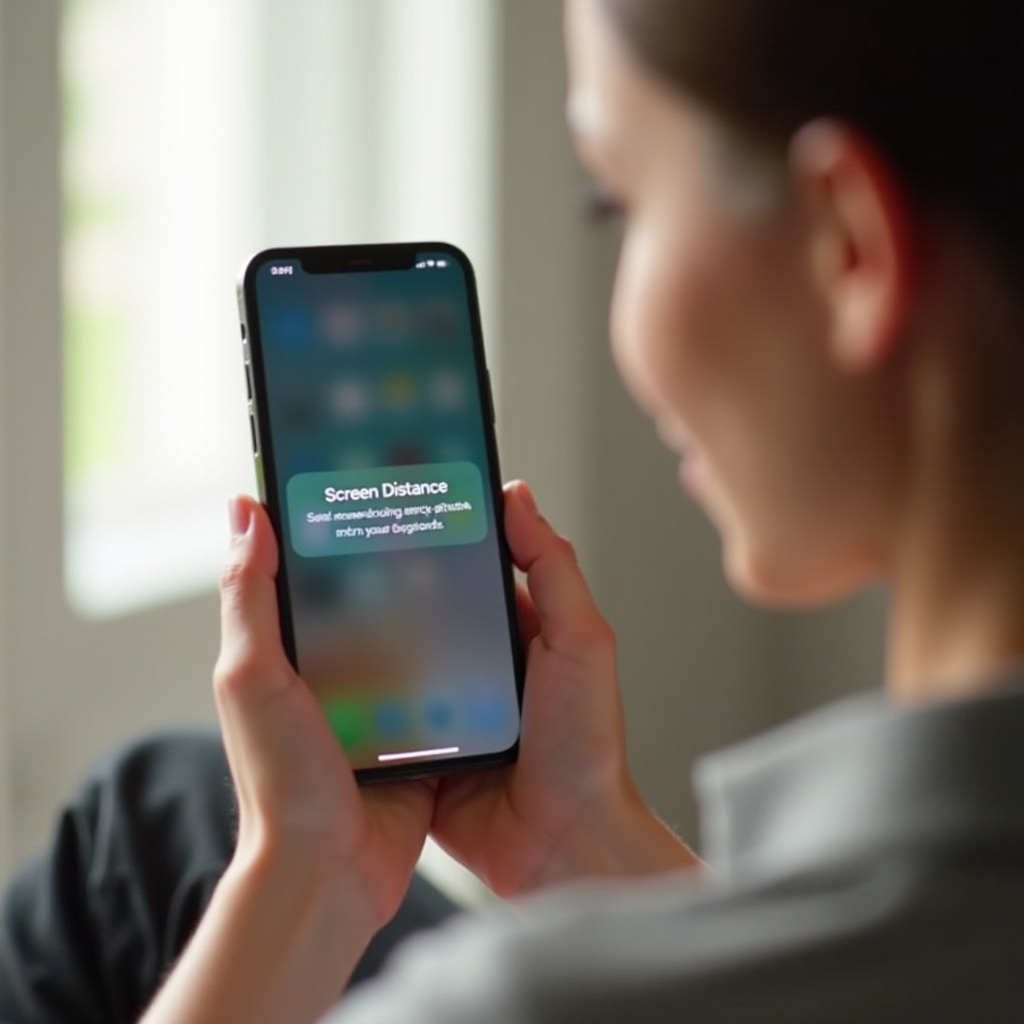
What ‘Eye Distance’ Means on iPhone (Screen Distance and the ‘Too Close’ Alert)
Eye Distance is a user nickname for Screen Distance, a Screen Time setting that warns you when you hold your iPhone too close to your face. When the TrueDepth camera senses a short viewing distance, the screen displays a ‘Too Close’ notice. Move the phone farther away to dismiss it. Apple designed this to reduce eye strain and encourage healthier viewing habits for both adults and kids. The processing that estimates distance happens on your device using the same hardware that enables Face ID. The system does not save photos, and it does not send images to Apple. The setting lives under Screen Time because it works alongside digital wellness tools, like Downtime and App Limits. If you already use good habits or you dislike interruptions, you can turn it off. Before you change anything, confirm your device supports Screen Distance so the path you see in Settings matches the steps below.
Requirements: Supported iPhones and iOS Versions, Face ID, and Screen Time
Screen Distance requires an iPhone or iPad with a TrueDepth camera. That includes iPhones with Face ID and iPad Pro models with Face ID. Devices with only Touch ID do not support the feature, so you will not see the Screen Distance menu. You also need a recent iOS or iPadOS version that includes Screen Distance in Screen Time. For family management, you must enable Family Sharing and Screen Time for each child you want to manage. On company or school devices, a management profile may hide or lock the toggle. In those cases, the organization controls Screen Distance. With support verified, you can turn off eye distance on iPhone in seconds. Use the quick steps first; then continue to the detailed walkthrough if anything looks different on your screen.
Quick Steps: Turn Off Eye Distance in Seconds
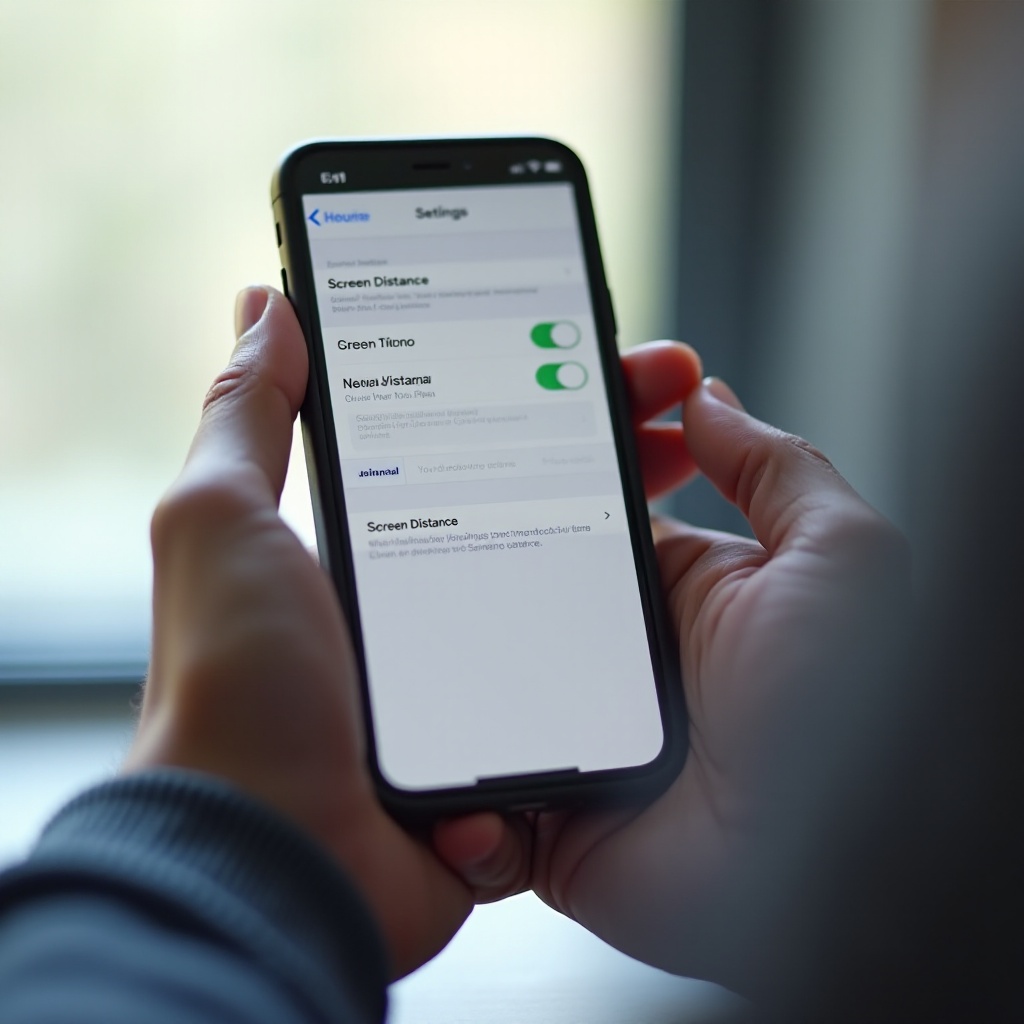
- Open Settings.
- Tap Screen Time.
- Tap Screen Distance.
- Toggle Off Screen Distance.
If you manage a child’s device:
– Open Settings.
– Tap Family (or Screen Time > Family).
– Tap your child’s name > Screen Time > Screen Distance.
– Toggle Off Screen Distance.
If you do not see Screen Distance, check device compatibility and remove anything that blocks the TrueDepth camera. If the toggle is greyed out, jump to the fixes section below. If you prefer a slower pace with guardrails, follow the full step-by-step guide next.
Step-by-Step: How to Turn Off Eye Distance on Your iPhone via Settings > Screen Time > Screen Distance
If the quick steps did not work or you prefer a thorough path, use this sequence. It covers small snags that can slow you down.
1) Open Settings and tap Screen Time. If Screen Time is off, tap Turn On Screen Time and follow the prompts. You can disable Screen Distance after you enable Screen Time.
2) Inside Screen Time, tap Screen Distance. If you cannot find it, your device may not support TrueDepth or the feature may be restricted. We will cover fixes later.
3) Toggle Off Screen Distance. Confirm any prompt. The ‘Too Close’ alert will stop appearing during regular use.
4) Optional: There is no built-in scheduling for Screen Distance. The toggle is global. If you want occasional reminders, consider keeping it on and pairing it with healthier display settings or timed breaks.
5) Verify the change. Open an app and hold the phone close. You should not see the warning. If it persists, toggle Screen Distance on, wait a few seconds, toggle off, and restart your iPhone.
Once your device is set, many parents want the same control for family iPhones and iPads. The next section shows you how to disable or manage Screen Distance for a child.
Turn Off Eye Distance for a Child’s iPhone with Family Sharing
You can manage Screen Distance from your own iPhone or directly on the child’s device, as long as Screen Time uses a parent-controlled passcode.
Manage from your iPhone:
1) Open Settings > Family (or Settings > Screen Time > Family).
2) Tap your child’s name.
3) Tap Screen Time > Screen Distance.
4) Toggle Off Screen Distance. Enter your Screen Time passcode if prompted.
Manage on the child’s iPhone:
1) Open Settings > Screen Time.
2) If Screen Time is not set up, tap Turn On Screen Time and create a parent passcode.
3) Tap Screen Distance.
4) Toggle Off Screen Distance.
Lock your choice:
– Keep the Screen Time passcode private so your child cannot change the toggle.
– If the iPhone or iPad is supervised by a school, certain settings may be locked by the institution. In that case, only the school admin can make changes.
If you cannot change the setting, or the option is missing, the next section explains the likely causes and the best fixes.
If the Toggle Is Greyed Out or Missing: Restrictions, MDM, and Passcode Fixes
When the Screen Distance toggle does not respond or does not appear, one of these conditions usually applies. Work through them from simplest to most complex:
-
Device not supported: Only devices with a TrueDepth camera offer Screen Distance. If your iPhone or iPad does not have Face ID hardware, the menu will not exist.
-
TrueDepth obstructed or not available: A camera cover, thick protector, or debris can confuse depth detection. Clean the notch or Dynamic Island area and remove any cover that blocks sensors. TrueDepth must function, even if Face ID is not enrolled.
-
Content & Privacy Restrictions: Strong Screen Time restrictions can prevent changes. Temporarily turn off restrictions in Settings > Screen Time > Content & Privacy Restrictions. Then try the toggle again.
-
Managed device (MDM): Work or school profiles may enforce Screen Time policies. Check Settings > General > VPN & Device Management. If a profile manages your device, only your admin can change Screen Distance.
-
Wrong place for child controls: For a child, adjustments should happen under Settings > Family (or Screen Time > Family) > child’s name > Screen Time > Screen Distance. The parent must confirm with the Screen Time passcode.
-
Forgotten Screen Time passcode: Tap Change Screen Time Passcode > Forgot Passcode? and use your Apple ID to reset it. Then return and toggle the setting.
If those checks fail, update iOS, restart, and try again. If you still see the warning after turning Screen Distance off, use the troubleshooting sequence next.
Alert Still Appears After Disabling? Troubleshooting and Resets
If Screen Distance is off but you still get the ‘Too Close’ notice, these steps can resolve stubborn behavior:
1) Confirm the setting: Go to Settings > Screen Time > Screen Distance. Ensure it is off. Toggle it on, wait five seconds, then off again.
2) Restart the iPhone: A restart refreshes Screen Time background services that may keep the old state.
3) Update iOS: Go to Settings > General > Software Update. Install updates, restart, and recheck the toggle.
4) Clear the path for sensors: Remove camera covers and clean the TrueDepth area to avoid false detections.
5) Reset Screen Time settings: Turn off Screen Time entirely, restart the phone, turn Screen Time back on, and set Screen Distance to off.
6) For child devices: Reapply the change from the parent’s iPhone under Settings > Family > child > Screen Time > Screen Distance, and confirm the passcode.
7) Managed devices: If your organization forces Screen Distance, your local change may revert. Only your admin can unlock or change the policy.
If the issue continues, record the behavior and contact Apple Support with details about your model, iOS version, and any management profile. Once the warnings stop, it is smart to consider whether disabling the feature is the right long-term choice.
Should You Disable Eye Distance? Eye Health vs. Convenience
Before you leave Screen Distance off, weigh the benefits and costs. The feature promotes a safer viewing distance and can reduce eye strain, especially for children who hold devices close when engaged. For adults who already keep a healthy distance and take breaks, the alerts can feel like unnecessary friction. A balanced approach works for many families: keep Screen Distance enabled on children’s devices, but disable it on a parent’s iPhone. Alternatively, leave it on and combine it with display adjustments that reduce glare and brightness. If you choose to turn it off, the next section gives practical ways to protect your eyes without distance alerts.
Safer Alternatives: Reduce Eye Strain Without Turning Off Screen Distance
Whether you keep Screen Distance on or off, the right display and habit tweaks can boost comfort:
- Follow the 20-20-20 rule: Every 20 minutes, look at something 20 feet away for 20 seconds.
- Increase text size: Settings > Accessibility > Display & Text Size > Larger Text.
- Use Display Zoom: Settings > Display & Brightness > Display Zoom.
- Enable Night Shift: Settings > Display & Brightness > Night Shift to shift colors warmer in the evening.
- Turn on True Tone: Let the display adapt white balance to ambient light.
- Reduce White Point: Settings > Accessibility > Display & Text Size > Reduce White Point to soften bright elements.
- Mind posture and lighting: Keep the phone at arm’s length, sit upright, and avoid harsh glare.
These options can minimize eye strain and help you build healthier habits. If you also see odd display behavior or gaze effects, you may be dealing with other features that resemble Screen Distance. The next section clarifies what each one does and how to disable it.
Related Features People Confuse With Eye Distance—and How to Turn Each Off (FaceTime Eye Contact, Attention Aware)
Several iPhone features mention eyes or attention, but they serve different purposes:
-
Screen Distance: The distance alert covered in this guide. Turn it off in Settings > Screen Time > Screen Distance.
-
FaceTime Eye Contact: During video calls, it adjusts your on-screen gaze to look more like direct eye contact. Turn it off in Settings > FaceTime > Eye Contact.
-
Attention Aware Features: These adjust behavior when you are or are not looking at the screen (for example, dim the display or lower alert volume). Turn it off in Settings > Face ID & Passcode > Attention Aware Features.
Tuning these settings helps you avoid confusion. You can keep Screen Distance off while disabling FaceTime Eye Contact and Attention Aware Features, or mix and match to suit your preferences. With the right blend, you protect comfort without sacrificing control.
Privacy and Battery: What Changes When You Turn Eye Distance Off
Screen Distance uses on-device processing with the TrueDepth camera. It does not store images or upload them. When you disable it, the distance checks stop and the related alerts disappear. The battery impact of Screen Distance is minimal for most users, so you may not notice any difference when it is off. For bigger gains, reduce background activity, lower screen brightness, or limit location access. If you still have privacy concerns, keep only the features that deliver clear value, and turn off the rest. With privacy and efficiency covered, you can wrap up your setup with confidence.
Conclusion
You can turn off eye distance on iPhone in seconds, and you can manage the same setting for your child through Screen Time and Family Sharing. If the toggle is missing or greyed out, check for device support, restrictions, or a management profile, then apply the fixes and troubleshooting steps in this guide. Balance your comfort with safe habits: keep Screen Distance on for kids who benefit from reminders, or disable it and use display tweaks and the 20-20-20 rule. Now that you know where Screen Distance lives and how it compares to similar settings, you can tailor your iPhone to your needs without surprise pop-ups or confusion.
Frequently Asked Questions
Will turning off Eye Distance affect Face ID or my personal data?
Turning off Screen Distance does not change Face ID. Face ID continues to store and match your face data securely on your device. Screen Distance uses on-device processing and does not save photos. Disabling it simply stops distance checks and alerts.
Is Eye Distance available on iPad, and can I turn it off there too?
Yes, supported iPad Pro models with a TrueDepth camera include Screen Distance in Settings > Screen Time. You can turn it off with the same toggle. For a child’s iPad, manage it under Settings > Family (or Screen Time > Family) on the parent’s device.
Can I schedule Eye Distance or automate it with Focus or Shortcuts?
There is no built-in way to schedule Screen Distance, and Apple does not expose it to Shortcuts. If you want fewer alerts at certain times, automate display settings like Night Shift, Reduce White Point, or Focus modes while leaving Screen Distance as you prefer.