
Introduction
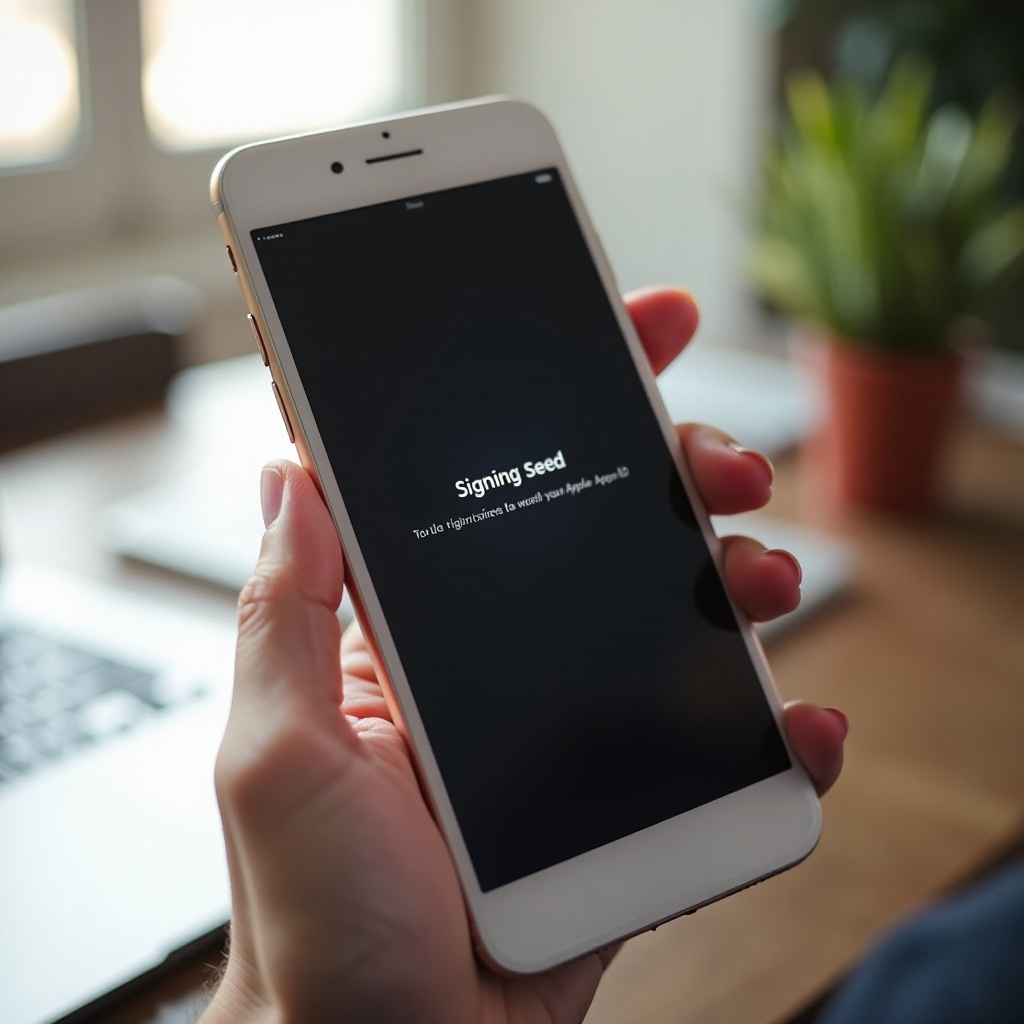
You finally unbox your new iPhone, power it on, and start the setup. Everything goes smoothly until one screen refuses to move: ‘Signing in to your Apple ID’ or ‘It may take a few minutes to set up your Apple ID.’ A few minutes turn into 10, then 20, and it looks like your new phone is frozen.
Many new iPhone owners run into this issue, especially around big launches or fresh iOS releases. The problem can feel serious, but in most cases, you can fix it yourself without a repair or replacement. The key is to work through the causes in a logical order instead of guessing.
This guide explains why your new iPhone setup gets stuck on signing in, how to fix it step by step, and when to contact Apple Support. You will also see how to prepare your Apple ID and old device so your next upgrade avoids these sign-in loops altogether.
Understand Why Your New iPhone Is Stuck on ‘Signing In’
Before you start changing settings or restoring your phone, it helps to understand what the iPhone is doing during the sign-in step. Once you know that, each fix will make more sense and you will waste less time on trial and error.
What the ‘Signing In to Apple ID/iCloud’ Screen Really Means
During setup, your iPhone needs to link the device to your Apple ID so it can:
- Verify your Apple ID and password
- Confirm two-factor authentication codes
- Register the device with Apple’s servers
- Enable services like iCloud, App Store, and Find My
- Begin syncing basic iCloud data such as contacts and settings
The messages you see, such as ‘Signing in to your Apple ID’ or ‘It may take a few minutes to set up your Apple ID,’ appear while these checks run. If the connection to Apple’s servers fails, or something about your account does not match, the process can stall and appear stuck.
Common Points Where New iPhone Setup Freezes
New iPhones tend to freeze at a few specific stages during setup, including:
- ‘It may take a few minutes to set up your Apple ID’
- ‘Signing in to iCloud’
- ‘Updating iCloud settings’
- Right after you enter your Apple ID and password and tap Continue
These problem points usually trace back to one of a few root causes:
- Slow, unstable, or filtered internet connection
- Apple’s servers are busy or temporarily down
- Incorrect login details or extra security checks on your Apple ID
- An issue with the backup you are trying to restore
Once you see where the setup is hanging, you can start with basic checks that rule out the most common and easiest-to-fix issues.
First Checks Before Deeper Troubleshooting
Simple problems cause a large share of sign-in loops. Before you jump to advanced tools or device restores, you should confirm that Apple’s services are online, your network works well, and your basic settings are correct. These quick checks often fix the problem on their own.
Confirm Apple’s System Status for Apple ID and iCloud
Sometimes the issue is on Apple’s side, not with your phone or network. To check Apple’s status:
- Use another device such as a phone, tablet, or computer.
- Search for ‘Apple System Status’ and open the official Apple page.
- Look for Apple ID, iCloud Account & Sign In, and iCloud Backup.
If you see yellow or red icons next to these services, Apple is having problems. In that case:
- Wait until those services show as available again (green indicators).
- Restart your new iPhone and try the setup once the status is back to normal.
Checking this first prevents you from spending an hour troubleshooting a problem you cannot control.
Test Your Wi‑Fi or Cellular Connection
A weak or unstable network is another common cause of sign-in loops. To test your connection, use another device on the same network and:
- Load a few websites and see if they open quickly.
- Stream a short video to check for buffering or drops.
- If things feel slow or broken, restart your router and modem.
If Wi‑Fi remains unreliable:
- Move closer to the router for a stronger signal.
- Temporarily switch your new iPhone to cellular data during the sign-in step.
- Or use a personal hotspot from another phone to complete setup.
Try to avoid public or guest Wi‑Fi that requires a web login (like hotels, cafes, and airports). Those networks often block or filter the traffic that Apple needs for secure sign-in.
Check Date, Time, and Region During Setup
Incorrect date, time, or region settings can break secure connections to Apple’s servers. Certificates may not match, and the system may treat your connection as unsafe.
If you are still in the setup flow:
- Choose the correct country or region when prompted.
- Enable automatic date and time if the option appears.
If you managed to reach the Home screen by skipping sign-in:
- Open Settings > General > Date & Time.
- Turn on ‘Set Automatically.’
- Confirm the time zone matches your real location.
After you fix these basics, try the sign-in again. If the problem continues, you can move on to simple but slightly more active fixes.
Simple Fixes to Try When Setup Hangs on Signing In
You have confirmed that Apple’s servers are working and your connection and clock are fine, but your new iPhone still seems stuck. The next step is to clear temporary glitches. These actions do not erase your data and often allow the setup to complete on the second attempt.
How Long You Should Wait Before Assuming It Is Stuck
The sign-in screen can sometimes take longer than expected, especially when:
- Apple just released a major iOS update
- A new iPhone model has launched and many people are setting up at once
- Your network is slow or congested
As a practical rule:
- Wait at least 10 to 15 minutes on the signing-in screen.
- If nothing changes after 20 minutes and the progress spinner looks frozen, treat it as stuck.
- If the spinner still moves and the phone feels active, you can give it a little more time.
Once it is clear the process is not moving forward, you are safe to try a force restart.
Force Restart Your New iPhone and Resume Setup
A force restart can clear temporary software glitches without erasing data. For most recent Face ID iPhones:
- Quickly press and release the Volume Up button.
- Quickly press and release the Volume Down button.
- Press and hold the Side button until you see the Apple logo.
The device will reboot and return to the setup flow. When it does:
- Walk through the setup steps again.
- Pay close attention when you reach the Apple ID sign-in screen.
In many cases, the sign-in completes properly after one clean restart, especially if the original hang came from a small software hiccup.
Skip Apple ID Sign‑In During Setup and Add It Later
You do not have to finish Apple ID sign-in during the very first setup. If the device keeps hanging at this stage, skipping sign-in can break the loop and let you reach the Home screen.
To skip Apple ID during setup:
- On the Apple ID screen, look for options like ‘Forgot password or don’t have an Apple ID?’ or ‘Set Up Later in Settings.’
- Select the option to set up without an Apple ID or to sign in later.
- Continue through the rest of the setup screens until you reach the Home screen.
Once the iPhone is running normally:
- Open Settings.
- Tap ‘Sign in to your iPhone’ at the top.
- Enter your Apple ID, password, and any two-factor code.
Separating device setup from Apple ID sign-in often avoids the glitch that appears when both happen together. If sign-in still fails here, the issue is likely with your network or account, not the setup wizard itself.
Network and Apple ID Account Issues That Cause Sign‑In Loops
If your iPhone continues to get stuck even after restarts and skipping sign-in during setup, it is time to look deeper at your network and Apple ID account. Network filters, VPNs, and account security checks often block the sign-in process without showing a clear error on the iPhone.
Weak or Filtered Networks, VPNs, and Public Wi‑Fi Problems
Network tools that protect or filter traffic can accidentally interfere with Apple’s secure connections. Common examples include:
- VPN apps on your iPhone or router
- Custom DNS services or ad-blocking DNS
- Corporate, school, or guest networks with strict firewalls
To reduce network interference during setup:
- Turn off any VPN apps on your iPhone and on other devices sharing the same network.
- If you use custom DNS, temporarily switch back to your internet provider’s default DNS.
- Try a simple home network or a personal hotspot instead of office or public Wi‑Fi.
Once the iPhone completes setup and signs in successfully, you can turn your VPN and DNS tools back on.
Incorrect Passwords, Two‑Factor Codes, and Security Locks
Apple ID security is strict, and any mismatch can stop setup. To make sure your account details are correct:
- On another device, open a browser and go to the Apple ID sign-in page.
- Enter the same Apple ID and password you used on the new iPhone.
- If you cannot log in, reset your password there and then try again on the new device.
If two-factor authentication is on:
- Watch your trusted devices or phone number for six-digit codes.
- Approve sign-in requests and enter the code when prompted.
If Apple detects unusual activity or repeated failed attempts, it may:
- Ask extra security questions
- Send verification emails
- Temporarily lock your account
Clear these security prompts from a browser or another Apple device first. After that, go back to the new iPhone and try signing in again.
Billing, Region, or Parental Controls Blocking Sign‑In
Sometimes the issue is not your password but your account profile. Problems that can trigger blocks include:
- Expired or declined payment methods on your Apple ID
- Region or country settings that do not match your actual location
- Screen Time or parental controls managed through Family Sharing
To review these details:
- On another Apple device, open Settings and tap your name at the top.
- Check ‘Payment & Shipping’ for expired cards or warnings.
- Review ‘Country/Region’ to confirm it is correct.
- If you are part of a family group, ask the organizer to check any restrictions.
Fix any alerts or mismatched information and then return to the new iPhone for another sign-in attempt. If your sign-in loop started while restoring a backup, focusing on the restore path is the next step.
Fixing Problems After Restoring from iCloud or Computer Backup
Many sign-in problems appear right after you choose to restore your new iPhone from a backup. In that situation, the device is trying to sign in and restore data at the same time. If either process fails, the setup can appear stuck.
When iCloud Backup Restore Gets Stuck on Apple ID
When restoring from iCloud, your new iPhone must:
- Confirm your Apple ID and iCloud access
- Download your settings and data from iCloud
- Re-authorize apps tied to your Apple ID
If your iCloud restore seems stuck on a sign-in or ‘Restoring from iCloud’ message:
- Allow at least 20 to 30 minutes, especially if your backup is large or your network is slow.
- If progress does not change at all, perform a force restart.
- After restart, sign in to your Apple ID again and check iCloud in Settings.
As long as progress bars or time remaining estimates move over time, the restore is still working. Only treat it as stuck when nothing changes for a long stretch.
Trying a Wired Restore via Mac or PC Instead
If iCloud restore keeps failing or hanging, a computer-based restore can offer a more stable path:
- Back up your old iPhone to a Mac using Finder, or to a Windows PC using iTunes.
- Connect your new iPhone to the same computer with a cable.
- When prompted, select ‘Restore from this backup’ and choose the most recent backup.
A wired restore has a few advantages:
- It does not depend on Wi‑Fi speed or reliability.
- Large app data and media transfer directly through the cable.
- The restore process is often faster and more predictable.
After the restore finishes, the iPhone may still ask you to sign in to complete iCloud setup, but it is less likely to freeze at that point.
Setting Up as New iPhone, Then Restoring Data Gradually
If you suspect your backup is damaged or includes problematic data, you can avoid restoring it entirely:
- On the new iPhone, choose ‘Set Up as New iPhone’ instead of restoring.
- Complete basic setup and reach the Home screen.
- Sign in with your Apple ID from Settings.
- Turn on iCloud for Contacts, Photos, Notes, and other key items.
- Reinstall your apps manually from the App Store.
This approach takes more time, but it also avoids bringing over corrupt settings or files that might trigger the same setup loop again.
Advanced Troubleshooting: Update, Recovery Mode, and DFU
If you have tried all the steps above and your new iPhone still gets stuck on signing in, you may need to repair or reinstall iOS. These advanced methods require a computer but can fix deeper software issues that normal restarts cannot touch.
Update iOS First, Then Try Signing In Again
Some brand-new devices ship with an iOS build that has early bugs. Updating to the latest version can fix sign-in and setup issues.
If possible:
- Skip Apple ID during setup so you can reach the Home screen.
- Connect your iPhone to a stable Wi‑Fi network and plug it into power.
- Go to Settings > General > Software Update.
- Download and install any available iOS update.
When the update completes, restart your iPhone, then:
- Open Settings.
- Tap ‘Sign in to your iPhone.’
- Enter your Apple ID credentials and any codes.
Newer iOS builds frequently include fixes for activation, Apple ID, and iCloud issues discovered after launch.
Use Recovery Mode to Reinstall iOS Without Data
If updating from the phone itself is not possible or does not help, use recovery mode to reinstall iOS via a Mac or PC:
- Connect your iPhone to your computer with a cable.
- Open Finder on macOS or iTunes on Windows.
- Put the iPhone into recovery mode (the button steps vary by model; Apple provides instructions on its support site).
- When Finder or iTunes detects a device in recovery mode, choose ‘Update’ first.
The Update option attempts to reinstall iOS while keeping your data. After the process finishes:
- Go through the setup screens again.
- Try signing in with your Apple ID when prompted.
If the update fails or the sign-in problem remains, you may have to choose ‘Restore’ instead, which erases the device and installs a clean copy of iOS.
When a DFU Restore Is the Last Resort for Setup Loops
DFU (Device Firmware Update) mode goes deeper than recovery mode. It lets your computer reload both the firmware and iOS. You should only use it as a last resort, because it wipes the device.
Before using DFU:
- Back up any data you still have access to, either from your old device or from iCloud.
- Make sure you have a reliable cable and a stable connection to your computer.
To perform a DFU restore:
- Connect the iPhone to your computer.
- Follow the model-specific button sequence to enter DFU mode (the screen will stay black).
- Finder or iTunes will detect a device that needs to be restored.
- Choose ‘Restore’ to install a fresh copy of iOS and firmware.
After the restore, set up the iPhone again as new or from a known-good backup. Then try signing in to your Apple ID. If a clean DFU restore does not solve the sign-in problem, the issue is likely account-related or hardware-related and needs Apple’s help.

When to Contact Apple Support or Visit a Genius Bar
Most ‘new iPhone setup stuck on signing in’ problems resolve with the steps above. However, there are situations where only Apple can fix the underlying cause, such as account locks, Activation Lock issues, or rare hardware faults.
Signs the Issue Is on Apple’s Servers or Your Account
You should contact Apple Support when you notice any of these signs:
- You cannot sign in to your Apple ID on the web, even with the correct password.
- You see messages about account recovery, security holds, or unusual activity.
- The iPhone shows ‘This iPhone is linked to an Apple ID’ and you cannot get past it.
- Even after a clean DFU restore, the device still will not complete Apple ID sign-in.
These signs point to restrictions on your account or to Activation Lock, neither of which you can safely bypass on your own.
What Information and Proof of Purchase to Prepare
To make support faster and smoother, gather the following before you call Apple or visit a store:
- Your Apple ID email address and any trusted phone numbers.
- Your iPhone model and serial number (on the box, or later in Settings > General > About).
- Proof of purchase, such as a receipt from Apple, a carrier, or a retailer.
- Any screenshots or notes you have of error messages during setup.
Apple may ask for this information to confirm ownership, check your account status, and identify whether the device is activation locked.
How Apple Can Help Unlock or Activate a New iPhone
Apple Support or Genius Bar staff can:
- Review your Apple ID status and remove security holds when appropriate.
- Help reset your Apple ID or guide you through account recovery.
- Check for hardware issues that might affect activation or connectivity.
- Remove Activation Lock when you provide valid proof that you own the device.
If you bought the iPhone used and the previous owner did not sign out of their Apple ID, Apple can explain what steps are possible and whether they can help remove the lock.
How to Prevent New iPhone Setup Problems Next Time
Once you finally get your new iPhone set up, the last thing you want is to repeat the same struggle on your next upgrade. With a bit of preparation, you can greatly reduce the risk of setup freezes and sign-in loops.
Preparing Your Old iPhone Before Trade‑In or Upgrade
Before you start setting up a new device, make sure your old iPhone is ready:
- Update the old iPhone to the latest iOS version.
- Back up the old device to iCloud or to a computer, and confirm the backup completes.
- Sign in to your Apple ID on the old device and make sure everything works normally.
If you plan to trade in, sell, or give away the old iPhone:
- Wait until the new iPhone is fully set up and working.
- Then turn off Find My in Settings > [your name] > Find My.
- Sign out of your Apple ID and erase the old device only after you are sure you no longer need it.
This sequence ensures you do not lose access to anything if the new setup runs into problems.
Keeping Your Apple ID, Security, and Backups Up to Date
Healthy account details make upgrades smoother. On a regular basis:
- Sign in to your Apple ID account page and review your personal information.
- Check your payment methods and update any expired cards.
- Confirm your trusted phone numbers and devices for two-factor authentication.
- Remove old devices you no longer own from your Apple ID device list.
Also, test logging in and out of your Apple ID from a browser. If that process works without warnings or extra verification steps, you are less likely to face surprises during a new iPhone setup.
Best Practices for a Smooth 2024 iPhone Setup
When you unbox your next iPhone, use these best practices to avoid sign-in headaches:
- Choose a strong, stable home network instead of public or corporate Wi‑Fi.
- Keep another trusted device nearby to receive two-factor codes.
- Plug the new iPhone into power so the battery does not fall during setup.
- If a step hangs, do not panic. Use the skip option for Apple ID, complete setup, and fix sign-in from Settings afterward.
Following these habits turns setup into a quick process instead of a long troubleshooting session and helps ensure that ‘new iPhone setup stuck on signing in’ becomes a problem you only read about, not one you experience.
Conclusion
A new iPhone setup stuck on signing in can feel alarming, but it rarely means your device is defective. Most of the time, the cause is a mix of network glitches, Apple ID security checks, or backup issues that you can resolve with a few careful steps. By checking Apple’s system status, testing your internet, correcting date and region settings, force restarting, and skipping sign-in when needed, you can usually finish setup without losing data.
When those fixes are not enough, restore and update tools on a Mac or PC, along with recovery mode or DFU, can repair deeper software problems. If even a clean restore does not help, Apple Support and Genius Bar teams can investigate account locks, Activation Lock, or rare hardware issues.
Looking ahead, preparing your old iPhone, keeping your Apple ID details current, and choosing a stable, simple network during setup will make your next upgrade much smoother. With the right steps in place, your new iPhone will go from box to fully set up device without getting stuck on signing in.
Frequently Asked Questions
Why is my new iPhone stuck on ‘It may take a few minutes to set up your Apple ID’?
That message appears while your iPhone contacts Apple’s servers and verifies your account. It may hang if your network is slow, Apple’s services are busy, or your Apple ID has a security flag. Wait 15–20 minutes, then force restart the iPhone if nothing changes. After that, try another network, check your Apple ID on a browser, or skip sign-in during setup and sign in later from Settings.
Can I skip Apple ID during setup and still use my new iPhone normally?
Yes. You can complete initial setup without signing in to an Apple ID. The iPhone will still work for calls, texts, photos, and basic features. However, services like the App Store, iCloud backup, iCloud Photos, and Find My will not work until you sign in. Once you reach the Home screen, go to Settings and tap ‘Sign in to your iPhone’ to add your Apple ID and unlock those features.
What should I do if my iPhone is still stuck on signing in after a recovery mode restore?
If a recovery mode update or restore does not fix the sign-in loop, first confirm your Apple ID works by logging in from another device or web browser. Check your password, two-factor codes, and billing information. Try a different Wi‑Fi network or a personal hotspot. If the iPhone still hangs on signing in, contact Apple Support or visit a Genius Bar. At that point, the cause may be an account lock, Activation Lock, or hardware issue that only Apple can resolve safely.