
Introduction
When photos do not load on your iPhone, you see blurred thumbnails, a spinning progress indicator, or a warning icon. The Photos app may refuse to fetch originals from iCloud. Pictures in Messages and Shared Albums can also stall. The good news is you can fix most causes with clear, careful steps.
This guide starts with fast checks, then moves to deeper fixes. You will confirm iCloud status, test your network, review sync settings, manage storage, and disable limits that quietly pause downloads. You will also learn specific fixes for Shared Albums and Messages, plus safe ways to grab important images right now. Work through the steps in order. Each section builds on the last, so you can pinpoint the cause and restore your library without risking data loss.
To begin, narrow the scope of the problem so you do not waste time on the wrong path.
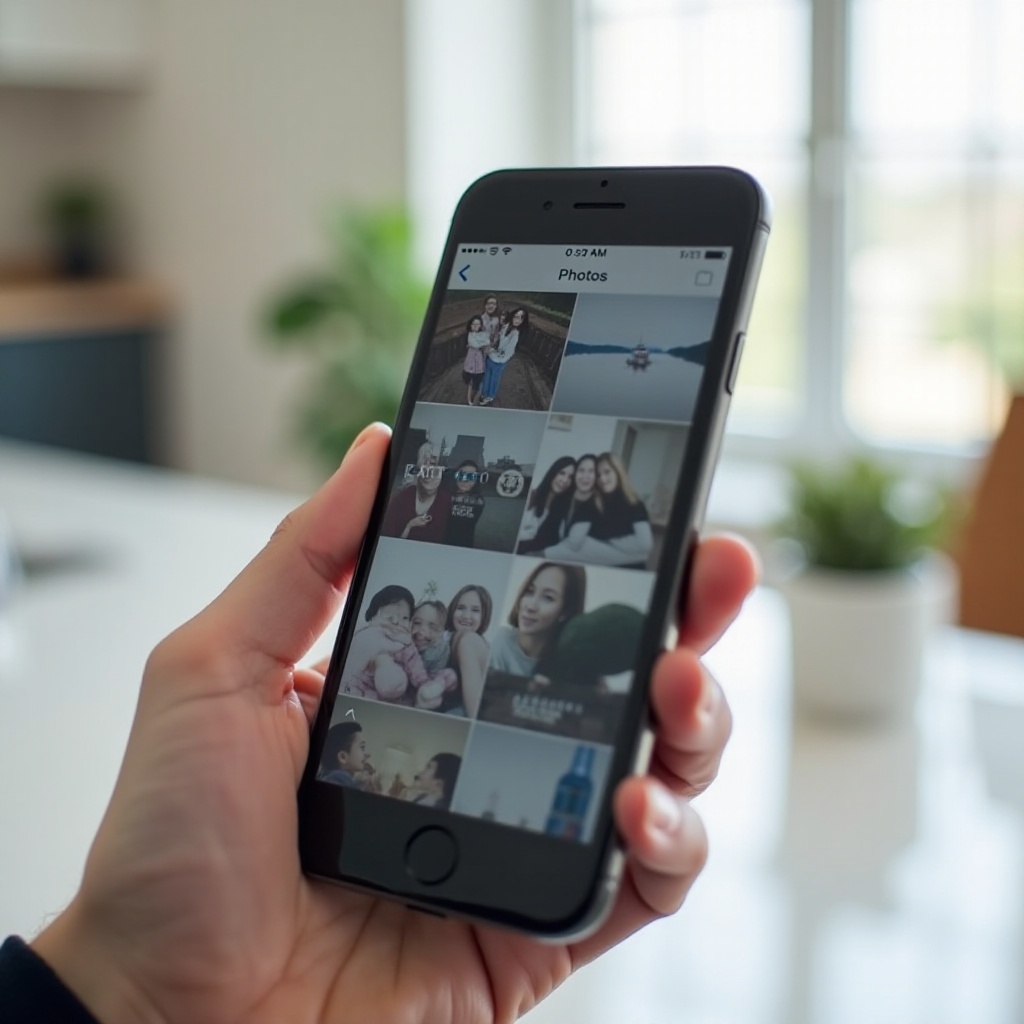
Quick Diagnosis: What Photos Not Loading on iPhone Really Means
A quick scan helps you find the right fix fast.
- Only in Photos app: Blurry tiles or items that never finish downloading often point to iCloud Photos, storage limits, or a weak connection.
- Only in Shared Albums: You may be facing a permission, subscription, or visibility issue, or a temporary iCloud glitch.
- Only in Messages: MMS settings, Messages in iCloud, or Low Data or Low Power modes may block media downloads.
- Only on cellular or only on Wi Fi: A data setting or a network rule is likely involved.
- Only for certain dates or albums: Those items may exist only in iCloud, require originals, or be stuck due to a temporary sync hiccup.
With a quick diagnosis in hand, verify that Apple services are up before you change anything on your device.
Step 1: Check Apple s iCloud Photos System Status
If iCloud Photos is down, no local change will force a download.
- Visit Apple s System Status page and look for iCloud Photos.
- If there is an outage or a degraded service notice, wait until Apple resolves it. As a workaround, you can use iCloud dot com to download critical images.
- If everything is normal, move on to your local network and device checks.
If the cloud looks healthy, your connection is the next likely culprit.
Step 2: Verify Your Internet Connection Wi Fi and Cellular
Unstable internet stops thumbnails and originals from loading.
- Test both Wi Fi and cellular: Turn off Wi Fi and try to load a photo on cellular, then switch back to Wi Fi and test again.
- Reconnect cleanly: Toggle Airplane Mode on, wait 10 seconds, then turn it off.
- Avoid captive portals: Public Wi Fi that requires a web login can block iCloud. Open a browser to confirm access.
- Switch Wi Fi bands: Move from 2.4 GHz to 5 GHz or the reverse for a better link.
- Restart your router if you control it.
- Run a quick speed test. iCloud downloads feel sluggish below about 5 to 10 Mbps.
If the network is stable and photos still stall, a fresh start can clear temporary glitches.

Step 3: Restart Photos App and Force Restart Your iPhone
A clean relaunch often resolves stuck processes.
- Force quit Photos: Swipe up from the bottom, find Photos, and swipe it away. Reopen Photos.
- If that fails, force restart your iPhone. Use the correct button sequence for your model to reboot.
- After restart, open Photos and check whether thumbnails sharpen or originals begin to download.
If the issue persists, confirm your iCloud Photos switches and account are correct.
Step 4: Confirm iCloud Photos and Shared Albums Settings
Misconfigured sync settings can block downloads.
- Go to Settings > your name > iCloud > Photos.
- Ensure Sync this iPhone is on so the device can pull from iCloud.
- Enable Shared Albums if you rely on shared content.
- Make sure you are signed in to the correct Apple ID under Settings > your name.
- On managed or child devices, review any restrictions that might block Photos syncing.
With sync settings confirmed, choose how your iPhone stores images. That decision affects how and when originals download.
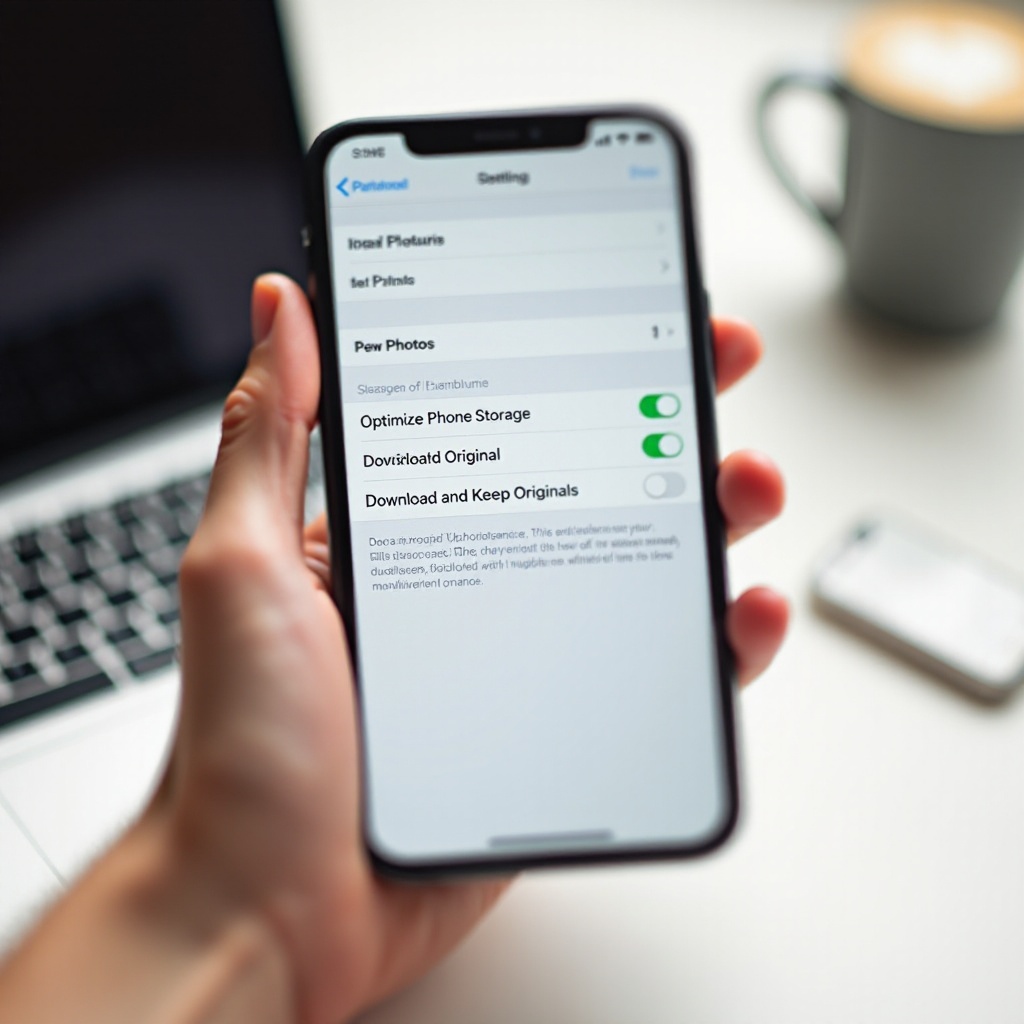
Step 5: Optimize iPhone Storage vs Download Originals
These modes change how your phone stores and retrieves images.
- Optimize iPhone Storage: The device keeps smaller versions locally and fetches full resolution originals on demand. This saves space but depends on a strong network.
- Download and Keep Originals: The device stores full resolution versions locally. This uses more space but reduces dependence on a connection.
Choose what suits your current situation:
– If weak connectivity is the problem, temporarily switch to Download and Keep Originals while on fast Wi Fi and power. This caches your library.
– If storage is tight, use Optimize iPhone Storage but keep Wi Fi on and give the device time to sync.
Storage choices tie directly to available space in both iCloud and on your iPhone. Fix the cloud first.
Step 6: Check iCloud Storage and Free Up Space
Full iCloud storage stalls syncing and downloads.
- Check usage: Settings > your name > iCloud > Manage Account Storage.
- If you are out of space, free some up by:
- Reviewing and permanently deleting items in Recently Deleted after a careful check.
- Removing large, unneeded iCloud Drive files.
- Managing Backups and deleting old device backups you no longer need.
- If your photo library keeps growing, consider a storage plan upgrade.
Once iCloud has breathing room, make sure your iPhone has enough local space to save originals and process imports.
Step 7: Check iPhone Storage and Make Room
Your iPhone needs free space to download and process images.
- Check storage: Settings > General > iPhone Storage.
- Leave several gigabytes free if you want to cache many originals or large videos.
- Free space by:
- Offloading unused apps while keeping their data.
- Deleting large videos or media that you have backed up elsewhere.
- Clearing downloads and caches from streaming and social apps.
- Removing duplicates or bursts you do not need.
If storage looks good, confirm that your data settings allow Photos to use bandwidth when needed.
Step 8: Allow Photos to Use Cellular Data; Disable Low Data Mode
Data limits often block downloads, especially on cellular.
- Allow cellular sync for Photos: Settings > Photos > Cellular Data. Turn on Cellular Data and, if present, Unlimited Updates for times when you need faster syncing.
- Disable Low Data Mode:
- Wi Fi: Settings > Wi Fi > tap the info icon next to your network > turn off Low Data Mode.
- Cellular: Settings > Cellular > Cellular Data Options > turn off Low Data Mode.
- Test with Wi Fi off to ensure images load over cellular when allowed.
If you still see stalled downloads, power saving can be the hidden brake.
Step 9: Turn Off Low Power Mode and Battery Optimizations
Low Power Mode reduces background activity and can pause photo downloads.
- Turn it off: Settings > Battery > toggle off Low Power Mode.
- Keep Photos active: Leave the Photos app open while connected to power so the system prioritizes sync.
- Enable Background App Refresh for Photos under Settings > General > Background App Refresh if it was disabled.
If power settings are not the issue, network privacy tools might be slowing or blocking iCloud traffic.
Step 10: Temporarily Disable VPN, Private Relay, and Content Filters
Privacy features can alter routing and disrupt iCloud traffic.
- Disable any VPN temporarily from your VPN app or Settings.
- Turn off iCloud Private Relay: Settings > your name > iCloud > Private Relay.
- Pause DNS filters, parental controls, or security apps that inspect network traffic.
- Test loading several photos. If downloads work, re enable protections one by one to isolate the conflict.
If nothing changes, a clean network stack often clears stubborn issues.
Step 11: Reset Network Settings the Right Way
A corrupted network cache causes odd sync failures.
- Go to Settings > General > Transfer or Reset iPhone > Reset > Reset Network Settings.
- This erases saved Wi Fi networks and passwords, plus cellular, VPN, and APN settings. Make sure you have your Wi Fi password handy.
- Reconnect to Wi Fi, open Photos, and try loading images again.
If the network is clean and downloads still fail, update software to rule out known bugs.
Step 12: Update iOS and Carrier Settings
Updates often fix sync and networking bugs.
- Update iOS: Settings > General > Software Update. Install any available updates.
- Update carrier settings: Settings > General > About. Wait a few seconds; if an update prompt appears, accept it.
- Restart your iPhone after updates. Then test Photos again.
If syncing still stalls, a controlled iCloud Photos re sync can rebuild the link.
Step 13: Re sync iCloud Photos Safely Toggle Off and On
Handle this with care to avoid data loss.
- Back up first using iCloud Backup or to a computer with Finder.
- Go to Settings > your name > iCloud > Photos.
- Note your current storage mode, optimize or download originals, so you can restore it later.
- Toggle Sync this iPhone off. When prompted, choose Download Photos and Videos to keep a local copy. Allow time if the device needs to save items.
- Restart your iPhone.
- Toggle Sync this iPhone back on. Keep the device on Wi Fi and power for a full re index and sync.
- Open Photos and watch for thumbnails sharpening and downloads starting.
If toggling does not help, some users resolve stubborn issues by signing out of iCloud and signing back in. Only try this after a full backup, and confirm your library is safe on iCloud dot com.
After a re sync, give Photos uninterrupted time to process your library.
Step 14: Leave Photos Open on Power and Wi Fi to Finish Sync
The Photos app needs uninterrupted time to catch up.
- Plug into power and connect to fast, stable Wi Fi.
- Open Photos and visit Library and All Photos views. Leave the app open.
- Temporarily extend Auto Lock: Settings > Display and Brightness > Auto Lock > set to a longer interval.
- Let the phone sit for a while. Large libraries with many videos may need several hours.
If certain areas still fail to load, address those cases directly.
Fixes for Specific Cases: Shared Albums and Messages Photos
Some failures only affect Shared Albums or Messages. Use these targeted steps.
Shared Albums Not Loading
- Ensure Shared Albums is enabled: Settings > your name > iCloud > Photos > Shared Albums.
- Confirm access: In Photos > Albums > Shared, open the album and verify you are subscribed. Accept any pending invites.
- Ask the owner to re share the album or check its visibility settings.
- Toggle Shared Albums off, restart the iPhone, then turn it back on.
- If you changed Apple IDs or email addresses, the share may not follow. Have the owner invite your current Apple ID.
- If the album shows placeholders only, open a specific photo to trigger a direct download, then scroll gradually.
Photos in Messages Not Downloading
- Enable MMS Messaging: Settings > Messages > turn on MMS Messaging.
- Turn on Messages in iCloud for full sync across devices: Settings > your name > iCloud > Show All > Messages.
- Open a thread, tap the contact name, and review shared photos. Tap an item to trigger a fresh download.
- Disable Low Data Mode and Low Power Mode, then test again.
- If media shows a tap to download label but fails, toggle Messages off and back on, waiting a few minutes between. Avoid this if you lack a current backup.
- If the problem is carrier specific, contact your carrier to ensure MMS and media messaging are enabled on your plan.
When you need files right now, use safe workarounds to retrieve them while troubleshooting.
Workarounds and Backups: iCloud dot com, Mac or PC, and Third Party Clouds
- iCloud dot com: Log in, open Photos, and download originals to your computer. You can AirDrop or transfer them back to your iPhone if needed.
- Mac or PC: On Mac, open Photos or Image Capture to import from your device. On Windows, use iCloud for Windows or File Explorer when your device exposes DCIM.
- Third party cloud as a temporary measure: Upload critical images to services like Google Drive or Dropbox as a backup. Do not move or delete originals until sync stabilizes.
If none of the steps work and the same items always fail, it is time to escalate.
When to Contact Apple Support
Reach out to Apple Support if any of the following occur:
– iCloud Photos shows persistent errors long after the system status returns to normal.
– The same photos always show a warning icon or never download.
– You suspect account issues, library corruption, or unusual sign in prompts.
– You cannot turn on iCloud Photos or Shared Albums, or the options are missing.
Apple can inspect server side logs, repair libraries, and guide safe recovery. Document what you have tried, include screenshots of error icons, and note your iOS version to speed up diagnosis.
Conclusion
You now have a clear path to fix photos not loading on iPhone. Start with iCloud status and your connection. Restart the app and device. Confirm iCloud Photos, choose the right storage mode, and keep both iCloud and device storage healthy. Lift data and power limits when you need fast downloads. If privacy tools interfere, pause them briefly. Reset network settings and update iOS if the problem persists. For stubborn cases, re sync iCloud Photos carefully and let the app finish processing on power and Wi Fi.
Use the Shared Albums and Messages sections for targeted problems, and rely on iCloud dot com or a computer to retrieve urgent images. With patience and the steps above, your thumbnails will sharpen, originals will download, and your memories will be back in your pocket.
Frequently Asked Questions
Why are my iPhone photos showing exclamation marks or blurry thumbnails
The exclamation mark means the full resolution original is not on your iPhone and the system cannot download it. Common causes include no internet, Low Data Mode, Low Power Mode, VPN or filter interference, or full iCloud or device storage. Fix it by connecting to fast Wi Fi and power, turning off Low Power and Low Data Modes, allowing cellular data for Photos if needed, freeing space in iCloud and on the device, and temporarily disabling VPN or Private Relay. If the same items fail after these steps, contact Apple Support.
Will turning off iCloud Photos delete my pictures
Turning off iCloud Photos does not delete your photos from iCloud, but you must choose carefully on the prompt. When you toggle iCloud Photos off, select Download Photos and Videos to keep a local copy on the iPhone. If you choose to remove items, the phone will clear cloud managed photos from local storage, while they remain in iCloud. Always back up before changes. After you turn sync back on, the phone will re index and merge the library. Avoid signing out of your Apple ID or erasing the device until you confirm your photos are safe on iCloud dot com and on another trusted device.
How long should I leave my iPhone plugged in to finish photo syncing
It depends on your library size and network speed. Small libraries may finish within an hour. Large libraries with many videos can take several hours or overnight. For best results, plug into power and connect to fast Wi Fi, disable Low Power Mode, keep Photos open, and extend Auto Lock while you supervise progress. Watch for thumbnails sharpening and counts changing. If progress stalls for hours with no change, move to the networking and re sync steps in this guide or contact Apple Support.