
Introduction
You grab your phone, tap a conversation, and nothing happens. The Messages app freezes, crashes, or the text thread keeps loading without ever opening. When you can’t open text messages on Android, it’s more than inconvenient. You might miss work messages, bank verification codes, delivery updates, or urgent notes from family.
This problem usually comes from one of a few places: a glitchy Messages app, bad network or RCS settings, storage issues, or conflicts with other apps. The good news is that most of these problems are fixable at home with simple steps.
This guide walks you through a logical sequence of solutions. You will:
- Identify exactly what is going wrong
- Try quick checks that fix many issues fast
- Repair the Messages app and reset key settings safely
- Adjust RCS, storage, network, and SIM options
- Use brand-specific and advanced fixes if needed
Start with the first step and move down in order. Stop as soon as your text messages open and work normally again.

Step 1 – Identify What Exactly Is Going Wrong
Before you change settings or delete anything, you need to understand your exact symptom. Different problems require different fixes. Taking a minute to diagnose the issue will save time later.
Messages app won’t open at all
If you tap the Messages icon and nothing useful happens, you might see:
- The app never opens
- A blank screen or frozen screen
- An error such as ‘Messages keeps stopping’ or ‘App not responding
This usually points to a problem with the app itself or with the Android system. You will focus on force stopping the app, clearing cache and storage, and possibly using Safe Mode or a reset later in the guide.
Messages app opens but individual texts won’t load
Sometimes the app opens fine, but specific threads or messages refuse to load. Common signs include:
- A conversation that spins or loads forever
- Opening a thread instantly crashes the app
- You see a partial conversation, but new messages won’t show
These problems often relate to corrupt message data, storage limits, network issues, or RCS (Chat features). Clearing the app cache, checking storage, and turning off Chat features are usually effective.
Only MMS, group texts, or certain contacts won’t open
If most messages work but you can’t open or receive:
- Picture messages or video messages (MMS)
- Group texts
- Messages from specific contacts
the issue is likely network or carrier related. The most common causes are:
- Mobile data turned off
- Wrong APN (Access Point Name) settings
- RCS server issues
- The contact or your number being blocked
Keep your answers in mind. They will guide which later steps to pay the most attention to.
Once you know what is failing, you can move into fast, basic checks that solve many problems without changing deeper settings.
Step 2 – Basic Checks to Rule Out Simple Issues
Many people can’t open text messages on Android because of a simple signal or temporary glitch. It is always worth checking these basics before you dive into app resets or advanced options.
Check signal strength, mobile data, and Wi‑Fi
First, look at the top of your screen:
- Do you see normal signal bars, or an ‘x’ or ‘no service’ icon?
- Is mobile data (4G/5G/LTE) available and turned on?
- Are you connected to Wi‑Fi?
Plain SMS needs a working cellular connection. MMS and group messages usually need mobile data.
Try this:
- Move to an area with better reception, such as near a window.
- Turn Wi‑Fi off briefly and then back on.
- Check if calls work; if calls fail too, it is likely a network or carrier issue.
If you have a good signal but messages still won’t open, move to the next quick reset.
Toggle Airplane mode on and off
Turning Airplane mode on and off resets your phone’s connection to the network.
- Pull down the notification shade.
- Tap the Airplane mode icon to turn it on.
- Wait 20–30 seconds.
- Tap it again to turn Airplane mode off.
Watch the signal bars and data icons reappear. Once they are steady, open the Messages app and test your conversations again.
Restart your Android phone properly
A proper restart clears temporary system and app glitches that can stop texts from opening.
- Hold the power button (or power + volume, depending on your device).
- Tap ‘Restart’ or ‘Reboot’.
- Wait until the phone fully restarts and the lock screen appears.
After the restart, open Messages and try different threads. If the app still struggles, it is time to look directly at the Messages app itself.
Step 3 – Fix Common Problems With the Messages App
If basic checks did not solve the problem, focus on the Messages app. Whether you use Google Messages, Samsung Messages, or another SMS app, the fixes are very similar.
Force stop and reopen the Messages app
Force stopping closes the app completely, including stuck processes that a normal close might leave running.
- Open ‘Settings’.
- Go to ‘Apps’ or ‘Apps & notifications’.
- Find and tap ‘Messages’ (or your SMS app name).
- Tap ‘Force stop’, then confirm.
Return to your home screen and open Messages again. Try opening the threads that were causing trouble.
Clear cache and storage for the Messages app
Over time, cache files can become corrupt and prevent messages from loading correctly. Clearing them is safe and often fixes stubborn issues.
- Go to ‘Settings’ > ‘Apps’ > ‘Messages’.
- Tap ‘Storage’ or ‘Storage & cache’.
- Tap ‘Clear cache’.
- Test the app. If the problem continues, tap ‘Clear storage’ or ‘Clear data’.
Warning: clearing storage or data may erase your message history on some phones. If your texts are important, back them up first using an SMS backup app or your device’s backup feature.
Update the Messages app from the Play Store
If your app is outdated, it may not work well with the latest Android security patches or system version.
- Open the Google Play Store.
- Search for ‘Messages’ (Google Messages or your phone brand’s Messages app, if listed).
- Tap ‘Update’ if the button appears.
Once the update installs, open Messages and test again. Many ‘can’t open text messages on Android’ issues are caused by bugs that updates already fix.
If cleaning and updating the app do not help, the next step is to make sure Messages has all the access and system roles it needs.
Step 4 – Check Permissions and Default SMS App Settings
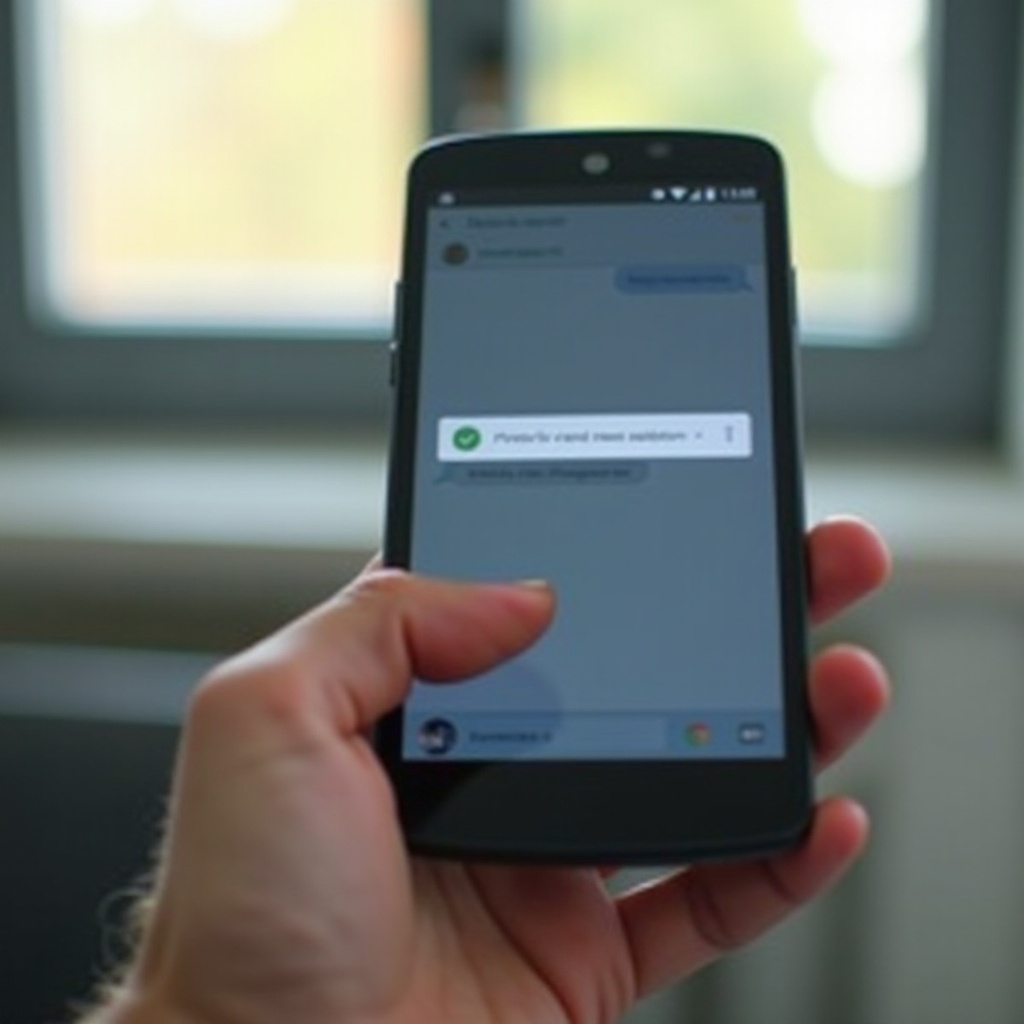
The Messages app must be allowed to read SMS, use the phone service, and access contacts. It also needs to be set as the default SMS app, or Android may send texts to a different app without you noticing.
Make sure Messages has SMS, phone, and contacts permissions
If any permission is blocked, the app may open but fail to show or load messages.
- Go to ‘Settings’ > ‘Apps’ > ‘Messages’.
- Tap ‘Permissions’.
- Ensure ‘SMS’, ‘Phone’, and ‘Contacts’ are set to ‘Allow’.
If any of these were denied or set to ‘Ask every time’, change them to ‘Allow’. Then reopen Messages and test your conversations again.
Set the right app as your default SMS app
When you install another texting app, Android may change the default SMS app automatically. Messages may no longer receive new texts.
- Open ‘Settings’.
- Go to ‘Apps’ > ‘Default apps’ (or ‘Advanced’ > ‘Default apps’).
- Tap ‘SMS app’.
- Select your preferred Messages app (Google Messages, Samsung Messages, or your chosen SMS app).
After setting the correct default, send a test SMS and try opening it. This ensures all new messages arrive in the app you actually use.
Remove or disable conflicting messaging apps
Multiple SMS or chat apps can compete for control and cause glitches. Examples include carrier messaging apps, third‑party SMS clients, and some spam filter or security tools.
If the problem started after installing one, try:
- Uninstalling or disabling the new app.
- Restarting your phone.
- Testing the default Messages app again.
If the app now works, you found a conflict. You can either avoid that extra app or adjust its settings so it does not handle SMS.
If permissions and defaults look good but messages still refuse to open, advanced messaging features like RCS might be involved.
Step 5 – Turn Off Advanced Chat Features (RCS) Temporarily
Modern Android phones often use RCS, also called ‘Chat features’, to upgrade SMS. RCS adds read receipts, typing indicators, and better media, but it relies on data and remote servers. When RCS breaks, it can block messages from opening.
What RCS/Chat features are and why they can break messaging
RCS (Rich Communication Services) treats texting more like instant messaging. It allows:
- High‑quality images and videos
- Typing indicators and read receipts
- Messaging over Wi‑Fi or mobile data
However, RCS needs both your phone and your carrier or Google servers to cooperate. If something goes wrong in that chain, your Messages app may hang or fail to open some chats.
Disable Chat features in Google Messages
To check if RCS is causing your problem, turn it off and test plain SMS.
- Open Google Messages.
- Tap your profile picture or the three dots in the top right.
- Tap ‘Messages settings’.
- Tap ‘Chat features’.
- Turn ‘Enable chat features’ off.
Wait a few seconds, then close and reopen Messages. RCS messages will fall back to basic SMS/MMS where possible.
Test sending and opening plain SMS after turning off RCS
Now send a simple SMS without images or videos:
- Choose a contact and send a short text like ‘Test message’.
- Ask the contact to reply.
- Try opening the thread and reading the new messages.
If everything works with Chat features turned off, RCS was likely the cause. You can keep it off for reliability, or turn it back on later to see if the issue returns after some time.
If RCS is not the problem, the next likely causes are storage, network configuration, or your SIM card.
Step 6 – Fix Storage, Network, and SIM Card Issues
Even if the Messages app looks fine, your phone might still struggle if it is low on storage, has broken network settings, or is not seeing the SIM card correctly. These issues can prevent messages from loading or downloading.
Free up internal storage space for messages to load
When your phone is almost full, apps may fail to store new data or open existing data properly.
- Go to ‘Settings’ > ‘Storage’.
- Check how much free space you have.
- If space is very low, start freeing it up by:
- Deleting large, unneeded photos and videos
- Removing downloads you no longer need
- Uninstalling apps you don’t use
Aim to free at least 1–2 GB. When you are done, restart your phone and test your messages again.
Reset network settings to fix hidden glitches
Network settings can get corrupted after updates, SIM changes, or app installs. Resetting them often fixes stubborn SMS and MMS problems.
- Open ‘Settings’.
- Go to ‘System’ or ‘General management’.
- Tap ‘Reset options’ or ‘Reset’.
- Select ‘Reset Wi‑Fi, mobile & Bluetooth’ or ‘Reset network settings’.
- Confirm the reset.
This will remove saved Wi‑Fi networks and Bluetooth pairings, but it does not delete apps or personal data. After the reset, reconnect to Wi‑Fi if needed and test Messages.
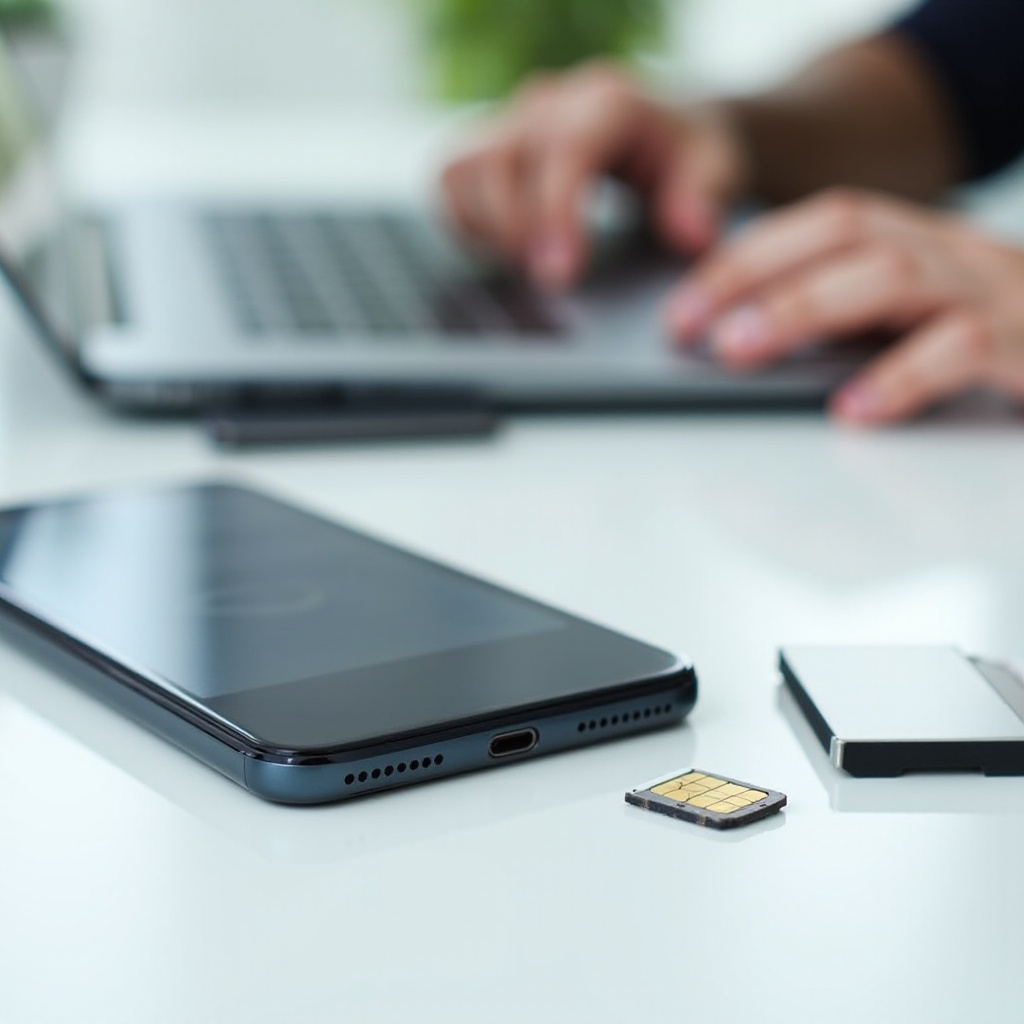
Remove, clean, and reseat your SIM card
A loose or dirty SIM card can cause random network issues that affect texting.
- Power off your phone.
- Use a SIM eject tool or small pin to open the SIM tray.
- Carefully remove the SIM card.
- Gently wipe the gold contacts with a soft, dry cloth.
- Place the SIM back in the tray and reinsert it firmly.
- Turn the phone back on.
Wait for the phone to detect the SIM and restore the signal. Then open the Messages app and try to load your threads again.
If messages still refuse to open, it is time to look at brand‑specific options and system behavior after updates.
Step 7 – Brand‑Specific Tips for Samsung, Pixel, and Other Android Phones
Not all Android phones behave the same. Samsung, Google Pixel, and other brands add their own software layers, tools, and quirks. These can both create and fix messaging problems.
Extra troubleshooting options on Samsung phones
Samsung phones may use Samsung Messages, Google Messages, or both. To improve stability:
- Confirm which app you want as the default SMS app in Settings.
- Go to ‘Settings’ > ‘Apps’ > ‘Messages’ > ‘Storage’ and clear cache (and data if needed).
- Open ‘Settings’ > ‘Battery and device care’ to check for storage or performance issues.
Also open the Galaxy Store and update Samsung Messages and related system apps. Samsung sometimes pushes SMS fixes through its own store.
Google Pixel messaging quirks and settings to check
On Google Pixel devices, Google Messages is integrated tightly with the system. If you can’t open text messages on Android on a Pixel, focus on:
- Keeping both Android and Google Messages fully updated from the Play Store and system update menu.
- Turning off Chat features as a test.
- Adjusting battery optimization:
- Go to ‘Settings’ > ‘Apps’ > ‘Messages’.
- Tap ‘Battery’.
- Set it to ‘Unrestricted’ or ‘Optimized’, not ‘Restricted’.
Strong battery restrictions can delay message syncing or cause the app to misbehave.
Using manufacturer tools and support apps on other brands
On phones from OnePlus, Motorola, Xiaomi, and other brands, look for:
- Built‑in ‘Support’, ‘Care’, or ‘Device help’ apps
- System maintenance or optimization tools
- Brand community forums where others report similar SMS issues
Often, you will find known bugs, suggested settings, or specific updates that address texting problems on your exact model.
If brand tips do not fix the issue, think about what changed on your phone recently, especially updates.
Step 8 – What to Do If Text Messages Won’t Open After an Update
Many users notice that texts stop opening right after a system update or app update. When that happens, you should focus on changes introduced by the update.
Confirm recent Android or app updates that may cause bugs
First, check what updated around the time the issue started:
- Go to ‘Settings’ > ‘System’ > ‘System update’ and view recent updates.
- Open the Play Store, tap your profile icon, and review recently updated apps.
If you see a recent Messages or system update just before your texts stopped opening, that is a strong clue.
Uninstall Messages app updates or try a different SMS app
If your phone allows it, roll back updates for the Messages app:
- Go to ‘Settings’ > ‘Apps’ > ‘Messages’.
- Tap the three dots in the top right (if available).
- Choose ‘Uninstall updates’.
After that, test your messages. If rollback is not possible or does not help, install another trusted SMS app from the Play Store, set it as default, and see whether you can open your existing texts there.
Reset app preferences and permissions after updates
Updates sometimes change defaults and permissions silently. Resetting app preferences can restore normal behavior without deleting data.
- Go to ‘Settings’ > ‘System’ or ‘General management’.
- Tap ‘Reset options’ or ‘Reset’.
- Select ‘Reset app preferences’.
- Confirm.
This action resets disabled apps, notification restrictions, and default apps, but it does not erase your personal data. After the reset, open Messages, confirm it is the default SMS app again, and test your threads.
If update‑focused fixes do not solve the problem, it is time for more advanced troubleshooting.
Step 9 – Advanced Fixes for Stubborn Messaging Problems
Some messaging issues are caused by deep system conflicts or even malware. When basic and intermediate fixes fail, use these advanced methods to narrow down or repair the problem.
Boot into Safe Mode to spot third‑party app conflicts
Safe Mode runs Android with only system apps. If Messages works in Safe Mode, a third‑party app is interfering.
On many devices, you can enter Safe Mode like this:
- Hold the power button.
- Touch and hold ‘Power off’ until you see a ‘Safe Mode’ prompt.
- Tap ‘OK’ or ‘Restart in Safe Mode’.
Your phone will restart. You will usually see ‘Safe Mode’ at the bottom of the screen.
- Open Messages and try to load the conversations that failed before.
- If they work now, a third‑party app is the likely cause.
Restart the phone normally to exit Safe Mode. Then uninstall recently added or suspicious apps one by one, testing after each removal until texts open normally.
Scan for malware or suspicious apps affecting SMS
Malicious or poorly coded apps can hijack SMS permissions or block messages.
- Install a reputable antivirus app from the Play Store.
- Run a full device scan.
- Remove any apps flagged as harmful.
Also, review your installed apps manually. Uninstall anything you don’t recognize or no longer use, especially apps with SMS, phone, or accessibility permissions.
Back up your SMS and consider a factory reset as last resort
If you still can’t open text messages on Android after every other step, a factory reset may be necessary to fix deep system corruption.
Before you reset, back up important data:
- Use an SMS backup app to save your texts to cloud or local storage.
- Sync your contacts with your Google account.
- Copy photos, videos, and documents to a computer or cloud service.
When you are ready to reset:
- Go to ‘Settings’ > ‘System’ or ‘General management’.
- Tap ‘Reset options’ or ‘Reset’.
- Choose ‘Erase all data (factory reset)’.
- Confirm and follow the prompts.
After the reset, set up your phone, install your preferred Messages app, and restore your backups. Test messaging before adding many extra apps so you can quickly spot if something new breaks SMS again.
When to Contact Your Carrier or Phone Manufacturer
If you have worked through all these fixes and still can’t open text messages on Android, the problem may be outside your control. This is when it makes sense to involve your carrier or device maker.
Signs the problem is on your carrier’s side
Reach out to your carrier first if:
- You have signal but no SMS or MMS on any phone using that SIM
- Calls work but texts consistently fail or don’t open
- Other people on the same carrier in your area report texting issues
When you contact support, ask them to:
- Check for outages in your area
- Confirm your line is active and SMS/MMS is enabled
- Refresh or reset SMS services for your account
Sometimes, a simple network adjustment on their side restores normal messaging.
When to visit a store or warranty service center
If your carrier confirms that everything looks good on their end, the phone hardware or firmware might be at fault. Consider a service center visit if:
- Messages and other apps crash or freeze often
- The phone restarts randomly or behaves erratically
- There is visible physical damage, water exposure, or overheating
A technician can run hardware tests, reinstall firmware, or replace parts under warranty if needed.
Information to gather before contacting support
To speed up support calls or in‑store visits, prepare this information:
- Phone brand and model
- Android version
- Messaging app you use and its version
- When the problem started and what changed around that time
- A clear list of steps you already tried
Sharing these details helps support staff skip basic questions and move straight to deeper diagnostics or known fixes.
Conclusion
When you can’t open text messages on Android, it can disrupt work, banking, and everyday communication. Fortunately, most problems come from a small set of causes: app glitches, permissions, RCS issues, storage limits, network settings, or app conflicts.
By following this guide step by step, you can systematically rule out each cause. You start with simple checks like signal and restarts, then move to app fixes, permissions, and RCS. If the issue persists, you adjust storage, network, and SIM settings, apply brand‑specific tips, handle update‑related bugs, and finally use advanced tools like Safe Mode and malware scans. Only when all else fails do you consider a factory reset.
If, after all this, you still can’t open text messages on Android, your carrier or device manufacturer can step in. With a clear description of your problem and the steps you have already taken, you are in a strong position to get quick, effective help and restore your messaging to normal.
Frequently Asked Questions
Why can’t I open text messages on Android even though I have service?
You can have signal and still be unable to open messages if the Messages app is corrupted, permissions are blocked, RCS is misbehaving, storage is almost full, or network settings are damaged. Work through the steps in this guide: update and reset the Messages app, confirm permissions and default app, turn off Chat features, and reset network settings. In many cases, one of these fixes solves the issue even when your signal looks normal.
Will clearing the Messages app storage delete my existing texts?
Clearing the Messages app ‘cache’ is safe and does not delete your SMS history. However, clearing ‘storage’ or ‘data’ can erase message history on some phones. To avoid losing important texts, back them up first with an SMS backup app or built‑in backup feature. After you back up, you can clear storage more safely and then restore your messages if needed.
What should I do if only picture messages and group texts won’t open on Android?
If only picture messages and group texts (MMS) won’t open, focus on data and MMS settings. Turn mobile data on, because MMS usually requires cellular data even when Wi‑Fi is available. Temporarily disable VPNs, firewalls, or data saver apps. Reset network settings and check APN (Access Point Name) details against your carrier’s instructions. Also try turning off RCS/Chat features in Google Messages. If MMS still fails, contact your carrier to confirm that MMS is enabled on your line and that there are no account or network restrictions.