
Introduction
Enhanced visual search on iPhone changes how you find information by turning your camera, photos, and screenshots into powerful search tools. Instead of typing long queries, you point your camera at an object, text, or scene and let iOS recognize what is in front of you. With features like Visual Look Up, Live Text, and Spotlight working together, your iPhone can identify plants, translate menus, pull phone numbers from photos, and surface related information in seconds.
This guide focuses on enhanced visual search iPhone features in 2024, showing how to use them, when they help most, and how to fix common issues. You will learn how Visual Look Up recognizes objects and places, how Live Text turns images into searchable text, and how Spotlight connects everything with intelligent suggestions. You will also see how Apple handles privacy and what is coming next for visual search on iPhone.
Once you understand the basics, it helps to know what Apple actually means by enhanced visual search and where it appears across iOS.

What Is Enhanced Visual Search on iPhone?
Enhanced visual search on iPhone is not a single app or button. It is a combination of features Apple built into iOS to let you search visually rather than rely only on the keyboard. When you use your camera or open a photo, your iPhone can recognize objects, text, and scenes, then link them to useful actions or information.
How Apple Defines Enhanced Visual Search in 2024
In 2024, Apple highlights three pillars of enhanced visual search iPhone capabilities:
-
Visual Look Up
Your iPhone analyzes photos and screenshots to recognize objects such as plants, animals, landmarks, artworks, symbols, and some products. When it identifies something, you see a special icon and can tap for more details, related web results, and similar images. -
Live Text
Live Text detects text inside photos, screenshots, and camera previews. It turns that text into content you can copy, translate, search, or act on, such as calling a number or opening a website. -
Intelligent Search Integrations
Features like Spotlight and Siri Suggestions connect your visual content with your apps, contacts, and the web, giving you faster answers based on what you see and what you do on your device.
Visual Search vs Traditional Text Search on iPhone
Traditional search expects you to type or dictate keywords into Safari, the App Store, or Spotlight. Enhanced visual search flips this around:
- You aim your camera at something.
- Your iPhone recognizes what it sees.
- It offers relevant information and actions.
This approach helps when:
- You do not know what something is called.
- The name uses another language or script.
- Typing would be slow or awkward.
You still use text search for many tasks, but enhanced visual search on iPhone often gets you to the result faster with less effort.
Where You See Visual Search in Everyday iPhone Use
You encounter visual search in many places across iOS:
- Photos app: Visual Look Up icons and Live Text recognition.
- Camera app: Real time text detection with Live Text.
- Safari: Image-based search and text extraction from web images.
- Messages and Mail: Visual Look Up and Live Text for attached images.
- Spotlight: Suggestions that include photos, files, and web results connected to what you see.
Now that you know where enhanced visual search appears, the next step is to look at the core iPhone features that make these capabilities possible.
Core iPhone Features Behind Enhanced Visual Search
Enhanced visual search on iPhone relies on a set of built in technologies that work together behind the scenes. Once you know what each component does, you can combine them for faster and smarter search.
Visual Look Up for Objects, Places, and More
Visual Look Up analyzes the content of a photo or screenshot and surfaces more information about what it finds. Typical uses include:
- Identifying plants, flowers, pets, wildlife, and dog breeds.
- Recognizing landmarks, famous buildings, and locations.
- Providing details on artworks and books.
- Showing related web results and similar images.
When Visual Look Up works, you see a small info icon with sparkles or a symbol on the photo thumbnail or in the info panel. Tapping this icon reveals what iOS recognized and opens a detail view with more context.
Live Text for Detecting and Acting on Text in Images
Live Text turns any supported image into actionable text. It works in:
- Photos: Long press or drag across text in your photos.
- Camera: Hover over text live and tap the text indicator.
- Safari and others: Use Live Text on images inside web pages and documents.
With Live Text, you can:
- Copy and paste text.
- Call phone numbers.
- Send emails and messages.
- Translate text into your language.
- Look up addresses in Maps and open them directly.
Spotlight Search as the Central Intelligence Hub
Spotlight ties your visual content to your broader iPhone experience. It indexes:
- Apps, contacts, messages, and emails.
- Photos with recognized people, scenes, and text.
- Files, notes, and reminders.
- Web results and Siri Suggestions.
This means you can search with words and still find content related to your photos and visual search results. For example, if Visual Look Up recognizes a landmark, Spotlight might later surface that photo when you search the location name.
Siri Suggestions and Contextual Results
Siri Suggestions use on device learning to surface relevant actions and content based on your habits. Connected to enhanced visual search, Siri can:
- Suggest related apps or actions after you interact with a photo.
- Offer quick actions for detected text, such as calling or adding to contacts.
- Show related content in Spotlight based on recent visual searches.
To fully unlock these features, your iPhone hardware and software must meet certain requirements. That is why the next step is to confirm compatibility and key settings.
Device and iOS Requirements for Enhanced Visual Search
Enhanced visual search on iPhone depends on recent hardware and software. Before you dive into features, verify that your device and settings are ready.
Compatible iPhone Models in 2024
Visual Look Up and Live Text run on recent iPhone models with enough processing power and a modern Neural Engine. In 2024, this typically includes iPhones from the last several generations, along with the latest flagship devices.
If you use an older device, some capabilities may be limited or not available at all. You can check Apple support pages for the current compatibility list for Visual Look Up and Live Text to see how your model fits.
Minimum iOS Version and Region Settings
Enhanced visual search requires:
- A current iOS version, such as iOS 17 or later in 2024.
- A supported region and language, particularly for Live Text and translation.
To check and update:
- Go to Settings > General > Software Update.
- Install the latest update.
- Open Settings > General > Language & Region and ensure your region supports these features.
Some recognition types, such as certain Visual Look Up categories or translation languages, may roll out gradually across regions, so features can improve over time without new hardware.
Privacy and Permission Settings You Must Enable
Visual search needs access to your camera, photos, and Siri & Search:
- In Settings > Siri & Search, enable suggestions and content access for system apps like Photos and Camera.
- In Settings > Privacy & Security > Photos, confirm apps you use with images have the required access.
- In Settings > Camera, enable options related to text detection and Live Text if they appear.
With compatibility and permissions in place, you are ready to start using Visual Look Up, the most visible part of enhanced visual search on iPhone.
How to Use Visual Look Up on iPhone Step by Step
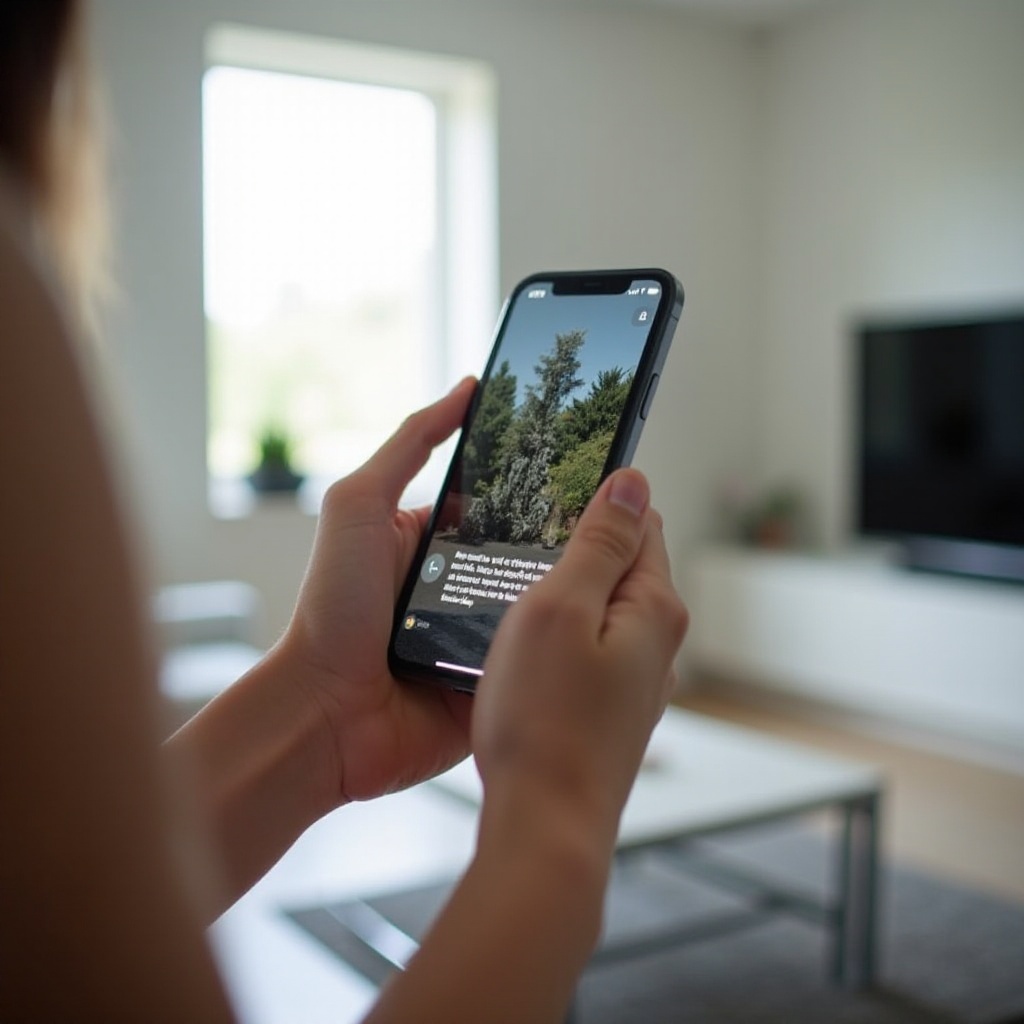
Visual Look Up is the core of enhanced visual search on iPhone when you want to identify objects and scenes. It lives inside the Photos app and other image based experiences.
Accessing Visual Look Up in the Photos App
To use Visual Look Up in Photos:
- Open the Photos app.
- Select a photo or screenshot that contains an object or scene you want to identify.
- Look for an info icon that may show sparkles or a symbol like a leaf, paw, or map pin.
- Tap the icon.
- Tap Look Up to see the results.
You will often see categories such as Plant, Animal, Landmark, or Artwork, along with web links and similar images that help you learn more.
Using Visual Look Up from Messages and Mail Attachments
When someone sends you an image:
- Open the conversation in Messages or Mail.
- Tap the image to open it full screen.
- Look for the Visual Look Up icon or the info button.
- Tap it to see what iOS recognized.
This helps when friends send travel photos, pet pictures, or screenshots you want to explore further without asking them for more details.
Visual Look Up in Safari and Other Apps
You can also use Visual Look Up in Safari and some other apps:
- In Safari, long press an image.
- Look for an option like Look Up or Visual Look Up in the context menu.
- Tap it to see recognition results and related information.
Certain third party apps integrate with system features and may show similar options, especially when they use the native image viewer or share sheet.
Understanding Icons, Info Panels, and Result Types
The icons and panels tell you what your iPhone recognized:
- A leaf icon suggests a plant.
- A paw suggests an animal or pet.
- A map pin suggests a landmark or location.
- A book or artwork icon suggests cultural works.
Within the results panel, you might see:
- A short description or category name.
- Links to web pages and image search results.
- Maps entries for locations.
- Related images from your library.
Visual Look Up handles objects and scenes well, but text remains just as important. That is where Live Text comes in to complete the enhanced visual search iPhone experience.
Mastering Live Text for Visual Search
Live Text extends enhanced visual search on iPhone to printed and handwritten text. When your device detects text, you can interact with it like regular digital content.
Turning On Live Text and Camera Options
To enable Live Text:
- Go to Settings > General > Language & Region and turn on Live Text if the toggle exists.
- In Settings > Camera, make sure options related to text detection are enabled.
- Confirm your iPhone language and region support Live Text and translation.
Once enabled, Live Text works in the Camera app and across your photos, screenshots, and some web images.
Extracting Text from Photos, Screenshots, and Files
To use Live Text on existing images:
- Open Photos and select a picture or screenshot with visible text.
- Wait for the text to highlight or look for a Live Text icon.
- Tap and hold on the text, then drag to select more.
- Choose actions such as Copy, Select All, Look Up, or Translate.
You can also use Live Text on images in apps that support it, including Files and Quick Look viewers, to pull information out of scans and documents.
Real Time Text Detection Through the Camera
For real time visual search with text:
- Open the Camera app.
- Point it at the text you want to capture, such as a menu, business card, or sign.
- Look for the Live Text indicator that appears on screen.
- Tap the Live Text button or tap directly on the text.
- Select and use the text as needed.
This is useful when you do not want to save a photo but still want to copy or translate the content quickly.
Actions You Can Take: Call, Translate, Navigate, and Share
Once Live Text recognizes text, you can:
- Call: Tap phone numbers to start a call.
- Message or email: Tap email addresses or message links.
- Navigate: Tap addresses to open them in Maps.
- Translate: Translate selected text into another language.
- Search: Use Look Up to search the web or get definitions.
- Share: Copy and send text to Notes, Messages, or other apps.
Live Text makes enhanced visual search on iPhone ideal for work, study, and travel. Once you see how easy it is to act on text, it becomes natural to use these tools in many everyday situations.
Everyday Use Cases of Enhanced Visual Search on iPhone
Enhanced visual search on iPhone shines when it helps with real tasks. Once you know what it can do, you will start using it many times a day without thinking.
Identifying Plants, Animals, Art, and Landmarks
Visual Look Up helps you:
- Identify plants in your garden or on a hike.
- Learn the breed of a dog or cat in a photo.
- Discover the name and history of a monument or museum piece.
- Explore details about paintings, statues, and other artworks.
You take a photo, open it in Photos, and tap the Visual Look Up icon to get quick information that would take far longer to research manually.
Shopping from Images and Comparing Products
When you see a product in the real world or online:
- Take a photo or screenshot.
- Use Visual Look Up or context menus in Safari.
- Check the suggested products, similar items, and web links.
This lets you:
- Compare prices across stores.
- Find similar styles or models.
- Read reviews and specifications before you buy.
Enhanced visual search makes it easier to move from visual inspiration to purchase decisions without hunting for product names.
Studying and Workflows: Notes, Whiteboards, and Documents
Live Text is a strong tool for students and professionals:
- Capture notes on a whiteboard and convert them into editable text.
- Save slides from a presentation and extract key points.
- Turn printed handouts into digital notes in apps like Notes or Notion.
You can also use Spotlight later to find content connected to that text, creating a bridge between visual materials and your digital workspace.
Travel: Translating Menus, Signs, and Local Information
When traveling in another country, enhanced visual search on iPhone helps you:
- Translate menus and signs in real time with Live Text and translation.
- Read important notices at stations or airports.
- Save and organize useful text in Notes or Reminders.
You point your camera at the text, tap to translate, and act on the result without needing to type anything in another language.
These everyday scenarios become even more powerful when you combine visual search features with Spotlight to organize and find your content later.
Boosting Productivity with Visual Search and Spotlight
Spotlight turns enhanced visual search into a full information hub on your iPhone. It links what you see in your photos and camera to what you store in apps and the cloud.
Searching Photos by People, Objects, and Scenes
In Photos and Spotlight, you can:
- Search for objects like ‘dog’, ‘mountain’, or ‘car’.
- Find scenes such as ‘beach’, ‘concert’, or ‘food’.
- Filter by people and places.
Because Visual Look Up and on device intelligence analyze your images, Spotlight can surface them when you search with simple words, even if you never added manual tags.
Finding Files, Messages, and Emails Visually
Spotlight also searches:
- Files in Files, including scans and PDFs with text.
- Emails and messages that contain certain words or attached photos.
- Notes and reminders that you created from Live Text.
Enhanced visual search feeds into this system by turning images into searchable content, so you can find a document by a phrase that appeared in a photo or scan.
Using Spotlight Shortcuts with Visual Content
Spotlight shows quick actions related to visual content, including:
- Opening a photo directly from search.
- Jumping to a Maps location from an address you captured with Live Text.
- Running Shortcuts that you create to process images or text.
You can build workflows that, for example, take text from an image and add it to a specific note or task list with a single tap.
Combining Visual Look Up, Live Text, and Spotlight in One Workflow
A full enhanced visual search workflow might look like this:
- Use Camera to capture a whiteboard or printed document.
- Use Live Text to select key text and copy it.
- Paste into Notes and tag it or assign it to a project.
- Later, open Spotlight and search for a keyword from the text.
- Let Spotlight surface the note and the original photo.
With productivity benefits clear, it is important to understand how all of this interacts with your privacy and security.
Privacy, Security, and Data Handling for Visual Search
Apple designs enhanced visual search on iPhone with a strong emphasis on on device processing and privacy. Still, you should know how the system treats your images and text and what controls you have.
On Device Processing vs Cloud Based Requests
Many recognition tasks, such as Live Text detection and parts of Visual Look Up, happen on your device:
- Your iPhone processes images using its Neural Engine.
- Text detection and basic scene recognition stay on device.
When web links or additional information appear, your iPhone may send anonymized queries to Apple servers or search providers. These queries typically do not attach your identity or full image data, but they help fetch richer results.
Managing What Siri & Search Can Access
You control what content Siri and Spotlight can use:
- Go to Settings > Siri & Search.
- For each app, toggle whether Siri & Search can show content in search, suggestions, and on the lock screen.
- Turn off suggestions or indexing for apps that hold sensitive information.
This lets you enjoy enhanced visual search on iPhone while limiting what appears in Spotlight results and on your lock screen.
Securing Sensitive Images and Text Content
To protect sensitive visual content:
- Use Hidden and Locked albums in Photos for private images.
- Turn off photo access for apps that do not need it.
- Avoid running Live Text or Visual Look Up on sensitive documents in untrusted environments.
With privacy in place, you can focus on fixing issues when visual search does not work as expected.
Troubleshooting Enhanced Visual Search Issues
Sometimes Visual Look Up or Live Text does not behave the way you expect. Most problems come from settings, device limitations, or poor image quality.
Visual Look Up Icon Not Appearing in Photos
If you never see the Visual Look Up icon:
- Confirm your iPhone model supports the feature.
- Update to the latest iOS version.
- Make sure you have an internet connection for full results.
- Try different photos with clear subjects and good lighting.
If the icon appears only for some photos, the system may not recognize enough detail in others to trigger Visual Look Up.
Live Text Failing to Detect or Highlight Text
When Live Text does not highlight text:
- Check that Live Text is enabled in Settings > General > Language & Region.
- Ensure the text is in a supported language and clear in the image.
- Avoid blurry, low light photos or extreme angles.
- Restart your iPhone if the feature stops working suddenly.
You can test Live Text with a printed page under good lighting to confirm it works before you rely on it for important tasks.
Spotlight Showing Incomplete or Irrelevant Results
If Spotlight misses items or shows irrelevant content:
- Go to Settings > Siri & Search and check that indexing is enabled for key apps like Photos, Notes, and Files.
- Give your iPhone time to index new content after you enable or change settings.
- Clear clutter by deleting unused apps and old files that crowd search results.
Spotlight improves over time as it learns your habits, so results should become more relevant as you use it.
Resetting Settings and When to Contact Apple Support
When all else fails:
- Go to Settings > General > Transfer or Reset iPhone > Reset.
- Choose Reset All Settings (this does not erase your content but resets system settings).
- Test Visual Look Up, Live Text, and Spotlight again.
If issues continue, contact Apple Support or visit an Apple Store. Bring sample photos or screenshots to show what is going wrong so the technician can see the problem clearly.
With current issues under control, you can look ahead to how enhanced visual search on iPhone will continue to evolve.
Future of Enhanced Visual Search on iPhone in 2024 and Beyond
Apple continues to invest in on device intelligence and visual recognition. Enhanced visual search on iPhone will likely grow more capable and more deeply integrated with Apple Intelligence and other AI features.
Deeper Apple Intelligence Integration into Camera and Photos
You can expect:
- Smarter scene understanding directly inside the Camera app.
- More detailed Visual Look Up categories and richer descriptions.
- Automated suggestions to organize photos based on detected content.
These improvements will reduce the steps between capturing an image and acting on what you see, making visual search feel more natural.
Smarter Contextual Results Based on Your Activity
Enhanced visual search on iPhone will likely use more context:
- Your recent locations and trips.
- Your active projects and documents.
- The people you interact with most.
With this context, Visual Look Up and Spotlight can offer results that better match your intent, not just the raw content of an image.
Expected Improvements in Object, Scene, and Text Recognition
You can also expect:
- Better recognition of small or partially obscured objects.
- More languages and writing styles supported by Live Text.
- Faster processing thanks to newer chips and optimized software.
As Apple expands Apple Intelligence across the system, enhanced visual search will become an even more central way to interact with your iPhone.
Conclusion
Enhanced visual search on iPhone turns your camera, photos, and screenshots into a powerful search engine. With Visual Look Up, you identify objects and places. With Live Text, you capture and act on text in seconds. With Spotlight and Siri Suggestions, you connect visual information to your apps, files, and the web.
To get the most from these tools, keep your iPhone updated, enable the right settings, and practice with real world tasks like identifying plants, digitizing documents, and translating signs. Pay attention to privacy controls so you stay in charge of what content gets indexed and suggested.
As Apple improves Apple Intelligence and visual recognition after 2024, enhanced visual search on iPhone will keep getting smarter. Learning these features now gives you a faster, more intuitive way to find answers every time you unlock your phone.
Frequently Asked Questions
How do I enable enhanced visual search features on my iPhone in 2024?
To enable enhanced visual search on iPhone, update to the latest iOS in Settings > General > Software Update. Then turn on Live Text in Settings > General > Language & Region, enable related options in Settings > Camera, and allow Photos, Camera, and other core apps to appear in Siri & Search. Once these are on, Visual Look Up, Live Text, and Spotlight work together automatically when you open photos, use the camera, or search with Spotlight.
Why doesn’t Visual Look Up or Live Text work on my iPhone photos?
If Visual Look Up or Live Text does not work, your iPhone model may not support these features, or you may not run a recent enough version of iOS. Live Text might be turned off in Settings > General > Language & Region, and the image might be too blurry, dark, or low resolution for reliable detection. Update iOS, check settings, and test with a clear photo under good light. If the icons still never appear, contact Apple Support for device specific guidance.
Is enhanced visual search on iPhone private, and can Apple see my images?
Most enhanced visual search processing, including Live Text and much of Visual Look Up, happens on your device using the iPhone Neural Engine, so your images and detected text generally stay on your phone. When your device fetches extra information from the web, it may send anonymized queries, but not your full photo library. You can control what appears in search and suggestions via Settings > Siri & Search, and you can hide or lock sensitive photos in the Photos app for extra privacy.