
Introduction
Text message sounds can be useful, but they become annoying fast. Constant pings from group chats, promotions, and verification codes can distract you at work, wake you at night, or embarrass you in meetings. The good news: you can control every aspect of text notification sounds on your Android phone.
This guide shows you exactly how to turn off texting sound on Android, step by step. You will learn:
- How Android handles text notification sounds on modern versions like Android 12, 13, and 14
- Simple ways to mute text sounds quickly
- Detailed settings for Google Messages and Samsung phones
- Brand-specific tips for Pixel, OnePlus, Motorola, and Xiaomi
- How to use Do Not Disturb in a smart and flexible way
- How to fix text sounds that refuse to turn off
By the end, you will be able to silence your texting sounds without missing important messages and without breaking anything else on your phone.

How Android Handles Text Notification Sounds in 2024
Before you change settings, it helps to understand how Android treats notifications in recent versions like Android 12, 13, and 14. When you know how the system handles sound, vibration, and visual alerts, it becomes easier to adjust only what you need.
Android separates notifications into system-level channels and app-level controls, and each has its own sound options. This structure gives you a lot of control, but it can also be confusing if you do not know where to look.
System notification channels for messages
Modern Android uses notification channels. Each app can have one or more channels. For a messaging app, you might see channels such as:
- Incoming messages
- Group messages
- Marketing or promotions
- Delivery reports
Each channel can have its own sound, vibration, and behavior. When you silence text sounds, you usually change the channel used for incoming SMS and MMS. If you still hear sounds later, it may be because another channel is still set to play a tone.
App-level notification settings for SMS and RCS
Your SMS app (Google Messages, Samsung Messages, or another app) also has its own settings:
- Whether notifications are allowed at all
- Sound on or off for each type of message
- Vibration on or off
- Per-conversation custom sounds or mute options
If your phone supports RCS chat (rich text, read receipts, and typing indicators), those chats may use the same channels as SMS, or separate ones. That is why you sometimes still hear a sound after you think you muted texts: the RCS channel may still be set to play a tone.
Difference between sound, vibration, and silent alerts
When you change text notification settings, remember you can control three different parts:
- Sound: the tone or chime you hear
- Vibration: the buzz you feel in your hand or pocket
- Visual alerts: icons, lock screen notifications, banners, and status bar icons
You can keep visual alerts and even vibration while turning sound off. That is the best option for most people who want peace and quiet without missing messages.
Now that you know how Android handles notifications, you can use that knowledge to mute texting sounds quickly when you need a fast fix.
Quick Methods to Silence Texting Sounds on Any Android Phone
If you only need silence for a short time, you do not have to dig into deep settings. Android gives you fast ways to mute text sounds using volume buttons and Quick Settings. These are ideal when you are in a meeting, a movie, or any situation where you need instant quiet.
Once you see how quick methods behave, you will know whether you need a more permanent solution using system and app settings.
Using the volume buttons to mute notification sounds
The simplest way to mute text sounds is with your volume keys.
- Press the physical Volume Down button on your phone.
- When the volume slider appears, tap the small settings icon or three dots if it shows.
- Look for the slider labeled ‘Notifications’.
- Drag the Notifications slider all the way down to zero.
This mutes all notification sounds, including texts, emails, and app alerts. Your ringtone and media volume stay separate, so calls and videos can still use sound unless you change those sliders too.
Switching to vibrate or silent mode from Quick Settings
You can also turn off text sounds by switching sound modes from the notification shade.
- Swipe down from the top of your screen to open the notification shade.
- Swipe down again to open Quick Settings fully.
- Find the sound icon, often labeled:
- Sound
- Vibrate
- Silent or Mute
- Tap it to switch between modes:
- Sound: all sounds on
- Vibrate: no sounds, vibration only
- Silent/Mute: no sound, and often no vibration
If you pick Vibrate, text messages will not make noise, but you will feel them. Silent usually stops both sound and vibration. These modes affect calls and other app notifications as well, not just texts.
When quick methods are better than changing deep settings
Use these quick methods when:
- You are in a meeting and need instant silence
- You are about to sleep and do not want to hunt through menus
- You just need a short break from notifications
For a permanent or more precise solution, the quick methods are not enough. You will need to adjust system notification channels so that texts stay silent even when the rest of your phone uses normal sound. That is what we will handle next.
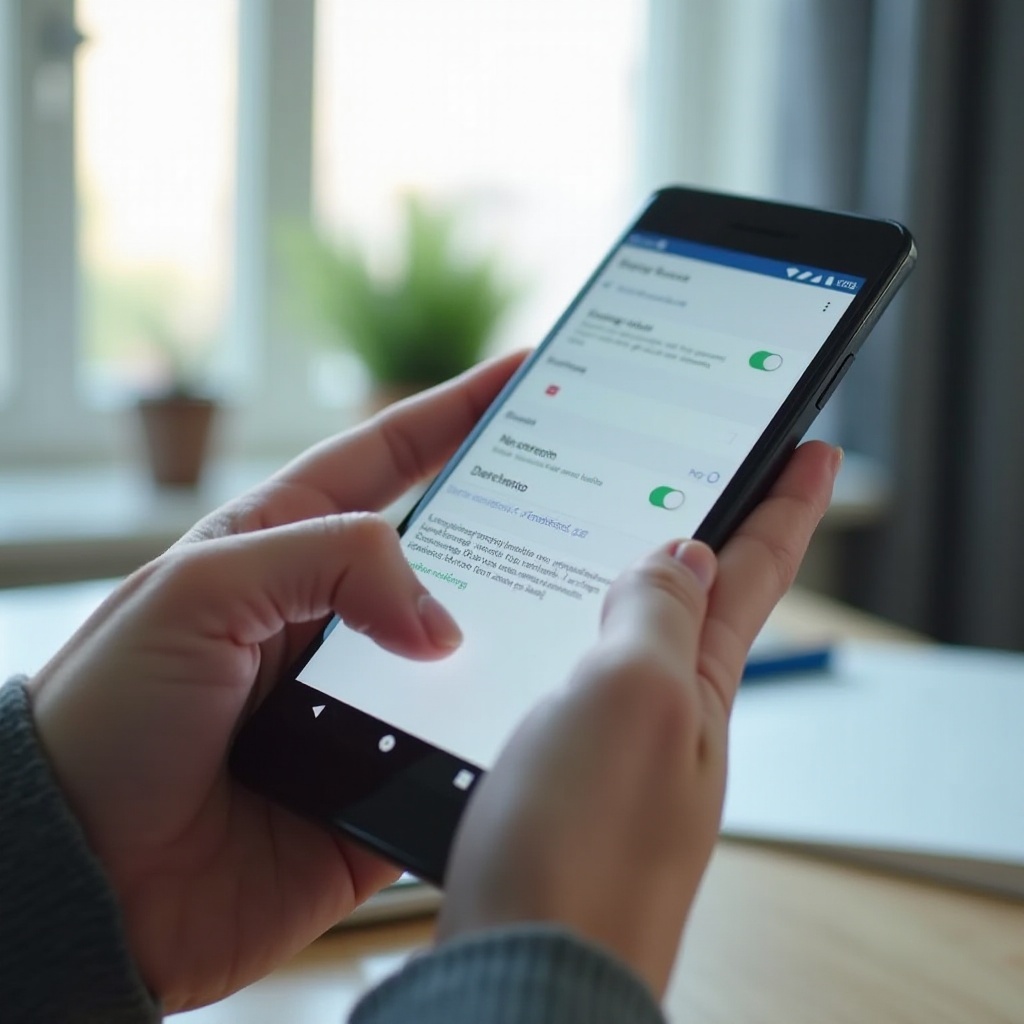
Turn Off Texting Sound via System Settings (Android 12, 13, and 14)
If you want a lasting fix, use your phone’s system settings. This approach lets you silence texting sounds while leaving other types of sounds alone. It is the best way to tune your phone so that only the alerts you care about make noise.
You will mainly work with the notifications section for your default SMS app and the notification channel it uses for new messages.
Open Settings and locate ‘Notifications’ or ‘Apps & notifications’
First, open the main Settings app.
- Open the Settings app on your phone.
- Look for one of these options, depending on your device:
- Notifications
- Apps & notifications
- Apps with a sub-section for notifications
If you do not see it right away, use the search bar at the top of Settings and type ‘notifications’. This is often the fastest way to find the right menu on customized Android skins.
Find your default SMS app and open its notification settings
Next, you need to get to your messaging app’s notification channels.
- In Settings, tap Apps or Apps & notifications.
- Tap See all apps or App info if needed.
- Find your SMS app. Common ones include:
- Messages (Google Messages)
- Messages or Samsung Messages on Samsung phones
- Carrier apps like Verizon Messages or similar
- Tap the app, then tap Notifications.
Here you should see general notification settings for that app and a list of channels, such as ‘Incoming messages’ or ‘New messages’. These channels control how text alerts behave.
Set text notifications to ‘Silent’ without disabling them
To turn off sound but still see message alerts:
- In the Notifications settings for your SMS app, tap the channel used for incoming messages (often ‘Incoming messages’ or ‘New messages’).
- Make sure Allow notifications is on. You still want to see the notification.
- Look for Sound or Alert type.
- Choose Silent or select None as the sound.
On some phones, you may see a choice between:
- Alerting (with sound)
- Silent (no sound, but shows on screen)
Pick Silent. You will still see icons and banners, but your phone will not play a tone for texts. This setting does not affect other apps unless they use the same channel, which is rare.
Turn off vibration and pop-up notifications for messages
If you also want no vibration:
- In the same channel settings, look for Vibration.
- Toggle Vibration off.
To avoid intrusive pop-ups, disable options like:
- Pop on screen
- Banners
- Heads-up notifications
This method gives you fine control: no sound, optional vibration, and optional visual alerts. Once you learn how this works, you can adjust individual apps, not just your SMS app. The next step is to fine-tune things inside the messaging app itself, starting with Google Messages.
Turn Off Texting Sound in Google Messages (Default Android App)
Many Android phones now use Google Messages as the default SMS and RCS app. It has its own notification controls inside the app that work with the system settings you just adjusted.
Using both system-level and in-app settings gives you the best control. If system settings look correct but you still hear tones, check the app’s own notification options next.
Open Google Messages and access notification preferences
Follow these steps in Google Messages:
- Open the Messages app with the blue chat bubble icon.
- Tap your profile picture or account icon in the top-right corner, or tap the three-dot menu.
- Select Messages settings.
- Tap Notifications.
Here you see global notification controls and, on newer Android versions, categories like:
- Incoming messages
- Group messages
- Other notifications
Disable sound for all incoming text messages
To turn off sound for every text:
- In Notifications, make sure notifications are turned on so you still see them.
- Tap Incoming messages (or similar).
- Tap Sound.
- Select None or Silent, or choose the dedicated Silent option if available.
You have now muted all text message sounds from Google Messages while keeping the alerts visible. If you also want to reduce vibration, turn off the vibration toggle in the same screen.
Mute group chats and busy conversations individually
Some group chats are much louder than others. You may want to mute only those and keep normal sounds for other contacts.
- Open a specific conversation in Messages.
- Tap the three-dot menu in the top-right corner.
- Tap Details or Conversation details.
- Toggle Notifications off, or choose Silent for that thread.
This is useful when you want normal text sounds from most people but no sound from certain groups or contacts that send many messages.
Customize tones for priority conversations vs muted chats
You can also set custom sounds for important people.
- In a conversation, open Details again.
- Tap Notifications (if they are enabled for that chat).
- Choose a special sound for that contact or set it to Silent.
Set a unique tone for important contacts and silence the rest. With this setup, you know when a message truly needs attention, even if most texts stay quiet. If you use a Samsung phone, you might prefer Samsung Messages instead of Google Messages, so let us look at that next.
Turn Off Texting Sound on Samsung Galaxy Phones (One UI 6 and Later)
Samsung Galaxy phones use One UI, which has some extra features and slightly different menu names compared to stock Android. You can mute text sounds at both system and app levels, and you also get powerful automation tools.
If you use Samsung Messages or a mix of Samsung Messages and Google Messages, you should check settings in both places to avoid duplicate alerts.
Silence text sounds through Samsung Messages app settings
If you use Samsung Messages as your SMS app:
- Open the Messages app.
- Tap the three-dot menu in the top-right corner.
- Select Settings.
- Tap Notifications.
- Make sure Show notifications is on.
- Tap New messages or the equivalent channel.
- Tap Sound and choose Silent or None.
You can also turn off Vibrate within the same screen if you want complete silence. If your phone lists separate channels for SIM 1 and SIM 2, adjust both if you use dual SIM.
Use One UI notification categories for finer control
On Samsung phones, notification categories give you extra control:
- Separate channels for new messages, group messages, and other alerts
- Options for Silent, Sound, and Vibrate per channel
- Ability to turn off pop-ups while keeping icons
If you are still hearing some text sounds, check each category related to messages and set them to Silent. This lets you keep loud tones for one type of message and no sound for others, if you want.
Manage text tones with Modes and Routines (work, sleep, driving)
Samsung’s Modes and Routines feature lets you automate silence and avoid changing settings manually every time.
- Open Settings.
- Tap Modes and Routines.
- Choose or create a mode such as Sleep, Work, or Driving.
- Set the mode to:
- Turn on Do Not Disturb
- Allow calls from favorites only
- Block notification sounds from messaging apps
You can trigger these modes based on time, location, Wi‑Fi network, or even when you open a specific app. This creates automatic quiet periods without constant manual changes.
Check for duplicate alerts from Google Messages and other SMS apps
Many Samsung phones have both Samsung Messages and Google Messages installed. If both apps handle SMS, you may hear two sounds for each text.
To avoid this:
- Open Settings › Apps.
- Find the SMS app you are not using.
- Tap Notifications.
- Turn Show notifications off, or set its message channels to Silent.
You can also set one app as the default SMS app in Settings › Apps › Choose default apps › SMS app. That reduces confusion and makes your notification controls easier to manage.
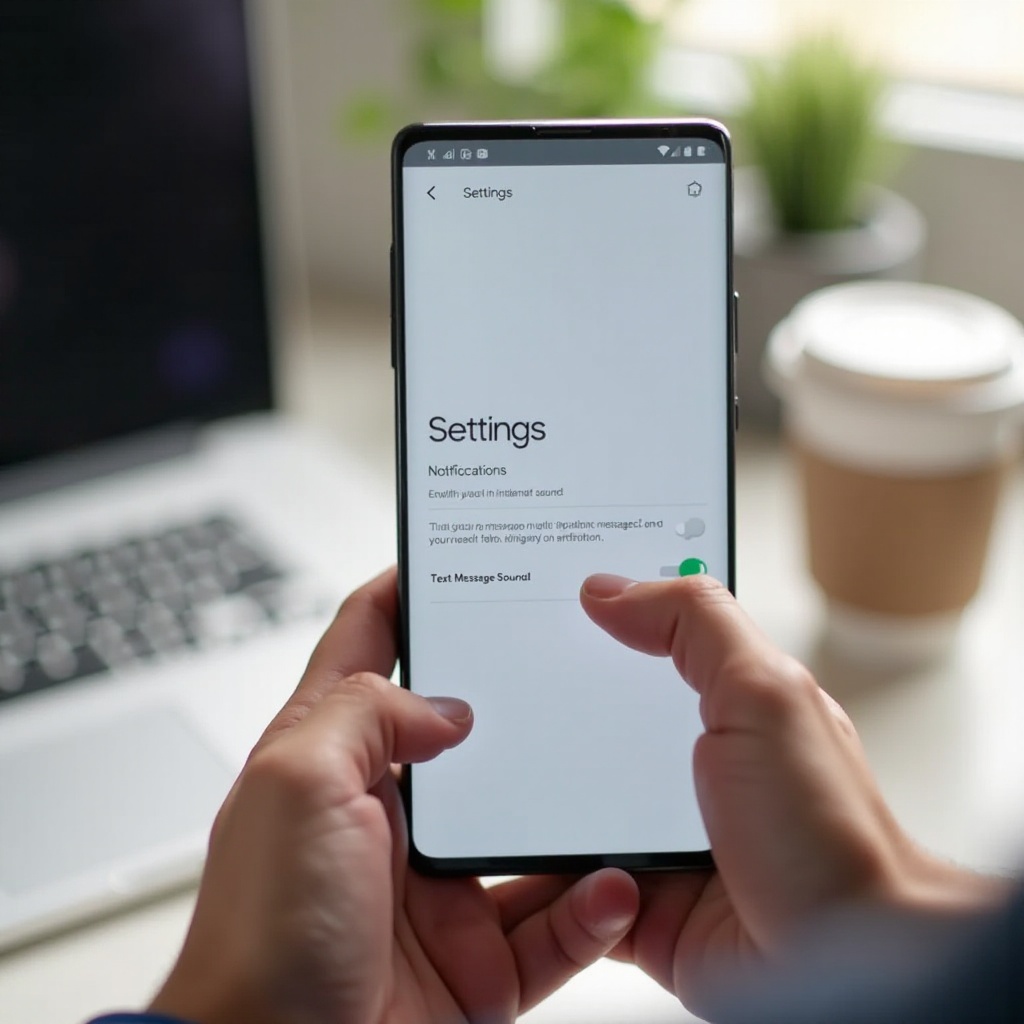
Brand-Specific Tips for Pixel, OnePlus, Motorola, and Xiaomi
Most of the steps above work on all Android phones, but each brand adds small changes in their Android skins. Knowing these differences helps you apply the right steps on your device without guessing.
Here are quick, targeted instructions for some of the most common phone brands in the Android ecosystem.
Google Pixel: managing text sounds in stock Android
On Google Pixel phones, the interface is very close to Google’s standard design.
- Open Settings › Apps › See all apps.
- Tap Messages.
- Tap Notifications.
- Tap Incoming messages.
- Set Sound to None or mark the channel as Silent.
You can also long-press a text notification, tap Silent or a similar option, and confirm. This shortcut adjusts the channel directly without going deep into Settings.
OnePlus: OxygenOS notification settings for SMS sounds
On OnePlus phones running OxygenOS:
- Open Settings › Apps & notifications or Apps.
- Tap Messages.
- Tap Notifications.
- Edit the Incoming messages channel.
- Choose Silent and disable vibration if needed.
OxygenOS usually includes a Do Not Disturb tile in Quick Settings. Use it alongside channel controls when you want scheduled quiet times, like work blocks or nighttime.
Motorola: My UX adjustments for text tones
On Motorola devices with My UX:
- Open Settings › Apps & notifications.
- Tap Messages (or your chosen SMS app).
- Tap Notifications.
- Tap the message channel and set the sound to None.
My UX is close to stock Android, so Pixel and Google Messages instructions usually match what you see.
Xiaomi and POCO: MIUI notification controls for messaging
On Xiaomi, Redmi, and POCO phones running MIUI:
- Open Settings › Notifications & Control center.
- Tap App notifications.
- Select Messages or your SMS app.
- Turn off Sound or set it to Silent.
- Disable vibration if you want total silence.
MIUI often has separate options for lock screen notifications, floating notifications, and icon badges. Adjust these if you want fewer visual alerts, not just less sound. If you find that you still get disturbed during key times, you can combine these brand-specific steps with Do Not Disturb for extra control.
Use Do Not Disturb to Silence Texting Sounds Smartly
System and app settings handle permanent changes. When you need flexible, temporary silence, Do Not Disturb (DND) is your best tool. It lets you block notification sounds while still allowing calls or alarms when needed.
Understanding how DND works helps you avoid missing important alerts while keeping constant text pings under control.
Turn on Do Not Disturb from Quick Settings
Most Android phones place DND in Quick Settings:
- Swipe down twice from the top of the screen to open Quick Settings.
- Look for Do Not Disturb or DND.
- Tap it to turn it on.
While DND is on, your phone can block sounds from texts and other notifications, depending on how you configure it in the main Settings app.
Allow calls and alarms but block text sounds
To fine-tune DND:
- Go to Settings › Sound & vibration or Notifications.
- Tap Do Not Disturb.
- Under the section for what is allowed, permit:
- Alarms
- Calls from starred or favorite contacts
- Repeat callers if you want emergency calls to get through
Leave Messages and Other notifications blocked. With this setup, your phone stays silent for texts but still rings for vital calls and alarms.
Create schedules for work, sleep, and focus times
You can automate DND so you do not have to turn it on manually every time.
- In the Do Not Disturb settings, look for Schedules or Turn on automatically.
- Create schedules such as:
- Sleep: from your bedtime to wake-up time
- Work: your regular work hours
- Focus: when you need deep concentration
Set each schedule to block text sounds and other distractions, but allow what you consider essential. This keeps your phone in the right mode without extra effort.
Set exceptions for starred or favorite contacts only
If you worry about missing emergency texts or calls, combine DND with contact favorites.
- Open Contacts and mark key people as favorites or starred.
- In Do Not Disturb settings, allow:
- Calls from Starred contacts only
- Messages from Starred contacts only (if your phone offers this option)
This keeps your phone quiet for most people but lets family or important contacts reach you even when DND is active. If, after all this, texting sounds still appear, some extra troubleshooting can help.
Fix Issues When Text Notification Sounds Won’t Turn Off
Sometimes you reduce every volume slider and still hear texting sounds. That usually means another app or connected device is involved. A few checks will help you track down the source and silence it for good.
This section focuses on common causes like multiple SMS apps, chat apps, and system glitches.
Check for multiple SMS or carrier messaging apps
You may have more than one app handling SMS, such as:
- Google Messages
- Samsung Messages
- A carrier app like Verizon Messages or AT&T Messages
To fix this:
- Open Settings › Apps.
- Look for any app with ‘Messages’ or ‘Messaging’ in the name.
- Open each one and check Notifications.
- Set unused apps to Silent or turn notifications off completely.
Choose a single default SMS app in Settings › Apps › Default apps › SMS app. This step prevents duplicate alerts and makes your changes more predictable.
Stop text-like sounds from chat apps (WhatsApp, Messenger, etc.)
Some messages come from chat apps instead of SMS:
- Facebook Messenger
- Telegram
- Signal
These apps are not SMS, so muting your SMS app does not silence them.
To mute them:
- Open Settings › Apps.
- Select the specific chat app.
- Tap Notifications.
- Change message channels and set Sound to Silent or None.
You can also mute individual chats inside those apps, similar to how you mute conversations in Google Messages. If you still see odd behavior after that, you might need to reset some app settings.
Reset notification preferences for messaging apps
If notification settings are messy or you changed many options over time, a reset can help.
- Go to Settings › Apps.
- Tap the messaging app that behaves oddly.
- Tap Storage & cache or Storage.
- Clear Cache. Avoid clearing data unless you understand it may reset the app.
- Go back and review Notifications from scratch.
If nothing works, you can tap Uninstall updates for the app (if allowed), then install the latest version from the Play Store.
Reboot, clear cache, and test after system updates
Major system updates sometimes reset or change notification behavior. If you notice new sounds:
- Restart your phone.
- Recheck your SMS app’s Notifications settings.
- Send yourself a test message from another device.
Often, a fresh reboot plus a quick review of notification channels solves persistent sound issues. After fixing the main text sounds, you may also want to quiet other noises that happen while texting.
Extra: Turn Off Related Sounds While Texting (Keyboard, System, and App Sounds)
You might silence texting sounds, but other noises can still bother you when you type or unlock your phone. Keyboard clicks, system sounds, and social app alerts can all create unwanted noise.
By turning those off, you can create a quieter, more focused experience every time you pick up your phone.
Disable keyboard click sounds and haptic feedback
Keyboard clicks and vibrations can be loud in quiet rooms or during calls.
- Open Settings.
- Tap System or General management, depending on your device.
- Tap Language & input or Keyboard.
- Open your active keyboard (such as Gboard or Samsung Keyboard).
- Turn off:
- Sound on keypress
- Haptic feedback on keypress if you do not want vibration
Now you can type texts in silence without losing speed or accuracy.
Turn off lock, touch, and charging sounds
System sounds add more noise than you might expect.
- Go to Settings › Sound & vibration or Sounds and vibration.
- Look for System sounds or Advanced.
- Turn off options such as:
- Screen lock sound
- Touch sounds
- Charging sound
These changes keep your phone more discreet in quiet places, libraries, and meetings.
Control notification tones for social and chat apps separately
If you still get pings from social apps while texting:
- Open Settings › Apps.
- Select apps like Instagram, Facebook, TikTok, or email apps.
- Tap Notifications.
- Change message or DM channels to Silent if you do not want sound.
This lets you build a quiet, focused phone setup while still seeing alerts you care about in the notification shade.
Balance quiet texting with important app alerts
As you mute more sounds, think about what matters most:
- Keep sound and vibration for calls if you expect emergencies.
- Allow alarms and calendar reminders for time-sensitive events.
- Use visual notifications for messages so you can check them when convenient.
You do not need to choose between chaos and total silence. With careful settings, your Android phone can stay helpful without being noisy.
Conclusion
You now know how to turn off texting sound on Android in several reliable ways. You can use quick shortcuts with volume keys and Quick Settings, or fine-tune system notification channels and app settings for Google Messages, Samsung Messages, and other brands.
You also learned how to use Do Not Disturb smartly, fix stubborn sounds from multiple apps and devices, and quiet related noises like keyboard clicks and system tones. With these tools, you can design a notification setup that fits your lifestyle.
Take a few minutes to apply the steps that fit your phone and your habits. Once you set everything up, your device will feel more peaceful and more professional, while you still see every important message when you choose to look.
Frequently Asked Questions
How do I turn off texting sound on Android but keep vibration on?
Open ‘Settings’ › ‘Apps’ › your SMS app (for example, ‘Messages’) › ‘Notifications’. Tap the channel for ‘Incoming messages’. Set ‘Sound’ to ‘None’ or ‘Silent’, but leave ‘Vibration’ turned on. This way you do not hear a tone, but you still feel the phone buzz when a text arrives. You can also do this inside Google Messages under ‘Messages settings’ › ‘Notifications’ › ‘Incoming messages’ by turning off only the sound option.
Why are my texts still making a sound on my smartwatch or earbuds?
Your watch or earbuds have their own notification settings. When your phone receives a text, it can forward the alert to connected devices. On a smartwatch, open the watch’s ‘Settings’ or its companion app on your phone and mute message notifications or turn off sounds. For earbuds, open the brand’s app (such as ‘Galaxy Wearable’, ‘Jabra Sound+’, or ‘Sony Headphones Connect’) and disable notification sounds or voice prompts. Muting your phone alone will not stop sounds on those devices until you change their settings.
Can I mute text sounds from just one contact or group on Android?
Yes. Open your messaging app and mute that specific conversation. In Google Messages, open the thread, tap the three-dot menu › ‘Details’, then toggle ‘Notifications’ off or set them to ‘Silent’ for that chat. On Samsung Messages and most other SMS apps, open the conversation, tap the menu, and look for ‘Mute’, ‘Notifications’, or ‘Details’. This lets you silence that one person or group while keeping normal text sounds for everyone else.