
Introduction
You open Messages, tap the screen to reply, and suddenly notice something wrong. The stickers you loved using have vanished. You start wondering, ‘Why have my stickers disappeared on iPhone?’ and whether you did something to delete them.
This problem is more common than you think, especially after recent iOS updates that changed how Messages and stickers work. Most of the time, your stickers are not truly gone. They are hidden in a new place, disabled, offloaded, or tied to an app that changed or disappeared from the App Store.
This guide explains, in clear steps, how stickers work now, why they seem to vanish, and how to bring them back. You will learn how to find Apple’s default stickers, recover third-party packs, check settings that might be blocking them, and prevent this from happening again. By the end, you should feel confident that when ‘my stickers disappeared on iPhone’ crosses your mind, you know exactly what to do.
How Stickers Work on iPhone in 2024
Before you fix anything, you need to understand what you are looking for. The word ‘stickers’ on iPhone covers several different features, and each one can disappear in a slightly different way.
Types of Stickers on iPhone (Emoji, Live Stickers, Memoji, Third-Party Packs)
On a modern iPhone, you will see four main types of stickers:
- Emoji stickers – These are sticker versions of standard emojis. iOS can turn emojis into large, sticker-style images you can place in chats.
- Live Stickers – Newer iOS versions let you lift subjects from your photos and save them as Live Stickers. You can reuse these in Messages.
- Memoji stickers – These are expressive cartoon characters based on your Memoji profile. They appear as a sticker pack.
- Third-party sticker packs – These come from apps you install from the App Store. Many are dedicated sticker apps; some are bundled with other messaging or entertainment apps.
When you say ‘my stickers disappeared on iPhone’, it may mean only one type is missing, or it may affect several. Knowing which type is gone helps you pick the right fix and saves you time.
Where Stickers Live in the Messages App Now
Recent versions of iOS changed how you reach stickers inside Messages. The old horizontal iMessage app bar below the text field is either gone or behaves differently. Now, most tools, including stickers, live behind the ‘+’ button next to the text input.
When you tap ‘+’ in a conversation, you see a menu of items like Photos, Camera, Audio, and Stickers. Inside ‘Stickers’, you can switch between:
- Emoji stickers
- Live Stickers
- Memoji stickers
- Installed third-party sticker packs
If you do not tap that menu, it can feel like all stickers disappeared. In many cases, they are simply in a new drawer you have not opened yet.
Once you understand where stickers should appear, it becomes easier to spot what actually went wrong. Next, you will see the most common reasons they seem to vanish, so you can match your situation to the right solution.
Common Reasons Your Stickers Disappeared on iPhone
Now that you know the main sticker types and where they live, you can look at why they go missing. The phrase ‘my stickers disappeared on iPhone’ usually points to one of a few predictable issues.
After an iOS Update or Layout Change in Messages
A major iOS update can move features to different places. You update your iPhone, open Messages, and what used to be a horizontal scroll of apps and stickers is now a simple ‘+’ button. You may assume the stickers were removed, but in reality:
- The UI changed, hiding them behind a new icon.
- Some extensions were temporarily disabled during the update.
Layout changes cause the illusion of data loss even when your sticker content is still on the device.
Sticker Apps Deleted, Offloaded, or Out of Date
If third-party packs are missing, the app that provided those stickers may be:
- Deleted manually.
- Offloaded by iOS to save storage.
- Out of date and no longer compatible with the latest iOS.
Offloading is especially sneaky. The icon might still appear on your Home Screen, but the app is not fully installed, so the sticker extension can vanish from Messages.
Account, Region, or Restriction Issues
Sometimes stickers disappear because of:
- A change of Apple ID.
- A switch of App Store country or region.
- Screen Time or Content & Privacy restrictions that hide certain apps and features.
If you used one Apple ID to buy a sticker pack and now use another, that pack may not show under your new account.
Understanding these causes helps you choose the right fix. Next, you will start with the simplest and most common solution: checking the new stickers location inside Messages.
Step 1: Make Sure You’re Checking the Right Place in Messages
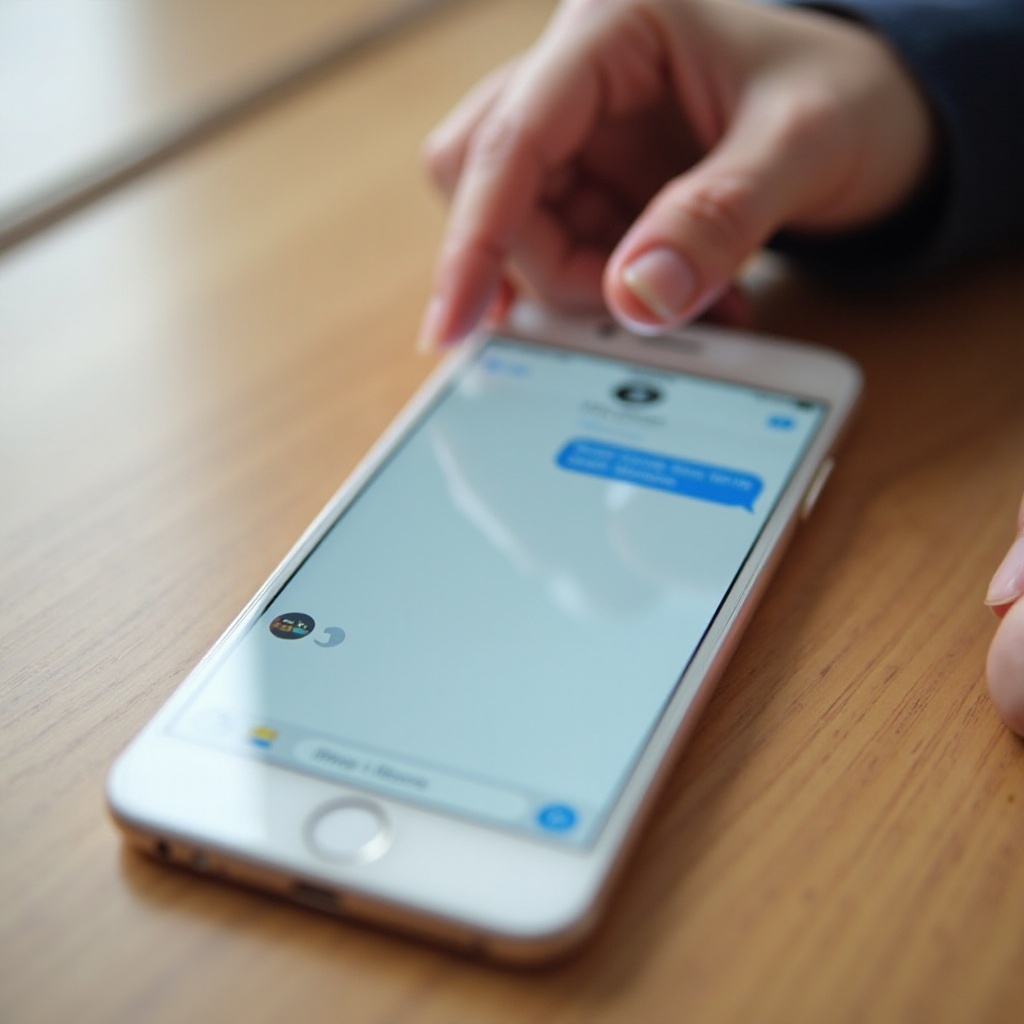
Many users think ‘my stickers disappeared on iPhone’ when they simply have not opened the new stickers section in Messages. Start here to avoid unnecessary panic.
Opening the New Stickers Drawer via the ‘+’ Button
Follow these steps:
- Open the Messages app.
- Tap any conversation or start a new one.
- Look to the left of the text input field and tap the ‘+’ button.
- In the menu that appears, tap Stickers.
You should now see a panel with different sticker types. If you see your Live Stickers, emoji stickers, or Memoji here, then they never disappeared. They were just moved behind this new menu.
Switching Between Stickers, Apps, and Other Message Tools
Inside this interface, you can:
- Swipe or tap to switch between sticker categories.
- Look for icons or tabs representing Memoji, emoji stickers, and installed packs.
- Tap the App Store-style icon or similar extension icon to view third-party packs.
If nothing appears in the stickers screen, or some packs are missing, continue to the next step and check Apple’s built-in stickers. These are usually easier to restore because they are part of the system, not separate downloads.
Step 2: Restore Apple’s Built-In Stickers
If default stickers such as Memoji, emoji stickers, or Live Stickers are missing, the problem is often easier to fix. These features are built into iOS and do not depend on separate apps.
Finding Memoji and Emoji Stickers from the Keyboard
To check for Memoji and emoji stickers:
- Open Messages and a conversation.
- Tap the text field to bring up the keyboard.
- Tap the emoji icon on the keyboard.
- Look for:
- A row or section of Memoji stickers.
- Large sticker versions of emojis at the top of the panel or in the stickers section.
If you do not see Memoji stickers:
- Make sure iMessage is turned on in Settings > Messages.
- Check keyboard settings under Settings > General > Keyboard, such as emoji and predictive options, because some changes can hide emoji-based sticker suggestions.
Accessing Live Stickers Created from Photos
To find Live Stickers:
- While in a Message, open the emoji keyboard.
- Tap the stickers icon. It may look like a small sticker or peelable square.
- Look for a section that shows your Live Stickers, often separated from regular emoji stickers.
If Live Stickers are gone:
- They might have been deleted manually.
- You may need to recreate them from your photos:
- Open Photos.
- Tap and hold on a subject in a picture until it lifts from the background.
- Choose Add Sticker to save it as a Live Sticker.
If your Apple stickers are visible but specific third-party packs still appear to be missing, your next step is to focus on those external apps and their links to Messages.
Step 3: Recover Third-Party Sticker Packs
When someone says ‘my stickers disappeared on iPhone’, they often mean the fun packs they downloaded from the App Store. These depend on apps and can vanish if the app changes or is removed.
Reinstalling Missing Sticker Apps from the App Store
First, check if the app is still installed:
- Swipe down on the Home Screen and search for the app name.
- If you see a cloud icon next to it, iOS offloaded it. Tap to reinstall.
- If you do not see it, open the App Store and search by name.
- Tap the download or cloud icon to reinstall the app.
Once reinstalled:
- Open Messages.
- Open a conversation, tap the ‘+’ button, then Stickers.
- Look for the pack associated with the app.
Using the Purchased List to Find Old Sticker Packs
If you do not remember the app name, use your purchase history:
- Open the App Store.
- Tap your profile picture in the top right.
- Tap Purchased.
- Scroll through or search for sticker apps you used before.
- Tap the cloud icon to reinstall any relevant apps.
This works only if you are signed in with the same Apple ID you used when you first downloaded the pack.
What to Do If a Sticker App Is No Longer Available
Sometimes an app is removed from the App Store or no longer supports your iOS version. In that case:
- You will not be able to reinstall it from the store.
- The sticker pack linked to that app will not reappear in Messages.
Your main options are:
- Check the developer’s website or social pages for an updated version.
- Look for newer sticker apps with similar themes or styles.
If third-party apps appear installed but still do not show in Messages, the extension that exposes the stickers might be disabled. The next step is to manage iMessage apps inside Messages.
Step 4: Re-Enable iMessage Apps and Sticker Extensions
Sometimes the sticker extension is disabled inside Messages, even though the app is installed and working fine.
Managing iMessage Apps Inside Messages
To manage sticker extensions:
- Open Messages and any conversation.
- Tap the ‘+’ button next to the text field.
- Look for an option like More or an App Store-style icon at the end of the list.
- In the iMessage apps management screen, check the list of available apps and extensions.
- Ensure your sticker apps are enabled.
You may see toggles or checkmarks next to each extension. Turn them on so your stickers appear in the drawer.
Reordering and Pinning Sticker Packs for Quick Access
If your sticker packs are enabled but buried:
- In the same iMessage apps management area, look for Edit options.
- Drag apps and sticker packs to reorder them.
- Move your favorite packs toward the top so they appear early in the list.
- Pin packs if the interface offers pinning, so they stay visible.
Reordering makes sure you do not think stickers disappeared when they are just hidden at the bottom of a long extension list. If everything looks correct inside Messages but stickers still vanish, restrictions might be blocking them, which brings us to Screen Time.
Step 5: Check Screen Time, Content & Privacy Restrictions
If you share the device, use parental controls, or once set up Screen Time, restrictions can quietly hide sticker apps and iMessage extensions.
How Restrictions Can Hide or Block Sticker Apps
Screen Time restrictions can:
- Prevent app installations and deletions.
- Block access to some categories of apps.
- Hide certain iMessage apps and in-app content.
When this happens, you might notice:
- Sticker packs never appear even after reinstalling.
- The App Store will not let you download specific sticker apps.
Adjusting Screen Time Settings to Allow Stickers Again
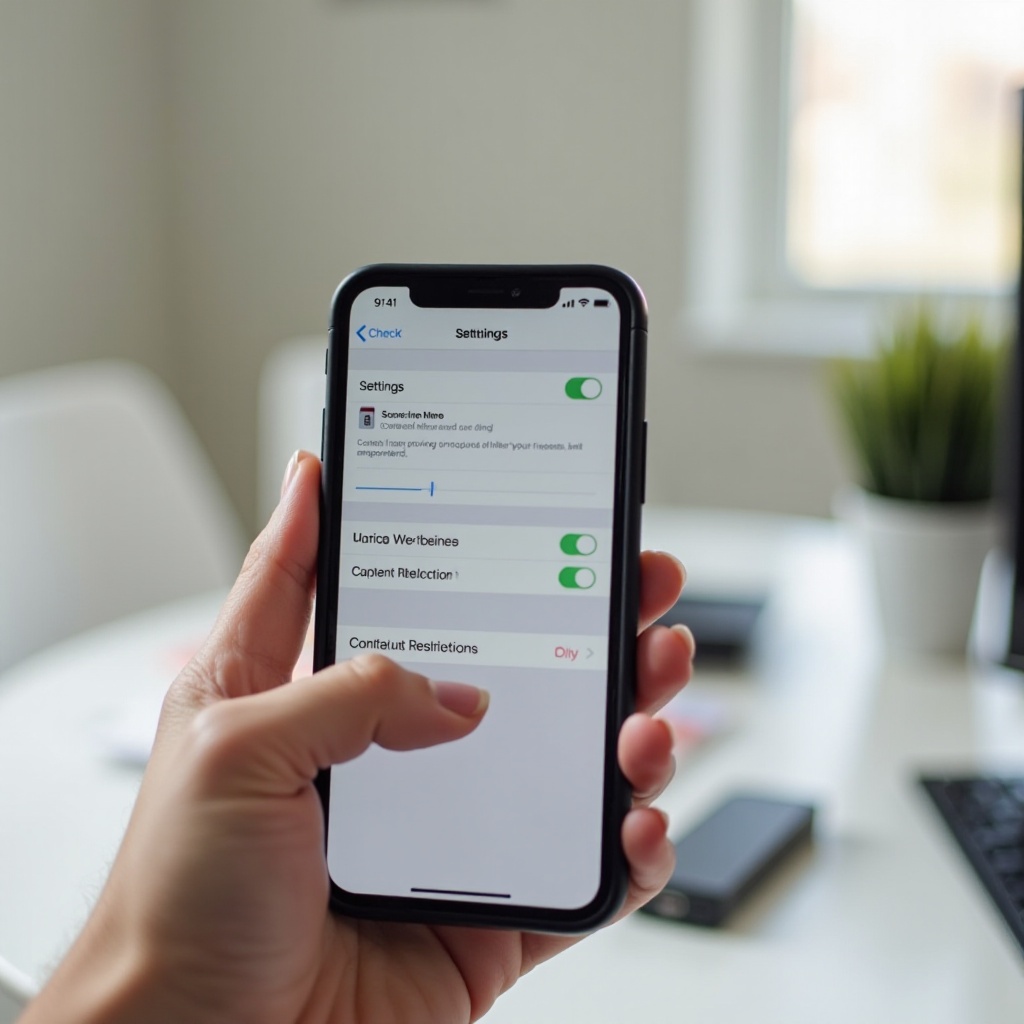
To check restrictions:
- Open Settings.
- Tap Screen Time.
- Tap Content & Privacy Restrictions.
- If enabled, review:
- iTunes & App Store Purchases.
- Allowed Apps.
- Content Restrictions.
Make sure:
- Installing and using apps is allowed.
- Messaging and related apps are not blocked.
If your stickers reappear after adjusting Screen Time, the issue was a restriction, not a bug. If not, account and region settings may be causing the problem, especially if you recently changed Apple IDs or moved to another country.
Step 6: Fix Account, Region, and Sync Problems
Stickers tied to purchases depend on your Apple ID and App Store region. Changing either can make it seem like ‘my stickers disappeared on iPhone’ without warning.
Verifying You’re Using the Correct Apple ID
To confirm your account:
- Open Settings.
- Look at the top for your name and email.
- Check if this matches the Apple ID you originally used to buy the sticker apps.
If it does not match:
- Sign in with the correct Apple ID, or
- Use Purchased under the correct account to restore your apps.
Region Changes and Missing Purchases in the App Store
Changing your App Store country or region can affect:
- Which apps are available.
- Your ability to redownload older purchases.
If you recently changed regions:
- Some sticker apps might not be available in your new country.
- You might need to switch back temporarily to restore them, if Apple allows it.
Syncing Stickers Across Multiple Apple Devices
If you use multiple devices:
- Make sure iMessage is enabled on each device with the same Apple ID.
- Check if Messages in iCloud is turned on, so messages and some related content stay in sync.
If a sticker pack appears on your iPad but not your iPhone, your iPhone may be signed into a different account or missing the app. Fixing that usually brings consistency back.
After checking accounts and regions, your last general step is to clear minor bugs with basic system maintenance. This can often resolve stubborn cases where everything looks correct but stickers still fail to load.
Step 7: Basic System Fixes for Sticker Glitches
Sometimes stickers glitch or stop loading due to cached data, minor OS bugs, or networking hiccups. Basic resets can solve these cases without much effort.
Restart, Force Restart, and Updating iOS
Try the following:
- Restart your iPhone
- Hold the power button and either volume button, then slide to power off.
- Turn it back on and reopen Messages.
- Force quit Messages
- Swipe up from the bottom (or double-click Home on older devices).
- Swipe Messages off the screen to close it.
- Reopen Messages and check stickers.
- Update iOS
- Go to Settings > General > Software Update.
- Install any available update.
- Updates often fix small bugs affecting Messages and stickers.
When to Reset All Settings (and When Not To)
If nothing else works, you may consider Reset All Settings:
- Go to Settings > General > Transfer or Reset iPhone.
- Tap Reset > Reset All Settings.
This reset:
- Resets Wi-Fi, Bluetooth, and some system preferences.
- Does not erase your personal data or apps.
Use this only after you try other steps, and always back up your iPhone first. If even a reset does not restore the packs, they might be gone for good because the apps that supplied them are no longer supported.
What If Your Stickers Are Permanently Gone?
Sometimes, no matter what you try, a certain pack never comes back. This situation usually points to a problem beyond your control.
Recognizing Abandoned or Unsupported Sticker Apps
Signs that a sticker app is effectively dead include:
- It no longer appears in the App Store.
- The developer’s website, if it exists, shows no updates or support.
- The app description, if still visible, does not mention support for your current iOS.
In these cases, even if you once bought and used the stickers, you may not be able to install them again on newer devices or iOS versions.
Finding Safe, High-Quality Replacement Sticker Packs
To replace lost packs:
- Search the App Store using keywords related to the old pack’s theme.
- Check:
- App ratings and reviews.
- Last update date, and prefer apps updated recently.
- Screenshots and descriptions that match what you want.
- Prefer developers that actively maintain their apps and clearly mention support for the current iOS version.
This approach keeps your new stickers more future-proof, so you are less likely to face the same issue again. Once you choose stronger replacements, you can take a few steps to keep them from ‘disappearing’ in the future.
How to Stop Stickers From ‘Disappearing’ Again
Once you fix the ‘my stickers disappeared on iPhone’ problem, you can change a few habits and settings to avoid repeating it.
Turn Off Offload Unused Apps for Key Sticker Packs
Offloading saves storage but can remove sticker extensions. To limit this:
- Go to Settings > App Store.
- Turn off Offload Unused Apps, or
- Keep it on but regularly open your favorite sticker apps so iOS does not consider them unused.
For crucial sticker apps, you can also manage offloading in Settings > General > iPhone Storage, then select the app and make sure it stays installed.
Keep iOS and Sticker Apps Updated After Major Changes
After big iOS updates:
- Check the App Store for updates to your sticker apps.
- Turn on Automatic Updates if you prefer everything to stay current.
Developers often push compatibility updates after Apple changes how Messages or extensions work. Keeping everything current reduces glitches and helps your stickers remain visible and functional.
With these preventative steps in place, you should feel more confident that your stickers will stay where you expect them: ready to use inside Messages whenever you want.
Conclusion
When you think ‘my stickers disappeared on iPhone’, you are usually dealing with hidden features, disabled extensions, offloaded apps, or account changes, not true loss. By understanding how stickers work in the latest iOS, checking the new Messages layout, reinstalling missing apps, adjusting Screen Time and account settings, and applying basic system fixes, you can restore most or all of your favorite sticker packs.
You can also protect yourself in the future by keeping apps updated, managing offloading, and choosing actively maintained sticker packs. With a bit of setup, your stickers will be ready to go in every conversation instead of mysteriously vanishing.
Frequently Asked Questions
Why did my stickers disappear on iPhone after an iOS update?
Most of the time, an iOS update changes the Messages layout. Your stickers move behind the ‘+’ button and into the Stickers drawer, so they look gone even though they are still there. In some cases, the update temporarily disables iMessage apps, so you need to re-enable sticker extensions inside Messages. Third-party apps may also need an update from the App Store to work properly with the new iOS.
How do I get my Memoji and Live Stickers back if I can’t see them in Messages?
First, open a conversation, tap the text field, and switch to the emoji keyboard. Look for the stickers icon to access Memoji and Live Stickers. If they do not appear, make sure iMessage is enabled in Settings and that you are on a current iOS version. For Live Stickers, check the stickers panel and recreate them from Photos if necessary by lifting a subject from a picture and adding it as a sticker.
Will my stickers come back if I restore my iPhone from a backup?
A backup can restore Messages content and some settings, but third-party sticker packs still depend on their apps. If the app is not available in the App Store anymore, the pack may not return even after a restore. However, if the app is still supported and tied to your Apple ID, restoring from a recent backup and then reinstalling or re-enabling the app should bring those stickers back into the Messages stickers drawer.