
Introduction
TalkBack reads out what you touch and changes how your phone responds to taps and swipes. It is vital for users who rely on a screen reader, but it can be confusing if you turned it on by accident. You may hear every button announced, need to double-tap to open items, and scroll with two fingers. If that just happened, you likely want a fast way to switch it off.
This guide gives you clear steps to turn TalkBack off right now and keep it off. You will learn quick shortcuts, brand-by-brand settings paths for Pixel, Samsung, OnePlus, and Xiaomi, and what to do if you are stuck on the lock screen. You will also see how to stop TalkBack from turning on again and how to fix stubborn cases that do not respond to normal toggles. By the end, you will have fast fixes and permanent solutions that work even when the phone seems unresponsive.
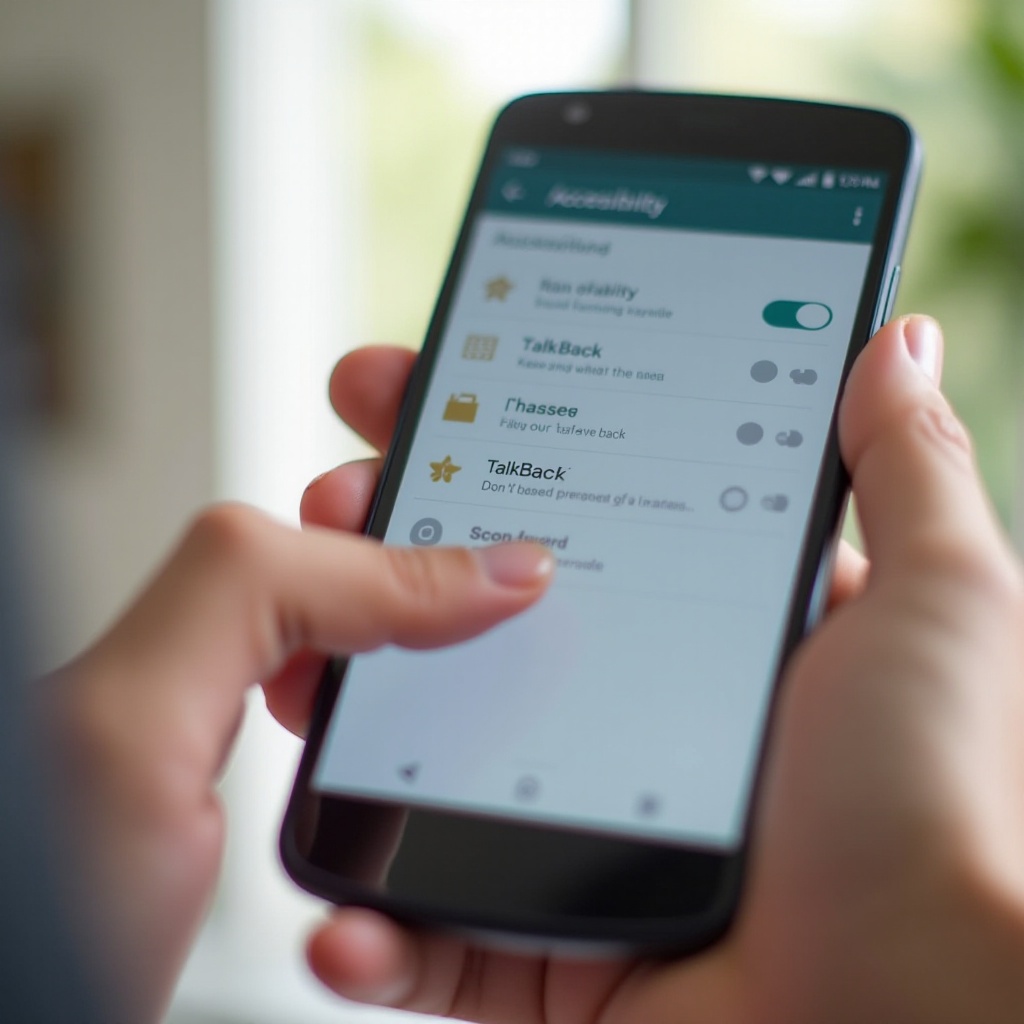
What Is TalkBack and Why It Might Turn On
Before turning anything off, it helps to know what is running. TalkBack is Google’s screen reader that speaks items on the screen and changes gestures so users can navigate with audio feedback. You will notice a focused highlight moving around elements and spoken feedback for buttons, lists, and alerts. The service can start in several ways.
Common triggers include pressing and holding both volume keys, tapping the on-screen Accessibility button, restoring a backup that contained accessibility settings, or enabling options during setup. Sometimes parental controls, enterprise policies, or third-party apps that request accessibility privileges can toggle screen readers as well. If you hear a voice and must double-tap to open items, TalkBack is on.
You now know why it started. Next, learn a few basic gestures so you can move through menus and turn it off without a struggle.
Learn to Navigate With TalkBack On (Gestures You’ll Use)
With TalkBack active, the way you control the screen shifts. Mastering a few core gestures will make the shut-off steps simple.
- Explore by touch: Drag one finger and listen as TalkBack announces items under your finger.
- Select and activate: Single-tap to focus an item. Double-tap anywhere to activate the focused item.
- Scroll: Use two fingers to scroll vertically or horizontally.
- Back, Home, and Recents: Press hardware or software keys as usual, or use standard navigation gestures with two fingers.
- Pause or silence speech: Press volume up then volume down quickly, or tap with two fingers (varies by device and settings).
- TalkBack menus: Advanced users can swipe down then right in one motion to open the global context menu.
With these basics in place, you can reach Settings or trigger a shortcut even if TalkBack caught you by surprise. Let us start with the fastest ways to turn it off.
Quick Ways to Turn Off TalkBack (When You’re Stuck)
If you are overwhelmed by the voice prompts, try these quick methods first. They require fewer steps and often work from any screen.
Use the volume keys shortcut to disable TalkBack
On most phones, press and hold both volume up and volume down for about three seconds. If a confirmation prompt appears, single-tap the option to turn off TalkBack to focus it, then double-tap anywhere to confirm. If the toggle works without a prompt, you will hear the phone say that TalkBack is off.
Tap the Accessibility button or gesture to turn off TalkBack
Look for a small Accessibility button on the edge of the screen or in the navigation bar. Single-tap it to focus, then double-tap to open the menu. Choose TalkBack and toggle it off. If you use gesture navigation, try long-pressing the Accessibility button to open the assigned service list and then turn off TalkBack.
Ask Google Assistant to turn off TalkBack
If Assistant is available on your device, say Hey Google, turn off TalkBack. If Assistant prompts you to confirm, say Yes, or single-tap and double-tap the confirm button on screen. This is helpful when your hands are busy or the interface is hard to manage.
If none of these options work or you prefer a sure path, use the brand-specific settings below.
Turn Off TalkBack in Settings on Google Pixel / Stock Android (Android 14/15)
If quick toggles fail, the Settings path always works. Use two fingers to scroll and single-tap, then double-tap to open items.
Path: Settings > Accessibility > TalkBack > Off
1) Open Settings:
– Swipe up with two fingers to open the app drawer.
– Single-tap Settings to focus, then double-tap to open.
2) Go to Accessibility:
– Single-tap Accessibility, then double-tap.
3) Enter TalkBack:
– Single-tap TalkBack, then double-tap.
4) Turn it off:
– Focus the switch next to Use TalkBack, then double-tap to turn it off. Confirm if prompted.
Disable the Accessibility shortcut and Volume key shortcut
After switching it off, stop accidental reactivation:
1) In TalkBack settings, open TalkBack shortcut.
2) Toggle off Hold volume keys and Accessibility button if you do not need them.
3) Go back to Accessibility and review Volume key shortcut. Disable it or assign it to a different feature.
You now have TalkBack off and the main triggers disabled. If you use a Samsung Galaxy, the wording changes slightly, but the idea is the same.
Turn Off TalkBack in Settings on Samsung Galaxy (One UI 6/7)
Samsung labels the feature as TalkBack (Screen reader). The navigation rules are identical: single-tap to focus, double-tap to activate, and use two fingers to scroll.
Path: Settings > Accessibility > TalkBack (Screen reader) > Off
1) Open Settings:
– Use two fingers to scroll through your apps.
– Single-tap Settings, then double-tap to open.
2) Go to Accessibility:
– Single-tap Accessibility, then double-tap.
3) Open TalkBack under Screen reader:
– Single-tap TalkBack, then double-tap.
4) Turn it off:
– Focus the On switch and double-tap. Confirm if a dialog appears.
Turn off Accessibility button and Side/Volume key shortcut
1) In TalkBack settings, open Shortcut.
2) Toggle off Side and volume up keys and Accessibility button.
3) Return to Accessibility > Advanced settings and check the key function if present. Set it to None or another feature you prefer.
With Samsung covered, the next steps show how to do the same on OnePlus phones running OxygenOS.
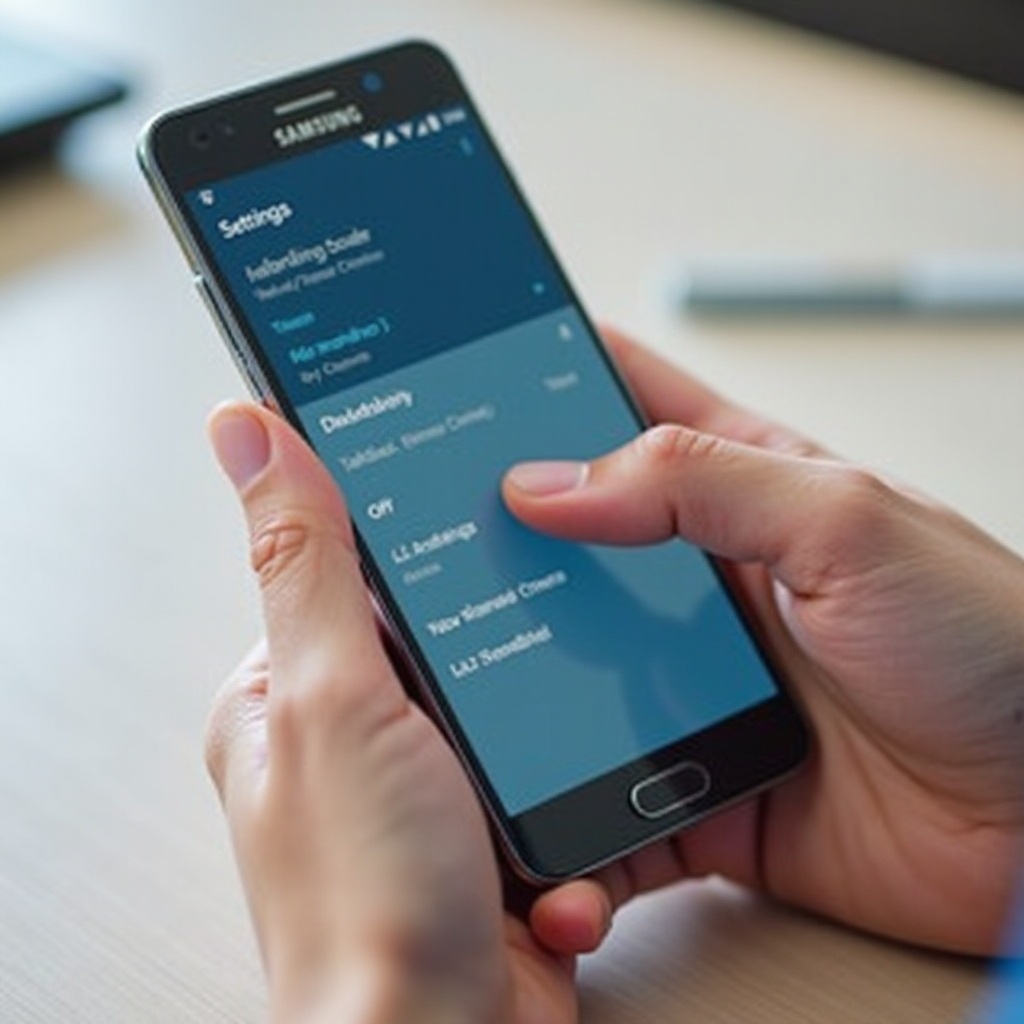
Turn Off TalkBack in Settings on OnePlus (OxygenOS 14/15)
Some OnePlus models place Accessibility under Additional settings. The toggles and gestures work the same as on other Android devices.
Path: Settings > Additional settings > Accessibility > TalkBack > Off
1) Open Settings and single-tap Additional settings, then double-tap.
2) Single-tap Accessibility, double-tap.
3) Single-tap TalkBack, double-tap.
4) Focus the Use TalkBack switch and double-tap to turn it off.
Disable shortcuts and gestures that re-enable TalkBack
1) In TalkBack settings, open TalkBack shortcut and toggle off Hold volume keys.
2) If you see an Accessibility button in navigation, unassign TalkBack from it.
3) Check Quick launch or Gesture shortcuts in Settings and make sure none map to TalkBack.
If you have a Xiaomi, Redmi, or POCO device, HyperOS or MIUI uses a similar layout to OnePlus, so the process is familiar.
Turn Off TalkBack in Settings on Xiaomi/Redmi/POCO (HyperOS/MIUI 14+)
Xiaomi groups Accessibility under Additional settings. Use two fingers to scroll if TalkBack is still on.
Path: Settings > Additional settings > Accessibility > TalkBack > Off
1) Open Settings, then single-tap Additional settings, double-tap.
2) Single-tap Accessibility, double-tap.
3) Single-tap TalkBack, double-tap.
4) Focus the Use TalkBack switch and double-tap to disable. Confirm if prompted.
Toggle off the Accessibility menu and button shortcuts
1) In Accessibility, open Accessibility menu and Accessibility button.
2) Turn off any assignment for TalkBack.
3) Open Volume keys shortcut and disable it or change it to No service.
If the phone is locked or you cannot enter your PIN, the next section shows what to do from the lock screen.
Turn Off TalkBack from the Lock Screen or If You Can’t Unlock
Being stuck on the lock screen can be stressful. Use these steps to regain control without full access.
Use the volume key shortcut from the lock screen
1) Press and hold both volume keys for about three seconds.
2) If a confirmation dialog appears, single-tap Turn off TalkBack to focus, then double-tap to confirm.
3) Unlock your phone again. Your pattern, PIN, or password should now accept normal input.
Emergency bypass options: Google Assistant and password entry tips
If the volume shortcut fails, try these:
1) Use Hey Google, turn off TalkBack from the lock screen if Assistant is allowed there.
2) Enter your PIN or password with TalkBack rules:
– Single-tap a digit to highlight, double-tap anywhere to enter it.
– Use two fingers to scroll if the keypad is partially hidden.
3) If you set up a trusted device or Smart Lock, use it to unlock, then turn off TalkBack in Settings.
Once you are back in, it is smart to prevent a repeat. That is where the next section helps.
Prevent TalkBack from Turning On Again (Settings to Check)
Stopping accidental triggers saves you time later. After you switch off TalkBack, review these settings to keep it off.
Disable the Accessibility button for TalkBack
1) Go to Settings > Accessibility > TalkBack > Shortcut.
2) Turn off Accessibility button so an on-screen button will not toggle TalkBack.
Turn off the Volume key shortcut
1) Open Settings > Accessibility > TalkBack shortcut or Volume key shortcut.
2) Toggle it off, or assign it to a different service you actually use.
Check parental controls, device admin, and work profile policies
1) In Settings, check Family Link or other parental control apps for enforced TalkBack.
2) In Settings > Security and privacy, review Device admin apps and Work profile policies.
3) Disable or adjust any rule that auto-enables screen readers.
If TalkBack keeps returning even after these changes, you may be dealing with a bug or an app conflict. Try the advanced fixes next.
Troubleshooting: TalkBack Won’t Turn Off (Advanced Fixes)
Sometimes TalkBack refuses to stay off due to conflicts or corrupted settings. Use these steps to isolate and fix the issue.
Boot into Safe Mode to isolate app conflicts
1) Press and hold the power button.
2) Touch and hold Power off on the screen, then confirm Safe mode.
3) In Safe mode, open Settings > Accessibility > TalkBack and turn it off.
4) If it stays off in Safe mode, uninstall recent apps that request accessibility access, display overlays, or manage device features. Common examples include automation tools, button remappers, floating ball utilities, or certain antivirus suites.
5) Restart normally and verify TalkBack remains off.
Reset accessibility settings and app preferences
1) Go to Settings > System > Reset options (or General management on Samsung).
2) Choose Reset accessibility settings if available, then confirm.
3) If you do not see that option, choose Reset app preferences to restore defaults for disabled apps, notifications, and permissions without deleting personal data.
Update or uninstall TalkBack updates via Play Store
1) Open the Play Store and search Android Accessibility Suite.
2) Update to the latest version to fix known bugs.
3) If problems persist, open the listing and tap Uninstall to remove updates and revert to the factory version; then update again.
4) Return to Settings > Accessibility > TalkBack and confirm the switch is off and shortcuts are disabled.
If none of these fixes work, back up your data and consider a factory reset as a last resort. Most users will not need that step if they follow the checks above.
Conclusion
You can turn off TalkBack in seconds with the volume key shortcut, the on-screen Accessibility button, or Google Assistant. If those do not work, every major Android brand offers a reliable Settings path to toggle it off. On Pixel or stock Android, Samsung, OnePlus, and Xiaomi, the flow is similar: open Accessibility, select TalkBack, and turn it off. Then disable shortcuts so it does not come back by accident.
Keep the basic gestures in mind while you navigate: single-tap to focus, double-tap to activate, and use two fingers to scroll. With these techniques and the steps above, you can switch off the screen reader fast, prevent repeat activations, and enjoy a smooth, quiet Android experience.
Frequently Asked Questions
Is TalkBack the same as Voice Assistant or Screen Reader?
TalkBack is Google’s screen reader for Android. Some brands label it Voice Assistant or Screen reader, but they refer to the same feature that speaks on-screen items and changes how you tap and scroll. On Samsung with One UI 6 or 7, you will see TalkBack (Screen reader). If you hear spoken feedback and need to double-tap to open items, TalkBack is on. Follow the steps for your brand to turn it off and disable shortcuts so it stays off.
How do I turn off TalkBack without volume keys?
Use the on-screen Accessibility button: single-tap to focus it, then double-tap to open and turn TalkBack off. If you do not see that button, open Settings with two-finger scrolling, go to Accessibility > TalkBack, and toggle it off. You can also ask Google Assistant by saying Hey Google, turn off TalkBack if Assistant is available. On many phones, you can search for TalkBack in the Settings search bar to jump straight to the toggle.
Why does TalkBack keep turning itself on?
Shortcuts often trigger TalkBack. The most common causes are holding both volume keys or tapping the Accessibility button by accident. Other triggers include parental controls, work profile policies, and third-party apps that request accessibility access. To stop this, turn off the TalkBack shortcut, disable the volume key shortcut, and check Family Link or enterprise policies. Keep Android Accessibility Suite updated to avoid bugs that re-enable the service.