
Introduction
Private Relay hides your IP address and encrypts some network traffic from Safari and Apple services. It can also change how sites and apps detect your region. That shift can cause slow pages, blocked content, or login friction. If you need your real IP for reliable access, you can turn Private Relay off in a few taps.
This guide shows how to turn off Private Relay on iPhone. You will learn global and per network methods. You will see how to adjust Limit IP Address Tracking on Wi‑Fi and cellular. You will also review Safari and Mail privacy options after the change. Then you will find fixes for common issues and a list of privacy tools you can use instead.
We start with a quick look at how Private Relay works so you understand what changes when you switch it off.
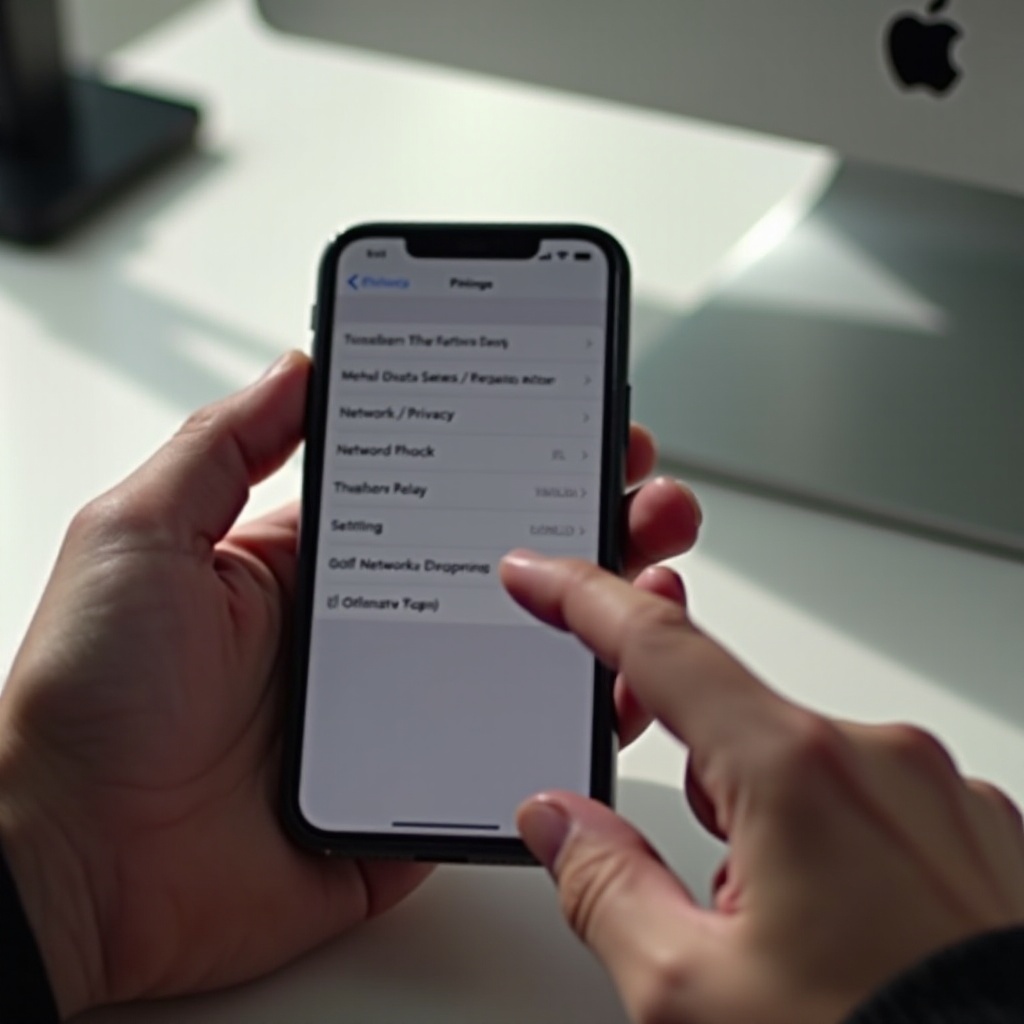
What Is iCloud Private Relay and How It Works on iPhone
Private Relay is part of iCloud Plus. It shields your IP from websites and trackers by splitting your Safari requests into two hops. Apple operates the first hop and removes your source IP. A trusted partner runs the second hop and assigns a region based IP to reach the site. No single party can see both your identity and your destination.
On iPhone, Private Relay focuses on Safari and some DNS lookups from Apple services. It does not route all app traffic. Many apps still connect straight to their servers. That is different from a full VPN, which can route nearly all traffic. You can use a VPN alongside Private Relay, but the VPN often takes control for traffic it handles.
This dual hop design improves privacy. It can also clash with region locked content, ad targeting, or strict security checks. If a bank, a streaming app, or a campus portal fails when Relay is on, turning it off may restore normal access.
With the basics in place, it helps to decide why and when to disable the feature.
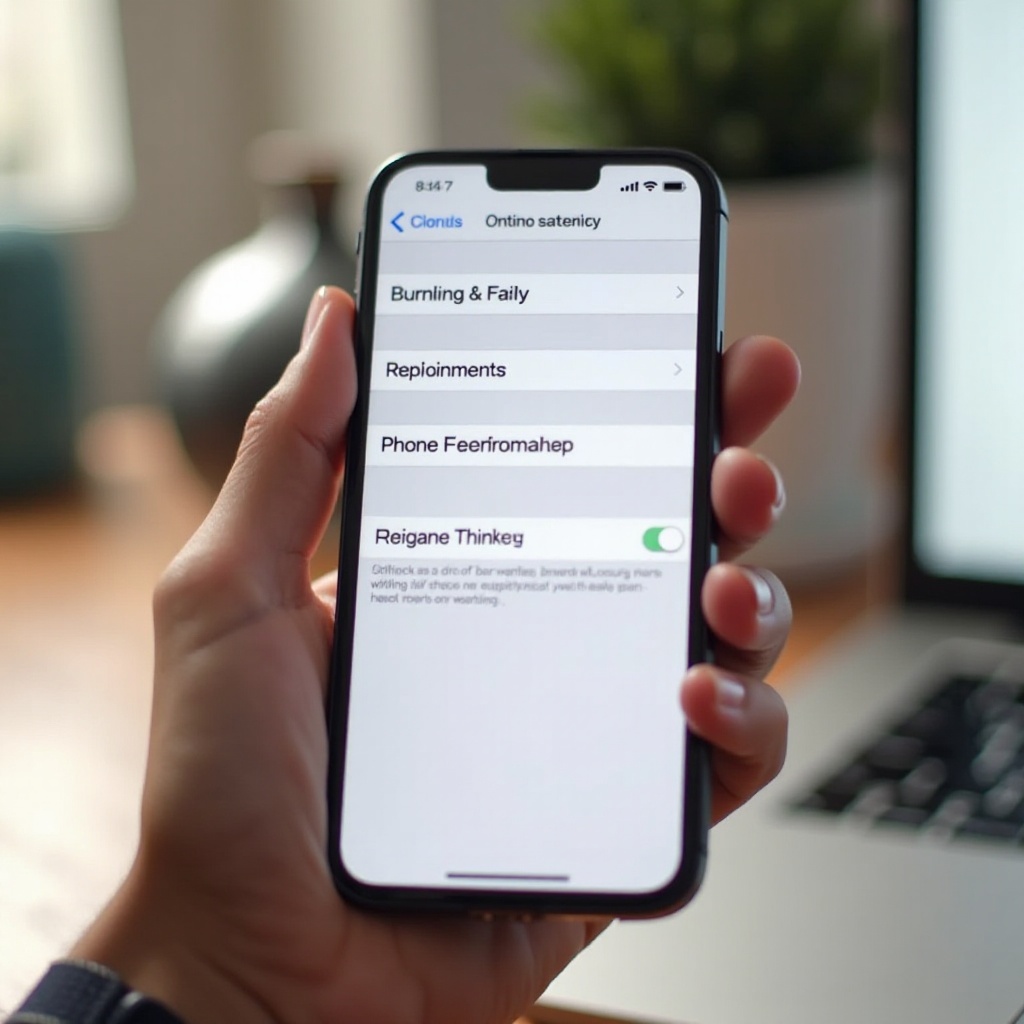
Reasons You Might Turn Off Private Relay
- Region restricted content: Some streaming catalogs, sports blackouts, and app store pages rely on your IP location. Relay can confuse those checks.
- Access and security: Banks, enterprise apps, and school systems may flag relay IPs. They can block sessions or force extra steps.
- Ads and pricing: Some shops and publishers need accurate region data to show local prices, taxes, or offers.
- Carrier features: Wi‑Fi Calling, hotspot, or zero rating may need your real IP to function as designed.
- Speed and reliability: Relay adds an extra hop. If pages feel slow or fail, turning it off can help you isolate the cause.
- Testing and development: Developers and IT teams often need a true IP for debugging, CDN routing, and analytics checks.
If one or more of these points apply, you can switch off Relay globally or only on specific networks. Before you change settings, check a few account and device details so the toggles behave as expected.
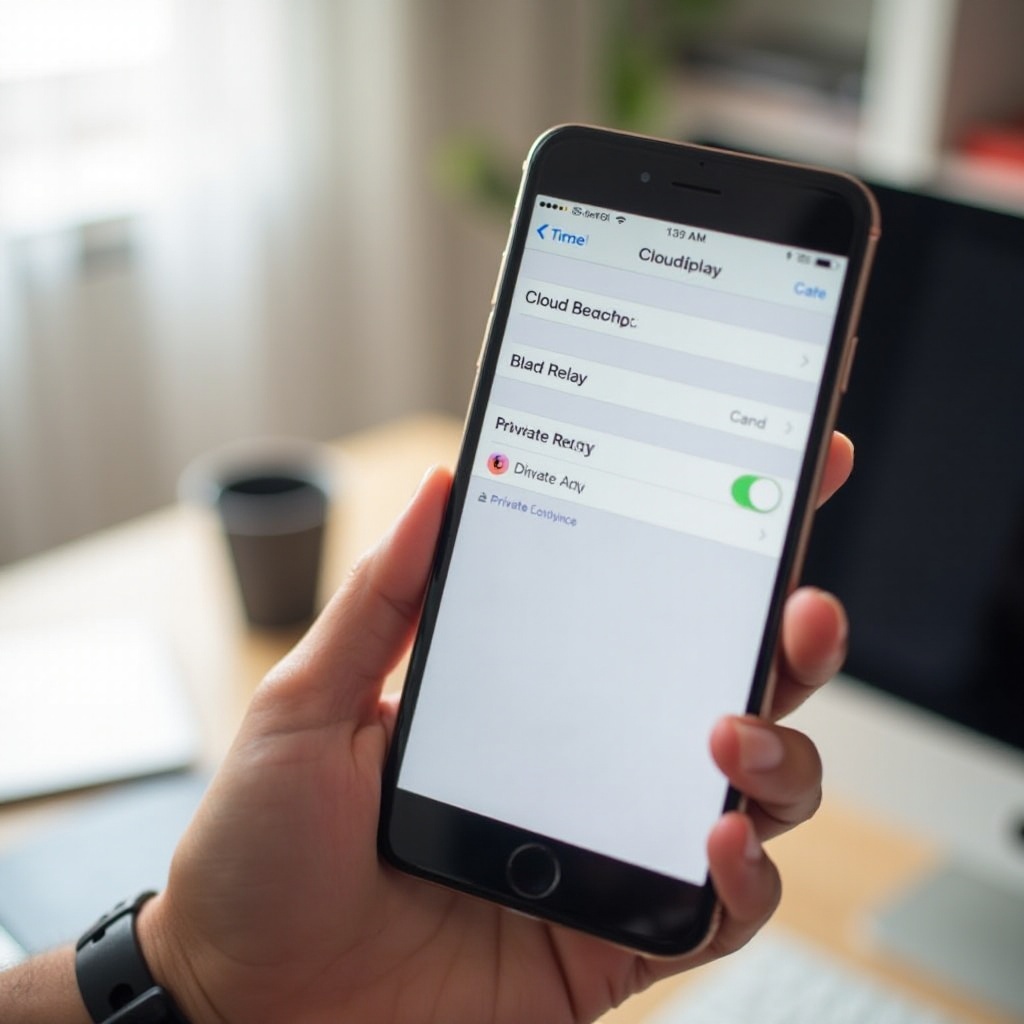
Before You Start: Requirements, iCloud Plus, and Apple ID Considerations
Private Relay lives under iCloud Plus. If your plan lapses or you sign into the wrong Apple ID, you might not see the expected switches. Family Sharing can also shape what appears on your device. In addition, managed devices can enforce policies you cannot change.
Check these items first:
– iCloud Plus status: Open Settings, tap your name, then Subscriptions. Confirm that iCloud Plus is active.
– Apple ID match: Make sure the signed in Apple ID is the one tied to your iCloud Plus.
– Family Sharing: The organizer controls the plan. Child accounts may inherit limits.
– Device management: Go to Settings, General, VPN and Device Management. Look for work or school profiles that control network privacy.
– Carrier limits: In Settings, Cellular, review your lines. Some carriers restrict Limit IP Address Tracking on cellular data.
Once you verify your plan, identity, and any policies, you can turn Private Relay off for the whole device.
Quick Steps: Turn Off Private Relay from iPhone Settings (Step-by-Step)
You can disable Private Relay globally in a few taps. Follow these steps:
- Open Settings on your iPhone.
- Tap your name at the top to open Apple ID settings.
- Tap iCloud.
- Tap Private Relay.
- Toggle Private Relay off.
When you switch it off, Safari and supported Apple services stop using the dual hop path. Sites and apps will now see the IP address from your Wi‑Fi or cellular network. Refresh any page that blocked you before. Check if region locked content now matches your location.
You may also see a temporary option to turn off for the rest of the day. Use that for quick troubleshooting without changing your normal setup. If you only want to bypass Relay on one network or one cellular line, keep it on globally and adjust per network settings instead.
Next, let us fine tune Relay behavior only where you need a direct IP.
Turn Off Private Relay Per Network: Wi‑Fi and Cellular Data Options
Often you do not need a full shutdown. You just want your real IP on one Wi‑Fi network or one cellular line. iPhone lets you control IP masking at the network level.
For Wi‑Fi networks:
– Open Settings and tap Wi‑Fi.
– Tap the info button next to your current network.
– Turn off Limit IP Address Tracking for that network.
For cellular lines:
– Open Settings and tap Cellular.
– If you use Dual SIM or eSIM, select the line you plan to change.
– Tap Cellular Data Options for that line.
– Turn off Limit IP Address Tracking.
Turning off Limit IP Address Tracking disables Relay style IP masking on that network or line. It is useful when your home Wi‑Fi needs device discovery to work for printers or smart home hubs. It also helps when a specific office Wi‑Fi blocks Relay ranges.
If you want even more granular control, you can repeat these steps for other networks and lines. Now that you have tuned the network layer, refine the app layer behavior as well.
Disable Limit IP Address Tracking for Specific Networks and eSIMs
Limit IP Address Tracking partners with Private Relay to hide your IP from known trackers on a per network basis. When you keep Private Relay on globally, but toggle this setting off for a network, you get direct IP behavior only on that connection.
Use this approach when:
– One carrier line breaks visual voicemail or tethering unless your true IP is visible.
– One Wi‑Fi network uses captive portals or device discovery that Relay can disrupt.
– You want Relay for public hotspots but not at home or work.
After you change these toggles, close and reopen Safari or the affected app. Some apps cache network paths and may need a restart to pick up the new setting.
Your network rules are now aligned. Next, confirm that Safari and Mail privacy settings match your goals.
Manage Safari and Mail IP Address Settings After Disabling Private Relay
Safari and Mail include separate privacy controls that work with or without Private Relay.
In Safari:
– Go to Settings, Safari, Hide IP Address.
– Choose From Trackers to hide your IP from known trackers while still showing it to sites. Choose Off to show your IP to both trackers and sites.
– Clear Website Data in Settings, Safari if pages keep showing the wrong region.
In Mail:
– Go to Settings, Mail, Privacy Protection.
– Protect Mail Activity hides your IP and loads remote content through Apple relays. Keep it on for email privacy, or turn it off if a sender must detect your true region.
These options help you balance privacy and compatibility without relying only on Private Relay. Now that you have changed settings, know what to expect from day to day browsing.
What Happens When You Turn Off Private Relay: Privacy, Speed, and Content Effects
When you disable Private Relay, a few things change:
– Privacy: Websites and trackers can see your network IP again. If you set Safari to From Trackers, it still limits cross site tracking, but sites see your true IP.
– Speed: Removing a relay hop can reduce latency and errors from blocked IP ranges. Many users notice faster loading and fewer hiccups.
– Content and region: Streaming catalogs, store pages, and taxes linked to your IP location should match your physical region.
– Local access: Captive portals, printers, and smart home devices often work more smoothly when your phone uses a direct IP path.
If the toggle is missing, dim, or it will not stick, you can fix most issues with a short checklist.
Troubleshooting: Private Relay Grayed Out, Managed Profiles, Region Limits, and Billing Issues
If you cannot turn Private Relay off, try these steps:
- Confirm iCloud Plus: Open Settings, tap your name, Subscriptions, and verify that iCloud Plus is active. If the plan lapsed, renew it, then recheck the toggle.
- Check device management: Open Settings, General, VPN and Device Management. A work or school profile can lock network privacy. Contact your admin if a policy enforces Relay or blocks changes.
- Review Screen Time: In Settings, Screen Time, check Content and Privacy Restrictions. Loosen any network privacy controls that block the setting.
- Ask your carrier: Some carriers restrict Limit IP Address Tracking on cellular. Switch to Wi‑Fi to change the global setting, or call support to confirm your plan supports it.
- Consider region availability: Private Relay is not offered in some countries or regions. If you travel or change region settings, the toggle may vanish until you return to a supported region.
- Look for VPN conflicts: Disconnect your VPN, change the Private Relay setting, then reconnect. A VPN can cover the same traffic and hide the effect.
- Update and restart: Install the latest iOS update, then restart your iPhone. Sign out of iCloud and sign back in only as a last resort.
Once you resolve the blocker, decide whether to keep Relay off or replace it with other tools. You can still maintain strong privacy without it.
Alternatives and Complementary Privacy Tools on iPhone (VPN, DNS, Content Blockers)
Turning off Relay does not mean giving up privacy. You can mix other tools to match your needs:
- VPN: A trusted VPN encrypts most or all app traffic and can let you choose a region. Use one when you need network wide privacy or secure access on public Wi‑Fi.
- Encrypted DNS: Use a DNS app that supports DNS over HTTPS or TLS. This hides your lookups from local observers without changing your IP location.
- Safari content blockers: Install blockers to cut third party tracking and heavy ads. You reduce profiling and often gain faster page loads.
- Mail Privacy Protection: Keep this on if you want to hide your IP and block tracking pixels in email.
- Good hygiene: Prefer HTTPS, keep iOS and apps updated, prune unused VPN or profile apps, and audit app tracking permissions.
With your privacy toolkit set, lock in habits that keep your iPhone fast, secure, and predictable after you change Relay settings.
Best Practices After Disabling Private Relay on iPhone
- Use trusted Wi‑Fi networks. Avoid unknown open hotspots when possible.
- Keep Safari set to Hide IP Address From Trackers for a strong privacy baseline.
- Turn on a VPN when you join public Wi‑Fi or travel.
- Test key apps after changes. Confirm that banking, streaming, and work apps behave as expected.
- Watch battery and data usage in Settings. If an app spikes after the change, review its permissions and network access.
- Keep backups current with iCloud or a computer so you can roll back changes if needed.
These habits keep your browsing smooth and your data safer even with Relay off.
Conclusion
You can turn off Private Relay on iPhone in minutes. Disable it globally in iCloud settings, or target only the networks and lines that cause trouble by toggling Limit IP Address Tracking. Then adjust Safari and Mail privacy to match your goals. This mix gives you faster access, correct regional content, and fewer login blocks while keeping a solid privacy baseline.
If you still want extra protection, add a reputable VPN, encrypted DNS, and content blockers. Use them when and where you need them most, such as on public Wi‑Fi or during travel. With the steps in this guide, you control when Private Relay runs and when a direct connection makes more sense.
Frequently Asked Questions
Is Private Relay the same as a VPN on iPhone
No. Private Relay mainly protects Safari and some Apple service traffic using a dual hop design that hides your IP. A VPN encrypts most app traffic and often lets you pick a region. If you need network wide encryption or region selection, use a VPN. If you want simple Safari privacy with minimal setup, Private Relay is a lighter option.
Why can I not turn off Private Relay even though I have iCloud Plus
A few factors can block the toggle. A work or school management profile may enforce settings. A carrier can limit Limit IP Address Tracking on cellular. A VPN can conflict with the switch. Private Relay is also not available in some regions. Update iOS, restart, disconnect your VPN, check VPN and Device Management for profiles, and contact your admin or carrier if needed.
Does turning off Private Relay affect iCloud Plus or Family Sharing
No. Turning off Private Relay does not cancel iCloud Plus. Storage, Hide My Email, custom email domain, and HomeKit Secure Video continue to work. In Family Sharing, each member can choose their own setting unless the organizer or an admin enforces a policy. Keep Mail Privacy Protection and Safari Hide IP From Trackers on for a strong privacy baseline.