
Introduction
RCS brings richer features to green bubble chats between iPhone and Android. You get better media quality, improved delivery info, and optional typing indicators and read receipts. Yet not everyone wants those extras. Some users prefer the predictability of SMS and MMS, especially when coverage is spotty or carriers do not fully support RCS on every plan.
This guide shows how to turn off RCS messaging on iPhone in iOS 18 and later. You will learn the exact steps, how to confirm the change, and what to do if the toggle is missing. We will also cover how mixed group chats behave without RCS, privacy and cost considerations, and quick ways to turn RCS back on. With that context, let us clarify what RCS is on iPhone and how you can recognize it in Messages.

What RCS Is on iPhone and How to Recognize It
RCS, or Rich Communication Services, upgrades the traditional SMS and MMS experience for iPhone to Android conversations. It supports higher quality photos and videos, larger file sizes, improved group messaging controls, and optional read receipts and typing indicators. iMessage remains separate for Apple to Apple chats, so blue bubbles still indicate iMessage. RCS affects the green bubble experience when you text Android contacts.
You can spot RCS traits in several ways. Green bubble threads may show clearer delivery states, sometimes including read status. You might see typing indicators in mixed conversations. Media often looks cleaner and sends faster over data. In group chats that include Android users, RCS can improve reliability compared to legacy MMS, especially for large attachments. If your carrier and region support RCS for iPhone and you run a compatible iOS version, these signs will appear.
Knowing how RCS behaves helps you decide if you should turn it off. Next, weigh the trade offs so you can choose the setup that fits your priorities.
Should You Turn Off RCS? Pros, Cons, and Common Reasons
There are valid reasons to disable RCS. Some people want fewer status signals, such as read receipts and typing indicators, to reduce social pressure or metadata. Others see inconsistent delivery during carrier rollouts and prefer the simpler, universal fallback of SMS and MMS. If you often message from areas with weak data, SMS may get through more reliably than data dependent RCS.
You should also consider the downsides. Turning off RCS reduces media quality and advanced delivery information in mixed iPhone and Android threads. Group messaging can revert to MMS limits, which vary by carrier. Large videos may compress heavily or fail, and reactions may appear as text. If your contacts rely on RCS features, you might impact their experience as well.
A practical approach is to switch RCS off when you troubleshoot issues or prioritize reliability, then re enable it later if you want richer features again. Before you flip the switch, make a few quick checks so the toggle appears and your change applies smoothly.
Before You Begin: Requirements, Carrier Support, and Things to Check
Confirm a few basics before you change settings. Update to the latest iOS 18 build under Settings > General > Software Update. Accept any Carrier Settings Update prompt under Settings > General > About. Carrier support for RCS on iPhone can roll out in stages, so availability depends on where you live and which plan you use.
If you have dual SIM or multiple eSIM lines, verify which line handles messaging and mobile data. Mismatches can hide the RCS toggle or cause delivery issues. Make sure you have a stable data connection or Wi Fi. Finally, if you rely on mixed group chats for work or school, let people know you might briefly change behavior while you test. With the basics in place, you can disable RCS in a few steps.
Step-by-Step in iOS 18 and Later: Turn Off RCS Messaging on iPhone
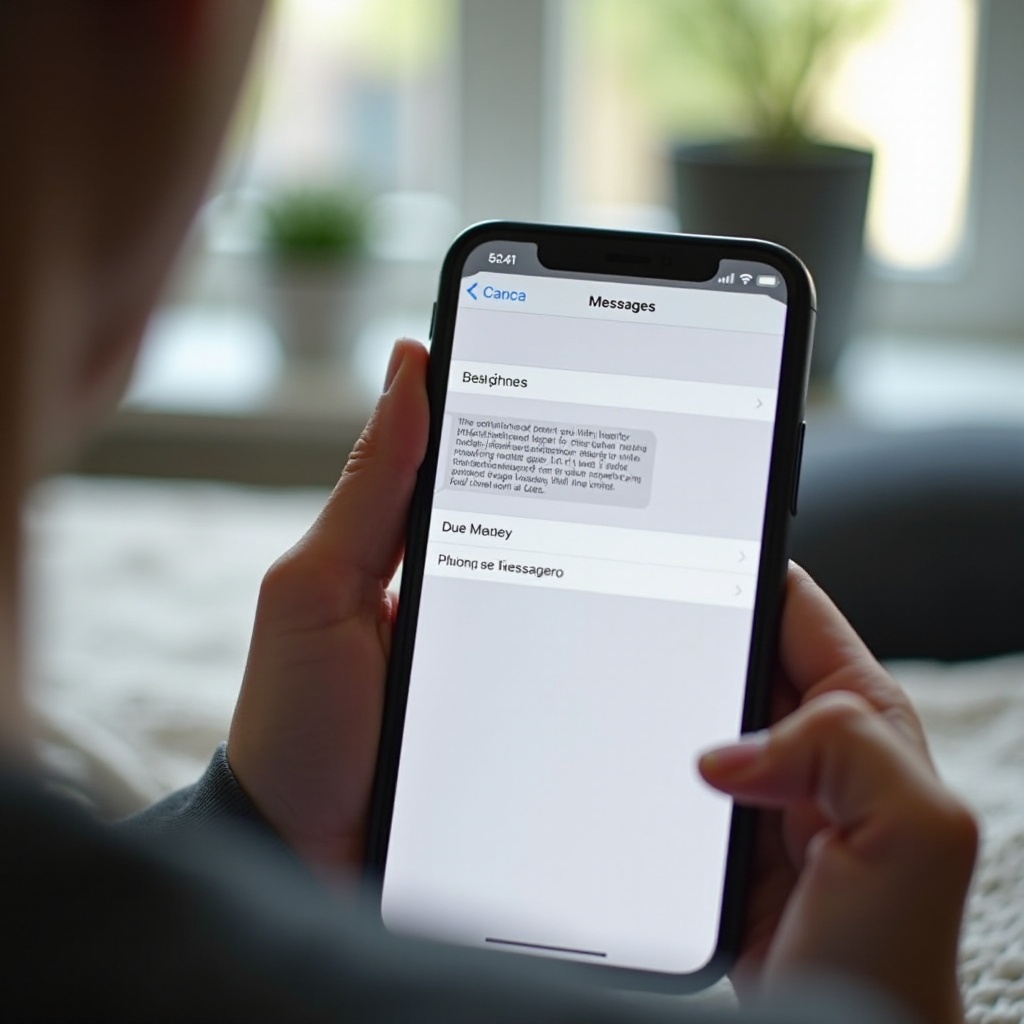
Open Settings and Go to Messages
- Unlock your iPhone.
- Open Settings.
- Scroll down and tap Messages.
Find the RCS Messaging Controls
- In Messages settings, look for RCS options near SMS and MMS controls.
- Typical entries include RCS Messaging, Send Read Receipts for RCS, and Show Typing Indicators for RCS.
- If you do not see these options, check the troubleshooting section below.
Toggle Off RCS Messaging
- Turn off RCS Messaging.
- If iOS asks for confirmation, approve the change to fall back to SMS and MMS for Android conversations.
- Wait a few seconds so the device updates your messaging state. Close the Messages app while the system applies the change.
Optional: Disable RCS Read Receipts and Typing Indicators
- Want fewer signals but still want RCS media quality You can leave RCS Messaging on.
- Then toggle off Send Read Receipts for RCS and Show Typing Indicators for RCS.
- This approach reduces visibility while keeping richer delivery and media benefits.
With the switch complete, verify the change so you know your iPhone now uses SMS and MMS with Android contacts.
How to Confirm RCS Is Disabled
Visual Status Indicators in Messages Threads
- Open a recent green bubble chat with an Android contact.
- Check for the absence of RCS specific cues such as typing indicators you previously saw.
- Note any differences in delivery info and media quality. Photos or videos might look more compressed.
Send Test Messages to Android Contacts
- Send a short text like Test SMS followed by a small photo.
- Watch for SMS and MMS behavior such as simpler delivery status and slower media send.
- Ask your contact to confirm they received a standard SMS or MMS instead of an RCS chat.
If you still see RCS behavior, revisit the toggle and run through the troubleshooting steps. Once you confirm the fallback, you can adjust how you manage one to one and group chats.
Manage Per Conversation Behavior and Group Chats After Disabling RCS
Individual Threads with Android Users
- Expect messages to send as SMS and media to send as MMS.
- Delivery receipts may be limited or unavailable depending on your carrier.
- If messages stall, send text first. Then share media via links to cloud storage for reliability.
Mixed Group Chats and Fallback Behavior
- Groups with Android users typically revert to MMS without RCS.
- Large media may compress or fail. Share files via links when quality matters.
- If group reliability is critical, consider a cross platform app to keep features consistent for everyone.
Now, if the RCS toggle is missing or greyed out, use the following checks to surface it and apply your change.
Troubleshooting If You Do Not See the RCS Toggle
Update iOS and Carrier Settings
- Install the latest iOS 18 update.
- Open Settings > General > About and accept any Carrier Settings Update.
- Restart your iPhone to refresh network services.
Dual SIM Line Selection Conflicts
- Go to Settings > Cellular and confirm which line is default for voice and data.
- In Settings > Messages, ensure that line is active for messaging.
- If needed, switch the default data line temporarily, return to Messages settings, and look for the RCS toggle again.
Region and Carrier Limitations
- Some carriers and regions roll out RCS for iPhone gradually.
- If your plan or region does not support it yet, you will not see the toggle.
- Check your carrier support pages or contact customer care for availability on your line.
Reset Network Settings as a Last Resort
- Back up Wi Fi passwords and VPN details first.
- Go to Settings > General > Transfer or Reset iPhone > Reset > Reset Network Settings.
- After the reset, reconnect to Wi Fi, confirm cellular data works, and then revisit Messages settings.
With the toggle visible and RCS turned off, it helps to know what changes you will notice day to day.
What Changes When RCS Is Off: Media, Reactions, and Delivery Info
When you disable RCS, mixed iPhone and Android conversations rely on SMS and MMS. Photos and videos often compress more, and large files may fail under strict MMS limits. Delivery feedback gets simpler. In many cases you will not see read status, and typing indicators disappear. Reactions in cross platform threads may show as text descriptions.
Group chats can feel less consistent without RCS. Some carriers handle MMS groups well, while others impose tight limits that lead to delays or missing messages. If you hit those limits, shorten messages, resize media, or share cloud links. None of these changes affect iMessage between Apple devices. Blue bubble chats continue to offer end to end encryption, full quality media, and delivery info.
Because the changes focus on cross platform threads, you may want to weigh privacy and cost trade offs next.
Privacy, Data Use, and Cost Considerations When Using SMS and MMS Instead of RCS
Turning off RCS reduces status signals such as read receipts and typing indicators, which lowers visible metadata to your contacts. However, SMS and MMS are not end to end encrypted. In many regions, MMS may count against your plan or incur charges, while SMS is often bundled. RCS typically uses data and can ride on Wi Fi.
To control costs, avoid sending large media via MMS. Share links to cloud drives instead. If you like RCS features but dislike status signals, consider leaving RCS on while disabling read receipts and typing indicators. That compromise keeps richer media while limiting what others can see. If your priorities change, you can re enable RCS with a quick visit to Settings.
How to Re Enable RCS Later
You can turn RCS back on at any time. Return to Settings > Messages and enable RCS Messaging. If you want full visibility, turn on Send Read Receipts for RCS and Show Typing Indicators for RCS. If the toggles are still missing, repeat the troubleshooting steps: update iOS, accept carrier settings, confirm the correct line in dual SIM setups, and verify network connectivity. After enabling, send a test message to an Android contact to confirm that richer delivery states and better media have returned.
Alternatives for Rich Cross Platform Messaging
If you often chat in mixed groups and want consistent features across phones, move key threads to a cross platform app. Popular choices include:
– WhatsApp: Strong groups, reliable media, and end to end encryption.
– Signal: Simple, privacy focused, and secure by default.
– Telegram: Fast media sharing, large groups, and extra tools for communities.
Use one of these for rich conversations, while keeping SMS and MMS for essentials such as alerts, banking codes, and contacts who prefer carrier texting. This hybrid approach gives you reliability without sacrificing features when you need them.
Conclusion
You now know how to turn off RCS messaging on iPhone, how to verify the change, and how to fix missing toggles. You also understand how SMS and MMS differ from RCS in media quality, delivery info, and group behavior, along with the privacy and cost trade offs. If reliability is your top priority, disabling RCS can simplify mixed iPhone and Android chats. If rich features matter, try the compromise of leaving RCS on while turning off read receipts and typing indicators. You can always revisit Settings in seconds and choose the mode that fits your current needs.
Frequently Asked Questions
Why do I not have an RCS option on my iPhone?
Availability depends on iOS version, carrier rollout, plan, and region. Update iOS, accept any carrier settings update, confirm your default line in dual SIM setups, and contact your carrier if the toggle still does not appear.
Does turning off RCS change iMessage between iPhones?
No. iMessage remains separate and continues to work for blue bubble chats. Disabling RCS only affects green bubble conversations with Android users, not Apple to Apple messaging.
Will group chats with Android users still work without RCS?
Yes. They fall back to MMS, which can mean smaller media limits, compression, or reduced delivery info. For important groups, use cross platform apps like WhatsApp or Signal.