
Introduction
Stickers feel fun until they crowd your Messages drawer and keyboard. You tap the plus button and see a long strip of packs you never use. Live Stickers you tested once still sit there. Memoji Stickers take over the emoji keyboard. The clutter slows you down and makes quick replies harder. You can fix all of this in minutes.
This guide shows you how to clear stickers on iPhone with four fast actions. You will remove recents, delete Live Stickers you created, uninstall third party packs, and turn off Memoji Stickers and suggestions. Then you will tighten sync settings so removals stay gone across devices. If anything refuses to delete, the troubleshooting section has reliable fixes. Prefer tidy hardware too You will also learn how to remove physical stickers and residue safely. Move through the steps in order for a clean sweep, or jump to the section that matches your problem.
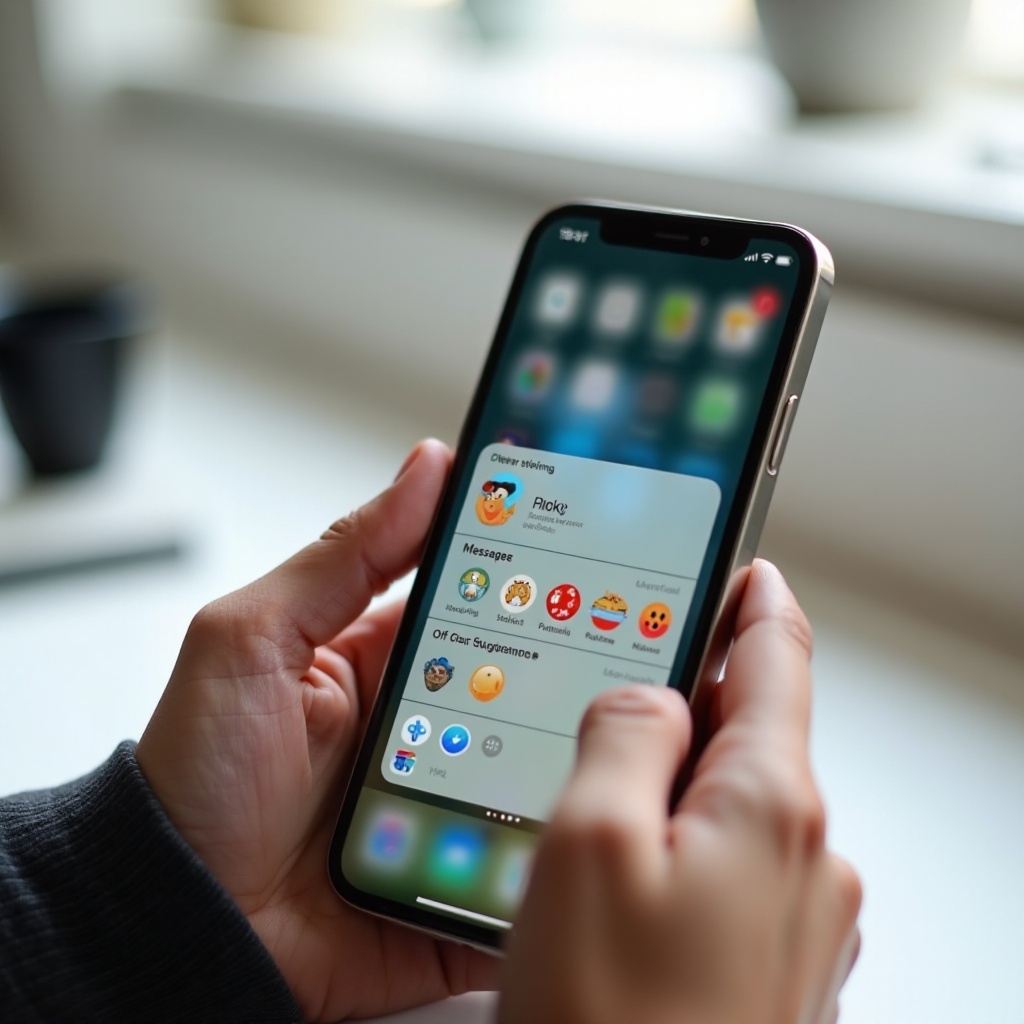
The Quick Answer: Four Ways to Clear Stickers Fast
If you only need the essentials, run these four actions to cut most sticker clutter.
- Clear Recents in the Stickers drawer inside Messages.
- Delete Live Stickers that you made from photos.
- Uninstall third party sticker packs and hide them in Messages.
- Turn off Memoji Stickers and limit sticker suggestions on the keyboard.
These four moves remove shortcuts, custom cutouts, app based packs, and keyboard tiles. Together they solve the most common sticker complaints. Next, you will see how different sticker types behave. That context helps you target the right control and avoid back and forth changes.
Understand iPhone Stickers: Memoji, Live Stickers, Packs, and Emoji Stickers
The iPhone groups multiple sticker sources under one roof. Each type clears in a different way, and some sync across devices.
- Memoji Stickers: auto generated sticker sheets for each Memoji you create. You disable or enable them in Keyboard settings.
- Live Stickers: custom cutouts you make from photos using subject lift. You manage and delete them in the Stickers drawer.
- Third party packs: stand alone apps or iMessage apps that add sticker sheets. You hide them in Messages or uninstall the app.
- Emoji Stickers: peelable versions of emoji. They do not install or uninstall but can appear in suggestions.
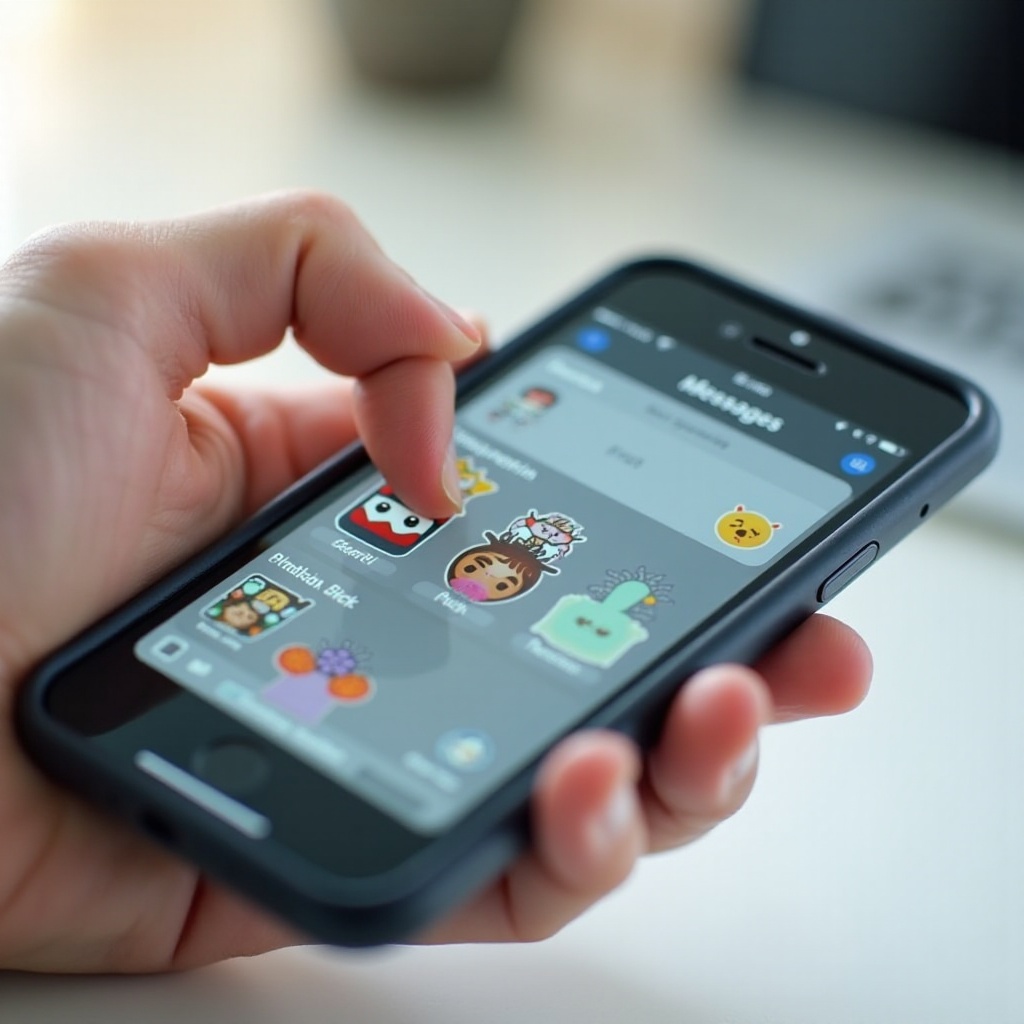
The Stickers drawer in Messages shows a Recents section, your Live Stickers, your Memojis, and any installed packs. The emoji keyboard can show Memoji Stickers and suggest emoji or sticker tiles as you type. When you know which type you are looking at, you save time and clear the right source on the first try. With this map in mind, start with the easiest win, Recents.
Clear Recent Stickers in Messages
Recents shows what you used last. Cleaning it removes quick access to old stickers without touching the originals. This is the fastest way to cut visual noise.
Steps to clear Recents
- Open Messages and select any conversation.
- Tap the plus button, then tap Stickers to open the drawer.
- Swipe to the Recents section if needed.
- Touch and hold a sticker tile and choose Remove from Recents. Repeat for any you do not want.
- If you see an Edit or Manage button, tap it and use Clear Recents when available for a one tap clean.
Clearing Recents does not delete the sticker inside its pack. If you use that sticker again, it returns to Recents. To prevent that, remove the Live Sticker or uninstall the pack tied to it. Next up, remove custom cutouts that you no longer want to see.
Delete Live Stickers You Created from Photos
Live Stickers are stickers you created from your images. They appear like a pack of their own. Deleting them clears both the Live Stickers tab and Recents.
Steps to delete Live Stickers
- Open Messages and enter a chat. Tap plus and choose Stickers.
- Tap the Live Stickers tab. It often shows a sparkle icon with your first cutout.
- Touch and hold a Live Sticker you no longer want, then tap Delete. Repeat for more items.
- If an Edit option appears, tap it, select multiple stickers, then tap Delete to remove them in one go.
Tip for a better replacement: open Photos, pick an image, touch and hold the subject until you see a lift outline, then choose Add Sticker. You can add effects like outline or puffy and save a cleaner version.
If a deleted Live Sticker returns later, sync likely restored it from another device. You will fix that in the sync section after you remove app based packs.
Remove or Uninstall Third Party Sticker Packs from Messages and Home Screen
Third party sticker packs arrive through apps. Hiding them reduces clutter in Messages. Uninstalling the app removes the pack from your device.
Hide packs in Messages
- Open a conversation in Messages, tap plus, and choose Stickers.
- Swipe through the pack row and find the pack you want to hide.
- Touch and hold the pack icon, then select Remove from Favorites or Hide.
- If you see an Edit or Manage list, open it, then toggle off packs you do not want to surface.
Uninstall sticker apps from iPhone
- Find the sticker app on your Home Screen or in the App Library.
- Touch and hold the app icon, tap Delete App, then confirm Delete.
- Or open Settings, go to General, then iPhone Storage, select the app, and tap Delete App.
If the pack still appears, open the Messages app list again and toggle the pack off. If a subscription keeps reinstalling assets, cancel the subscription in Settings under your name, Subscriptions, then delete the app again. With packs under control, you can also hide the Stickers entry to reduce taps.
Hide or Reorder the Stickers App and the Messages App Drawer
If you often tap Stickers by mistake, you can move or hide it. This keeps tools available without filling the drawer.
Reorder or hide Stickers in the Messages app list
- Open Messages and enter a conversation.
- Tap the plus button to open the app list.
- Touch and hold Stickers and choose Remove from Favorites or drag it lower to reorder.
- In the Stickers drawer, tap Edit or Manage when available to reorder packs or turn off ones you do not want.
Hiding does not delete anything. It reduces friction so you only see sticker tools when you seek them. Now deal with Memoji Stickers in the keyboard, which can feel like the last stubborn piece of clutter.
Turn Off Memoji Stickers on the Keyboard
Memoji Stickers often sit at the left of the emoji keyboard. If you never use them, switch them off. Your Memojis remain available in the Memoji app inside Messages.
Disable Memoji Stickers
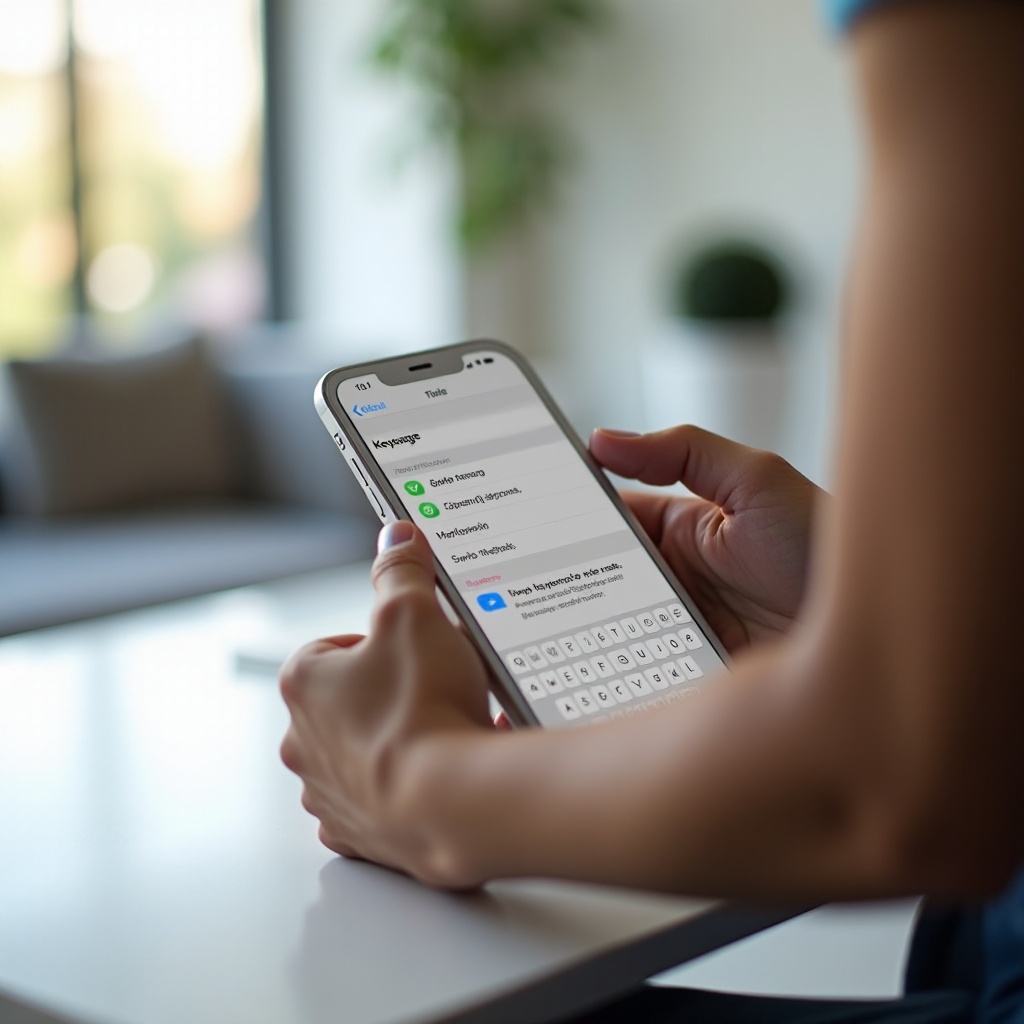
- Open Settings, then General, then Keyboard.
- Toggle off Memoji Stickers.
This action removes the Memoji sticker row from the emoji keyboard and reduces related tiles that appear while you type. If you change your mind later, toggle the setting back on. With Memoji Stickers off, the keyboard looks cleaner. Next, stop sticker tiles and emoji based stickers from popping up as predictions.
Stop Sticker Suggestions in Predictive Text and Sticker Suggestions
Sticker and emoji tiles can appear as you type. You can turn them down or off for a cleaner typing surface.
Adjust iOS keyboard suggestions
- Open Settings, then General, then Keyboard.
- Toggle off Predictive to remove all suggestions, or leave Predictive on and toggle off Emoji Stickers if present.
- Consider turning off Auto Correct for specific languages if you prefer manual control.
Adjust suggestions in chat apps
Some chat apps such as WhatsApp and Telegram have their own sticker settings. Open each app, go to Settings, look for Chats or Stickers and Emoji, and turn off sticker suggestions. You can still send stickers from their sticker panels when needed. If suggestions still feel off after changes, a quick reset of learned data can help.
Clear Keyboard Dictionary and Reset Messages Settings
When predictions or sticker behavior feel stuck, reset learned data and refresh Messages. This often clears lingering tiles or old recents.
Reset the keyboard dictionary
- Open Settings, tap General, then Transfer or Reset iPhone, then Reset.
- Tap Reset Keyboard Dictionary, enter your passcode, and confirm.
Refresh Messages
- Open Settings and tap Messages.
- Toggle iMessage off, wait 30 seconds, then toggle it back on.
- In Messages, delete old conversations heavy with stickers and attachments if you no longer need them.
These resets clear learned words and cached surfaces. Your previous steps should now stick. If stickers return across devices, align iCloud and App Store settings next.
Sync and iCloud: Why Stickers Reappear Across Devices
You delete a pack, yet it shows up again. Often, sync is the cause. Messages in iCloud shares conversations and their used stickers. App Store automatic downloads can reinstall apps you previously removed. Memoji data can sync too.
Align settings across devices
- Update all your devices, then repeat deletion on each device.
- On each device, open Settings, tap your name, then iCloud. Check Messages in iCloud and choose the same preference across devices.
- Open Settings, tap App Store, and toggle off Apps under Automatic Downloads if packs keep returning.
- Leave the device on Wi Fi and plugged in to allow iCloud to finish syncing changes.
Once settings match, removals stick. If stubborn items remain, work through the troubleshooting list to flush caches and odd states.
Troubleshooting: Stickers Will Not Delete, Packs Reappear, or Live Stickers Get Stuck
When normal removal fails, systematic checks solve most cases. Move top to bottom and test after each step.
Quick fixes that work
- Force quit Messages, then reopen it.
- Restart your iPhone.
- Update iOS in Settings under General, Software Update.
- Update sticker apps in the App Store.
- Sign out of third party apps that supply packs, then sign back in.
- Delete and reinstall the sticker app, then remove it again to refresh entitlements.
- Turn off App Store automatic downloads on every Apple device signed into the same Apple ID.
- Toggle iMessage off, wait, then back on to refresh services.
- Check Screen Time settings under Content and Privacy Restrictions. Relax restrictions if they block changes or re downloads.
- If Live Stickers refuse to delete, create one new dummy Live Sticker and then batch delete several together.
By now, packs and tiles should behave. If you also want a cleaner device on the outside, remove physical stickers next with safe materials.
Bonus: Remove Physical Stickers and Adhesive from Your iPhone Safely
Cleaning residue from cases, skins, or labels takes care and the right tools. Use gentle heat, a soft touch, and safe solvents to protect finishes and coatings.
Safe tools
- Microfiber cloths
- 70 to 90 percent isopropyl alcohol
- Plastic card or guitar pick
- Hair dryer on low heat
- Cotton swabs for small edges
Steps to remove a sticker cleanly
- Power off your phone. Keep liquid away from ports.
- Warm the sticker with low heat for 10 to 15 seconds.
- Lift a corner with a fingernail or a plastic card and pull slowly at a low angle.
- If residue remains, dampen a microfiber cloth with alcohol and rub gently in small circles.
- Dry with a fresh cloth. Avoid metal tools, acetone, or abrasive pads.
Use extra care around the camera bump and Ceramic Shield. For a glass screen protector, slide a plastic card under a corner and lift slowly. Then clean the glass with a lightly damp microfiber.
Privacy, Storage, and Performance Tips for Sticker Packs
Sticker packs can use storage and request access to Photos. A quick review improves privacy and keeps the keyboard fast.
- Open Settings, then General, then iPhone Storage. Delete or offload sticker apps you do not use.
- In Settings, open Privacy and Security, then Photos, and set sticker apps to None or Selected Photos.
- Turn off Background App Refresh for sticker apps in Settings under General.
- In Messages settings, reduce Auto Play effects if animations feel heavy.
- Periodically delete old conversations with large sticker histories and media.
These habits save space and reduce distractions. Combined with the earlier steps, they keep stickers under control with little effort.
Conclusion
You can clear stickers on iPhone quickly once you match the fix to the sticker type. Clean Recents to remove clutter at a glance. Delete Live Stickers that you no longer want. Hide and uninstall third party packs. Turn off Memoji Stickers and quiet suggestions so the keyboard stays clear. If items return, align iCloud and App Store settings on every device and give sync time to finish. When you hit snags, the troubleshooting checklist removes most roadblocks.
Keep an eye on storage and privacy options for sticker apps. Prune what you do not use. The result is a lighter Messages drawer, a focused keyboard, and faster replies. Stickers remain fun when you control where and when they appear. With these steps in place, they no longer get in your way.
Frequently Asked Questions
How do I permanently delete a sticker pack so it does not come back in Messages
Uninstall the app that supplies the pack and stop redownloads. Delete the app from the Home Screen or from Settings under General and iPhone Storage. In Messages, open the app list or Stickers drawer and hide or toggle off the pack. On every device signed into your Apple ID, open Settings, tap App Store, and turn off Apps under Automatic Downloads. If a subscription keeps reinstalling assets, cancel it in Settings under your name and Subscriptions. Restart your iPhone and confirm the pack no longer appears.
Can I remove Memoji Stickers without deleting my Memojis
Yes. Turn off Memoji Stickers in Settings under General and Keyboard. This hides the auto generated sticker sheets from the emoji keyboard and most suggestions. Your custom Memojis and Animoji messages remain available in the Memoji app inside Messages. You can turn the setting back on at any time.
Why do my cleared stickers keep showing up again after I remove them
Sync and automatic downloads are the usual reasons. Messages in iCloud can restore used stickers from another device. The App Store can reinstall apps on all devices if automatic downloads are on. Fix both by deleting the pack on every device, turning off automatic app downloads, and letting each device finish syncing while on Wi Fi and power. After settings match, removals usually stick.