
Introduction
You press the side key on your Samsung Galaxy and Bixby pops up instead of the power menu. Or you hold the button and nothing happens. Many users ask the same thing: ‘How do I turn off Samsung Galaxy phones now?
Samsung changed how the power button works on recent Galaxy models. The side key often launches Bixby or wakes the screen instead of showing the classic power off menu. That makes a simple action feel confusing, especially if you just switched from another Android phone or upgraded from an older Galaxy.
This guide explains every reliable way to turn off a Samsung Galaxy in 2024. You will learn how to shut down with buttons, use the Quick Settings power icon, customize the side key, force restart when the phone freezes, and power off even if the button is broken. The steps work for popular Galaxy S, A, Z Fold, Z Flip, and Note devices.
By the end, you will know exactly which method to use in each situation and how to fix common shutdown problems.
Understanding Power Controls on Samsung Galaxy Phones in 2024
Before you start pressing buttons, it helps to understand what the ‘power button’ actually does on recent Samsung Galaxy devices.
On most current Galaxy phones, Samsung calls the physical power button the ‘Side key.’ By default on many models, a long press of the Side key opens Bixby. That is why you may not see the Power off menu when you hold the button. You need either a button combination or a software shortcut to shut down.
Key things to know:
- The Side key can trigger Bixby, the power menu, or other shortcuts.
- Newer Galaxy S, A, Z Fold, and Z Flip models use a button combo (Side key + Volume down) for power controls.
- You can always reach a power button on the screen from the Quick Settings panel.
- You can change Side key behavior in Settings if you want a classic power button again.
Once you understand how Samsung maps power controls, you can use the simplest method first: the physical buttons on your phone.
Method 1 – Turn Off Samsung Galaxy Using the Hardware Buttons
The fastest way to power off most Samsung Galaxy phones is with the physical buttons. The exact steps depend on whether your model has a dedicated power button or a Side key that also handles Bixby.
Standard Button Combo for Recent Galaxy Models (S, A, Z Series)
On recent Samsung Galaxy S, A, Z Fold, and Z Flip models, you use a button combination instead of a single power button press.
Follow these steps:
- Press and hold the Side key and the Volume down button at the same time.
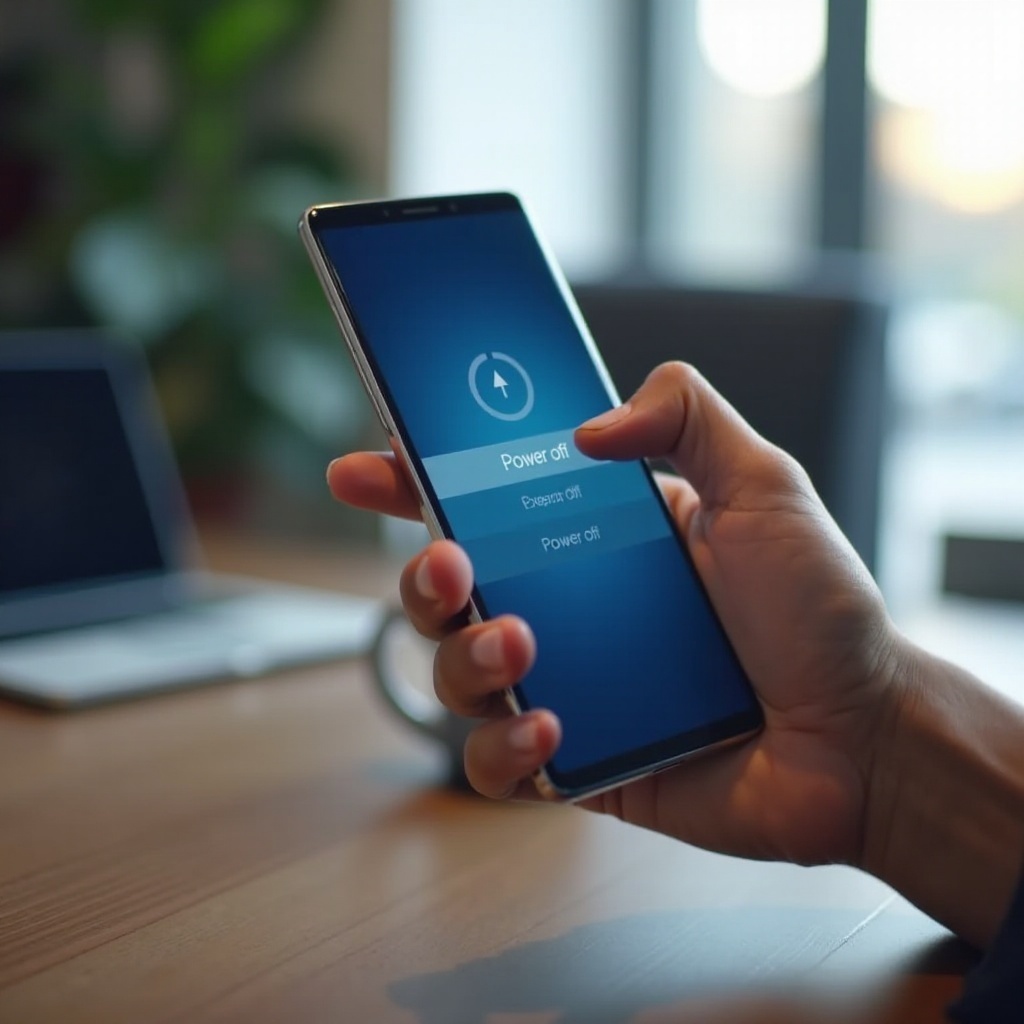
- Keep holding until the power menu appears on the screen.
- Tap ‘Power off.’
- Confirm by tapping ‘Power off’ again if the phone asks.
Your Galaxy will shut down completely after a few seconds. If you instead see a screenshot or the volume slider, you may have tapped instead of holding both buttons. Press and hold them together for about one to two seconds until the menu appears.
This method works even if the Side key is set to open Bixby on long press. The combo overrides that behavior and opens the power menu.
Turning Off Older Galaxy Models with a Dedicated Power Button
Some older Samsung Galaxy phones still use a classic power button. On those devices, the process is even simpler.
Try this:
- Press and hold the Power button (usually on the right side of the phone).
- Wait until the power menu appears.
- Tap ‘Power off.’
- Confirm if a second prompt appears.
If your phone is from a recent release and holding a single button does nothing, you likely have a newer Side key setup. In that case, go back to the button combo or use one of the software methods in the next section.
Once you are comfortable with the button methods, you may prefer an on-screen option that does not depend on how you press the keys. That is where the Quick Settings power icon comes in.
Method 2 – Turn Off Samsung Galaxy from the Quick Settings Menu
Sometimes you cannot comfortably press the buttons. Maybe the phone is in a stand, your grip is limited, or you are worried about pressing too hard. Samsung gives you a built-in software power button in the Quick Settings panel.
This method is the same on most recent Galaxy phones and works even if your Side key is mapped to Bixby.
Using the Power Icon in the Notification Shade
You can access the power menu from the status bar at the top of your screen.
Do this:
- Swipe down from the top of the screen to open the notification shade.
- Swipe down again to expand the Quick Settings panel fully.
- Look for the power icon (a circle with a vertical line) in the top-right corner.
- Tap the power icon.
- Select ‘Power off.’
- Confirm if prompted.
Your Samsung Galaxy will shut down without you touching any physical buttons. This is a handy method if your case is stiff or your buttons feel worn.
Turning Off Through the Settings App
If you cannot see the power icon for any reason, you can still reach power controls from Settings on many models.
Try this:
- Open the Settings app.
- Scroll down and tap Advanced features.
- Tap Side key (or a similar option).
- From here, you can open the power off menu or adjust how the Side key behaves, depending on your model.
On some devices you can also find shutdown options under sections like Battery, Device care, or similar system menus.
Using these software routes is convenient, but constantly digging through menus gets annoying. A better long-term solution is to customize the Side key so it behaves more like a traditional power button.
Method 3 – Customize the Side Key for Easier Power Off
If you often ask ‘How do I turn off Samsung Galaxy without dealing with Bixby?’, customizing the Side key is the best long-term fix. You can turn the Side key back into a classic power button.
Change Side Key from Bixby to Power Menu
On most recent Samsung Galaxy models, you can choose what happens when you press and hold the Side key.
Follow these steps:
- Open the Settings app.
- Tap Advanced features.
- Tap Side key.
- Under Press and hold, select Power off menu instead of Wake Bixby.
Now, when you press and hold the Side key, you will see the familiar power menu. You can tap Power off or Restart without using the Volume down button or the Quick Settings panel.
This small change makes the phone feel more intuitive, especially if you came from an older Galaxy or another Android brand that uses a dedicated power button.
Adjust Long-Press and Double-Press Actions
While you are in the Side key settings, you can also adjust the double-press shortcut.
You can:
- Turn double-press off.
- Set double-press to open the camera.
- Set double-press to open another app.
For many people, the best setup is:
- Double-press: opens the camera quickly.
- Press and hold: opens the power menu.
This way, your Galaxy feels fast to use and easy to turn off. If you ever change your mind, you can revisit the Side key settings and tweak them again.
Even with a customized Side key, phones sometimes freeze or stop responding. When that happens, you need a stronger method: a force restart.
Method 4 – Force Restart a Frozen or Unresponsive Samsung Galaxy
Every so often, a Samsung Galaxy device freezes, the screen goes black, or it ignores your taps. You may try the normal power off steps, but nothing responds. In that case, a force restart usually brings the phone back.
When You Should Use a Force Restart
Use a force restart when:
- The screen is frozen and does not respond to touch.
- The phone is stuck on a logo or a black screen.
- The device ignores the standard power menu.
A force restart does not erase your data. It only forces the phone to reboot the system. You should not rely on it every day, but it is safe to use when the phone is stuck.
Force Restart Button Combination and What to Expect
On most recent Samsung Galaxy phones, the force restart steps are:
- Press and hold the Side key and the Volume down button at the same time.
- Keep holding both buttons for about 10–15 seconds.
- Wait until the screen goes black and the Samsung logo appears.
When you see the logo, let go of the buttons. The phone will restart, and Android will load again. After the reboot, you can use the normal shutdown methods if you want to power off completely.
If your model is older and has a dedicated power button, the same combo often works. If not, pressing and holding only the power button for a long time can trigger a restart on some devices.
What to Do if Force Restart Does not Work
If the phone still does not respond after several force restart attempts, you likely face a deeper hardware or software issue. In that case, contact Samsung support or your carrier, or visit a service center.
Sometimes the problem is not a freeze but a broken or stuck button. In that situation, you need methods that do not rely on physical keys, which we will cover next.
Method 5 – Turn Off Samsung Galaxy Without Using the Power Button
Buttons can wear out, stick, or even break after a drop. When that happens, you still have several ways to turn off a Samsung Galaxy without pressing the power button.
Using On-Screen Power Controls and Accessibility Shortcuts
First, use the on-screen power menu:
- Swipe down twice from the top of the screen to open the full Quick Settings panel.
- Tap the power icon.
- Tap Power off, then confirm.
If your Side key no longer works at all, Samsung’s accessibility tools can help.
You can:
- Open Settings.
- Tap Accessibility.
- Look for an Interaction and dexterity or similar section.
- Enable features like an Assistant menu or an on-screen shortcut, if available on your model.
These features can add a floating button that opens a menu with power options, navigation shortcuts, and more. That way, you can shut down or restart without any physical button.
Turning Off with a Broken or Stuck Power Button
If the power button is broken or stuck, try these options first:
- Use the Quick Settings power icon to power off or restart.
- Keep enough battery charge so you can always reach the software power menu.
If the phone restarts or powers on by itself due to a stuck button, remove the case and gently clean around the button. If the problem continues, you may need professional repair. Until then, rely on the on-screen power menu to control shutdowns.
Now that you know several ways to turn off almost any Galaxy model, it helps to see how these methods apply across different device lines like S, A, Z Fold, Z Flip, and Note.
Special Cases – Powering Off Different Samsung Galaxy Lines
The basic methods stay the same across Galaxy lines, but each family has small differences in feel and layout. Knowing them helps you move faster between devices and answer model-specific questions.
Galaxy S and A Series Shutdown Tips
On recent Galaxy S and A phones:
- Use Side key + Volume down to open the power menu.
- Customize the Side key in Settings → Advanced features → Side key so press-and-hold shows the power menu.
- Use the Quick Settings power icon when you want to avoid the buttons.
Since these models sell widely, most ‘how do I turn off Samsung Galaxy’ searches come from S and A owners who see Bixby instead of the power menu. Changing Side key behavior solves that problem.
Powering Off Galaxy Z Fold and Z Flip Devices
Z Fold and Z Flip phones share the same button logic but feel different in the hand because of the hinge and dual screens.
Helpful tips:
- Use Side key + Volume down to open the power menu, just like on S and A models.
- You can shut down from either the main screen or the cover screen.
- Press the buttons firmly but gently so you do not squeeze the hinge too hard.
The Quick Settings power icon works very well on these devices because you can reach it with one hand, even when the phone is folded.
Turning Off Galaxy Note Phones in 2024
Galaxy Note phones that are still in use follow one of two patterns:
- Newer Note models behave like recent S phones with a Side key.
- Older Note models use a dedicated power button on the side.
In both cases, you can use the button combo or customize the Side key if your Note supports it. The same on-screen power methods from earlier sections also apply.
Once you know how each line handles power, you can pick the method that feels most natural. The final piece is understanding how shutdown habits affect battery life, performance, and safety.
Safety, Battery, and Performance Tips When Powering Off
Turning off your Samsung Galaxy does more than stop calls and notifications. It also affects battery health, performance, and safety in certain situations.
Turn Off vs Restart vs Airplane Mode
You do not always need to fully power off your phone. Choose the right option based on your goal:
- Turn off
- Use when you will not use the phone for several hours or days.
- Best before repairs, SIM changes, or when the device overheats.
- Restart
- Use to fix minor glitches, lag, or app crashes.
- A quick restart clears memory and often solves performance issues.
- Airplane mode
- Use on flights when wireless connections must stop.
- Keeps the phone on but disables cellular, Wi-Fi, and Bluetooth by default until you turn them back on.
If you just want to refresh your phone because it feels slow, a restart is usually enough. If you need complete silence or safety, a full shutdown is better.
How Often Should You Power Off Your Samsung Galaxy?
Modern phones can stay on for long periods. You do not need to shut down every night. Still, regular rest helps both performance and stability.
Good habits include:
- Restart the phone once every week or two.
- Power off completely before long storage or trips where you will not use it.
- Shut down before removing the SIM card or microSD card.
These small steps can help the system run smoothly and reduce odd bugs.
When You Should Shut Down Immediately (Overheating, Glitches)
You should power off your Samsung Galaxy right away when:
- The phone feels very hot to the touch and does not cool down.
- You see warning messages about temperature.
- The phone behaves in a very unstable way, such as random reboots or screen flickering.
To shut down safely:
- Open the power menu using your preferred method.
- Tap Power off.
- Let the phone cool down completely before powering it on again.
If overheating or severe glitches return after reboot, contact Samsung support or a repair shop. Stable power control is important for both safety and device health.
You now know several ways to turn off any Samsung Galaxy phone and when to use each method. Let us close with the key points to remember.
Conclusion
How do I turn off Samsung Galaxy?’ is a common question because Samsung changed how the Side key works on recent phones. Instead of a simple long press, you now often use a button combination or an on-screen power icon.
You learned how to:
- Use Side key + Volume down to open the power menu on most modern Galaxy phones.
- Turn off older devices with a dedicated power button.
- Access the power icon from the Quick Settings panel for an on-screen shutdown.
- Customize the Side key so a long press opens the power menu instead of Bixby.
- Force restart your phone when it freezes or stops responding.
- Power off without buttons using software menus and accessibility tools.
- Apply the right method to Galaxy S, A, Z Fold, Z Flip, and Note models.
- Use shutdowns, restarts, and airplane mode in a way that supports safety and performance.
With these options, you can control any Samsung Galaxy model with confidence. The next time you or someone else wonders how to turn off a Samsung Galaxy phone, you will know the quickest and safest path.
Frequently Asked Questions
How do I turn off my Samsung Galaxy without the power button in 2024?
Swipe down twice from the top of the screen to open the full Quick Settings panel. Tap the power icon in the top-right corner, choose ‘Power off’, and confirm. You can also enable accessibility tools like an Assistant menu, if your model offers it, to add a floating on-screen power shortcut.
Why does my Side key open Bixby instead of the power off menu?
Samsung sets many Side keys to open Bixby by default on a long press. To change this, go to Settings → Advanced features → Side key. Under ‘Press and hold’, select ‘Power off menu’. After that, holding the Side key will show shutdown options instead of Bixby.
Is force restarting my Samsung Galaxy bad for the phone?
A force restart is safe when you only use it when needed, such as during freezes or black screens. It does not erase your data and works like forcing the system to reboot. Avoid using it every day; for normal use, shut down or restart through the regular power menu whenever possible.