
Introduction
Voice notes let you share tone, context, and detail with minimal effort. On iPhone, you can send quick audio inside Messages, record polished clips in Voice Memos, and use popular apps like WhatsApp, Telegram, and Signal. This guide walks you through exact steps, shooting and sound tips, cross‑platform options, and practical fixes when audio fails to send. You will also learn how to save, organize, and share with privacy in mind.
We start by clarifying what counts as a voice note on iPhone, because the method you choose affects quality, speed, and compatibility. Then we move into step‑by‑step sending in Messages. After that, you will learn how to create, edit, and share better recordings from Voice Memos. We follow with third‑party apps and Android tips, then cover sound improvements, storage, troubleshooting, and privacy. Each section builds on the last so you can send reliable, clear audio without wasted steps.

What Is a Voice Note on iPhone? Messages vs Voice Memos
Audio messages in Messages (iMessage)
An iMessage audio message is a short clip you record directly in a chat. It is ideal for quick updates or replies that benefit from tone. These clips send over iMessage when both devices use Apple IDs with iMessage active. If iMessage is unavailable, the conversation may fall back to SMS or MMS, which can limit audio support.
Recordings created in Voice Memos
Voice Memos allows longer, higher‑quality recordings that you can trim and enhance. It suits project updates, interviews, and any clip you want to save, name, and reuse. When you share a memo, your iPhone sends an audio file, typically in lightweight M4A, which plays on most modern devices.
Voice notes in third‑party apps
WhatsApp, Telegram, and Signal include built‑in voice messaging tools. They are fast, often cross‑platform, and provide features like hands‑free locking or disappearing messages. If you need speed and reach, choose one of these apps.
Now that you understand your options, let us start with the simplest path: sending a voice note inside the Messages app.
How to Send a Voice Message in Messages (iMessage) on iOS 17 and Later
Start a conversation and find the audio tool
- Open Messages and select a conversation.
- Tap the plus icon to open the app drawer.
- Tap Audio to begin a voice message.
Record, review, and send your voice message
- Press the record button and speak clearly.
- Tap stop when you finish.
- Tap play to review, and re‑record if needed for clarity.
- Tap the send arrow to deliver your audio.
Change audio message expiration and keep important clips
By default, Messages can expire audio messages after a short time. To prevent automatic deletion, adjust expiration settings and keep individual clips:
– Go to Settings > Messages > Expire under Audio Messages.
– Set to Never to keep audio messages by default.
– In a chat, tap Keep under a received audio message to prevent expiration.
Forward or share received audio messages
- Press and hold the audio message.
- Tap More, then share via the share icon to Voice Memos, Files, Mail, or other apps.
- Forward to another contact directly inside Messages.
If you want more control over sound and length, switch to Voice Memos. You can capture cleaner audio, trim mistakes, and share in any format you need.
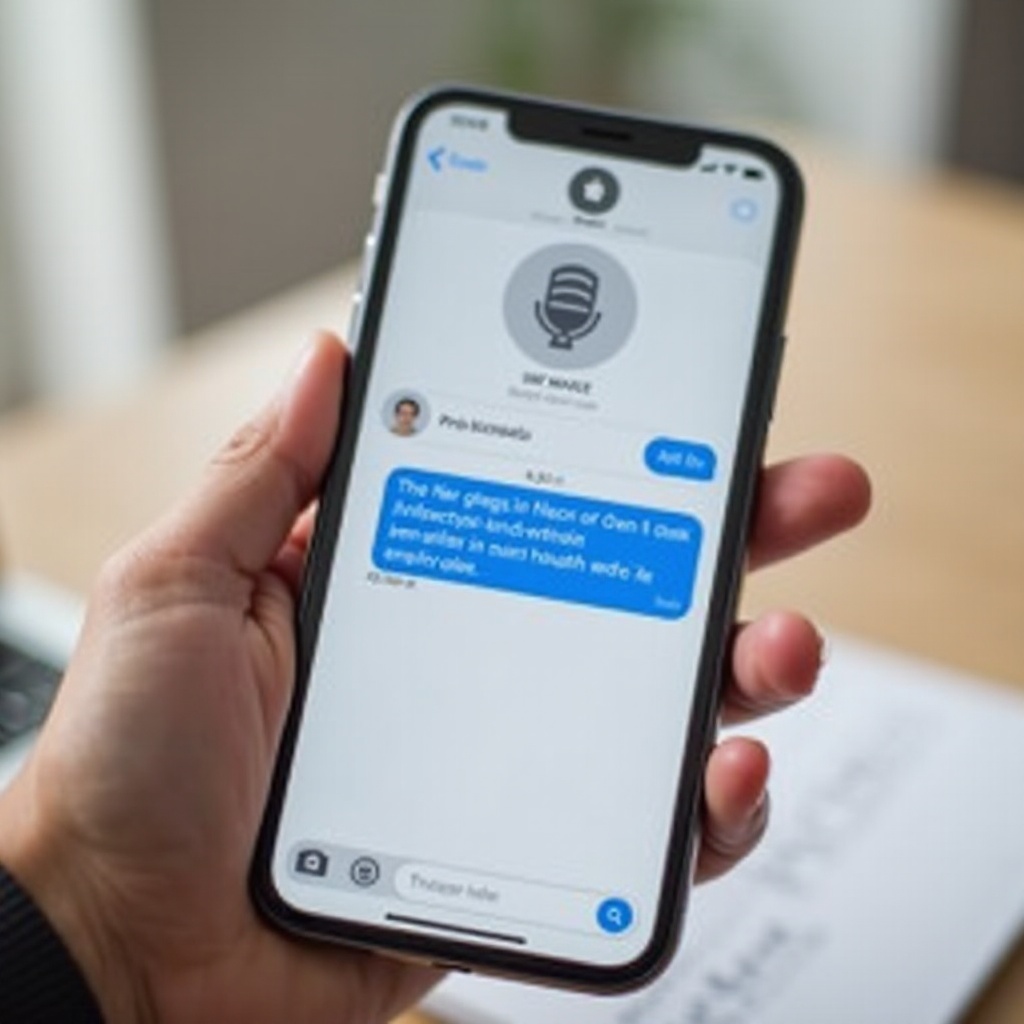
How to Share a Voice Memo as a Voice Note
Capture a clean recording in Voice Memos
- Open Voice Memos and tap the red record button.
- Hold the phone 6 to 12 inches from your mouth and speak toward the mic.
- Pause and resume as needed. Tap stop to end the recording.
Trim, enhance, and organize before sharing
- Tap your recording, then Edit to trim silent sections and errors.
- Toggle Enhance Recording to reduce background noise.
- Rename the file with a clear label, such as Project Update or Client Review.
Share via Messages, Mail, AirDrop, or Files
- Tap the recording, then Share.
- Choose Messages for Apple contacts, Mail for formal notes, AirDrop for nearby sharing, or Files to store and link from the cloud.
- For large clips, share a link from iCloud Drive instead of attaching the full file.
Best formats, length, and file size tips
M4A keeps quality high while file sizes stay small. Keep clips short to speed delivery and playback. For long recordings, trim highlights or share a cloud link. When you need broad reach or group features, messaging apps offer quick voice tools that work across platforms.

Sending Voice Notes in WhatsApp, Telegram, and Signal on iPhone
WhatsApp: record, lock to hands‑free, and send
- Open a chat. Hold the mic icon to start recording.
- Swipe up to lock hands‑free for longer notes.
- Release to send. Listen and delete if needed before sending.
Telegram: quick voice notes and chat features
- Hold the mic icon to record and swipe up to lock for hands‑free capture.
- Use playback speed and message management for busy threads.
- Share in groups and channels when you need to reach wider audiences.
Signal: privacy‑first voice messages
- Hold the mic, speak, and release to send the clip.
- Signal uses end‑to‑end encryption by default.
- Turn on disappearing messages to auto‑delete notes after a set time.
Pros and cons of popular cross‑platform apps
- WhatsApp: fast, familiar, and encrypted; it is widely used worldwide.
- Telegram: feature‑rich and flexible; standard chats do not use end‑to‑end encryption, while Secret Chats do.
- Signal: strong privacy and security; fewer extras but dependable for sensitive communication.
If you often message non‑Apple users, these apps shine. You can also share audio files directly to reach Android contacts from Messages or Mail without switching platforms.
How to Send Voice Notes to Android Users (Cross‑Platform Tips)
When iMessage falls back to SMS or MMS
When iMessage is inactive, Messages may use MMS for media. Some carriers limit audio attachments, which can cause failures. If delivery fails, switch to sending an audio file or use a cross‑platform app such as WhatsApp or Signal.
Share audio files for universal playback
- Save your recording from Voice Memos as an M4A file.
- Share the file via Messages, Mail, or a cloud link.
- Most Android devices play M4A and MP3 without extra steps.
Use email, cloud links, or nearby alternatives
- Email large files and request a quick confirmation to ensure successful delivery.
- Create an iCloud Drive link from the Files app for long recordings.
- For nearby transfers, use a shared cloud folder or a cross‑platform messaging app instead of AirDrop.
Compression and file size considerations
Keep clips short for easier sending. If you must share long audio, trim to highlights or compress the file. Cloud links avoid carrier size limits and reduce delivery issues.
Once your voice notes reliably reach anyone, you can focus on sound quality. Better audio helps people understand and act on your message quickly.
Pro Tips for Clearer, Better‑Sounding Voice Notes
Mic placement, background noise, and room choice
- Hold the phone steady and avoid rubbing or tapping the body.
- Face the mic and speak at a natural volume.
- Record in a quiet room. Soft furnishings help reduce echo.
Use Voice Isolation and reduce ambient sounds
- In supported apps, set Mic Mode to Voice Isolation from Control Center.
- Turn off fans and step away from traffic or wind.
- Close windows and doors to cut ambient noise.
Headphones, wired mics, and CarPlay
- Use wired earbuds or a clip‑on mic for consistent sound.
- Bluetooth can add compression; test your setup before long clips.
- In the car, use CarPlay with Siri for hands‑free audio messages.
Speaking technique and pacing for clarity
- Start with a headline: who, what, and the key point.
- Pause between ideas. Short sentences help listeners track details.
- End with a clear action: ask a question or set the next step.
With stronger technique, your notes sound crisp and professional. The next step is to keep important audio organized so you can retrieve and reuse it.
Manage, Save, and Organize Your Audio Messages and Voice Memos
Save audio messages to Voice Memos or Files
- In Messages, tap Keep under important audio messages.
- Press and hold a clip, then Share, and save to Voice Memos or Files for long‑term storage.
- Move key notes into dedicated project folders for quick access.
Naming, tags, and folder organization
- Use clear names such as Client Feedback Week 2.
- Add tags in the Files app to group related clips.
- Create folders by project, person, or date to speed searches.
iCloud, local backups, and sharing controls
- Enable iCloud for Voice Memos and Files to sync across devices.
- Keep sensitive notes local when needed and avoid shared folders.
- Review link permissions on cloud shares and remove access when projects end.
Clean‑up routines and storage management
- Delete drafts and duplicates weekly.
- Offload long archives to cloud storage.
- Monitor Settings > General > iPhone Storage to maintain free space.
If something breaks while recording or sending, run through simple checks. Most issues resolve quickly with a few targeted steps.
Troubleshooting: Voice Notes Not Recording or Sending
Check connectivity and iMessage status
- Confirm Wi‑Fi or cellular data is on and stable.
- Go to Settings > Messages and ensure iMessage is enabled.
- Ask the recipient to check their iMessage status or use a cross‑platform app if needed.
Verify microphone permissions and Screen Time
- Go to Settings > Privacy and Security > Microphone.
- Ensure third‑party apps such as WhatsApp, Telegram, and Signal have access.
- Check Screen Time and Content and Privacy Restrictions for blocked features.
Test hardware in Voice Memos and inspect mic openings
- Record a short memo. If playback is silent or noisy, remove bulky cases and try again.
- Clean mic openings with a soft brush or dry cloth.
- Test with wired or Bluetooth headphones to isolate hardware issues.
Update iOS and apps, reinstall, or reset network settings
- Update iOS and all messaging apps to the latest versions.
- If an app misbehaves, delete and reinstall it to clear caches and permissions.
- Reset Network Settings via Settings > General > Transfer or Reset iPhone > Reset > Reset Network Settings.
Address MMS settings and carrier limitations
- Enable MMS Messaging in Settings > Messages when sending audio to non‑iPhone users.
- If audio fails, contact your carrier to confirm MMS support and size limits.
Once your setup is stable, make sure your sharing method protects your content. The next section covers privacy basics and controls in common apps.
Privacy and Security When Sharing Voice Notes
iMessage encryption vs SMS or MMS behavior
iMessage uses end‑to‑end encryption for audio messages. SMS and MMS do not, and carriers may process or store media. Prefer iMessage or a secure app when sharing sensitive clips.
Third‑party app privacy settings and disappearing messages
WhatsApp and Signal use end‑to‑end encryption for voice messages. Telegram does not encrypt standard chats end‑to‑end; use Secret Chats for sensitive voice notes. Turn on disappearing messages when you want audio to auto‑delete.
Notification previews and lock screen exposure
Limit previews to protect content:
– Go to Settings > Notifications > Show Previews and set to When Unlocked or Never.
– Hide alerts for specific threads or apps to reduce exposure.
Safer sharing on public networks and VPN tips
Avoid sending sensitive audio on public Wi‑Fi. If you must, use a reputable VPN and double‑check the recipient before sending. Do not post work voice notes in public channels unless you intend to share widely.
Conclusion
Voice notes make communication faster and clearer. On iPhone, you can send a quick Messages audio, share a polished Voice Memo, or reach everyone with cross‑platform apps. Keep clips short, speak toward the mic, and use Voice Isolation and Enhance Recording for better sound. Save and organize key notes so they do not disappear. If audio will not send, check connection, permissions, and MMS limits, then update or reset as needed. Share with privacy in mind, and confirm recipients before you send. With these steps and tips, your voice notes will land clearly, arrive reliably, and respect your contact’s time and security.
Frequently Asked Questions
Why do my iPhone audio messages disappear, and how can I save them?
Messages can expire audio clips after a short time. Change Settings > Messages > Expire under Audio Messages to Never. In a chat, tap Keep under the audio clip, or press and hold the clip and save it to Voice Memos or Files for long‑term storage.
Can I send a voice note without using iMessage?
Yes. Record in Voice Memos and share the M4A file via Mail, Files, or a cloud link. You can also use WhatsApp, Telegram, or Signal to send voice notes to anyone, including Android users. If MMS fails, switch to a cross‑platform app or share an iCloud Drive link.
How do I improve voice note quality in noisy environments?
Pick a quiet room and face the mic. Close windows and doors, and turn off fans. In supported apps, set Mic Mode to Voice Isolation. In Voice Memos, use Enhance Recording and trim gaps. A wired mic or earbuds can boost clarity. Keep notes short and speak at a steady pace.