
Introduction
Seeing the allow apps to request to track option greyed out can stall your plans to manage privacy. You may open an app and expect a prompt, only to find nothing appears. This guide explains why the toggle is unavailable, how to diagnose your scenario, and the safest ways to fix it. We start by clarifying what App Tracking Transparency does, then map the most common causes such as Screen Time rules, supervised or managed devices, and Apple ID age limits. You will also see how to spot configuration profiles and how to resolve software hiccups after updates. Each section builds on the last so you can move smoothly from understanding to action. By the end, you will know whether you can enable requests, how to protect your data even if you cannot, and which settings deserve a second look.
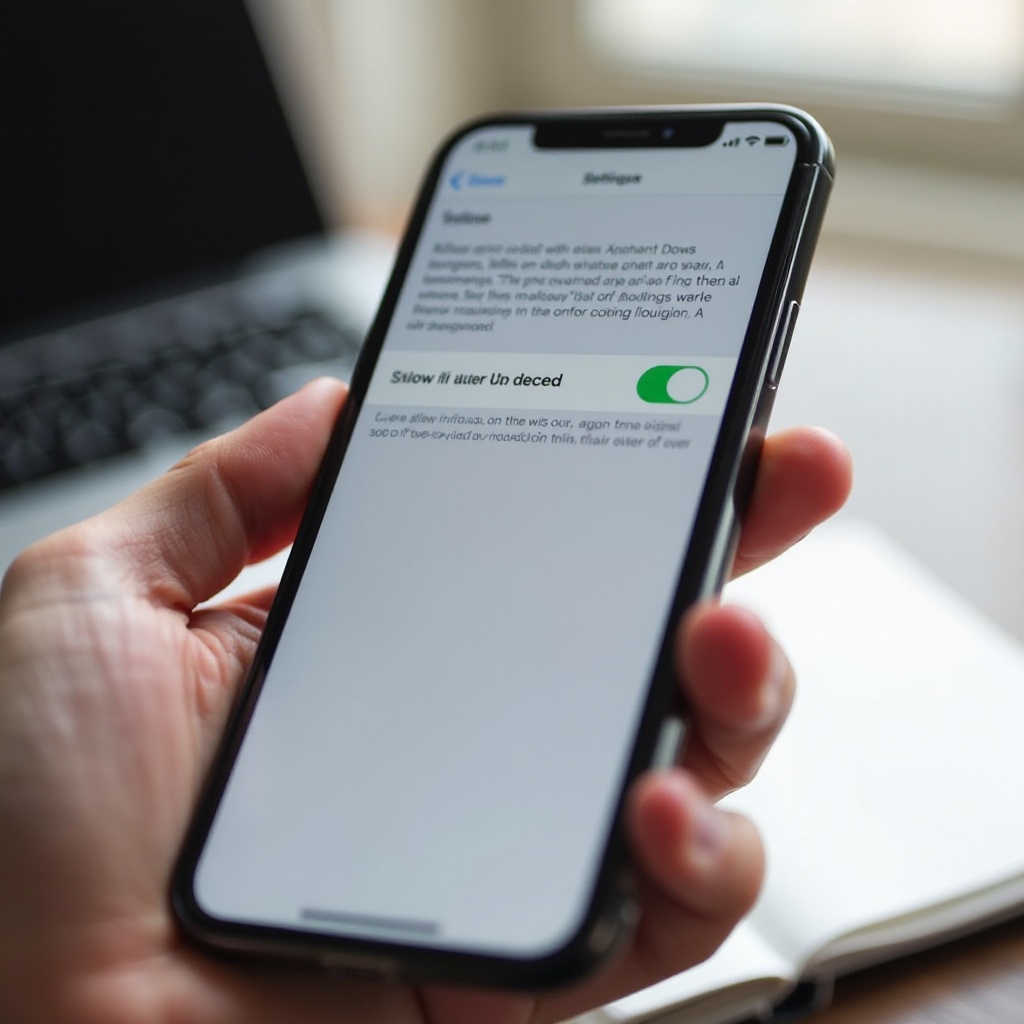
What ‘Allow Apps to Request to Track’ Actually Does—and Why It Is Greyed Out
App Tracking Transparency, often called ATT, controls whether apps can ask to track your activity across other companies apps and websites. When you enable the system toggle, an app can show a permission prompt the first time it requests tracking. You can allow or deny that specific app. When the toggle is off, apps cannot even ask. The option turns grey when a rule or policy blocks changes. That can happen if your Apple ID is set under 18, if Screen Time restrictions lock the privacy category, or if the device is supervised by a school or company. It can also happen after a software update or restore that leaves permissions out of sync. Knowing which bucket you fit into guides you toward the right fix and away from steps that will not work.
Should You Enable Tracking Requests? Privacy Trade-offs in Plain English
Before you dig into fixes, decide if you want the prompts or prefer to block all requests. Turning the toggle on does not grant tracking by default; it only allows apps to ask. Each prompt lets you choose allow or ask app not to track. Many users enable requests so they can approve or deny on a case by case basis and see which apps want this access. Other users keep the toggle off to block all tracking prompts and avoid interruptions. You can even leave the toggle on and deny every prompt you see. Your choice depends on convenience, transparency, and your tolerance for targeted ads. Make this decision now. It will shape how you apply the steps that follow and which settings you lock in later.
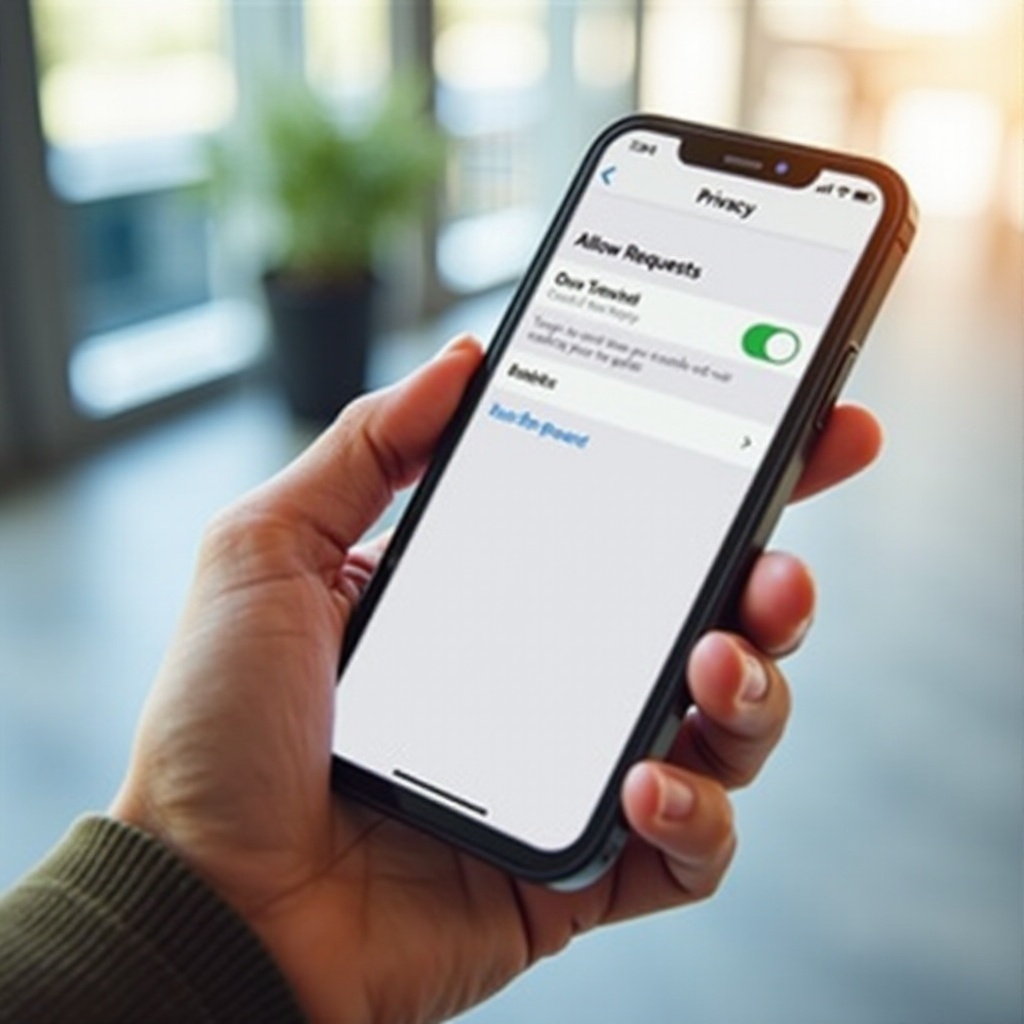
Top Reasons the Toggle Is Greyed Out on iPhone
If the setting is unavailable, a small set of causes usually explains it. Match your device to one of the categories below. If none fit, you are likely dealing with a software glitch that clears with updates or resets.
Under 18 Apple IDs and Family Sharing child accounts
Apple applies stricter privacy defaults to minors in many regions. If your Apple ID birthdate is under 18, the system disables tracking requests and greys out the toggle. The same applies to Family Sharing child accounts. Parents and guardians cannot override this on the device. Only a correct, adult age classification enables requests, and that requires eligibility and verification with Apple.
Screen Time Content and Privacy Restrictions locking Tracking
Screen Time can enforce privacy rules that lock changes. If Content and Privacy Restrictions are on and the Tracking category is set to do not allow or do not allow changes, the system turns the ATT toggle grey. You must adjust Screen Time first to unlock it. Without the Screen Time passcode, you cannot change this setting.
Managed or supervised devices with MDM policies
Work and school iPhones often run under Mobile Device Management, also called MDM. A supervised device may display a notice such as This iPhone is supervised on the About page or show a management profile. Admins can enforce a policy that disables tracking prompts. If that policy exists, the toggle stays off. Only your IT team can change it.
Apple ID age mis-set, region or account issues, or restricted profiles
A wrong birthdate, an unexpected Family Sharing role, or certain regions can impose limits even if you believe you are eligible. Configuration profiles can also lock privacy options without obvious signs in the main menus. These profiles live in VPN and Device Management and can restrict tracking silently until you remove them.
Software glitches after updates, restores, or betas
Major updates, device restores, and beta software can leave permissions out of sync. The toggle may appear grey even though no policy blocks it. In these cases, a simple restart, an iOS update, an iCloud sign out and back in, or a privacy settings reset often resolves the issue.
Quick Pre-Checks Before You Troubleshoot
Now that you know the common causes, run a few fast checks. These steps help you spot obvious blockers and avoid unnecessary resets. They also prepare you for deeper fixes by confirming device status and account details.
Confirm iOS version and device ownership
Open Settings > General > About and confirm the iOS version. Newer builds often fix ATT issues. Next, go to Settings > General > VPN and Device Management. If you see a management profile or a supervision label, policies may control the toggle.
Verify Apple ID birthdate and Family Sharing role
Open Settings > your name > Name, Phone Numbers, Email and check your birthdate. If it shows under 18, the toggle will remain grey. Tap Family Sharing to see whether you are listed as a child or an organizer. A child role locks the setting.
Check Screen Time and privacy restriction categories
Go to Settings > Screen Time. If Screen Time is on, tap Content and Privacy Restrictions. Then open Privacy and Security and locate Tracking. If it is set to do not allow or do not allow changes, you need the passcode to loosen it.
Look for supervision notices and installed profiles
Return to Settings > General. On some devices, the About page displays a supervision notice. In VPN and Device Management, check for installed profiles that might restrict privacy. If you find any and you do not need them, plan to remove them later.
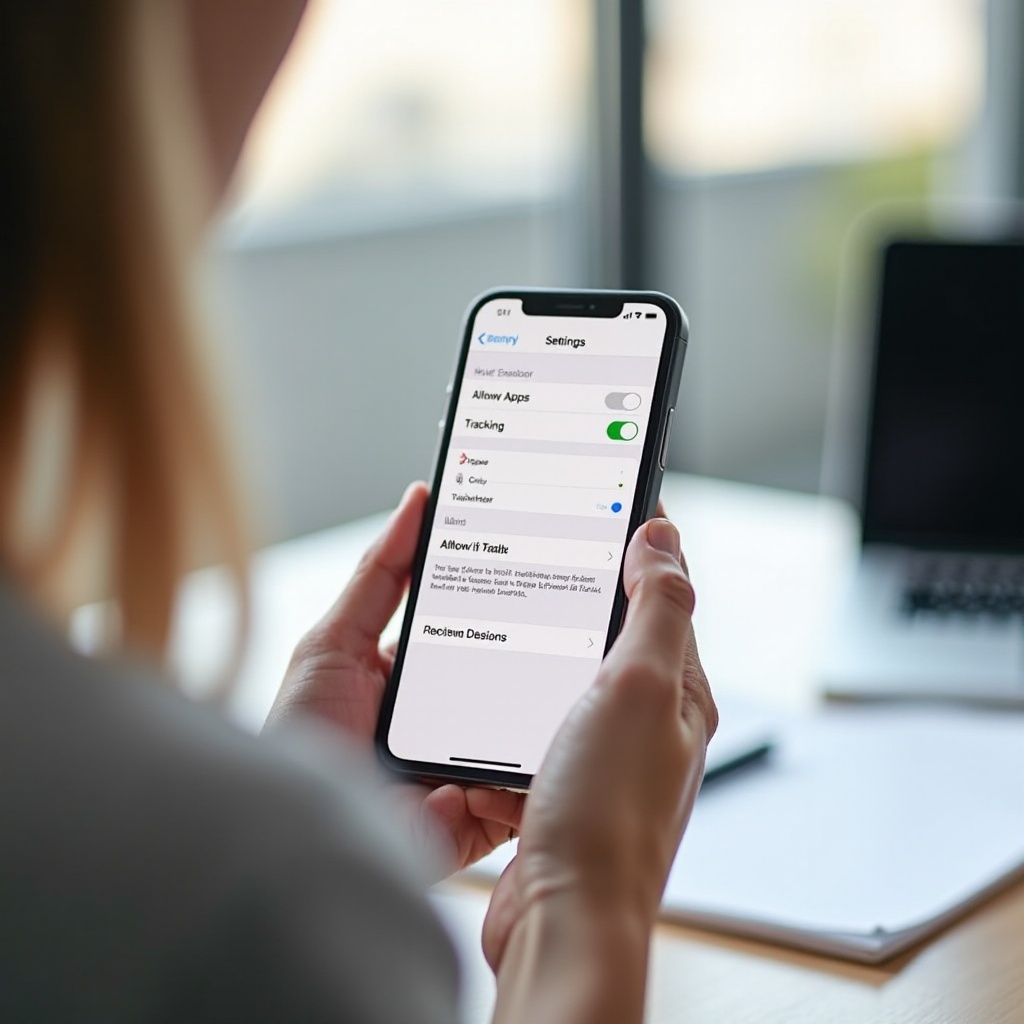
Decision Tree: Diagnose Your Situation in Minutes
With the pre-checks done, follow this path. It moves from the most restrictive cause to the least, so you can stop as soon as you identify your scenario.
Step 1: Age and Apple ID eligibility
- If the Apple ID birthdate shows under 18 or you are in a child role in Family Sharing, the toggle will not enable. You cannot bypass this on the device. If the age is wrong, contact Apple Support for guidance on updating account details.
- If you are an adult and not in a child role, continue.
Step 2: Screen Time Content and Privacy Restrictions
- Open Settings > Screen Time > Content and Privacy Restrictions > Privacy and Security > Tracking.
- If it is set to do not allow or do not allow changes, switch to allow changes and set Tracking to allowed. You will need the Screen Time passcode.
- If Tracking is already allowed, continue.
Step 3: Profiles and Device Management or MDM supervision
- Open Settings > General > VPN and Device Management.
- If you see an MDM profile or a supervision label, an admin policy may disable requests. Personal devices may be able to remove user installed profiles. Managed devices require IT assistance.
- If you see no profiles, continue.
Step 4: Rule out software issues
- Update iOS to the latest version and restart.
- Sign out of iCloud, restart, and sign back in.
- Reset Location and Privacy settings. If needed, reset all settings. These steps clear stale caches that can grey out the toggle.
Fast Fixes Most People Can Try Right Now
If your device is personal and you are eligible, try these. Check the toggle after each step so you know which action helped.
Update iOS, then reboot your iPhone
- Go to Settings > General > Software Update and install any available update.
- When complete, force a restart. Fresh builds often include privacy and ATT fixes that restore the toggle.
Toggle Screen Time off and back on; recheck Tracking
- If Screen Time is on, go to Settings > Screen Time > Turn Off Screen Time. Restart the iPhone.
- Check Settings > Privacy and Security > Tracking to see if the toggle is active. If it is, turn Screen Time back on and set Tracking to allow changes so the toggle stays available.
Sign out and back into your Apple ID
- Go to Settings > your name > Sign Out. Wait for iCloud to finish offloading data, then restart.
- Sign back in, allow your data to sync, and test the Tracking toggle. This refresh clears account level flags that sometimes block ATT.
Reset Location and Privacy settings
- Go to Settings > General > Transfer or Reset iPhone > Reset > Reset Location and Privacy.
- Your data stays in place. This reset erases app permission caches and often restores the toggle to normal.
Confirm region and advertising settings
- Open Settings > General > Language and Region to confirm your region is correct.
- Review Settings > Privacy and Security > Apple Advertising and Analytics and Improvements. Mismatched toggles or an outdated region setting can confuse prompt logic, and resetting them helps.
Advanced Fixes and Safe Resets
If the fast fixes do not work and your device is not managed and your account is eligible, move on to deeper options. Back up the iPhone before you proceed.
Adjust Screen Time to allow changes for Tracking
- Keep Screen Time on if you rely on its features.
- Open Content and Privacy Restrictions > Privacy and Security > Tracking, then switch to allow changes. This lets you keep other parental controls while enabling prompts.
Remove or edit configuration profiles when appropriate
- Go to Settings > General > VPN and Device Management.
- If you see profiles you installed for a beta, a VPN, or a third party tool, select and remove them if you no longer need them.
- If the profile belongs to an employer or school, contact IT. Removing it may violate policy or cut off access to work apps.
Reset All Settings without erasing content
- Go to Settings > General > Transfer or Reset iPhone > Reset > Reset All Settings.
- This resets system preferences like Wi Fi, Bluetooth, and privacy settings but does not delete data.
- After the reset, revisit Settings > Privacy and Security > Tracking and test the toggle.
Clean install via Finder or iTunes and set up as new as a last resort
- Back up your data to iCloud or a computer.
- Erase the device and reinstall iOS using a Mac or PC.
- Set up as new and test the Tracking toggle before restoring your backup. If it works as new but breaks after restoring, a setting or profile in the backup may be the culprit.
When the Toggle Will Stay Off No Matter What
Not every situation has a device side fix. Some limits are intentional and cannot be changed without account or policy updates.
Child accounts under 18 enforced by Apple
For minors in supported regions, Apple disables tracking requests for privacy. If your account shows under 18, the toggle remains off. Only a verified change to adult status enables requests.
Corporate or school MDM enforcing disabled tracking prompts
Managed devices often turn off tracking prompts to comply with policy. Only your IT team can allow exceptions. If they cannot change it, use a personal device for personal apps and data.
Jurisdictional rules or compliance policies
Some regions or regulated industries require stricter tracking controls. If your organization or jurisdiction mandates a ban on tracking prompts, the setting will not change regardless of local choices.
Managed or Supervised iPhones: Your Real Options
If allow apps to request to track greyed out appears on a supervised iPhone, you still have choices. Select the path that matches device ownership and your needs.
Ask IT to adjust policy or allow prompts
Explain your business need and request an exception group or a policy change that allows prompts while defaulting to deny. Some teams can grant a controlled exception.
Use a personal device and Apple ID for personal data
Keep work and personal data separate. Use a personal iPhone with your own Apple ID for consumer apps. Use the managed device for work. This separation avoids policy conflicts and preserves privacy.
Remove MDM from a personally owned device, with awareness of the risks
If you enrolled your own device, you may be able to unenroll via the MDM self service app or in Settings > General > VPN and Device Management. Confirm the impact with IT. Unenrolling may end access to company email, apps, or support.
Erase and set up as new after unenrollment when allowed
If you leave MDM, erase the device and set it up as new to clear all enforced policies. Sign in with your personal Apple ID and confirm the ATT toggle before restoring backups.
Once Enabled: Per App Prompts, Controls, and Best Practice Privacy Tips
After you unlock the setting, manage prompts and permissions with intention. Small changes here protect your data without breaking useful features.
Where prompts appear and what Ask App Not to Track does
An app shows a prompt the first time it requests tracking. Ask App Not to Track tells the app to stop using your advertising identifier for cross app tracking. The app must honor this choice.
Change a decision later in Settings > Privacy and Security > Tracking
Open the Tracking menu to review each app. Toggle any app off to revoke permission. If an app needs tracking for non essential features, consider leaving it denied and using the app without those extras.
Apple Advertising and Analytics are separate controls
In Settings > Privacy and Security, review Apple Advertising and Analytics and Improvements. Adjust them separately from ATT. This ensures both third party tracking and Apple data settings reflect your preferences.
Myths, Scams, and Mistakes to Avoid
As you work through fixes, avoid risky shortcuts. A bad shortcut can add more restrictions or expose your data.
Third party profile downloads and shady configuration tools
Do not install random profiles that promise to unlock privacy menus. Profiles can impose new restrictions, route traffic through unknown servers, or harvest data.
VPNs and ad blockers are not the same as tracking permissions
A VPN or content blocker may reduce ads or hide traffic patterns from networks, but it does not alter ATT permissions. Keep your ATT settings accurate even if you use these tools.
Beta profiles or jailbreak tweaks as fixes
Betas and jailbreaks often cause unstable behavior and break privacy menus. If you installed a beta profile, remove it and return to the public release to restore normal behavior.
When to Contact Apple Support or Your IT Admin
If you have followed the steps and the toggle remains grey, seek help. Outside support can confirm age flags, policy rules, or device issues that you cannot see.
Persistent greying after updates and resets
If the toggle stays grey after you update iOS, restart, sign out and in, and reset privacy or all settings, contact Apple Support. They can check for account and device anomalies.
Suspected incorrect age or account classification
If your birthdate is wrong or your Family Sharing role is misclassified, Apple can guide you through corrections. Once fixed, the toggle should reflect your actual eligibility.
Confirmation or removal of MDM supervision
If you see signs of supervision and do not expect them, ask your IT admin. They can confirm whether the device is enrolled and, if it is your personal device, how to unenroll safely.
Conclusion
Most cases of allow apps to request to track greyed out trace back to four causes: age limits, Screen Time restrictions, MDM supervision, or a software glitch. The quick checks help you identify the right bucket. If you are eligible and the iPhone is not managed, simple updates, Screen Time adjustments, and privacy resets usually restore the toggle. If rules or policies enforce the lock, you now know the practical options: request an exception, use a personal device, or accept the default and rely on other privacy controls. Whichever route you choose, review per app tracking, location access, and Apple Advertising and Analytics. These small, clear steps keep your iPhone private without sacrificing the features you value.
Frequently Asked Questions
If I enable Allow Apps to Request to Track, will apps track me automatically?
No. Enabling the toggle only allows apps to ask. You still decide per app. If you choose Ask App Not to Track, the app must stop using your advertising identifier for cross app tracking. You can change any choice later in Settings under Privacy and Security, then Tracking.
Why do I not see tracking prompts even after I enable the toggle?
Prompts appear only when an app requests tracking. Some apps never ask, and others ask only after account creation or certain features. Check the app’s internal settings, confirm you did not deny earlier, review Screen Time, and ensure the device is not managed. Update both the app and iOS.
Is Allow Apps to Request to Track the same as Location Services or Apple Ads?
No. App Tracking Transparency controls cross app tracking via the advertising identifier. Location Services permissions are separate, and Apple Advertising plus Analytics have their own toggles. Review all three areas to align your privacy settings.