
Introduction
If you plan to switch carriers, travel with your phone, or sell your device, you first need to know one thing: is your iPhone unlocked or not? Unlock status decides which SIMs you can use and how much freedom you have with your phone.
Many people only discover their iPhone is locked after they insert a new SIM and see a ‘SIM Not Supported’ message. At that point, you may already have bought a plan, a travel SIM, or even a used phone that does not work on your network. A quick check before you change anything can save money and frustration.
This guide explains how to check if an iPhone is unlocked using methods that work in 2024 for U.S. users. You will learn how to read the Carrier Lock section in Settings, test with a physical SIM and eSIM, use IMEI-based tools, and confirm details with your carrier. You will also see how to verify a used iPhone before you buy it and what to do if your device is still locked.
By the end, you will know the most reliable way to check unlock status and the safest next steps based on what you find.
What Does an Unlocked iPhone Mean?
Before you check your device, it helps to understand what ‘unlocked’ actually means and what it does not mean. That way, when you see a message in Settings or from a carrier, you know how to interpret it.
The difference between unlocked and carrier-locked
An unlocked iPhone can use SIM cards from any compatible carrier. You can insert a SIM from AT&T, Verizon, T-Mobile, or an MVNO like Mint Mobile or Visible, and the phone will accept it, as long as the network technology matches.
A carrier-locked iPhone will only work with the carrier that locked it, or with certain partner networks. The lock comes from the carrier, not from Apple. Carriers lock phones to keep customers on a plan until they finish a contract, installment agreement, or minimum active period.
Lock status lives on Apple activation servers and ties to the IMEI of your device. When you insert a SIM, the phone checks with Apple, which returns whether that IMEI is locked to a particular carrier or has ‘No SIM restrictions’.
Why unlock status matters for switching carriers
If your iPhone is locked, you cannot simply pop in a new SIM and move to a cheaper or better plan. The phone may:
- Refuse the SIM and show ‘SIM Not Supported’
- Show ‘SIM Invalid’
- Fail to connect to the new network
An unlocked iPhone lets you:
- Shop around for better monthly prices
- Move to prepaid carriers or MVNOs
- Avoid paying early upgrade or contract fees just to change networks
Without an unlocked phone, any plan change that involves a different carrier becomes complicated, and you may need to request an unlock or even buy another device.
Travel, resale value, and flexibility for your phone
Unlock status also matters when you travel or sell your phone:
- Travel: With an unlocked iPhone, you can buy a local SIM or eSIM in the country you visit. That often costs far less than roaming with your home carrier.
- Resale value: Unlocked iPhones usually sell faster and at a higher price, because buyers can use them on more networks.
- Flexibility: If your coverage is weak at home or work, you can test another carrier without buying a new phone.
Now that you understand why unlock status matters, you can move from theory to action. The next section gives you a quick checklist to estimate whether your iPhone is unlocked, before you dive into more detailed methods.
Quick Checklist: Is My iPhone Unlocked?
Before you dive into step-by-step methods, you can run through a quick checklist. This will help you decide which method to try first and how likely it is that your phone is already unlocked.
The fastest methods at a glance
Use these two quick checks:
- Look in Settings:
Go to Settings → General → About → Carrier Lock.
- If you see ‘No SIM restrictions’, your iPhone is generally considered unlocked.
- If you see a carrier name or a message like ‘SIM locked’, it is likely locked.
- Think about how you bought the phone:
- Bought directly from Apple at full price and chose ‘Connect to carrier later’? Very likely unlocked.
- Bought through a carrier on installments or with a contract? Very likely locked until you meet their requirements.
These clues give you a first impression, but they are not perfect. To confirm, you should use at least one of the more detailed methods in the next sections.
When you should use more than one method
You should double-check with more than one method if:
- You plan to travel abroad and rely on a local SIM or eSIM
- You want to sell your iPhone and advertise it as unlocked
- You are about to switch carriers or buy a new plan
- You are buying a used iPhone from a private seller
In those cases, use Settings plus a SIM or eSIM test and, if possible, confirmation from the carrier. That combination gives you the most reliable answer.
You now have a quick sense of your phone status. To move from guesswork to certainty, the next step is to use the built-in Carrier Lock section in Settings.
Method 1: Check Carrier Lock in iPhone Settings
The simplest way to check if an iPhone is unlocked is by using the built-in Carrier Lock section in Settings. This method takes less than a minute and works on all recent iOS versions.
How to find Carrier Lock on your iPhone
Follow these steps:
- Open the Settings app.
- Tap General.
- Tap About.
- Scroll down until you see Carrier Lock.
Here you will see a short message that indicates the unlock status Apple currently reports for that IMEI.
What ‘No SIM restrictions’ really means
If Carrier Lock shows ‘No SIM restrictions’, that means Apple activation servers do not restrict your phone to a specific carrier. In normal language, this means your iPhone is unlocked.
With ‘No SIM restrictions’ you should be able to:
- Insert SIMs from different carriers
- Activate eSIM plans from different providers
- Use your phone abroad with local SIMs, as long as bands and technology are compatible
For most users, this message alone is enough to know the device is unlocked.
Other common messages and how to read them
You may see different messages, such as:
- ‘SIM locked’ or ‘Network locked’ – the device is restricted to one carrier.
- A specific carrier name (for example AT&T or Verizon Wireless) – often indicates the phone is still under that carrier lock rules.
- Messages about SIM PIN – note that SIM PIN is different from carrier lock; SIM PIN just protects the SIM from use without a code.
If you see anything other than ‘No SIM restrictions’, you should treat the phone as locked until you confirm otherwise with a SIM test or the carrier.
Limitations of relying only on the Settings screen
The Settings method is convenient but not perfect:
- It may not reflect very recent changes if the unlock was completed only minutes ago.
- In rare cases, software glitches or partial unlocks can cause confusion.
- It does not tell you whether the phone is blacklisted (reported lost or stolen), which is different from being locked.
Because of this, use Method 1 as your first step, then confirm with a SIM or eSIM test if the result really matters for your next move.
After checking Settings, the most convincing proof comes from seeing how your iPhone behaves with another carrier. That is where a physical SIM test becomes very useful.
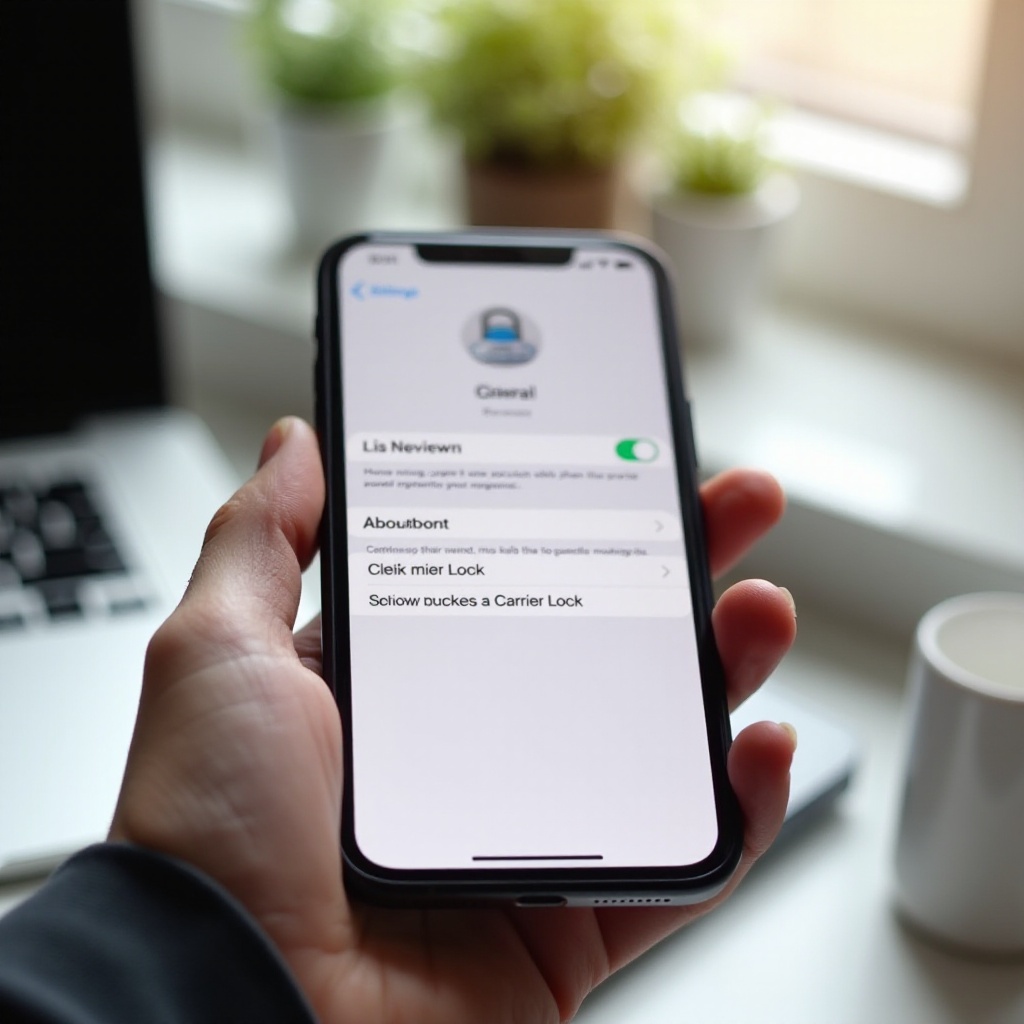
Method 2: Test With a SIM Card From Another Carrier
A real-world SIM test is one of the most reliable ways to check if your iPhone is unlocked. If the device works with a SIM from a different carrier, it is almost always unlocked.
What you need before swapping SIMs
Prepare the following:
- A second SIM card from a different carrier that you know works in another phone
- A SIM ejector tool or a small paperclip
- A quick backup of your iPhone in case you change any settings (optional but smart)
Also make sure the new SIM uses compatible networks. For example, an old or deactivated SIM may not work even on an unlocked phone.
Step-by-step: removing and inserting a SIM safely
To swap SIMs:
- Power off your iPhone or at least lock the screen.
- Find the SIM tray (usually on the right side).
- Insert the ejector tool into the small hole and press gently until the tray pops out.
- Remove your current SIM and place the new SIM from the other carrier in the tray.
- Reinsert the tray carefully.
- Turn the phone back on if you powered it off.
Wait a few moments for the phone to detect the new SIM.
What you should see on an unlocked iPhone
On an unlocked iPhone, after inserting the new SIM, you should see:
- The carrier name of the new provider at the top of the screen
- Signal bars or dots
- Mobile data, calls, and SMS working once the SIM activates
To be sure, test:
- Make a voice call.
- Send a text message.
- Turn mobile data on and open a webpage.
If all three work, your iPhone is effectively unlocked for that carrier.
Error messages that indicate the iPhone is locked
On a locked iPhone, you may see:
- ‘SIM Not Supported’
- ‘SIM Not Valid’
- ‘No Service’ with an alert about incompatible SIM or network
These messages appear because the phone contacts Apple servers and learns that its IMEI is locked to a different carrier. In this case, you must treat the device as locked and move on to the section about what to do if your iPhone is locked.
A physical SIM test gives strong proof, but many newer users rely on eSIM instead. The next method shows how to use eSIM to confirm whether your iPhone is unlocked.
Method 3: Use eSIM to Confirm Unlock Status
If your iPhone supports eSIM (most recent models do), you can use a digital plan from another carrier to check whether the phone is unlocked, without touching the SIM tray.
Adding an eSIM from a different carrier
Many carriers let you:
- Scan a QR code
- Use an official app
- Receive activation details by email or SMS
To add an eSIM:
- Go to Settings → Cellular (or Mobile Data).
- Tap Add eSIM or Add Cellular Plan.
- Follow the instructions from the new carrier (scan QR code or enter details).
If your iPhone is unlocked and the carrier supports your device, the eSIM should activate and show signal.
Dual SIM behavior on locked vs unlocked iPhones
When you use both a physical SIM and eSIM:
- On an unlocked iPhone, you can use plans from two different carriers at the same time (for example, AT&T on eSIM and T-Mobile on a physical SIM).
- On a locked iPhone, adding an eSIM from another carrier may fail with error messages about unsupported or invalid plans.
If the phone allows you to add and use an eSIM from a different carrier while keeping your original SIM, that is strong evidence the device is unlocked.
Troubleshooting eSIM activation issues
If eSIM activation fails, do not assume it is due to a lock right away. Check:
- Whether the carrier actually supports your iPhone model
- Whether the eSIM QR code or activation details are still valid
- Whether you have Wi-Fi or data during activation
If everything else looks correct and the carrier confirms the plan is good, but activation still fails with an incompatible device message, your iPhone may be locked.
At this point, you have tested Settings, SIM, and eSIM. To cross-check these results with carrier records, you can use your IMEI and official tools.
Method 4: Check Using IMEI and Carrier Tools
Your iPhone IMEI (International Mobile Equipment Identity) is a unique identifier that carriers use to look up status, including whether a phone is locked, financed, or blacklisted.
How to find your IMEI number quickly
You can find the IMEI in several ways:
- On the iPhone:
- Go to Settings → General → About.
- Scroll down to IMEI (and IMEI2 for dual SIM models).
- Using the dialer:
- Open the Phone app.
- Dial *#06#.
- The IMEI will appear on screen.
- On the device or box:
- Some models show IMEI on the SIM tray or printed on the back.
- It is also usually printed on the original box.
Note which IMEI belongs to the line you actually use, especially on dual SIM models.
Using carrier IMEI checkers to verify status
Many U.S. carriers and MVNOs offer IMEI checkers on their websites. These tools can tell you:
- Whether your iPhone is compatible with their network
- Whether it is reported lost or stolen
- Sometimes, whether it is locked to another carrier
To use them:
- Visit the carrier Bring Your Own Device (BYOD) or Check Compatibility page.
- Enter your IMEI.
- Read the result carefully.
If a carrier says your phone is fully compatible and does not show any lock warning, that supports the idea that your phone is unlocked, especially if the IMEI is not tied to unpaid financing.
Why some third-party IMEI sites are risky or misleading
You will find many third-party IMEI check sites that claim to show exact lock status. Be careful with these:
- Some collect IMEIs for data resale or scams.
- Some charge fees but only show information you could get from a carrier.
- Results may be out of date or incorrect.
Use official carrier tools and direct carrier support whenever possible. If you must use a third-party site, choose one with a long history, clear contact information, and strong independent reviews, and never share more than your IMEI.
Once you have checked online tools, the final and most authoritative confirmation comes from speaking directly with the carrier that locked or sold the iPhone.
Method 5: Confirm Unlock Status With Your Carrier
Your current or original carrier has the most accurate information about your iPhone lock status and unlock eligibility, especially if you bought or financed the device through them.
What information your carrier will ask for
When you contact carrier support, they will typically ask for:
- Your full name and account details
- The phone number associated with the device
- The IMEI of the iPhone
- Sometimes the account PIN or password for security
Have these ready before you call, chat, or message support. This speeds up the process and reduces back-and-forth.
How major U.S. carriers typically handle unlock questions
In general, support agents can:
- Confirm whether your iPhone is currently locked or unlocked
- Check whether you have paid off the device
- See if you meet their unlock policy (for example, active for a certain number of days, no past-due balance)
- Tell you if an automatic unlock is scheduled
Some carriers even unlock devices automatically after a set period if your account stays in good standing. Others require you to submit a form or request through a website or app.
Understanding unlock eligibility and account requirements
Even if your iPhone is still locked, you might be close to an unlock. Ask support to explain:
- Whether your installment plan is paid in full
- Whether your account has any past-due balance
- How long the device has been active on their network
- Whether there are any fraud or blacklist flags
If you meet all requirements, request an unlock. The carrier will send the unlock request to Apple, and once processed, your phone should show ‘No SIM restrictions’ in Settings after a restart or restore.
So far, you have focused on your own device. But unlock status is just as important when you buy a second-hand iPhone. The next section shows how to protect yourself when purchasing used phones.
How to Check If a Used iPhone Is Unlocked Before You Buy
Used and refurbished iPhones can be great deals, but only if they are truly unlocked or work with your carrier. Never rely only on a seller description. Verify unlock status yourself.
Essential checks to perform in person
If you meet the seller in person:
- Ask them to remove any screen lock and sign out of their Apple ID while you watch. The phone should not show an Activation Lock screen.
- Open Settings → General → About → Carrier Lock and look for ‘No SIM restrictions’.
- Use your own SIM card to test:
- Insert your SIM.
- Check for signal and carrier name.
- Make a call, send a text, and use data.
If the phone fails these tests, do not buy it, no matter what the seller claims.
Verifying unlock status for online marketplace purchases
For online purchases (eBay, Swappa, Facebook Marketplace, and similar sites):
- Ask the seller for:
- A photo or screenshot of the Carrier Lock section
- The IMEI so you can check compatibility with your carrier
- Verify the IMEI with your carrier BYOD or compatibility tool.
- Check the seller ratings and history for patterns of complaints.
Use a marketplace with buyer protection and clear return policies. If a device arrives locked after being advertised as unlocked, open a dispute right away.
Red flags when a seller claims ‘factory unlocked’
Watch for warning signs:
- The seller refuses to share the IMEI or a Carrier Lock screenshot.
- The price is much lower than similar unlocked devices.
- The listing uses vague terms like ‘not sure about carrier’ or ‘might be unlocked’.
- The seller mentions jailbreaking as proof of unlocking.
Remember, jailbreaking is not the same as carrier unlocking and can introduce security and stability issues. Only treat a phone as unlocked when you have tested it yourself or confirmed it through trusted tools.
Even if you follow these steps, you may still find yourself holding a locked iPhone. The next section explains how to handle that situation safely.
What to Do If Your iPhone Is Locked
Finding out that your iPhone is locked is frustrating, but you still have options. The safest path is to work with the carrier that locked the phone.
Requesting an unlock from your carrier
Start by:
- Contacting your carrier customer support or visiting their website.
- Asking them to confirm your unlock eligibility.
- Requesting an official network unlock for your iPhone.
If you are eligible, they will submit an unlock request to Apple. Once the unlock is processed, you may need to:
- Insert a non-original SIM, or
- Connect the device to a computer and restore it via Finder or iTunes
After that, Carrier Lock in Settings should show ‘No SIM restrictions’.
How long the unlock process usually takes
Timing varies by carrier and account status:
- Some unlocks complete within a few minutes or hours.
- Others can take a few days, especially if the carrier needs extra checks.
The carrier should give you an approximate timeframe and sometimes an email confirmation when the unlock finishes.
Why you should avoid unofficial unlocking services
You will find many websites and local shops that offer paid unlocking services. Many are risky for several reasons:
- They may use unauthorized methods that can be blocked later.
- They may ask for Apple ID or personal data, which you should never share.
- They can take your money without delivering a real unlock.
Only consider paid unlocks that work through official carrier channels and have a clear, verifiable process. When in doubt, stick with your carrier and reputable sellers.
Once you know how to check and what to do if locked, it helps to pull everything together so you can act with confidence.
Conclusion
Checking whether your iPhone is unlocked is easy when you follow a clear process. Start with the Carrier Lock section in Settings. Then confirm your result with a SIM or eSIM test. For added certainty, check your IMEI with carrier tools and, if needed, speak directly with support.
If you are buying or selling an iPhone, treat unlock verification as a must-do step. Use your own SIM, ask for screenshots, and avoid deals that seem unclear or too good to be true. If your phone turns out to be locked, work with the carrier that controls the lock and follow their official unlock procedure.
By combining these methods, you can confidently answer the question ‘how to check if iPhone unlocked’, avoid surprises when you change carriers or travel, and make smarter decisions when you buy or sell a device.
Frequently Asked Questions
Does resetting my iPhone change whether it is unlocked?
No. A factory reset does not change unlock status. The lock or unlock state lives on Apple activation servers and ties to your device IMEI, not to your local data or settings. When you erase your iPhone or set it up as new, it will still be locked or unlocked in the same way it was before. Only a carrier-approved unlock request or an Apple server update can change this status.
Can Apple unlock my iPhone directly?
Apple does not normally unlock carrier-locked iPhones on its own. The carrier that sold or locked the device controls the unlock. You must contact that carrier, meet its requirements, and ask it to send an unlock request to Apple. After the carrier approves the request and Apple updates its servers, your iPhone becomes unlocked. Apple Support may help you confirm the result, but they will usually direct you back to the carrier.
How can I tell if my iPhone is unlocked for international use?
If your iPhone shows ‘No SIM restrictions’ in Settings and accepts SIMs or eSIMs from different U.S. carriers, it is generally unlocked for international use as well. To be extra sure, you can ask a friend abroad to check whether your IMEI is compatible with their local carrier, or use the BYOD or IMEI checker of a foreign carrier you plan to use. Also confirm that your iPhone model supports the bands and technologies used in the countries you will visit, because an unlocked phone still needs the right hardware to connect.