
Introduction
Removing Facebook from your Android phone frees storage, cuts background activity, and reduces distractions. You can uninstall it like any other app, disable it if your phone came with it preinstalled, or use ADB for a deeper clean without root. The right method depends on your device, your Android version, and whether the app was preloaded by the manufacturer or a carrier.
This guide walks you through each option step by step. You will learn the difference between uninstall, disable, remove updates, and force stop; how to handle preinstalled Facebook components on brands like Samsung; and how to remove Messenger and Facebook Lite. You will also see how to use ADB safely and how to reverse changes later. If an uninstall button is greyed out or a work profile blocks removal, the troubleshooting section helps you fix it. Start with the quick answer below, then jump to the method that fits your phone.

Quick Answer and What You’ll Need
TL;DR: Fastest way to remove Facebook
If Facebook is a normal download on your phone:
1) Long‑press the Facebook icon in your app drawer or on your home screen.
2) Tap Uninstall.
3) Confirm. You are done.
If Facebook is preinstalled and Uninstall is missing:
1) Go to Settings > Apps > Facebook.
2) Tap Disable. Confirm to remove updates and turn the app off.
To remove Facebook and its services more completely without root:
1) Use ADB on a computer and run safe commands that uninstall for the current user only.
2) You can restore the app later with a single command.
Things to check before you start
- Confirm your device brand and Android version in Settings > About phone.
- Decide whether you want to remove Facebook only, or also Messenger and Facebook Lite.
- Back up photos or files you want to keep from Messenger.
- If you use Facebook Login for other apps, note those apps so you can switch sign‑in later.
With that snapshot in mind, let us clarify what each removal option actually does so you choose the right path.
Uninstall vs Disable vs Remove Updates vs Force Stop
What each action does
- Uninstall: Removes the app and its updates for your user. This frees storage and stops the app from running or updating.
- Disable: Turns off a preinstalled system app and hides it. It removes updates but keeps the factory version dormant and not visible in the launcher.
- Remove updates: Rolls a preinstalled app back to its factory version. Often happens automatically when you disable.
- Force stop: Temporarily stops the app’s processes. It does not remove the app or its data and the app can restart later.
Which option to choose for your phone
- If Facebook came from the Play Store, uninstall it.
- If your phone preinstalled Facebook (common on Samsung and some carrier models), disable Facebook and related components such as Facebook Services or App Manager.
- If you want a deeper removal without root, use ADB to uninstall for your user only. This keeps the system intact but gets the app off your profile.
- Treat force stop as a temporary measure while you prepare to uninstall or disable.
Once you know your target action, it helps to confirm where settings live on your brand of phone. The next section maps the menus for popular Android skins.
Check Your Phone: Android Version and OEM Skin
Different Android skins place app settings in slightly different spots. Use the pointers below, then move to the method that suits your device.
Samsung (One UI)
Go to Settings > Apps. Tap the filter to show All apps. Find Facebook, Facebook Services, and Facebook App Manager. Expect Disable, not Uninstall, on preloaded variants. Data, battery, and permissions live under App info.
Google Pixel (Stock Android)
Go to Settings > Apps > See all apps. Find Facebook. You will usually see Uninstall for user‑installed apps, or Disable for system apps. Permissions, storage, and battery settings are straightforward.
Xiaomi, Redmi, and POCO (HyperOS or MIUI)
Go to Settings > Apps > Manage apps. Locate Facebook entries. Some builds show Uninstall; others show only Disable for preloads. Autostart and background restrictions live under Permissions or Power settings.
OnePlus, Motorola, and others
Go to Settings > Apps or Apps and notifications > See all apps. Expect similar options: Uninstall if user‑installed, or Disable if preinstalled. Carriers may add Facebook components that also need disabling.
With menus in mind, start with the simplest removal method. If that does not appear, you will escalate to Settings or ADB.
Method 1: Uninstall from Home Screen or App Drawer
This is the quickest path for most users and works when Facebook was installed from the Play Store.
Find Facebook in your app list
1) Open the app drawer and locate Facebook.
2) If the icon sits on your home screen, you can use that shortcut instead.
Long‑press menu and drag‑to‑uninstall
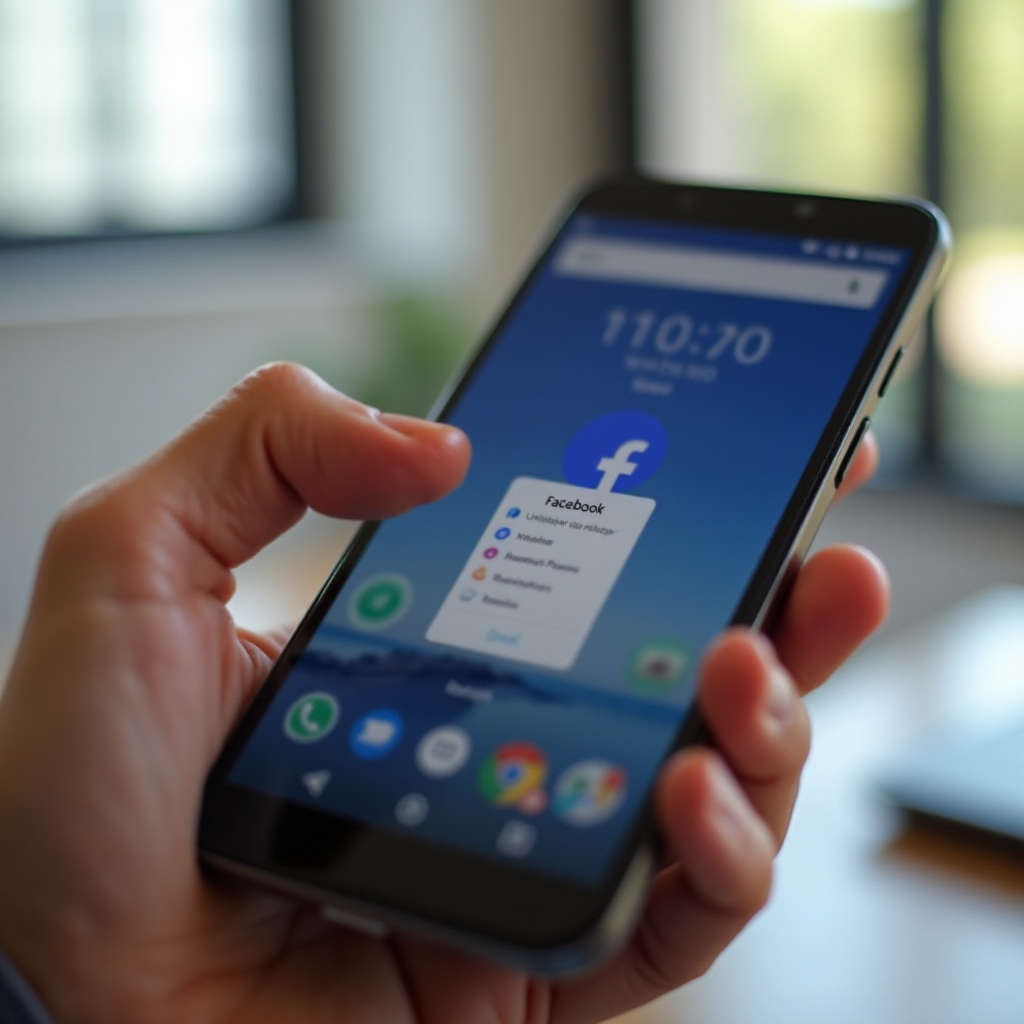
1) Long‑press the Facebook icon.
2) Tap the Uninstall shortcut if it appears, or tap the small i icon to open App info.
3) If App info opens, tap Uninstall.
4) Confirm and wait for the process to finish.
5) Check the app drawer; the icon should be gone.
If you do not see Uninstall, your phone likely preinstalled Facebook. Move to the Play Store or Settings methods next.
Method 2: Uninstall via Google Play Store
Use the Play Store if the home screen method is not available or you want to verify removal.
Open Play Store and locate Facebook
1) Open the Play Store.
2) Search Facebook.
3) Tap the Facebook app by Meta Platforms, Inc.
4) If installed by you, you will see Uninstall.
Uninstall and confirm it is gone
1) Tap Uninstall.
2) Confirm when prompted.
3) After it completes, tap the profile icon > Manage apps and device > Manage to confirm Facebook is not listed as installed.
4) Open Settings > Apps to ensure it is removed.
If Uninstall is missing or greyed out in the Play Store, your device may treat Facebook as a system app. Use Settings to disable it.
Method 3: Uninstall or Disable via Settings > Apps
Settings gives you full control and shows whether your device allows uninstall or only disable.
Navigate to Settings > Apps > Facebook
1) Open Settings.
2) Tap Apps or Apps and notifications > See all apps.
3) Find and tap Facebook.
Clear data, then uninstall
1) Tap Storage and cache or Storage.
2) Tap Clear cache, then Clear storage or Clear data.
3) Go back and tap Uninstall if available.
4) Confirm removal.
If uninstall is not available: disable and remove updates
1) Tap Disable. Confirm to disable the app.
2) When prompted, remove updates to revert to the factory version.
3) Tap OK. The app disappears from the launcher and stops running.
4) Repeat for related entries like Facebook Services and Facebook App Manager if present.
If your device still shows background activity or notifications tied to Facebook, proceed to targeted disable steps for preinstalled components.
Method 4: Disable Preinstalled Facebook on Samsung and Carrier Phones
Many Samsung and carrier devices preload Facebook and its helpers. You can disable them to stop activity and updates.
Disable Facebook app, Services, and App Installer
1) Go to Settings > Apps.
2) Tap the filter to show All apps.
3) Search for and open each of the following, then tap Disable:
– Facebook (com.facebook.katana)
– Facebook Services (com.facebook.services)
– Facebook App Manager or Installer (com.facebook.appmanager or com.facebook.system)
4) Confirm to remove updates and disable each component.
Turn off background data and notifications
1) For each Facebook component, open App info.
2) Tap Mobile data and disable Background data and Unrestricted data if present.
3) Tap Notifications and turn them off.
4) Tap Battery and set to Restricted or Optimized to block background runs.
If you prefer a cleaner removal without root and with a simple way to restore later, ADB offers a safe user‑level option.
Method 5: Advanced Removal with ADB (No Root)
ADB lets you remove Facebook and its helpers for your device user without touching the system partition. You can restore them later with a single command.
Enable Developer options and USB debugging
1) Go to Settings > About phone.
2) Tap Build number seven times to enable Developer options.
3) Go to Settings > System > Developer options.
4) Enable USB debugging.
Connect and verify ADB on your computer
1) Install Android Platform Tools on Windows, macOS, Linux, or Chromebook.
2) Connect your phone with a USB cable.
3) Open a terminal or Command Prompt and run: adb devices
4) Accept the debugging prompt on your phone. Ensure your device shows as authorized.
Use safe uninstall for the current user
Common package names:
– com.facebook.katana (Facebook)
– com.facebook.orca (Messenger)
– com.facebook.lite (Facebook Lite)
– com.facebook.appmanager or com.facebook.system (App Manager or Installer)
– com.facebook.services (Services)
Run one command per package you want to remove:
– adb shell pm uninstall –user 0 com.facebook.katana
– adb shell pm uninstall –user 0 com.facebook.appmanager
– adb shell pm uninstall –user 0 com.facebook.services
If you use Messenger or Lite and want them gone:
– adb shell pm uninstall –user 0 com.facebook.orca
– adb shell pm uninstall –user 0 com.facebook.lite
This removes the app for your user only and leaves the system partition untouched.
Restore the app with ADB if needed
To restore a package removed for your user:
– adb shell cmd package install-existing com.facebook.katana
Repeat for any other package you want back, then update from the Play Store.
Whether you disable or use ADB, finish by removing related apps and cleaning residual data so nothing keeps syncing in the background.
Remove Related Apps: Messenger, Facebook Lite, Services or Installer
Facebook often works with other apps and services. Removing them prevents background activity, updates, and notifications.
Why removing Messenger and Lite matters
- Messenger can keep push services alive even if Facebook is gone.
- Facebook Lite is smaller but can re‑enable logins and background sync.
- Removing Services and App Manager or Installer stops silent component updates on some phones.
Package names to look for
- Facebook: com.facebook.katana
- Messenger: com.facebook.orca
- Facebook Lite: com.facebook.lite
- Facebook App Manager or Installer: com.facebook.appmanager or com.facebook.system
- Facebook Services: com.facebook.services
Remove or disable each using the earlier methods so nothing remains active on your device.
Clean Up Residual Data and Permissions
After you remove or disable Facebook, clean leftover files and revoke any sign‑ins so apps do not auto‑connect.
Delete cache and leftover folders
- Go to Settings > Storage > Files or use the Files app and check Internal storage > Android > data and Android > obb for any com.facebook.* folders. If your device allows, delete them.
- Open your file manager and search for Facebook folders in Pictures, Movies, or Downloads. Delete if you do not need them.
- Clear cached images and videos in your gallery apps if they still show Facebook folders.
Revoke login with Facebook and autofill
- In a browser, open facebook.com > Settings and privacy > Settings > Apps and websites. Remove apps you no longer use.
- Remove saved Facebook passwords in your browser or password manager if desired.
- If you used Continue with Facebook in other apps, switch those apps to email or Google sign‑in.
Review notification and battery settings
- Confirm notifications are off for any remaining Facebook components under Settings > Apps.
- In Settings > Battery, ensure no Facebook service has Unrestricted access.
- Restart your phone to finalize changes and clear any cached services.
If uninstall or disable did not work or you saw errors, the next section helps you identify what blocked the change and how to fix it fast.
Troubleshooting: Uninstall Button Greyed Out, Work Profile, Device Admin, Parental Controls
Work profile or device admin blocking removal
- If your phone has a work profile from an employer or school, Facebook inside that profile may be controlled by your admin. Open Settings > Passwords and accounts > Work profile and manage apps from there. You may need IT approval to remove it.
- Some security apps or VPNs can grant device admin rights that restrict changes. Check Settings > Security and privacy > Device admin apps and disable any that block app removal.
Family Link and similar restrictions
- If a parent or guardian manages the device with Google Family Link, app removal may be restricted. Ask the manager to allow uninstalls or remove Facebook from the allowed list in the Family Link app.
- Screen time or app lock tools can also block changes. Temporarily turn them off, complete the uninstall, then turn them back on.
Storage full or corrupted data errors
- If uninstall fails due to low storage, free space by deleting large files or unused apps, then try again.
- If Settings crashes when opening Facebook, force stop Settings, reboot, and try after clearing Google Play Services cache.
- As a last resort, use ADB with uninstall for user 0 to bypass UI glitches, then restore later if needed.
Once the blockers are cleared, you can decide what to do with your Facebook account. The next section explains what removing the app does and how to deactivate or delete the account if you choose.
Privacy After Removal: App Removal vs Account Deactivation or Deletion
What happens to your account after uninstall
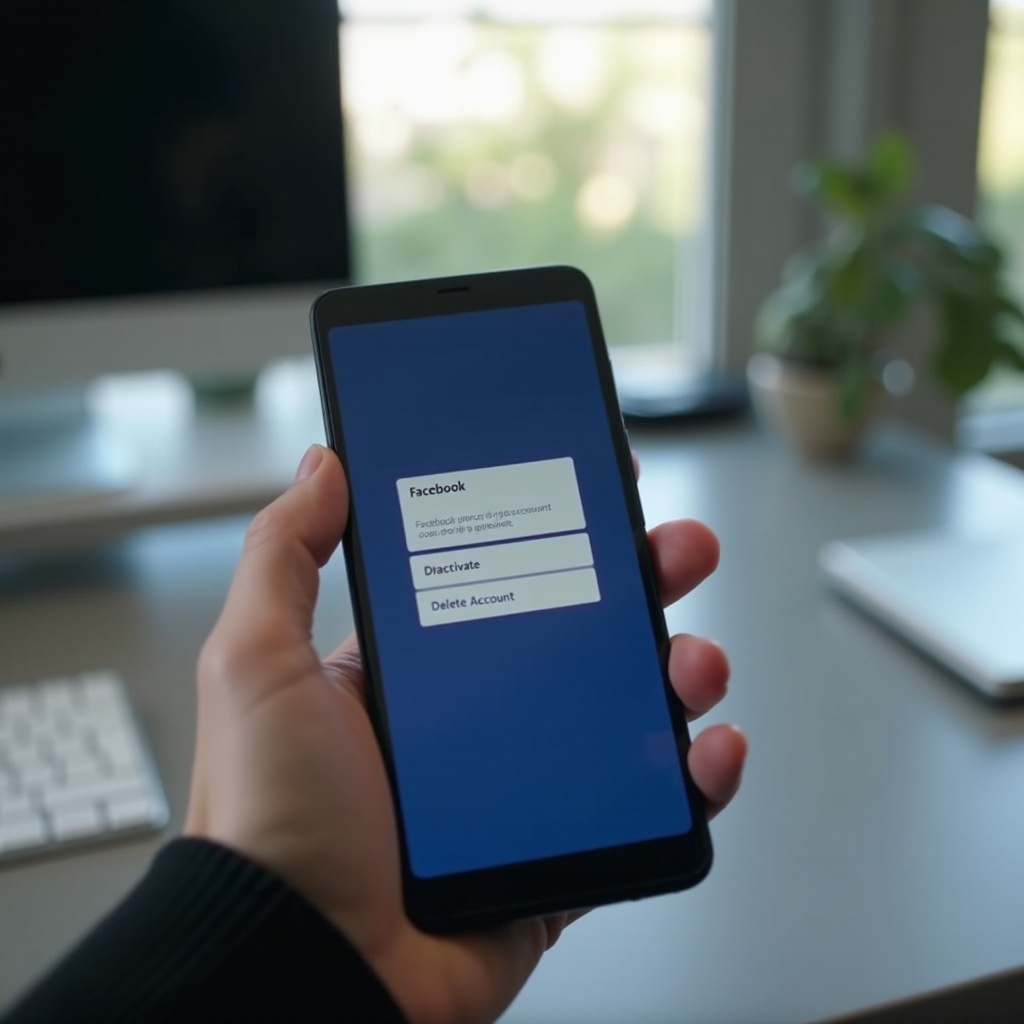
Removing the app does not delete your Facebook account. Your posts, photos, and messages remain on Facebook’s servers. You can still sign in from a browser or another device. Notifications stop on your phone, and the app no longer runs or syncs.
How to deactivate or delete your account safely
- Deactivate: Your profile becomes inactive but can be restored. On the web, go to Settings and privacy > Settings > Accounts Center > Personal details > Account ownership and control > Deactivation or deletion.
- Delete: This permanently removes your account after a waiting period. Download your data first via Settings > Your information > Download your information, then proceed to Account ownership and control.
If you still need occasional access, a browser shortcut offers a lighter way to check Facebook without reinstalling the full app.
Reinstalling or Using the Browser Instead
Reinstall from Play Store later
If you change your mind, open the Play Store, search Facebook, and tap Install. Sign in and re‑enable notifications. If you used ADB to remove it, restore with adb shell cmd package install-existing com.facebook.katana, then update via the Play Store.
Use Facebook in a browser with notifications
You can access m.facebook.com in Chrome, Edge, or Firefox. To reduce tracking, use an incognito tab or a dedicated browser profile. On Chrome:
1) Open m.facebook.com and sign in.
2) Tap the three dots > Add to Home screen for a quick shortcut.
3) If prompted, allow site notifications to get alerts without the app.
This setup cuts background use and keeps your phone lighter while preserving access.
Conclusion
You have several reliable ways to remove the Facebook app on Android. Most users can uninstall it from the launcher or the Play Store in seconds. If your phone came with Facebook preinstalled, disable the app and its services to stop background activity. For a clean, reversible removal without root, use ADB to uninstall for the current user, then restore later if needed. Do not forget to remove Messenger and Facebook Lite if you use them, and clean up leftover files, sign‑ins, and permissions. If anything blocks the uninstall, check for work profiles, device admin settings, or parental controls, then try again. Finish by reviewing your privacy options and choose whether to keep your account active, deactivate it for a break, or delete it for a permanent change.
Frequently Asked Questions
Why can’t I uninstall Facebook on my Android phone?
Some phones ship with Facebook as a system app. In that case, the Uninstall button does not appear. Open Settings > Apps and tap Disable to remove updates and turn the app off. On Samsung and some carrier models, also disable Facebook Services and Facebook App Manager or Installer. If you want a cleaner result, connect a computer and use ADB commands to uninstall for user 0. This removes the packages for your user while keeping the system intact, and you can restore them later.
If I delete the Facebook app, will I lose my account or data?
No. Uninstalling the app does not delete your Facebook account, posts, photos, or messages. Everything remains on Facebook servers. You can still log in from a browser or another device. If you plan to deactivate or delete your account, download your Facebook data first from the web. If you uninstall Messenger, your message history stays in the cloud and appears again when you sign back in.
Is it safe to remove Facebook with ADB, and can I undo it?
Yes, if you use the safe command that targets your user only. Use: adb shell pm uninstall –user 0 com.facebook.katana (and other packages as needed). This does not touch the system partition or require root. To undo, run: adb shell cmd package install-existing com.facebook.katana. Then update the app through the Play Store. Always double‑check the package name before running commands.