
Introduction
Want to use your PS5 controller to play games on your iPhone? You can. Recent versions of iOS support the PS5 DualSense controller, so you can enjoy console-style controls on a mobile screen. The process is quick once you know where to tap and which buttons to press.
This guide walks you through every step of how to connect PS5 remote to iPhone, from checking compatibility to fixing common problems. You will learn how to pair the controller with Bluetooth, use it in iPhone games, and set up PS Remote Play to stream your PS5 games straight to your phone.
We will also look at how to improve performance, reduce lag, and manage battery life. By the end, you will have a smooth, reliable setup that makes your PS5 controller and iPhone work together like a portable console. With the basics in mind, the first thing to confirm is whether your devices are actually compatible.
Can You Use a PS5 Controller on an iPhone in 2024?
Before you try to connect anything, you need to know whether your iPhone and PS5 controller can even work together. Modern versions of iOS include full support for the PS5 DualSense controller, but older versions do not.
Support depends on three main factors: the type of PS5 controller, the version of iOS on your iPhone, and the kind of games or apps you want to use. When these three match up, you can use your PS5 remote on iPhone with almost no setup beyond pairing.
PS5 DualSense Compatibility with iOS
Apple added native support for the PS5 DualSense controller to iOS in recent releases. If your iPhone runs iOS 14.5 or later, it should recognize the DualSense as a standard game controller.
Key points about compatibility:
- The standard PS5 DualSense wireless controller works with supported iOS versions.
- The DualSense Edge often works as well, but support may vary by app or game.
- Third-party PS5-style controllers may or may not work, depending on how they identify over Bluetooth.
You can also check controller support for specific games on the App Store page, which often lists ‘Game Controller Support’ or similar wording.
iPhone Models That Work Best with PS5 Controllers
Most recent iPhone models work well with a PS5 controller as long as they run a modern iOS version. For the best experience, especially with PS Remote Play, newer devices perform better.
You will usually get smoother performance on:
- iPhone 11 and newer for general controller use.
- iPhone 12 and newer for better Remote Play streaming and lower latency.
- iPhone models with 5G and strong Wi‑Fi for remote gaming away from home.
Older iPhones can still work, but you may notice more input lag, lower frame rates, or shorter battery life during long sessions.
What You Can Do After Connecting Your PS5 Remote to iPhone
Once you connect your PS5 remote to iPhone, you can:
- Play compatible App Store games with precise sticks and buttons instead of touch controls.
- Use Apple Arcade games that support controllers for a console-like feel.
- Stream your PS5 games to your iPhone with the PS Remote Play app.
- Use cloud gaming apps that support external controllers.
This setup is ideal for users who want a portable gaming experience without losing the feel of a full-size controller. Now that you know it is possible and what you can do with it, the next step is to confirm that both your iPhone and controller are up to date.
Requirements Before You Connect Your PS5 Remote to iPhone
A smooth connection starts with meeting a few basic requirements. If your software is out of date or your controller firmware is old, you might run into pairing issues, random disconnects, or strange behavior.
Checking everything now saves time later, especially when you start using Remote Play or fast-paced games where stability matters.
Minimum iOS Version Needed for PS5 Controller Support
To use a PS5 DualSense controller with your iPhone, you need:
- iOS 14.5 or later for basic DualSense support.
- A more recent iOS version for better stability and bug fixes.
To check your iOS version:
- Open Settings.
- Tap General.
- Tap About.
- Look at Software Version.
If you are on an older version, you should update before you try to connect the controller.
Checking and Updating Your iPhone Software
Keeping iOS updated improves controller support, reduces bugs, and often fixes Bluetooth issues that can prevent pairing or cause drops.
To update:
- Open Settings.
- Tap General.
- Tap Software Update.
- If an update is available, tap Download and Install.
Make sure your iPhone has enough battery or connect it to a charger. A stable Wi‑Fi connection helps the update download faster and reduces the chance of errors.
Updating Your PS5 DualSense Firmware on PS5
The DualSense controller also receives updates through your PS5. Old firmware can cause connection problems, input glitches, and poor battery performance.
To update the controller:
- Turn on your PS5 console.
- Connect your DualSense controller to the PS5 using a USB‑C cable.
- If an update is available, the PS5 usually prompts you to install it.
- Follow the on-screen instructions to complete the update.
Once both your iPhone and controller are up to date, you are ready to move on to pairing. The next step is to put your PS5 controller into Bluetooth pairing mode so your iPhone can detect it.
How to Put Your PS5 Remote into Bluetooth Pairing Mode
Your PS5 controller must be in Bluetooth pairing mode before your iPhone can see it. If you skip this step or press the wrong buttons, the controller will not appear in your Bluetooth list.
Understanding the button layout and light indicators makes this process simple and repeatable, especially when you switch between PS5 and iPhone often.
Locating the PS and Create Buttons on Your PS5 Controller
On the DualSense controller:
- The PS button is the PlayStation logo in the center, just below the touchpad.
- The Create button is a small button to the left of the touchpad.
You need to press both of these buttons together to start pairing mode, so get familiar with their position before you begin.
Using the Correct Button Combination for Pairing Mode
To put the PS5 controller into pairing mode:
- Make sure the controller is turned off. If it is on, hold the PS button until it turns off.
- Press and hold the PS button and the Create button at the same time.
- Keep holding them for a few seconds.
After a short moment, the light bar on the controller will start flashing quickly. This means the controller is in Bluetooth pairing mode and ready for your iPhone to find it.
Understanding the Light Bar and Pairing Indicators
The light bar tells you what state the controller is in:
- Rapid blinking white or blue: pairing mode.
- Solid light: connected to a device.
- Slow pulsing or off: not connected or low power.
If the light stops flashing before you connect, the controller may exit pairing mode. Repeat the button combination to re-enter pairing mode, then move quickly to your iPhone’s Bluetooth settings so the device appears while it is still discoverable.
Step-by-Step: How to Connect PS5 Remote to iPhone via Bluetooth
With the controller in pairing mode, you can now complete the connection from your iPhone. This is the core of learning how to connect PS5 remote to iPhone.
Follow these steps carefully so your iPhone recognizes the controller correctly and remembers it for future use, saving you time every time you want to play.
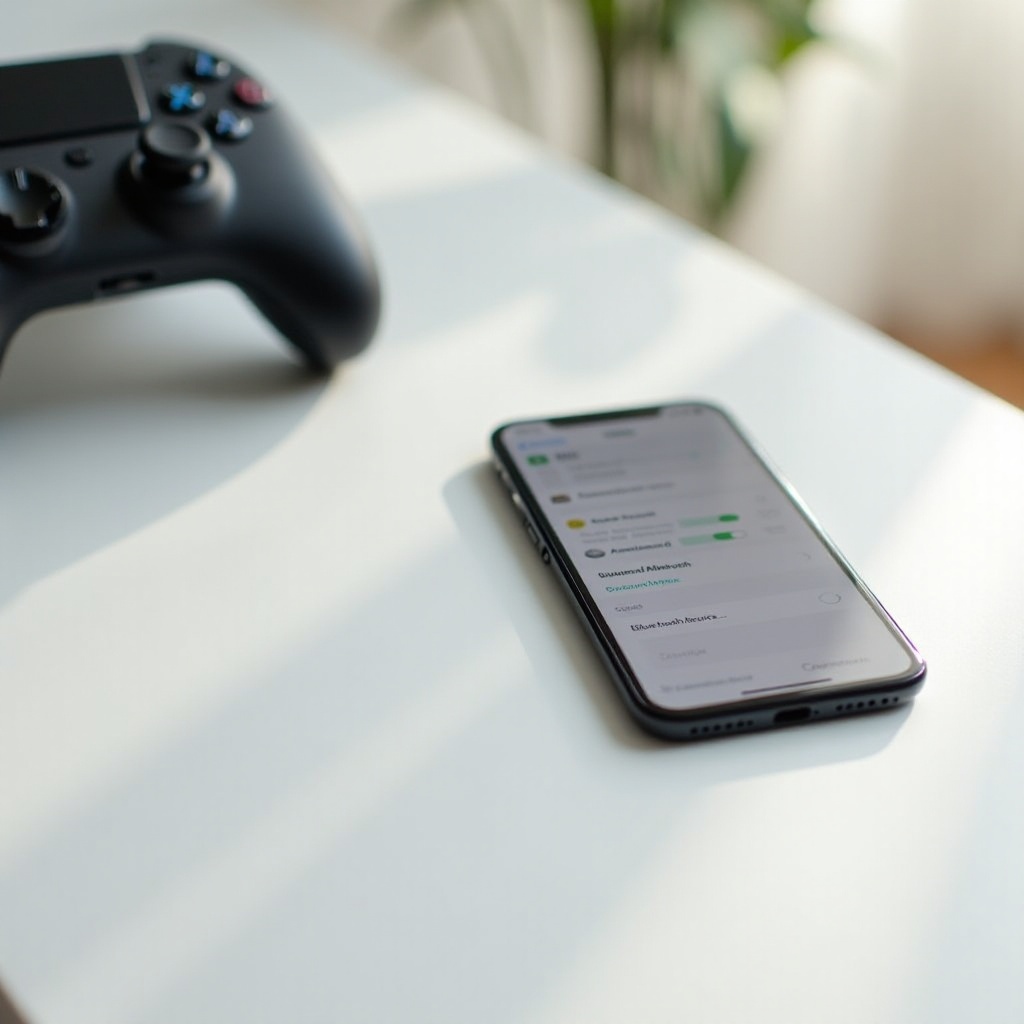
Opening Bluetooth Settings on Your iPhone
First, turn on Bluetooth and open the right menu:
- Open Settings on your iPhone.
- Tap Bluetooth.
- Make sure the toggle at the top is switched On.
Stay on this screen. You will see a list of devices under ‘My Devices’ and ‘Other Devices’. Your PS5 controller should appear in the ‘Other Devices’ section once it enters pairing mode.
Selecting ‘DualSense Wireless Controller’ from the Device List
With your controller still flashing:
- Look under Other Devices in the Bluetooth menu.
- Find DualSense Wireless Controller in the list.
- Tap DualSense Wireless Controller to start pairing.
If prompted with a confirmation dialog, tap Pair or OK. The pairing process usually takes only a few seconds if both devices are close and charged.
Confirming a Successful Connection on iPhone and Controller
You will know the connection worked when:
- The name DualSense Wireless Controller moves to the My Devices section and shows as Connected.
- The controller’s light bar stops blinking quickly and changes to a solid light.
At this point, your PS5 remote is connected to your iPhone. You can press buttons or move the sticks to test it in a game or app. The next step is to make sure your games actually use the controller input.
Testing and Using Your PS5 Controller on iPhone
A successful Bluetooth connection does not always mean your games are using the controller. Some apps ignore controllers, while others need a quick settings change.
Testing the controller and choosing compatible games helps you get the most out of your setup and avoid frustration when a game does not respond to inputs.
How to Check if the Controller Inputs Are Working
To do a quick test:
- Open a game that you know supports controllers, such as an Apple Arcade title.
- From the game’s main menu, press buttons on the DualSense.
- Look for movement in menus, selection changes, or character actions.
You can also check in some apps that recognize controllers by default. If nothing happens, check the game settings for a ‘Controller’ or ‘Gamepad’ option and make sure controller input is enabled.
Using the PS5 Controller in Apple Arcade Games
Apple Arcade is a great place to start because many of its games support controllers. Once your PS5 remote is connected to iPhone:
- Open the Arcade tab in the App Store.
- Look for controller icons or notes about ‘Controller Support’.
- Download a game like a racing, action, or platform title that benefits from a physical controller.
Most Arcade games detect the controller automatically. This gives you a smooth console-like experience, especially on newer iPhones with high-refresh displays.
Popular iPhone Games That Support PS5 Controllers
Many popular App Store games work with the PS5 controller, especially action, racing, and shooter titles. Look for:
- Notes in the game description about ‘Game controller supported’.
- Controller icons in screenshots or in-game settings menus.
Games with precise movement, aiming, or timing benefit the most. Once you find a few favorites, your PS5 remote and iPhone can handle most of your mobile gaming needs. If you want full console games, the next step is to set up PS Remote Play.
Setting Up PS Remote Play: Play PS5 Games on Your iPhone
PS Remote Play lets you stream your actual PS5 to your iPhone and control it with your DualSense. This turns your phone into a portable screen for your console, which is ideal for playing on the couch, in another room, or even away from home with a strong connection.
Before streaming, you must set up both the app on your iPhone and a few settings on the PS5 console so the devices can find each other.
Installing and Signing In to the PS Remote Play App
To install PS Remote Play:
- Open the App Store on your iPhone.
- Search for PS Remote Play.
- Tap Get and install the app.
- Open the app and sign in with your PlayStation Network (PSN) account. Use the same account you use on your PS5.
Make sure your iPhone is connected to Wi‑Fi for the first setup to avoid using too much mobile data.
Preparing Your PS5 Console for Remote Play on iPhone
On your PS5, you need to enable Remote Play and adjust rest mode settings:
- Go to Settings.
- Select System.
- Tap Remote Play.
- Turn on Enable Remote Play.
- Go back to Settings > System > Power Saving > Features Available in Rest Mode.
- Enable:
- Stay Connected to the Internet
- Enable Turning On PS5 from Network
This lets your PS5 wake up and stream to your iPhone, even when it is in Rest Mode.
Linking Your iPhone and PS5 for Streaming with the Controller
After your PS5 is ready:
- Open the PS Remote Play app on your iPhone.
- Make sure your PS5 is powered on or in Rest Mode.
- Tap PS5 in the app.
- The app will search for your console and connect automatically if you use the same PSN account.
- Once connected, you will see your PS5 home screen on your iPhone.
Your DualSense controller, already connected via Bluetooth to your iPhone, should now control the PS5 interface and your games. With streaming working, it is time to tune performance so your experience stays smooth and responsive.
Optimizing Performance When You Connect PS5 Remote to iPhone
A working connection is only part of the experience. To enjoy smooth, responsive gameplay, you need stable network performance and the right settings on both your console and your phone.
Optimizing your setup will reduce input delay, stuttering, and visual artifacts, especially when you use Remote Play over Wi‑Fi.
Best Network Settings for Smooth PS Remote Play
For the best streaming quality:
- Use 5 GHz Wi‑Fi on both your PS5 and your iPhone if possible.
- Place your PS5 and Wi‑Fi router in the same room or nearby to reduce interference.
- Avoid using crowded networks with many devices streaming at the same time.
On your router, enabling Quality of Service (QoS) features can help prioritize your PS5 and iPhone traffic. This can reduce lag if others in your home are watching videos or downloading large files while you play.
Reducing Input Lag and Improving Controller Response
To lower input lag:
- In the PS Remote Play app, open the settings or options menu.
- Lower the resolution or frame rate if your connection is unstable.
- Close other apps on your iPhone that use the network heavily.
- Stay close to your Wi‑Fi router when playing.
If you still notice lag, try switching your router channel or rebooting the router. Sometimes, simply changing your position in the room can reduce interference from walls or other devices.
Recommended Display and Audio Settings on iPhone
Visual and audio settings can also affect how smooth the experience feels:
- Reduce screen brightness slightly to save battery and reduce heat.
- Use wired or low-latency Bluetooth headphones if you care about audio sync.
- Turn off unnecessary notifications that may interrupt gameplay.
These adjustments make your mobile gaming smoother and more comfortable, especially during longer sessions. If things still do not work right, you may need to troubleshoot the connection itself.
Troubleshooting: PS5 Remote Won’t Connect to iPhone
Even when you follow all the steps, you may hit problems. The controller might not appear in your Bluetooth list, refuse to pair, or refuse to work inside games.
This section covers common issues and clear fixes so you can quickly get back to playing instead of fighting with your settings.
PS5 Controller Not Appearing in Bluetooth Devices
If your DualSense does not show up under ‘Other Devices’:
- Confirm the controller is in pairing mode (light bar flashing quickly).
- Move the controller closer to the iPhone.
- Turn Bluetooth off and on again in Settings > Bluetooth.
- Restart your iPhone.
- Press the small reset button on the back of the controller with a paperclip, then try pairing again.
After a reset, hold the PS and Create buttons again to re-enter pairing mode.
Controller Shows but Won’t Pair with iPhone
If you see DualSense Wireless Controller but pairing fails:
- Tap the ‘i’ icon next to the controller (if present) and choose Forget This Device.
- Turn Bluetooth off, wait a few seconds, then turn it back on.
- Put the controller back into pairing mode.
- Try tapping it again to connect.
Also make sure the controller battery is not almost empty. Low power can cause pairing to fail or drop.
Connected Controller Not Working Inside Games
When the controller shows ‘Connected’ but does not work:
- Check if the game supports controllers. Some titles only use touch controls.
- Open the game’s settings and look for Controller, Gamepad, or Input options.
- Close and reopen the game after connecting the controller.
- Try another app or Apple Arcade game known to support controllers.
If the controller works in one game but not another, the issue is likely with that specific app, not your iPhone or controller. Once your setup is stable, you may want to switch the controller back and forth between devices or tidy up your pairings.
How to Disconnect or Unpair PS5 Remote from iPhone
Sometimes you want to use the controller with your PS5 again or connect it to another device. You can either temporarily disconnect it or fully unpair it from your iPhone.
Choosing the right option depends on how often you switch devices and how clean you want your Bluetooth list to be.
Temporarily Disconnecting Without Forgetting the Device
To disconnect but keep the pairing:
- Open Settings > Bluetooth.
- Find DualSense Wireless Controller under My Devices.
- Tap it and choose Disconnect if available, or simply turn off Bluetooth.
You can reconnect later by turning Bluetooth back on and pressing any button on the controller.
Fully Removing the Controller from Bluetooth Settings
To completely unpair:
- Go to Settings > Bluetooth.
- Tap the ‘i’ icon next to DualSense Wireless Controller.
- Tap Forget This Device and confirm.
Next time, you will need to put the controller back into pairing mode and connect it as a new device.
Reconnecting the PS5 Controller Quickly Next Time
For fast reconnection:
- Make sure Bluetooth is on.
- Press the PS button on the DualSense.
- Wait a moment for the iPhone to reconnect automatically.
If it does not reconnect, check the Bluetooth menu and tap the controller under My Devices. This is much faster than pairing from scratch, especially if you switch between PS5 and iPhone often.
Tips, Accessories, and Best Practices for PS5 + iPhone Gaming
Once everything works, a few small changes can greatly improve comfort and battery life. Accessories like clips and grips also help you play longer without hand strain, and smart habits keep your devices ready whenever you want to game.
These tips help you get the most from connecting your PS5 remote to iPhone.
Best Controller Clips and Stands for iPhone
A solid mount makes your iPhone and controller feel like a handheld console. Look for:
- Adjustable controller clips that attach to the DualSense and hold the iPhone above it.
- Stands or phone holders for desks if you prefer playing with the controller separated from the phone.
- Mounts with rubber grips to avoid scratching your phone or controller.
Make sure any clip you buy lists PS5 DualSense compatibility and supports your iPhone’s size and weight.
Battery-Saving Tips for iPhone and DualSense
To extend battery life during gaming:
For iPhone:
- Lower screen brightness a bit.
- Close unused apps running in the background.
- Use Wi‑Fi instead of cellular when possible.
For the DualSense:
- Turn off the controller when not in use by holding the PS button.
- Charge the controller fully before long sessions.
- Avoid playing while both phone and controller are at very low battery.
These habits reduce mid-game interruptions and keep your setup ready when you want to play.
When to Use a Different Controller or Mobile Gamepad
The PS5 controller works great for most people, but there are times when another option might be better:
- If you only play on iPhone and never on PS5, a dedicated mobile controller with an integrated grip may feel more compact.
- If your DualSense has stick drift or connection issues, you might want a backup controller for reliability.
- If you travel often, a smaller Bluetooth controller might fit better in a bag or pocket.
Still, for PS5 owners, using the DualSense with iPhone gives you consistent controls across devices and keeps your gaming muscle memory the same.
Conclusion
Connecting your PS5 remote to iPhone is straightforward once you know the steps. You checked compatibility, updated your software, put the DualSense into pairing mode, and connected it over Bluetooth. You then tested it in games and set up PS Remote Play to stream full PS5 titles to your phone.
You also learned how to optimize network performance, fix common pairing problems, and manage disconnects. Finally, you saw how accessories and small settings tweaks can make mobile gaming more comfortable and efficient.
With this setup, your iPhone becomes a flexible gaming device that works seamlessly with your PS5 controller. You can enjoy console-quality controls anywhere, whether you are playing native iPhone games or streaming from your console at home or on the go.
Frequently Asked Questions
Why won’t my PS5 controller connect to my iPhone even though Bluetooth is on?
This usually happens when the controller is not in pairing mode or your iPhone has a minor Bluetooth glitch. Make sure the DualSense light bar flashes quickly by holding the PS and Create buttons together. If it still does not appear, toggle Bluetooth off and on, restart your iPhone, and try again. You can also reset the controller using the small button on the back before attempting to pair once more.
Can I connect more than one PS5 controller to my iPhone at the same time?
Most games on iPhone only support a single active controller, and iOS is mainly designed for one primary controller connection at a time. You may be able to pair more than one controller, but many apps will only use one for input. For local multiplayer, it is often easier and more comfortable to use a console or another device instead of sharing a single iPhone screen.
Does connecting a PS5 remote to iPhone affect battery life on either device?
Yes. Using Bluetooth and playing games will drain both your iPhone and your DualSense faster than normal use. The controller uses battery to maintain the wireless connection and power the vibration and lights. Your iPhone uses more power to handle input, graphics, and any network activity like Remote Play. To reduce the impact, lower screen brightness, close background apps, use Wi‑Fi when you can, and charge both devices regularly.