
Introduction
Your phone’s personal hotspot name is what everyone around you sees when they open their Wi‑Fi list. If you never changed it, it probably still shows your device model or a generic name, like ‘iPhone’ or ‘Galaxy.’ That can be confusing, dull, or even risky if it reveals too much about you.
Learning how to change your personal hotspot name gives you more control over privacy and makes it easier for friends, family, or coworkers to find and connect to the correct network. Whether you use an iPhone, Samsung Galaxy, Google Pixel, or another Android phone, the steps are simple once you know where to look in Settings.
In this guide, you will learn:
- What a personal hotspot name actually is
- Why the hotspot name matters for privacy and security
- How to change it on iPhone and major Android phones
- How to secure your hotspot with a better password
- What to do when the new name does not show up
Now let us start by looking at what a hotspot name is and why it plays a bigger role than you might think.
What Is a Personal Hotspot Name and Why It Matters
A personal hotspot name is the label your phone broadcasts when it shares mobile data as Wi‑Fi. Other devices see this name in their list of available networks. That simple label affects both convenience and security.
How your hotspot name appears on other devices
When you turn on your personal hotspot or mobile hotspot, your phone acts like a small Wi‑Fi router. Nearby devices see your hotspot name listed alongside all other Wi‑Fi networks.
For example:
- On iPhone, the hotspot name usually matches your iPhone’s device name.
- On many Android phones, the hotspot name is a separate setting called ‘Network name’ or ‘SSID.’
Someone looking for your hotspot will choose it from that list and enter the password. If several networks look similar, people may connect to the wrong one, or they may struggle to work out which network is yours.
Security and privacy reasons to change your hotspot name
The default hotspot name often includes details you might not want to broadcast, such as:
- Your phone model, like ‘John’s iPhone 15’
- Your real name or part of your name
- The brand and device type, like ‘Galaxy S24’
That can reveal personal details to anyone nearby, including:
- Your first or last name
- The exact phone model you use
- Clues about your tech habits or budget
Changing the hotspot name reduces this exposure. It also makes it harder for someone to guess your identity or target your device based on brand and model.
Common problems caused by default hotspot names
Leaving your hotspot name on a default or generic value can cause small but frustrating issues:
- Multiple ‘iPhone’ or ‘Galaxy’ networks in one room
- Friends or coworkers connecting to the wrong hotspot
- Confusion in public places, offices, or classrooms
- Difficulty remembering which network is yours when you switch devices
A custom, clear name solves these problems and sets you up for smoother sharing. Before you change the name, you should make sure your plan and settings actually support hotspot use. That way, you are not trying to fix a naming issue when the real problem is plan or network related.
Before You Start: Check Plan, Data, and Phone Settings
You can only use and rename a personal hotspot if your phone and mobile plan allow hotspot or tethering. A quick check now saves frustration later when you try to connect and nothing works.
Confirm your mobile plan includes hotspot/tethering
Not every data plan includes hotspot access. Some carriers:
- Block hotspot use on basic or limited plans
- Require an add‑on or higher‑tier plan for hotspot
- Throttle hotspot speeds after you reach a certain data limit
To check your plan:
- Open your carrier’s app and review your plan details.
- Look for terms like ‘hotspot,’ ‘mobile hotspot,’ or ‘tethering.’
- If you do not see hotspot listed, visit your carrier’s website or contact support to confirm your options.
If your plan does not include hotspot, turning it on may fail, appear greyed out, or not show in Settings at all.
Turn on mobile data and basic hotspot settings
To share your connection, your phone must have mobile data turned on and working.
Do this first:
- Check that you have signal and data by opening a browser or an app that uses the internet.
- Turn on ‘Mobile Data’ or ‘Cellular Data’ in Settings.
- Make sure Airplane Mode is off.
Once mobile data works, you can open your hotspot or tethering settings. You will see how to do this on iPhone and Android in the next sections.
Quick safety tips before sharing your hotspot
Before you start sharing your hotspot, keep these safety basics in mind:
- Always set a strong password; never leave your hotspot open.
- Only share your password with people you trust.
- Turn off the hotspot when you finish using it to avoid background usage.
- Change the password if you think someone is using your hotspot without permission.
Now that your plan and basic settings are in order, you are ready to change the personal hotspot name itself. We will start with iPhone, then move to Samsung and other Android devices so you can follow the steps that match your phone.
How to Change Personal Hotspot Name on iPhone (iOS 17 and Later)
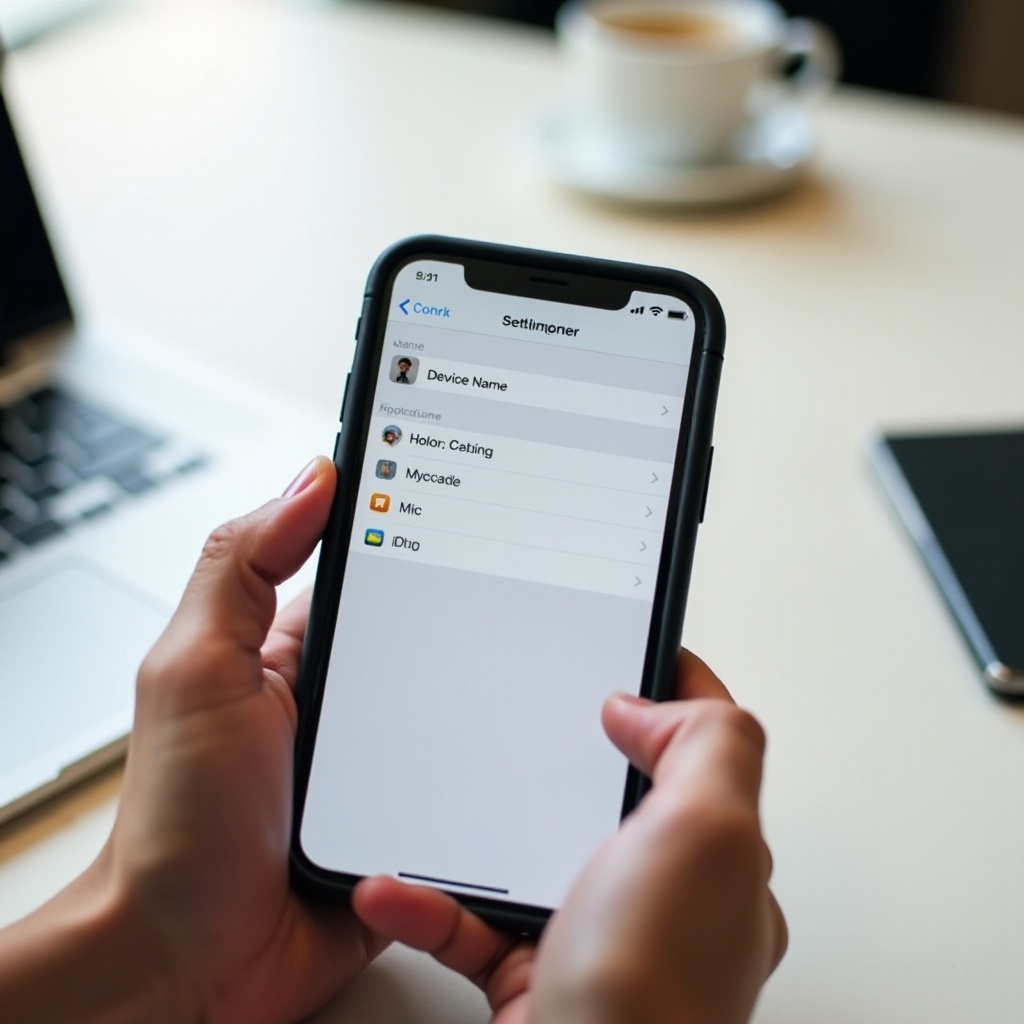
On iPhone, you will not see a direct ‘Hotspot Name’ field. Instead, your personal hotspot name matches your iPhone’s device name. When you change the device name, you also change the hotspot name.
Step 1 – Open Settings and find your device name
Follow these steps to find your current device name:
- Unlock your iPhone.
- Open the Settings app.
- Tap General.
- Tap About at the top of the screen.
At the top of the About page, you will see a field labeled Name. That is your iPhone’s device name and, at the same time, your hotspot name.
Step 2 – Change the iPhone name that controls the hotspot name
Now you can rename your device and update the hotspot name in one step:
- Tap the Name field.
- Delete the existing text.
- Enter your new name. For example, ‘Office Hotspot,’ ‘Sam WiFi,’ or another unique but non‑personal label.
- Tap Done on the keyboard.
Your iPhone now uses this new name:
- As the device name when it appears in Finder (on Mac) and other device lists
- As the personal hotspot name whenever you share your connection
Step 3 – Confirm your new hotspot name from another device
To make sure the change worked, test it from another device:
- Turn on your hotspot:
- Go to Settings > Personal Hotspot.
- Toggle Allow Others to Join to on.
- On another device (phone, laptop, tablet), open the Wi‑Fi list.
- Look for your new hotspot name in the list of available networks.
If you do not see the new name, turn Wi‑Fi off and back on, or wait a few seconds. Some devices cache old network names and need a moment to refresh.
How to change your iPhone hotspot password for extra security
While you are in hotspot settings, it is smart to change the password as well:
- On your iPhone, open Settings.
- Tap Personal Hotspot.
- Tap Wi‑Fi Password.
- Enter a new, strong password with:
- At least 12 characters
- A mix of letters, numbers, and symbols
- Tap Done.
Any device already connected will need the new password. This is a simple way to reset who can use your hotspot.
Once you understand how iPhone links the hotspot name to the device name, it becomes easy to manage. Android phones take a slightly different approach and usually let you change the hotspot name directly. We will cover Samsung Galaxy first, then move on to Google Pixel and other Android phones.
How to Change Personal Hotspot Name on Samsung Galaxy Phones (One UI 6 and Later)
Samsung phones let you change the hotspot name directly, without changing the device name. This gives you more flexibility and lets you keep your phone name and hotspot name separate.
Step 1 – Open Mobile Hotspot and Tethering settings
On most recent Samsung Galaxy phones, follow these steps:
- Open the Settings app.
- Tap Connections.
- Tap Mobile Hotspot and Tethering.
- Tap Mobile Hotspot.
You should now see options for the network name, password, and other hotspot settings.
Step 2 – Edit your Mobile Hotspot network name (SSID)
To change the hotspot name:
- In the Mobile Hotspot screen, tap Configure or Configure Mobile Hotspot (the wording can vary slightly).
- In the Network name or SSID field, delete the old name.
- Type your new hotspot name.
- Choose a name that is:
- Easy for you and your guests to identify
- Not personally revealing
- Different from nearby networks
Avoid including your full name, address, phone number, or other private details in the hotspot name.
Step 3 – Update the hotspot password and save changes
On the same configuration screen, update your password and security:
- Find the Password field.
- Enter a strong new password, using a mix of letters, numbers, and symbols.
- Make sure Security is set to WPA2-Personal or WPA3 if available.
- Tap Save.
The next time you or someone else connects:
- They will see your new hotspot name.
- They must enter the new password.
Optional: Use Auto Hotspot and device limits for better control
Samsung also offers advanced options that help control access:
- Auto Hotspot: Automatically share your hotspot with approved Samsung devices logged into the same Samsung account.
- Maximum connections: Limit the number of devices that can connect at once to protect speed and data.
- Timeout settings: Turn the hotspot off when no device is connected for a set period.
These tools give you more control over who uses your hotspot and help prevent unknown devices from connecting.
If you use a Google Pixel or another Android phone, the menus look a bit different, but the logic is similar. You still look for hotspot or tethering settings and then edit the network name and password.
How to Change Personal Hotspot Name on Google Pixel and Other Android Phones (Android 14 and Later)
On most modern Android phones, you can change the hotspot name in the tethering or hotspot section of Settings. The exact labels may vary by brand, but the steps follow the same pattern.
Step 1 – Open Network & Internet or Connections settings
Start in the main Settings app:
- Open Settings.
- Tap Network & Internet, Connections, or a similar option (names differ among brands).
- Look for Hotspot & tethering, Portable hotspot, or Mobile hotspot.
On Google Pixel, for example:
- Go to Settings > Network & Internet > Hotspot & tethering > Wi‑Fi hotspot.
Step 2 – Find Hotspot & Tethering and edit the hotspot name
Once you reach the hotspot settings:
- Tap Wi‑Fi hotspot or Portable hotspot.
- Tap Hotspot name, Network name, or SSID.
- Delete the current name and enter your new hotspot name.
- Tap OK or Save.
Your phone will now broadcast this new name whenever the hotspot is turned on. Any device that wants to connect must look for this updated network name.
Step 3 – Set a strong hotspot password and security type
On the same screen, you should see security and password options:
- Set Security to WPA2-Personal or WPA3-Personal if offered.
- Tap Hotspot password or Password.
- Enter a new, strong password that you do not use for any other account.
- Tap Save.
Avoid simple passwords like ‘12345678’ or your name plus birth year. These are easy to guess and put your data at risk.
Differences you might see between Android brands
Depending on your phone brand or custom Android skin, you might notice small differences:
- Some phones place hotspot under Connections, others under Network & Internet.
- Some use the term Portable hotspot instead of Wi‑Fi hotspot.
- Certain phones offer extra features like QR codes to share the hotspot network quickly.
If you cannot find the settings, use the search bar inside the Settings app. Type ‘hotspot’ and tap the result that mentions Wi‑Fi or tethering.
Now that you know how to change the hotspot name on the main platforms, you can focus on choosing a smart, secure name and password. This helps protect your privacy and keeps your hotspot easy to recognize.
Best Practices for Naming and Securing Your Personal Hotspot
A custom name is not just about style. It is a chance to improve privacy, reduce confusion, and make your hotspot easier for the right people to find.
How to choose a unique but non‑identifying hotspot name
When you pick a name, keep these points in mind:
- Make it easy for your guests to recognize quickly.
- Avoid using your full name, address, company name, or phone number.
- Pick something different from nearby networks, so it stands out in the list.
Good examples:
- ‘BlueRoomHotspot’
- ‘LaptopOnlyWiFi’
- ‘GuestDataHub’
Weak or risky examples:
- ‘JohnSmith‑iPhone’
- ‘Apartment12B‑WiFi’
- ‘BankManagerHotspot’
With a little thought, you can choose a name that is memorable for you but meaningless to strangers.
Strong password rules for hotspot security
Your hotspot password protects your data and your phone’s connection. Follow these simple rules:
- Use at least 12 characters whenever possible.
- Mix upper and lower case letters, numbers, and symbols.
- Avoid common words, names, or simple patterns.
- Do not reuse a password from your email, banking, or social accounts.
You can create a passphrase like: ‘Tree7!River9?Cloud’ – long, mixed, and still memorable.
When and how often to change your hotspot name and password
Consider changing your hotspot name or password when:
- You have shared it with many people, such as at work or school.
- You notice unknown devices connecting to your hotspot.
- You change phones, SIM cards, or data plans.
- You use your hotspot in crowded or public spaces often.
You do not need to change them every day, but updating every few months or after heavy sharing keeps your hotspot safer and more under your control.
Even with a good name and strong password, you may run into issues where the new name does not show or devices cannot connect. The next section helps you handle these common problems so your hotspot works the way you expect.
Troubleshooting: Hotspot Name Not Updating or Devices Not Connecting
Sometimes, after you change your personal hotspot name, other devices still show the old name or fail to connect. A few quick checks usually solve this.
New hotspot name not visible on laptops or other phones
If the new name does not appear on another device:
- Turn your hotspot off and back on.
- On the device trying to connect, turn Wi‑Fi off, wait a few seconds, then turn it back on.
- Move closer to the phone to get a stronger signal.
If the problem continues:
- Restart both the hotspot phone and the device trying to connect.
- On Android, toggle Airplane Mode on and off to refresh connections.
Devices still trying to connect to the old hotspot name
Some devices remember old networks and try to use them, even when you create a new name.
To fix this:
- On the device that used the old hotspot, open Wi‑Fi settings.
- Find the old network name in the saved networks list.
- Tap it and choose Forget or Remove.
- Now select your new hotspot name and connect with the new password.
This ensures the device does not keep attempting to join a network that no longer exists.
When to restart, forget the network, or reset network settings
You can follow this order of actions, from light to more serious:
- Restart phones and laptops if you see odd behavior or unstable connections.
- Forget and reconnect to the network if the device claims the password is wrong or keeps failing to join.
- Reset network settings on your hotspot phone only if nothing else works.
Resetting network settings will erase Wi‑Fi networks, Bluetooth pairings, and VPN settings, so treat it as a last resort.
If, after all this, the hotspot option is missing or greyed out, contact your carrier. They may need to enable hotspot service on your plan or help you troubleshoot a network issue.
Conclusion
Changing your personal hotspot name is a simple step that gives you more control over how your phone appears to others and how secure your shared connection is. On iPhone, you adjust the device name to update the hotspot name. On Samsung, Pixel, and other Android phones, you edit the hotspot’s network name (SSID) directly in Settings.
Once you understand where to find the hotspot settings, you can:
- Pick a clear, unique name that does not reveal private details.
- Set a strong password and the right security mode.
- Fix common issues if devices cannot see or join your new hotspot.
Take a minute now to rename and secure your hotspot. The next time you share your connection with someone, you will see the difference in clarity, safety, and ease of use.
Frequently Asked Questions
Why can’t I see the option to change my personal hotspot name on my phone?
On iPhone, there is no direct ‘hotspot name’ option. You must change the device name under Settings > General > About > Name, and that becomes your hotspot name. On many Android phones, you can change the hotspot name under Settings > Network & Internet (or Connections) > Hotspot & tethering. If hotspot options are missing or greyed out, your carrier may have disabled hotspot on your plan, or you may need a software update or further support from the carrier.
Will changing my hotspot name disconnect devices that are already connected?
Yes. When you change your hotspot name or password, connected devices will lose their connection because they are linked to the old network name and password. They must select the new network name from the Wi-Fi list and enter the new password. If a device still shows the old network, ask the user to forget that network in Wi-Fi settings and then reconnect using the updated details.
Is it safe to use my real name or phone model in my hotspot name?
It is better not to. Using your real name, apartment number, or exact phone model in your hotspot name reveals private information to anyone nearby. That can make you easier to identify or target, and it may also signal the type of device you own. Instead, choose a neutral, unique name that only your guests recognize, such as ‘GreenDeskHotspot’ or ‘StudioGuestWiFi,’ so your hotspot stays easy to find without exposing personal details.