
Introduction
Searches for ‘what does bubble mean in messages’ usually start after someone notices a blue bubble turning green, a new icon appearing, or a chat looking different on a new phone. Message bubbles seem simple, but they hide a lot of technical and social meaning.
Every modern messaging app uses bubbles to separate messages, show who said what, and hint at status like sending, delivered, or read. On top of that, iPhone, Android, and apps like WhatsApp each add their own twist with colors, symbols, and animations.
This guide explains what ‘bubble’ means in messages on both iPhone and Android. You will see what the colors stand for, how different apps use bubbles, and what they reveal about privacy and technology. By the end, you will know how to read bubble types with confidence, fix common issues, and avoid overthinking what a color or icon might mean.
To make sense of all that, it helps to start with the basics: what a message bubble is and why so many apps rely on this simple shape.
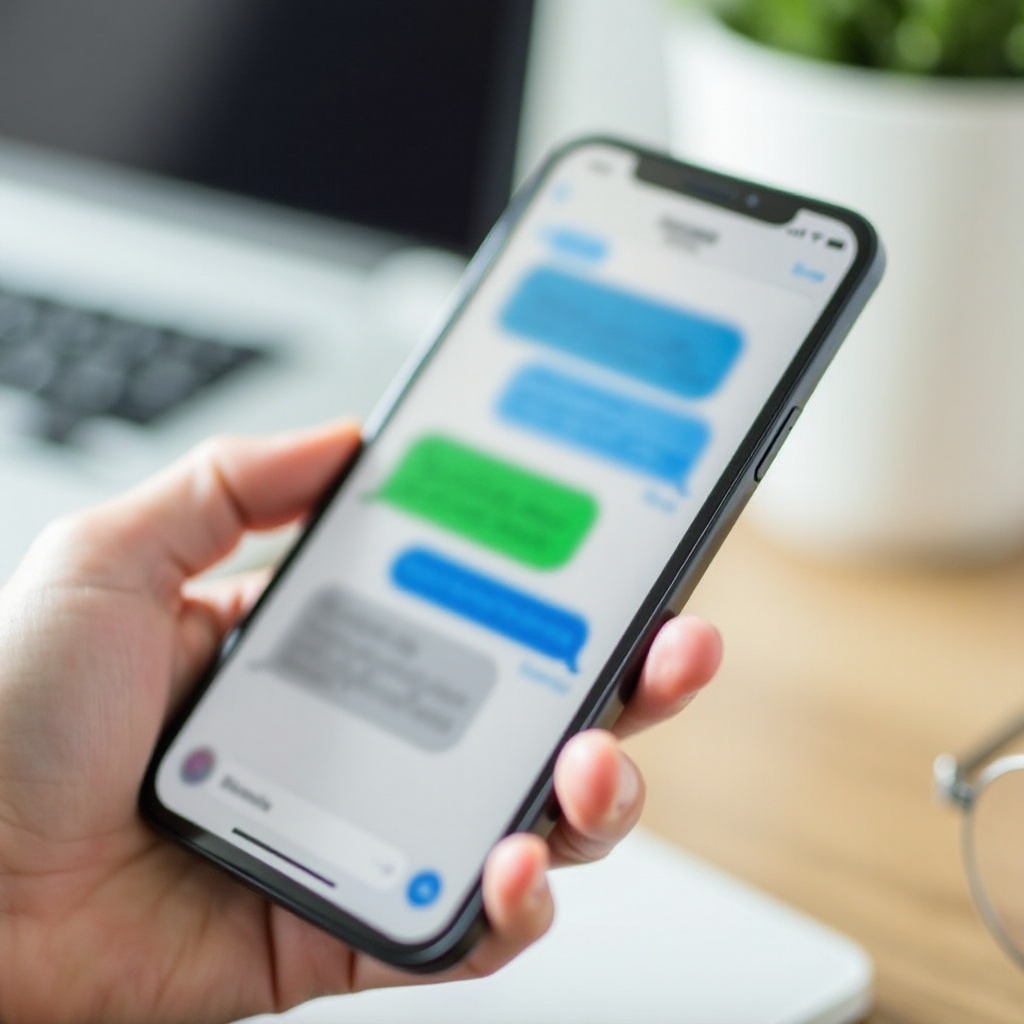
What Is a Message Bubble?
A message bubble is the rounded box that wraps around each piece of text, photo, or media in a chat. It acts like a visual container that tells your eyes where one message ends and the next begins.
Most messaging apps use bubbles to:
- Separate your messages from other people's messages
- Show direction (sent vs received)
- Provide a background color for contrast and readability
- Hold extra details like time stamps, status, and reactions
The bubble shape makes it easy to follow the flow of a conversation. Your messages usually appear aligned on one side (often right) and other people's on the opposite side (often left). Colors and shading reinforce that difference.
Beyond basic layout, bubbles also carry meaning:
- Color can show message type, such as iMessage vs SMS
- Icons inside or next to bubbles can show sending, delivered, read, or failed
- Subtle animations indicate typing, voice recording, or reacting
Once you see bubbles as visual labels for message type and status, it becomes easier to decode the differences across devices. The most famous case is on iPhone, where blue and green bubbles have become a topic of constant discussion.
What Does ‘Bubble’ Mean in iPhone Messages?
On iPhone, the word ‘bubble’ often refers to the blue and green message bubbles in the Messages app. This simple color difference tells you whether the message uses Apple's iMessage service or regular carrier text (SMS/MMS). Many people start searching ‘what does bubble mean in messages’ right after switching phones or texting someone with a different device.
Apple designed Messages so that:
- iMessages appear in blue bubbles
- SMS/MMS texts appear in green bubbles
Those colors affect features, security, and sometimes even how people react to your texts. Let's break down the main iPhone bubble types.
Blue Bubbles: What They Mean in iMessage
Blue bubbles on iPhone mean the message sent using iMessage. This is Apple's own messaging service that runs over Wi‑Fi or mobile data instead of traditional SMS networks.
Blue bubbles usually mean:
- You and the other person both use Apple devices with iMessage turned on
- Messages can support advanced features: reactions, effects, high‑quality photos and videos, typing indicators, and more
- Messages may be end‑to‑end encrypted between Apple devices
Because blue bubbles use data, they do not count as SMS text messages on your carrier plan. If you are on Wi‑Fi, you can send iMessages without using mobile data.
Green Bubbles: SMS, MMS, and Non‑Apple Phones
Green bubbles in the Messages app mean the message went as SMS or MMS through your carrier, not through iMessage.
Green bubbles usually mean:
- The other person uses a non‑Apple phone, often Android
- iMessage is turned off for that contact or for your own device
- The message uses plain SMS/MMS, with fewer features
With green bubbles:
- Messages may not show ‘Delivered’ or ‘Read’ in the same way
- Photos and videos may be compressed more
- Group chats may lose advanced features and reactions
That green bubble color has taken on social meaning too, especially in group chats where some people use iPhone and others use Android.
Why Your Bubble Color Sometimes Changes
Sometimes a chat that was blue turns green, or a single message shows as green in a mostly blue thread. Common reasons include:
- iMessage temporarily unavailable due to weak data or Wi‑Fi
- iMessage toggled off in Settings
- The other person switched phones or changed their Apple ID
- A specific message failed as iMessage and resent as SMS
Apple tries to send as iMessage first. If that fails and you allow SMS fallback, your iPhone can resend as a green bubble. This shift from blue to green often confuses users and leads them to search what bubble colors mean.
Once you understand how iPhone handles bubbles, it becomes easier to compare that with Android, where RCS and SMS create their own bubble story.
Message Bubbles on Android Phones
On Android, there is no single universal bubble color rule like Apple's blue vs green, but the idea is similar. Google Messages, Samsung Messages, and other apps use colors and styles to show message direction and type, especially when RCS (Rich Communication Services) is involved.
The big split on Android is between:
- RCS chat (modern, data‑based texting with more features)
- Regular SMS/MMS (traditional carrier text)
These can look slightly different depending on the app and phone brand, but the logic behind the bubbles stays fairly consistent.
RCS Chat Bubbles vs Regular SMS Bubbles
Google Messages treats RCS chat much like iMessage does on iPhone. With RCS on, you can get:
- Typing indicators
- Read receipts
- Higher quality photos and videos
- Better group chat experiences
RCS chats usually appear with:
- A specific color or label indicating ‘Chat’ or ‘RCS’
- Extra status text like ‘Sent’, ‘Delivered’, or ‘Read’
When RCS is off or not supported, messages fall back to SMS/MMS. Visually, the bubbles may look similar, but you lose those extra indicators and features. Some Android phones show a small hint or label when you switch between chat and SMS.
How Google Messages, Samsung, and Pixel Show Bubbles
Google Messages tends to use:
- One color for your messages
- A different, usually lighter, color for the other person
You can often customize chat themes, so bubble colors can change per conversation. On Pixel phones, the design follows Google's Material You style and can adapt to your wallpaper.
Samsung Messages and other apps may:
- Offer custom color themes
- Use gradient or rounded bubble styles
- Place delivered and read indicators under or inside the bubble
Even though exact colors differ, the logic stays the same: one bubble color for you, one for other people, and style variations to show status.
Read Receipts, Typing Indicators, and Bubble Styles
On Android, RCS often adds:
- Small text under bubbles such as ‘Sent’, ‘Delivered’, or ‘Read’
- Dot animations to show when someone is typing
- Subtle animations when sending or receiving messages
If you turn off RCS chat features, or your contact does not support them, these extra signals disappear. That is why some Android users see bubbles behave differently with different contacts and wonder what those changes mean.
With the basics of iPhone and Android covered, it is time to look at how third‑party apps handle bubbles, since many people text across several apps every day.
Bubble Colors Across Popular Messaging Apps
Beyond the default Messages apps, platforms like WhatsApp, Facebook Messenger, Instagram, Snapchat, Telegram, and Signal also rely on bubbles to show message direction and status. When you ask ‘what does bubble mean in messages’, part of the answer depends on which app you use.
WhatsApp Message Bubbles
WhatsApp uses a simple, clear bubble system:
- Your messages usually appear in one color (often green) on the right
- Incoming messages appear in a different color (often white or gray) on the left
WhatsApp also adds status indicators under bubbles:
- One gray check: message sent
- Two gray checks: message delivered
- Two blue checks: message read, if read receipts are on
These marks sit near the bubble and tell you how far the message has gone.
Facebook Messenger, Instagram DMs, and Snapchat
Facebook Messenger:
- Uses blue and gray bubbles to separate your messages from others
- Shows a small profile picture icon near bubbles when someone has seen the message
- Adds a small typing bubble animation with dots when the other person types
Instagram DMs:
- Use bubbles similar to Messenger but with Instagram's styling
- Show ‘Seen’ under the last bubble when the recipient opens the chat
Snapchat:
- Uses chat bubbles that blend with the app's bright design
- Adds icons to show delivered, opened, and screenshot actions
- Mixes chat bubbles with Snap photo and video icons
Each app uses bubble colors and tiny icons to help you read message status at a glance.
Telegram, Signal, and Other Privacy‑Focused Apps
Telegram and Signal also rely on bubbles but focus more on privacy cues:
- Telegram uses bubble colors to separate sender and receiver, with check marks for sent and delivered, and optional read indicators
- Signal uses bubbles plus lock icons and labels such as ‘Secure session’ to highlight encryption
When you pick a privacy‑focused app, bubble design still matters, but you also see extra signals around security and device trust.
All these bubble systems shape how people feel about certain colors and platforms. That leads into the social side of message bubbles, especially the well‑known green vs blue debate.
The Social Meaning of Bubble Colors in 2024
Message bubble colors started as technical signals but quickly picked up social meaning. On iPhone, blue vs green has become a cultural talking point, especially in the U.S. As more people text across platforms in 2024, bubble colors can affect how group chats feel and how some users judge devices.
The ‘Green Bubble vs Blue Bubble’ Debate
For many iPhone users:
- Blue bubbles mean ‘inside’ the Apple ecosystem
- Green bubbles signal ‘outside’, usually Android
Some people see blue bubbles as better because they bring more features, smoother group chats, and higher‑quality media. This has led to:
- Jokes and memes about dating someone with a green bubble
- Group chats where Android users feel left out of certain features
- Pressure on some users to stick with iPhone for social reasons
This debate is social, not technical, but it helps explain why so many searches ask what bubble color means.
Group Chats, Dating, and Cross‑Platform Texting
In mixed group chats:
- Green bubbles can limit reactions, typing indicators, and message effects
- Certain features may break or behave differently, especially on iPhone
In dating and friend circles, some people:
- Prefer blue bubble chats for perceived reliability
- Judge green bubbles as less cool, even though phones can be equally powerful
Cross‑platform messaging apps like WhatsApp, Telegram, or Signal can reduce this divide by giving everyone the same bubble style regardless of phone brand.
How Much Bubble Color Really Matters
Despite all the noise, bubble color mostly tells you:
- Which technology or protocol the message used
- Which features might work in that chat
Bubble color does not:
- Prove someone's personality, income, or real social status
- Guarantee better connection quality every time
Understanding the tech behind bubbles helps you see the social debate more clearly. From there, it is natural to ask how much control you have over the look of your own bubbles.
Customizing Your Message Bubbles on Your Phone
Many users want to change bubble colors or styles to match their taste, improve readability, or reduce eye strain. Your options depend heavily on whether you use iPhone, Android, or a specific messaging app.
What You Can and Cannot Change on iPhone
On iPhone, Apple keeps core bubble behavior tied to message type:
- You cannot change blue vs green bubble logic in the Messages app
- You cannot force green bubbles to be blue or blue bubbles to be green
However, you can:
- Switch to dark mode, which changes the background around bubbles
- Adjust text size and bold text in Settings for readability
- Use third‑party messaging apps with their own bubble themes
Apple keeps the core bubble colors fixed because they reflect protocol (iMessage vs SMS/MMS), not just visual style.
Bubble Color Options on Android Phones
Android usually offers more flexibility:
- Google Messages lets you apply themes or change chat colors per conversation
- Samsung and other brands often include full theme engines that affect bubble colors
- You can often choose wallpaper or background images that alter overall chat look
Some apps on Android also let you pick custom bubble colors or gradients. However, these changes are mostly cosmetic; they do not change whether a message uses RCS or SMS.
Accessibility, Dark Mode, and Contrast Tweaks
For comfort and accessibility, you can:
- Turn on dark mode to reduce glare and eye strain
- Increase font size so text inside bubbles is easier to read
- Use high‑contrast or accessibility modes if you struggle to distinguish colors
These options help you read bubbles more clearly, regardless of what color scheme the app uses by default.
Once you know how bubbles look and feel, the next question is what they reveal about your privacy and message security.
Privacy, Security, and What Bubble Type Reveals
Bubble types can hint at how your messages travel and what level of protection they get. They do not show every detail, but they do tell you whether a message uses modern encrypted channels or older, less secure ones.
SMS vs RCS vs Encrypted Messages
Broadly, you can compare three categories:
- SMS/MMS (often green bubbles on iPhone, basic bubbles on Android)
- Use your carrier's network
- Usually not end‑to‑end encrypted
- Expose more metadata to carriers
- RCS chat (modern Android texting)
- Uses data and supports richer features
- Security depends on implementation and app
- Google Messages now supports end‑to‑end encryption for many RCS chats
- End‑to‑end encrypted messaging apps (such as iMessage, WhatsApp, Signal, Telegram secret chats)
- Lock message content so only sender and receiver can read it
- Often marked by specific icons, banners, or settings
Bubble color alone does not always confirm encryption, but it often lines up with the underlying tech.
What Others Can Infer from Your Bubble Color
From your bubble type, others can sometimes infer:
- Your device ecosystem, such as Apple vs Android
- Whether you have access to certain features like reactions, typing indicators, and high‑quality media
- Whether the chat likely uses SMS, RCS, or an app‑based service
However, they cannot directly see:
- Your exact level of encryption just from bubble color
- Your network details or specific carrier plan
Still, the green vs blue split on iPhone and chat vs SMS labels on Android give rough hints about how messages travel.
Best Practices to Keep Your Chats Private
To protect your privacy, consider these steps:
- Use end‑to‑end encrypted apps for sensitive conversations.
- Turn on screen lock and notification privacy to hide message previews.
- Review app settings for read receipts and typing indicators if you want less exposure.
- Avoid public Wi‑Fi for private chats or use a trusted VPN.
When you combine smart app choices with solid device settings, bubble type becomes just one small piece of your privacy picture.
Even with this knowledge, users still run into practical bubble issues. The next section covers common questions and simple fixes.
Common Bubble‑Related Questions and Troubleshooting
Most ‘what does bubble mean in messages’ questions appear when bubbles change color, status text disappears, or features act inconsistently between contacts. Understanding the usual causes makes troubleshooting easier and helps you keep your chats working smoothly.
Why Did My Blue Bubble Turn Green?
On iPhone, a blue bubble turning green usually means your phone sent that message as SMS/MMS instead of iMessage.
Typical reasons include:
- iMessage temporarily offline due to weak internet
- iMessage disabled in Settings > Messages
- The other person's iMessage turned off or they switched to a non‑Apple phone
- A specific iMessage failed and resent automatically as SMS
To check and fix this, make sure you have:
- Stable Wi‑Fi or mobile data
- iMessage turned on and activated
- Your correct Apple ID and phone number under ‘Send & Receive’
If the contact now uses Android, messages will stay green no matter what you change on your side.
Why Don't I See ‘Delivered’ or ‘Read’ on Some Bubbles?
Missing ‘Delivered’ or ‘Read’ indicators can happen for several reasons:
- The message used SMS/MMS, which does not always support those statuses
- The recipient turned off read receipts or has RCS features disabled
- You turned off read receipts in your own settings
- Network issues delayed or blocked status updates
On iPhone:
- Read receipts depend on both sides allowing them in Settings
- SMS messages may only show ‘Sent’ or no status at all
On Android with Google Messages:
- RCS must be enabled on both phones and supported by carriers
- Read receipts and typing indicators are optional and can be turned off
If your friend sees different statuses, that is normal. Each device and app can display status in its own way.
Fixing Bubble Issues on iPhone and Android
If your bubbles behave strangely, try these steps.
On iPhone:
- Check Settings > Messages and confirm iMessage is on.
- Sign out and back into your Apple ID if activation fails.
- Toggle ‘Send as SMS’ on if you want fallback when iMessage fails.
- Restart the phone and test with another contact.
On Android with Google Messages:
- Open Messages > Settings > RCS chat features and confirm they are on.
- Ensure data or Wi‑Fi is active and stable.
- Update Google Messages from the Play Store.
- Disable and re‑enable chat features if they get stuck.
If issues continue, check your carrier support page or switch to a third‑party messaging app while you troubleshoot.
Conclusion
Message bubbles do more than decorate your chat screen. They encode valuable information about who you are messaging, which technology the message uses, and what features are available in that conversation. On iPhone, the blue vs green split signals iMessage vs SMS/MMS. On Android, bubble styles and labels separate RCS chats from regular texts. Across apps like WhatsApp, Messenger, Instagram, Signal, and others, bubbles also show status, direction, and sometimes security.
When you know what bubbles mean in messages, color changes and icon shifts feel less mysterious and more logical. You can quickly spot when a message dropped to SMS, when features rely on RCS, or when a chat runs on fully encrypted services. You can also adjust your settings and app choices to match your needs for style, features, and privacy.
The next time you notice a bubble change color or a status line disappear, you will know how to read it and how to fix basic issues if needed. That understanding makes texting smoother, clearer, and a lot less confusing.
Frequently Asked Questions
Does bubble color mean my messages are encrypted?
Not always. On iPhone, blue iMessage bubbles usually mean messages are end-to-end encrypted between Apple devices, while green SMS/MMS bubbles typically are not. On Android, RCS chats in Google Messages can be encrypted, but that depends on the app and settings, not just color. In third-party apps like WhatsApp or Signal, look for lock icons or security labels rather than relying strictly on bubble color.
Can I force all my messages to be blue bubbles or RCS chats?
You cannot force all messages to use iMessage or RCS, because both sides must support the same system. For blue iMessage bubbles, you and your contact both need Apple devices with iMessage on and internet access. For RCS chats on Android, both phones, the app, and carriers must support RCS and have chat features enabled. You can prefer those systems and enable them, but fallbacks to SMS/MMS still happen when conditions fail.
Do bubble colors look the same for the other person in the chat?
Often they do not. Each person sees bubbles based on their own app and platform. On iPhone, you see your messages in blue or green, but an Android user on the other side may see all texts in a single color scheme inside their SMS or RCS app. In cross-app chats like Instagram DMs or WhatsApp, both sides usually see similar bubble styles, but exact shades and layout can still differ across devices, themes, and display settings.