
Introduction
When the McDonald’s app slows down, fails to load deals, or gets stuck on a spinner, cached data often sits at the center of the problem. You do not need to reset your entire iPhone. iOS gives you several reliable paths to refresh the app and clear temporary files, even if the app does not show a traditional clear cache button. The challenge is choosing the right path so you fix the issue quickly and do not lose rewards or payment info.
This guide explains how to clear cache on McDonald’s app iPhone using proven methods. You will learn fast fixes you can try in seconds, then move through step by step procedures that solve stubborn glitches. We will also cover how web browser data can affect in-app logins and deals, plus what to do if issues persist. Follow the order from lightest to strongest fix, and you will restore a smooth ordering experience without guesswork.
Before diving into deeper steps, start with the fastest actions that often clear temporary issues immediately.
Quick Answer: How to Clear Cache on McDonald’s App iPhone in Seconds
If you want a rapid refresh, start here. These actions take less than a minute and often resolve slow loading or missing deals.
1) Force-quit and relaunch
– On iPhones with Face ID: swipe up from the bottom and pause to open the app switcher. Find McDonald’s and swipe it up to close. Reopen the app.
– On iPhones with a Home button: double-press Home, find McDonald’s, swipe up to close, then reopen.
2) Sign out and sign back in
– Open the McDonald’s app and go to Profile or Account.
– Tap Sign Out, then force-quit the app.
– Reopen McDonald’s and sign in with the same method you used before, such as email and password, Sign in with Apple, or Google.
– This refreshes session data and clears minor token conflicts.
3) Offload or delete and reinstall
– Go to Settings > General > iPhone Storage > McDonald’s.
– Tap Offload App to remove the app but keep Documents and Data, then reinstall.
– If issues persist, tap Delete App for a full reset and reinstall from the App Store.
If the quick path did not solve the problem or you want to understand the impact of each option, it helps to know what cache means on iOS.
Understand Cache on iOS: What It Is and What Clearing It Does
On iPhone, apps store temporary files to speed up loading and reduce network requests. The McDonald’s app may cache images, store snippets of web content for deals and login flows, and hold session tokens. Over time, these temporary files can become outdated or corrupted. Symptoms include blank deal pages, login loops, slow screens, or an app stuck at the arches.
iOS sandboxes each app, so you typically do not see a universal clear cache switch. Instead, you rely on a set of system tools and in-app actions that produce the same result. You can refresh sessions by signing out and back in, offload the app to replace its binary while keeping local documents, or delete the app to wipe all local data. You can also clear browser data, because the app often uses embedded webviews that share cookies and cache with Safari or other browsers.
Your rewards, offers, and stored payment methods usually live on McDonald’s servers under your account. When you reinstall and sign in with the same credentials, that information returns. With this in mind, start with the least disruptive option and escalate only if needed.
Now that you understand the basics, begin with the lightest approach you can execute inside the app itself.
Method 1: Clear Cache from Inside the McDonald’s App (Settings, Reset, Sign Out/In)
Begin with steps that refresh the app without removing it from your iPhone. Many users fix odd behavior by resetting sessions, refreshing content, and relaunching the app.
Find a Clear Cache or Reset option in Profile or Settings if available
- Open the McDonald’s app.
- Go to Profile or tap the gear icon for Settings.
- Look for options such as Reset App, Clear Data, or Refresh Content.
- If you find one, run it, then force-quit and relaunch the app.
Sign out and sign back in to refresh session data
- In Profile or Account, tap Sign Out.
- Force-quit the app using the app switcher.
- Reopen the app and sign in with the same account method you previously used.
- Confirm that your offers, points, and payment methods display correctly.
Force-quit and relaunch the app
- After any in-app reset, force-quit and reopen to reload assets.
- This clears minor temporary glitches without changing your stored data.
If the app still misbehaves, iOS offers a safe next step that refreshes the app’s executable while preserving your documents and data.

Method 2: Offload the McDonald’s App in iPhone Storage (Keeps Documents and Data)
Offloading removes the app itself but leaves its documents and data on your device. When you reinstall, iOS restores those data into a fresh binary. This approach can fix issues tied to the app files while keeping your local information.
Steps: Settings > General > iPhone Storage > McDonald’s > Offload App
- Open Settings.
- Tap General > iPhone Storage.
- Find McDonald’s in the list and tap it.
- Tap Offload App, then confirm.
- Tap Reinstall App on the same screen, or reinstall from the App Store.
- Launch the app and sign in if prompted.
When offloading helps and when it does not
- Offloading helps with crashes, UI bugs, and performance issues that appeared after an update.
- It may not help with corrupted local documents and data, entrenched login loops, or stuck web content.
Restore the app to reload a fresh binary
- After reinstalling, verify that offers, store selection, and payment methods are present.
- Test the action that failed before, such as opening the Deals tab or starting an order.
If offloading did not resolve the issue, a full deletion clears both the app and all local data. This is the strongest reset on iOS and often resolves persistent problems.
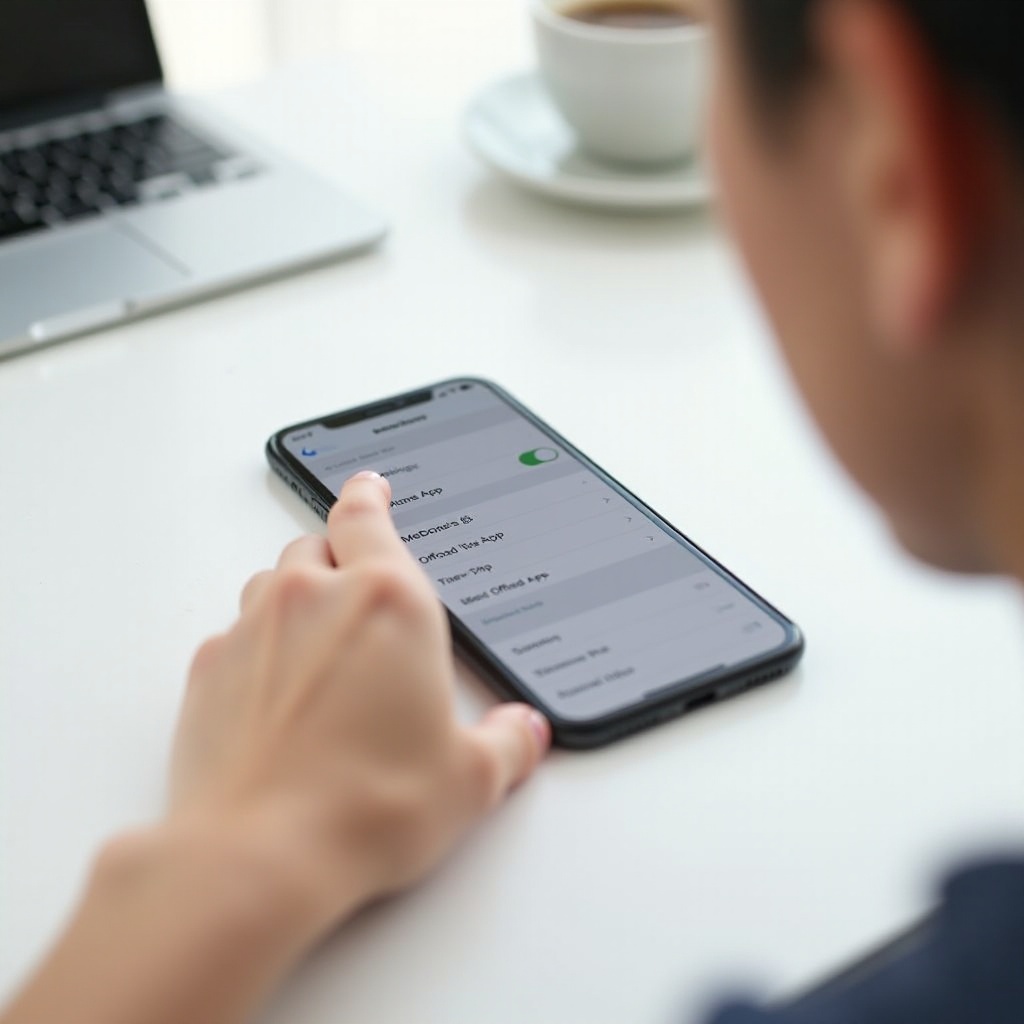
Method 3: Delete and Reinstall the McDonald’s App for a Full Cache Reset
Deleting removes the app and all local data on your iPhone. Because rewards and payment methods are stored in your online account, you should regain them after signing in with the same credentials. Confirm your login method before you delete to avoid confusion later.
Safe deletion steps to remove cached data
- Open McDonald’s and check your sign-in method in Profile or Account.
- Press and hold the McDonald’s app icon on the Home Screen.
- Tap Remove App, then Delete App, and confirm.
- Optional but helpful: restart your iPhone to refresh system caches.
- Open the App Store, search for McDonald’s, and reinstall.
Reinstall and sign in without losing rewards
- Launch the app and choose the same sign-in method as before: email and password, Apple, or Google.
- Sign in to sync your points, offers, and saved stores.
- If you cannot see your rewards, confirm you used the same email and region.
Re-enable permissions and verify offers
- Go to Settings > McDonald’s.
- Enable Location While Using or Always, based on your preference and local policies.
- Enable Notifications if you want deal alerts.
- Open the app and confirm offers, rewards, and payment methods display correctly.
If login loops or blank deal pages persist after a clean reinstall, your phone’s web data may be interfering with embedded app pages.
Method 4: Clear Webview and Browser Data (Safari, Chrome) Used by the App
The McDonald’s app uses embedded webviews for login and promotional content. These webviews often share cookies and cache with Safari or your chosen browser. Old cookies or cached pages can break authentication or keep expired deals in place.
Clear Safari History and Website Data
- Open Settings > Safari.
- Tap Clear History and Website Data.
- Confirm the action. This signs you out of websites in Safari and deletes history, cookies, and cache.
- Relaunch the McDonald’s app and test login and deals.
Clear Chrome browsing data related to McDonald’s
- Open Chrome and tap the three dots.
- Tap Settings > Privacy and Security > Clear Browsing Data.
- Select Cookies, Site Data and Cached Images and Files.
- Choose All Time for a thorough reset and confirm.
- Relaunch the McDonald’s app and retry the action that failed.
When clearing web data resolves login or deal issues
- This helps with infinite sign-in loops, blank promo pages, and errors after password changes.
- If you prefer a narrow cleanup, in Safari go to Settings > Safari > Advanced > Website Data and remove only McDonald’s related domains.
If a full app reset and browser cleanup still do not fix the issue, look at the health of your device and network. Updates, restarts, and storage housekeeping often remove remaining friction.
Method 5: Update, Restart, and Free Up Storage to Prevent Cache Issues
App and system updates include bug fixes that can resolve caching conflicts. Low storage can also degrade performance and cause apps to misbehave. Give the app a clean, updated environment.
Update iOS and the McDonald’s app
- Open App Store, tap your profile icon, and update the McDonald’s app.
- Go to Settings > General > Software Update to install available iOS updates.
- After updating, open McDonald’s and test performance.
Restart your iPhone to refresh system caches
- Press and hold the side button and a volume button.
- Slide to power off, wait 30 seconds, then power on.
- Reopen McDonald’s and check that deals and ordering flow load quickly.
Maintain free storage for smoother performance
- Aim for at least 2 to 3 GB of free space.
- Go to Settings > General > iPhone Storage to review large apps, videos, and Messages attachments.
- Remove or offload items you do not use.
If performance still lags or errors persist, map your symptom to a targeted fix. The next section helps you troubleshoot the most common problems you might see after a reset.
Troubleshooting: Fix Common McDonald’s App Issues After Clearing Cache
Even with a clean reset, some issues can linger. Use these targeted steps to stabilize the app and complete your order without interruptions.
App stuck on loading screen or spinning arches
- Check your network. Toggle Airplane Mode off and on. Switch between Wi-Fi and cellular data.
- Allow cellular data for McDonald’s in Settings > McDonald’s.
- Clear browser data again if you recently changed your password or account.
- Delete and reinstall the app one more time if the loop persists.
- If many users report issues at the same time, check official channels or third-party status trackers for possible outages.
Deals not refreshing or missing after reset
- Pull down to refresh the Deals screen.
- Sign out and sign back in.
- Confirm Location access: Settings > McDonald’s > Location > While Using.
- Clear Safari or Chrome data to refresh webview content that loads promotions.
- Confirm your region and restaurant selection. Some deals are location specific.
Location or payment errors and how to resolve them
- Location: ensure global Location Services are on in Settings > Privacy and Security > Location Services, then set McDonald’s to While Using.
- Payment: remove and re-add your card inside the app. If you use Apple Pay, verify cards in Wallet and try again.
- If payment errors repeat, reinstall the app and try on stable Wi-Fi to rule out flaky networks.
If you followed these steps and the issue remains, make sure your account is secure and that you are using the correct sign-in method. That way, your rewards and saved info return immediately after any reset.
Keep Your Rewards and Payment Info Safe While Clearing Cache
Your rewards and payment methods are linked to your McDonald’s account. Clearing cache should not permanently remove them, provided you sign in with the same credentials. A few checks before you reset will save you headaches later.
Verify your sign-in method, such as Email, Apple, or Google
- Open Profile or Account and confirm your sign-in method.
- Stick to the same method after reinstalling to sync your rewards and offers.
- Make sure the email on your account is the one you expect. Mismatches cause missing rewards.
Back up passwords and two-factor authentication
- Save your password in a password manager or iCloud Keychain.
- Confirm access to your email, Apple ID, or Google account for verification codes.
- This prevents lockouts after deleting or offloading the app.
Check offers, favorites, and payment cards after reset
- After signing in, verify that your points, deals, favorite restaurants, and saved cards have returned.
- Pull to refresh if the deals screen looks empty.
- If assets do not reappear, sign out and back in, confirm your region, or contact support.
If you have tried all the steps and problems persist, reach out to McDonald’s support. Provide the right details so they can diagnose quickly and prevent back-and-forth messages.
When to Contact McDonald’s Support and What to Provide
You can contact support through the app or the McDonald’s website. The more detail you provide, the faster they can pinpoint the cause and resolve it.
Collect screenshots, error messages, and timestamps
- Capture the exact screen where the error occurs.
- Note the time, your store location if relevant, and the action you attempted.
- Include steps to reproduce the issue.
Share device, iOS, and app version details
- Include your iPhone model and iOS version from Settings > General > About.
- Add the McDonald’s app version from its App Store page.
- Mention the steps you tried, such as offloading, deleting and reinstalling, and clearing Safari or Chrome data.
Escalation tips if the issue persists
- Ask support to escalate the ticket if first-line suggestions do not work.
- Request checks for known outages, account flags, or regional restrictions that could impact deals or payments.
Conclusion
You now have a clear path to fix slow loading, login loops, blank pages, and other glitches by clearing cache on McDonald’s app iPhone. Start with the lightest steps: force-quit, sign out and sign back in, and look for in-app reset options. If the problem remains, offload the app to refresh its binary while keeping documents and data. For stubborn issues, delete and reinstall for a full reset, then clear Safari or Chrome data to remove lingering web cookies and cached pages.
Round out your fix by updating the app and iOS, restarting your iPhone, and maintaining a few gigabytes of free space. If issues persist, map your symptom to the troubleshooting tips and gather details for support. With these methods, you can restore fast loading, fresh deals, and reliable ordering without losing your rewards or payment info.
Frequently Asked Questions
Does clearing cache delete my McDonald’s rewards or points?
No. Rewards and points live in your McDonald’s account on the server side. After you reinstall, sign in with the same email, Apple, or Google method and your rewards should return. If you do not see them, pull to refresh, sign out and back in, confirm your region, or contact support with your account details.
What is the difference between offloading and deleting the app on iPhone?
Offloading removes the app binary but keeps Documents and Data on your device. When you reinstall, iOS restores those data into a fresh app, which can fix issues tied to the executable. Deleting removes both the app and its local data for the cleanest reset. If sign-out and offload do not help, delete and reinstall to clear stubborn cache.
Why is there no clear cache button in the McDonald’s iPhone app?
iOS sandboxes apps and manages storage differently, so many iPhone apps do not include a dedicated clear cache button. Use the system options instead: sign out and back in, offload the app, delete and reinstall, and clear Safari or Chrome data. These steps refresh the app environment and remove corrupted temporary files.