
Introduction
You bought a PS5, enjoy the DualSense controller, and now want that same precise control on your iPhone. You can connect your PS5 controller to your iPhone over Bluetooth in just a few minutes. No wires, no extra apps, just a clear set of steps.
Using a PS5 DualSense with your iPhone transforms mobile gaming. You get a better grip, analog sticks and triggers with real range, and far less thumb strain than constant tapping on glass. Many iOS games, Apple Arcade titles, and cloud gaming apps already support controllers, so pairing your PS5 controller is one of the best upgrades you can make.
This guide walks you through how to Bluetooth a PS5 controller to an iPhone, how to customize it for comfort, and how to fix common connection problems. You will also learn how to switch between your PS5 and iPhone without confusion. Before pairing, you need to make sure your iPhone and controller are ready.
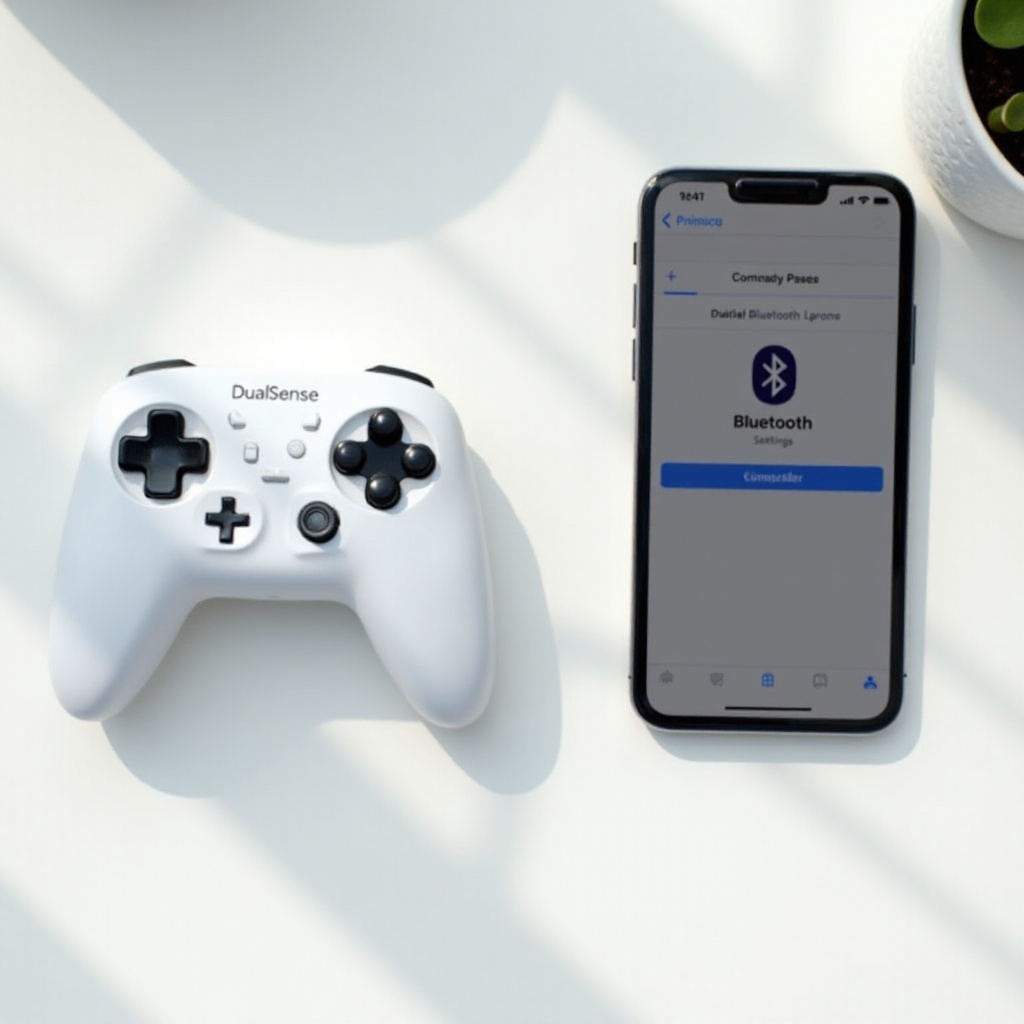
What You Need Before Connecting a PS5 Controller to iPhone
Before you try to Bluetooth your PS5 controller to your iPhone, confirm that both devices are compatible and up to date. A quick check now will prevent most pairing failures and random disconnects later.
Compatible iPhone Models and iOS Versions in 2024
Most modern iPhones can use a PS5 DualSense, but the iOS version matters. Apple added full DualSense support in recent releases, and by 2024 the support is stable and reliable.
You should:
- Use an iPhone 8 or newer for best performance.
- Run iOS 15 or later. In 2024, aim for iOS 17 or the newest version available on your device.
To check your iOS version:
- Open Settings.
- Tap General.
- Tap About.
- Look at Software Version.
If your version is old, update your iPhone before pairing the controller.
Supported PS5 DualSense Controller Types
Most official PS5 DualSense controllers work with iPhone, including:
- Standard white DualSense
- Color variants such as Midnight Black, Cosmic Red, and similar editions
- Official DualSense special editions released for PS5
Avoid cheap unlicensed controllers that only copy the DualSense shape. These often fail to pair, do not show up correctly in Bluetooth settings, or disconnect during gameplay.
Updating Your iPhone Software Before Pairing
A quick software update can fix connection bugs and improve Bluetooth stability. It also ensures you have the latest controller support from Apple.
To update:
- Open Settings.
- Tap General.
- Tap Software Update.
- If an update appears, tap Download and Install.
Keep your iPhone charged or plug it into power while it updates. Once your iPhone runs the latest iOS version available for your device, you are ready to put the DualSense into pairing mode.
As soon as your phone and software are ready, the next step is to prepare the PS5 controller itself so your iPhone can detect it.
How to Put Your PS5 DualSense Controller in Bluetooth Pairing Mode
Your iPhone cannot connect to the DualSense until the controller announces itself over Bluetooth. You do that by placing the DualSense into pairing mode with a simple button combination.
Locating the PS and Create Buttons on the DualSense
Take a look at your DualSense controller:
- The PS button is the PlayStation logo button in the center, just below the touchpad.
- The Create button is a small, flat button to the left of the touchpad, near the D-pad.
You will press these two buttons together to start Bluetooth pairing mode.
Step-by-Step Instructions to Enter Pairing Mode
Follow these steps to put your PS5 controller in pairing mode:
- Unplug the controller from your PS5 if a USB cable is attached.
- Turn off the controller if it is on by holding the PS button until the light turns off.
- Once it is off, press and hold the PS button and the Create button at the same time.
- Keep holding both buttons until the light bar around the touchpad starts blinking rapidly.
Rapid blinking means the controller is in Bluetooth pairing mode and is ready to connect to your iPhone.
Understanding the Controller Light Indicators
The light bar on the DualSense tells you what is happening:
- Rapid blinking white or blue: Pairing mode; the controller is ready to connect.
- Solid light: Connected to a device.
- Slow pulsing: Waking up or reconnecting.
- No light: Powered off or out of battery.
If the light stops blinking before you connect it to your iPhone, repeat the pairing steps and re-enter pairing mode. Once you see the rapid blinking again, you can move to your iPhone and complete the Bluetooth connection.
With the controller broadcasting its signal, it is time to match it with your iPhone using the built-in Bluetooth menu.
How to Bluetooth PS5 Controller to iPhone: Step-by-Step
When your DualSense is in pairing mode, connecting it through your iPhone’s Bluetooth settings only takes a moment. After the first connection, your iPhone will remember the controller and usually reconnect automatically.
Opening Bluetooth Settings on iPhone
On your iPhone:
- Open Settings.
- Tap Bluetooth.
- Make sure the Bluetooth toggle is turned On (green).
Stay on this screen. You will soon see your PS5 controller appear in the device list.
Selecting the PS5 Controller Under ‘Other Devices’
With your DualSense still in pairing mode and blinking rapidly:
- Look under Other Devices in the Bluetooth list.
- You should see a device named ‘DualSense Wireless Controller’ or ‘Wireless Controller’.
- Tap the controller name once to start the pairing process.
Your iPhone will attempt to connect. After a brief moment, the controller should move into the My Devices section with a status of Connected.
Confirming a Successful Connection in iOS
You can confirm that you have Bluetooth paired the PS5 controller to your iPhone in several ways:
- In Settings > Bluetooth, the controller shows as Connected.
- The DualSense light bar stops blinking rapidly and changes to a steady light.
- When you open a game that supports controllers, you may see fewer on-screen buttons or a controller icon.
If the controller appears and disappears, or fails to connect, return to pairing mode on the DualSense and tap the device again in Bluetooth settings. Once it stays connected, you are ready to use it in apps and games.
With the connection in place, the next step is to make sure your games can actually take advantage of the PS5 controller and to test that everything works as expected.
How to Use the PS5 Controller with Games on iPhone
Pairing is the technical step; playing is the fun part. To get value from your PS5 controller on iPhone, you need games and apps that support external controllers and you need to verify that all inputs respond well.
Apple Arcade Games That Support Controllers
Apple Arcade is a reliable starting point because many of its games support controllers by design.
To find games that work well with the DualSense:
- Open the App Store.
- Tap the Arcade tab.
- Browse the catalog and open a game’s page.
- Look for notes that mention controller support.
Platformers, racers, and action games on Apple Arcade usually feel much better with a PS5 controller than with touch controls alone.
Popular App Store and Cloud Gaming Apps
Outside Apple Arcade, many standard App Store titles and cloud gaming services also support controllers, including a PS5 DualSense.
You can:
- Search for action, racing, or sports games and read the game description for controller support.
- Use cloud gaming services such as NVIDIA GeForce NOW or other streaming platforms that support Bluetooth controllers.
- Try remote play apps to stream your PS5 to your iPhone and control it with the same DualSense.
Whenever possible, check the app’s documentation or settings for a section on controllers, so you know exactly what is supported.
Testing Buttons and Sticks in a Game
Once you launch a controller-friendly game, test your PS5 controller thoroughly:
- Use the left stick to move around menus and characters.
- Use the right stick to control the camera if the game supports it.
- Press the X button to confirm and select options.
- Try the L1, R1, L2, and R2 buttons during gameplay.
- Press the PS button and see whether the game or system responds.
If the game responds smoothly and with no visible delay, your PS5 controller is working correctly with your iPhone. If something feels off, the next step is to adjust the controller settings to better match how you like to play.
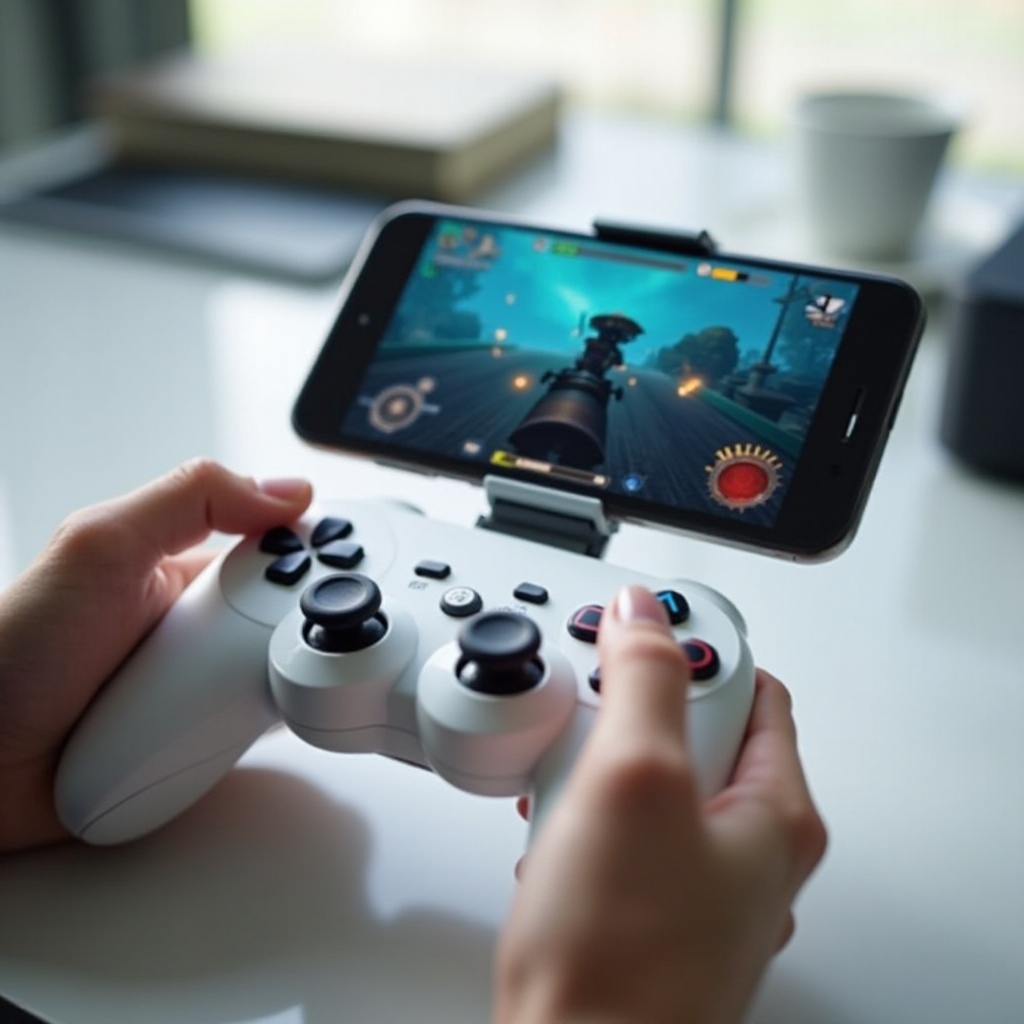
How to Customize PS5 Controller Settings on iPhone
Not every player holds or uses a controller in the same way. Some prefer different button layouts; others rely on accessibility features. iOS offers several tools that let you customize how your PS5 controller behaves.
Adjusting Controller Settings in iOS
On recent iOS versions, you can manage basic controller behavior:
- Open Settings.
- Go to General.
- Tap Game Controller if it appears.
Here, some devices allow you to adjust how controllers behave in compatible games. Options can vary by iPhone model and iOS version, but it is worth checking to see which features are available.
Button Remapping and Accessibility Options
Apple’s accessibility settings can help you customize and remap actions:
- Open Settings.
- Tap Accessibility.
- Look for sections like Switch Control or Controllers (if listed on your device).
Some games also include their own control layouts and remapping tools in their settings menu. Open the game’s options, look for a Controls or Controller section, and adjust buttons until the layout feels natural for you.
Creating Custom Controls with AssistiveTouch
AssistiveTouch can turn controller buttons into shortcuts and gestures that work across iOS, not just in games:
- Go to Settings > Accessibility > Touch > AssistiveTouch.
- Turn AssistiveTouch on.
- Tap Devices and select your DualSense Wireless Controller.
- Choose a button and assign a custom action, such as opening Control Center, taking a screenshot, or running a custom gesture.
This is especially helpful if you want your PS5 controller to handle system shortcuts or if you need unique control setups to play comfortably.
After you tailor the controller to your preferences, you will switch between gaming sessions, iPhone use, and PS5 play more often. To keep that smooth, it helps to understand how to disconnect, forget, and reconnect the controller correctly.
How to Disconnect, Forget, or Reconnect Your PS5 Controller on iPhone
When you finish a session, you might want to turn off the controller or switch it back to your PS5. Knowing the difference between disconnecting, forgetting, and reconnecting helps you avoid pairing confusion.
Temporarily Disconnecting the DualSense
To stop using the controller for the moment but keep it paired for later:
- Hold the PS button on the DualSense until the light turns off; or
- Go to Settings > Bluetooth, tap the i next to the controller, and tap Disconnect.
This keeps the pairing saved. The next time you turn on the controller with Bluetooth active on your iPhone, it should reconnect automatically.
Forgetting the Controller in Bluetooth Settings
If you want your PS5 controller to stop automatically reconnecting to your iPhone:
- Open Settings > Bluetooth.
- Find your DualSense Wireless Controller in the list.
- Tap the i icon next to it.
- Tap Forget This Device and confirm.
Your iPhone will remove the saved pairing. Next time, you will need to put the controller in pairing mode again and repeat the Bluetooth connection steps.
Quickly Reconnecting After It’s Been Paired
If you have already paired your DualSense to your iPhone before:
- Turn on the controller by pressing the PS button once.
- Make sure your iPhone’s Bluetooth is enabled.
- Wait a few seconds; the devices usually reconnect automatically.
If the controller connects to your PS5 instead, shut down your PS5 or unplug it from power, then try turning on the controller again near your iPhone. This helps ensure your phone becomes the active device.
Even with good habits, you might still see problems such as lag or failed connections. A few targeted troubleshooting steps usually fix these issues quickly.
Troubleshooting: PS5 Controller Not Connecting to iPhone
Sometimes the PS5 controller refuses to show up in Bluetooth, disconnects mid-game, or feels sluggish. You can usually resolve these problems by working through simple checks and resets.
When the PS5 Controller Doesn’t Appear in Bluetooth
If your iPhone does not see the controller at all:
- Confirm the DualSense is in pairing mode with a rapid blinking light.
- Toggle Bluetooth off and on in Settings > Bluetooth.
- Restart your iPhone.
- Move away from devices that might interfere, such as your PS5, other consoles, or crowded Wi-Fi routers.
If the controller still does not appear, test it with another device (such as your PS5 or another phone) to confirm that the controller itself is working correctly.
Fixing Lag, Input Delay, or Frequent Disconnections
If you notice lag or random disconnects:
- Stay closer to your iPhone to keep a strong Bluetooth signal.
- Remove thick cases or metal objects between the controller and your phone.
- Close heavy background apps that may stress your phone’s processor.
- Check that Low Power Mode is off, as it can sometimes affect performance.
If disconnects continue, go to Settings > Bluetooth, choose Forget This Device for the controller, and then pair again from scratch. A fresh pairing often clears hidden glitches.
Resetting the DualSense Controller and Trying Again
If nothing else works, a full controller reset can help:
- Turn off the DualSense.
- On the back of the controller, near the L2 button, find the small pinhole.
- Use a paperclip or pin to press the button inside for about five seconds.
- Release the button, then press and hold the PS and Create buttons together to re-enter pairing mode.
After the reset, follow the Bluetooth pairing steps on your iPhone once more. A reset often fixes stubborn issues that refuse to clear any other way.
Once everything works smoothly and you understand how to solve common issues, the controller becomes even more useful when you move it between multiple devices.
Tips for Using a PS5 Controller Across Multiple Devices
Many people use one DualSense controller for PS5, iPhone, iPad, and sometimes a Mac. With a few simple habits, you can switch between these devices with less confusion and fewer pairing conflicts.
Switching Between PS5 Console and iPhone
To use the controller with your PS5 again after using it on iPhone:
- Connect the DualSense to your PS5 using a USB-C cable.
- Press the PS button on the controller.
- Wait for the PS5 to detect the controller and assign it to a user.
After this, the controller often prefers the PS5 when both the console and iPhone are nearby. When you want to move back to your iPhone, power off or unplug your PS5, then turn on the controller near your iPhone and let it reconnect.
Avoiding Bluetooth Pairing Conflicts in 2024
To reduce pairing conflicts when using one controller with several devices:
- Turn off Bluetooth on devices you are not using at the moment.
- Keep your PS5 in Rest Mode or powered off while pairing with iPhone.
- Limit the number of devices you pair with the same DualSense to those you actually use.
These habits help prevent the controller from unexpectedly connecting to the wrong device in the middle of a session.
Battery Life Tips for Longer Mobile Gaming Sessions
A few basic habits can extend your DualSense battery life when gaming on iPhone:
- Charge the controller fully before long sessions.
- Turn off the controller as soon as you finish playing by holding the PS button until the light goes off.
- When you use the controller on PS5, lower the light bar brightness in the console settings to reduce overall drain.
With good battery practices and careful pairing, your PS5 controller becomes a flexible tool for both console and mobile play.
Conclusion
Learning how to Bluetooth a PS5 controller to an iPhone gives you a smoother, more comfortable way to enjoy mobile games. You checked your iPhone’s compatibility, prepared the DualSense, and connected it through Bluetooth. Then you saw how to use it in games, customize controls, manage connections, and fix common issues.
Now you can move confidently between your PS5 and iPhone, keeping the same familiar controller in your hands. Set up your favorite games, tune the controls until they feel right, and enjoy console-style precision from your phone wherever you play.
Frequently Asked Questions
Why won’t my PS5 controller show up on my iPhone’s Bluetooth list?
This usually happens when the controller is not in pairing mode or when Bluetooth on the iPhone is stuck. Make sure the DualSense light is blinking rapidly by holding the PS and Create buttons together. Then toggle Bluetooth off and on in Settings, restart your iPhone if needed, and try again. Also keep your PS5 turned off so it does not connect to the controller first.
Can I connect more than one PS5 controller to my iPhone at the same time?
Yes, many iPhones can handle more than one Bluetooth controller at once, and some games support local multiplayer. Put each controller into pairing mode and pair them one by one in Settings > Bluetooth. However, not every game is built for multiple controllers, so always check the game description or settings to confirm multiplayer support.
Do all iPhone games support the PS5 DualSense controller in 2024?
No, not all iPhone games support controllers. Many Apple Arcade titles and a growing number of App Store games do, but some rely only on touch controls. Look for notes like ‘Controller Supported’ on the App Store page. Cloud gaming and remote play apps also tend to support Bluetooth controllers, which makes your PS5 DualSense especially useful on iPhone in 2024.