
Introduction
Locked out of your iPhone and need a plan that works now? You are not the first, and you will not be the last. People forget passcodes, buy second‑hand devices that remain locked, or inherit phones without credentials. If you ask how do you unlock an iPhone without knowing the password, the truthful path is clear and strict: you must erase the device, then set it up again. Apple protects data with strong encryption. That design blocks any passcode bypass that would preserve the data on the device.
This guide explains what you can and cannot do, and it gives you a fast route back in. You will see when the lock screen offers the built‑in erase option, how to erase through Find My on another device or iCloud.com, and how to restore in Recovery Mode with a Mac or PC. You will also learn the Recovery Mode button steps by model, how to restore your backup, what Activation Lock means, and how to avoid scams. Each section builds on the last so you can choose the quickest method that fits your situation.

Can You Unlock an iPhone Without the Passcode? What’s Possible, Legal, and Safe
Set proper expectations before you start. You cannot read, remove, or guess the passcode without erasing the iPhone. The device encrypts user data with keys tied to the passcode. That security protects your privacy and also blocks thieves. Because of this, every legitimate method to unlock a passcode‑locked iPhone begins with an erase and ends with a restore from backup.
Move forward only if you own the device or have permission to erase it. If Find My is on, you will need the Apple ID and password used on this iPhone after erase. That requirement appears as Activation Lock during setup. Avoid third‑party tools that promise instant unlocks without data loss. Those claims are false, risky, or both. The safest path is to follow Apple supported methods.
Now that you know the ground rules, check your lock screen. A quick look can reveal the fastest option available right on the device.
Quick Check: Your iOS Version, ‘iPhone Unavailable’, and What Your Lock Screen Allows
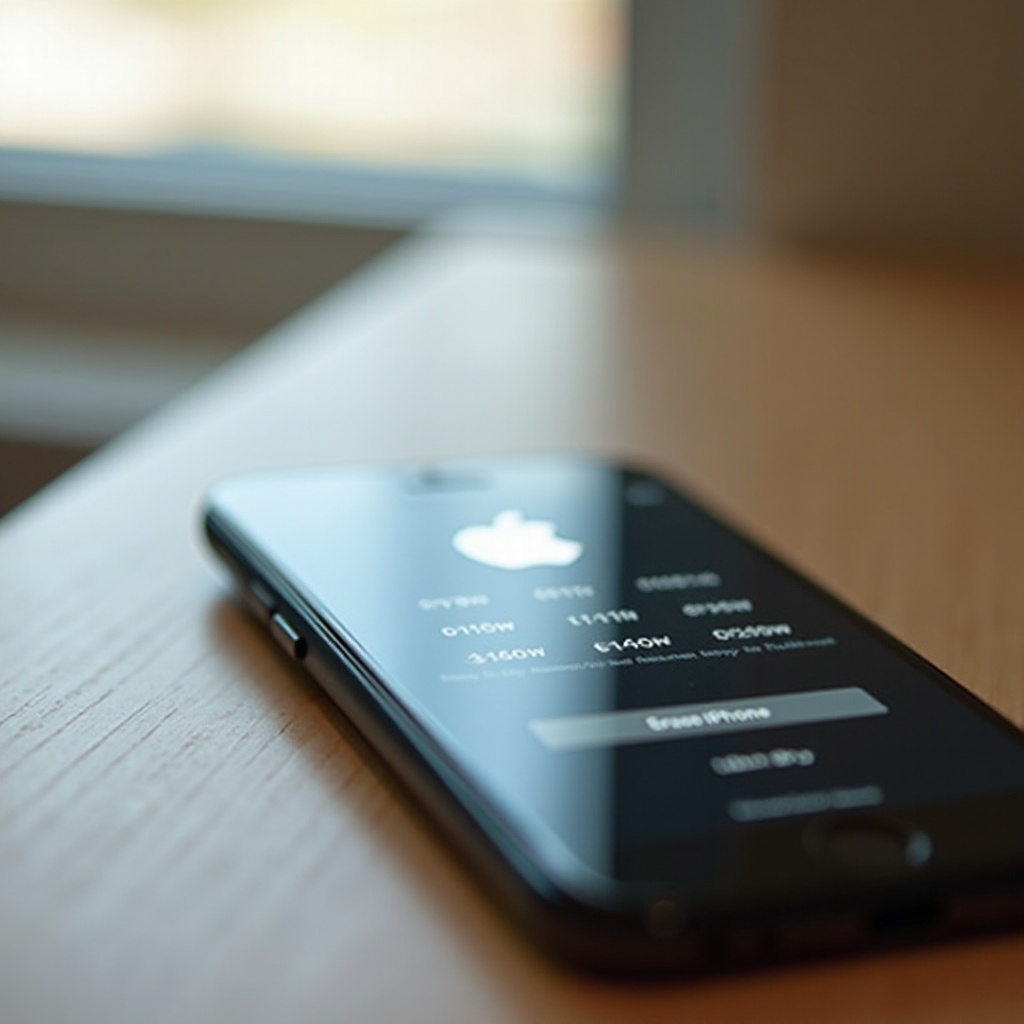
After several failed passcode attempts, the iPhone shows a timer and the message ‘iPhone Unavailable’. On recent iOS versions, the bottom of that screen may show an ‘Erase iPhone’ option. If you see it and you remember your Apple ID and password, you can erase the device on the spot without a computer.
If that option does not appear, do not worry. You can still erase the phone using Find My on another Apple device, through iCloud.com in a browser, or with a computer via Recovery Mode. Start with the simplest path you can access. The first and fastest method is a direct erase from the lock screen.
Method 1: Use ‘Erase iPhone’ From the Lock Screen (iOS 15.2 and Later)
When the ‘iPhone Unavailable’ screen shows ‘Erase iPhone’, you can wipe the device and remove the passcode right there. This is often the quickest way back in if you know your Apple ID.
Steps:
1. Keep the iPhone on the ‘iPhone Unavailable’ screen until the timer ends and ‘Erase iPhone’ appears.
2. Tap ‘Erase iPhone’, then confirm that you want to erase the device.
3. Enter your Apple ID and password when asked. This step removes the device from your account and turns off Activation Lock during erase.
4. Keep the iPhone on power and connected to Wi‑Fi. The device erases itself and restarts.
5. When the ‘Hello’ screen appears, set up the iPhone and restore your data from an iCloud or computer backup.
Use this method if the option appears and you know the Apple ID. If you cannot use the lock screen erase, the next best option is to erase the phone from another Apple device where you are already signed in.
Method 2: Erase Your iPhone Using Find My on Another Apple Device
If you have another Apple device signed in with the same Apple ID, the Find My app lets you erase the locked iPhone remotely. This works even if the locked device sits somewhere else, as long as it can get online.
Steps:
1. Open the Find My app on your other iPhone, iPad, or Mac.
2. Tap Devices, then choose the locked iPhone from the list.
3. Select Erase This Device and follow the prompts.
4. Enter your Apple ID password to confirm the erase.
5. Keep the locked iPhone online so the erase can complete. Afterward, it restarts to the ‘Hello’ screen.
6. Set up the device and restore your backup.
Pick this route when you are already signed in on another Apple device and Find My is enabled on the locked phone. If you do not have another Apple device handy, you can perform the same action from a web browser.
Method 3: Erase Your iPhone Remotely via iCloud.com
Any computer or phone with a modern browser can access iCloud.com. From there, you can erase your locked iPhone as long as it appears in your device list and can reach the internet.
Steps:
1. Visit iCloud.com and sign in with your Apple ID and password.
2. Open Find Devices (also labeled Find iPhone in some views).
3. Click All Devices and select your locked iPhone.
4. Click Erase iPhone and confirm your choice.
5. Leave the locked iPhone online to complete the process. When done, it shows the ‘Hello’ screen.
6. Set up the device and restore from an iCloud or computer backup.
Choose this option when you cannot use the lock screen erase and do not have another Apple device nearby. If none of the network options work, or the device never appears in Find My, a computer restore will complete the job.
Method 4: Unlock by Restoring With a Mac or PC (Finder or iTunes) in Recovery Mode
When network options fail or you do not see the device in Find My, use a computer. Recovery Mode forces the iPhone into a state where Finder on macOS or iTunes on Windows can erase and reinstall iOS.
Steps:
1. Update macOS or iTunes to the latest version to prevent restore errors.
2. Connect the iPhone to the computer with a reliable cable.
3. Put the iPhone into Recovery Mode using the correct button steps for your model.
4. Open Finder on Mac or iTunes on Windows. You should see a prompt to Update or Restore.
5. Choose Restore. This downloads the latest iOS and erases the device.
6. Keep the phone connected until the process completes and the ‘Hello’ screen appears.
7. Set up the device and restore your backup.
This computer method works even when the phone will not connect to Wi‑Fi or when on‑device options are missing. Next, make sure you follow the right button sequence for Recovery Mode on your specific iPhone model.
Entering Recovery Mode: Step‑by‑Step for Face ID Models, iPhone 8 or SE (2nd or 3rd Gen), iPhone 7 or 7 Plus, and iPhone 6s or Earlier
Recovery Mode differs by model. Connect the iPhone to the computer first, then use the matching steps below and keep holding until you see the Recovery Mode screen.
For iPhones with Face ID (no Home button):
– Press and quickly release Volume Up.
– Press and quickly release Volume Down.
– Press and hold the Side button until the Recovery Mode screen appears.
For iPhone 8 and iPhone SE (2nd or 3rd generation):
– Press and quickly release Volume Up.
– Press and quickly release Volume Down.
– Press and hold the Side button until the Recovery Mode screen appears.
For iPhone 7 and iPhone 7 Plus:
– Press and hold the Volume Down button and the Side (Sleep or Wake) button together.
– Keep holding both buttons until the Recovery Mode screen appears.
For iPhone 6s and earlier with a Home button:
– Press and hold the Home button and the Top or Side button together.
– Keep holding both buttons until the Recovery Mode screen appears.
If the phone exits Recovery Mode during the download, repeat the steps and choose Restore again. Once you complete the restore, you can bring your information back from backup.
Restore Your Data After Erase: iCloud and Computer Backups
Erasing the device removes the passcode and your local data. You can still get your information back from backups and cloud sync. During setup, you will see options to restore.
- iCloud Backup: Sign in with your Apple ID, pick your most recent backup, and keep the device on Wi‑Fi and power. The iPhone restores apps, settings, and app data from the backup. Content that you sync with iCloud services, such as Photos, Contacts, and Notes, will begin syncing after setup.
- Computer Backup: Connect the iPhone to the Mac or PC used for backups. In Finder or iTunes, choose Restore from Backup and select the latest archive. Keep the cable connected until the process completes.
If you never set up backups, you can still sign in to iCloud to sync supported items. Some app data may not return without a backup. To protect yourself in the future, turn on automatic backup so a forgotten passcode does not lead to permanent data loss.
Activation Lock Explained: Apple ID, Proof of Ownership, and What to Do If You Are Stuck
After erase, the setup process may show an Activation Lock screen. It asks for the Apple ID and password previously used with this iPhone. Activation Lock prevents others from using a lost or stolen device. If you know the Apple ID and password, sign in to continue.
If you forgot your Apple ID password, go to iforgot.apple.com and follow the prompts to recover access. Use trusted phone numbers and devices for two factor verification. If you bought the phone used and see Activation Lock, contact the seller and ask them to remove the device from their account in iCloud under Find My. If you are the original owner but cannot sign in, Apple Support may help if you provide proof of purchase that matches the device.
When you clear Activation Lock, you can finish setup and restore your backup. If you cannot clear it, you cannot proceed. In that case, move to troubleshooting steps to check for errors you can fix on your own.
Troubleshooting: ‘Restore Failed’, Update or Restore Errors, and Connectivity Problems
Restores sometimes fail due to software versions, cables, or network issues. Try these fixes in order:
- Update software: Install the latest macOS updates or the newest version of iTunes on Windows. New versions improve device support and fix known bugs.
- Change cables and ports: Use an Apple certified cable. Try another USB port. Avoid hubs.
- Improve network stability: Use a reliable Wi‑Fi network or connect the computer to Ethernet. If the iOS download takes more than 15 minutes and the phone exits Recovery Mode, repeat Recovery Mode and click Restore again.
- Restart everything: Reboot the iPhone and the computer, then try the restore again.
- Check security software: Temporarily disable firewall or security tools that might block Apple servers, then restore and re‑enable them.
- Fix Activation Lock: Verify the correct Apple ID, reset the password at iforgot.apple.com if needed, or contact the previous owner to remove the device from their account.
If you still cannot restore, contact Apple Support or visit an Apple Store or authorized service provider. Once issues are resolved, you should return to the standard erase and restore flow. With problems handled, focus on avoiding false promises that waste time.
Avoiding Myths, Hacks, and ‘Unlock’ Scams: Why They Do Not Work and What to Ignore
Search results and social videos often claim instant unlocks for locked iPhones. They cite hidden menus, emergency dialer tricks, or Siri glitches. Modern devices and software have closed those loopholes. These claims either fail or push risky software that can harm your device or steal your money.
Red flags to ignore:
– Tools that promise to bypass Activation Lock without the Apple ID and password.
– Services that request upfront payment for a supposed unlock code.
– Claims that you can keep all data without a backup after a passcode lockout.
The safe route is to erase and then restore from backup. That method is the only supported path that protects your privacy and your Apple account. With the noise out of the way, take a few smart steps to prevent this situation from happening again.
Prevention Tips: Backups, Strong but Usable Passcodes, Passkeys, and Recovery Options
Once you regain access, build a safety net that keeps you secure without locking you out. Start with backups. Turn on iCloud Backup in Settings under your name, then iCloud, then iCloud Backup. Phones charge overnight on Wi‑Fi, so backups happen automatically. Add a second layer with periodic computer backups in Finder or iTunes. If one backup fails, the other can save you.
Use a passcode you can remember but others cannot guess. Consider a longer numeric code for security that you can still recall. Keep Face ID or Touch ID on so you type the passcode less often. Update your Apple ID with a reachable email and phone number. Add a recovery contact if available. Store passwords and recovery keys in a password manager so you can find them fast during a crisis.
These habits turn a lockout from a disaster into a minor setback. If you face unusual constraints, the next section shows how to adapt the same erase and restore approach to special cases.
Special Cases: Broken Screen, Unresponsive Buttons, No Apple ID Access, and No Computer
Some situations call for small adjustments while you follow the same core steps.
- Broken screen: If you cannot tap ‘Erase iPhone’, erase from iCloud.com or use a computer restore in Recovery Mode.
- Unresponsive buttons: You may not be able to trigger Recovery Mode. Try remote erase via Find My. If buttons remain unresponsive and you need a computer restore, seek hardware service through Apple.
- No Apple ID access: Use iforgot.apple.com to recover your Apple ID. Without the correct Apple ID for Activation Lock, you cannot set up the device after erase.
- No computer: Try the lock screen ‘Erase iPhone’ option or use Find My from another Apple device. If both fail, borrow a computer or visit an Apple Store or authorized provider.
- Corporate or MDM devices: Contact your IT administrator. Managed profiles may restrict setup or restore until the device is released from management.
Each case still points to the same end goal: perform an official erase and then restore from a backup. Once you finish setup, take a moment to strengthen your safety net.
Conclusion
When you need to know how do you unlock an iPhone without knowing the password, the secure and supported answer stays the same. Erase the device, then restore your data from a backup. You can do this from the lock screen with the ‘Erase iPhone’ option, through Find My on another device or iCloud.com, or with a computer in Recovery Mode. If Activation Lock appears, you must sign in with the correct Apple ID and password or provide proof of ownership. Ignore myths and scams that promise instant unlocks without data loss. Set up backups and recovery options so a forgotten passcode never costs you your information again. With the steps in this guide, you can regain access the right way and keep your data safe moving forward.
Frequently Asked Questions
Can I unlock an iPhone without the passcode and without erasing data?
No. Apple protects on‑device data with strong encryption tied to the passcode. You cannot bypass or remove the passcode without erasing the iPhone. If you have an iCloud or computer backup, you can restore apps, settings, and data after setup. If you used iCloud services like Photos, Contacts, and Messages in iCloud, much of your content will sync back when you sign in. Without a backup, erased local data is not recoverable.
How do I bypass Activation Lock if I do not know the Apple ID or password?
You cannot bypass Activation Lock without the correct Apple ID and password or valid proof of ownership. Try account recovery at iforgot.apple.com, use trusted devices or numbers for verification, and reset the password. If you bought the device used, ask the seller to remove it from their account in iCloud under Find My. If you are the original owner, Apple Support may help if you provide a receipt that matches the device serial or IMEI. Without one of these, you cannot proceed.
What if the ‘Erase iPhone’ option does not appear on my lock screen?
Use Find My on another Apple device or sign in at iCloud.com to erase the iPhone remotely. If those are not possible, connect the phone to a Mac or PC and restore it in Recovery Mode using Finder or iTunes. Once erased, set up the device and restore your data from an iCloud or computer backup. If you see errors, update your software, try a different cable or USB port, and repeat Recovery Mode before clicking Restore again.