
Introduction
Disabling 5G on Android can reduce battery drain, improve reliability in weak coverage areas, and prevent constant handoffs between radio bands. Many users find that LTE or 4G offers steadier performance, especially in suburban and rural locations where 5G is spotty. The challenge is that not every Android phone shows the same menu path, and some carrier models hide the 5G switch entirely. This guide gives you a universal method that works on most devices, brand-specific steps for Samsung, Pixel, OnePlus, Nothing, Motorola, and TCL, and a set of advanced options for phones that restrict network choices. You will also learn how to keep calling features intact, fix common issues, and switch 5G back on in seconds. With the goal clear, let us first set expectations about what changes when you turn off 5G.
What Disabling 5G Does and Does not Do
Speed vs Stability Trade-offs
Turning off 5G may reduce peak speeds if you live in an area with strong 5G coverage. However, many users gain smoother browsing and fewer disconnects because LTE tends to hold a signal more consistently. In fringe 5G zones, phones often bounce between 5G and LTE, which can hurt real world performance even if speed tests show high peaks. If stability matters more than top speed, forcing LTE is a smart move.
Battery Life Expectations
5G radios can draw more power when coverage is weak, the phone scans for bands that are not available, or the network hands off frequently. By locking to LTE, you cut out a layer of search and reduce the chance of back and forth switching. Expect bigger gains when you travel or use your phone in buildings with poor 5G penetration. In areas with excellent 5G, battery savings may be modest.
Voice Calls, VoLTE, and Emergency Services
Disabling 5G does not remove voice capability. Modern carriers route calls over LTE using VoLTE, which should remain enabled. Wi Fi Calling continues to function on LTE. Emergency calling still works, but always test your line after changes if you rely on your phone for critical communication. With the basics understood, the next section shows the fastest universal method to turn off 5G.

Quick Universal Method: Set Preferred Network Type to LTE or 4G
Settings Path on Stock Android
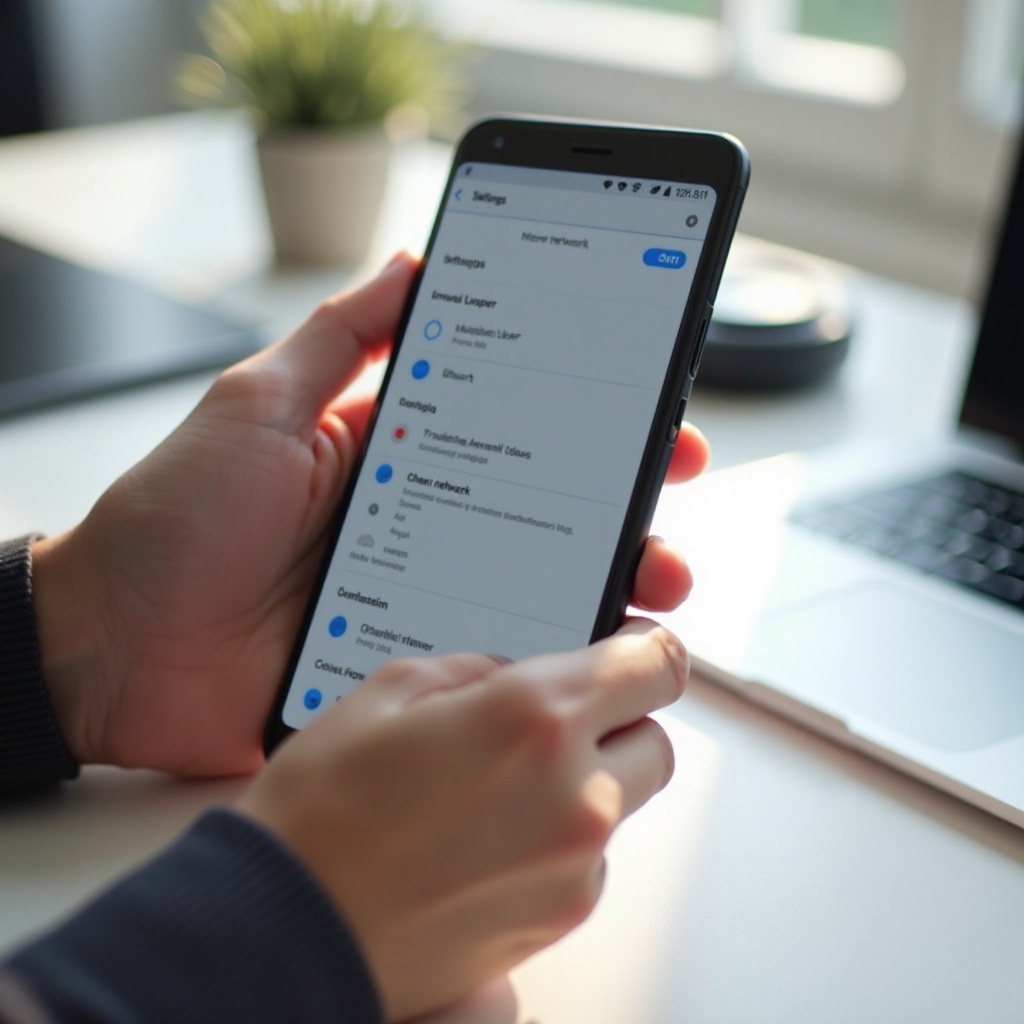
Most Android phones let you set the preferred network type to LTE or 4G. Try this path:
– Open Settings
– Tap Network and Internet
– Tap SIMs or Mobile network
– Tap Preferred network type
– Choose LTE or 4G, or LTE and lower options
– Confirm if prompted
This route is similar across Android 14 and Android 15 and is usually the quickest way to stop the phone from selecting 5G.
Verify LTE or 4G Status
Look for LTE, 4G, or 4G plus in the status bar. In Settings, open SIMs or Mobile network and confirm the mode persists. If speeds are steady and the indicator stays on LTE, the change worked. If the phone still shows 5G, your carrier may override the choice or your device may auto switch under certain conditions.
How to Undo the Change
To re enable 5G, go back to Preferred network type and select 5G or Auto. Toggle Airplane mode off and on to refresh the radio stack. With the universal method covered, the next sections explain the exact steps on popular Android brands.
Disable 5G on Samsung One UI 6, 6.1, and 7
SIM Card Manager and Mobile Networks
Samsung menus differ slightly by model and One UI version, but this path is common:
– Open Settings
– Tap Connections
– Tap SIM manager or SIM Card Manager
– Tap Mobile networks
– Tap Network mode
– Select LTE only or LTE 3G 2G Auto
If you use dual SIM or eSIM, repeat the selection for each line. Make sure the data SIM is set to LTE if you want mobile data locked to 4G.
When the 5G Toggle Is Hidden
Some carrier builds hide the network mode options that exclude 5G. Update One UI and carrier services, then restart. Remove and reinsert the SIM to refresh provisioning. If the toggle remains hidden, you may need a carrier change at the account level or an advanced method covered later.
Carrier Locked Samsung Devices
Carrier locks can override your network choice after a reboot or update. Contact support and request an LTE only feature or removal of 5G provisioning. You can also test with a different SIM from an MVNO to see if the toggle appears. Next, let us walk through the Google Pixel menus, which are close to stock Android.
Disable 5G on Google Pixel Android 14 and 15
Change Preferred Network Type
Pixels use a straightforward route:
– Open Settings
– Tap Network and Internet
– Tap SIMs
– Tap Preferred network type
– Select LTE or 4G
You may see suggestions that recommend 5G. If coverage is weak or battery life matters more, choose LTE anyway.
Dual SIM Pixel Notes
Set network type per SIM. Select the line used for data first, then adjust the call SIM as needed. Confirm the data SIM shows LTE in the status bar. If one line refuses LTE only, switch the data priority to the other SIM and test again.
Re enabling 5G Fast
Go back to Preferred network type and pick 5G or Auto. Create a shortcut to SIMs on the home screen to jump into the menu quickly. With Pixels covered, the next section focuses on OnePlus and Nothing phones that ship with OxygenOS and Nothing OS.
Disable 5G on OnePlus and Nothing OxygenOS and Nothing OS
SIM Settings and Network Type
These brands place the toggle under mobile network settings:
– Open Settings
– Tap Mobile network
– Select your SIM
– Tap Preferred network type
– Choose LTE or 4G only
Some builds list LTE 3G 2G or 4G 3G. Pick the option that excludes 5G entirely.
Known Limitations and Workarounds
If the LTE only option is missing, update the system, carrier services, and vendor apps. Reboot the phone. Uninstall carrier helper apps that push profiles. If options do not return, your carrier may restrict the setting. Ask for LTE only provisioning on your line.
Automation Options
Nothing OS Rules and third party automation can add shortcuts to the network screen. You can set reminders to switch back to 5G when you reach areas with strong coverage. After these brands, the next section covers Motorola and TCL devices that closely follow stock Android.
Disable 5G on Motorola and TCL
Network and Internet Path
Motorola and TCL often use the stock Android layout:
– Open Settings
– Tap Network and Internet
– Tap Mobile network
– Tap Preferred network type
– Select LTE or 4G only
If you use two lines, set the preferred mode for each SIM.
Confirm LTE Only
Check the status bar for LTE or 4G after you change the setting. Restart the phone and confirm the mode persists. Run a quick download test and watch for a stable connection without jumps back to 5G.
Troubleshooting
If you do not see LTE only, update firmware and carrier services. Clear the Phone app cache in Settings. Ask your carrier to remove 5G provisioning or place your line on a plan that excludes 5G. Now that you have the brand specific steps, it is time to consider dual SIM and eSIM details.
Dual SIM and eSIM Considerations
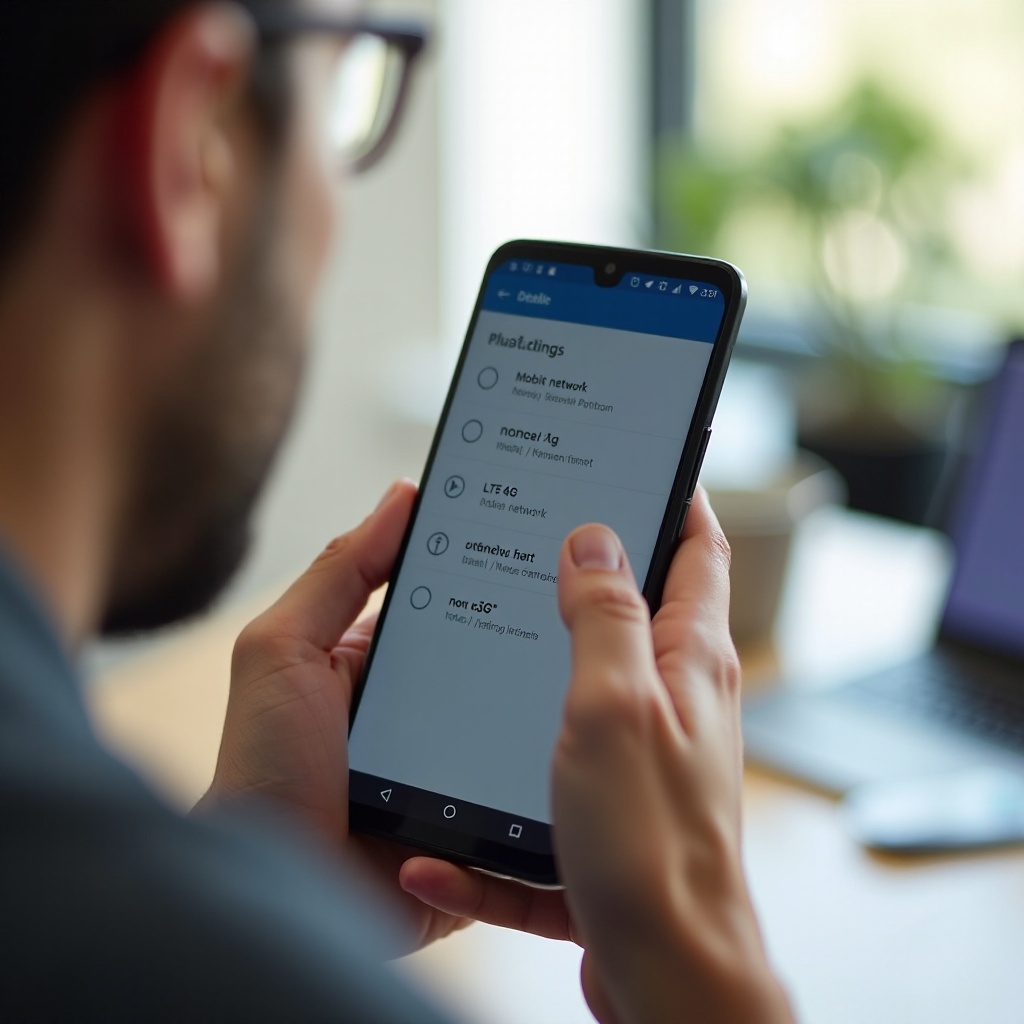
Per SIM Network Type
Phones treat each SIM independently. Set LTE only on the data line first because that is where you will see the biggest effect. Then choose the mode for the voice line. Verify the data line shows LTE in the status bar.
Priority SIM for Data
Select the SIM with stronger LTE coverage as the primary data line. Switch priority under SIM settings when you move between regions. Test both lines and pick the one that holds LTE more reliably.
Roaming Profiles
Roaming can change which bands are allowed and which toggles appear. If you travel and 5G coverage is weak, keep LTE only for consistency. When you visit a city with strong 5G, you can re enable it for top speed. If a phone offers no visible toggle, the next section explains what to do.
When the 5G Toggle Is Missing on Carrier Locked Phones
Ask Your Carrier to Enable LTE Only
Carriers can hide or remove network modes on locked devices. Contact support and request LTE only provisioning. Some carriers can push a profile to your line that disables 5G without changing your plan.
APN and Account Level Settings
Editing APN entries seldom disables 5G cleanly. Account level features work better. Ask for a plan or feature set that excludes 5G access. If you use an MVNO, test a different SIM to see whether the phone shows the LTE only option when the line is not locked.
Temporary Workarounds
If 5G returns after each reboot, toggle Airplane mode and re select LTE. Remove carrier apps that manage profiles. Advanced routes exist, but they require caution and may be blocked on some models. Those routes are covered next.
Advanced Methods: Testing Menu, Service Codes, and ADB
Android Testing Menu star hash star hash 4636 hash star hash star
Some phones expose a hidden screen called Phone information. Dial star hash star hash 4636 hash star hash star to open it. Look for Set Preferred Network Type and pick LTE only. On locked devices, changes may not stick, and you might not see the option at all.
Samsung Service Mode Considerations
Service Mode can adjust deep radio settings. Proceed carefully and avoid any option you do not understand. On some carrier models, Service Mode is disabled or limited. If it opens, find the network mode section and set LTE only. Restart and verify the change.
ADB Without Root: Set Preferred Network Type
Advanced users can use ADB to write system settings that control the preferred network type. Results vary by device and carrier policies. Always back up, note original settings, and be ready to restore defaults. If anything breaks, reset network settings and set LTE again in the normal menu. After changing radios, confirm voice and data features remain healthy.
VoLTE, Wi Fi Calling, and Hotspot Considerations
Keep VoLTE Enabled
Enable VoLTE so calls use LTE. Open your SIM calling settings and check the VoLTE switch. VoLTE delivers quicker call setup and better audio quality. If calls fail after you disable 5G, toggle VoLTE off and on, then restart.
Wi Fi Calling Behavior on LTE
Wi Fi Calling works the same whether you use LTE or 5G. If calls drop on Wi Fi, toggle Wi Fi off and on, update carrier services, and clear the dialer cache. Reboot and test again on LTE.
Tethering and Data Speeds
Mobile hotspot works fine on LTE. You may see lower peak speeds than 5G, but performance is often steadier in weak coverage. If tethering cuts out, reset network settings and re select LTE only. For high speed sessions, re enable 5G temporarily.
Troubleshooting: Greyed Out Options, Reverts After Reboot
Profile Pushes From Carrier
Carriers can push radio profiles that override your choice of LTE only. If the phone keeps switching back to 5G, ask support to remove 5G features or apply an LTE only profile. Document what you changed to make the call easier.
Reset Network Settings
Go to Settings, System, Reset options, and tap Reset Wi Fi, mobile, and Bluetooth. Then set LTE only again. This clears cached radio settings and often restores missing toggles.
Software Updates and Beta Builds
Update Android and carrier services. New builds fix network bugs and improve menu consistency. Beta software can hide toggles or cause regressions. If you run a beta, switch to stable firmware, then reapply LTE only. With issues resolved, you can focus on getting the most battery life while staying on LTE.
Battery Life and Coverage Tips After Disabling 5G
Signal Strength and Band Lock Ideas
Strong LTE signals reduce power draw. Move closer to windows in dense buildings, avoid deep basements, and use trusted Wi Fi when available. Unless you know your local bands well, keep default band selection rather than forcing narrow locks that can cause instability.
Background Data Controls
Use Data Saver to restrict heavy sync and auto uploads on mobile. Limit background access for apps that stream, back up photos, or fetch large files. These steps stack with LTE only to make a clear difference in daily battery life.
Travel and Rural Use
While traveling, LTE often provides the most reliable connection on highways and small towns. Keep LTE only until you reach a city with strong 5G. Re enable 5G for big downloads or uploads when you have excellent coverage. After managing battery and coverage, it helps to know how to switch back to 5G instantly.
How to Re enable 5G Later
Restore Preferred Network Type
Open Settings, go to Network and Internet, then SIMs, and select Preferred network type. Pick 5G or Auto. Confirm the status bar shows 5G and run a quick speed test to verify peak performance.
Quick Settings and Shortcuts
Add a shortcut to SIMs inside your launcher or use widgets that jump into mobile network settings. Shortcuts reduce taps and encourage you to switch modes when you need the extra speed.
Automation to Toggle 5G
Use Bixby Routines, Rules, or similar tools to automate network mode reminders. For example, force LTE during commute hours and re enable 5G when you return home. Automations help you balance battery and speed without constant manual steps.
Conclusion
You can disable 5G on most Android phones by changing the preferred network type to LTE or 4G. Menus differ by brand, but the pattern is the same across Android 14 and Android 15. If your phone or carrier hides the toggle, request LTE only provisioning or use advanced methods with care. Keep VoLTE and Wi Fi Calling enabled to preserve reliable calls. Tackle reverts and greyed out items with carrier support, software updates, or a network reset. When you need peak speed, switch 5G back on in seconds. Use this guide as your clear reference for stable coverage and better battery wherever 5G is not helpful.
Frequently Asked Questions
Why dont I see a 5G off switch on my Android phone
Carriers can lock or hide network modes on some models. Update the phone, remove carrier control apps, and reboot. If the toggle stays missing, ask support to enable LTE only at the account level or try a different SIM from an MVNO to confirm whether the phone exposes the option.
Will disabling 5G improve battery life significantly
It depends on coverage. In weak or patchy 5G areas, LTE only often helps by avoiding band scans and frequent handoffs. In strong 5G zones, savings can be modest. Combine LTE only with Data Saver and background limits to see clearer gains, then measure results over a few days.
Can I disable 5G on one SIM but keep it on the other
Yes. Most dual SIM and eSIM phones let you set the preferred network type per SIM. Open SIM settings, choose LTE only on the data line, and leave the other line on Auto or 5G. If a carrier lock prevents per SIM changes, request account level adjustments from support.