
Introduction
You pick up your Android phone, press play, and the sound feels weak. Music lacks punch. Calls sound quiet. Notifications barely get attention. You want a louder phone without hurting your ears or your hardware. You can get there with the right settings, smart tweaks, and a few careful checks.
This guide shows you how to increase volume on Android safely and effectively. You will learn how Android splits volume into types and how to raise the correct one. You will see where to find in‑app caps, how to use built‑in audio tools, and how to boost Bluetooth volume. You will also learn how to clean your speakers, troubleshoot the root cause, and avoid risky booster apps.
Start with the basics to unlock quick wins. Then move to deeper tools and tips to improve music, calls, videos, alarms, and Bluetooth audio. Each step builds on the last, so you get louder sound with control and clarity. Let’s begin with how Android handles sound. Once you understand the different volume channels, adjusting the right control becomes simple.
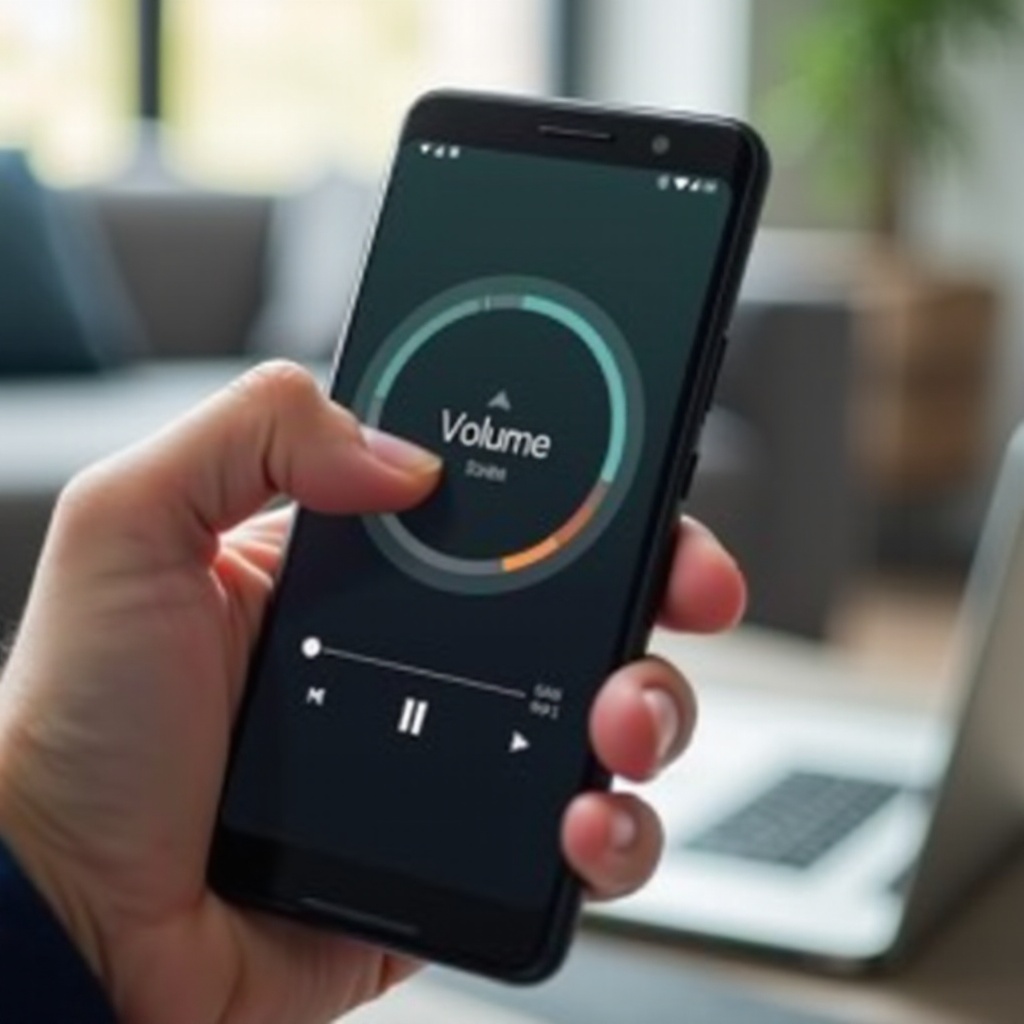
Understand Android’s Different Volume Types (Media, Call, Ring, Alarm, Notification)
Android uses separate volume channels. If you turn up the wrong slider, the sound you care about may stay low. Learn each type so you always raise the right one.
- Media volume controls music, video, games, podcasts, and most apps with sound. This is the slider you need for Spotify, YouTube, and Netflix.
- Call volume controls voice during phone calls on the earpiece or speakerphone. It does not affect music or notifications.
- Ring volume controls incoming call ringtones and vibrating behavior. Many phones link Ring and Notification unless you separate them in settings.
- Alarm volume controls clock alarms and some reminders. You can keep alarms loud even when Ring is low.
- Notification volume controls text, email, and app alerts, if split from Ring on your device.
Press the volume buttons during the activity you want to change. Android shows the relevant slider. Tap the three dots or the settings gear on the volume panel to see all sliders in one place. If you know which channel you need, you will not waste time maxing out the wrong control. With that mapped out, lock down the quick checks that often restore loud sound fast.
Quick Checks: Silent Mode, Do Not Disturb, Focus/Bedtime, and Volume Buttons
Many quiet phone problems come from simple toggles or modes. Fix these first. These checks often restore loud sound in seconds, and they make sure you are not fighting a hidden limiter.
1) Check the side volume buttons. Press Volume Up while you play media or during a call.
2) Confirm Silent or Vibrate mode is off. Open the volume panel and switch Ring to sound.
3) Turn off Do Not Disturb. Swipe down for Quick Settings and toggle DND off.
4) Disable Focus or Bedtime modes that limit alerts. Open Digital Wellbeing or Modes and Routines and pause them.
5) Verify app mute states. Look for mute icons inside YouTube, games, or video players.
If sound returns, great. If not, you need to raise the right slider in the right place. The next section shows the exact panels and settings to use. You will adjust system sliders and app controls together for a stronger, cleaner signal.
Raise the Right Slider: Using the Sound Panel, Settings, and Per-App Controls
Use these quick steps to set the core levels across Android and your apps:
- Press a volume button. Tap the three dots to open the full volume panel. Raise Media, Call, Ring, Alarm, and Notification as needed.
- Go to Settings > Sound & vibration. Set default levels and vibration strength, and review any links between Ring and Notifications.
- Open the app you use. Raise its internal volume slider. Many media apps keep a separate volume bar and start below max.
If volume still feels low, your app may limit loudness to protect your ears or normalize audio. Let’s lift those caps without causing distortion. Moving in‑app controls next ensures you drive a healthy signal into the system and any audio effects you enable.
Increase In‑App Volume and Disable Loudness Caps (Streaming, Music, Games)
Many apps ship with conservative loudness settings. Adjust them to unlock a stronger signal before you touch any boosters.
- Spotify: Settings > Playback. Turn off ‘Normalize volume’ or set it to High. Raise the in‑app volume. Check the equalizer and gain if available.
- YouTube and YouTube Music: Max the in‑app volume. In YouTube Music, disable ‘Reduce loud sounds’ if present. Keep quality settings high for a cleaner feed.
- Apple Music, Deezer, Tidal: Look for Sound Check, Volume Leveling, or Loudness Normalization. Turn off or choose a louder mode, then confirm the in‑app volume bar is at max.
- Games and video apps: Open audio settings. Raise Master Volume and Effects volume. Disable ‘dynamic range reduction’ or ‘range compression’ caps if they make the output too soft.
After removing in‑app caps, you may want more punch or clarity. Your phone likely includes audio tools like an equalizer and spatial audio. Use them next for a safe, targeted boost. These tools tailor the sound to your ears and your speakers without pushing hardware past its limits.
Use Built‑In Audio Enhancements: Equalizer, Dolby/Spatial, and Adapt/Adaptive Sound
Android phones include audio enhancements that can lift perceived loudness and clarity without pushing hardware too hard.
- System equalizer: Settings > Sound & vibration > Audio Effects or Equalizer. If your phone ties the EQ to a music app, open that app’s audio settings. Boost the mids (1–4 kHz) slightly for clearer vocals and dialogue. Avoid extreme bass boosts, which cause distortion on small speakers.
- Dolby Atmos or Spatial Audio: Many phones offer Dolby or Spatial modes for speakers and headphones. Turn them on in Settings > Sound or in Quick Settings. Try profiles like Dynamic, Film, or Music. Pick the profile that sounds louder without harshness.
- Adapt Sound, Adaptive Sound, or personalize sound: Some brands offer hearing‑based tuning. Run the sound test and apply the profile. This can lift frequencies you struggle with, making audio feel louder and clearer at the same volume.
Start with small changes. Play a track you know and toggle each effect on and off. Keep what makes audio louder and clearer. If you listen over Bluetooth, optimize those links next for a bigger jump. Tuning the wireless chain unlocks loudness that system EQ alone cannot reach.
Make Bluetooth Headphones and Speakers Louder: Absolute Volume, Codecs, and Device Limits
Bluetooth volume depends on your phone, your headphones, and the link between them. Use these steps to raise it safely and avoid distortion.
1) Turn off Absolute Volume if needed: Some devices sound louder when you control phone and headset volume separately.
– Enable Developer options: Settings > About phone > tap Build number 7 times. Enter your PIN if asked.
– Go to Settings > System > Developer options.
– Toggle ‘Disable absolute volume’ on. Reconnect your Bluetooth device. Now raise both the phone volume and the headset volume to max, then dial back if too loud.
2) Pick a higher‑quality Bluetooth codec:
– In Developer options > Bluetooth audio codec, try AAC, aptX, aptX Adaptive, or LDAC (if your device supports them). Match the codec your headphones support. Many users hear a clear boost with aptX or LDAC.
3) Update firmware:
– Update your phone and your headphones’ firmware in their companion app. New firmware can raise output or fix volume bugs.
4) Check device caps:
– Some earbuds cap volume for safety. Look for ‘Volume limit’ or ‘Reduce loud sounds’ in the earbuds’ app and adjust with care.
If calls remain quiet or you rely on the earpiece, move on to call‑specific improvements that lift volume and clarity without harshness. Improving call audio uses a different path than media and responds to different settings.
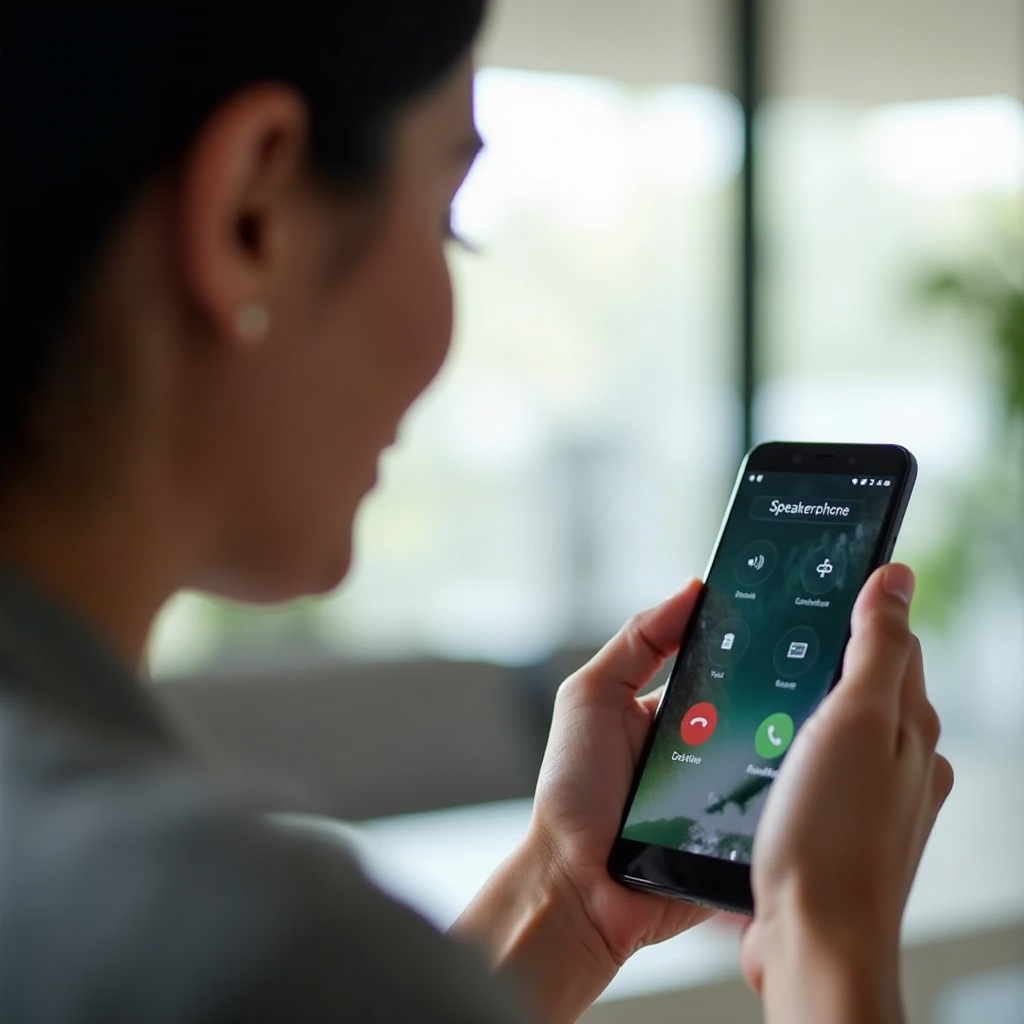
Improve Call Volume and Clarity: Earpiece, Speakerphone, VoLTE, and Wi‑Fi Calling
Calls use a different audio path from media. Improve that path for louder and clearer voices with a few targeted tweaks.
- Raise Call volume during a call. Press Volume Up while you speak to the other person.
- Use speakerphone when you need room‑filling sound. Keep the phone facing up and unobstructed so the main speaker fires freely.
- Enable VoLTE and Wi‑Fi Calling: Settings > Network & Internet > SIMs > enable VoLTE and Wi‑Fi Calling. HD voice can sound louder and clearer than legacy calls.
- Turn off noise suppression if it cuts volume: Some phones or dialer apps offer noise reduction. Toggle it off during the call if voices sound too quiet.
- Try a different dialer or update the Phone app. Updates can fix gain issues and improve echo cancellation.
Once calls sound right, look at accessibility options that amplify and clarify sound for media and calls while keeping control in your hands. These tools help when basic boosts are not enough.
Accessibility Features for Louder, Clearer Audio: Sound Amplifier and Hearing Accommodations
Android accessibility tools help users who need more volume or clarity without cranking every slider.
- Sound Amplifier (Google): Install or enable the Sound Amplifier app. Use it with wired or Bluetooth headphones. It can boost quiet sounds, reduce background noise, and improve speech clarity.
- Hearing device compatibility: In Settings > Accessibility > Hearing, enable ‘Hearing aid compatibility’ if you use hearing aids. Adjust audio balance (left/right) to suit your hearing profile.
- Reduce ambient noise: Some phones provide ‘Reduce ambient sound’ or ‘Audio enhancement’ toggles that lift voices and filter low‑frequency rumble.
These tools work well when you need more than a basic boost. Still, no setting can overcome a clogged speaker. Keep your hardware clean for the best results so your software changes have full effect.
Clean and Maintain Your Phone’s Speakers, Earpiece, and Ports
Dust, pocket lint, and moisture reduce volume more than you think. Clean hardware carefully to restore lost loudness and reduce distortion.
- Inspect speaker grilles, earpiece, and microphone holes. Use a soft, dry brush or a clean, dry, soft‑bristle toothbrush. Brush gently at an angle to avoid pushing debris in.
- Remove the case and any films that cover speaker cutouts. Many cases block sound paths; realign or change the case if cutouts are misaligned.
- Clear the USB‑C port. Lint can interfere with wired headphones. Use a plastic toothpick or SIM tool very gently to lift lint. Do not use metal pins that can damage contacts.
- Dry out moisture. If sound is muffled after water exposure, let the phone air‑dry. Some phones offer a ‘remove water’ audio feature that plays a tone to push water out.
Clean hardware restores lost volume and often improves clarity at the same volume setting. If you want even more control, try advanced settings designed for power users. These options fine‑tune Bluetooth and per‑app volumes beyond the basics.
Advanced Options for Power Users: Developer Toggles, Codec Selection, and Per‑App Volume
If you are comfortable with deeper settings, these tweaks help you optimize further and keep control over specific apps.
- Developer options: Besides disabling Absolute Volume and selecting codecs, you can set ‘Bluetooth Audio LDAC Playback Quality’ to prioritize sound quality (for example, 990 kbps). Ensure your device and environment support a stable connection.
- Per‑app volume control: Some OEMs include per‑app volume features in Settings > Sound. Use them to keep games or navigation louder than other apps without affecting music.
- Third‑party equalizers and audio engines: If your phone allows it, use reputable EQ apps that integrate with the system. Set gentle boosts (1–3 dB) around the vocal region and avoid heavy bass gain on small speakers.
- System‑wide normalization: Some devices offer ‘Enhance loudness’ or ‘Make speech clearer.’ Test these for a small but useful lift without clipping.
Use small, controlled changes and test with familiar audio. Next, fine‑tune the apps you use most for better loudness and clarity within their own settings. App‑specific tweaks complement system changes and prevent conflicts.
App‑by‑App Tips: Spotify, YouTube Music, Podcasts, Video Players, and Games
Each app treats audio differently. Adjust them for best results with quick, targeted changes.
- Spotify: Turn off or raise ‘Normalize volume.’ Try the built‑in EQ and set a mild midrange bump. Raise the app’s volume slider.
- YouTube Music: Disable ‘Reduce loud sounds.’ Use the app EQ if available and choose a higher quality stream. Keep your phone’s media volume near max.
- Podcasts and audiobooks: Many players include ‘Volume boost,’ ‘Voice boost,’ or ‘Smart speed.’ Enable voice boost for clearer, louder speech without raising peaks too much.
- Video players (VLC, MX Player): Enable audio boost modes, but keep them moderate to avoid clipping. Check ‘dynamic range compression’ options and select a louder profile.
- Games: Find the Audio menu. Raise Master and Dialogue sliders. Some games offer dynamic range settings; choose ‘Night Mode’ or ‘TV’ for louder voices at lower peaks.
With apps tuned, consider external hardware for a more dramatic jump in loudness without stressing your phone’s tiny speakers. Better speakers and drivers create louder, cleaner output with less risk.
Get Louder with External Gear: Earbuds, Portable Speakers, DACs/Amps, and Car Audio
External audio gear delivers louder, cleaner sound with less strain and better fidelity.
- Earbuds and headphones: Choose models with higher sensitivity (dB/mW) for louder output at the same phone volume. A good seal with the right ear tips improves perceived loudness.
- Portable Bluetooth speakers: Even small speakers outperform phone speakers in volume and bass. Pick a model with a loud mode or EQ, and place it near a wall for a natural boost.
- Wired DAC/amp: A compact USB‑C DAC boosts volume and detail for wired headphones. Ensure it supports your preferred sample rates and formats, and set your media volume near max.
- Car audio: In your car, raise the head unit volume and set the phone near max. If you use Bluetooth, select a high‑quality codec. For AUX, use a clean cable and set the head unit’s input gain correctly to prevent clipping.
External gear can make the biggest difference for music and movies. If volume still seems off, run a quick troubleshooting flow to find the root cause fast so you do not chase the wrong fix.
Troubleshooting Flow: Isolate the Cause and Fix It Fast
Use this simple flow to pinpoint what holds your volume back and resolve it efficiently.
1) Test different sources:
– Try local files, streaming, calls, and ringtones. If only one is quiet, fix that app’s settings.
2) Test different outputs:
– Phone speaker, wired headphones, Bluetooth earbuds, and a Bluetooth speaker. If only one path is quiet, focus there.
3) Safe mode:
– Restart into Safe mode to rule out third‑party apps causing audio manipulation. If volume returns, uninstall recent audio apps.
4) Reset Bluetooth and network:
– Forget and re‑pair Bluetooth devices. Reset network settings if connections seem unstable or codecs do not stick.
5) Check updates:
– Update Android, apps, and Bluetooth firmware. Manufacturers often patch volume and codec issues.
6) Hardware check:
– Clean speakers and ports again. Inspect for damage. If calls are muffled across all apps after cleaning, consider service.
This process saves time and shows whether you need a setting change, an app fix, or hardware help. While you chase louder sound, protect your hearing and your phone with safe listening habits. The final section gives simple rules that keep audio strong without harm.
Safe Listening: Protect Your Hearing and Avoid Damaging Your Hardware
Loud sound can cause fatigue and hearing loss. Keep gains safe and sustainable while enjoying the boost.
- Follow the 60/60 rule: Listen at no more than 60 percent volume for no more than 60 minutes at a time, then rest.
- Avoid extreme EQ boosts. Heavy bass can distort small speakers and damage drivers.
- Use external speakers or better headphones instead of pushing the phone speaker to its limits.
- Enable system safe‑volume alerts if available. They remind you when you go too loud for too long.
A safe approach keeps your ears fresh and your phone sounding good over time. Wrap up with the key steps to remember and keep handy for quick reference.
Conclusion
You can increase the volume on your Android phone without guesswork. Start with the basics: raise the correct slider, disable Silent and DND, and max in‑app volume. Then apply built‑in tools like EQ, Dolby or Spatial audio, and hearing personalization. For Bluetooth, use separate volumes, better codecs, and firmware updates. Boost call clarity with VoLTE and Wi‑Fi Calling, and clean your speakers to restore lost loudness.
If you need more, tune app settings and add external gear for a clean, safe jump in volume. Use the troubleshooting flow to find the cause when sound seems stuck. Keep safe listening habits so you enjoy louder audio without risk.
With these steps, your music has punch, your calls sound clear, and your alerts get noticed. You control the volume and the quality every time you press play.
Frequently Asked Questions
Why is my Android phone volume so low even at max, and how do I fix it?
Common reasons include the wrong volume channel set too low, Do Not Disturb or Silent mode turned on, in‑app normalization reducing loudness, or clogged speakers. Fix it fast by raising the correct slider while using that function, turning off DND or Focus modes, disabling app loudness normalization and increasing in‑app volume, and cleaning speaker grilles and the USB‑C port. If you use Bluetooth, try disabling Absolute Volume, selecting a better codec, and updating firmware. If only one app is quiet, adjust that app. If hardware sounds muffled across all apps, seek service.
How can I make Bluetooth earbuds louder on Android without distortion?
Use a clean, strong signal and match codecs. Disable Absolute Volume in Developer options so you can raise both phone and earbud volume independently. Pick a higher‑quality codec your earbuds support, such as AAC, aptX, or LDAC. Update firmware for your phone and earbuds in their apps. Turn off volume caps in the earbuds’ companion app if safe. Avoid extreme EQ boosts; raise mids slightly for clearer vocals. Ensure a good fit with the right ear tips; a better seal increases perceived loudness. Increase volume in small steps and stop before distortion.
Are volume booster apps safe, and what are better alternatives?
Many booster apps use aggressive gain that clips audio, distorts speakers, or demands risky permissions. Better alternatives include the system EQ and Dolby or Spatial audio for clean boosts, Google’s Sound Amplifier for targeted gains and noise reduction, app‑level features like voice boost in podcast players, and external gear such as quality earbuds, Bluetooth speakers, or a USB‑C DAC or amp. These methods deliver louder, clearer sound with less risk to your phone and your ears.