
Introduction
A frozen screen makes a fast phone feel helpless. If your Google Pixel froze, you can bring it back without panic. This guide walks you through quick checks, safe restarts, app and system fixes, cache cleaning, and smart settings that improve stability. You will also learn how to spot hardware trouble and when to contact Google support.
Every step here fits current Pixel models, including Pixel 5, 6, 6a, 7, 7a, 8, 8a, 8 Pro, and Pixel Fold. Start simple, then go deeper only if needed. That approach avoids data loss and saves time. By the end, you will know which fix to try first, what to try next, and how to prevent future freezes with easy habits.
You will begin with fast checks to confirm the problem and then move into model friendly restarts that restore control without wiping data.

Quick Checks to Confirm Your Google Pixel Froze vs. Crashed, Black Screen, or Dead Battery
Confirm the type of issue before you act. A true freeze shows a stuck screen that ignores taps and swipes, yet the display stays on. A crash often kicks you to the home screen or restarts on its own. A black screen suggests the display or power is off. A dead battery shows a battery icon when you plug in.
Run these quick checks:
– Press Power once. Does the screen wake or sleep normally?
– Call your number from another phone. Does it ring or vibrate?
– Plug into a known good charger for at least 10 minutes. Look for the charging icon.
– Try a different cable and wall outlet. Avoid low power laptop ports.
– Remove the case and clean the screen. Check for moisture or debris.
If you still see a lit, unresponsive screen, you likely face a software freeze. If the phone looks off or shows no sign of power, charge longer and test again. When a freeze is clear, a force restart is the fastest safe fix.
To move from checks to action, use a force restart that clears the lock without erasing your data.
How to Force Restart a Frozen Google Pixel by Model
A force restart is your quickest rescue. It clears a freeze without touching files or apps. Most recent Pixels support a long press restart that you can do anywhere.
Standard long press restart for recent Pixels
- Press and hold the Power button for about 30 seconds.
- Keep holding until you feel a vibration and see the Google logo.
- Release the button and wait for the phone to boot.
This method works on Pixel 5, 6, 6a, 6 Pro, 7, 7a, 7 Pro, 8, 8a, 8 Pro, and Pixel Fold.
If the long press does not work
- Try holding Power for 30 seconds again.
- If still stuck, press and hold Power and Volume Up together until the device restarts.
- Unplug any accessories and remove the case, then retry the button hold.
After the restart, watch for clues
- Note what you were doing when the freeze happened.
- Open the same app or repeat the action to see if it triggers another lock.
- If freezes return, isolate the cause with Safe mode next.
A successful restart gives you a chance to diagnose. Safe mode helps you check if a third party app is the trigger.
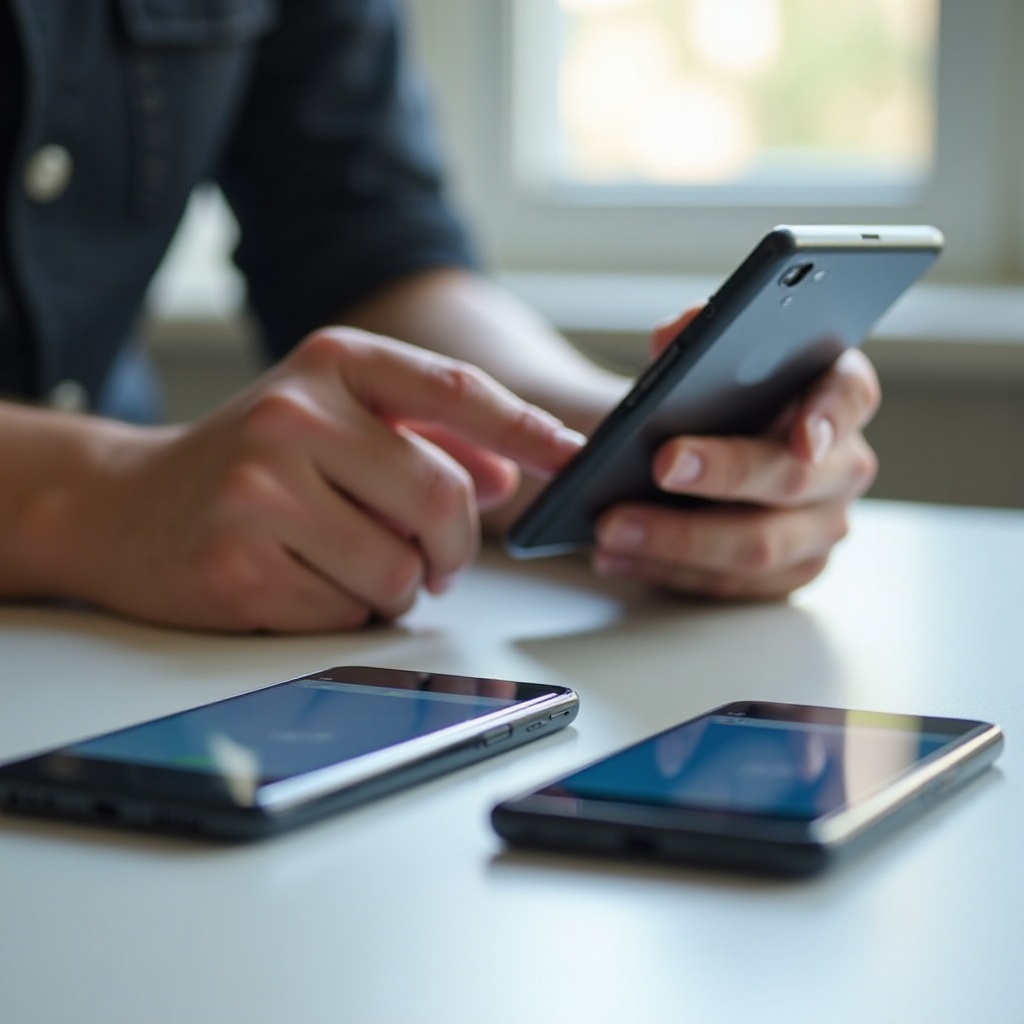
Use Safe Mode to Diagnose Whether an App Made Your Pixel Freeze
Safe mode loads only the core system and disables third party apps. If your Pixel works fine in Safe mode, a downloaded app likely caused the freeze.
Enter and exit Safe mode
- Press and hold the Power button to open the power menu.
- Touch and hold Power off on screen.
- Tap OK to reboot in Safe mode. You will see a Safe mode badge after boot.
- To exit, restart the phone normally.
What Safe mode results mean
- No freezes in Safe mode: a third party app is the likely culprit.
- Freezes even in Safe mode: look to system updates, storage pressure, cache issues, or hardware.
Next moves
Use the phone for a few minutes in Safe mode. Open core apps, make a call, and test touch. If it stays stable, you need to fix or remove problem apps. If it still locks, skip to system level fixes.
You can now tackle app related triggers first, since they are the most common and easiest to fix without losing data.
Fix App Related Freezes: Update, Clear Cache or Data, or Uninstall Problem Apps
Bad updates, corrupt caches, or misbehaving apps often lock the UI. Start with updates, then move to targeted cleanup.
Do this in order:
1) Update all apps
– Play Store > profile icon > Manage apps and device > Updates available > Update all.
– Prioritize browsers, launchers, messaging, Google app, and WebView.
2) Clear cache and data for suspect apps
– Settings > Apps > See all apps > choose the app.
– Storage and cache > Clear cache. Test. If issues persist, also tap Clear storage.
– Note: clearing storage signs you out and resets app settings. Consider backing up in app.
3) Reinstall problem apps
– Uninstall the app. Restart the phone. Install a fresh copy from Play Store.
– Avoid sideloaded builds unless you trust the source and version.
4) Review permissions and background limits
– Settings > Apps > choose the app > Permissions. Remove access the app does not need.
– Settings > Apps > choose the app > Battery > set to Restricted for power hungry offenders.
If freezes continue across multiple apps, shift attention to the system. System updates and Play system patches often remove the underlying cause.
System Level Fixes: Install Android and Google Play System Updates for Stability
System components handle drivers, security, and performance. Out of date builds can freeze under load or after app updates. Patch the system and related Google components.
Apply these updates:
– Android update: Settings > System > System update. Install pending updates and restart.
– Google Play system update: Settings > Security and privacy > System and updates > Google Play system update. Install and restart.
– Google Play services, Google app, and Android System WebView: open Play Store, search each, and update.
After updates, reboot and test under your normal routine. If lockups remain, reduce storage pressure and refresh the cache partition to clear stale system cache.
Free Up Storage and Clear the Cache Partition to Unstick Your Pixel
Low free space can choke background writes and stall the UI. Keep at least 20 percent storage free for smooth operation. Clearing the cache partition can also resolve slowdowns after updates.
Free up space fast:
– Files by Google: open the Clean tab and remove junk, duplicates, and large files.
– Photos and videos: offload to cloud and delete old screen recordings and downloads.
– Apps and games: uninstall heavy apps you rarely use. Consider lighter alternatives.
– Messages: delete big attachments in chat threads. Archive old conversations.
Then clear the cache partition:
1) Power off the phone.
2) Press and hold Volume Down and Power to enter the bootloader.
3) Use volume keys to highlight Recovery Mode. Press Power.
4) When you see the Android with an exclamation, hold Power and press Volume Up once to enter recovery.
5) Select Wipe cache partition. Confirm.
6) Select Reboot system now.
This does not erase personal data. After the reboot, test daily tasks. If freezes only happen during heavy use, manage performance and heat next to keep the device stable under load.
Manage Performance, Heat, and Battery: Prevent Freezes During Heavy Use
Heat and power spikes can stall the system during games, 4K video, or long camera sessions. Cooling and power smoothing help the phone stay responsive.
Practical steps:
– Remove thick cases during gaming or charging to improve heat dissipation.
– Avoid direct sun and hot cars. Let the phone cool before reuse.
– Close background downloads and heavy apps before a long video shoot.
– Use Battery Saver for short periods to cut background activity.
– Lower camera resolution or frame rate if the device gets hot.
– Avoid wireless charging on soft surfaces that trap heat.
If stability improves when the phone stays cool, you likely found a contributor. Next, check cables, Bluetooth, and accessories that may conflict with the system and trigger stalls.
Check Connectivity and Accessories: USB C, Bluetooth, and Screen Protectors
Accessories, cables, and radios can cause lockups. Isolate conflicts by removing variables and testing.
Try the following:
– Unplug USB C hubs, adapters, OTG drives, and car cables. Test the phone alone.
– Swap to a certified cable and charger. Inspect the USB C port for lint. Clean gently with a wooden or plastic pick.
– Turn Bluetooth off temporarily. Forget and re pair devices that misbehave.
– Disable Nearby device scanning for testing: Settings > Google > Devices and sharing > Nearby.
– Remove the screen protector. If touch improves, replace it or enable increased touch sensitivity: Settings > Display > Increase touch sensitivity.
If removing an accessory stops the freeze, replace or avoid that item. If nothing changes, reduce optional features that add load or trigger switching delays.
Try Stability Boosting Feature Tweaks: Smooth Display, 5G, and Adaptive Features
A few toggles can ease system strain or reduce switching hiccups. Use them for diagnosis and keep the ones that help.
Useful tweaks:
– Smooth Display: Settings > Display > turn off Smooth Display to lock a lower refresh rate.
– 5G settings: Settings > Network and internet > SIMs > Preferred network type > choose LTE or 4G temporarily.
– Adaptive Connectivity: Turn it off if you notice stutters when the phone switches networks.
– Nearby Share and quick device discovery: disable while testing.
– Live wallpapers: switch to a static wallpaper to reduce rendering load.
If these changes improve stability, bring features back one by one to find the tipping point. If freezes keep showing up, move to reset options that fix deeper conflicts.
Reset Options Explained: Reset App Preferences, Reset Network, and Factory Reset
Use resets in a smart order. Start with resets that do not erase personal data, then escalate only if needed.
-
Reset app preferences:
Settings > Apps > See all apps > three dot menu > Reset app preferences. This restores disabled apps, default apps, and notifications without deleting data. -
Reset network settings:
Settings > System > Reset options > Reset Wi Fi, mobile and Bluetooth. You will need to re enter Wi Fi passwords and pair Bluetooth devices again. -
Factory reset as a last resort:
Back up first: Settings > Google > Backup or the Google One app. Confirm Photos, Messages, and app data. For eSIM, confirm your carrier can re provision if needed.
Erase: Settings > System > Reset options > Erase all data. Set up the phone clean, test before restoring all apps, then reinstall in small batches to catch any trigger.
If you still get freezes on a fresh setup with no third party apps restored, the issue may be hardware. Run diagnostics and prepare to contact support.
When It’s Hardware: Run Diagnostics and Contact Google Support or Authorized Repair
If the screen still locks after a clean software path, check the hardware. A failing touch panel, damaged USB C port, or other component can cause random freezes.
Run these checks:
– Settings > Support or Tips and support app > Diagnostic tools. Run touch, display, and sensor tests.
– Inspect the USB C port, buttons, and screen for damage or debris.
– Look for swelling, lines, flicker, or green tint on the display.
If tests fail or the device freezes with no third party apps installed, contact Google support. Use the Support option in Settings or the Google Store support site. If you bought device protection, start a claim. For out of warranty cases, ask for a repair quote and turnaround time. Document your steps and dates to speed service.
With hardware ruled out or serviced, focus on a few habits that keep your phone smooth and prevent another google pixel froze moment.
Prevent Future Google Pixel Froze Moments: Maintenance and Best Practices
A short routine keeps your Pixel stable and fast.
Adopt these habits:
– Update monthly: Android, Play system, Play Store apps.
– Keep 20 to 30 percent storage free. Audit large files weekly.
– Install fewer background apps. Avoid duplicate cleaners and boosters.
– Skip beta software on your daily driver unless you accept risk.
– Use quality, certified chargers and cables.
– Manage heat during gaming, recording, and charging. Take breaks.
– Reboot once a week to clear transient issues.
– Review permissions and background activity: Settings > Apps > Battery > Restricted for heavy offenders.
– After big updates, wipe the cache partition for a fresh start.
These steps cut freeze risks, improve battery life, and reduce random stutters. If a freeze returns, you now have a fast action plan that you can run in minutes.
Conclusion
Most google pixel froze problems yield to a simple sequence: force restart, Safe mode tests, app updates and cleanup, system patches, storage relief, and a cache wipe. Then stabilize with heat control, accessory checks, and targeted feature tweaks. Use resets in order and back up before a factory reset. If the device still locks after a clean setup, run diagnostics and contact Google support. With a steady prevention routine, your Pixel stays responsive and reliable.
Frequently Asked Questions
Why does my Google Pixel freeze on the Google logo or during startup
A boot freeze points to system files, drivers, or a failed update. Force restart and charge for 20 minutes. Install pending updates if the OS loads. If it loops, wipe the cache partition in recovery. If that fails, back up and factory reset. Persistent boot freezes may need Google support or a warranty repair.
What should I do if my Pixel screen is frozen but the buttons still work
That suggests the touch layer or an app is stuck while the system still runs. Force restart. Test in Safe mode. Update all apps. Clear cache and data for the app that triggered the lock. Remove the screen protector or enable increased touch sensitivity. Free storage and wipe the cache partition. If touch still fails across apps, run display diagnostics and consider repair.
Will a factory reset permanently fix recurring freezes on my Google Pixel
A factory reset often clears software causes and corrupt caches, but it will not fix failing hardware or a buggy app you later reinstall. After a reset, test the clean phone before restoring all apps. Reinstall in small groups and watch for issues. Keep system and Play updates current. If a clean phone still locks under light use, contact Google support.