
Introduction
Photo messages that never load, sit on ‘Downloading…’, or show as blank grey boxes can be incredibly frustrating. You know someone sent an important picture, but Google Messages refuses to display it. The good news is that this problem usually comes from fixable issues with your network, settings, or the app itself.
This guide has one clear goal: help you find a reliable google message app photos not showing fix for your Android phone. You will see step-by-step solutions for MMS and RCS images that will not download, along with practical tips to stop the issue from coming back.
We will start with simple checks to confirm where the problem sits, then move through network, app, and carrier settings in a logical order. Follow the sections in sequence. By the end, you should either have your photo messages working again or know exactly what to ask your carrier or phone maker.
Step 1 – Confirm It’s a Google Messages Problem (Not the Photo or Contact)
Before you change settings or reset anything, confirm that the problem is actually inside Google Messages. Sometimes the issue comes from a single contact, a specific image, or the sender’s side. A quick diagnosis here can save a lot of time and avoid unnecessary changes.
Start by testing with several different contacts:
- Ask at least two or three people to send you a photo.
- Include both regular SMS/MMS contacts and any RCS (Chat features) conversations if you use them.
- Check whether images fail to download for all senders or only for one person.
If images fail only for one contact, the problem likely sits on their device or network. They may have no mobile data, disabled MMS, or a misconfigured messaging app.
Next, send a photo to yourself in Google Messages:
- Open Google Messages.
- Start a new conversation with your own phone number.
- Attach a small photo from your gallery and send it to yourself.
- Check whether you can view the image in that thread.
If your own photo displays correctly, the app and network can usually handle media. This points more toward a sender or contact specific issue.
Finally, check whether photos load in other apps:
- Ask a friend to send the same picture via WhatsApp, Telegram, or email.
- Open Google Photos or your Gallery app to confirm your phone can view images normally.
If photos work everywhere else but fail only inside Google Messages, you can safely focus on Google Messages and your phone’s network settings in the next steps.
Step 2 – Check Your Network and Data Settings
Once you know the issue is limited to Google Messages, the next step is to confirm that your phone has a strong and stable connection. MMS and RCS images depend on a working data connection. If your signal is weak, unstable, or restricted, photos may never load.
Start by checking basic connectivity:
- Look at the signal bars and data icon (4G, LTE, 5G, or Wi-Fi) on your status bar.
- Open a browser and try to load a website.
- Run a quick speed test using any speed-test site or app.
If web pages load slowly or fail, fix the network issue first. Try these actions:
- Toggle Airplane mode on for about 10 seconds, then turn it off again.
- Switch from Wi-Fi to mobile data, or from mobile data to Wi-Fi.
- If you are at home, restart your Wi-Fi router and reconnect.
Next, review Data Saver and similar features. Many phones restrict background data to save bandwidth, which can block image downloads in Google Messages:
- Go to Settings > Network & internet (or Connections).
- Find ‘Data Saver’ or ‘Low Data Mode’.
- Turn Data Saver off temporarily and test photo messages again.
Also make sure that mobile data is enabled even when you are on Wi-Fi. Some carriers require mobile data to send and receive MMS, even if your phone has an active Wi-Fi connection.
If photo messages work only on Wi-Fi or only on mobile data, that clue helps you focus on carrier rules or APN settings later. With connectivity confirmed, the next step is to check the messaging options that directly control how photos download.
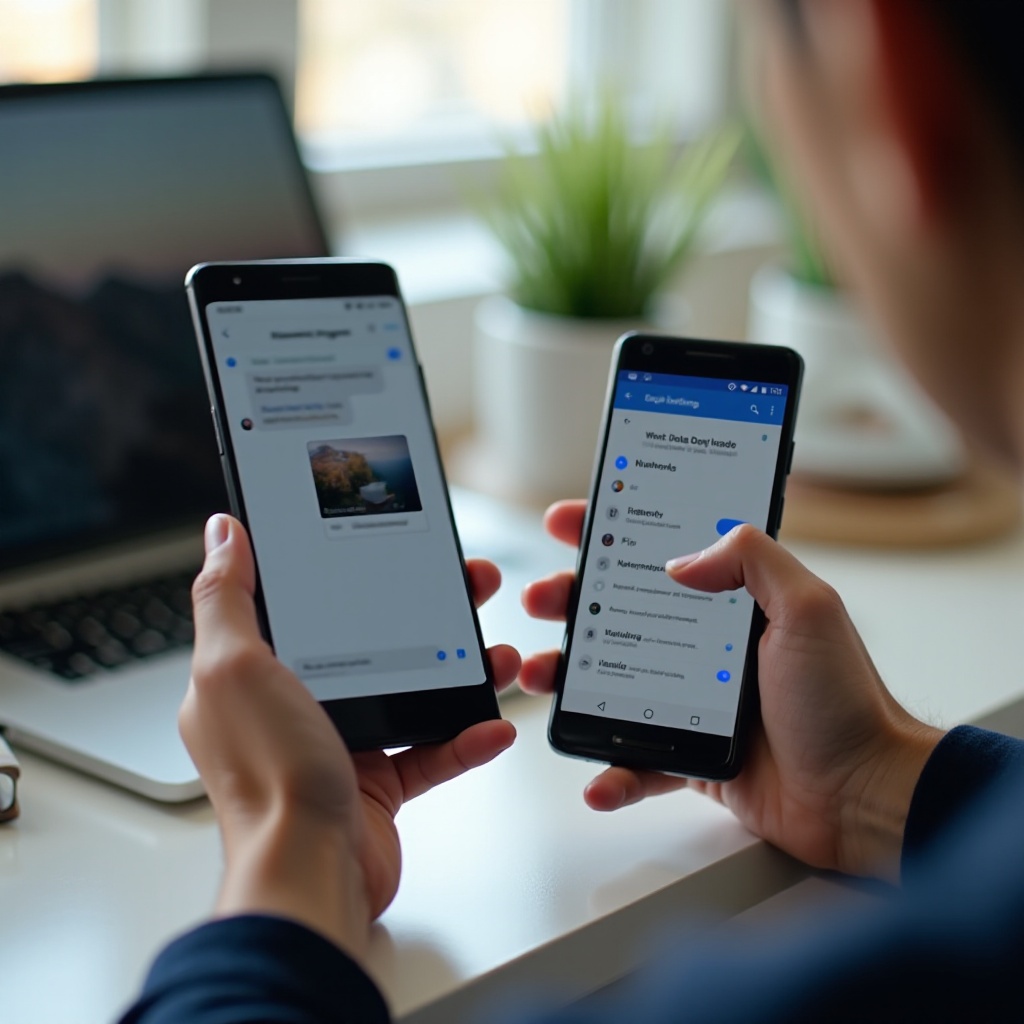
Step 3 – Enable MMS and RCS Settings in Google Messages
Network access alone is not enough. Google Messages also depends on the right MMS and RCS settings. If these options are disabled or stuck, your photo messages may sit in limbo forever.
Open Google Messages and do the following:
- Tap your profile picture or the three-dot menu in the top corner.
- Choose ‘Messages settings’.
First, enable MMS and auto-download:
- Open ‘Advanced’ (or open ‘Chat features’ and then ‘Advanced’, depending on the phone).
- Make sure ‘MMS’ or ‘Auto-download MMS’ is turned on.
- Turn on ‘Auto-download MMS when roaming’ if you travel and still want photo messages.
If auto-download is off, photos often show ‘Tap to download’ and can fail when the network is unstable or when background data is limited.
Next, review RCS Chat features:
- In ‘Messages settings’, tap ‘Chat features’.
- Check the status: it should say ‘Connected’ for normal use.
If it shows ‘Setting up’ or ‘Disconnected’ for a long time, RCS may be stuck. Try this reset:
- Turn ‘Enable chat features’ off.
- Wait 30–60 seconds.
- Turn it back on and allow it to re-register with your number.
If RCS stays unstable, turn it off and let conversations fall back to SMS/MMS. Many users find that normal MMS photo messages start working again once RCS is out of the way.
Now that the core messaging options are configured, the app still needs the right permissions and background freedom so it can download and store images. The next step focuses on that.
Step 4 – Fix Permissions, Storage, and App Restrictions
Google Messages needs permission to access photos, save files, and run in the background. If Android blocks any of these actions, photo messages might arrive but never show up properly.
Start with app permissions:
- Open Settings > Apps > Google Messages.
- Tap ‘Permissions’.
- Make sure the following are set to ‘Allow’:
- Photos and videos (or Files and media)
- SMS
- Contacts (recommended for normal use)
If ‘Photos and videos’ or ‘Files and media’ is denied, Google Messages may not be able to store and display incoming pictures.
Next, check battery and background data restrictions for the app:
- In the Google Messages app info screen, tap ‘Battery’.
- Turn off aggressive optimization or choose ‘Unrestricted’ if available.
- Go back and tap ‘Mobile data & Wi-Fi’ or similar.
- Enable ‘Background data’ and ‘Unrestricted data usage’.
Battery savers and background limits often block downloads when the screen is off or when you are not actively inside Google Messages.
Then, look at your device storage:
- Open Settings > Storage.
- Check how much free space you still have.
- If storage is nearly full, delete old photos, videos, or unused apps.
If you use an SD card and Google Messages saves media there, a failing or slow SD card can cause issues. Remove the SD card, reboot the phone, and test again. If things improve, move storage back to internal memory.
With permissions, storage, and restrictions sorted, the next logical step is to refresh the app’s internal data and make sure you are using the latest version of Google Messages.
Step 5 – Clear Cache, Data, and Update Google Messages
Corrupted cache files or outdated app versions can easily trigger issues like photos not showing or getting stuck on download. Clearing cache and updating the app are safe and often very effective.
To clear cache for Google Messages:
- Go to Settings > Apps > Google Messages.
- Tap ‘Storage & cache’ (or just ‘Storage’).
- Tap ‘Clear cache’.
Clearing cache removes temporary files but keeps your SMS, MMS, and app settings. After clearing cache, open Google Messages again and test by receiving or sending a photo.
If the issue continues, consider clearing app data, but treat this step with care:
- Clearing data may reset the app and its settings.
- On some devices, it can remove local SMS/MMS history if you do not have a backup.
If you decide to proceed:
- In the same ‘Storage’ screen, tap ‘Clear storage’ or ‘Clear data’.
- Confirm the action.
- Reopen Google Messages, accept the prompts, and set up your preferences again.
Before clearing data, back up important conversations using Google’s built-in backup or a reputable SMS backup app.
Now update Google Messages and Carrier Services:
- Open the Google Play Store.
- Search for ‘Google Messages’ and tap ‘Update’ if it appears.
- Search for ‘Carrier Services’ and update it as well.
If Google Messages is a system app on your device and a recent update seems to have caused the problem, you can roll it back:
- In the Google Messages app info screen, tap the three dots (if available).
- Choose ‘Uninstall updates’.
- Test the app, then install updates again once a stable release is available.
If photos still fail, the cause may lie deeper in your mobile network configuration, particularly in APN and carrier settings.
Step 6 – Check APN, Carrier, and Network Settings for MMS Photos
Traditional MMS uses special network routes called Access Point Names (APN). If these settings are wrong or incomplete, photo messages will not send or download, even when everything else appears to work.
Start by resetting APN to the carrier’s default values:
- Go to Settings > Network & internet > Mobile network.
- Tap ‘Access Point Names’.
- Tap the menu (three dots) and choose ‘Reset to default’.
This restores the default APN values, including the MMSC and MMS proxy details that MMS needs. After resetting APN, restart your phone and test photo messages again.
If you recently switched carriers, changed SIM cards, or moved to an eSIM, your APN may not match your current plan. In this case:
- Visit your carrier’s official support website.
- Search for ‘APN settings’ for your specific plan or device.
- Compare the values for MMSC, MMS proxy, and MMS port with what you see on your phone.
- Update any fields that do not match.
You can also reset all network settings:
- Go to Settings > System > Reset options.
- Tap ‘Reset Wi-Fi, mobile & Bluetooth’ or a similar option.
- Confirm and restart the phone.
This step forgets saved Wi-Fi networks and Bluetooth pairings but often resolves stubborn MMS issues.
If none of these settings help, contact your mobile carrier:
- Ask if MMS is enabled on your line.
- Confirm that you have an active data plan and no data block.
- Check for account restrictions, roaming limits, or recent changes to your plan.
When carrier and APN settings look correct, and the problem still occurs, it is time to look at apps and tools that may interfere with Google Messages behind the scenes.
Step 7 – Turn Off VPNs, Firewalls, and Conflicting Apps
VPNs, private DNS settings, firewalls, and other messaging apps can quietly block or reroute traffic that Google Messages needs in order to download photos. If you use any network-modifying tools, you should test Google Messages without them.
First, disable VPN or private DNS:
- Open Settings > Network & internet.
- Turn off any active VPN connection.
- Set Private DNS to ‘Automatic’ instead of a custom provider.
Next, check your security and utility apps:
- Temporarily pause antivirus or firewall apps.
- Look for options like ‘Network firewall’ or ‘App blocking’.
- Make sure Google Messages is not blocked from using data.
Then review other SMS apps installed on your phone:
- Go to Settings > Apps > Default apps.
- Confirm that ‘Google Messages’ is set as the default SMS app.
- Disable or uninstall other SMS apps that might compete for control of messages.
Some bubble, overlay, or clipboard apps can also interfere with messaging. If the issue started right after installing a specific app, try disabling or uninstalling that app and test Google Messages again.
If disabling VPNs and conflicting apps does not solve the problem, the issue may involve extra features or optimizations added by your phone’s manufacturer, which we will address next.
Step 8 – Brand-Specific Tips (Samsung, Pixel, OnePlus, etc.)
Different manufacturers add their own layers of battery, data, and messaging management. These custom features can affect how Google Messages handles photo downloads, even when Android’s core settings look correct.
On Samsung phones (One UI):
- Go to Settings > Battery or Settings > Device care > Battery.
- Open ‘Background usage limits’.
- Make sure Google Messages is not listed as a ‘Sleeping’ or ‘Deep sleeping’ app.
- Check Settings > Connections > Data usage and confirm there are no special data limits for Google Messages.
On Google Pixel devices:
- Confirm that Google Play Services and Carrier Services are up to date in the Play Store.
- If you use beta versions of Google Messages or Android, consider leaving the beta channel and using the stable version.
- After an OS update, it can help to clear cache for Carrier Services and restart the phone.
On OnePlus, Motorola, Xiaomi, and similar brands:
- Check whether ‘App locker’, ‘Dual apps’, or ‘Clone apps’ features are active for Google Messages.
- Make sure you use only one active instance of Google Messages.
- On dual-SIM devices, go to Settings > SIM cards & mobile networks and choose the correct SIM for SMS/MMS.
These brand-specific tweaks sit on top of the standard Android options you adjusted earlier. If the issue still remains after all these adjustments, you are left with only a few advanced and last-resort options.
Step 9 – Advanced and Last-Resort Fixes
At this point, you have checked almost every major cause of photos not showing in Google Messages. Before you consider a factory reset, it helps to confirm whether the problem affects only your phone or also appears on Google Messages for Web.
To test with Messages for Web:
- Open Google Messages on your phone.
- Tap your profile picture or the menu, then choose ‘Device pairing’.
- On your computer, go to the official Messages for Web site.
- Scan the QR code with your phone.
Open the same conversations on the web and see whether the photos display there. If images appear normally on the web but not on your phone, the issue is almost certainly on the device: storage, cache, or a deeper system problem.
Before performing anything drastic, back up your messages and data:
- Use Google’s built-in backup under Settings > System > Backup.
- Optionally, use a trusted SMS backup app to create an additional copy of your messages.
- Back up photos, contacts, and important files to Google Drive or another cloud service.
Only when every other google message app photos not showing fix fails should you consider a factory reset:
- Go to Settings > System > Reset options.
- Tap ‘Erase all data (factory reset)’.
- Confirm and wait for the reset to finish.
- Set up the device again, install Google Messages, and test photo messages before installing all your usual apps.
A factory reset is powerful and should be a last resort, but most users will solve the issue long before they reach this step.
Conclusion
Google Messages photos that do not show usually trace back to a few key areas: unstable or restricted network access, incorrect MMS or RCS settings, missing permissions, corrupted app cache, or misconfigured carrier and APN details. By working through these areas in a clear order, you can almost always restore normal photo message behavior without needing professional repair.
You started by confirming that the problem lives inside Google Messages, then tested network and data settings, messaging preferences, app permissions, and storage. You cleared cache, updated the app, checked APN and carrier options, and removed VPNs or conflicting apps. Brand-specific tweaks and, if needed, advanced steps like Messages for Web and backups help narrow things down even further.
If photo messages still fail after all of these steps, you now have detailed information to share with your carrier or phone manufacturer’s support team. You can explain exactly what you have tried and what you are seeing. In most cases, though, one of the fixes in this guide will get your MMS and RCS photos loading smoothly again so you can focus on your conversations instead of error messages.
Frequently Asked Questions
Why are my Google Messages photos stuck on ‘Downloading’ or not loading at all?
Photos stuck on ‘Downloading’ usually point to a network or MMS configuration problem. First, make sure mobile data is on and working, even if you are connected to Wi-Fi. Turn off Data Saver and any strict battery saver that might block background downloads. Then check that MMS and auto-download are enabled in Google Messages settings. If the issue continues, reset APN to default, clear the Google Messages cache, and update both Google Messages and Carrier Services. These steps resolve most stuck-download situations.
Do I need mobile data for Google Messages photos to download, or is Wi-Fi enough?
Many carriers require mobile data for MMS to work, even when you are connected to Wi-Fi. RCS chat features can usually use either Wi-Fi or mobile data, but traditional MMS often needs mobile data enabled in the background. Keep mobile data turned on while you test, and try downloading photos on both Wi-Fi and mobile data. If image messages work only on one type of connection, the cause is likely related to your carrier, APN configuration, or router settings.
Will I lose existing images and chats if I clear Google Messages data to fix this issue?
Clearing cache does not delete your messages or photos; it only removes temporary files. Clearing data, however, can reset Google Messages and may remove local SMS and MMS history on some devices if those messages are not backed up. Before you clear data, create a backup using Google’s built-in backup or a dedicated SMS backup app. After you back up, you can clear data, set up Google Messages again, and then restore your messages if needed, which lets you troubleshoot without losing important conversations.