
Introduction
When the Google Messages app keeps crashing, you miss texts, OTP codes, and important chats. You want fast, safe fixes that restore stability without losing data. This guide delivers a clear sequence that works for most phones and carriers. You will start with quick checks, then update or roll back core components, reset RCS cleanly, and clear bad cache or threads. After that, you will verify network and SIM basics, remove battery and overlay conflicts, and use Safe Mode to find app clashes. You also get device-specific tips for Pixel, Samsung, OnePlus, and Xiaomi, plus advanced repair options and a maintenance checklist to prevent repeat issues.
Open your Settings and Play Store before you begin. Keep Wi‑Fi or mobile data stable. If you rely on RCS, prepare to toggle Chat features during testing. Follow the sequence in order. Many users fix the issue in the early steps. If your phone still crashes later, you will have a clean base for deeper repairs.

Quick fixes to stop Google Messages from crashing now
Before making big changes, run through fast actions that often end crash loops:
1) Restart your phone. A warm reboot reloads services and clears stuck memory.
2) Force stop Messages. Go to Settings > Apps > Messages > Force stop. Then open Messages.
3) Set the default SMS app. Settings > Apps > Default apps > SMS app > Messages. Conflicting defaults can crash.
4) Check for outages. Search the web for Google Messages outage or your carrier name plus outage. If RCS is down, turn off Chat features and use SMS until it returns.
5) Verify permissions. Settings > Apps > Messages > Permissions. Allow SMS, Phone, Contacts, Notifications, and Storage.
6) Toggle Chat features off. In Messages > profile photo > Messages settings > Chat features or RCS chats > Off. If crashes stop, RCS likely needs a reset.
If Messages feels stable after these steps, re-enable features one at a time to confirm the fix. If it still crashes, the next move is to align the core system components that Messages depends on.
Update or roll back core Google components
Crashes often come from mismatched or buggy builds of shared components. Update these first:
– Google Messages: Play Store > search Google Messages > Update.
– Carrier Services: Play Store > search Carrier Services > Update. This powers RCS.
– Google Play services: Update to the latest stable build.
– Android System WebView and Chrome: Update both together. UI rendering issues here can crash apps.
– Android and Play system updates: Settings > System > System update. Install pending updates.
If crashes began after a recent update, try rolling back to stable versions:
1) Leave beta tracks. In Play Store app pages for Messages, Carrier Services, and Play services, leave beta if enrolled.
2) Uninstall updates for Messages. Settings > Apps > Messages > three dots > Uninstall updates. Reinstall from the Play Store.
3) Test again. If stability returns, the issue was version specific.
With components aligned, move on to a clean RCS reset. This step resolves many persistent crash loops tied to chat activation.
Reset RCS or Chat features cleanly
A bad RCS registration or corrupt profile can crash Messages during activation or syncing. Reset it carefully:
1) Turn off Chat features. Messages > profile photo > Messages settings > Chat features or RCS chats > Off. Wait two minutes.
2) Clear Carrier Services storage. Settings > Apps > Carrier Services > Storage and cache > Clear storage. This resets RCS tokens and caches, not your SMS.
3) Reboot the phone. This refreshes radio services and background processes.
4) Re-enable Chat features. In Messages settings, turn Chat features back on and let it verify your number. Keep a stable connection and avoid VPN while it activates.
5) If activation fails, toggle Airplane mode on and off, enable automatic time and timezone, and try again over mobile data.
Advanced users may see a debug option called Set RCS Flags in Messages. Use it only if you understand the risks. For most people, the basic reset above is safer and sufficient.
If RCS now works without crashes, proceed to clean up local caches and old threads to prevent future issues. If crashes persist, you will still benefit from this cleanup in the next section.
Clear cache, storage, and corrupted conversations
Temporary cache or broken message databases can cause sudden exits when you open threads or search:
1) Clear Messages cache. Settings > Apps > Messages > Storage and cache > Clear cache. This removes temporary files only.
2) If issues remain, clear Messages storage. Same path > Clear storage or Clear data. This resets app settings and local SMS or MMS. Back up first if you need to keep SMS or MMS.
3) Delete problematic threads. Remove conversations that crash on open, hold massive media, or contain many reactions. Ask group members to resend only what you need.
4) Free device storage. Keep at least 10 to 15 percent free space. Remove large videos, downloads, and duplicate files. Low storage can break databases and cause write failures.
After cleanup, observe stability as you resume normal use. If Messages still crashes during activation or sending, the network or SIM path may be at fault. The next section focuses on that layer.
Network and SIM diagnostics
RCS depends on a clean network path and proper SIM configuration. Faults here can crash the app during registration or syncing:
1) Toggle radios. Turn Airplane mode on for 10 seconds, then off. Toggle Wi‑Fi and mobile data as well.
2) Disable Private DNS temporarily. Settings > Network and internet > Private DNS > Off or Automatic. Some DNS providers block RCS endpoints.
3) Turn off VPN, ad blocker, or firewall. These tools often filter RCS traffic and cause loops.
4) Compare IPv4 vs IPv6. If your APN allows edits, try the default APN or switch between IPv4 and IPv6 modes as your carrier recommends.
5) Reseat the SIM or refresh eSIM. Power off, remove and reinsert the SIM, then boot. On dual SIM devices, pick the correct line for SMS and RCS in Messages settings.
6) Verify APN settings. Confirm they match your carrier support page.
If the network checks out and crashes continue, power management and overlays may be freezing or obstructing Messages. Address those next.
Stop battery, background, and overlay conflicts
Aggressive battery controls, cleaners, and overlays can terminate or corrupt Messages while it runs:
1) Remove battery optimization. Settings > Apps > Messages > Battery > Unrestricted or Do not optimize. Apply the same to Carrier Services and Google Play services.
2) Allow background data and usage. Settings > Apps > Messages > Mobile data and Wi‑Fi > Allow background data and Unrestricted data usage.
3) Disable cleaner or booster apps. Uninstall or exclude Messages from task killers, memory cleaners, and sleep lists.
4) Turn off overlays and listeners while testing. Disable notification listeners, wearables sync, screen recorders, chat heads, and accessibility services that draw over apps.
5) Test Messages again. If it stabilizes, re-enable items one by one to find the offender.
If conflicts persist, use Safe Mode to isolate the problem by running the phone with only system apps active.
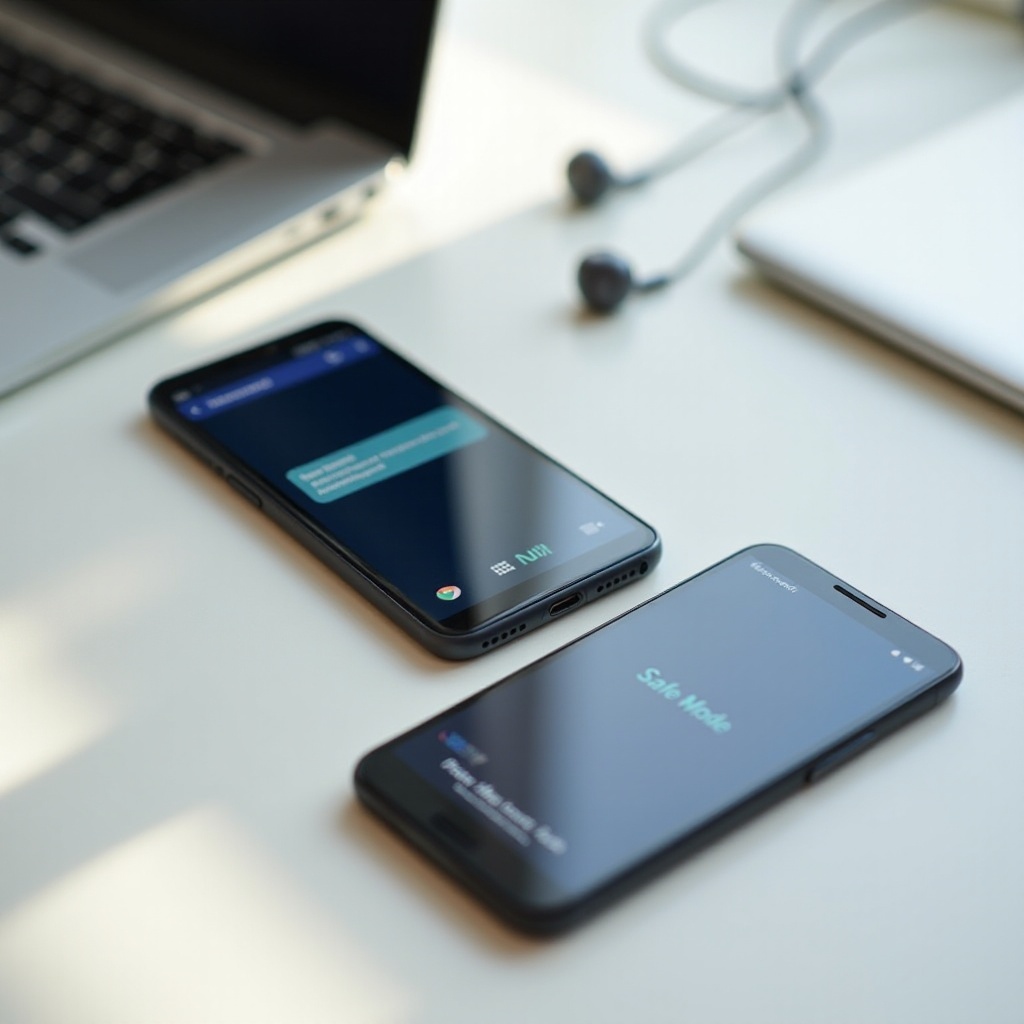
Identify conflicting apps with Safe Mode
Safe Mode helps confirm whether a third party app triggers the crash:
1) Enter Safe Mode. Hold the power button, then touch and hold Power off until the Safe Mode prompt appears. Confirm to reboot. Methods can vary by device.
2) Test Messages. Send and receive SMS. If possible, enable RCS and watch for crashes.
3) If stable in Safe Mode, restart normally and remove likely culprits. Start with recent installs, VPNs, ad blockers, notification managers, and overlay tools.
4) Re-enable remaining apps in small batches and test after each batch. Continue until you pinpoint the conflict.
Once you have ruled out conflicting apps, minor OEM quirks may still cause instability. Apply the brand specific adjustments below for another stability boost.
Device specific fixes for Pixel, Samsung, OnePlus, and Xiaomi
Small settings differ between Android brands. These tweaks often help:
– Pixel
1) Install Google Play system updates and monthly security patches.
2) If you joined the Android Beta, consider returning to a stable build.
3) Clear Google System Intelligence cache if smart suggestions crash threads: Settings > Apps > Google System Intelligence > Storage and cache > Clear cache.
-
Samsung with One UI
1) Exclude Messages and Carrier Services from Device Care optimizations.
2) Turn off Dual Messenger for Messages if it is enabled.
3) Disable Good Lock modules that draw over conversations while testing, such as NotiStar or other overlay tools. -
OnePlus with OxygenOS
1) Enable Auto launch for Messages, disable Deep optimization for it, and exclude it from battery optimization.
2) Turn off Parallel Apps for Messages.
3) Disable RAM Boost temporarily if crashes occur during rapid multitasking. -
Xiaomi, Redmi, or POCO with MIUI or HyperOS
1) Lock Messages in Recents and disable battery saver for it.
2) Allow autostart and unrestricted data usage.
3) Turn off Second Space and Dual Apps for Messages.
If these brand specific changes do not resolve the issue, move to advanced repairs that rebuild caches and reinstall stable components.
Advanced repairs and last resorts
Use these steps when standard fixes fail:
1) Wipe cache partition. Boot to recovery, then choose Wipe cache partition. This clears system caches without deleting personal files. Steps vary by device.
2) Reinstall stable builds. Uninstall updates for Messages and Carrier Services, then install stable releases from the Play Store. Avoid beta versions.
3) Collect logs and send feedback. In Messages, open Help and feedback and submit a report that lists your device model, carrier, Android version, and a short crash timeline.
4) Backup and factory reset. Save your data first. Then Settings > System > Reset options > Erase all data. After reset, test Messages before restoring many apps.
5) Contact support. Ask your carrier to recheck RCS provisioning. If hardware or firmware seems suspect, contact your device maker.
After recovery, keep your setup healthy with a light maintenance routine so the app stays stable week after week.

Prevent future crashes with a simple maintenance checklist
A few habits reduce the risk of future crashes:
– Keep core components updated. Allow auto updates for Messages, Carrier Services, Play services, WebView, and Chrome.
– Avoid risky betas on a daily driver. Use stable tracks unless you can tolerate bugs.
– Restart weekly. A quick reboot clears temporary issues and frees memory.
– Manage storage. Keep at least 10 to 15 percent free space. Regularly clear large videos and old group threads. Export important messages before cleanup.
– Limit cleaners and overlays. Skip task killers and aggressive power savers. Reduce the number of apps that draw over other apps.
– Network hygiene. Use Automatic or Off for Private DNS unless needed. Pause VPNs during RCS activation or troubleshooting.
– Post update checks. After major OS updates, verify RCS activation, notification categories, and battery settings for Messages.
With this routine, the app will feel faster and more reliable. If crashes return, repeat the quick checks and component updates first. You will resolve most issues without a full reset.
Conclusion
You can stop Google Messages from crashing by following a clear plan. Start with fast resets and permission checks, then align Messages, Carrier Services, Play services, WebView, and Chrome. Reset RCS cleanly, clear caches and heavy threads, and verify network and SIM basics. Remove battery and overlay conflicts, test in Safe Mode, and apply brand specific tweaks. If needed, wipe the cache partition, reinstall stable builds, capture logs, or perform a clean reset. With this sequence, texting stays stable, RCS activates cleanly, and your phone remains reliable day after day.
Frequently Asked Questions
Why does Google Messages keep crashing after an Android update?
Fresh system updates can misalign Messages, Carrier Services, Play services, or WebView. Update all four, reboot, and test. If you joined a beta, leave it and install stable builds. Clear Carrier Services storage and toggle Chat features off and on. If UI crashes persist, update WebView and Chrome together, then wipe cache partition.
Will clearing Carrier Services data delete my messages?
No. Clearing Carrier Services storage resets RCS registration data and caches. SMS and MMS live in the Messages app database. If you clear Messages storage, you will lose local SMS or MMS unless you back up first. Always back up before major resets.
How do I stop RCS from crashing without turning it off permanently?
Disable VPN, ad blockers, and Private DNS, then re try activation on mobile data. Clear Carrier Services storage, reboot, and re enable Chat features. Update Messages, Carrier Services, Play services, WebView, and Chrome to stable builds. Delete threads with huge attachments. On dual SIM phones, pick the correct line for SMS and RCS. If issues remain, leave betas and reinstall stable versions.