
Introduction
Stop wasting mobile data on background syncs and autoplay videos. Data saving mode Android gives you a simple switch to block most background data on metered networks while you still use apps in the foreground. You stay in charge: pick which apps can bypass limits, set data warnings and hard caps, and teach heavy apps to behave on mobile. This guide shows exactly how Data Saver works under the hood, how to turn it on across Pixel, Samsung, OnePlus, and Xiaomi phones, and how to fine tune per app controls without losing critical alerts.
You also get practical tips for 5G, hotspots, dual SIM and eSIM, and roaming, plus easy automations and a reliable troubleshooting checklist. Each section builds on the last, so you can start with the basics and add power moves as you go. With the foundation set, let us define what Data Saver does and how Android applies it moment by moment.
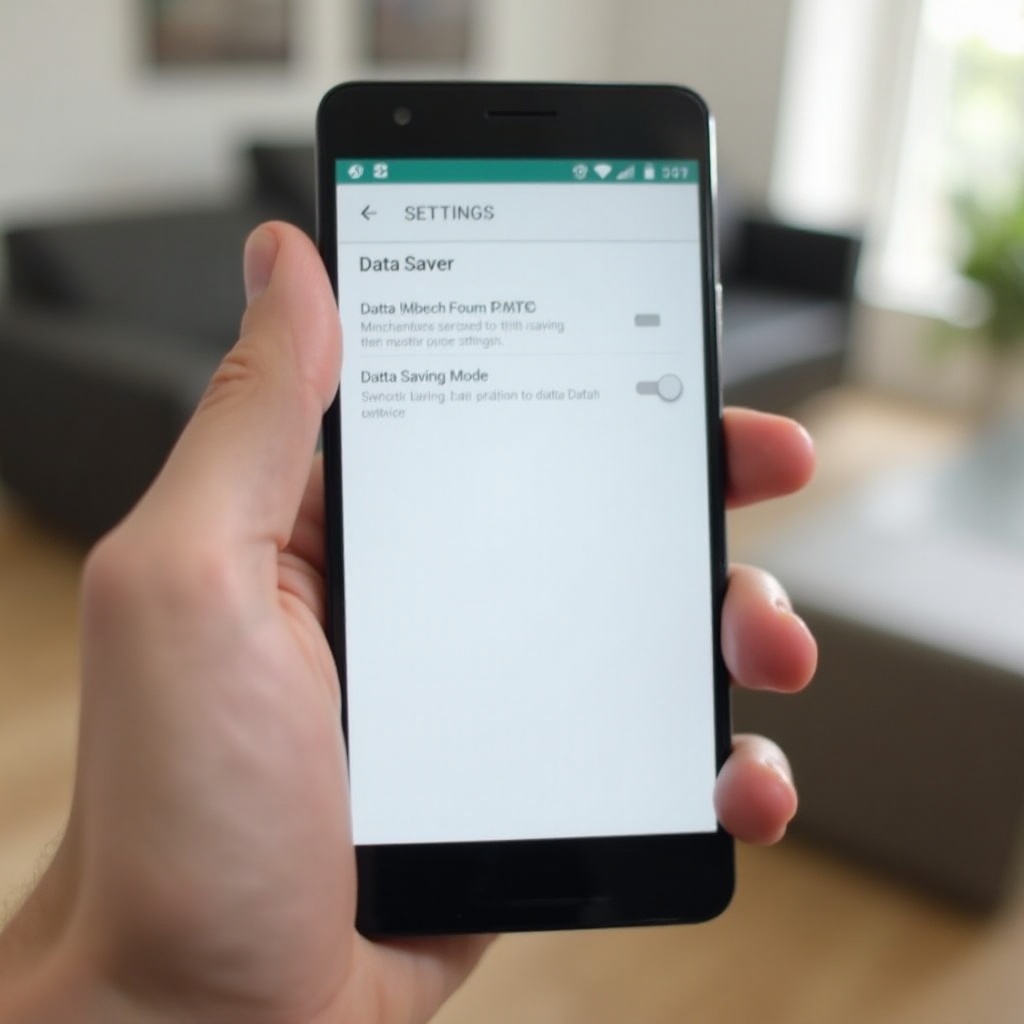
What Is Data Saver Mode on Android and How It Works
Data Saver instructs Android to limit background data on metered networks like mobile data and metered Wi‑Fi. Apps remain free to use data when you are actively looking at them, but background syncs, preloading, and auto updates slow down or pause. The system still lets time critical tasks pass in small bursts so your phone remains useful. This balance delivers real savings without turning your phone into a brick.
How Data Saver Restricts Background Data
When Data Saver is on, Android defers background jobs, pauses most prefetches, and blocks bulk transfers until you open the app or connect to unmetered Wi‑Fi. Services such as push messaging send tiny packets so alerts still show up. Large background downloads, media preloads, and silent cloud syncs wait. This cuts the chatter that burns data when you are not watching.
Foreground vs Background Activity
Foreground apps run as usual. If you are watching a video or reading a thread, the app can use the network at full speed. Once the app goes to the background, the system clamps down. That is the core idea: let you spend data when you are engaged and save it when you are not.
App Exceptions and System Services
You can grant Unrestricted data to a short list of apps that must sync in real time. Think of your main messenger, banking, or ride hailing apps. Android also exempts core services like push transport so vital alerts reach you. Keep this list tight to preserve savings. With the mechanics clear, the next step is turning Data Saver on for your device.
Benefits and Trade-offs: Notifications, Sync, Speed, and Battery
Data saving mode Android reduces background chatter, which lowers data use and often improves standby battery life. The trade off is that some non urgent notifications or cloud syncs may arrive later. You can manage this with a smart whitelist and app specific tweaks.
Push Notifications and Messaging Reliability
Most chat apps use lightweight push to alert you. Those alerts arrive even with Data Saver on. Full content downloads may wait until you open the app. If delays bother you, add your main messenger and email to Unrestricted.
Cloud Sync and Auto-Backup Considerations
Photo backups, podcast downloads, and file syncs often pause on mobile data. Set these to Wi‑Fi only, or grant exceptions only to the few apps that must upload or download in the background.
Performance, Latency, and Battery Side Effects
Foreground speed stays the same. Less background load can even reduce latency. Many users see better battery life thanks to fewer radio wake ups. Ready to enable it? Let us start with stock Android and Pixel, then move through popular phone brands.
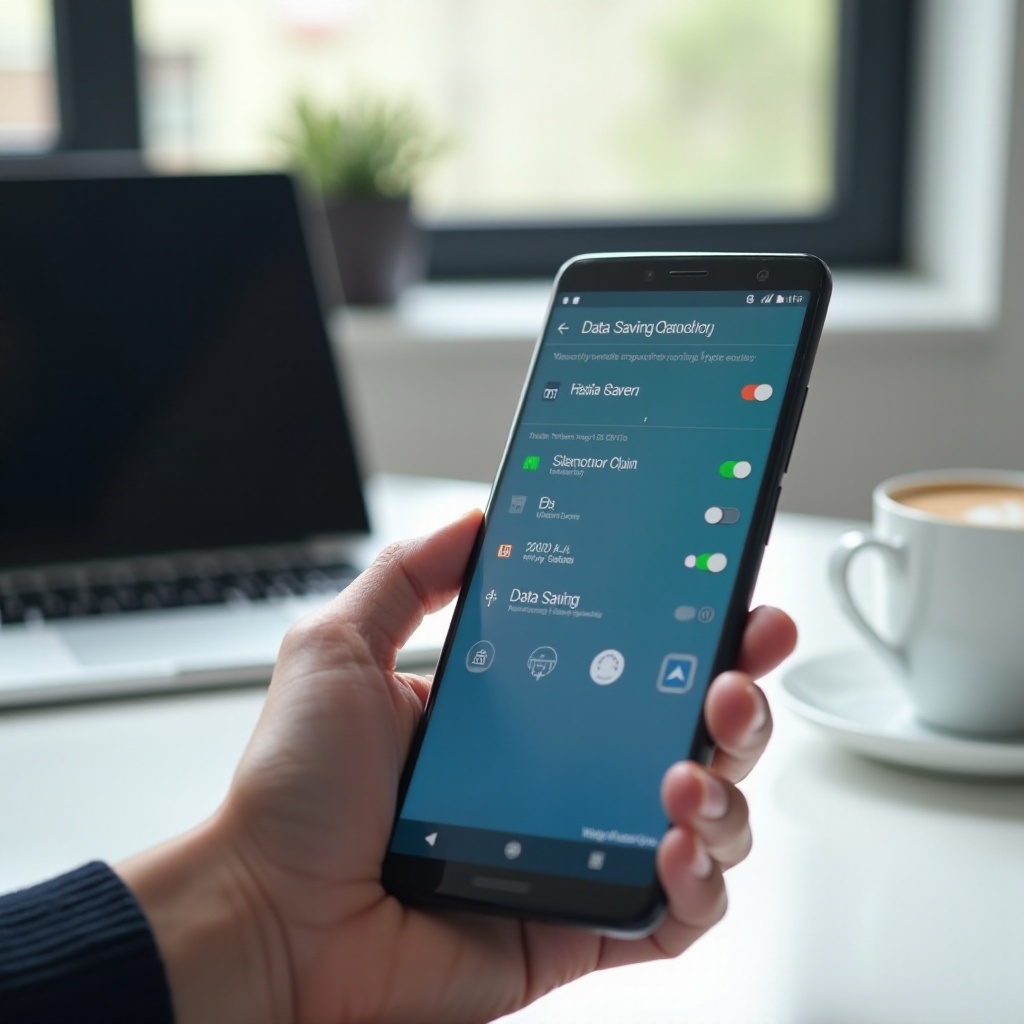
How to Turn On Data Saving Mode Android: Stock Android and Google Pixel (Android 14–15)
On stock Android and Pixel, you can toggle Data Saver in seconds and keep it handy for daily use.
Quick Settings Tile and Settings Path
- Swipe down twice to open Quick Settings.
- Tap the Data Saver tile to turn it on.
- Or go to Settings > Network & internet > Data Saver and toggle it there.
Verify Status Bar Indicators and Metered Network
Look for a small icon near the signal bars that signals Data Saver is active. Mobile data counts as metered by default. If you need the same behavior on a Wi‑Fi network with a cap, mark that Wi‑Fi as metered in its advanced settings.
Add/Remove Unrestricted Apps
Open Settings > Network & internet > Data Saver > Unrestricted data. Allow only essential apps that must sync without delay. This keeps alerts reliable without draining your plan. With Pixel sorted, let us map the same steps on Samsung devices.
Turn On Data Saver: Samsung One UI 6–7
Samsung puts Data Saver in the Connections menu and offers flexible routines that automate the switch.
Settings Path and Quick Panel Tile
- Go to Settings > Connections > Data usage > Data saver, then toggle it on.
- Add the Data saver tile to the Quick Panel for fast access.
Bixby Routines Integration
Use Bixby Routines to enable Data Saver when you leave trusted Wi‑Fi, at night, or when the battery drops below a level. Triggers like time, location, and SSID keep savings automatic without micromanagement.
Data Saver vs Ultra Data Saving
Some regions include an Ultra data saving option that compresses traffic and restricts background data more aggressively. Use it if you accept stronger limits and possible media compression. Next, here is how to enable Data Saver on OnePlus.
Turn On Data Saver: OnePlus OxygenOS 14–15
OxygenOS sticks close to Android defaults and provides straightforward app controls.
Settings Path and Toggle
- Open Settings > Mobile network > Data usage > Data saver, then switch it on.
- Add the tile to Quick Settings for quick toggles.
App Exceptions
Set per app data options under Settings > Apps > See all apps > [App] > Mobile data & Wi‑Fi. Grant Unrestricted data only to essential apps.
Notes for Parallel Apps and Work Profiles
If you use Parallel Apps or a Work profile, configure data permissions for each copy. Each profile follows its own rules. With OnePlus done, let us cover Xiaomi and HyperOS.
Turn On Data Saver: Xiaomi HyperOS/MIUI
Xiaomi offers system toggles plus extra controls in the Security app for per app background data.
Settings Path and Control Center Tile
- Go to Settings > SIM cards & mobile networks > Data usage > Data saver, and toggle it on.
- Add the Data saver tile in Control Center for one tap access.
Per-App Background Data in Security App
Open the Security app > Data usage to view consumption and restrict background data for heavy apps. This is a quick way to tame social media and cloud backup on mobile.
Dual Apps and Permissions Notes
If you clone apps with Dual Apps, review data permissions for each clone to keep push alerts working. With the big four brands covered, the next step is fine tuning per app controls for the best mix of savings and reliability.
Per-App Controls: Unrestricted Data and Background Data Limits
Global Data Saver is powerful, but per app rules unlock the best results. List the few apps that must stay real time, then restrict the rest.
Allow Unrestricted Data for Essential Apps
Whitelist apps that protect money, identity, and safety: your primary messenger, banking, ride hailing, authenticator, and work chat. Keep this list short. Every exception reduces savings.
Restrict Background Data for High-Usage Apps
Open Settings > Apps > [App] > Mobile data & Wi‑Fi and toggle off Background data for social, streaming, and cloud apps that do not need to talk while you are away. Many of these also offer built in data saver switches.
Battery Optimization and App Standby Buckets
Battery optimization and App Standby can help rein in background behavior. Keep optimization on for most apps. If one app needs real time access, grant both Unrestricted data and relaxed battery limits. Now set hard boundaries so your plan never surprises you.
Set Data Warning, Hard Limit, and Billing Cycle
Android can count your usage, warn you before overage, and cut data at a hard cap. Set these once, then let the system protect you.
Configure Billing Cycle and Data Plan
- Pixel or stock: Settings > Network & internet > SIMs > App data usage > Data warning & limit.
- Samsung: Settings > Connections > Data usage > Billing cycle and data warning.
Match the reset date to your carrier bill so stats align with charges.
Set Data Warning and Hard Cap
Choose a warning level that gives you time to react. If your carrier charges overage fees, set a hard limit slightly below your plan. At the cap, Android disables mobile data until you confirm more use.
Mark Wi‑Fi Networks as Metered
If your home internet or mobile hotspot has a cap, mark that network as metered. Long press the network name, open Advanced, then set Metered to Treat as metered. Android will apply Data Saver logic over that Wi‑Fi too. With spending guards in place, trim heavy apps to save even more.
Reduce Data Use in Popular Apps (YouTube, Chrome, Maps, Instagram, TikTok, Spotify)
A few app tweaks can save gigabytes each month. Use these practical changes and apply the same logic to similar apps.
YouTube: Video Quality, Autoplay, Downloads on Wi‑Fi
- Set default video quality to Auto or a lower resolution on mobile.
- Turn off autoplay on mobile data.
- Download playlists on Wi‑Fi for offline viewing.
Chrome: Preload Controls, Background Data, Media Autoplay
- Disable page preloading when on mobile data.
- Turn off background sync for sites that do not need it.
- Block autoplaying media on mobile connections.
Google Maps: Wi‑Fi Only, Offline Maps, Auto-Updates
- Enable Wi‑Fi only mode to stop mobile data use.
- Download offline areas for commutes and trips.
- Avoid auto updates of maps on mobile.
Instagram: Data Saver, Autoplay, High-Quality Media
- Turn on Instagram data saver.
- Disable high quality uploads on mobile data.
- Limit autoplay and preloading for reels and stories.
TikTok: Data Saver, Download Settings, Auto-Play
- Enable TikTok data saver.
- Stop automatic downloads on mobile.
- Reduce default playback quality to curb spikes.
Spotify: Data Saver, Download Quality, Canvas and Autoplay
- Turn on Spotify data saver.
- Download playlists at lower quality on Wi‑Fi.
- Disable Canvas and Autoplay to cut background pulls.
Google Photos: Backup Over Wi‑Fi Only and Upload Quality
- Set backup to Wi‑Fi only.
- Pick Storage saver upload quality.
- Pause mobile backup while traveling. With heavy apps tuned, make sure networks and special cases do not undo your savings.
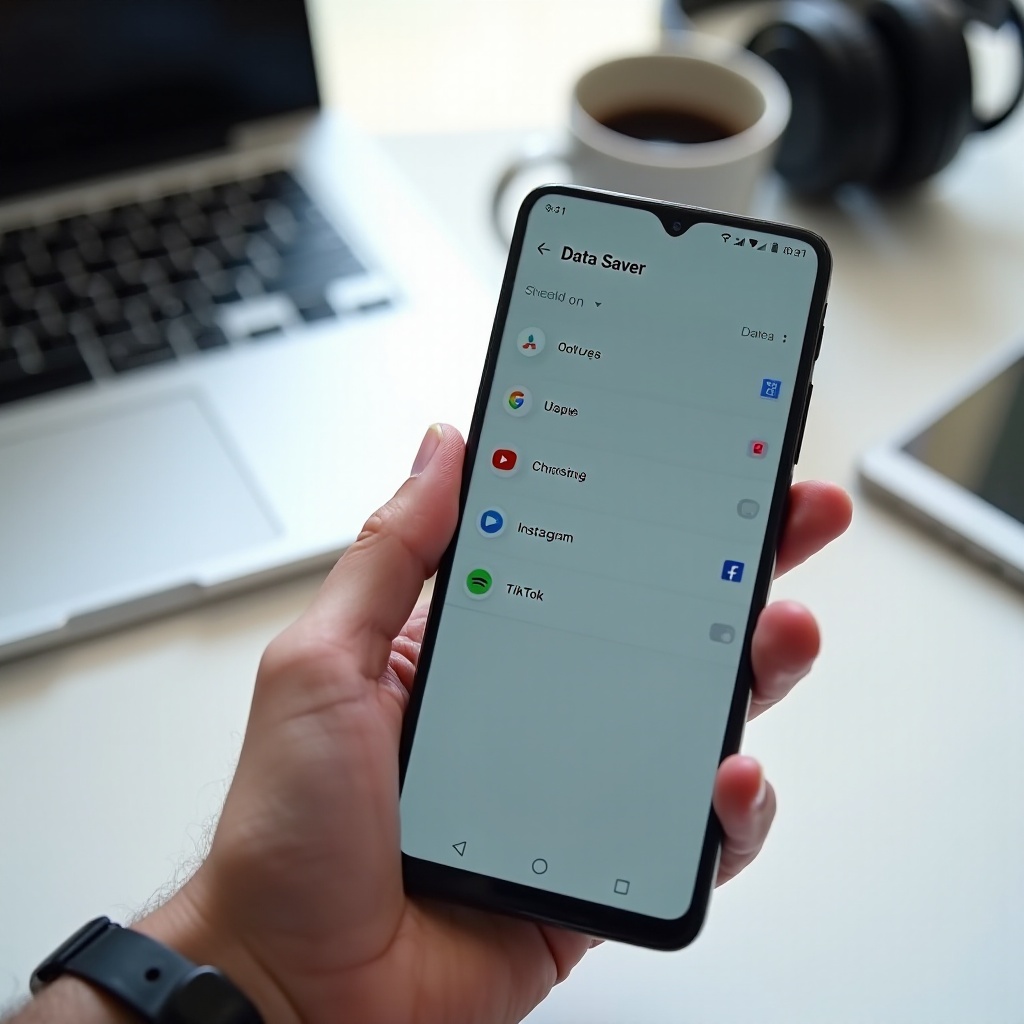
Manage 5G, Hotspot/Tethering, Dual SIM/eSIM, and Roaming
Your network setup shapes how data saving mode Android behaves. Adjust a few settings to keep costs in check across 5G, hotspots, multiple lines, and trips.
5G and Data Saver Interactions
Data Saver treats 5G like any metered mobile network. Keep it on to block noisy background apps that can burn data faster on high speed links. If your phone offers 5G mode choices, pick a balanced option when data is tight.
Hotspot/Tethering: Limiting Shared Data
A hotspot shares your data plan with other devices. Turn on Data Saver before you enable the hotspot. On the connected device, restrict its browser preloads and video quality. Set a temporary hard cap on your phone during long hotspot sessions.
Dual SIM/eSIM: Preferred Data SIM and Per-SIM Limits
Choose a preferred data SIM in settings. Set data warnings and limits per SIM if your phone allows it. Data Saver applies system wide, while per SIM caps prevent one line from burning the other.
Roaming: Disable Data or Use Strict Limits and Whitelists
Roaming costs rise fast. If you do not need data, turn off data roaming. If you do, combine Data Saver with a very low hard limit and a tiny whitelist for maps, messaging, and ride hailing. With networks under control, let automation handle the daily toggles for you.
Automate Data Saver with Routines and Rules
Automation prevents human error. Your phone can flip Data Saver on and off based on time, location, battery, or Wi‑Fi.
Samsung Bixby Routines Triggers
Enable Data Saver when you leave home Wi‑Fi, at bedtime, or below a chosen battery level. Add a notification so you always know the current state. These triggers remove the need to remember the toggle.
Pixel and Stock Android Rules
Use Rules to prompt actions when you arrive at places or connect to networks. Some devices cannot toggle Data Saver directly via Rules, but you can pin the Quick Settings tile, schedule reminders, or use a shortcut to open the Data Saver page for a quick tap.
Tasker and IFTTT Automations
Tasker can toggle Data Saver with the right permissions through ADB or device owner methods. Build profiles that match your routine, like work hours or travel. If IFTTT cannot flip the switch, let it send a notification that triggers your Tasker profile. Next, make sure privacy tools and Data Saver do not overlap in a way that causes confusion.
Privacy and Security: VPNs, Firewalls, Private DNS with Data Saver
Data saving mode Android works fine with VPNs, firewalls, and Private DNS. You only need to avoid rule conflicts and double blocking.
VPN Split Tunneling and Metered Behavior
Data Saver limits an app before traffic enters the VPN. Use split tunneling to exclude heavy apps from your VPN on mobile if your provider supports it. This can reduce overhead and cut data use.
App Firewalls and Data Saver Overlap
If you run a firewall app, assign clear roles. Let Data Saver handle background cuts. Use the firewall for domain based blocks or per network rules. Avoid stacking both on the same app for the same purpose.
Private DNS and Background Traffic
Private DNS adds tiny overhead and boosts security. Keep it on. Data Saver still governs background traffic that would trigger DNS lookups. If an app misbehaves, adjust that app rather than turning off Private DNS. If savings stall or usage looks odd, troubleshoot with a simple checklist.
Troubleshooting: When Data Saver Is Not Working
If data use stays high with Data Saver on, confirm the basics and look for conflicts or exceptions that undo your settings.
Confirm Toggle, Status Bar, and Quick Settings Tile
Make sure the tile is active and the status icon shows. Toggle Data Saver off and on, then restart the phone to clear stale states. Confirm your network is marked as metered if you expect restrictions on Wi‑Fi.
Check Unrestricted Data List and Per-App Background Data
Review the Unrestricted list and remove non essential apps. Open App info > Mobile data & Wi‑Fi and turn off Background data for heavy offenders. Many times a single social or cloud app causes the spike.
Battery Optimization, Adaptive Battery, App Standby
Battery rules influence background behavior. Keep optimization on for most apps. If one app must stay real time, whitelist it in both Unrestricted data and battery optimization. Test changes one at a time.
OEM-Specific Toggles and Layers
Vendors add extra controls. On Samsung, review Data saver under Data usage and per app network permissions. On Xiaomi, check the Security app for background data toggles. On OnePlus, confirm OxygenOS app data controls.
APN, Network Reset, and Carrier Settings
Wrong APN settings or stale carrier configs can skew counters. Update carrier settings if prompted. If usage stats look broken, reset network settings and re enter Wi‑Fi and APNs, then monitor again.
Work Profiles, Parental Controls, and MDM Policies
Enterprise policies or parental controls can override data rules. Review Work profile policies and Family Link settings. You may need admin permission to change behavior.
Update Android and Apps; Clear Network Stats
Update the system and heavy apps. If counters look stuck, wait for the billing cycle reset or clear data usage statistics where available. With issues resolved, clear up common myths so you can use Data Saver with confidence.
Myths and Misconceptions About Android Data Saver
You can run Data Saver daily without breaking your phone experience. Three myths cause confusion. First, Data Saver does not break Wi‑Fi. It only applies to metered networks, and you choose whether a Wi‑Fi is metered. Second, Data Saver is not the same as Battery Saver. Battery Saver reduces performance and sync to save power, while Data Saver focuses on network use. Third, Data Saver does not block all background traffic. Core services and whitelisted apps still pass small, critical data to keep devices usable.
With myths addressed, you can apply a simple framework: enable Data Saver, whitelist a few essentials, set a warning and hard cap, and tune heavy apps. That plan works across brands and networks.
Conclusion
Data saving mode Android gives you control over mobile data without breaking your routine. Turn it on, whitelist the few apps that must stay real time, and set a warning and hard limit that match your plan. Tame heavy apps like video, social, and cloud backup, and mark capped Wi‑Fi as metered. Use routines to automate the toggle at the right times. If something feels off, walk through the troubleshooting steps to find the conflict.
Whether you use a Pixel, Samsung, OnePlus, or Xiaomi, the pattern is the same: cut background noise, keep key alerts, and track your usage with built in tools. Spend a few minutes now to save money and stress every month.
Frequently Asked Questions
Does Android Data Saver work on Wi‑Fi, or only on mobile data?
By default, Data Saver applies to metered networks. Mobile data is metered. Standard Wi‑Fi is unmetered, so Data Saver does not restrict it unless you mark that Wi‑Fi as metered.
Which apps should I whitelist for Unrestricted Data to keep notifications reliable?
Keep the list short. Start with your primary messenger, work chat, ride hailing, banking, and authenticator. Add email if delays hurt your workflow. Avoid video, social, and backup apps.
Will Data Saver reduce data usage on 5G networks without breaking streaming quality?
Yes. Data Saver cuts background traffic on 4G and 5G alike. Streaming quality comes from the app. Keep normal quality while watching and lower it in the app if you need extra savings.