
Introduction
Yes, a phone can power up and run most tasks without a SIM card. You can browse on Wi‑Fi, install apps, stream, play games, take photos, and back up your data. You can also make calls and send messages with the right apps over the internet. What you lose is direct access to your carrier for voice, SMS, and mobile data.
This guide shows how to use a phone without a SIM and where the limits begin. You will learn what a SIM or eSIM actually does, how to set up iPhone or Android on Wi‑Fi only, and whether you can add an eSIM without a physical card. We will cover calling, texting, navigation, emergency features, two‑factor authentication, and practical use cases.
You will also get privacy and battery tips and fixes for common roadblocks. First, let us clarify why the phone still works when you remove the tiny card and what changes when you do.
What a SIM or eSIM Actually Does
How SIM/eSIM authenticates you to a carrier
A SIM or eSIM stores your subscriber identity. Your carrier reads that identity to authenticate you, assign your phone number, and grant access to voice, SMS, and mobile data. Without a SIM profile, your phone has no right to attach to the cellular network. That is why carrier calling and texting stop, but everything that relies only on Wi‑Fi continues to work.
Why phones can boot and run apps without a SIM
Modern phones are computers that happen to include cellular radios. The operating system, apps, Wi‑Fi, Bluetooth, camera, storage, and sensors all work without a cellular connection. If you remove the SIM or never insert one, the phone simply skips carrier registration and runs in Wi‑Fi‑only mode. You can still sign in to your Apple ID or Google Account, download apps, and use cloud services over Wi‑Fi.
Physical SIM vs eSIM basics
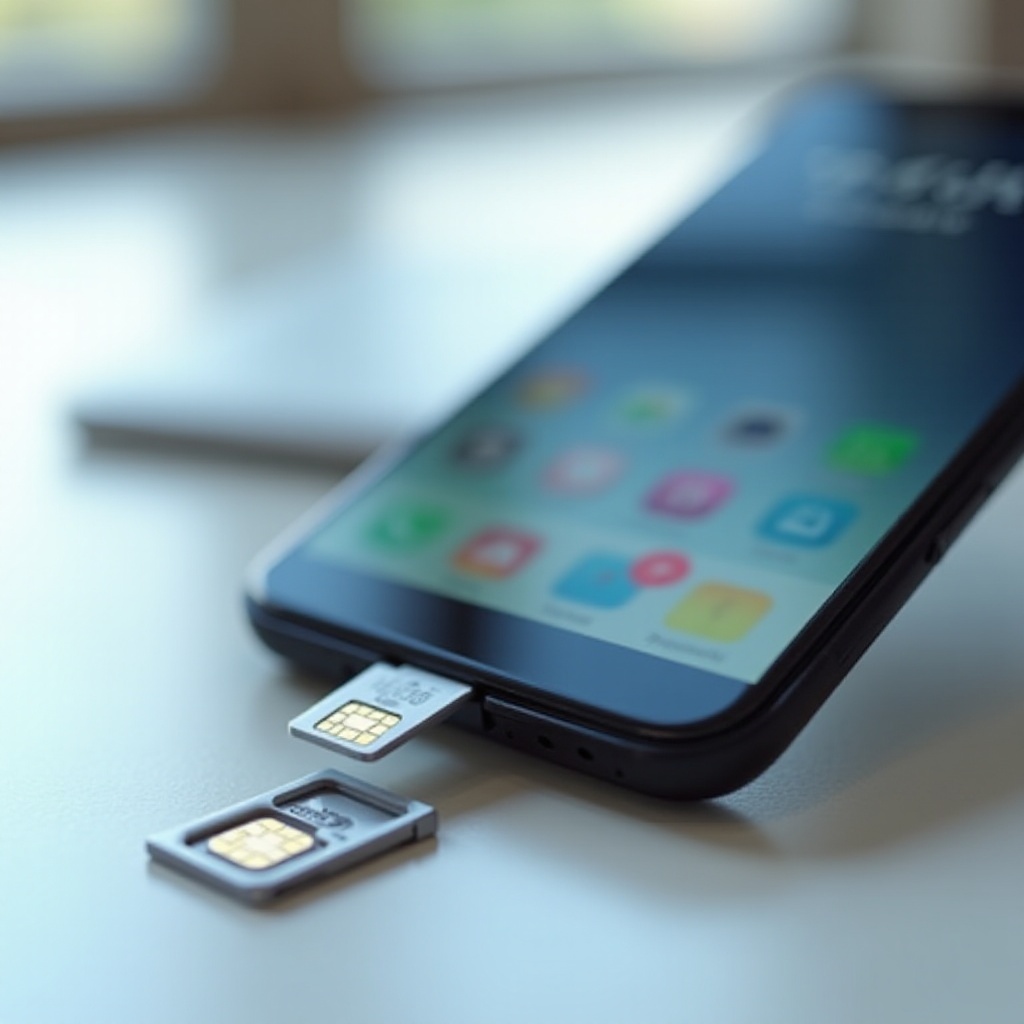
A physical SIM is a removable chip that slots into a tray. An eSIM is embedded in the device and stores digital profiles you can download and manage in settings. Both serve the same purpose: authenticate you to a carrier. Many phones support multiple eSIM profiles and sometimes a physical SIM too. If you prefer a Wi‑Fi‑only setup, you can leave the tray empty and keep eSIM profiles inactive.
Now that you know the role of SIMs, let us set up a phone so it runs smoothly without one.
Setting Up an iPhone or Android Without a SIM
Activating over Wi‑Fi and skipping carrier setup
Most recent iPhones and Android phones activate fine on Wi‑Fi. On first boot, pick your language and region, connect to Wi‑Fi, and follow the prompts. If setup asks for a SIM, look for a link or button that says something like Set up without SIM or Use Wi‑Fi only. Some carrier‑locked devices may push you to insert a SIM, but many still let you continue once Wi‑Fi connects and the device checks for updates.
Transferring data from an old device without cellular
You can migrate your data without a carrier plan:
– iPhone to iPhone: Use Quick Start over a direct device link and Wi‑Fi, or restore from iCloud or a Mac/PC backup.
– Android to Android: Use Google’s nearby device setup, a cable, or an OEM transfer tool, plus Google Drive backup.
– Cross‑platform: Use a cable or tools like Move to iOS, OEM utilities, and cloud apps that sync across platforms.
Handling Apple ID/Google Account sign‑in
Sign in to your Apple ID or Google Account over Wi‑Fi. If your account uses SMS codes for two‑factor authentication, switch to safer, SIM‑free methods when possible:
– Use a trusted device prompt.
– Enter backup codes you saved earlier.
– Use an authenticator app linked to your account.
– Use email verification if available.
Once your phone runs on Wi‑Fi, you may wonder if you can add a plan later without a physical card. That is where eSIM can help.
Can You Activate an eSIM Over Wi‑Fi?
Adding a line from a QR code or carrier app
Many carriers support eSIM activation over Wi‑Fi. The common flow is simple:
1) Open Settings and find Cellular or Mobile settings, or install your carrier’s app.
2) Choose Add eSIM and scan the QR code from your carrier or follow in‑app instructions.
3) Confirm the download and wait for the profile to install.
Limitations when the device is Wi‑Fi only
Not every carrier supports full activation without a brief cellular handshake. Some require identity checks by SMS to another number, a phone call, or an in‑store visit. Prepaid data eSIMs often activate quickly on Wi‑Fi. If you hit a wall, contact your carrier’s support and ask about Wi‑Fi‑only activation options.
Travel eSIMs and temporary data plans
If you only need occasional data, consider travel eSIMs. You buy a plan from a marketplace or a provider, scan a QR code, and download the profile on Wi‑Fi. Keep the plan dormant and enable it when you land. This path gives you flexible data without a long contract.
If you choose to skip carriers altogether, you can still place calls over Wi‑Fi with the right services.
Calling Without a SIM: Wi‑Fi Calling and VoIP Numbers
Google Voice, Skype, and other VoIP options
You can make calls over Wi‑Fi using VoIP services:
– Google Voice provides a free or low‑cost number in supported regions. You can place and receive calls and access voicemail.
– Skype supports app‑to‑app calls and paid calls to landlines and mobiles.
– Other options include TextNow, TextFree, Zoom, and business services like Vonage.
App‑to‑app calling on FaceTime, WhatsApp, Telegram
Many messaging apps support high‑quality voice and video calls without a carrier plan once you complete verification:
– FaceTime Audio and Video use your Apple ID on iPhone and iPad.
– WhatsApp and Telegram support voice and video over Wi‑Fi.
– Signal offers secure VoIP calls for users who prefer privacy.
Porting a number to a VoIP service
If you want to keep your existing number without a cellular plan, you can port it to a VoIP provider such as Google Voice where available. After porting, calls and texts reach you within the app on any device connected to Wi‑Fi. Porting usually has a fee and a brief service gap, so plan the timing carefully.
Calling is not the only thing you can do over Wi‑Fi. With the right apps, you can also handle messaging without a SIM.
Messaging Without a SIM: iMessage, RCS, and OTT Apps
Using iMessage/FaceTime with email
On iPhone, you can enable iMessage and FaceTime using an email address rather than a phone number. Go to Settings, open Messages or FaceTime, sign in with your Apple ID, and enable your email to send and receive. You can add a number later if you activate a plan.
RCS on Android without a carrier
RCS can run over Wi‑Fi if your phone uses Google’s Jibe service through Google Messages. Many Android devices enable RCS with data or Wi‑Fi using your Google account. Some features still ask for number validation, and behavior varies by region and device. If RCS will not verify, switch to an over‑the‑top app that does not depend on a carrier.
WhatsApp, Signal, Telegram verification tips
These apps require a one‑time account verification:
– Use a trusted mobile or landline number to receive the code; landlines often offer a Call me option.
– Enable registration lock or PIN features to protect your account from hijacking.
– Keep the recovery email and security notices up to date.
With calling and messaging covered, your phone becomes a solid Wi‑Fi device for browsing, apps, and updates.
Data on Wi‑Fi Only: Browsing, Apps, and Updates
App Store/Play Store and automatic updates
You can browse the web, install apps, and receive updates over Wi‑Fi with no problem. Turn on automatic app updates so your device stays current. For large system updates, plug into power and connect to fast Wi‑Fi to shorten download and install time.
Streaming and downloads on home/work Wi‑Fi
Use reliable Wi‑Fi for video, music, podcasts, and cloud backups. To reduce buffering on busy networks, lower streaming quality for mobile playback or schedule downloads during off‑peak hours. Download playlists and episodes to watch or listen offline when you are away from Wi‑Fi.
Using hotspots securely
Public Wi‑Fi can expose your data. Protect yourself with simple steps:
– Use a reputable VPN if you must access sensitive accounts.
– Turn on HTTPS‑only modes in browsers that support it.
– Avoid auto‑join for open networks and forget networks you no longer trust.
Once you master Wi‑Fi use, you can still navigate in the real world thanks to GPS and offline maps.
GPS, Location, and Navigation Without Cellular
How GPS works without mobile data
GPS relies on satellites, not cell towers. Your phone’s GPS chip can determine your location without a SIM. Cellular and Wi‑Fi assists normally speed up the first position fix, so without them the initial lock may take longer, especially indoors or under heavy cover.
Offline maps and cached routes
You can navigate without data if you download maps in advance:
– Google Maps: tap your profile, choose Offline maps, and select areas.
– Apple Maps: download map regions for offline navigation.
– Alternatives like HERE WeGo and OsmAnd provide full offline maps and routing.
Accuracy trade‑offs in urban areas
Tall buildings can reflect satellite signals and reduce accuracy. Without data, you will miss live traffic and real‑time rerouting. Pre‑download routes, allow extra time for the GPS to lock, and bring a power bank if you plan long sessions of screen‑on navigation.
Location can work offline in many cases, but safety features vary more. Here is how emergency calling behaves on a phone without a SIM.
Emergency Calls and Safety Features Without a SIM
911/112 capabilities on SIM‑less phones
Many regions allow emergency calls without a SIM. Your phone will try to connect to any available network to place the call. The exact behavior depends on local rules, your device, and its status. Do not test emergency numbers unless your region permits controlled tests.
Emergency SOS, satellite options, and limitations
Some phones include SOS tools that contact emergency services or share your location with trusted contacts. On supported models and in supported regions, satellite SOS may work without cellular. It requires clear sky, precise device pointing, and in some cases an active service plan. Read your phone’s instructions so you know how to trigger SOS quickly.
When calls may fail on locked or inactive devices
Carrier‑locked phones usually still allow emergency calls. However, a device with a damaged radio, a dead battery, or a blocked IMEI may not be able to place calls. Keep your phone charged and updated, and make sure critical settings like location services for emergency features are enabled.
For daily use, a bigger challenge than emergencies is account verification. Many services still rely on SMS. Here is how to break that dependency.
Two‑Factor Authentication and Account Verification
Alternatives to SMS codes
Move away from SMS to secure your accounts and reduce reliance on a phone number:
– Use an authenticator app such as Google Authenticator, Authy, or Microsoft Authenticator.
– Register hardware security keys for sensitive accounts.
– Store backup codes in a safe place.
– Use email‑based prompts when offered.
Updating banking and delivery apps
Many banking and delivery apps request a phone number. Update your profile to use app‑based approvals, push notifications, or email. If a service insists on SMS codes, consider linking a VoIP number that can receive them, or keep a low‑cost mobile line active on a secondary device for essential accounts.
Using temporary numbers wisely
Disposable numbers can help with low‑value sign‑ups, but they are risky for recovery. Use permanent numbers you control, whether carrier or VoIP, for your primary accounts. Keep records of which number each service uses so you can switch methods later.
With security squared away, a SIM‑less phone becomes a flexible tool for many roles at home, work, and on the go.
Practical Use Cases for a Wi‑Fi‑Only Phone
Kid device and parental controls
Turn a spare phone into a safe device for a child. Use Screen Time or Family Link to set limits, filter content, and restrict purchases. Allow only approved contacts and apps, and add parental controls in streaming and browser apps. A Wi‑Fi‑only setup helps keep costs down while providing learning and entertainment.
Travel backup and media player
Load an old phone with downloaded shows, music, maps, and translation packs before your trip. Connect to hotel Wi‑Fi for updates and messaging. If you need mobile data, enable a travel eSIM for the duration of your trip. A spare phone also works as a backup camera and a document scanner for receipts and tickets.
Smart home remote, webcam, or dashcam
A SIM‑less phone can be a dedicated smart home remote for Apple Home, Google Home, or Alexa. Mount it as a security camera or baby monitor using apps that stream over Wi‑Fi. In your car, use it as a dashcam with local storage and a GPS stamp, keeping your main phone free for navigation.
These roles shine when the device is secure, private, and power efficient. A few tweaks will help you get there.
Privacy, Security, and Battery Tips Without Cellular
Disabling unused radios and background scans
Enable Airplane Mode to cut cellular radios, then turn Wi‑Fi back on. This reduces power draw and background noise. Disable Wi‑Fi and Bluetooth scanning if you do not need location assists. Turn off NFC if you are not using tap‑to‑pay or pairing accessories.
Public Wi‑Fi best practices
- Avoid banking and other sensitive tasks on open networks.
- Use a trusted VPN if you must log in to critical services.
- Turn off auto‑join for public SSIDs and limit background app refresh.
- Keep your OS and apps updated to patch security flaws.
Managing app permissions and trackers
Review app permissions regularly. Revoke location, contacts, camera, and background access when not needed. Use privacy dashboards to spot overreaching apps. Limit ad tracking in system settings and consider DNS‑based content filtering to block known trackers.
Even with best practices, small hurdles can slow you down. Here is how to clear the most common ones.
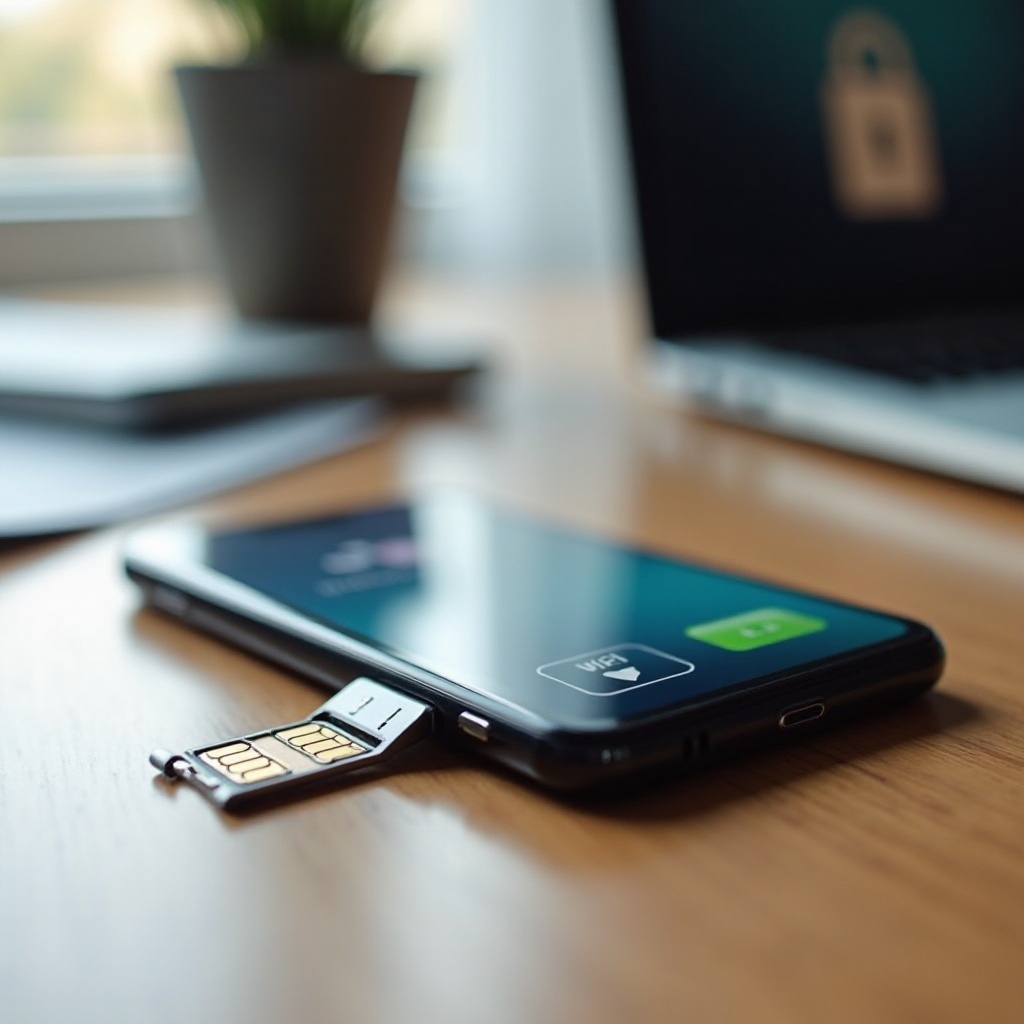
Common Roadblocks and Quick Fixes
Insert SIM setup loops
If setup refuses to continue without a SIM:
– Connect to Wi‑Fi before the SIM check screen.
– Look for a Skip or Set up without SIM option.
– Complete an update using a computer via Finder, iTunes, or an OEM desktop tool.
– Insert a temporary SIM to finish setup, then remove it.
Carrier‑locked phones and unlock policies
Locked phones may block non‑carrier eSIMs and display persistent prompts. Check your carrier’s unlock policy, meet the requirements, and request an unlock. Some prepaid carriers unlock after a minimum active period. Once unlocked, Wi‑Fi‑only use is straightforward.
App sign‑in that insists on a phone number
When an app demands a number:
– Check settings for email‑only login or username options.
– Use a trusted VoIP number that receives verification codes.
– Contact support to switch your account to email‑based authentication.
– If a service will not budge, consider a privacy‑friendly alternative.
Conclusion
A phone can work without a SIM card for most tasks. You can browse, stream, install apps, play games, and back up data over Wi‑Fi. You can call and message through VoIP and chat apps. GPS and offline maps keep navigation useful. Emergency features may still work, though behavior varies by region and device. Where you will hit limits is carrier voice, SMS, and any service that locks you to a phone number.
If you want a phone number without a carrier plan, use a VoIP service. If you need occasional data, add a travel eSIM on demand. Move away from SMS codes to authenticator apps or hardware keys for better security. Lock down public Wi‑Fi habits and review app permissions to protect your privacy.
Set up your phone on Wi‑Fi, add the apps you need, and enjoy a quiet, SIM‑free experience that still covers the essentials.
Frequently Asked Questions
Can a phone work without a SIM card for calling and texting?
Yes, but not through your carrier. Without a SIM, the phone cannot access cellular voice or SMS. Use Wi‑Fi and apps instead. For calling, try Google Voice, Skype, or FaceTime Audio. For texting, use iMessage with your Apple ID, RCS via Google Messages when it works without number verification, or apps like WhatsApp, Signal, and Telegram. If you want a regular phone number, get or port a VoIP number.
Will emergency services work on a phone without a SIM card?
Many phones can place emergency calls without a SIM by connecting to any available network, but behavior varies by region and device. Some models also offer Emergency SOS and even satellite SOS where supported. Keep your device charged and learn how to trigger SOS on your phone. Do not test emergency numbers unless your region permits it.
How do I use WhatsApp or iMessage without a SIM card?
For iMessage, sign in with your Apple ID and enable your email under You can be reached at. You can send and receive iMessages over Wi‑Fi. For WhatsApp, complete a one‑time verification using a trusted number, including a landline if the app offers a Call me option. After verification, WhatsApp works on Wi‑Fi; enable two‑step verification for added security.