
Introduction
Choosing data saver on or off directly changes how your phone uses mobile data, sends notifications, and streams media. Turn it on, and your phone cuts background data and often lowers video and audio quality. Turn it off, and apps sync freely, alerts arrive fast, and streaming quality rises. The best setting depends on your plan, your must have apps, and how you move between mobile and Wi Fi.
This guide shows what Android Data Saver and iPhone Low Data Mode actually do. You will learn how to switch them on or off, how to let priority apps bypass restrictions, and how to tune popular services to slash data use. We will also cover 5G options, Wi Fi Assist, travel and roaming tactics, dual SIM and eSIM choices, hotspot control, and the mix with battery savers and VPNs. We begin with a quick decision so you can act right away.
Quick Answer: When to Keep Data Saver On vs Off
Start with your data plan and your alerts. Turn Data Saver or Low Data Mode on if you have a limited or shared plan, run close to a cap, travel frequently, or use hotspot data for work. With this setting on, the phone reduces background syncing, stops auto downloads, and asks apps to lower streaming quality. You avoid surprise bills and throttling, and you gain tighter control over what runs when you are on cellular.
Keep it off if you have an unlimited plan and rely on real time alerts or fast cloud backups. You will get instant messages and email, quick photo sync, and the highest media quality. You can still limit heavy apps with in app settings without using the system level data saver.
If you want both savings and timely alerts, use a blended approach. Keep Data Saver on by default, then allow a small set of critical apps to bypass limits so messages, banking alerts, and work tools stay live. To make smart choices, you need to know what these modes change under the hood.
What Data Saver and Low Data Mode Actually Do
Android Data Saver blocks most background data for apps and may restrict certain foreground transfers. Apps can still use data when you open them, but prefetching, auto uploads, and background refresh slow down or pause. Many media apps respond by lowering quality on cellular when the system signals a low data state.
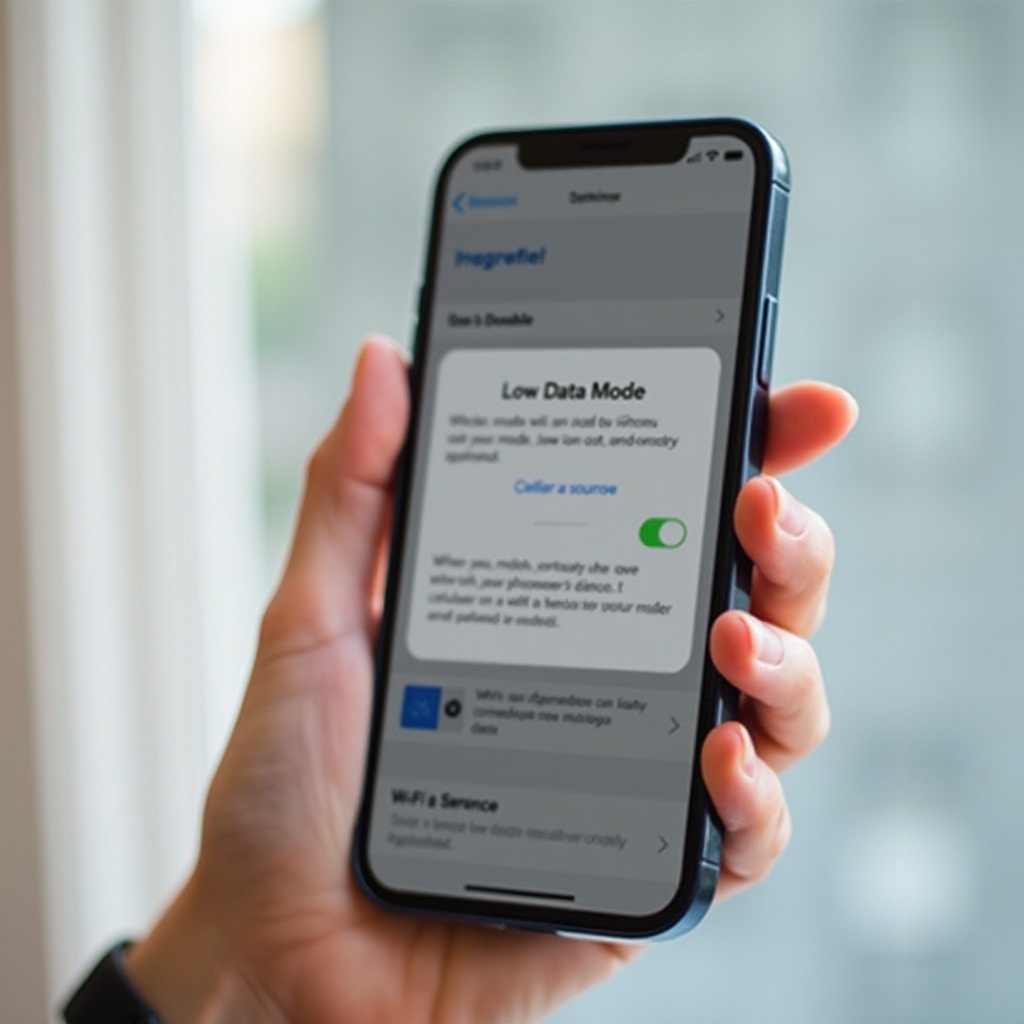
On iPhone, Low Data Mode slows automatic updates, pauses iCloud backups and photo sync, and reduces Background App Refresh. App Stores and podcast services may hold large downloads. Streaming and video call apps often cut bitrates to save bandwidth. You can also enable Low Data Mode per Wi Fi network, which helps tame busy public networks.
These changes can delay email sync, cloud uploads, and app updates. Some push notifications may arrive more slowly, especially for apps that depend on background refresh. That is why the next step is learning where the toggles live so you can flip them quickly when you need full speed.
How to Turn Data Saver On or Off on Android
Pixel or stock Android steps
1) Open Settings.
2) Tap Network and Internet.
3) Tap Data Saver.
4) Toggle Data Saver on or off.
5) Tap Unrestricted data to allow chosen apps to bypass Data Saver.
Samsung Galaxy steps
1) Open Settings.
2) Tap Connections.
3) Tap Data usage.
4) Tap Data saver.
5) Toggle Data saver on or off.
6) Tap Allowed to use data while Data saver is on to pick exceptions.
Quick Settings tile
Add the Data Saver tile to Quick Settings for fast toggling. Swipe down to open the shade, edit tiles, and place Data Saver near the top. You can turn it off before streaming and back on when you switch to mobile email and maps. With Android sorted, let us set the equivalent controls on iPhone.
How to Enable or Disable Low Data Mode on iPhone
Cellular Low Data Mode
1) Open Settings.
2) Tap Cellular.
3) Tap Cellular Data Options.
4) Toggle Low Data Mode on or off.
Low Data Mode for a Wi Fi network
1) Open Settings.
2) Tap Wi Fi.
3) Tap the info icon next to your network.
4) Toggle Low Data Mode on or off for that network.
5G Data Mode choices
Open Settings, then Cellular, then Cellular Data Options, then Data Mode. Pick Standard for moderate use or Allow More Data on 5G for higher quality on supported plans. If Low Data Mode is on, it limits those 5G boosts. Now that you can toggle the modes, the next step is keeping your crucial apps active even when the system runs lean.
Let Essential Apps Bypass Data Saver Without Missing Alerts
You can run Data Saver and still get timely alerts by granting a few exceptions. Focus on services that must deliver in real time.
On Android:
1) Go to Settings > Network and Internet > Data Saver.
2) Tap Unrestricted data or Allowed apps.
3) Allow exceptions for messaging, banking and 2FA, ride share, maps and navigation, calendar and email, and critical work tools like chat and conferencing.
On iPhone:
1) Go to Settings > General > Background App Refresh.
2) Leave Background App Refresh on for essential apps, even if Low Data Mode is active.
3) In each app, confirm notifications and background permissions.
Keep the list short. Each exempted app regains background data access and can raise usage. This balance lets you save data while keeping vital alerts. With the critical apps protected, target the biggest drains next: video, social, music, podcasts, and maps.
Optimize Popular Apps for Lower Data Use
Video and social settings
Video and auto play are the fastest ways to burn data. Change defaults so the apps behave smarter on cellular.
- YouTube: Open settings, choose Video quality preferences, and set a lower default on mobile networks. Disable auto play if you do not need it.
- TikTok: Turn on the in app Data Saver and reduce auto play. Use downloads only on Wi Fi.
- Instagram: Set Data usage to use less data. Disable auto play or limit it to Wi Fi. Turn off preloading for Reels.
- Facebook and X: Disable auto play on cellular and reduce media quality.
Music and podcasts
Audio uses less data than video but still adds up over time.
- Spotify or Apple Music: Use Normal or lower quality on cellular. Enable download on Wi Fi only. Cache playlists for commutes.
- Podcast apps: Turn on Download on Wi Fi only. Disable auto download of back catalogs.
Maps and navigation
Navigation combines frequent updates with rich imagery.
- Google Maps and Apple Maps: Download offline maps for your area and upcoming trips. Avoid satellite view on cellular. Clear unused offline maps to save storage.
These app level cuts remove the largest data drains without breaking your daily flow. As you refine apps, remember that network features like Wi Fi Assist and 5G modes can override your savings unless you tune them too.
5G, Wi Fi Assist, and Smart Network Features to Know
Network helpers can spend data when your intent is to save. On iPhone, Wi Fi Assist switches to cellular when Wi Fi is weak. Turn it off if you want strict Wi Fi only behavior. On many Android phones, Smart Network Switch or Adaptive Connectivity prefers whatever delivers a stable stream; you can disable it to keep tighter control.
5G settings also matter. On iPhone, Allow More Data on 5G raises FaceTime and streaming quality on supported networks, which increases usage. On Android, some devices boost throughput automatically on strong 5G, improving quality in media apps. If you run Data Saver or Low Data Mode, these boosts are limited, but you should still check the setting so it matches your goal. When you leave home turf and roam, protection becomes even more important.
Travel and Roaming Tips: Use Data Saver to Avoid Bill Shock
Roaming charges and day passes can drain your budget. Make Data Saver or Low Data Mode your default while traveling. Set it before departure so background tasks do not surprise you mid flight or at the border.
Practical steps:
– Get a local eSIM or a predictable travel pass so costs stay clear.
– Set OS data warnings and hard limits so you get alerts before you hit a cap.
– Download offline maps, tickets, hotel details, and playlists on hotel Wi Fi.
– Pause cloud photo and video backup until you are on trusted Wi Fi.
– Keep ride share and airline apps exempt so they update in real time.
After the trip, restore your normal settings. Turn off strict Low Data Mode, re enable cloud backups, and raise streaming quality if you want. Travelers with two lines can go even further with per line control.
Dual SIM and eSIM: Choose the Right Line and Settings
Dual SIM and eSIM let you split calls and data across lines. On iPhone, set the default data line in Cellular settings. You can enable Low Data Mode for one line while the other remains unrestricted. That keeps work alerts loud while your personal line stays lean.
On Android, choose the preferred data SIM under Network and Internet. You can set data warnings per SIM and keep Data Saver tied to the active data line. For travel, set the roaming line to Low Data Mode and keep your home line open for Wi Fi calling and SMS. If you plan to share your data via hotspot, tighten settings even more during those sessions.
Hotspot and Tethering: Save Data While Sharing
Hotspots invite large clients like laptops to use your mobile plan. Keep control by running Data Saver or Low Data Mode on the phone and by trimming the client device behavior.
On the laptop or tablet:
– Pause OS and app store updates.
– Temporarily disable cloud photo and file sync.
– Stream at SD quality and disable auto play.
– Close backup tools and large downloads until back on Wi Fi.
On the phone:
– Set a hotspot data limit or watch usage in your carrier app.
– Use a strong hotspot password and disconnect idle clients.
– Turn off hotspot when not in use so background tasks on clients do not resume.
Hotspot discipline fits into a broader mix of settings that also affect battery, performance, and privacy. Let us cover those interactions next.
Battery Life, Performance, VPNs, and Privacy
Data Saver can extend battery life a bit because it reduces background network wakes and CPU work. However, it is not a substitute for Battery Saver or Low Power Mode. Running Data Saver and Battery Saver together can compound delays for email, chat, and cloud sync. Use the combination only when you need strict control and accept slower background activity.
VPNs route traffic through encrypted tunnels. Some providers compress data, which can help, but many add overhead. When you use a VPN with Data Saver, test critical apps to confirm push notifications arrive. If alerts lag, try whitelisting the app, switching VPN protocols, or pausing the VPN on cellular.
Privacy tools, like tracker blockers and private DNS, often reduce data by cutting ads and telemetry. They usually play well with Data Saver. If you see odd behavior or missing media, review the blocker log and allow the affected service. If problems persist, a few targeted fixes restore normal function.
Troubleshooting: Fix Delayed Notifications and Slow Sync
If you miss alerts or see slow updates with data saver on or off, use this checklist:
1) Check app exemptions. On Android, grant Unrestricted data for your messaging, 2FA, calendar, ride share, and work chat apps. On iPhone, keep Background App Refresh on for those apps.
2) Review OS battery settings. Turn off Battery Saver or Low Power Mode during critical hours. Those modes pause background tasks more aggressively than Data Saver.
3) Confirm network helpers. If Wi Fi Assist or Smart Network Switch causes unexpected cellular usage, turn it off. If your Wi Fi is unreliable, you can enable it to keep calls and streams stable.
4) Inspect app level data settings. Disable Wi Fi only switches for urgent services like secure messaging or airline apps when you need live updates. Re enable them later to save data.
5) Reset push channels. Sign out and back in, or reinstall problem apps to refresh push tokens. Ensure notifications are allowed in OS settings.
6) Test without VPN or private DNS. If alerts resume, switch VPN protocol or whitelist the affected app domains.
After you fix the blockers, create simple profiles so you can flip the right mix with a few taps.
Build Your Default Profiles: Balanced, Max Savings, and Unlimited
Profile based habits remove friction and prevent surprises.
- Balanced: Data Saver on; whitelist messaging, banking, 2FA, calendar, and maps. Set video to medium quality. Allow downloads on Wi Fi only. Keep Wi Fi Assist off unless your Wi Fi is weak.
- Max Savings: Data Saver on; minimal whitelisting. Video at low or auto. Offline maps and playlists ready. App updates paused on cellular. Disable Smart Network Switch and Wi Fi Assist. Set data warnings and limits.
- Unlimited Plan: Data Saver off. On iPhone, set Allow More Data on 5G if your plan supports it. Raise streaming quality. Enable automatic cloud backups and photo sync. Leave network helpers on to improve stability.
Pin a Data Saver toggle in Android Quick Settings and use Control Center and Settings shortcuts on iPhone. Watch usage in your carrier app and OS data stats so you can spot changes fast. With the profiles working, you can switch between savings and performance in seconds.
Conclusion
Choosing data saver on or off is not a one time decision. Match the setting to your plan, your location, and your priority apps. Keep Data Saver or Low Data Mode on by default if you pay per gigabyte, and exempt a short list of critical apps so alerts never lag. Tune video, social, audio, and maps to stop the biggest drains without giving up the features you love. When you need speed, toggle the mode off and enjoy full performance, then turn it back on when you return to cellular.
Build quick profiles for daily life, travel, and unlimited plans, and place toggles where you can reach them fast. With a few smart adjustments, your phone will protect your data, deliver alerts on time, and keep streaming smooth without surprise bills.
Frequently Asked Questions
Should I leave Data Saver on or off if I am on an unlimited data plan?
Leave it off for the best experience. You get instant notifications, fast cloud backups, and higher media quality. If you want some control, keep Data Saver off and limit heavy apps in their own settings. Turn it on temporarily on weak networks, then switch it off again.
Does Data Saver save battery life, and will it delay notifications or messages?
It can save a bit of battery by reducing background network use, but Battery Saver or Low Power Mode affects battery more. Data Saver may delay background sync and some push notifications. Avoid missed alerts by whitelisting messaging, banking, ride share, and work apps.
What is the difference between Android Data Saver and iPhone Low Data Mode?
Android Data Saver blocks most background data and lets you grant Unrestricted data per app. iPhone Low Data Mode slows or pauses background refresh, app updates, and iCloud sync, and it can also apply to specific Wi Fi networks. Both often reduce streaming quality. You can fine tune individual apps on both systems.