
Introduction
Android phone bottom buttons anchor everyday navigation. Back, Home, and Recents help you move through apps quickly, even when one hand holds the phone. Many models ship with gestures enabled by default, so new owners ask where their back button went. This guide explains how the bottom buttons work, how to switch between buttons and gestures, and how to customize the bottom area for comfort, speed, and accessibility.
You will get brand‑specific steps for Pixel, Samsung, Xiaomi, OnePlus, and near‑stock devices such as Motorola and Nothing. You will also learn how to tune gesture sensitivity, swap button order, and add shortcuts with OEM tools. If the navigation bar disappears or stops responding, we cover quick fixes and deeper troubleshooting. We finish with updates in Android 15 and current device skins, plus simple productivity tricks that help you move faster without losing precision.
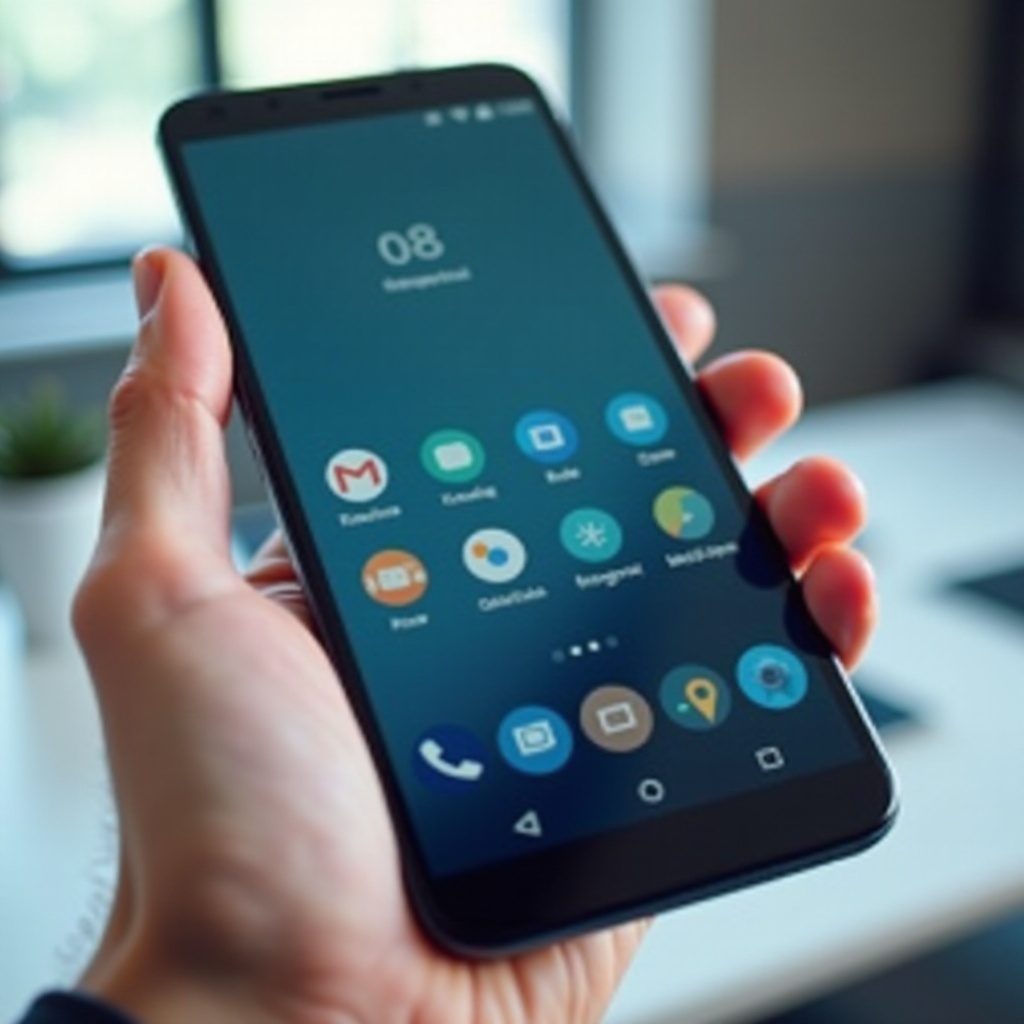
What Are the Android Phone Bottom Buttons? Buttons vs. Gestures in 2024–2026
Android supports two main navigation styles in 2024–2026: the bottom buttons and full‑screen gestures. The three‑button bar shows Back, Home, and Recents along the bottom edge. It stays visible, provides clear targets, and works well for users who want stable, always‑on controls. Gestures replace the bar with a slim pill and edge swipes. You swipe up for Home, hold for Recents, and swipe from either edge for Back. Gestures free up screen space and align with modern app layouts.
Both modes remain available on most phones. Many OEMs default to gestures to maximize content, but they still include a three‑button option for those who prefer fixed controls. Heavy readers, seniors, and people using accessibility features often choose bottom buttons for their predictability. Power users and minimalists lean toward gestures for cleaner visuals and quicker swipes. Your choice depends on habits, hand size, case thickness, and screen curves. The best part: you can change modes at any time without losing data.
With the basics set, the next step is to check your Android version and phone skin. That helps you find the right menu names and options in Settings without guesswork.
Check Your Android Version and Phone Skin (Pixel, Samsung One UI, Xiaomi HyperOS, OnePlus OxygenOS, Motorola, Nothing)
Before changing navigation, confirm your Android version and phone skin. This ensures you follow the correct menus.
- Open Settings > About phone, then read the Android version (14 or 15 on current devices) and build number.
- Identify your skin:
- Pixel: stock Android on Google hardware.
- Samsung: One UI 6 or 7 on Galaxy phones.
- Xiaomi/Redmi/POCO: MIUI or HyperOS.
- OnePlus: OxygenOS 14 or 15.
- Motorola, Nothing, Nokia: near‑stock Android with minor tweaks.
Menu labels differ slightly by brand. Some skins offer extra tools, such as Samsung Good Lock and NavStar, or gesture hints in HyperOS. If you use a custom launcher, note that launchers rarely change the system navigation mode, but overlays can affect how the bottom area behaves. With your version and skin confirmed, you can enable the style you prefer.
Enable or Switch Navigation Mode: Step-by-Step for Major Brands
Most phones place navigation options under System or Display settings. If you do not see the toggle, use Settings search for the word navigation.
Switch between 3-button and gesture navigation on Google Pixel (Android 14/15)
- Go to Settings > System > Gestures > System navigation.
- Select Gesture navigation or 3‑button navigation.
- Tap Gesture settings to adjust back swipe sensitivity and gesture hints.
- If the bar fails to appear after switching, restart the phone.
Enable, disable, and reorder bottom buttons on Samsung Galaxy (One UI 6/7)
- Open Settings > Display > Navigation bar.
- Pick Buttons or Swipe gestures.
- If you pick Buttons, set Button order: Back‑Home‑Recents or Back on the right.
- Adjust Gesture hints and Back gesture sensitivity if you use gestures.
- Use Good Lock NavStar for deeper customization if available.
Navigation mode and button options on OnePlus (OxygenOS 14/15)
- Go to Settings > Special features or System settings > Navigation bar & gestures.
- Choose Navigation bar (3‑button) or Gestures.
- Optionally hide the gesture guide bar and tune back swipe sensitivity.
- Restart if changes do not apply immediately.
Toggle navigation and gesture hints on Xiaomi/Redmi/POCO (MIUI/HyperOS)
- Open Settings > Home screen > System navigation.
- Choose Gestures or Buttons.
- Visit Additional settings > Full screen gestures to tweak the pill and sensitivity.
- In some regions you may find these options under Display; use Settings search.
Near‑stock steps on Motorola, Nothing, and other Android phones
- Settings > System > Gestures > System navigation.
- Pick 3‑button navigation or Gesture navigation.
- Adjust back swipe sensitivity to offset thick cases or curved edges.
Now that you can turn the bottom bar on or off, let us tailor the buttons and gesture area for comfort, speed, and style.
Customize the Bottom Buttons and Gesture Bar for Speed and Comfort
Customization helps you hit targets faster and reduce mis‑taps. Options vary by brand, but most phones cover order, visibility, feedback, and hints.
Swap back/home/recents order and show or hide the gesture pill
- On Samsung, change Button order under Display > Navigation bar.
- On other brands, the order is often fixed; choose the side for Back if offered.
- For gestures, hide the pill to maximize space or show it for a visible anchor.
Samsung Good Lock NavStar: remap buttons, add shortcuts, set styles
- Install Good Lock from Galaxy Store and enable NavStar.
- Build a custom bar: add buttons for Clipboard, Screenshot, App shortcuts, or Quick settings.
- Change bar color, icon style, and spacing to match your theme.
- Save profiles for work, gaming, and media to switch layouts on demand.
Back swipe sensitivity, edge protection, and one‑handed reachability
- Increase back swipe sensitivity if a case blocks edges or if you use a screen protector.
- Reduce sensitivity to avoid accidental backs during games and scrolling.
- Enable one‑handed mode to drop the top of the screen for easier reach.
Transparency, color, vibration feedback, and visual hints for clarity
- Adjust transparency to blend with wallpaper without hiding icons.
- Turn on vibration feedback to confirm gestures and button presses.
- Keep subtle hints visible if you share the phone or want clearer targets.
Profiles for work, gaming, and driving using automation apps
- Use automation apps to switch nav settings when you open games, maps, or work tools.
- Combine gesture mode with floating shortcuts for speed.
- Create routines that enable immersive mode for video and restore controls afterward.
With a setup tuned to your hand and habits, navigation becomes easier to see and use. Next, we look at accessibility choices that protect comfort and control.
Accessibility and One-Handed Navigation Settings Near the Bottom Edge
Accessibility settings can stabilize navigation and reduce strain. Bottom buttons help many users, and gestures can also fit with the right tweaks.
Accessibility button placement and quick toggles without clutter
- Place the accessibility button near the bottom edge for reach.
- Limit active services to what you truly use to reduce overlay conflicts.
- Use quick toggles for magnification, color correction, or text size.
One‑handed mode, reachability shortcuts, and large‑target controls
- Turn on one‑handed mode to lower the top area of the screen.
- Increase touch target size or use large icons where supported.
- Pin important actions to the bottom bar for predictable access.
High‑contrast, magnification, and TalkBack‑friendly navigation tips
- Select high‑contrast themes and bold fonts for visibility.
- Enable the magnification shortcut for precise taps on small icons.
- Configure TalkBack gestures to avoid accidental back swipes and keep control clear.
Accessibility settings interact with launchers and overlays. Let us review how third‑party components affect the bottom bar.
Per-App and Launcher Considerations
Some apps and launchers change how the bottom area behaves. Understanding these changes helps you keep control visible when you need it.
How overlays, launchers, and draw‑over permissions affect the nav bar
- Apps that draw over other apps can intercept swipes or cover the bottom edge.
- Review permissions: Settings > Apps > Special access > Draw over other apps.
- Disable overlays temporarily if the bar misbehaves, then retest.
Game mode, immersive video, and full‑screen apps: keeping control visible
- Game tools may hide the bar for full‑screen play.
- Keep an edge handle or gesture hint visible, or set a swipe to reveal controls.
- For video apps, turn off immersive mode if you often need Back or Home.
Per‑app navigation preferences: what is possible and what is not
- System navigation mode is global on most phones.
- You can set per‑app behaviors with OEM game tools or automation routines.
- If an app forces full‑screen, learn its gesture to reveal controls.
Even with smart setups, problems happen. The next section gives fixes when android phone bottom buttons disappear or stop responding.
Troubleshooting When Android Phone Bottom Buttons Go Missing or Stop Working
Start with simple checks, then move to deeper fixes. Most issues come from overlays, case interference, or a system glitch.
Screen protectors, edge cases, and accidental touch protection
- Clean the screen and remove debris near the bottom edge.
- If a protector lifts at the edges, replace it or switch to a thinner model.
- Turn off or adjust accidental touch protection if it blocks edge taps.
Restart, clear System UI or launcher cache, and switch mode to refresh
- Restart the phone first.
- Clear cache: Settings > Apps > System UI or your launcher > Storage > Clear cache.
- Toggle to gestures, then back to 3‑button mode to refresh the bar.
Safe Mode to isolate misbehaving overlays and accessibility services
- Hold the power button, then press and hold the label for power off to enter Safe Mode (wording varies by brand).
- Check if bottom buttons work in Safe Mode.
- If they do, uninstall or disable recent apps with overlay or accessibility permissions.
Update Android, Google System updates, OEM system apps, and launchers
- Settings > System > System update: install pending updates.
- Settings > Security & privacy > Updates: apply Google System updates.
- Update OEM system apps such as System UI, Good Lock or NavStar, and your launcher.
ADB commands to restore the navigation bar safely without wiping data
- Install Android Platform Tools on a PC and enable USB debugging on the phone.
- Launch navigation settings: adb shell am start -a android.settings.SYSTEM_NAVIGATION_SETTINGS
- If overlays cause issues, disable the offending app: adb shell pm disable-user –user 0 package.name (replace with the actual package).
- Reboot: adb reboot
- Note: Commands may vary by OEM and Android version. Test carefully and re‑enable apps after fixing the issue.
When to reset settings, factory reset, or seek hardware repair
- Reset system settings if menus broke after customization.
- Back up data, then factory reset only if software fixes fail.
- If the bottom edge does not register touch, the digitizer may be faulty. Seek repair.
Once the bar works as expected, explore what changed in Android 15 and the latest skins. These updates improve edge gestures, back behavior, and large‑screen navigation.
Android 15 and 2026 Navigation Updates You Should Know
Android 15 refines gestures and the Back action. OEM skins in 2026 adopt these improvements with their own styling and extras.
Predictive Back animations and how they change the back action
- Predictive Back shows where a back swipe will go before you finish the gesture.
- It reduces surprise exits and helps you learn app flows faster.
Edge‑to‑edge gestures, sensitivity tuning, and conflict reductions
- Better edge handling reduces conflicts with app side menus.
- Sensitivity sliders let you tune for thick cases and curved screens.
Taskbar or transient dock improvements on tablets and foldables
- Large screens get a smarter taskbar or transient dock for quick app switching.
- You can keep bottom controls visible without shrinking content.
How Pixel, One UI, HyperOS, and OxygenOS implement navigation changes
- Pixel keeps a clean look with subtle hints and consistent animations.
- One UI adds customization via Good Lock and refined touch areas.
- HyperOS improves gesture hints and animation polish.
- OxygenOS focuses on speed with smooth transitions and reliable edges.
These changes favor gestures, but bottom buttons remain a solid choice. If you want more speed without sacrificing accuracy, try the next productivity tips.
Tips for Productivity: Speed Up Navigation Without Losing Precision
Blend gestures, shortcuts, and routines. You will move faster while keeping control visible under pressure.
Combine gestures with bottom‑anchored shortcuts for faster flows
- Use gestures for Home and Recents, and add a bottom shortcut for your most used app.
- On Samsung, pin a custom action in NavStar for one‑tap access.
Quick switch between apps, split‑screen pairs, and floating windows
- Use Recents to pin split‑screen pairs for meetings and notes.
- Keep floating windows for calculators or chats to avoid back‑and‑forth taps.
Voice commands, clipboard tricks, and automation routines for nav tasks
- Ask Assistant to open apps or go Home hands‑free while driving.
- Use clipboard tools to paste across apps via a bottom shortcut.
- Automate switching to gestures for media and back to buttons for work.
You now have a clear path through setup, customization, and fixes. Let us wrap up with the key takeaways and a simple plan to keep navigation stable.
Conclusion
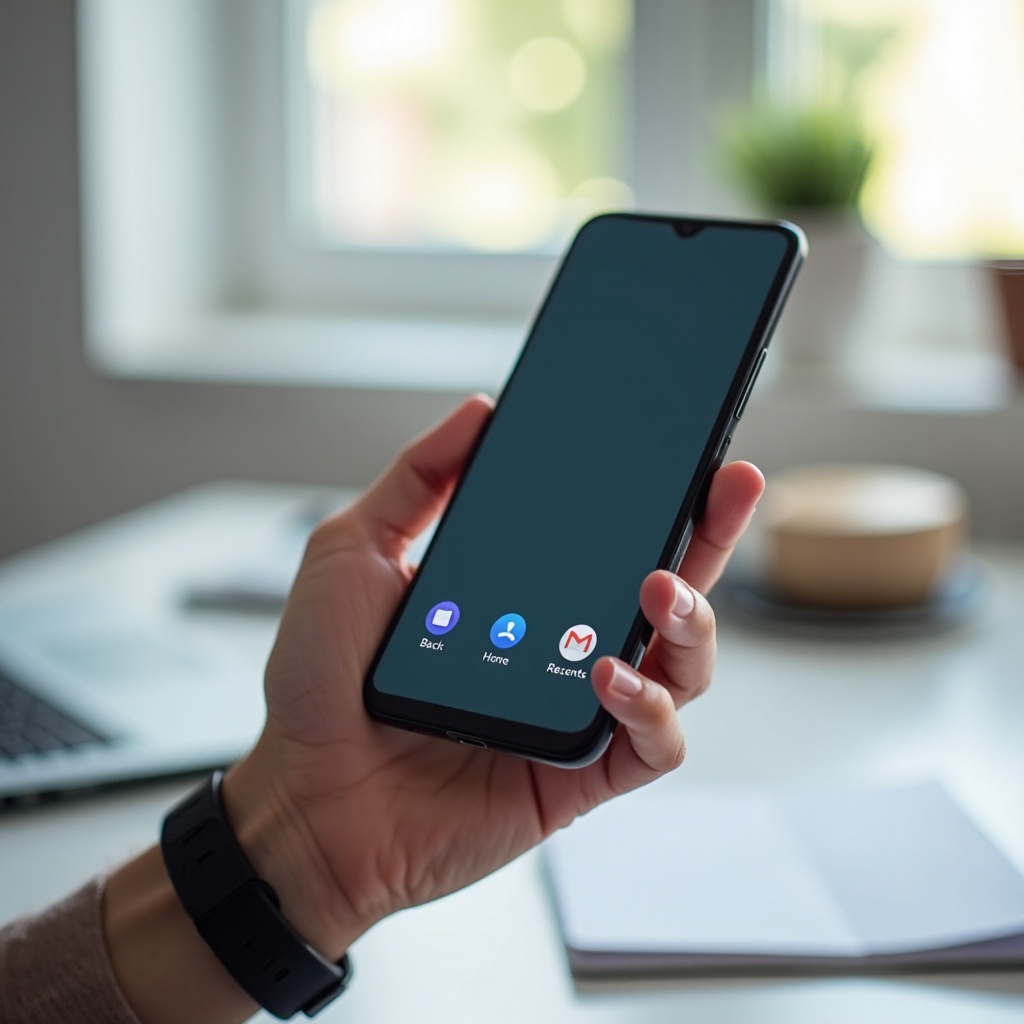
Android phone bottom buttons remain a reliable way to navigate, even as gestures improve across Android 14 and 15. You can enable the three‑button bar quickly on Pixel, Samsung, Xiaomi, OnePlus, and near‑stock phones. Customization tools let you swap button order, tune gesture sensitivity, add shortcuts, and style the bottom area so it feels natural in your hand.
When the bar goes missing, check cases, protectors, overlays, and updates first. Safe Mode and simple resets solve most issues. If needed, use ADB to reach navigation settings and disable problematic overlays, then reboot. Android 15 and current skins polish gestures and Back behavior without removing the three‑button option. Pick the mode that fits your habits, keep controls where you need them, and use small tweaks to boost speed without hurting accuracy.
Frequently Asked Questions
Where did my back button go on Android, and how do I get the bottom buttons back?
Many phones ship with gestures enabled, so the back action is now an edge swipe. To restore bottom buttons, open Settings and search for System navigation. On Pixel, go to Settings > System > Gestures > System navigation and pick 3‑button navigation. On Samsung, open Settings > Display > Navigation bar and choose Buttons. Restart if the bar does not appear.
How do I change the order of the bottom buttons (back/home/recents) on Samsung Galaxy?
Open Settings > Display > Navigation bar. Select Buttons, then tap Button order. You can place Back on the left or right, followed by Home and Recents. For deeper customization, install Good Lock from Galaxy Store and enable NavStar to add shortcuts, change icons, and create themed bars.
Why can’t I enable 3-button navigation on my phone, and what are my options?
Some carrier or OEM builds hide the toggle, and certain beta versions focus on gestures. Search Settings for System navigation. If it is still missing, update Android and OEM apps, then restart. Overlays or accessibility services can also block the bar; review Settings > Apps > Special access > Draw over other apps. If the option remains unavailable, contact your phone maker. You can improve gestures by raising back swipe sensitivity, showing the gesture pill, and enabling one‑handed mode.