
Introduction
You glance at your phone and notice a bright green line running across the screen. It stays there when you open apps, watch videos, or scroll social media. You restart the device, but the line comes back. At that point, one question takes over your mind: why does my phone have a green line?
This issue has become common on modern phones with OLED or AMOLED screens from brands like Apple, Samsung, Google, and others. The green line can appear suddenly, sometimes after a small drop, a system update, or with no clear cause. It looks alarming, and most people worry about data loss, repair costs, or whether they did something wrong.
This guide explains what the green line really means, what usually causes it, and how to test if it is a software or hardware fault. You will also see which fixes you can safely try at home, when the line signals serious screen failure, what repair options you have, and how to reduce the risk of it happening again on any future phone.
What Does the Green Line on My Phone Screen Mean?
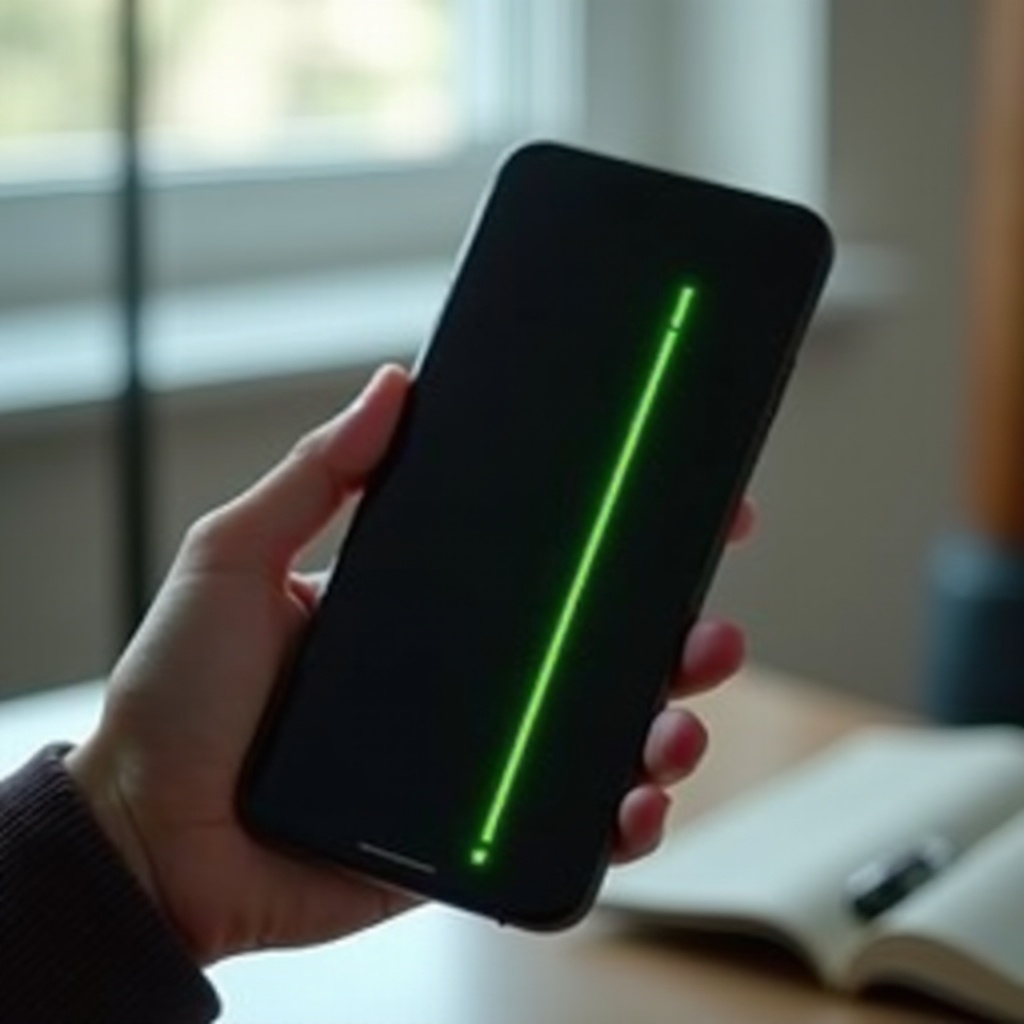
A single green line on your phone screen means that part of the display is not working the way it should. The line often appears as:
- A thin vertical or horizontal strip
- Bright green, sometimes mixed with other colors
- Visible across all apps, menus, and even the lock screen
On most modern phones, the screen is made of tiny pixels controlled by vertical and horizontal lines of electronics. If one of these control lines stops working correctly, the pixels along that path can stay stuck, which you see as a bright colored line.
In many cases, the line points to a hardware problem, such as:
- A damaged OLED or AMOLED panel
- A fault in the display driver or connector
- Wear and tear after long use or heat exposure
However, sometimes the issue comes from software, including:
- A bug in the operating system after an update
- A conflict with a specific app
- A temporary glitch in display drivers or graphics handling
If the green line shows even on the lock screen and during boot, that hints at hardware. If it appears only after certain apps open or after a recent update, software may be involved. You will learn how to test this in the next sections. First, it helps to understand the most common reasons that line appears at all.
Main Causes of a Green Line on Your Phone
Several common reasons explain why a phone suddenly shows a green line. Knowing them helps you decide whether a simple reset is worth trying or if you should prepare for repair and possible screen replacement.
Physical Damage: Drops, Bends, and Cracks
Physical damage is one of the most frequent causes of a green line. Even if the glass does not shatter, internal components can still suffer:
- A drop on a hard surface can shock the display layer.
- Sitting on the phone or keeping it in a tight pocket can bend the frame.
- Repeated minor impacts can slowly weaken internal connections.
These events can break or stress the delicate circuits that control the pixels in a row or column, leading to a permanent green line. Sometimes the damage appears hours or days after the impact, which makes it hard to connect the cause and effect and can confuse phone owners.
OLED/AMOLED Panel Failure and Burn-In
Most high-end phones now use OLED or AMOLED panels. These offer great color and contrast but can be sensitive. Over time, they may develop:
- Pixel degradation in certain areas
- Uneven wear from static elements like navigation bars
- Internal defects that only show after months of regular use
When part of the panel fails, the display driver can no longer control that region correctly, and the phone may show a vertical or horizontal green line. This kind of failure can happen even without drops or accidents, especially if the device runs hot or stays on at high brightness for long periods.
Loose or Damaged Display Connectors
Between the motherboard and the screen, there are thin flex cables and connectors. If they become loose or slightly damaged, you may see:
- Intermittent green lines that appear and disappear
- Lines that change when you press or twist the phone
- Flickering, distortion, or partial image loss
This sometimes happens after a previous repair, a heavy drop, or strong pressure on the frame. A connector that is not seated properly can cause a line even on a display panel that is otherwise healthy.
Software Glitches After Updates
Not every green line is a broken screen. Sometimes, software plays a role:
- A system update can introduce a display driver bug.
- A specific app can cause rendering problems on certain devices.
- Corrupted system files may affect the way the display is drawn.
If the line appears right after an update or after installing a new app, software might be involved. In these cases, you may fix the issue with updates, resets, or safe mode tests. To make good decisions, you need to separate possible software issues from clear hardware failures, which is the next step.
How to Tell If the Green Line Is a Hardware or Software Issue
Before you rush to a repair shop, you should run a few quick tests. They help you answer the key question behind ‘why does my phone have a green line’: is it a fixable software glitch or a failing screen?
The Screenshot Test
The screenshot test is simple and powerful:
- Take a screenshot while the green line is visible.
- Send the screenshot to another device, like a laptop or another phone.
- View the screenshot on that other device.
Now check:
- If the line appears in the screenshot on the other device, the problem is likely in software or the graphics pipeline.
- If the line does not appear in the screenshot, the problem is almost certainly hardware, usually the display panel or connector.
This test works because a screenshot captures what the system thinks it is showing, not what the physical screen actually displays. That clear difference helps you narrow down the cause quickly.
Safe Mode and App Conflict Check
Safe mode runs your phone with only system apps. To use it (names vary by brand):
- Long-press the power button.
- Tap and hold ‘Power off’ until you see ‘Safe mode’ or a similar option.
- Confirm and restart into safe mode.
Once in safe mode:
- Check if the green line is still there.
- If the line disappears, a third-party app may be causing the issue.
- If the line stays, the cause is more likely hardware or system-level software.
You can then uninstall recently added apps one by one and restart normally to see if the line returns. This process takes effort, but it can fix rare cases where a specific app triggers a display bug.
Using Built-In Display Diagnostics (Samsung, Google, etc.)
Some phones offer diagnostics that help you check the screen:
- On many Samsung phones, you can dial *#0*# and access display tests.
- On some other brands, you may find ‘Diagnostics’ or ‘Device health’ under Settings > Support or ‘Device care’.
Run the color and pixel tests:
- If the green line shows in every test screen, the panel or connector is almost certainly damaged.
- If it appears only in some cases, you might still have a software or driver conflict.
Once you confirm the type of problem, you can decide whether to try simple fixes at home or plan for repair. If there is any chance the issue is software-related, start with the easy fixes in the next section before spending money on hardware work.
Easy Fixes You Can Try at Home
If your tests suggest a possible software issue, or if you want to rule it out before paying for repair, you can try several safe steps on your own. These steps will not harm the device and often resolve minor glitches.
Restarting and Soft Reset
A simple restart can clear temporary glitches:
- Hold the power button.
- Choose ‘Restart’ or ‘Reboot’.
- Wait for the phone to fully start and check the screen again.
If your phone is frozen or unresponsive:
- Perform a soft reset by holding the power and volume down buttons for 10–15 seconds (the exact method differs by brand).
Sometimes, a one-time glitch in memory or the graphics driver can cause a line that disappears after a restart. This is the quickest and easiest fix to try.
Updating Your OS and Apps
If the green line started after a recent update, watch for follow-up patches. Manufacturers often release quick updates to fix serious bugs:
- Go to Settings > System or ‘Software update’.
- Check for updates and install them.
- Restart the phone after the update completes.
Also:
- Open the app store on your device.
- Update all apps, especially graphics-heavy or system-related apps.
Developers often fix display bugs in later versions, so staying updated can resolve newly introduced glitches that cause strange visual effects.
Resetting Display and Color Settings
Sometimes custom display settings trigger or exaggerate issues:
- Go to Settings > Display.
- Reset color, brightness, and advanced settings to default.
- Turn off experimental features like ‘enhanced colors’ or ‘high contrast’ temporarily.
After you reset, check if the line changes or disappears. If it does, slowly re-enable features to find the trigger. If the line behaves exactly the same, the issue is probably not related to your display settings.
Backing Up and Performing a Factory Reset
If the line persists but tests point toward software, a factory reset may help:
- Back up your data to the cloud or a computer: photos, contacts, and important files.
- Go to Settings > System > Reset (or a similar menu, depending on brand).
- Choose ‘Erase all data’ or ‘Factory reset’ and follow the prompts.
- After reset, test the screen before restoring backup or installing many apps.
If the green line is gone on a clean system and only returns after installing a certain app, you have found the culprit. If it stays even on a fresh system, the issue is almost certainly hardware. At that point, you should look for signs that your screen is failing, which is what the next section covers.
When the Green Line Means Your Screen Is Failing
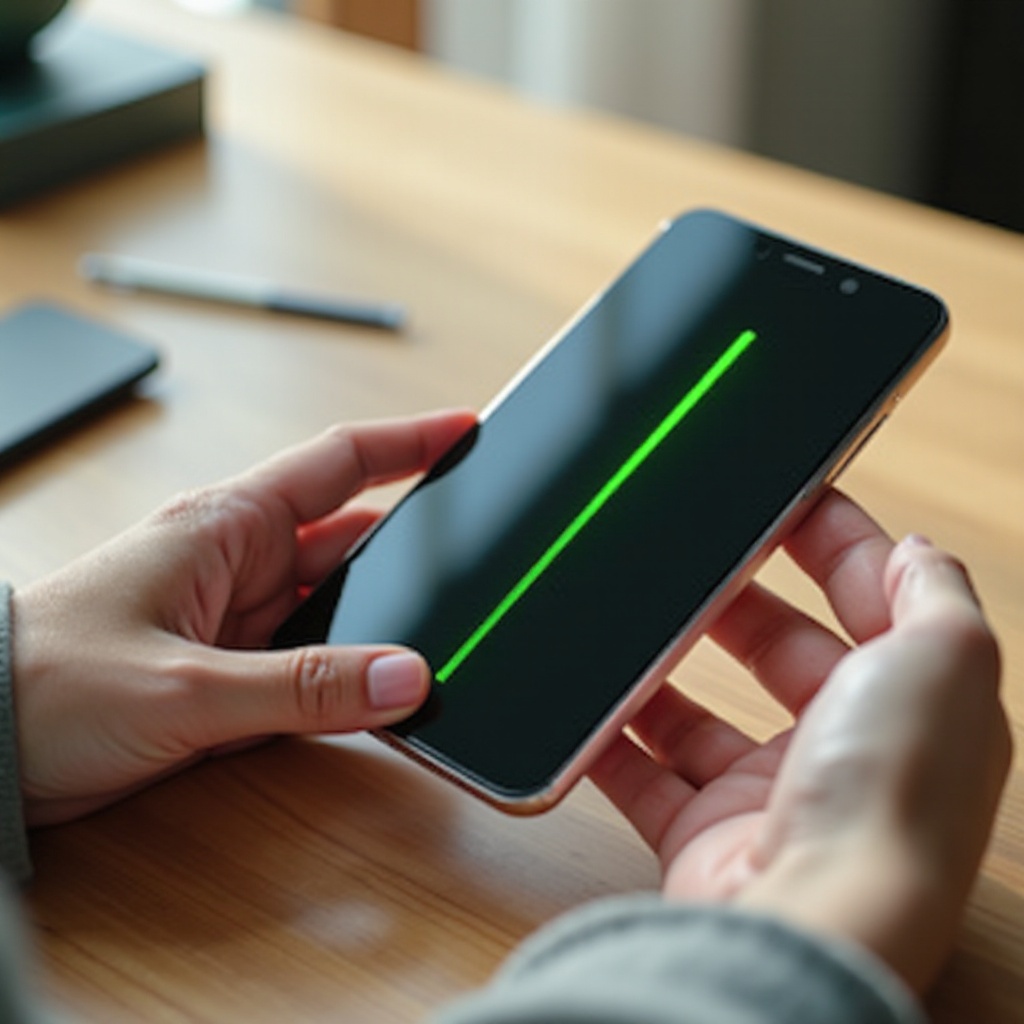
Sometimes, no amount of software tweaking will remove the green line. In those cases, the display hardware is damaged or worn out and will only get worse over time. Recognizing this early helps you protect your data and plan your next move.
Other Warning Signs: Flicker, Ghosting, and Dead Zones
A failing screen often shows more than just a line. Watch for:
- Flickering or flashing around the line
- Parts of the screen that respond slowly or not at all to touch
- ‘Ghost images’ or shadows that stay after you close an app
- Additional lines in different colors appearing over time
These symptoms show that the internal circuits or pixels are breaking down. The green line is only one part of a larger display failure and rarely improves on its own.
Why Ignoring the Green Line Can Make Things Worse
Many people choose to ignore the line and keep using the phone. While you may manage for a while, this can lead to:
- The line spreading or multiplying into several lines
- Entire sections of the screen going black or turning white
- More frequent touch issues and mis-clicks
In some cases, ongoing use stresses the failing components further. That can make the eventual repair more complex and expensive if other parts suffer damage. It can also make the phone harder to use for basic tasks like typing, navigation, or reading messages.
Safety Concerns: Overheating and Further Damage
A damaged screen or connector can sometimes cause abnormal power use:
- The phone may run hotter than normal, especially near the display area.
- The battery can drain faster than usual.
- The device might crash or restart more often.
While serious safety issues are rare, severe internal damage could pose a small risk if overheating becomes extreme. If you notice unusual heat near the screen or battery along with the green line, reduce use and seek professional help. Once you accept that the display is failing, it is time to look at repair choices, costs, and warranty options.
Repair Options, Costs, and Warranty Tips
A green line caused by hardware usually needs professional repair. The good news: you often have more than one option, and warranty or insurance may cover part of the cost. Understanding these options helps you pick the best path for your budget and your device.
Checking Warranty, Insurance, and Special Repair Programs
Start by checking your coverage:
- Look up your phone’s purchase date and warranty terms.
- Visit the manufacturer’s support website and enter your serial or IMEI number.
- Check if you have additional protection, such as AppleCare+, carrier insurance, or a store protection plan.
Sometimes, brands launch special repair programs for known display issues on certain models. These can cover partial or full costs even outside the standard warranty. Always check official announcements and support pages, as silent repair programs can exist for specific batches of phones.
Authorized Service Center vs. Third-Party Repair Shop
You usually have two main repair paths:
- Authorized service center
- Uses original parts designed for your phone.
- Keeps remaining warranty valid in most cases.
- Often more expensive but more reliable and predictable.
- Third-party repair shop
- Can be cheaper and faster.
- Quality depends on the shop and parts used.
- May void remaining manufacturer warranty.
If your phone is new or still under warranty, an authorized center is usually the safest choice. For older devices out of warranty, a trusted third-party shop with good reviews can be more cost-effective, as long as you understand the trade-offs.
Screen Replacement Cost vs. Buying a New Phone
Screen replacement is often the only lasting fix for a hardware green line. You should compare:
- The cost of replacement (parts plus labor).
- The current value and age of your phone.
- The price of a similar or upgraded new device.
If the repair costs close to the value of the phone, you might:
- Use trade-in offers, even with a damaged screen, if the vendor accepts it.
- Sell the phone for parts and upgrade to a new model.
If the phone is recent and high-end, repair often makes more sense, especially if warranty or insurance helps. Once you fix or replace your device, smart protection and usage habits can greatly reduce the chance that a green line will return, which is why prevention is worth considering next.
How to Prevent Green Line Issues in the Future
No phone is indestructible, but smart habits can reduce the risk of another green line appearing on your next device. A bit of care can add years to the life of a display and save you from repeat repairs.
Protecting Your Phone from Drops, Pressure, and Bending
Physical protection matters more than most people think:
- Use a high-quality case that covers the edges and corners.
- Add a tempered-glass or film screen protector for extra shock absorption.
- Avoid putting your phone in back pockets where it can bend when you sit.
- Do not place heavy objects on top of your phone in bags or backpacks.
These simple steps reduce shock and stress to the screen and its connectors, which directly lowers the chance of lines, cracks, or dead areas.
Avoiding Heat, Moisture, and Cheap Accessories
Environmental factors also affect display health:
- Keep your phone away from direct sunlight for long periods.
- Do not leave it in hot cars or on heaters.
- Avoid using it in very humid or wet conditions unless it has strong water resistance.
- Use quality chargers and cables from trusted brands to reduce the risk of power spikes that can stress internal parts.
Stable power and moderate temperatures help the display last longer and prevent damage that may later show up as lines or flickering.
Smart Usage Habits for Long-Lasting Displays
You can also adjust how you use the screen day to day:
- Reduce screen brightness when you do not need it at maximum.
- Turn on auto-lock so the display does not stay on for long when idle.
- Avoid leaving static images on for hours; use dark mode or screen savers when available.
- Update your system and apps regularly to benefit from bug fixes and optimizations.
These habits reduce strain on the pixels and the display driver, lowering the risk of issues such as permanent lines and burn-in. Combined with physical protection and careful handling, they give your next screen the best chance of staying clean and line-free.
Conclusion
A bright green line on your screen looks scary, but it does not have to be a mystery. When you ask ‘why does my phone have a green line’, you are usually dealing with either a failing display panel, a damaged connector, or, less often, a software glitch.
By running simple tests like the screenshot check, safe mode, and display diagnostics, you can quickly separate hardware from software problems. From there, you can try safe fixes such as restarting, updating, resetting display settings, or doing a factory reset after a full backup.
If signs point to hardware failure, the real solution is repair or screen replacement. Checking your warranty, insurance, and any special programs from the manufacturer can save you money and stress. Once you repair or replace your phone, smart protection and usage habits can greatly reduce the chance that a green line will return.
You now have a clear roadmap to diagnose the issue, choose the right fix, and keep your next screen in good shape for longer, with fewer surprises and less risk of sudden display failures.
Frequently Asked Questions
Can I still use my phone safely if there is a green line on the screen?
You can usually keep using the phone for a while if the green line is the only issue and there is no overheating or severe flickering. However, the line often signals early display failure, so you should back up your data as soon as possible. Continued use can lead to more lines, touch problems, or larger black areas. If the phone gets unusually hot or the display behaves erratically, stop using it and seek professional help.
Will a software update remove the green line on my phone?
A software update can fix the green line only if the cause is a software bug or driver problem. This is less common than hardware failure but still possible, especially if the line appeared right after an update or app install. Always install the latest system updates and check again. If the line does not show in screenshots and survives a factory reset, a software fix is unlikely, and the screen or its connectors probably need repair.
Is the green line covered under my phone’s warranty or protection plan?
Coverage depends on the cause and your specific warranty or protection plan. If the green line comes from a manufacturing defect or known panel issue and your phone is still within the coverage period, the manufacturer may repair or replace the screen at low or no cost. If there is clear physical damage from drops, liquid, or bending, the standard warranty often does not cover it, but extended protection or carrier insurance might. Check your warranty terms, contact official support, and ask if any special repair programs apply to your model.