
Introduction
Experiencing trouble with iCloud terms and conditions not being accepted on your iPhone is a common yet frustrating issue. It hampers the smooth operation of iCloud features integral to your daily device usage. Whether it’s syncing data or accessing cloud storage, resolving this problem quickly is essential to maintaining your smartphone’s functionality.

Understanding the ‘Terms and Conditions’ Acceptance Issue
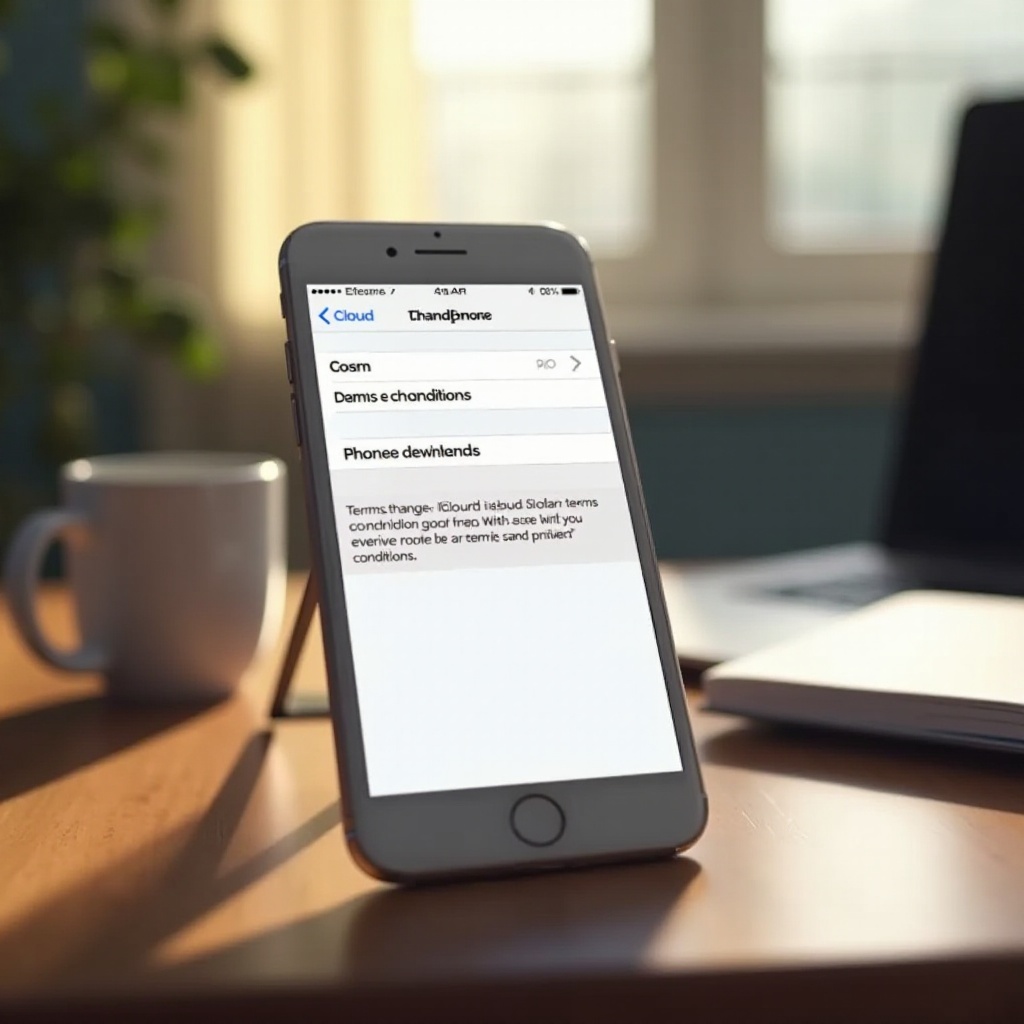
When your device fails to register your acceptance of iCloud’s terms and conditions, you’re left without access to essential services. This error is often a result of unaddressed technical hitches within your phone’s system or your iCloud account. It’s crucial to identify these underlying issues to troubleshoot effectively.
An unaccepted terms and conditions prompt means restricted iCloud access. As a result, this affects data synchronization and other vital functionalities. Therefore, swiftly fixing this issue should be your top priority.
Common Causes Behind the Problem
Delving into the reasons why your iPhone might not accept the iCloud terms reveals a few common culprits:
- Network Connectivity Issues: A weak or unreliable Wi-Fi or cellular connection frequently disrupts the acceptance process.
- Outdated iOS Software: Running an older version of iOS can cause compatibility issues, impacting various functionalities such as the acceptance of terms.
- Apple ID and Account Sync Problems: Sometimes, issues within your Apple ID account can lead to difficulties in accepting terms.
Identifying these causes prepares you for an effective resolution pathway.
Step-by-Step Troubleshooting Guide
Addressing the ‘terms and conditions won’t accept’ issue involves a series of strategic steps:
- Basic Checks and Quick Fixes:
- Ensure your iPhone is connected to a stable network.
- Restart your device to clear minor glitches.
-
Check for any pending iOS updates through Settings and install them as required.
-
How to Update Your iOS to the Latest Version:
- Go to Settings > General > Software Update.
-
Download and install available updates, making sure your device remains connected to a power source during the process.
-
Re-Syncing Apple ID Information:
- Access Settings and select your name at the top.
- Choose to sign out of your iCloud account.
- After restarting your device, sign back in to refresh account settings.
These steps are designed to address the procedural aspects efficiently, setting a solid foundation for further interventions if necessary.
Advanced Solutions for Persistent Problems
In the event the issue persists despite the initial troubleshooting efforts, consider these advanced approaches:
- Resetting Network Settings:
- Navigate to Settings > General > Reset.
-
Select ‘Reset Network Settings.’ Be aware that this action will erase any saved network configurations.
-
Logging Out and Back Into iCloud:
- Access Settings, then tap your name to open your Apple ID.
-
Scroll down and choose ‘Sign Out.’ Restart your device before signing back in.
-
Performing a Full System Restore:
- Back up your device via iCloud or iTunes.
- Proceed to Settings > General > Reset and opt for ‘Erase All Content and Settings.
- Restore your iPhone from the backup to regain apps and personal data.
These advanced solutions offer a comprehensive method to eliminate persistent problems, ensuring that your device operates without further hitches.
Conclusion
Experiencing difficulties with the iCloud terms and conditions prompts requires timely and informed action. By understanding the issue’s technical background and employing systematic troubleshooting, you can restore full functionality to your iCloud services. Regularly updating your software and verifying your network connection will help prevent such issues down the line.
Frequently Asked Questions
Why can’t I see the terms and conditions prompt on my iPhone?
You might not see the prompt due to connectivity issues, outdated software, or a temporary device glitch.
Is there a way to manually trigger the terms and conditions acceptance?
Signing out and back into your Apple ID can manually trigger the terms acceptance prompt.
How often should I update my iOS to avoid such issues?
Regularly check for and install software updates to ensure compatibility and prevent potential issues with iCloud services.