
Introduction
iPhone lockscreen dimensions decide whether your wallpaper looks sharp and clean or blurry and badly cropped. If the size is off, the clock covers faces, widgets hide key details, and the image loses quality. When the size is right, the lockscreen feels custom-made for your phone and every element appears in the right place.
Many people just pinch-zoom and hope for the best when they set a wallpaper. That works sometimes, but iOS still scales and crops in the background. If you create wallpapers, sell them, or simply want your photos to look their best, you need to know how dimensions, safe areas, and features like Dynamic Island affect the final result.
This guide breaks down how iOS 17 and iOS 18 handle wallpapers, the best iPhone lockscreen dimensions for current models, and simple workflows to resize any image. You will also learn how to avoid common mistakes, protect important content from being cut off, and build a single wallpaper size that works across several iPhones. Once you understand these basics, the next step is to look at how iOS itself treats wallpapers before you even see them on your screen.
What Are iPhone Lockscreen Dimensions and Why They Matter
iPhone lockscreen dimensions refer to the pixel size and aspect ratio that your wallpaper should use so it fits the full screen cleanly. Each iPhone model has a screen resolution, such as 2556 × 1179 pixels, and iOS uses that resolution as a base when it displays your wallpaper.
Three key concepts drive how your lockscreen looks:
-
Resolution
This is the number of pixels across and down. Higher resolution means more detail. If your wallpaper is smaller than the screen resolution, iOS has to stretch it, which makes it look soft or blurry. -
Aspect Ratio
This is the shape of the screen, expressed as width:height. Most modern iPhones use a tall ratio, around 19.5:9. If your image has a very different shape, iOS will crop or add empty areas. That is why tall photos work better than very wide ones. -
Safe Areas
Notches, Dynamic Island, the clock, widgets, and the Home indicator all sit on top of the wallpaper. They cover parts of the screen. Safe areas are the zones where you should avoid placing faces, logos, or text you care about. If you know where these areas are, your design looks intentional instead of cramped.
These factors matter for three reasons:
- Clarity: Correct dimensions keep your wallpaper sharp on high-PPI displays.
- Composition: Your subject stays visible and balanced around the clock and widgets.
- Consistency: When you use proper sizes, the wallpaper looks good on both lock and home screens.
When you understand dimensions, you can predict how any image will appear on the lockscreen instead of guessing each time. With this foundation in place, it becomes easier to understand how iOS 17 and iOS 18 treat wallpapers from the moment you select them.
How iOS 17 and iOS 18 Handle Lockscreen Wallpapers
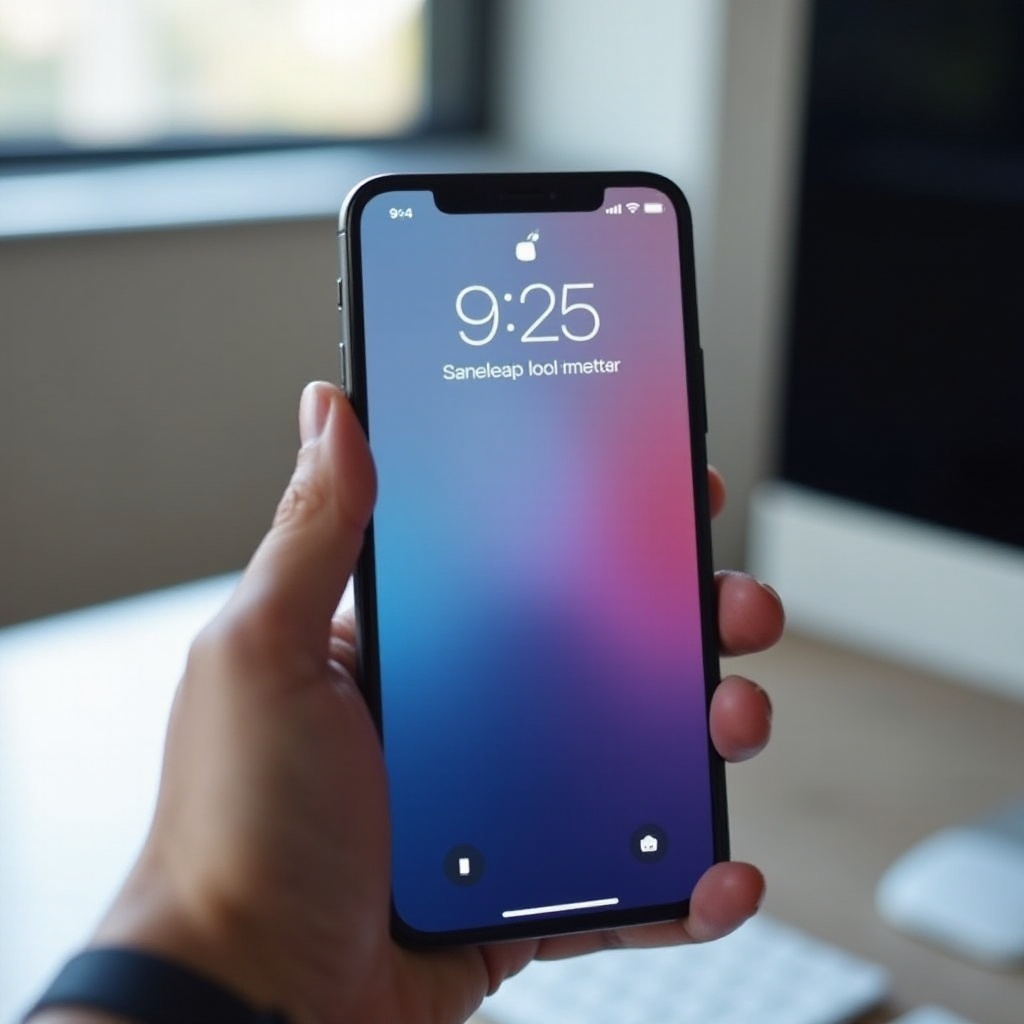
iOS 17 and iOS 18 bring more customization to the lockscreen, but that also means more elements sit on top of your wallpaper. Apple lets you add widgets, change fonts, switch color styles, and use depth effects. Behind the scenes, iOS still follows a clear and predictable approach to scaling and cropping.
Here is what happens when you set a wallpaper:
-
iOS scales the image
iOS takes your image and scales it to cover the screen. It uses a ‘fill’ style, similar to how many photo apps work. The system fills the entire display, even if it has to crop some parts of the image. -
You adjust with pinch and drag
You can zoom in or out slightly and move the image up or down. This gives you a bit of control over what stays in frame, but you cannot change the aspect ratio of the screen itself. -
Lockscreen elements overlay the image
The clock, date, and widgets appear in fixed zones. On Dynamic Island models, the camera and sensor area sits inside the content area as well. If you enable depth effect, iOS tries to detect a subject and layer the clock behind or in front of it. -
Always-on display affects brightness and contrast
On supported models, the always-on lockscreen darkens and reduces refresh rate. Darker wallpapers with clear contrast often look better here, especially when you have many widgets.
Because of this pipeline, matching your wallpaper dimensions to the screen resolution gives iOS the best starting point. You reduce scaling and preserve image quality. To apply this in a practical way, you now need to know the exact iPhone lockscreen dimensions for current models.
iPhone Lockscreen Dimensions by Model in 2024
Different iPhone models in 2024 use different screen resolutions, but their aspect ratios stay very similar. Knowing the native resolution helps you choose the right wallpaper size. Once you understand each model, you can either export per-device files or pick a smart universal size.
Below are the key current devices and their lockscreen resolutions (same as screen resolution):
iPhone 15, 15 Plus, 15 Pro, and 15 Pro Max
- iPhone 15 / 15 Pro: 2556 × 1179 pixels
- iPhone 15 Plus / 15 Pro Max: 2796 × 1290 pixels
These models use a tall aspect ratio and have either the Dynamic Island (Pro models) or the standard sensor area. For wallpapers, you can design at the exact resolution of the target device. If you want a flexible size that still looks sharp on both standard and Plus/Max models, aim for at least 2796 × 1290 and let iOS scale down when needed.
iPhone 14 and 14 Plus
- iPhone 14: 2532 × 1170 pixels
- iPhone 14 Plus: 2778 × 1284 pixels
These sizes are very close to the iPhone 15 series. If you design at 2796 × 1290 or 2778 × 1284, you can reuse wallpapers between 14/14 Plus and 15/15 Plus with minimal quality loss.
iPhone 14 Pro and 14 Pro Max with Dynamic Island
- iPhone 14 Pro: 2556 × 1179 pixels
- iPhone 14 Pro Max: 2796 × 1290 pixels
These match the 15 Pro and 15 Pro Max resolutions. The key difference is the Dynamic Island. The Island sits near the top center and covers part of the wallpaper. Your dimensions stay the same, but your safe areas change. Keep crucial details away from the top central area.
iPhone 13 and 12 Series
- iPhone 13 / 13 Pro / 12 / 12 Pro: 2532 × 1170 pixels
- iPhone 13 mini / 12 mini: 2340 × 1080 pixels
- iPhone 13 Pro Max / 12 Pro Max: 2778 × 1284 pixels
These share almost the same aspect ratios as newer phones. A wallpaper designed at 2778 × 1284 or 2796 × 1290 can still look crisp on them, as iOS scales down.
iPhone SE (3rd generation) and Other Current Devices
- iPhone SE (3rd gen): 1334 × 750 pixels
This device has a smaller, more traditional 16:9 style shape. If you target SE users, you can export a specific SE version. If you want a one-size solution, design for a taller model and accept extra cropping on SE, or provide a dedicated SE file.
Now that you know each model’s native resolution, you can choose smart base sizes rather than guessing. The next step is to turn these numbers into practical recommended wallpaper sizes and aspect ratios that work across multiple devices.
Recommended Wallpaper Sizes and Aspect Ratios for the Lockscreen
Exact per-model resolutions work well when you design for a single device, but many users want wallpapers that look good on multiple iPhones. You can solve this by choosing smart target sizes and respecting aspect ratios. This approach helps you keep image quality high while simplifying your workflow.
Ideal Resolution for Maximum Sharpness
To keep wallpapers sharp:
- Match or exceed the native screen resolution.
- Avoid scaling small images up to large screens.
As a designer or advanced user, you can:
- Create a base file at 2796 × 1290 pixels.
- Export copies at lower resolutions for smaller devices if needed.
This base size covers:
- iPhone 15 Pro Max and 14 Pro Max exactly.
- iPhone 15 Plus and 14 Plus almost exactly.
- Smaller models with downscaling, which preserves sharpness.
One ‘Universal’ Size That Works Across Most iPhones
If you want a single file that works well on almost all current iPhones:
- Use 3000 × 1400 pixels as a safe ‘universal’ wallpaper size.
This size:
- Has a similar tall aspect ratio to modern iPhones.
- Leaves some extra ‘bleed’ for cropping.
- Still keeps file size reasonable when compressed as JPEG or HEIC.
iOS will crop slightly on different models, but the extra pixels give you room to protect your main subject.
Portrait vs Landscape Images on the Lockscreen
Portrait images work best on iPhone lockscreens because they match the tall orientation of the display:
- You have more vertical space for the clock and widgets.
- The subject is less likely to be cut off by the top sensor area.
Landscape images can still work, but:
- iOS will crop heavily on the sides.
- Important content near the edges may disappear.
If you must use landscape photos, pick ones with:
- A strong central subject.
- Empty space on the left and right.
Once you settle on good base sizes, you must account for safe areas, notches, and the Dynamic Island so your key content stays visible. That is where understanding safe zones becomes essential.
Safe Areas, Notches, and Dynamic Island Considerations
Good dimensions are only half of the equation. The other half is where you place important details, such as faces, logos, or text. The lockscreen hides some areas behind hardware cutouts and UI elements, so you need to design around them for best results.
Understanding the Top Safe Zone Around the Camera Cutout
All modern iPhones have a sensor area at the top. This can be:
- A notch (like on iPhone 13 or 14).
- The Dynamic Island (on newer Pro models).
To stay safe:
- Keep critical content away from the top 15–20% of the screen.
- Assume the very top center will be blocked by hardware and status icons.
You can still place backgrounds, gradients, or sky in that area, but avoid key faces and logos.
Designing Around the Dynamic Island on Modern iPhones
On devices with Dynamic Island:
- The Island sits near the top center.
- System animations expand it sideways.
To design around it:
- Place your main subject slightly lower than center.
- Avoid putting text directly above the clock.
- Leave extra space above and around the top center.
This keeps your wallpaper readable even when the Island grows during activities like music playback or navigation.
Keeping Faces, Text, and Logos Out of Obstructed Areas
Besides the top, the lockscreen overlays:
- The clock and date near the upper middle.
- Widgets under the clock.
- Notifications in the lower area.
- The Home indicator at the very bottom.
Safe layout tips:
- Place faces either clearly above or clearly below the clock, not right behind it.
- Keep logos and titles away from the dead center.
- Use the lower third for soft textures or simple backgrounds so notifications stay legible.
With safe areas in mind, you are ready to design wallpapers that both fit the screen and look intentional with all lockscreen elements. The next step is to apply these spacing rules in actual design, from subject placement to color choices.
Designing Perfect iPhone Lockscreen Wallpapers
Designing a lockscreen wallpaper is not just about size; it is about creating a clear focal point that works with the clock, widgets, and always-on display. When you combine proper dimensions with smart layout decisions, every lockscreen feels polished.
Positioning the Main Subject for Clock and Widget Visibility
Start with your subject placement:
- Put the main subject slightly below the vertical center.
- Leave enough space above for the clock and date.
- Keep widget areas free of small, detailed elements.
A simple approach:
- Draw an imaginary grid that splits the screen into thirds.
- Place your subject around the lower intersection points.
- Leave the top third lighter or cleaner for text overlays.
This gives your wallpaper structure and prevents the UI from clashing with important content.
Using the Depth Effect Without Cropping Important Content
The depth effect in iOS lets the subject overlap the clock. It looks great, but can cut off faces or objects if you are not careful.
To use it safely:
- Choose high-contrast subjects with clear edges.
- Keep the top of the subject below the very top of the screen.
- Test the wallpaper on-device and adjust if part of the subject disappears.
If the depth effect causes odd cropping, disable it for that wallpaper and rely on a more classic, flat layout. You still keep all your composition benefits without the risk of awkward overlaps.
Color and Contrast Tips for Always-On Displays
Always-on screens darken the wallpaper and keep certain elements visible. To keep everything readable:
- Use darker backgrounds with mid-tone or light subjects.
- Avoid bright, busy textures behind the clock and widgets.
- Check that white text (time and date) stands out from the background.
When you design with contrast in mind, your wallpaper looks good both when the screen is fully on and when it is dimmed in always-on mode. With the design principles in place, the next step is to turn your concept into a correctly sized, optimized file.
How to Resize and Optimize Images for iPhone Lockscreen Dimensions
Once you know your target dimensions and layout, you need to turn your source image into a properly sized file. You can do this on your iPhone or on a computer, depending on how precise you need to be.
Resizing on iPhone with Built-In Tools
You can get close to ideal sizing with the Photos app:
- Open the image in Photos.
- Tap Edit and then the crop icon.
- Choose a tall crop similar to the screen’s shape.
- Ensure your subject sits in the safe area.
- Tap Done, then set it as wallpaper and fine-tune zoom and position.
For more precise control, you can use the Files app or Shortcuts with a resize action, but most users will be fine with Photos plus careful cropping.
Using Free Mobile Apps for Exact Pixel Dimensions
If you need exact pixels:
- Install a free photo editor or image resizer from the App Store.
- Create a canvas with your target size, such as 2796 × 1290 or 3000 × 1400.
- Import your photo and scale it to fill the canvas.
- Adjust composition so the subject sits in the safe zones.
- Export as JPEG or HEIC with high quality.
These apps often let you save presets so you can resize future wallpapers in a few taps.
Desktop Tools and Export Settings for Creators
Designers can use tools like Photoshop, Affinity Photo, Figma, or Sketch:
- Create templates for common iPhone sizes.
- Add guides showing the clock, widgets, and safe areas.
- Export at 100% size using JPEG or HEIC with quality around 80–90%.
Keep file sizes reasonable (usually under a few megabytes). Very large files may not give visible benefits on the lockscreen but can slow syncing. After sizing and optimizing, you might still notice issues once you set the wallpaper. That is where knowing common problems and fixes becomes very useful.
Common Problems with iPhone Lockscreen Dimensions and How to Fix Them
Even with correct dimensions, some wallpapers look wrong when applied. Most issues fall into a few simple categories, and each has a quick fix once you know what to look for.
Blurry or Pixelated Wallpapers
If your wallpaper looks soft:
- Check the original resolution. If it is lower than your screen size, it will blur when stretched.
- Avoid screenshots from older or smaller phones as base images.
- Recreate or find a higher-resolution version of the image.
When in doubt, start with an image that is larger than your target dimensions and scale it down, never up.
Cropped Heads, Cutoff Logos, and Misaligned Subjects
This usually means:
- The subject sits too high or too close to the edges.
- You zoomed in too much when setting the wallpaper.
To fix it:
- Go back to the image and crop with more breathing room.
- Place the subject slightly lower than center.
- Test on the lockscreen and adjust again if needed.
For logos, consider placing them near the bottom center, above the Home indicator but below most notifications.
Wallpapers Too Dark or Too Bright Behind Widgets and Notifications
If text and widgets are hard to read:
- Reduce extreme contrast behind the clock and widgets.
- Use a soft gradient or blurred area behind important UI.
- Avoid neon colors or pure white backgrounds in the central area.
You can also open the image in an editor and reduce brightness or saturation slightly in the areas where text appears. Once you solve these issues, you can move faster by using a personal cheat sheet of dimensions and layout rules so you do not repeat the same mistakes.
Quick Reference: iPhone Lockscreen Dimension Cheat Sheet for 2024
When you design or crop new wallpapers, use this quick reference to save time. It helps you move from guessing to a simple checklist that you can follow every time.
Fast Rules for Choosing the Right Size
- For a single modern device:
- Match its exact resolution (for example, 2796 × 1290 for Pro Max).
- For most current iPhones:
- Use 2796 × 1290 or 3000 × 1400 as a universal base.
- Always design in portrait orientation for lockscreens.
This ensures your wallpapers stay sharp and flexible across current models.
Simple Checklist Before Setting a New Wallpaper
Before you apply your wallpaper, check:
- Is the image resolution at least as large as your screen?
- Is the main subject below the clock and away from the top cutout?
- Are the clock and widgets easy to read over the background?
- Does the image still look good when dimmed for always-on display (if your phone supports it)?
With these quick checks, you can avoid most lockscreen problems in seconds. After you follow them a few times, choosing the right iPhone lockscreen dimensions becomes a habit rather than a chore.
Conclusion
Correct iPhone lockscreen dimensions make your wallpapers look sharp, balanced, and professional. By matching or slightly exceeding your device’s resolution, respecting aspect ratios, and keeping safe areas in mind, you keep faces, logos, and text visible while the clock, widgets, and notifications stay readable.
You do not need complex tools or guesswork. A few base sizes, like 2796 × 1290 or 3000 × 1400, cover almost all modern iPhones. Simple layout rules—subject slightly below center, clean top area, and good contrast—help both casual users and designers achieve great results.
Use the workflows and checklists in this guide whenever you create or download new wallpapers. After a few tries, choosing the right iPhone lockscreen dimensions becomes natural, and every lockscreen you set will look like it was made just for your phone.
Frequently Asked Questions
Do I need different dimensions for my iPhone lockscreen and home screen in 2024?
You do not need different dimensions. iOS uses the same base wallpaper file for both the lockscreen and home screen. The system may apply blur or dimming to the home screen and crop slightly differently, but the underlying size remains the same. If you design a wallpaper that fits the lockscreen well, it will usually work on the home screen too. Just keep the center of the image clean enough so app icons remain visible.
Will older wallpapers still look good on newer iPhones with Dynamic Island?
Older wallpapers can still look fine, but they may not be ideal. If the original resolution is lower than the new screen resolution, the image may appear softer. Also, the Dynamic Island covers part of the top center, so older designs that put faces or logos there may now look cropped. You can often fix this by re-cropping the original image with more room at the top and exporting it at a higher resolution that matches or exceeds the newer screen.
What is the best single resolution to use if I design wallpapers for multiple iPhone models?
A good ‘one size fits most’ resolution is around 2796 × 1290 or slightly larger, such as 3000 × 1400. These sizes match or exceed the tallest and widest modern iPhones, including Pro Max and Plus models. iOS will scale down the wallpaper on smaller phones, which keeps the image sharp. When you use this single high-resolution base and respect safe areas, your wallpaper will display well across almost all current iPhone models.