
Introduction
Your iPhone suddenly flashes ‘iPhone initiated Emergency SOS’ and starts counting down. Your heart jumps. You did not mean to call emergency services, but the phone is already on its way to dialing 911. This situation is very common now that Apple has expanded safety features in recent iOS versions.
Emergency SOS exists to protect you in critical situations, yet many people trigger it by accident while driving, working out, or even just putting their phone in a tight pocket. Each time, you worry about wasting emergency resources or frightening friends and family who receive SOS alerts.
This guide explains exactly what ‘iPhone initiated Emergency SOS’ means, why it keeps happening, and how to turn off or fine-tune the feature. You will learn step by step how to stop automatic calls, how to cancel a countdown in progress, and how to keep the parts of Emergency SOS that truly matter for your safety.
Once you understand the alert itself, it becomes much easier to decide which settings to change. So first, let us break down what this message actually tells you.
What Does ‘iPhone Initiated Emergency SOS’ Mean?
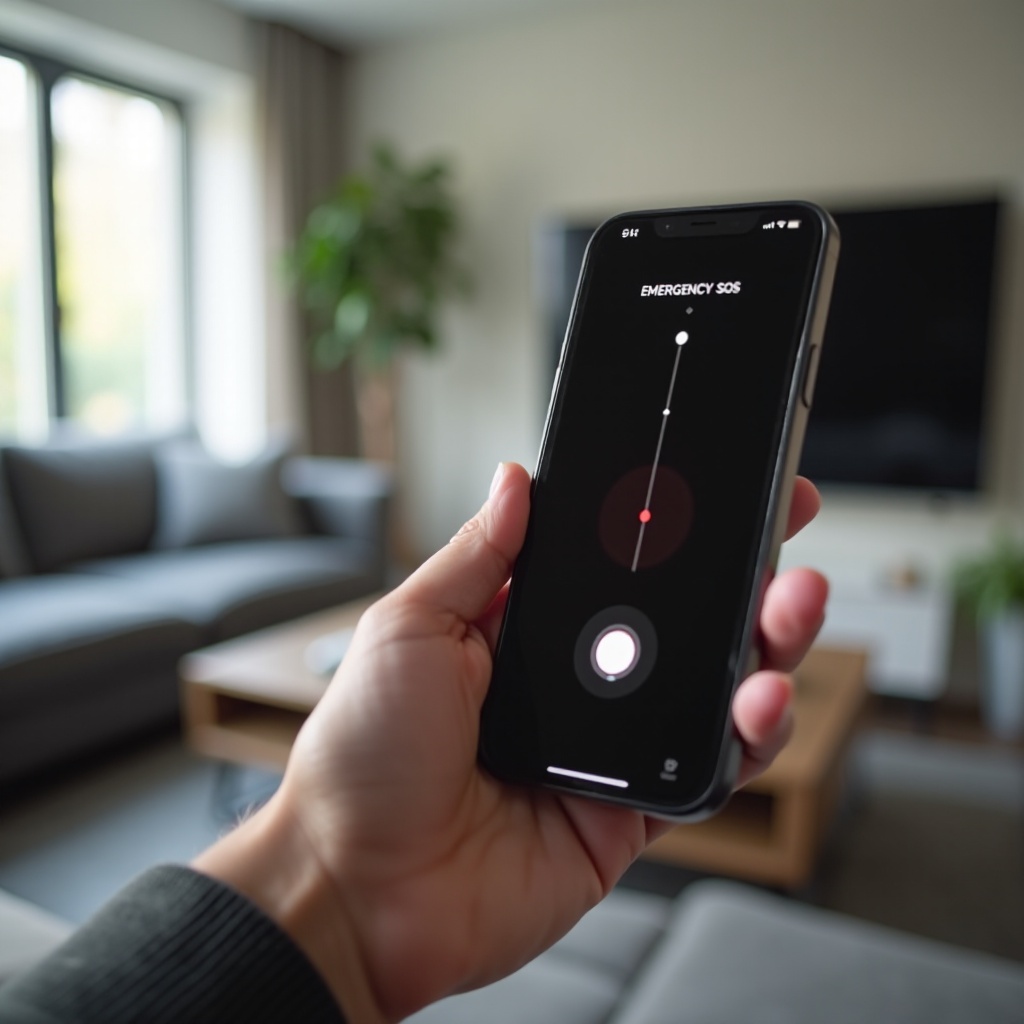
When you see the message ‘iPhone initiated Emergency SOS’, it means your device started the emergency call process on its own based on a trigger it detected. The message can appear as a notification, on the call screen, or in your recent calls list after an SOS event.
There are two main ways this happens:
- You triggered SOS with the buttons.
- The phone triggered SOS automatically based on its sensors.
If you press and hold the side button and a volume button, or press the side button multiple times quickly (when the option is enabled), iOS treats that as a deliberate attempt to call emergency services. Even if the press was accidental, the system assumes you may need help.
On supported models, features like Crash Detection can also start the process. When the phone detects what it believes is a severe car crash, it shows an alert, starts a countdown, and then places an emergency call if you do not respond. In that case, the device has technically initiated the call on your behalf.
In both situations, the phone may:
- Start a visible countdown with a loud alert sound.
- Call local emergency services when the countdown ends.
- Optionally send messages with your location to your emergency contacts.
So that phrase is not an error; it is a log that the iPhone either called or tried to call emergency services using the Emergency SOS feature. To gain full control, you need to understand how Emergency SOS works on the latest iOS versions and where the triggers live in the settings.
How iPhone Emergency SOS Works on the Latest iOS
Apple continues to add safety tools to iOS, which means there are more ways to trigger Emergency SOS than ever before. The more triggers there are, the more chances for accidental activations, especially if you are not familiar with them.
Understanding each trigger lets you decide what to keep, what to modify, and what to switch off entirely. Then you can keep the feature as a backup for serious situations without fighting false alarms every week.
Button-Based Emergency SOS Triggers
On current iPhones, hardware buttons are the quickest way to start Emergency SOS. There are two main button methods:
- Hold the side button and a volume button.
- Press the side button rapidly multiple times (often configured as five presses).
When you hold the side button and a volume button, the phone shows a screen with sliders for power off, Medical ID, and Emergency SOS. If the ‘Call with Hold and Release’ option is enabled and you keep holding the buttons, the phone begins a countdown and then automatically calls emergency services.
If the ‘Call with 5 Presses’ option is enabled, pressing the side button quickly the set number of times starts the Emergency SOS countdown and call. People often trigger this by rapidly pressing the side button to lock the phone or when a case or mount presses the button repeatedly.
Automatic SOS from Crash Detection and Fall Detection
On supported iPhones and Apple Watches, features such as Crash Detection can detect severe car crashes using motion sensors, microphones, and other internal data. The device analyzes sudden changes in speed, pressure, and sound to decide whether a crash likely occurred.
When Crash Detection believes there has been a severe impact, it usually:
- Shows an alert on the screen asking if you are okay.
- Plays a sound and starts a countdown.
- Automatically calls emergency services if you do not respond in time.
In some setups, related detection features like fall detection on Apple Watch can also connect with Emergency SOS. If you do not cancel the alert, the system assumes you need help and initiates the call.
What Happens After Emergency SOS Is Initiated
When Emergency SOS activates and you do not stop it, the system performs several actions designed to help rescuers reach you:
- It dials local emergency services, such as 911 in the United States.
- It may share your location with emergency responders, depending on your region and carrier support.
- It can notify your emergency contacts and share your current location, if you have set those contacts in the Health app.
This can be life‑saving in a real emergency, but it is stressful when you did not intend to call anyone. To reduce those situations, you need to identify what is triggering SOS most often on your phone.
Main Causes of Accidental ‘iPhone Initiated Emergency SOS’ Alerts
Accidental Emergency SOS events usually follow a pattern. If you pay attention to when and where they happen, you can often trace the cause and then fix it with a few targeted changes.
Maybe the alerts appear only when your phone is in a certain pocket. Maybe they only happen in your car or at the gym. Once you find the pattern, the right combination of settings and accessory changes can quickly reduce the problem.
Pocket Presses and Case-Related Button Pressure
One of the most common causes of accidental SOS activations is simple: the buttons get pressed while the phone is in your pocket or bag.
Typical situations include:
- Tight jeans or pants that press on the side and volume buttons.
- Cases with hard or thick button covers that transmit pressure easily.
- Objects in a bag pressing directly against the side of the phone.
When the side button and a volume button get held together for a few seconds, or when the side button is pressed rapidly, they can start the SOS countdown even though you did not touch the screen. If you carry your phone in tight spaces, this is a likely cause.
Car Mounts, Bike Mounts, and Workout Scenarios
Another frequent trigger involves mounts and fitness accessories. Many car, bike, and gym mounts grip the phone by pressing the sides, right where the buttons live.
Common examples are:
- A car mount that clamps firmly around the edges of the device.
- A bike mount that squeezes the middle of the phone and shifts during bumps.
- An armband or belt clip used during runs or workouts that pushes on the side buttons.
When you hit a bump, twist the mount, or tighten a strap, the pressure can mimic the button combinations that trigger Emergency SOS. If your phone only seems to initiate SOS when you are driving, cycling, or exercising, your mount or band is almost certainly part of the problem.
Software Glitches and Outdated iOS Versions
Sometimes users see SOS alerts even when they are confident nothing pressed the buttons. Although hardware triggers are the most likely cause, software issues can also play a role.
Possible explanations include:
- A bug in your current iOS version that misreads button input.
- Touchscreen or hardware faults that cause phantom touches or presses.
- Interference from damaged or low‑quality accessories connected to the phone.
If your device initiates SOS repeatedly with no clear physical cause, you should treat it as both a software and hardware question. Updating iOS, removing accessories, and checking the phone without a case can help isolate the issue.
Once you recognize which of these causes matches your situation, you are ready to adjust the settings that control automatic emergency calls.
How to Turn Off Emergency SOS Auto-Calling on iPhone
You do not need to remove Emergency SOS completely to stop most accidental calls. In many cases, turning off a few auto‑call options is enough to eliminate unwanted alerts while keeping manual SOS available for real emergencies.
The exact names of some settings can vary slightly between iOS versions, but the general steps remain consistent. Here is how to take control of the main triggers.
Step-by-Step: Disable ‘Call with Hold and Release’
The ‘Call with Hold and Release’ option controls what happens when you hold the side button and a volume button. If you want to prevent an automatic call after holding these buttons, follow these steps:
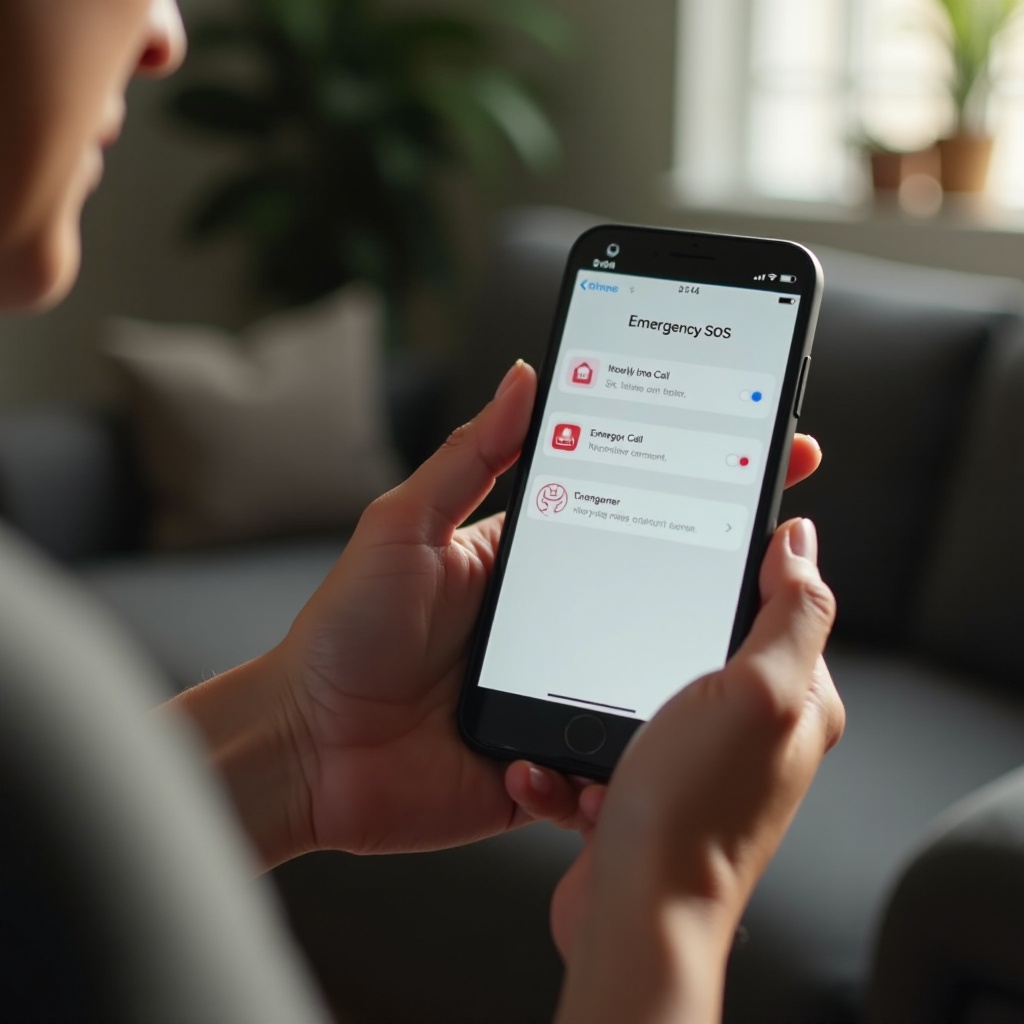
- Open the Settings app.
- Scroll down and tap ‘Emergency SOS’.
- Find the option labeled ‘Call with Hold and Release’ (or similar wording).
- Toggle this option off.
With this setting disabled, you can still hold the side button and a volume button to bring up the Emergency SOS slider on screen. However, the iPhone will not automatically call emergency services just because you kept holding the buttons. You will have to slide on the screen to confirm the call.
This setup is a good balance for many people: quick access to SOS when you need it, with far fewer accidental calls from button presses.
Step-by-Step: Disable ‘Call with 5 Button Presses’
If you often press the side button quickly to lock or unlock the screen, the setting that uses multiple rapid presses can easily cause SOS events by mistake. To disable this method:
- Open Settings.
- Tap ‘Emergency SOS’.
- Look for ‘Call with 5 Presses’ or similar wording.
- Toggle it off.
Once you turn this off, pressing the side button multiple times in a row will no longer start Emergency SOS. You can still use other SOS methods if they remain enabled, such as the slider or Crash Detection.
For users who use the side button frequently, disabling this option removes one of the most common sources of accidental alerts.
Step-by-Step: Turn Off ‘Call After Severe Crash’
On supported iPhone models, Crash Detection can start an SOS call after it detects what it believes is a severe crash. You might choose to disable the automatic calling part while still keeping other safety functions.
To adjust this setting:
- Open Settings.
- Tap ‘Emergency SOS’ (or explore related safety sections if the layout has changed).
- Find ‘Call After Severe Crash’ or a similar option.
- Toggle this off.
When this toggle is off, the phone will no longer automatically call emergency services after a detected severe crash. You may still see alerts or logs, but you will choose whether to make the call.
If you drive often in busy areas, you may want to keep this setting on. If you drive rarely or have seen multiple false crash detections, switching off automatic calls can be a reasonable trade‑off.
Even when you configure these settings carefully, you may still trigger SOS occasionally. Knowing how to cancel an active countdown or call can prevent unnecessary calls and reduce stress.
How to Cancel an Active Emergency SOS Countdown or Call
Even with the best configuration, accidents happen. You might press the wrong buttons or a mount might shift. When you see the Emergency SOS screen, you need to act quickly to stop the process if you do not need help.
Learning how to cancel the countdown and how to respond if a call connects ensures that you handle mistakes calmly and correctly.
Stopping the Countdown Before It Calls
If you see the Emergency SOS screen showing a countdown timer, you usually have several seconds before the call actually goes through. During that window, you can cancel the action.
To stop the countdown:
- Look for a ‘Stop’ or ‘Cancel’ option on the SOS screen.
- Tap the button.
- Confirm that you want to cancel when the phone asks.
If the phone is in your pocket and you hear a loud siren‑like sound, quickly remove it, wake the screen, and cancel the call. The countdown sound is designed to alert both you and people around you that a call is about to happen.
What to Do If the Emergency Call Already Connected
If the countdown finishes and the phone connects to emergency services, you should not simply hang up. That can cause confusion for operators and may even lead them to send help to check on you.
Instead, do the following:
- Stay on the line.
- As soon as someone answers, clearly say something like: ‘This was an accidental call. There is no emergency.
- Answer any short follow‑up questions the operator might ask.
Being polite and clear helps them confirm that you are safe and that no response is needed. It also shows that you take their time seriously.
Handling Notifications Sent to Emergency Contacts
If Emergency SOS sends alerts to your emergency contacts, they might receive text messages or notifications with your location. When this happens by mistake, it is important to let them know.
You can handle this by:
- Opening your Messages app or other apps where SOS alerts were sent.
- Sending a quick message to each contact explaining that the SOS was accidental.
- Clarifying that you are safe and that they do not need to worry.
If you find yourself sending these explanations often, it is a sign that your SOS configuration or carrying habits need more adjustment. The next step is to tune the feature so you keep safety but reduce the chances of unwanted alerts.
Safer Alternatives: Customize Emergency SOS Instead of Turning It Off Completely
You might feel tempted to shut down Emergency SOS entirely, especially after several stressful false alarms. However, it is usually safer to keep some form of SOS active and simply customize how it behaves.
By keeping at least one manual trigger and adjusting how the system alerts and notifies people, you get a good mix of protection and control.
Keep the SOS Slider but Disable Auto-Call
A popular compromise is to keep the on‑screen SOS slider available while turning off automatic calls. To do this, you can:
- Disable ‘Call with Hold and Release’.
- Disable ‘Call with 5 Presses’.
- Keep Emergency SOS itself enabled.
With this setup, you can still bring up the SOS slider quickly by holding the side button and a volume button. But the phone will only call emergency services if you slide on the screen. This reduces accidental calls while ensuring that a real emergency is only a simple gesture away.
Adjust Countdown Sound, Haptics, and ‘Call Quietly’
In the Emergency SOS settings, you may see choices such as ‘Countdown Sound’ or options related to making calls quietly. These settings control how obvious the SOS process is.
You can:
- Turn off the loud countdown sound if you find it embarrassing in quiet places.
- Keep vibrations on so you still feel the alert in your hand.
- Enable or disable any ‘Call Quietly’ options depending on whether you want the call to make noise.
These changes do not stop SOS from working, but they give you more control over how the phone behaves during an emergency countdown.
Manage Emergency Contacts and Medical ID Safely
Your emergency contacts and Medical ID are key parts of the SOS system. To manage them:
- Open the Health app.
- Tap your profile picture or name.
- Go to ‘Medical ID’ and choose ‘Edit’.
Inside this screen, you can:
- Add or remove emergency contacts.
- Choose people who should receive SOS alerts and those who should not.
- Update your medical information so rescuers have accurate details.
By picking the right contacts and keeping your Medical ID up to date, you make sure that if SOS ever activates in a real emergency, the right people get the information they need.
After you tune the overall behavior, the next layer of control comes from knowing what your specific iPhone model can do and what you want to keep active.
Model-Specific Tips: iPhone 15, iPhone 14, and Other Recent Models
Different iPhone models have different safety features. Newer devices often include more advanced detection and, in some regions, satellite connectivity. Understanding your phone’s capabilities helps you make smarter decisions about which SOS options to leave on.
You do not need every feature if it causes stress, but you should know what you are turning off before you do it.
iPhone 15 and iPhone 14 with Crash Detection and Satellite SOS
On the iPhone 15 and iPhone 14 series, Crash Detection and satellite-based Emergency SOS (in supported regions) provide powerful tools for drivers and travelers.
You may see options for:
- Crash Detection with automatic emergency calls.
- Emergency SOS via satellite when you have no cellular coverage.
If you drive often, especially in areas with poor signal, these features can be very valuable. You might decide to keep Crash Detection enabled but review the ‘Call After Severe Crash’ setting so that you are comfortable with how automatic the response is.
If you notice frequent false crash alerts, you can disable auto‑calling while still keeping manual SOS and satellite features available for genuine emergencies.
Face ID iPhones (Without Satellite) and Their SOS Options
Recent Face ID models that do not support satellite SOS still offer robust Emergency SOS features, including button-triggered calls, the SOS slider, and emergency contact notifications.
For these devices, the main focus is:
- Turning off any button trigger that causes repeated accidental calls.
- Using a case that does not press on the side buttons too easily.
- Practicing the SOS slider once so you know how to use it if you ever need it.
By keeping at least one simple method to trigger SOS manually, you keep a vital safety net without letting the phone surprise you.
iPhone SE and Home Button Models: Key Differences in SOS
On iPhone SE and other models with a Home button, the combination of buttons used to start SOS may be slightly different, but the core features are similar.
You can still:
- Go to Settings > Emergency SOS to adjust auto‑call options.
- Decide whether you want side button presses to trigger SOS.
- Use the on‑screen slider in a real emergency.
The guiding principle remains the same: remove or reduce the triggers that cause trouble and keep at least one clear way to call for help.
Once your model is configured, you can further lower the risk of accidental SOS alerts by changing how you carry your phone and which accessories you use.
How to Prevent Future Accidental Emergency SOS Activations
Settings play a big role, but your daily habits and gear matter just as much. Many accidental ‘iPhone initiated Emergency SOS’ events can be prevented with small changes that make it harder for the buttons to get pressed unintentionally.
A few practical tweaks to how you carry, store, and mount your phone can almost eliminate false alerts.
Best Practices for Carrying and Storing Your iPhone
To reduce accidental button presses, try to:
- Avoid keeping your phone in very tight back pockets or waistbands.
- Use a front pocket or a separate compartment in a bag where the phone is less likely to be compressed.
- Keep keys, chargers, and other hard objects away from the side of your phone in bags.
These simple habits make it much less likely that something will hold the side and volume buttons long enough to start SOS.
Choosing the Right Case and Accessories
Cases and mounts are another important factor. When choosing them, consider the following tips:
- Pick a case with button covers that require a bit of pressure and do not activate at the lightest touch.
- Avoid mounts that clamp directly over the side button and volume buttons.
- Test mounts and bands by gently shaking or flexing them to see if they cause unintentional presses.
If you notice SOS alerts only when using a particular case or mount, that accessory is likely the culprit. Replace it with one that gives the buttons more room.
Reviewing Settings After iOS Updates or Phone Changes
Major iOS updates and phone upgrades are a good time to review your Emergency SOS settings. Updates sometimes add new options or adjust defaults, and a new device may behave differently with your existing accessories.
After an update or a phone change:
- Open Settings.
- Tap ‘Emergency SOS’.
- Review button-trigger options, Crash Detection, countdown sounds, and any new toggles.
- Confirm that the settings match your preferences and risk level.
This quick review helps you avoid surprises and keeps the feature aligned with how you actually use your iPhone. But even with careful tuning and good habits, some people still see unexpected SOS triggers, which calls for deeper troubleshooting.
When You Should Not Turn Off iPhone Emergency SOS
It can be tempting to switch off every SOS feature after a few embarrassing calls to emergency services. However, completely removing your safety net is not always wise, especially if you face real-world risks.
Before you disable anything, it helps to think about your lifestyle, health, and routines. Sometimes keeping a slightly inconvenient feature is better than having no quick way to call for help.
High-Risk Situations and Vulnerable Users
If any of the following apply to you, you should be cautious about disabling too much:
- You drive long distances or drive often, especially on rural or unfamiliar roads.
- You have medical conditions that could cause sudden emergencies.
- You work in physically demanding or hazardous environments.
- You live alone and do not have someone nearby to help you quickly.
In these scenarios, the benefits of Emergency SOS can outweigh the annoyance of occasional false alerts. You might still reduce button triggers, but consider keeping Crash Detection or at least one fast SOS method enabled.
Recommended SOS Settings for Kids, Teens, and Elderly
When configuring phones for children, teenagers, or older relatives, the priority is usually giving them a reliable way to get help while avoiding constant accidental calls.
Some useful guidelines are:
- Keep at least one clear SOS trigger available, such as the on‑screen slider or one button method.
- Show them exactly how and when to use Emergency SOS, and stress that it is for real emergencies.
- Set up appropriate emergency contacts and, if comfortable, enable location sharing with trusted family members.
This approach gives vulnerable users a simple path to help while reducing the likelihood that they will set off the feature by mistake.
Balancing Safety Needs with Accidental Call Risks
Ultimately, managing ‘iPhone initiated Emergency SOS’ is about balance. Ask yourself:
- How often do you actually face situations where you might need urgent help?
- How frequently do accidental SOS alerts happen on your phone today?
If emergencies are a real possibility and false alerts are rare, you may accept more active SOS features. If accidental calls happen frequently and cause stress, it makes sense to limit triggers but still keep a manual method available.
When you have fine-tuned this balance and still experience unexpected SOS events, it is time to look at advanced troubleshooting steps and, if necessary, professional support.
Advanced Troubleshooting if SOS Still Triggers After Changes
If you have already disabled the main auto‑call options, adjusted your accessories, and changed your habits, yet ‘iPhone initiated Emergency SOS’ continues to appear, the problem may be deeper than settings alone.
In that case, you should treat it as a potential software or hardware issue. Working through a few technical steps can help you isolate the cause and decide whether to contact Apple Support.
Reset All Settings Without Erasing Data
Resetting all settings can clear hidden configuration issues without deleting your personal data, apps, or photos.
To reset settings:
- Open Settings.
- Tap ‘General’.
- Tap ‘Transfer or Reset iPhone’.
- Tap ‘Reset’.
- Choose ‘Reset All Settings’.
Your device will restart, and you will need to re-enter Wi‑Fi passwords and adjust some preferences again. However, your content remains intact. After the reset, test the phone for a while to see if SOS still triggers unexpectedly.
Update or Reinstall the Latest iOS Version
Running the latest iOS version is important. Updates often include bug fixes that can resolve odd behavior.
To update your software:
- Go to Settings.
- Tap ‘General’.
- Tap ‘Software Update’.
- Install any update that is available.
If your iPhone is already up to date and you still suspect a system issue, you can back up your device and perform a clean restore using a computer. After restoring, test SOS before you reinstall all apps, to see if the problem appears on a clean system.
When to Contact Apple Support or Visit an Apple Store
If ‘iPhone initiated Emergency SOS’ continues to show up regularly after you:
- Disabled automatic calling methods.
- Checked cases and mounts.
- Reset settings.
- Updated or restored iOS.
then it is time to contact Apple Support or visit an Apple Store or authorized service provider.
Describe the issue clearly and mention that SOS triggers even when the phone is not being touched. A technician can test the hardware buttons, sensors, and internal logs to see if there is a defect or persistent software glitch.
Once any underlying problem is fixed and your settings are tuned, you can rely on Emergency SOS as a quiet safety net rather than a constant source of accidental alarms.
Conclusion
The message ‘iPhone initiated Emergency SOS’ is a sign that your phone has either started or attempted to start an emergency call. In a real crisis, that is exactly what you want. In everyday life, repeated false alarms can cause embarrassment, stress, and confusion for both you and emergency services.
By understanding how Emergency SOS works on modern iPhones, you can take control of those alerts. You have learned how hardware buttons and Crash Detection trigger calls, what causes most accidental activations, and how to turn off or adjust automatic options like ‘Call with Hold and Release’, ‘Call with 5 Presses’, and ‘Call After Severe Crash’.
You have also seen how to cancel a countdown, handle calls that already connected, manage emergency contacts, and tailor settings for different users and models. With small habit changes and the right case or mount, you can almost eliminate unwanted SOS events.
Rather than disabling Emergency SOS completely, aim for a balanced setup that minimizes accidental calls while keeping at least one simple emergency method available. Spending a few minutes on these settings today gives you peace of mind and ensures that, if you ever see ‘iPhone initiated Emergency SOS’ again, it is because you really needed it.
Frequently Asked Questions
Can I turn off iPhone Emergency SOS completely if I never want to use it?
You can disable all automatic triggers such as ‘Call with Hold and Release’, ‘Call with 5 Presses’, and ‘Call After Severe Crash’. This prevents your iPhone from auto-calling emergency services. However, Apple still keeps the SOS slider available when you hold the side and volume buttons, so you always have a manual way to call for help. Fully removing the feature is not possible, but turning off auto-calling is usually enough to stop accidental alerts.
Does turning off Emergency SOS affect Find My iPhone or location sharing?
Turning off Emergency SOS does not disable Find My iPhone or normal location sharing. Those features are managed separately under the Find My settings and within individual apps. Emergency SOS uses your location during an SOS event to help responders and notify emergency contacts, but changing SOS options does not stop your device from being located through Find My or other services you have enabled.
What should I do if my iPhone keeps showing ‘iPhone initiated Emergency SOS’ even after I changed the settings?
First, double-check Settings > Emergency SOS to confirm auto-calling options are off. Remove your case and accessories and see if the problem continues. Update to the latest iOS version and, if needed, use ‘Reset All Settings’ to clear configuration issues without erasing your data. If SOS still triggers unexpectedly, contact Apple Support or visit an Apple Store, as you may have a hardware problem with the buttons or sensors that needs professional diagnosis.