
Introduction
You do not need to be a tech expert to capture what is on your Samsung screen. Whether you want to save a chat, show an error to support, or grab a recipe from a website, screenshots make it quick and easy to keep what matters.
Many people only know one way to capture the screen, usually with the side buttons. Samsung phones, however, offer several screenshot methods. You can use buttons, hand gestures, voice commands, on-screen buttons, and special tools for long pages or partial screen captures.
This guide explains step by step how to take a screenshot with your Samsung phone, even if you are a complete beginner. You will learn basic methods, advanced tools, and how to edit, share, and fix screenshot problems. By the end, you will know which method suits you best and how to switch between them whenever you need.
Now that you know what you will learn, let us start with the simplest and most universal approach: basic screenshot methods using your phone’s hardware buttons.
Basic Screenshot Methods on Samsung Phones
Samsung keeps the main screenshot method simple. Almost every recent Samsung phone, from the Galaxy S and A series to foldable models, supports a standard button combination. Once you learn it, you can capture almost any screen in a second.
You should try the basic method first before exploring gestures or advanced tools. This way, you always have a reliable fallback when other options fail or are turned off.
Using the Power and Volume Down Buttons
On most Samsung phones, you take a screenshot with two buttons:
- Open the screen you want to capture.
- Press the Power (Side key) and Volume Down buttons at the same time.
- Release both buttons quickly after a short press.
If it works, you will:
- See the screen flash briefly.
- Hear a shutter sound, unless you have muted your phone.
- See a small preview at the bottom of the screen with quick actions like Edit, Share, or Scroll.
If you hold the buttons too long, you might open the power menu or trigger a different feature. Aim for a quick, firm press so the combination registers correctly.
When and Why to Use Button Screenshots
The button method is useful because:
- It works on almost every recent Samsung phone, including newer models.
- You do not need to change any settings.
- It works even if gestures are disabled.
Use button screenshots when:
- You are holding your phone with two hands.
- You want a fast, reliable capture.
- You are helping someone over the phone and need a method that is easy to explain.
If pressing two buttons is hard or uncomfortable, Samsung offers gesture and on-screen options that may suit you better.
Common Mistakes With Button Combinations
If your screenshot does not work, these are the most common issues:
- Holding too long: If you press and hold Power + Volume Down, you may open the power menu or trigger an emergency call.
- Pressing buttons separately: You need to press both buttons at the same time, not one after the other.
- Pressing Volume Up instead of Volume Down: Check which side of the rocker you use.
Practice a few times. Once it clicks, this method becomes second nature. If you still struggle or prefer not to use buttons, you can switch to gesture-based screenshots, starting with palm swipe.
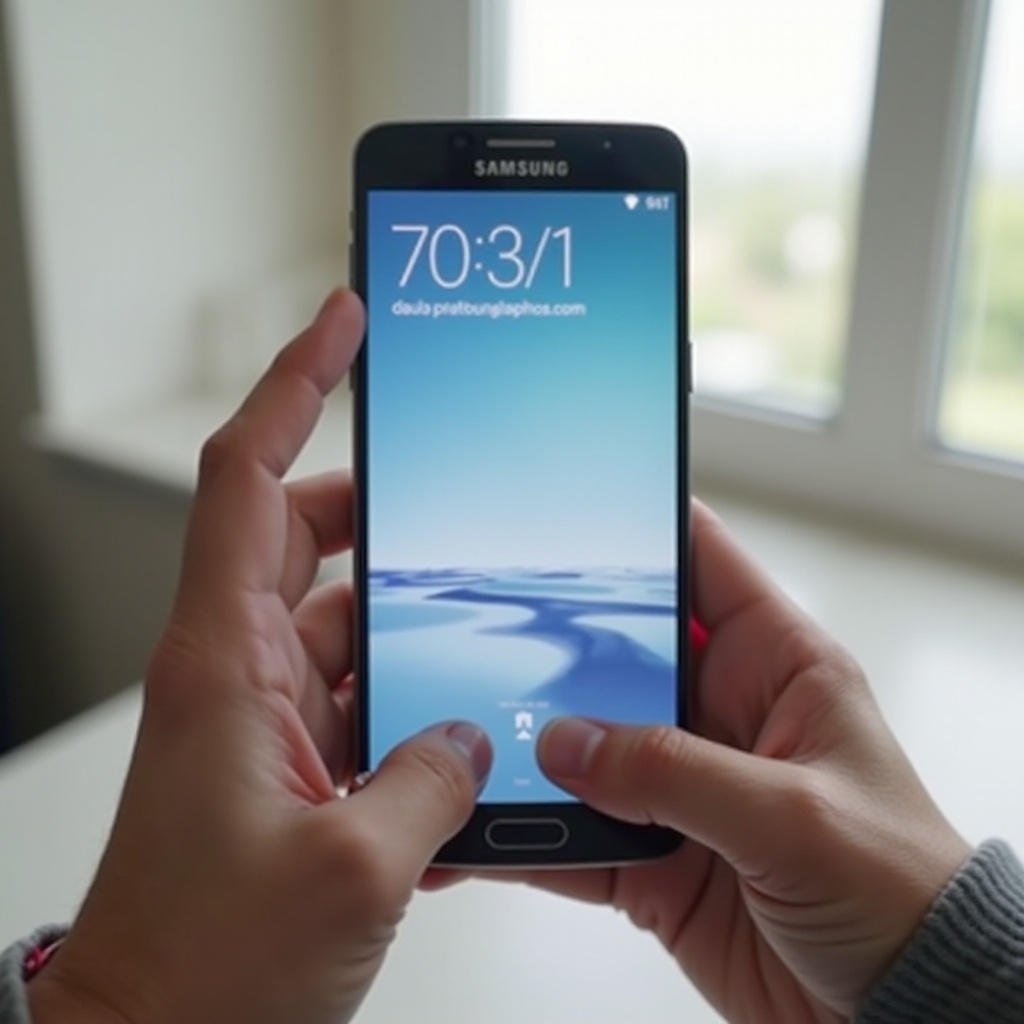
How to Enable and Use Palm Swipe to Capture
If you prefer not to press buttons, Samsung’s Palm swipe to capture gesture is a handy alternative. You simply slide the side of your hand across the screen to take a screenshot. First, you need to make sure the feature is turned on in your phone’s settings.
This gesture method is especially helpful when you are using your phone one-handed or lying down, and pressing two side buttons feels awkward.
Turning On Palm Swipe in Settings
To enable Palm swipe to capture:
- Open the Settings app.
- Tap Advanced features.
- Tap Motions and gestures.
- Find Palm swipe to capture and toggle it On.
If you do not see this option, your exact menu names may be slightly different, but it should be in Advanced features or Motions and gestures on most recent Samsung phones.
Once it is enabled, you are ready to try the gesture on any screen you want to capture.
How to Perform the Palm Swipe Gesture Correctly
To take a screenshot with palm swipe:
- Open the content you want to capture.
- Place the side of your hand, the little finger edge, on one edge of the screen vertically.
- Swipe your hand across the screen from right to left or left to right, keeping contact with the screen as you move.
When it works, you will see the same flash and preview as with button screenshots.
A few tips:
- Keep your hand straight, like a karate chop, not flat.
- Make one smooth motion across the whole screen.
- Do not lift your hand until you reach the other side.
If it is still not working, there are a few simple checks you can make to fix it.
Fixes If Palm Swipe to Capture Does not Work
If the gesture does not register:
- Confirm it is enabled: Go back to Settings > Advanced features > Motions and gestures and ensure Palm swipe to capture is on.
- Remove screen protectors or gloves that might block contact with the touch screen.
- Avoid multi-touch: Make sure only the side of your hand touches the screen.
If you still struggle, remember you can always fall back to the button method or use accessibility tools, which we will cover next. These accessibility options are designed to make screenshots easier for everyone.
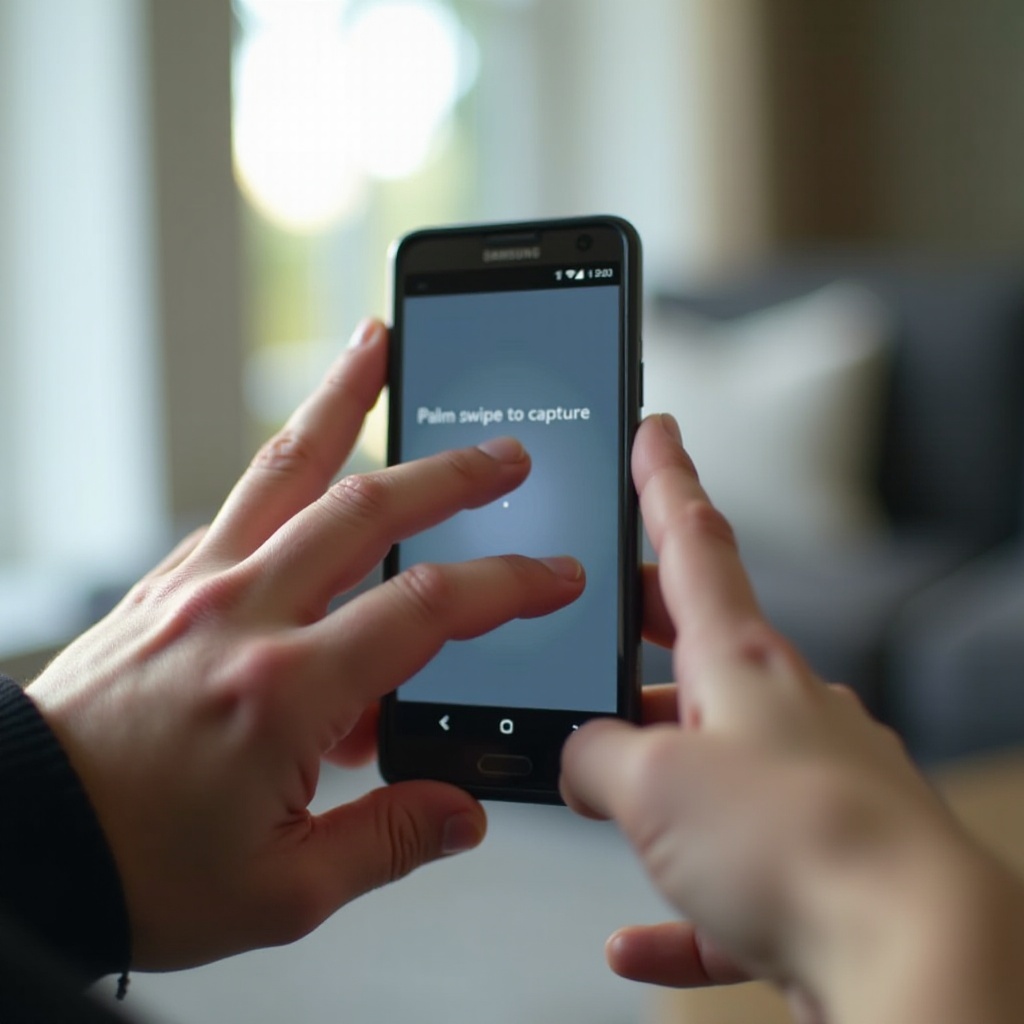
Screenshot Shortcuts for Accessibility and Convenience
Not everyone finds button presses or gestures comfortable. Some users may have trouble pressing two buttons at once, or they simply prefer an on-screen control. Samsung includes several features that make screenshots more accessible and more convenient.
You can use a floating menu, voice commands, or pick the method that fits your hand and habits best. These options are useful if you have limited dexterity or use your phone in different positions throughout the day.
Taking Screenshots With the Assistant Menu (Accessibility Method)
The Assistant menu adds a floating button on your screen with quick actions, including a screenshot option. To enable it:
- Open Settings.
- Tap Accessibility.
- Tap Interaction and dexterity.
- Turn on Assistant menu.
A small floating icon will appear. To take a screenshot:
- Tap the Assistant menu icon.
- Tap Screenshot from the menu that appears.
This method is excellent if:
- Your buttons are damaged.
- You find gestures difficult.
- You want one-handed screenshot control on large phones.
You can drag the floating menu to any edge of the screen so it does not block content you need to see.
Using Bixby or Google Assistant to Take a Screenshot
If you like voice commands, you can use Bixby or Google Assistant to capture the screen.
For Bixby:
- Make sure Bixby is set up on your Samsung phone.
- Go to the screen you want to capture.
- Say ‘Hi Bixby, take a screenshot’.
For Google Assistant:
- Make sure Google Assistant is enabled.
- Open the screen you need.
- Say ‘Hey Google, take a screenshot’.
The phone will capture the screen and show the usual preview. Voice screenshots are handy when:
- Your hands are busy.
- You can not easily reach the buttons.
- You want a completely touch-free method.
Best Screenshot Method if Your Buttons Are Hard to Press
If your side key or volume button is broken, stiff, or hard to reach, these are your best options:
- Assistant menu: Most reliable and easy to access from any screen.
- Palm swipe: Good if you are comfortable with gestures.
- Voice commands: Great when you can speak to your phone clearly.
You can combine these methods so you are never stuck. Once you are comfortable with basic and accessibility methods, you can get even more out of your Samsung phone by using advanced screenshot features for long or partial captures.
Advanced Samsung Screenshot Features
Once you master the basic and accessibility methods, you can start using Samsung’s advanced tools. These features help you capture long pages, specific areas, or annotate screenshots without using another app.
They are very useful for work, school, and everyday tasks where you need more than a simple full-screen capture. With these tools, you can share detailed information in a clear and organized way.
How to Take a Scrolling Screenshot on Your Samsung Phone
A scrolling screenshot lets you capture content that goes beyond one screen, such as:
- Long web pages
- Chat conversations
- Email threads
- Settings lists
To take a scrolling screenshot:
- Open the app or page you want to capture.
- Use any screenshot method (buttons, palm swipe, or Assistant menu).
- When the screenshot toolbar appears at the bottom, tap the scroll icon, often shown as arrows or ‘Capture more’.
- The phone will scroll down and add more content to the screenshot.
- Tap the scroll icon again to keep extending, or stop when you have captured enough.
You can then open the screenshot in the Gallery to review the full length. Keep in mind that some apps, especially secure or banking apps, block scrolling capture for security reasons.
Using Smart Select and Screen Write for Partial Screenshots
Samsung’s Smart Select and Screen write tools let you capture only part of the screen and annotate it right away.
You can usually access them from:
- The Edge panel (Smart Select)
- The S Pen menu on devices that support the S Pen
With Smart Select, you can:
- Draw a rectangle or oval around the area you want.
- Capture that area only.
- Extract text from the screenshot on supported devices.
With Screen write, you:
- Take a screenshot.
- Instantly open it in a drawing mode.
- Write notes, highlight, or circle important parts.
These tools are ideal for tutorials, bug reports, and pointing out specific details on the screen. They save time because you do not need to open a separate editing app.
Extra Tips for Galaxy S Pen and Foldable Models
On Galaxy S Pen devices, such as S series models that support the S Pen:
- Use Air Command and choose Screen write or Smart Select to capture and annotate in one step.
On foldable phones, such as Galaxy Z Fold and Flip models:
- The basic button combo still works.
- Scrolling screenshots work in most apps on both the cover and main screens.
- Make sure you adjust your grip so you can press the side buttons comfortably in folded or unfolded mode.
Now that you know how to capture almost any type of content, the next step is handling your screenshots: finding, editing, and sharing them so they are easy to use later.
Where to Find, Edit, and Share Your Samsung Screenshots
After you take a screenshot, your phone saves it automatically. Knowing where to find these images and how to edit and share them will help you get real value from your captures.
Samsung offers built-in tools in the Gallery app, so you usually do not need extra apps for basic editing tasks.
Locating Your Screenshots in the Gallery and My Files Apps
You can find your screenshots in two main places.
1. Gallery app
- Open Gallery.
- Tap Albums.
- Look for the Screenshots album.
Every screenshot you take normally appears here.
2. My Files (or Files) app
- Open My Files.
- Go to Internal storage or SD card, depending on where your images are stored.
- Open DCIM > Screenshots.
This is useful if you want to move screenshots to a computer, external storage, or a cloud folder manually.
Editing Screenshots: Crop, Draw, Blur, and Highlight
To edit a screenshot:
- Open the screenshot in the Gallery.
- Tap the Edit icon, usually shown as a pencil.
You can:
- Crop: Remove unwanted edges or personal details.
- Rotate: Fix orientation if needed.
- Draw or write: Use the pen tools to add notes, arrows, or circles.
- Blur or highlight: On many devices you can blur sensitive information or highlight key areas.
After editing:
- Tap Save to overwrite, or
- Tap Save as copy to keep both the original and the edited version, depending on your device’s options.
These simple edits make your screenshots clearer and safer to share, especially when they contain private information.
Sharing Screenshots via Messages, Email, and Social Apps
To share a screenshot:
- Open the screenshot in Gallery.
- Tap the Share icon.
- Choose your preferred app:
- Messaging apps such as WhatsApp, Messages, or Facebook Messenger.
- Email apps.
- Social media apps.
You can also share directly from the screenshot toolbar that appears right after you take a screenshot. This saves time when you need to send something quickly.
If sharing does not work, check your internet connection and the app’s permissions. If your screenshot workflow still does not feel smooth, you may have run into a technical issue, which leads to the next section on troubleshooting.
Troubleshooting Screenshot Problems on Samsung Phones
Sometimes you follow all the steps and still can not take or find a screenshot. Samsung phones may show errors, refuse screenshots in certain apps, or fail to save images when storage is low.
Understanding the most common issues helps you fix them quickly without guessing or installing unnecessary apps.
‘Can not Take Screenshot Due to Security Policy’ Error
This error appears when:
- You try to screenshot protected content, such as some banking apps, streaming apps, or secure work apps.
- A device administrator or company policy blocks screenshots on a managed device.
To deal with this:
- Respect app restrictions. Many financial and streaming apps block screenshots to protect sensitive data.
- If this is a work phone, talk to your IT team or administrator to understand the policy.
There is usually no built-in way around app-level restrictions, and trying to bypass them can break terms of service or company policies.
Screenshots Not Saving or Not Showing Up in the Gallery
If you take a screenshot but can not find it:
- Check storage: If storage is full or almost full, your phone may fail to save new images. Free up space by deleting files or apps you do not need.
- Restart your phone: A quick restart can fix temporary glitches in the Gallery or file system.
- Use My Files: Open My Files > DCIM > Screenshots to see if the images are stored but not yet visible in the Gallery.
If screenshots still do not appear:
- Make sure you are not using an app that hides media folders.
- Check if you are saving to an SD card that might be corrupted or unmounted.
When to Update Software or Contact Samsung Support
If none of the screenshot methods work at all:
- Check for updates:
- Go to Settings.
- Tap Software update.
- Tap Download and install.
- Updates may fix bugs that affect screenshots or system tools.
If the issue continues after an update:
- Your hardware buttons might be damaged.
- There might be a deeper software or settings problem.
At this point, contact Samsung Support or visit an authorized service center. Explain which screenshot methods you tried and what happens when you try them. This will help them diagnose the problem faster and suggest the best repair or fix.
Conclusion
You now know several ways to take a screenshot with your Samsung phone: using the Power and Volume Down buttons, palm swipe gestures, accessibility tools like the Assistant menu, and voice commands through Bixby or Google Assistant. You have also learned how to capture long pages with scrolling screenshots and how to use Smart Select and Screen write for partial captures and quick notes.
Once you capture your screen, you can easily find, edit, and share your screenshots from the Gallery or My Files apps. And if something goes wrong, you know the most common causes and how to fix them with clear, simple steps.
Try each method and choose the one that feels natural in your daily use. With these tools, you can quickly save and share anything important that appears on your Samsung screen, from work documents and school content to everyday messages and photos.
Frequently Asked Questions
Why can’t I take a screenshot on certain apps on my Samsung phone?
Some apps block screenshots to protect sensitive information. Banking apps, streaming services, and secure work apps often use this restriction. In those cases, your phone may show a message like ‘Can’t take screenshot due to security policy’. This is normal, and there is usually no built-in way to bypass it without breaking app or company rules.
How do I change where screenshots are saved on my Samsung phone?
By default, Samsung saves screenshots to DCIM > Screenshots in internal storage. Most phones do not let you change this folder directly in system settings. However, you can regularly move screenshots to another folder or SD card using the My Files app, or set up cloud backup in Google Photos or Samsung Cloud so they sync and store your screenshots automatically.
What’s the easiest screenshot method for beginners using a Samsung phone?
For most beginners, the Power + Volume Down button method is the easiest and most reliable. You press both buttons at the same time, then release quickly. If this feels difficult, turn on Palm swipe to capture in Settings > Advanced features or enable the Assistant menu in Accessibility to get an on-screen screenshot button that you can tap instead of using hardware keys.