
Introduction
Mirrored selfies make text look backward and can throw off your framing. If your Android front camera flips your view or saves reversed photos, you can turn it off. The fix lives in your phone’s Camera app and the apps you use to shoot or share. Different brands use different names for the same toggle: ‘Mirror selfie’, ‘Save selfies as previewed’, ‘Flip selfie’, or ‘Mirror front camera’. When you disable it, your photos and videos save as others see them, without a left-right flip.
This guide explains what ‘inverted’ means, how to find the mirror toggle on popular phones, and how to stop mirroring in video, social apps, and video calls. You will also learn to fix older mirrored photos and clips and solve edge cases like wide-angle and RAW. Start with your stock Camera settings, then check the apps where you shoot most. If your selfies still save mirrored, follow the troubleshooting steps to lock in the right behavior. First, get clear on the terms so you know exactly what to change and why.
What ‘inverted’, ‘mirrored’, and ‘flipped’ mean on Android
Most complaints about an ‘inverted’ camera refer to horizontal mirroring. The front camera shows a preview that feels natural, like a mirror, so your right appears on the right. Some phones also save that preview as mirrored. Others flip the file back to normal when you press the shutter.
Mirroring is not the same as rotation. Rotation turns the image 90 or 180 degrees. Mirroring flips left-right. Color inversion in Accessibility is different too. It changes colors, not geometry, and does not fix reversed text in selfies.
The rear camera almost always saves unmirrored. The front camera is the one that mirrors your view. To control this, look for a selfie or front-camera toggle in your Camera app’s settings. If you shoot in Instagram, Snapchat, or TikTok, each app can apply its own mirror rules. Now that you can spot mirroring vs rotation, move to the fast steps to stop mirroring on popular Android phones.
Quick steps: Turn off mirrored selfies on popular Android phones
The fastest fix sits in the stock Camera app. Open Camera, tap Settings, and find the front-camera mirror option. The path and name vary by brand, but the result is the same: it stops saving a flipped file.
Samsung Galaxy (One UI 6/7): Disable ‘Save selfies as previewed
- Open Camera.
- Tap the gear icon to open Settings.
- Find ‘Save selfies as previewed’.
- Turn it off to stop saving mirrored selfies.
- Test a selfie with printed text. Saved text should read correctly.
On One UI, this setting applies across most modes, including Photo and Portrait. If you use special modes, check that they respect the same toggle.
Google Pixel (Android 15/16): Flip selfie preview vs saved image
- Open Google Camera.
- Tap Settings.
- Pixel typically mirrors the preview but saves unmirrored files by default.
- If you see a ‘Flip selfie’ option in a recent build or a third-party camera, turn it off.
- Test in Photo and Portrait to confirm consistent saves.
If you rely on a third-party camera on Pixel, check its own ‘Mirror’ or ‘Flip’ switch. Some apps add their own processing that can override Pixel’s defaults.
OnePlus/Oppo/Realme: Turn off ‘Mirror selfie
- Open Camera.
- Tap Settings.
- Toggle off ‘Mirror selfie’ or ‘Flip selfie’. Names vary by build.
- Check Photo, Portrait, and any Beauty modes to keep the setting consistent.
- Shoot a selfie with text to confirm the saved file is unmirrored.
Xiaomi/Redmi/Poco: Turn off ‘Mirror front camera
- Open Camera.
- Tap Settings.
- Disable ‘Mirror front camera’.
- In HyperOS or MIUI builds, verify the option in Selfie settings.
- Test with text to confirm the result.
Motorola/Nokia: Disable ‘Selfie mirror’ in stock camera
- Open Camera.
- Tap Settings.
- Turn off ‘Selfie mirror’ or ‘Mirror front camera’.
- Record a quick selfie test with text or a logo. Saved output should read correctly.
Turning off mirroring for photos fixes most cases. Video can behave differently, so check the next section to keep front-camera clips unflipped too.
Disable mirroring for front-camera video recordings
Photo and video do not always share the same pipeline. On some phones, you must disable mirroring in Video mode as well. Do this once and your clips should save correctly.
- Open Camera and switch to Video.
- Tap the gear icon or Video settings.
- Look for ‘Mirror front camera’ or ‘Save videos as previewed’. Turn it off.
- On Samsung One UI 6/7, the selfie mirror setting usually covers video. Record a short clip with text to confirm.
- On OnePlus/Oppo/Realme and Xiaomi/HyperOS, verify the Video mode toggle independently.
- On Google Pixel, the preview often mirrors but the saved video is unmirrored. Test with text and review the file.
If your stock app does not include a video mirror switch, install a trusted third-party camera that exposes a ‘Mirror’ option and keep it off in Video mode. With video captures handled, check social apps next. They can override your camera settings and force mirrored saves.
Stop inverted selfies inside social apps (Instagram, Snapchat, TikTok)
Social apps often show a mirrored preview and may save mirrored files depending on effects and mode. If you shoot inside these apps, disable any in-app mirror switches or flip during editing before you publish.
Instagram: Story/Camera mirror behavior and settings
- Open Instagram and enter Stories or the Camera.
- Instagram mirrors your preview. Saved files often flip back, but not always.
- If your Story or Reel shows backward text, use the editor’s Flip tool or flip in a third-party app.
- For Reels, record a short clip with text, then check the saved draft for orientation.
Snapchat: Preview mirror vs saved image toggle
- Open Snapchat and tap Settings.
- Look under Video Settings or Advanced features. Toggles vary by build.
- Disable any ‘Mirror’ or ‘Flip’ option that affects saved output.
- In Memories, open a snap, edit, and flip horizontally if needed.
TikTok: Front-camera flip options
- Open TikTok and enter the Camera screen.
- Tap effects or the settings icon. Search for a ‘Flip’ or ‘Mirror’ option and turn it off.
- If the app still saves mirrored, flip the clip in TikTok’s editor before posting.
Social captures often go straight to sharing. Before you publish, verify orientation once so your text and logos read correctly. Next, understand why video call previews mirror your view and how to change what you see locally.
Video calling apps: Why your preview looks mirrored (and how to change it)
Most call apps mirror your local preview to make it easier to adjust your hair, shirt, or framing. They do not mirror the video that others receive. If you want your preview unmirrored, toggle it in the app’s video settings.
Google Meet and Zoom mirror settings
- In Google Meet, your preview may mirror, but the sent video is normal. Ask a friend to confirm.
- In Zoom, open Settings > Video and toggle ‘Mirror my video’. Turn it off to see your preview unmirrored.
- Hold a sign with text. Confirm that participants see it correctly while you adjust your local view.
WhatsApp and Telegram front camera behavior
- WhatsApp mirrors the preview. Sent video and photos generally appear normal to others.
- Telegram behaves in a similar way. If saved clips look mirrored, flip them in your gallery editor before sharing.
Microsoft Teams local preview mirroring
- Teams mirrors your preview for comfort.
- If recordings look flipped after a meeting, use your gallery editor to flip horizontally.
If your call recordings look mirrored, fix them with the editors in the next section. If snapshots and normal selfies still save mirrored, troubleshoot your Camera app and its cache next.
Troubleshooting when photos still save flipped
If selfies still save mirrored after you disable the toggle, a mode, cache, or app may be overriding your choice. Work through these steps to restore normal behavior.
Update or reset the Camera app
- Update your system software and the Camera app.
- Open Camera settings and choose ‘Reset settings’. Retest the front camera.
- Reinstall any third-party camera apps to clear hidden overrides.
Clear cache/data and check permissions
- Go to Settings > Apps > Camera > Storage.
- Tap ‘Clear cache’. If the problem persists, tap ‘Clear data’. Reapply your mirror setting.
- Confirm Camera has permission to save files. Missing Storage or Photos access can cause odd saves.
Disable beauty filters and watermarks
- Beauty modes can add processing that flips output.
- Turn off Beauty, filters, and any watermark features.
- Retest in standard Photo mode with all effects off.
Once the Camera app saves correctly, you may still have older mirrored photos or clips. The next section shows quick tools that you already have on your phone.
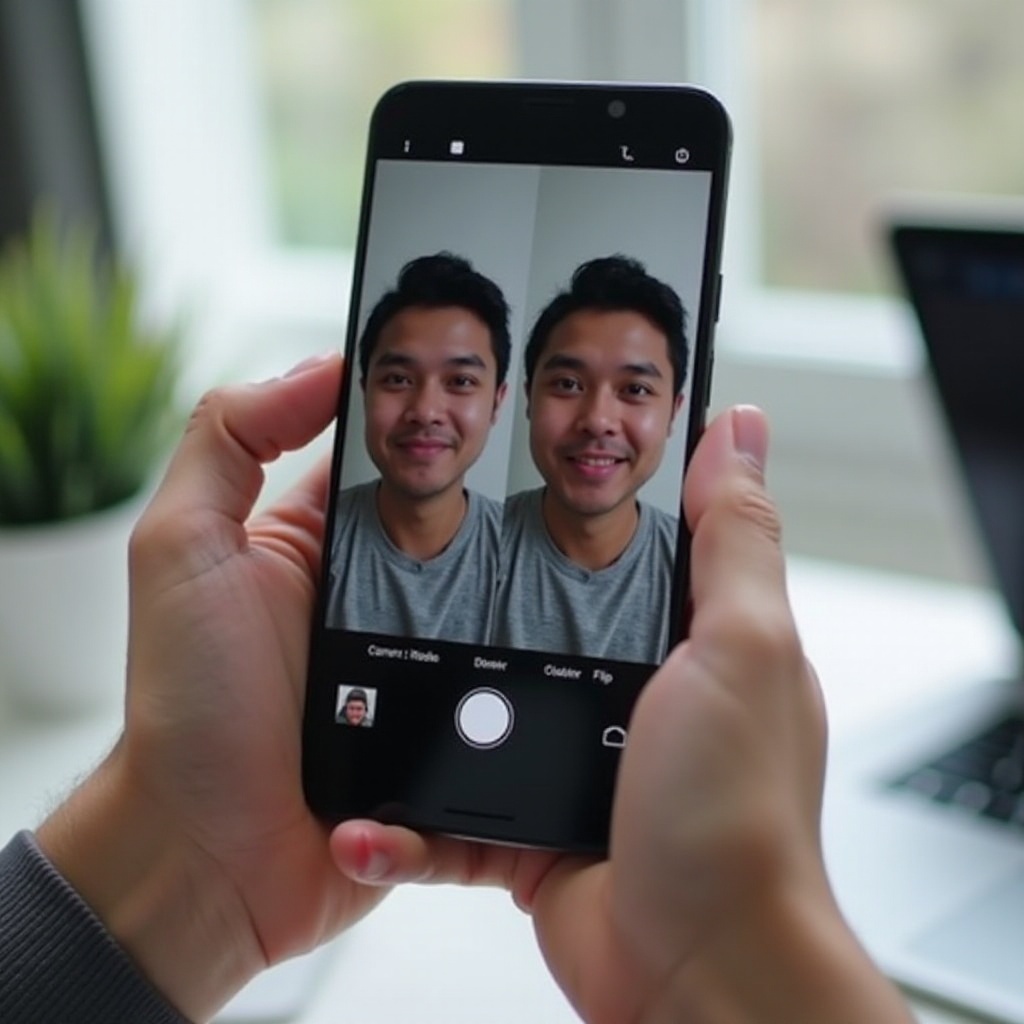
Unflip existing photos and videos (Editors you already have)
You can correct old mirrored shots with built-in editors or free apps. Use a horizontal flip, not a rotate, so the image reads correctly.
Google Photos: Flip and Rotate tools
- Open Google Photos and select your image.
- Tap Edit. Use Crop > Rotate or a Flip tool if present. If Flip is missing, use Snapseed.
- Save a copy so you keep the original and the corrected version.
Samsung/Xiaomi Gallery: Horizontal flip
- In Samsung Gallery, tap Edit > Transform > Flip horizontally.
- In Xiaomi or HyperOS Gallery, tap Edit > Crop or Adjust > Flip.
- Export at full resolution to preserve quality.
Batch flipping with third-party editors
- Use Snapseed, CapCut, or Adobe Express to flip many items at once.
- For video, open CapCut and apply Mirror or Flip, then export at a high bitrate.
- Keep the originals until you confirm the corrected files look right.
If you still see quirks in special modes or camera apps, use advanced fixes to isolate the cause and stop hidden overrides.
Advanced fixes and edge cases
Some issues come from overlays, mode-specific pipelines, or RAW handling. Use these steps to rule out conflicts and confirm consistent saves.
Safe mode to rule out overlay apps
- Boot the phone into Safe mode to disable third-party overlays.
- Open the front camera and shoot test photos and clips.
- If the problem disappears, uninstall or disable the culprit app that injected its overlay.
Reset app preferences
- Go to Settings > System > Reset options.
- Tap ‘Reset app preferences’. This restores default permissions and deactivates hidden defaults.
- Reopen Camera, set mirroring off, and test across modes.
RAW/DNG, wide-angle, and portrait mode quirks
- RAW or DNG files often save unprocessed and unmirrored. Use an editor that shows a true render.
- Wide-angle and portrait modes may have separate pipelines. Verify each mode and turn off mirror settings per mode.
- If a brand camera keeps flipping, switch to a third-party camera that exposes a ‘Mirror’ toggle and leave it off.
With the technical side handled, set up a simple workflow to avoid surprises. The best practices below help you decide when to keep mirroring on and when to turn it off.
Best practices: When to keep mirroring on vs off
Mirroring can help you frame yourself because the preview acts like a mirror. But for text, products, and logos, you should turn mirroring off so saves match reality. Use these tips:
- Keep mirroring on for quick framing, then turn it off before pressing the shutter for important shots.
- Create a custom camera mode with mirroring off if your brand supports it.
- Test with a sticky note and handwritten text. Take a selfie and confirm the saved file reads correctly.
- In social apps, flip inside the editor before posting if the app forces mirrored saves.
- In video calls, leave the mirrored preview on for comfort. Others see you unmirrored anyway.
Set these defaults once. Verify orientation with one test shot per app or mode. Then shoot confidently knowing your selfies, clips, and calls will show text and details the right way.
Conclusion
To stop inverted selfies on Android, disable the mirror toggle in your Camera app and confirm Video mode uses the same setting. Check social apps for in-app mirror or flip switches and set them to save unmirrored files. Remember that call apps often mirror only your local preview; participants see you normally. If saves still flip, update or reset your Camera app, clear cache, and turn off beauty filters and watermarks. Fix older shots with Google Photos or your Gallery using a horizontal flip. When you set these controls, your photos, videos, and calls will align with real-world text and orientation every time.
Frequently Asked Questions
Why does my Android selfie preview look reversed?
Most front cameras mirror the preview to feel natural, like a mirror. Some phones also save that mirrored view, but many flip the file back when saving. If your saved image shows backward text, turn off the Mirror selfie or Save selfies as previewed toggle in Camera settings. In social apps, check their flip settings or flip the image in the editor before posting.
How do I stop my front-camera videos from saving mirrored?
Switch to Video mode in the Camera app and disable any mirror or Save videos as previewed toggle. On Samsung One UI 6/7, OnePlus/Oppo/Realme, and Xiaomi/HyperOS, confirm the video mode inherits your selfie mirror setting. If the stock app lacks a separate option, test a clip with text and, if needed, use a third-party camera app with a Mirror toggle and leave it off.
Can I fix mirrored photos I already shot without losing quality?
Yes. Use a horizontal flip, not a rotate. In Google Photos, open Edit and flip horizontally or use Snapseed if Flip is missing. In Samsung or Xiaomi Gallery, use Edit > Flip. Export at full resolution to preserve detail. For video, use CapCut or Adobe Express, apply Mirror or Flip, and export at a high bitrate so quality remains close to the original.