
Introduction
You might want to switch carriers, use a local SIM while traveling, or sell your iPhone for a better price. Before you do any of that, you need to know whether your iPhone is unlocked. If you skip this step, you can end up with a phone that refuses to work on the network you choose.
An unlocked iPhone can use SIM cards or eSIM plans from different carriers. A locked iPhone usually works only with the carrier that sold it or that currently manages the line. Many people assume their phone is unlocked because it is fully paid off or working fine on a single network, but payment status and unlock status are not always the same thing.
This guide explains how to check unlock status on iPhone using four reliable methods:
- Checking the Carrier Lock section in the Settings app
- Testing with a different SIM card or eSIM
- Confirming the status directly with your carrier
- Using IMEI-based tools for extra verification
You will also see how eSIM, dual SIM, blacklist status, and corporate management can affect your results. By the end, you will have a clear, repeatable process you can use on any iPhone you own, buy, or sell.

What Does ‘Unlocked’ Mean on an iPhone?
Before you learn exactly how to check unlock status on iPhone, it helps to understand what an unlocked device actually is and how it differs from other types of locks or blocks.
An unlocked iPhone is not tied to one specific carrier. You can insert a SIM from another compatible carrier, or add a new eSIM plan, and the phone should connect without errors. This flexibility lets you:
- Change carriers to get better coverage or lower prices
- Use local SIM or eSIM plans when you travel abroad
- Sell your phone more easily, because buyers prefer unlocked devices
A locked iPhone, on the other hand, is restricted to the carrier that locked it. For example, a phone locked to AT&T will not work with a T-Mobile or Verizon SIM. The lock is stored in the carrier’s database and in Apple’s activation servers, so only the carrier can remove it through an official unlock request.
Sometimes, you may run into partially unlocked situations:
- One line on a dual SIM phone behaves unlocked, but the other does not
- The phone is unlocked in one region but limited in another
- The carrier claims it is unlocked, but the device still shows errors with certain SIMs
It is also important to separate carrier locks from other types of restrictions:
- Carrier lock: Controls which carrier’s SIM or eSIM you can use.
- iCloud Activation Lock: Linked to the owner’s Apple ID. It prevents anyone from setting up the phone without that Apple ID and password.
- Blacklist status: Carriers may block a phone if it is reported lost, stolen, or connected to unpaid bills. A blacklisted phone may not work on many networks, even if it is technically unlocked.
Once you understand these differences, you can interpret the messages you see in Settings, from carriers, and in IMEI reports more accurately. With that foundation in place, you can start with the simplest check: the Settings app.
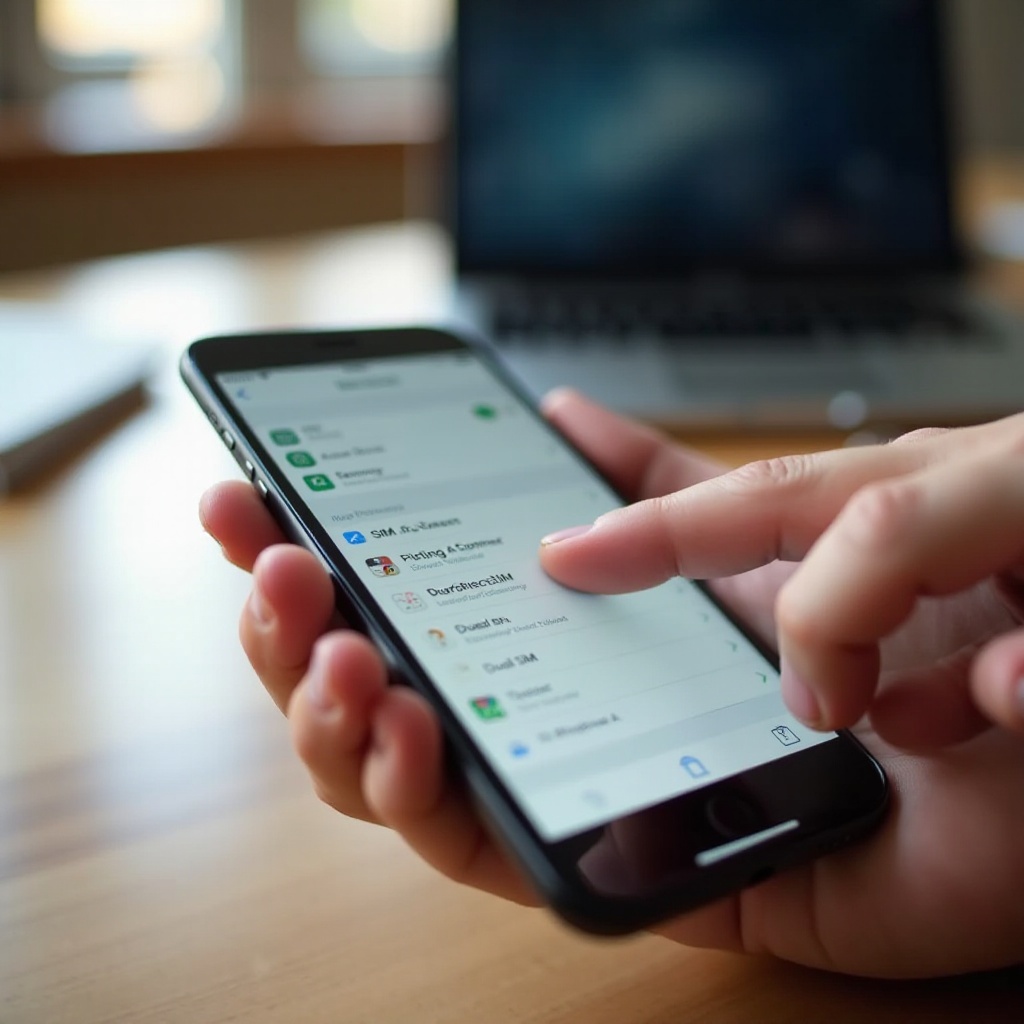
Method 1: Check iPhone Unlock Status in Settings
The fastest way to check unlock status on iPhone is with the built-in Settings app. This method takes only a minute and gives you a clear first result.
Follow these steps:
- Open Settings.
- Tap General.
- Tap About.
- Scroll down to find Carrier Lock or Network Provider Lock.
On recent versions of iOS, you will usually see one of these messages:
- ‘No SIM restrictions’
- A note that suggests the phone is restricted to a specific carrier
- Another short line indicating a form of limitation
If it says ‘No SIM restrictions’, that typically means your iPhone is unlocked. The system is not enforcing any carrier lock, so you should be able to insert a SIM from other supported carriers or add a new eSIM plan.
If you see anything other than that, your device may be locked or limited. For example, the line might include a carrier name, or it might display a generic message that does not mention ‘No SIM restrictions’. In these cases, treat the device as locked until you confirm otherwise with more tests.
Keep in mind that this Settings check has limits:
- It does not show whether the phone is blacklisted.
- It may not reflect very recent unlock changes if your carrier just processed a request.
- On some corporate or managed devices, the message can look vague or confusing.
Think of this step as your starting point. To move from a quick indication to firm proof, the next best step is a real-world test with a different SIM or eSIM.
Method 2: Use a Different SIM Card to Test Unlock Status
A live test with another carrier’s SIM card is one of the most reliable ways to check unlock status on iPhone. If your iPhone accepts another carrier’s service, it almost always means the device is unlocked and ready for flexible use.
You can test with:
- A physical SIM card from a different carrier
- A trial eSIM plan from another carrier, if available in your region
To test with a physical SIM, follow these steps:
- Get a SIM card from a different carrier than your current one. You can use a low-cost prepaid SIM if needed.
- Turn off your iPhone.
- Use a SIM eject tool or a straightened paper clip to open the SIM tray.
- Remove your current SIM and insert the new SIM.
- Turn the iPhone back on.
- Wait a few moments and check the status bar for signal and the new carrier name.
- Try making a call, sending a text, and using mobile data.
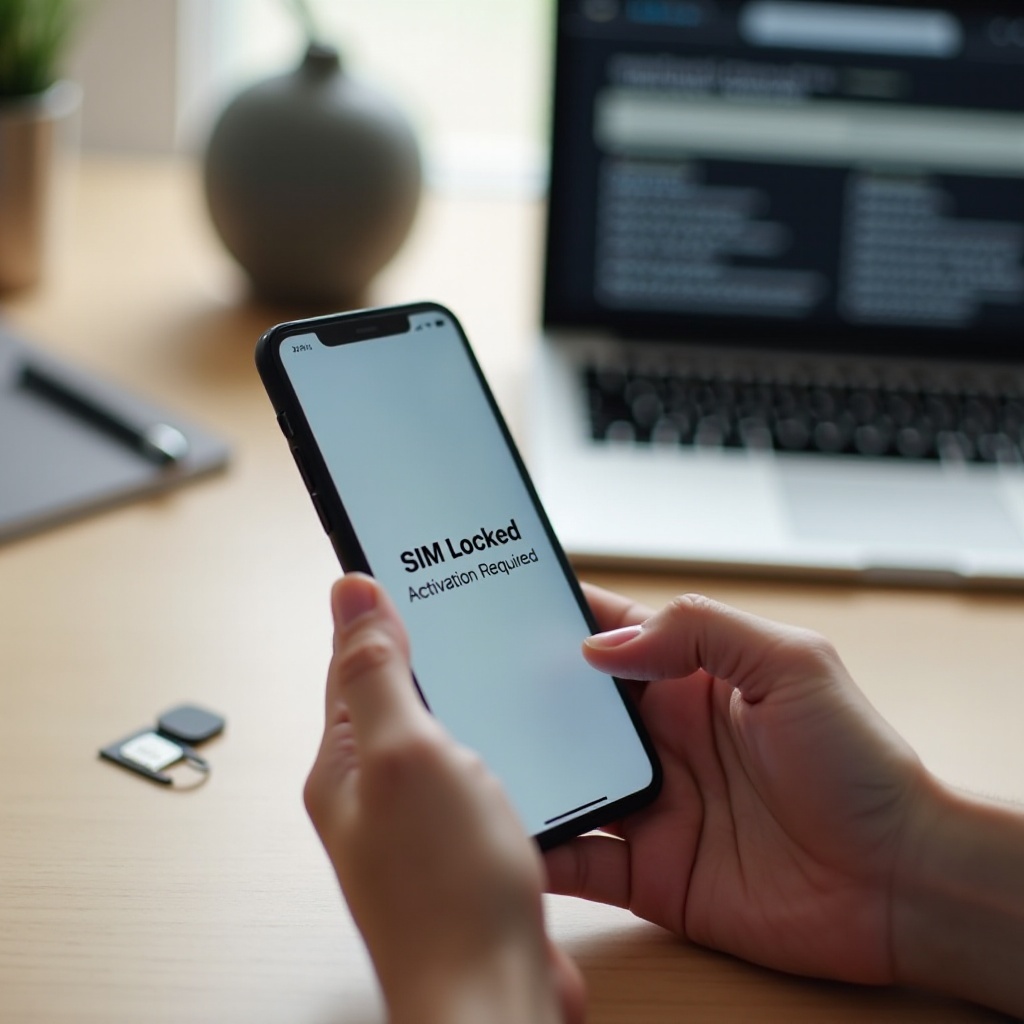
If the phone connects and those functions work, your iPhone is very likely unlocked. If you see messages like:
- ‘SIM Not Supported’
- ‘SIM Not Valid’
- ‘Activation Required’ that never finishes successfully
then your device is probably still locked to your original carrier, or there might be a compatibility issue between the phone and the new network.
To test using an eSIM:
- Find a carrier that offers an eSIM trial or plan compatible with your iPhone.
- Install the carrier’s app or use Settings → Cellular → Add eSIM.
- Follow the prompts to add the new eSIM plan.
- Select that eSIM as the active line for calls and data.
- Test calls, texts, and mobile data on the new plan.
This SIM or eSIM test gives you a strong real-world answer. If it fails, the next logical move is to ask your carrier to look up the official status on their side and explain what they see.
Method 3: Confirm Unlock Status with Your Carrier
If your Settings check and SIM test do not match, or if you want an authoritative answer, you should contact your carrier. Carriers can see the official lock status for your IMEI in their internal systems and in Apple’s activation database.
Prepare a few details before you reach out:
- Your phone number and account holder information
- Your account PIN or any security code the carrier uses
- Your iPhone’s IMEI, which you can find in Settings → General → About or by dialing *#06#
Then contact support and ask them directly to check your unlock status. A simple script could look like this:
- ‘Can you confirm whether my iPhone with IMEI [number] is currently locked to your network or fully unlocked?’
If they say the device is still locked, follow up with questions such as:
- ‘Am I eligible to request an unlock right now?’
- ‘What conditions do I still need to meet to unlock this iPhone?’
Most major US carriers in 2024 follow similar patterns:
- They require the device to be fully paid off.
- They often require a minimum amount of active service time.
- They will not unlock phones reported lost, stolen, or flagged for fraud.
The carrier may unlock the phone automatically once you meet those requirements, or they may need you to submit a manual request through their website, app, or customer support.
If your carrier says the phone is unlocked, but your SIM test still fails, there may be a network compatibility issue, a technical glitch, or a delay in Apple’s activation servers updating the unlock status. In that situation, using an IMEI tool for an extra check can help you compare information across different sources.
Method 4: Check Unlock Status Using IMEI Tools
IMEI-based tools give you another way to check unlock status on iPhone, especially helpful when you cannot easily test multiple SIM cards or when you are inspecting a device before purchase.
First, find your IMEI using one of these options:
- Open Settings → General → About and look for IMEI.
- Dial *#06# to display the IMEI on your screen.
- On some models, check the SIM tray or the device body for the printed IMEI.
Next, choose the type of IMEI checker you want to use:
- Carrier tools
Some carriers offer online checkers to see if a device is compatible with their network or blacklisted. These tools might show whether the phone is reported lost or stolen, though they may not always show unlock status in detail. - Third-party IMEI services
There are many websites that provide free or paid IMEI reports. These reports can include: - Lock status (locked or unlocked)
- Original carrier
- Blacklist status (clean or blocked)
- Warranty and activation date
When you review an IMEI report, look closely at key lines such as:
- ‘Locked’ or ‘Unlocked’
- ‘Clean’ or ‘Blacklisted’
- The name of the original carrier
- Notes about outstanding payments or financing
Always be careful when sharing your IMEI:
- Use only reputable, well-known IMEI services.
- Avoid tools that look unprofessional, ask for strange personal details, or push downloads.
- Be skeptical of sites that sell ‘instant unlock codes’ for high prices based only on the IMEI.
IMEI checks work best as a supporting method. They are not perfect, but they help confirm what you saw in Settings, with SIM tests, and from your carrier. At this point, you understand the main reference points for unlock status. Next, it is important to see how special situations like eSIM, dual SIM, and blacklisted devices can complicate what you find.
Special Cases: eSIM, Dual SIM, and Blacklisted Devices
Modern iPhones often include eSIM and dual SIM features, which give you more flexibility but also introduce more complexity when you check unlock status.
With dual SIM setups, you might use:
- One physical SIM and one eSIM
- Two eSIMs on eSIM-only models
Each line can have its own carrier and plan. In most cases, if the phone is unlocked, both lines can use different carriers without issues. However, there are rare cases where one line might be limited by a previous setup or carrier policy.
To keep things clear:
- Check the Carrier Lock section in Settings → General → About as your base reference.
- Test calls and data on both lines if you use dual SIM.
- Confirm that each line can connect to the networks you plan to use.
Blacklist status adds another layer. A phone can be:
- Unlocked but blacklisted: It may accept SIMs, but many networks will refuse to activate it because of a lost, stolen, or unpaid status.
- Locked and blacklisted: It will usually be unusable on mainstream carriers.
Corporate or MDM (Mobile Device Management) locks are different from carrier locks but can still limit how you use the device. A company or school can:
- Restrict which SIMs or eSIMs you can add
- Block certain features or settings
- Remotely manage and wipe the device
You can check for this under Settings → General → VPN & Device Management. If you see a management profile that you cannot remove, the phone may still be under someone else’s control.
Understanding these special cases helps you interpret confusing results. Once you know what you are dealing with, you can decide what to do if your iPhone turns out to be locked or restricted.
What to Do If Your iPhone Is Locked
After you follow the steps to check unlock status on iPhone, you may discover that your device is still locked. The good news is that you usually have clear options, as long as the phone is not blacklisted or tied to fraud.
Your first choice should be an official unlock from your carrier. This is the safest option because it works with Apple’s systems and stays permanent.
Typical steps look like this:
- Confirm you meet the carrier’s requirements (the phone is paid off, not reported lost or stolen, and the account is in good standing).
- Submit an unlock request through the carrier’s website, app, or customer support.
- Wait for confirmation that the unlock has been processed.
- Insert a SIM from a different carrier or add a new eSIM plan to confirm the unlock.
Unlock timelines in 2024 vary by carrier:
- Some carriers unlock eligible devices automatically after a set period.
- Others take a few business days after you submit a request.
- International carriers may take longer, depending on their policies.
Avoid unofficial unlock services that promise quick ‘factory unlocks’ or codes for high fees. Many of these services:
- Use methods that may break carrier rules or fail after a while.
- Provide no real support if something goes wrong.
- Sometimes do not deliver anything after taking your payment.
If your carrier refuses to unlock your iPhone because it is still under contract or on an installment plan, your options are limited:
- Pay off the remaining balance and then request an unlock.
- Keep using the phone on that carrier until it becomes eligible.
- Sell the phone clearly marked as ‘locked to [carrier]’ to someone who uses that network.
Once you know how to handle a locked device, it becomes easier to protect yourself and others during phone trades. That leads directly into the next important topic: checking unlock status before you buy or sell.
How to Check Unlock Status Before Buying or Selling an iPhone
Checking unlock status early is crucial when you buy or sell an iPhone. It protects the buyer from getting a limited device and protects the seller from complaints or returns.
If you are the buyer, follow this practical checklist:
- Check Settings in person
Ask the seller to open Settings → General → About. Look for the Carrier Lock line. Ideally, it should show ‘No SIM restrictions’ if you want a fully unlocked iPhone. - Test with your SIM card
Bring your own SIM card when meeting the seller. Insert it into the iPhone and test calls, texts, and mobile data. If it does not work, treat that as a serious warning sign. - Verify the IMEI
Check that the IMEI displayed in Settings matches the IMEI printed on the device or SIM tray. Use a trusted IMEI checker to look for blacklist flags or financing issues. - Confirm iCloud and management status
Make sure the seller signs out of their Apple ID under Settings → [Name] → Sign Out. Check for any management profiles in VPN & Device Management. A clean, personal device should not be tied to someone else’s Apple ID or corporate system.
If you are the seller, you can make the process smoother and build trust by:
- Confirming unlock status with your carrier before listing the phone.
- Including a clear note such as ‘Unlocked – shows No SIM restrictions in Settings’.
- Providing screenshots of the Carrier Lock section as proof.
- Allowing the buyer to test a SIM card in person before paying.
- Erasing the device and removing your Apple ID while the buyer is present.
When both parties follow these steps, the transaction is safer and more transparent. To finish this guide, it helps to summarize the best sequence of steps to check unlock status on any iPhone you encounter.
Summary: Best Order of Steps to Check Unlock Status
You now know several ways to check unlock status on iPhone, and you have seen how they fit together. To keep things simple, follow this order whenever you need to confirm:
- Start with Settings
Check Settings → General → About → Carrier Lock. Look for ‘No SIM restrictions’. - Run a SIM or eSIM test
Insert a SIM from another carrier or add a trial eSIM and test calls, texts, and data. - Confirm with your carrier
Ask your carrier to check the unlock status of your IMEI and explain any limits. - Use an IMEI checker if needed
Run a report to cross-check lock status, blacklist status, and original carrier details.
Use at least two methods if the device is valuable or if you are buying it from someone you do not know. Combining checks from the device, the network, and an IMEI report gives you the highest level of confidence.
Conclusion
Understanding how to check unlock status on iPhone helps you avoid blocked service, wasted money, and frustrating surprises. With a few simple checks in Settings, a quick SIM or eSIM test, and a short conversation with your carrier, you can confirm exactly how flexible your iPhone really is.
Remember that unlock status is only one part of the picture. Blacklist flags, iCloud Activation Lock, and corporate management can all limit how you use a device, even if it appears unlocked at first glance. When you buy, sell, or switch networks, always check these factors together.
Use the process in this guide each time you handle a new iPhone. Over time, it will become a habit: check Carrier Lock, run a SIM test, talk to the carrier, and review the IMEI. With that routine in place, you will be able to move between carriers, travel, and trade phones with much more confidence.
Frequently Asked Questions
Does factory resetting my iPhone change its unlock status?
No. A factory reset does not remove a carrier lock or change unlock status. Resetting only erases your personal data, apps, and settings. The carrier lock remains in the carrier’s and Apple’s activation systems. To change unlock status, you usually need an official unlock from the carrier that locked the phone.
Can Apple directly unlock my iPhone for any carrier?
Apple normally does not unlock carrier locks by itself. The carrier that locked the device controls the unlock process. Once the carrier approves and processes an unlock, Apple’s systems apply it in the background. If you want your iPhone unlocked, you must work with the carrier and meet its requirements, such as paying off the device and keeping the account in good standing.
How can I tell if my unlocked iPhone will work overseas in 2024?
First, confirm your iPhone is unlocked with the methods in this guide. Next, check your specific iPhone model on Apple’s website to see which LTE and 5G bands it supports. Then compare those bands with the networks in the country you plan to visit. If they match and the phone is unlocked, you can usually use local SIM or eSIM plans abroad without major issues.