
Introduction
Your iPhone hotspot shows up on other devices every time you share your mobile data. That visible name can reveal your real name, your device model, and sometimes even personal details. If you often use your hotspot in public places, at work, or while traveling, changing that name is a smart move.
Apple ties the iPhone hotspot name directly to your iPhone's device name. That means if you want a new hotspot name, you need to rename your iPhone. The good news is that this only takes a minute, and you can do it from the Settings app with no extra tools or apps.
In this guide, you will learn exactly how to change the name of your iPhone hotspot step by step. You will also see why you should change it, how to improve your hotspot security, and what to do if the new name does not show up on other devices. By the end, you will have a custom, clear, and more private hotspot name that works well in any situation.
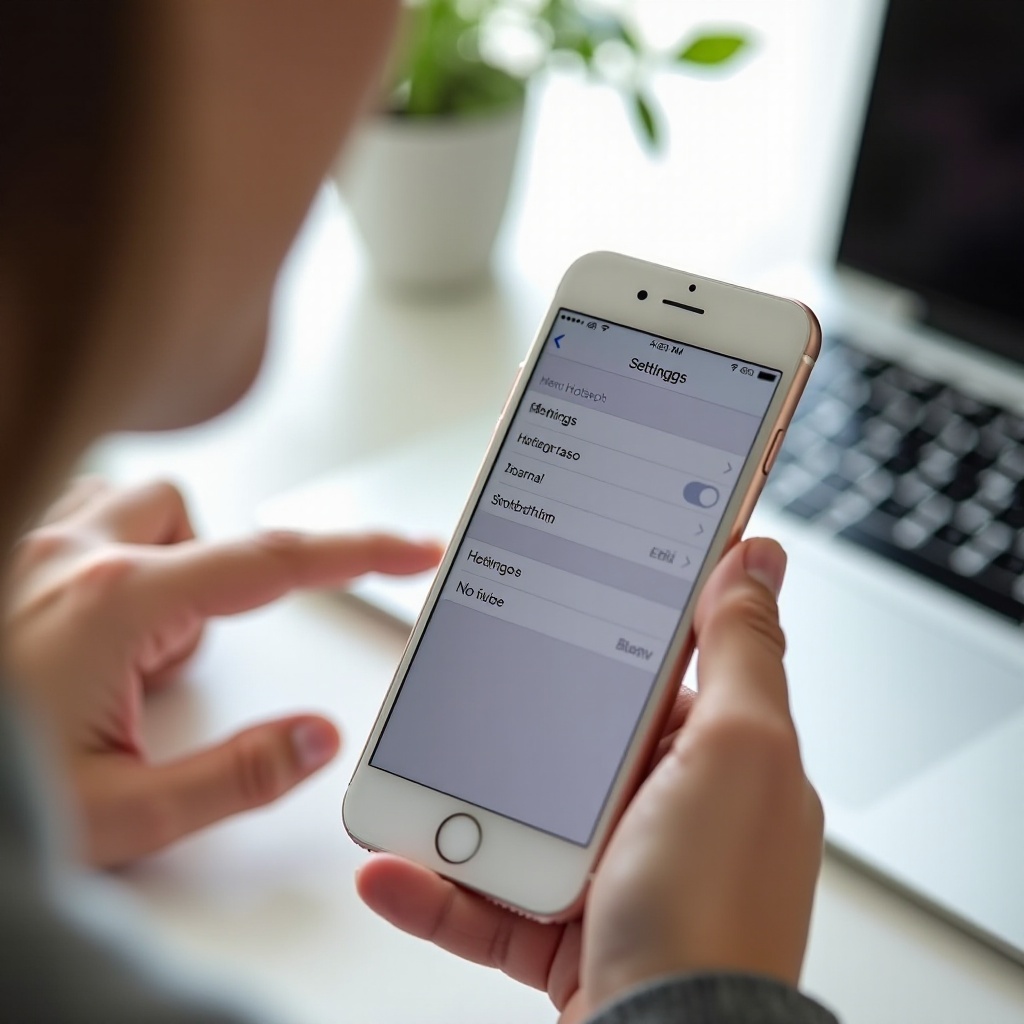
How iPhone Hotspot Names Work in 2024
Before you rename anything, it helps to understand how Apple sets your hotspot name in the first place. This prevents confusion and makes the change stick the first time.
What your hotspot name actually is
When you turn on Personal Hotspot on your iPhone, your phone creates a Wi‑Fi network. Other devices see this network as a Wi‑Fi name, also called the SSID. That Wi‑Fi name is your hotspot name.
Devices around you, like laptops, tablets, and other phones, will see your hotspot name in their list of available networks. They use that name to identify your connection before they join it.
How the hotspot name is linked to your iPhone's device name
On iOS 17 and newer, your hotspot name is simply your iPhone's device name. For example:
- If your iPhone is named 'John's iPhone', the hotspot name will show as 'John's iPhone'.
- If you rename your iPhone to 'Work Hotspot', the hotspot will show as 'Work Hotspot'.
There is no separate field just for the hotspot name. The iPhone's device name controls it everywhere, including AirDrop, Finder, and your hotspot.
Where other devices see your hotspot name
When you turn on Personal Hotspot, other people and devices will see your hotspot name in several places:
- Wi‑Fi network list on laptops (Windows, macOS, Linux)
- Wi‑Fi network list on Android phones and tablets
- Wi‑Fi list on other iPhones and iPads
- Connection prompts when they first join your hotspot
Because this name is visible to anyone nearby, choosing a better, more private name is important. Once you know what the hotspot name is and where it appears, it becomes clear why leaving the default name can cause problems.
Why You Should Change Your iPhone Hotspot Name
Many users keep the default 'Your Name's iPhone' device name and never think about it again. That default is simple, but it is not always safe or practical, especially when you share your connection often.
Privacy reasons: hiding your real name and device info
When your hotspot name includes your full name, you share personal details with everyone within Wi‑Fi range. In a coffee shop, on a plane, at school, or at work, strangers can see:
- Your first and last name
- That you use an iPhone
- Sometimes your exact model, depending on the name you chose
Changing the name helps you avoid broadcasting private information to people you do not know. A neutral hotspot name gives you a layer of privacy without changing how the hotspot works.
Security benefits: avoiding unwanted attention
A default name like 'Emma's iPhone 15 Pro' can attract unwanted attention from people who:
- Look for high‑value devices
- Try to guess simple passwords
- Scan for specific models or owners
A neutral hotspot name draws less attention. It lowers the chances that someone will target your connection or your phone just because of what they see in a Wi‑Fi list.
Practical benefits: easier to recognize in crowded Wi‑Fi lists
In some places, you might see dozens of Wi‑Fi networks. If you use your hotspot for work or while traveling, a clear name makes life easier. You can:
- Spot your network quickly
- Prevent friends or colleagues from connecting to the wrong hotspot
- Avoid confusion if you manage more than one iPhone or iPad
Now that you know the privacy, security, and everyday benefits of changing your hotspot name, you should confirm that your iPhone and plan can use Personal Hotspot without issues. That way, the steps you take next will work as expected.
Before You Start: Check Your iPhone and Plan
Renaming the hotspot is simple, but a few quick checks will prevent frustration later. You want to confirm that your phone and carrier support hotspot use and that nothing on your device blocks the feature.
Confirm your iOS version (iOS 17 and later)
Apple's latest systems handle hotspot names and settings smoothly. To check your version:
- Open the Settings app.
- Tap General.
- Tap Software Update.
You will see your current iOS version and any available updates. If you see a newer version available, update when you have time and a good battery level. Up‑to‑date software reduces bugs and hotspot issues.
Make sure Personal Hotspot is included in your data plan
Not every carrier includes hotspot by default. If Personal Hotspot is missing or greyed out:
- Sign in to your carrier account and check your plan details.
- Look for 'mobile hotspot', 'tethering', or 'Personal Hotspot' in your plan description.
- If you do not see it, contact your carrier's support to confirm whether your plan includes hotspot.
If your plan does not allow hotspot use, renaming it will not matter until you upgrade or adjust your plan.
Ensure cellular data is turned on
Personal Hotspot uses your mobile data. To make sure it is available:
- Open Settings.
- Tap Cellular or Mobile Data.
- Make sure the toggle for Cellular Data is on.
Once these checks are done, you are ready to actually change the name that controls your hotspot. The next steps walk you through renaming your iPhone, which in turn updates your hotspot name everywhere.
Step‑by‑Step: How to Change the Name of Your iPhone (and Hotspot)
Now you will walk through the exact steps to rename your iPhone, which updates the hotspot name at the same time. The whole process happens in the Settings app and only takes a moment.
Step 1: Open the Settings app
Unlock your iPhone and tap the Settings icon on your home screen. All the changes you need to make happen inside this app.
Step 2: Go to General, then tap About
Inside Settings:
- Scroll down and tap General.
- At the top of the General screen, tap About.
The About screen shows important information about your iPhone, including its name, model, and software version.
Step 3: Tap Name and enter your new iPhone name
On the About screen:
- Tap the Name field at the top.
- The current device name will appear with the keyboard below it.
- Delete the existing name and type a new one.
Choose a name that is:
- Easy for you to recognize
- Not too long or complex
- Not personally identifying if you care about privacy
Examples of better names include:
- 'Work‑Hotspot‑01'
- 'Travel‑iPhone'
- 'Main‑Phone‑WiFi'
Step 4: Save the new name and exit Settings
After you enter your new name:
- Tap Done on the keyboard.
- You can now tap Back or swipe to leave the About screen.
- Use the Home gesture or button to exit Settings when you are finished.
Your iPhone is now renamed. This new device name will also become your new hotspot name and will appear on other Apple devices and in Finder or iTunes.
Step 5: Turn Personal Hotspot off and back on
To make sure the new name is active for hotspot use, refresh the hotspot:
- Open Settings again.
- Tap Personal Hotspot (or Cellular > Personal Hotspot).
- If Allow Others to Join is on, toggle it off.
- Wait a second, then toggle Allow Others to Join back on.
This step forces the system to apply the new device name to the hotspot network and helps avoid cached name issues.
Step 6: Confirm the new hotspot name from another device
Use another device to verify the change:
- On a laptop or another phone, open Wi‑Fi settings.
- Look for the list of available networks.
- Find your iPhone's hotspot in the list.
You should now see the new name you set. If you still see the old name, do not worry. In a later section, you will learn how to fix that with a few quick troubleshooting steps. Before that, it helps to see how to turn Personal Hotspot on correctly and where your iPhone shows your updated name.
How to Turn On Personal Hotspot and See the New Name
You have changed the name, so now you want to use it. Turning on Personal Hotspot is quick, and your iPhone shows the relevant connection details in one place so you and others can join easily.
Enabling Personal Hotspot from Settings
To enable your hotspot:
- Open Settings.
- Tap Personal Hotspot.
- Toggle Allow Others to Join to On.
If you do not see Personal Hotspot here, it may appear under Cellular > Personal Hotspot instead, depending on your carrier and region.
Viewing the updated hotspot name on the hotspot screen
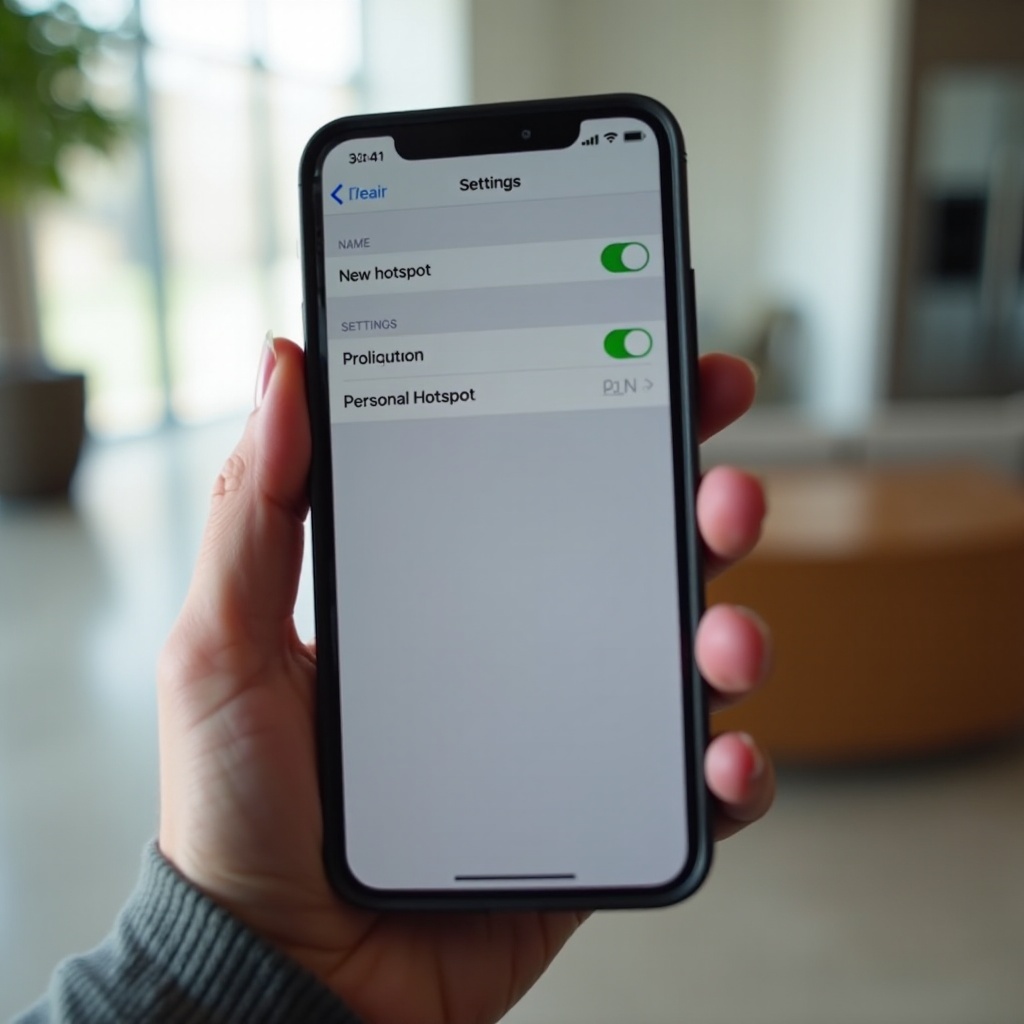
On the Personal Hotspot screen, your iPhone shows how others can connect. You will usually see text like:
'Use Wi‑Fi: Choose "[Your iPhone Name]" from the Wi‑Fi settings.'
That name in quotes is your hotspot name. It should match the updated device name you set earlier under About.
Checking the name from a laptop or another phone
To double‑check that the new hotspot name is live:
- On a Windows laptop, click the Wi‑Fi icon and view available networks.
- On a Mac, click the Wi‑Fi icon in the menu bar to open the list of networks.
- On Android, open Settings > Network & Internet > Wi‑Fi and check the list.
Look for the hotspot network with your new name. If it appears correctly, you know the rename is successful. The next step is to make sure the name you chose is both useful and safe.
Best Practices for Naming Your iPhone Hotspot
You have the power to call your hotspot almost anything, but some choices are better than others. A smart name balances privacy, clarity, and ease of use so you can spot it quickly without sharing too much about yourself.
Names to avoid for privacy and professionalism
Avoid hotspot names that include:
- Your full name (for example, 'Alex Johnson iPhone')
- Your phone number or address
- Your work email address
- Sensitive, offensive, or inappropriate words
- Company secrets or internal project names
These can embarrass you in public, raise privacy issues, or look unprofessional in a work setting. In some workplaces, an inappropriate Wi‑Fi name can even break company policy.
Examples of clear, memorable hotspot names
Here are some safer, easy‑to‑recognize ideas:
- 'Alex‑Main‑Hotspot' (uses first name only)
- 'Travel‑Hotspot‑Pro'
- 'Work‑Phone‑WiFi'
- 'Room‑305‑Hotspot' (for temporary setups)
- 'Family‑iPhone‑Hotspot'
These names are descriptive enough for you and your trusted users but do not reveal too much to strangers nearby.
Naming strategies if you own multiple Apple devices
If you own more than one iPhone or iPad, use a clear pattern to avoid confusion:
- 'Alex‑iPhone‑Personal'
- 'Alex‑iPhone‑Work'
- 'Alex‑iPad‑Hotspot'
Or use numbers if you manage several devices for a team:
- 'Team‑Hotspot‑01'
- 'Team‑Hotspot‑02'
With a solid naming strategy in place, the next improvement is security. Changing the name is a perfect moment to also tighten your hotspot password and sharing habits.
Improve Your Hotspot Security While You're Renaming It
Changing the name is a good time to review your hotspot security. A strong password and a few simple habits protect your data and prevent unwanted users from draining your plan or slowing down your connection.
Setting a strong, unique Wi‑Fi password
To set or change your hotspot password:
- Open Settings.
- Tap Personal Hotspot.
- Tap the Wi‑Fi Password field.
- Enter a new password, then tap Done.
Use a password that:
- Is at least 12 characters long
- Mixes uppercase, lowercase, numbers, and symbols
- Is not your name, birthday, or simple patterns like '12345678'
Avoid reusing passwords from other accounts or networks. Treat your hotspot like your home Wi‑Fi: only people you trust should have the password.
Using 'Allow Others to Join' safely
The Allow Others to Join switch controls whether people near you can see and connect to your hotspot. To use it safely:
- Turn it On only when you need to share your connection.
- Turn it Off as soon as you finish.
- Do not share your password with people you do not trust.
If you have Family Sharing set up, you can allow certain family members to join automatically without sharing the password every time, which keeps things secure and convenient.
Turning the hotspot off when you're not using it
Leaving your hotspot on all day:
- Drains your battery faster
- Keeps your phone visible in Wi‑Fi lists
- Risks someone connecting without you noticing
Get into the habit of:
- Opening Control Center by swiping down from the top‑right corner (on Face ID models) or up from the bottom (on Touch ID models).
- Long‑pressing the connectivity block.
- Tapping the Personal Hotspot icon to turn it off when you are done.
Even when you follow all the steps correctly, you might still see the old hotspot name on other devices because of caching. The next section shows you how to fix that quickly.
Troubleshooting: When Your iPhone Hotspot Name Won't Change
Sometimes other devices cache old network names and passwords. When that happens, they keep showing the old hotspot name even after you rename your iPhone. A few simple resets usually solve this.
New name not showing up on other devices
If your new hotspot name does not appear on another device:
- Turn Allow Others to Join off.
- Wait a few seconds.
- Turn Allow Others to Join back on.
- Turn Wi‑Fi off and on again on the device you are using to check.
Often, this simple refresh fixes the issue and forces the other device to reload the current Wi‑Fi list.
Forgetting and re‑adding the network on Windows, macOS, and Android
If the old name still appears, make the other device forget the network so it stops using cached data:
- On Windows:
- Open Settings > Network & Internet > Wi‑Fi.
- Click Manage known networks.
- Select your old hotspot network and click Forget.
- On macOS:
- Open System Settings > Wi‑Fi.
- Click the details or advanced button next to Known Networks.
- Select the old hotspot and remove it.
- On Android:
- Open Settings > Network & Internet > Wi‑Fi.
- Long‑press the old hotspot name.
- Tap Forget.
After that, search for Wi‑Fi networks again. You should see the new hotspot name and be able to connect as if it were a brand‑new network.
Restarting your iPhone and resetting network settings if needed
If you still have issues after forgetting the network:
- Restart your iPhone by powering it off and on again.
- Restart the device you are using to connect.
If problems continue, you can reset network settings on your iPhone:
- Open Settings.
- Tap General.
- Tap Transfer or Reset iPhone.
- Tap Reset > Reset Network Settings.
This will remove saved Wi‑Fi networks, VPN settings, and cellular settings, so you will need to rejoin networks afterward. However, it often clears stubborn hotspot issues.
When to update iOS or contact your carrier or Apple Support
If you notice that:
- Personal Hotspot is missing entirely from Settings
- The toggle for Allow Others to Join is greyed out
- Nothing changes even after resets and restarts
Then:
- Check Settings > General > Software Update and install the latest iOS.
- If hotspot still does not work, contact your carrier to confirm that hotspot is allowed on your plan and that there are no blocks on your line.
- If your carrier confirms everything is fine but you still have issues, contact Apple Support for deeper troubleshooting.
Once everything works as it should, it helps to keep a simple recap of the key steps in mind so you can change your hotspot name quickly any time you need to.
Quick Recap: How to Change the Name of Your iPhone Hotspot
Renaming your iPhone hotspot is really about renaming your iPhone itself. Here is the process in short, so you can repeat it without re‑reading the whole guide.
Summary of the key steps
- Go to Settings > General > About.
- Tap Name and enter a new device name.
- Tap Done to save.
- Open Settings > Personal Hotspot.
- Turn Allow Others to Join off and then back on.
- Check the new name from another device's Wi‑Fi list.
Essential tips to remember
- Avoid using your full name or sensitive info in the hotspot name.
- Use a strong password and turn the hotspot off when not in use.
- If the new name does not show up, forget the old network on other devices and reconnect.
With these basics covered, you are ready to finish with a clear understanding of why and how to keep your hotspot name under control.
Conclusion
Changing the name of your iPhone hotspot is a small step that makes a big difference in privacy and ease of use. Because your hotspot name is tied to your iPhone's device name, all you really need to do is rename the phone in Settings and refresh Personal Hotspot. From there, other devices will see the updated network name and can join it just like any other Wi‑Fi network.
A thoughtful hotspot name helps you stand out in crowded Wi‑Fi lists without sharing too much about who you are. Paired with a strong password and good habits, like turning the hotspot off when you are done, your iPhone becomes a safer, more reliable tool for staying online anywhere.
You now know how to change the name of your iPhone hotspot, keep it secure, and fix common issues if the name does not update on other devices. Use these steps whenever you get a new phone, change work situations, or just want a cleaner, more private hotspot identity.
Frequently Asked Questions
Can I change the hotspot name without changing my iPhone’s device name?
No. On current versions of iOS, including iOS 17 and newer, there is no separate option to rename just the hotspot. The hotspot name always matches your iPhone’s device name. To change the hotspot name, you must go to Settings > General > About > Name and change the device name there. The hotspot name will update after you toggle Personal Hotspot off and on again.
Why can’t I see the Personal Hotspot option on my iPhone?
If Personal Hotspot is missing, there are a few likely reasons: your carrier plan may not include hotspot, cellular data might be turned off, or there could be a temporary carrier or system issue. First, check Settings > Cellular and make sure Cellular Data is on. Then look for Personal Hotspot either directly in Settings or under Cellular. If it is still not there, contact your carrier to confirm that hotspot is enabled on your plan. If your plan supports it and the option is still missing, reach out to Apple Support.
Will changing my hotspot name disconnect devices that are already connected?
Yes. Changing the hotspot name effectively creates a new Wi‑Fi network identity. When you rename your iPhone, the hotspot name changes, and connected devices will see it as a different network. They will disconnect from the old name and will need to select the new hotspot name from the Wi‑Fi list and enter the hotspot password again. This is normal and can even be helpful, since it gives you a fresh start and lets you control exactly which devices reconnect.