
Introduction
Your iPhone’s device name does much more than sit quietly in the Settings app. It shows up when you connect to Bluetooth, share files with AirDrop, use Personal Hotspot, or manage devices in iCloud. If you own more than one Apple device, use your phone at work, or care about privacy, knowing how to change device name in iPhone is essential.
A clear and unique device name makes it easier to spot your phone in a list of devices and helps avoid mix-ups when several people nearby use iPhones. It also lets you remove personal details from public views, such as your full name or company name, which may appear to strangers during AirDrop or hotspot use.
This guide walks you through every method to rename your iPhone, shows how the new name affects AirDrop, hotspot, and Find My, and explains how to avoid common issues. You will also learn naming strategies for families and teams, plus privacy-friendly ideas that work well in 2024. By the end, you will have a clean, consistent naming system across all your Apple devices.
What Is Your iPhone Device Name and Where It Appears?
Before you change anything, you need to understand what ‘device name’ means on iPhone and how it differs from other names tied to your Apple account. Apple uses several names for different features, and mixing them up can cause confusion, especially when you own multiple Apple products.
The difference between device name, Apple ID name, and contact name
Your iPhone device name is the label your phone uses when it identifies itself to other devices and services. It is separate from:
- Apple ID name: The name linked to your Apple account. You see it in iCloud, the App Store, and Apple services.
- Contact name (My Card): The name on your personal contact card in the Contacts app. AirDrop often uses this alongside your photo.
- Carrier or network name: The name of your mobile provider, which appears in the status bar.
Changing your device name does not change your Apple ID name or your contact card. Those must be edited separately, which is useful to remember if you want to adjust what people see when you share content or communicate through Apple services.
Where your iPhone name shows up (AirDrop, Bluetooth, hotspot, backups)
Once you rename your device, you will see the new name in several key places:
- AirDrop: Other people see your device name when you share or receive files.
- Bluetooth: The name appears in Bluetooth menus on other phones, laptops, speakers, and car systems.
- Personal Hotspot: Your hotspot often uses the device name as the Wi-Fi network name.
- Backups: Finder, iTunes, and iCloud backups list your phone by its device name.
- Find My: The device list in the Find My app shows each device by name.
A messy or generic name like ‘iPhone’ or ‘John’s iPhone’ can make these lists confusing, especially when several people nearby use similar names or when you manage multiple backups.
Why updating your device name matters in 2024
People carry multiple devices more than ever: an iPhone for personal use, another for work, an iPad, a MacBook, and an Apple Watch. Cloud backups and device management tools rely on names to help you identify each device quickly. If all your devices share similar names, you risk erasing or managing the wrong one.
Updating your iPhone device name in 2024 is also part of basic privacy hygiene. You can keep your phone easy to recognize without revealing your full identity to everyone who opens a Bluetooth or AirDrop menu near you. Once you know exactly what the device name controls, you are ready to check your current name and decide if it needs an update.
How to Check Your Current iPhone Device Name
Before you change the name, confirm what your iPhone currently uses. This makes sure you know which device you are dealing with, especially if you own several Apple products or manage devices for your family.
Finding your device name in the Settings app
Follow these steps to see your current device name directly on your iPhone:
- Open the Settings app on your iPhone.
- Tap General.
- Tap About.
- Look at the field labeled Name at the top.
The text in this Name field is your current iPhone device name. Many people see something like ‘iPhone’, ‘John’s iPhone’, or ‘iPhone 15 Pro’. If this name is generic or includes more personal information than you like, you can change it in a few taps.
Verifying the name from another Apple device or computer
You can also confirm the current name from other devices linked to your Apple ID:
- On another Apple device, open the Find My app and check the device list.
- On a Mac, open System Settings > Apple ID > Devices to see your iPhone name.
- In iCloud.com, sign in and view your device list under Account Settings.
This helps if you manage multiple iPhones and want to be sure which one you plan to rename next. Once you have confirmed the current name, you can move on to changing it directly from the iPhone itself.
How to Change Device Name in iPhone from Settings (Step-by-Step)
The easiest way to change device name in iPhone is directly in the Settings app. You do not need a computer, and the change takes effect almost immediately across most services.
Open Settings and navigate to the About section
Start with your iPhone unlocked:
- Tap the Settings app.
- Scroll down and tap General.
- Tap About at the top of the screen.
You will see several details about your phone, such as the software version, model name, and serial number. The Name field at the top is what you will edit.
Edit the Name field and save your new device name
To change your iPhone name:
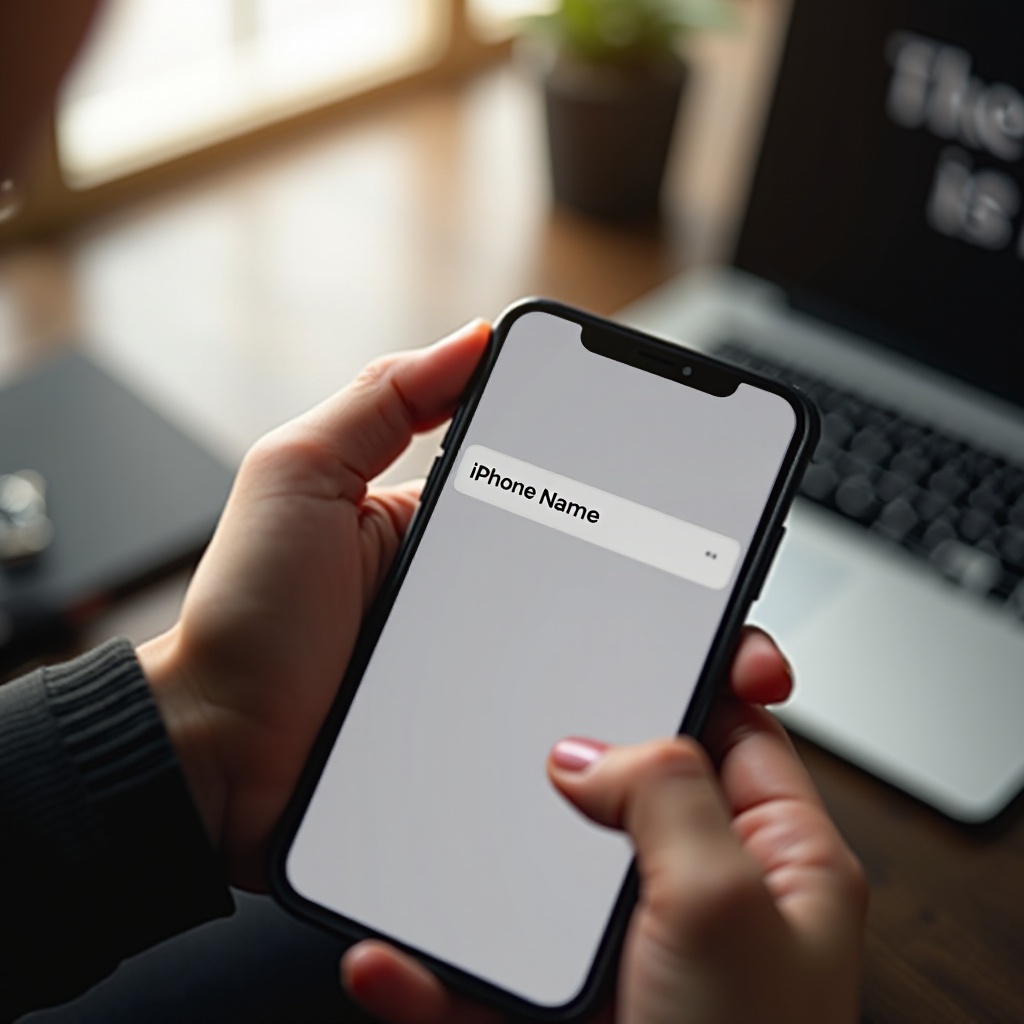
- Tap the Name field.
- Delete the old name using the keyboard.
- Type the new device name you want.
- Tap Done on the keyboard.
Your iPhone applies the new name right away. You do not need to restart your phone for the change to take effect. Other devices may take a short time to show the new name, especially if they cache device lists.
Best practices for choosing a clear and unique iPhone name
A good device name is easy to recognize and hard to confuse with others. Use these tips:
- Keep it short but precise: ‘Alex-iPhone-15’ is better than ‘Alex’s Awesome iPhone 15 Pro Max’.
- Add context: If you own multiple devices, add markers like ‘Work’, ‘Home’, or ‘Kids’.
Examples: ‘Sam-iPhone-Work’, ‘Sam-iPhone-Personal’. - Use simple characters: Stick to letters, numbers, and basic symbols. Some older systems struggle with emojis or special characters.
- Avoid sensitive data: Do not include your full address, company, or personal ID numbers.
Once you set a clear naming style on your main iPhone, you can use it as a pattern for all your other Apple devices. If you prefer to manage your devices from a computer, you can also rename your iPhone using a Mac or Windows PC.
How to Change Your iPhone Name Using a Mac or Windows PC
While most people use the Settings app on the phone, you can also rename your iPhone from a Mac or Windows PC. This method is helpful if you manage backups on a computer, use device management tools, or if your screen is damaged and you still need to change the name.
Renaming your iPhone via Finder on macOS
On a Mac running a recent version of macOS:
- Connect your iPhone to your Mac using a USB cable.
- Open Finder.
- In the left sidebar, under Locations, click your iPhone.
- At the top of the window, you will see your iPhone name. Click it.
- Type the new name.
- Press Return (Enter) to save.
Finder updates the device name and syncs it to your iPhone. You can confirm the change in Settings > General > About on the phone.
Renaming your iPhone via iTunes on Windows
On Windows, you can use iTunes:
- Install and open the latest version of iTunes.
- Connect your iPhone to your PC with a USB cable.
- Click the device icon near the top left of the iTunes window.
- At the top of the left sidebar, click your iPhone name.
- Type a new name.
- Press Enter to apply.
iTunes sends the new name to your iPhone and updates how backups appear in iTunes.
When it is better to rename from a computer
Renaming from a computer is useful when:
- You already manage backups or updates in Finder or iTunes.
- Your iPhone screen is cracked or partly unusable.
- You prefer a physical keyboard for long or complex names.
- You are reorganizing several devices at once and want to see them all in one place.
After you finish, always confirm the new name on the phone and in any backup lists. With the new name set, you will notice changes in how your iPhone appears in AirDrop, hotspot, and Find My.
How Renaming Your iPhone Affects AirDrop, Hotspot, and Find My
Changing your device name does not just affect what you see in Settings. It also changes how your iPhone appears to others in key features. Understanding this helps you avoid surprises and keeps your device easy to identify.
How your new device name appears in AirDrop
When someone near you opens AirDrop, they see:
- Your device name, often combined with
- Your contact card name and photo, if you allow it.
After you rename your iPhone:
- AirDrop should show the new device name.
- In some cases, AirDrop may still show your contact name more prominently.
If you want to change the personal name or photo AirDrop shows, edit your My Card in the Contacts app, not just the device name.
Personal Hotspot name behavior after renaming
Your Personal Hotspot usually uses your iPhone device name as the Wi-Fi network name. When you change the device name:
- The hotspot network name updates to match the new name.
- Other devices may need to forget and reconnect to the hotspot.
If someone previously joined ‘Alex-iPhone-Personal’, they might now see ‘Alex-iPhone-15’ in the Wi-Fi list instead.
How your iPhone name shows in Find My and your Apple ID devices list
The Find My app and your Apple ID device list use your device name to label each iPhone. After renaming:
- Open Find My and confirm the new name in the device list.
- On another Apple device, check Settings > Apple ID > Devices to see if the new name appears.
This makes it much easier to identify which device you are locating, locking, or erasing if one goes missing. Once you see how widely the name is used, it becomes clear why a good naming strategy matters, especially when you juggle multiple devices.
Advanced Naming Tips for Multiple iPhones and Apple Devices
Once you know how to change device name in iPhone, you can create a broader naming system that covers your whole Apple ecosystem. This becomes very useful when your household or team uses several devices and you want everything to stay organized.
Creating a naming scheme for families and households
In a family, many people use similar models. To avoid confusion, set a simple pattern:
- [Name]-[Device]-[Number or Role]
Examples:
Mia-iPhone-1′, ‘Mia-iPad-School’
Dad-iPhone-Work’, ‘Dad-iPhone-Home’
Use the same order for every family member so lists stay consistent. You can also add room or location tags for shared devices, like ‘Home-iPad-Kitchen’ or ‘Family-AppleTV-LivingRoom’.
Naming strategies for work, school, and business devices
Organizations often manage many devices through MDM (mobile device management). Clear names help IT teams track and support hardware. You can use a pattern like:
- [Company]-[Role]-[Device]-[Number]
Examples:
BlueTech-Sales-iPhone-07′
UniWest-Student-iPhone-A15′
If you manage your own work devices, match the naming rules your company uses, or create a simple structure that includes your job role or department. This keeps your personal and work devices easy to separate.
Keeping naming consistent across iPhone, iPad, Mac, Apple Watch, and AirPods
Consistency across all devices saves time. Try these ideas:
- Use the same root name everywhere:
- iPhone: ‘Alex-iPhone-15’
- iPad: ‘Alex-iPad-Pro’
- Mac: ‘Alex-MacBook-Air’
- Apple Watch: ‘Alex-Watch-Series-9’
- AirPods: ‘Alex-AirPods-Pro’
When you open Bluetooth, Find My, or iCloud, you can identify each device at a glance. This also makes it easier to manage replacements and trade-ins later. Along with clarity, you should also think about how much information you reveal to others through your device names.
Privacy and Security Tips When Naming Your iPhone
Your device name often appears in public or shared spaces, such as coffee shops, airports, offices, and classrooms. Anyone scanning for Wi-Fi or Bluetooth can see it. That makes the way you name your iPhone part of your privacy strategy.
Why you should avoid using full names and personal details
If your iPhone name is ‘Jane Smith – Marketing – New York’, you reveal:
- Your full name
- Your job role
- Your general location or company
Strangers in range of your Bluetooth or hotspot can see this information. This can increase the risk of targeted phishing, social engineering, or unwanted contact.
Avoid including:
- Full names
- Address details
- Company names or client names
- Sensitive ID numbers or internal codes
Privacy-friendly naming examples you can use in 2024
You can stay organized without revealing too much. Try:
- ‘J-iPhone-15’
- ‘Home-iPhone-1’
- ‘A-Phone-Personal’
- ‘BT-Phone-07’ (for a company called BlueTech, without writing the full brand)
Combine initials, short words, and numbers. If you need stronger privacy in public places, you can even use neutral names like ‘Device-01’ or ‘Phone-Personal’.
Balancing easy identification with online safety
You must balance clarity and discretion. Ask yourself:
- Can I still recognize this device quickly in a long list?
- Would I be comfortable if a stranger saw this name on their laptop’s Wi-Fi menu?
If the answer to both questions is ‘yes’, you have a good balance. If not, shorten the name or remove personal details until you do. If you change your device name and do not see the new label everywhere, you may need a bit of troubleshooting.
Troubleshooting: iPhone Device Name Not Updating or Showing Correctly
Sometimes you change the device name, but other devices still show the old one. This can happen because of cached lists, network issues, or slow sync. Here is how to handle common problems.
New name not appearing in AirDrop, Bluetooth, or hotspot lists
If someone else still sees the old name:
- Ask them to refresh their view: close and reopen the Wi-Fi or Bluetooth list.
- Turn Airplane Mode on and off on your iPhone to refresh connections.
- Toggle Bluetooth or Personal Hotspot off and back on.
If the new name still does not appear, restart both devices to clear old cache data.
Restarting devices and resetting network settings
A simple restart fixes many sync issues:
- Restart your iPhone.
- Restart the other device (phone, laptop, or tablet).
If the problem continues on your iPhone:
- Go to Settings > General > Transfer or Reset iPhone > Reset.
- Tap Reset Network Settings (you will need your passcode).
This clears saved Wi-Fi networks and some cached device data but does not erase your content. After the reset, check if the new device name appears correctly.
Checking iCloud and Apple ID settings when the old name persists
If Find My or your Apple ID device list still shows the old name:
- Open Settings on your iPhone and tap your Apple ID at the top.
- Scroll down and check your device list.
- If the old name shows, wait a few minutes, then pull down to refresh.
If the name refuses to update:
- Sign out of your Apple ID on the iPhone (after backing up), then sign in again.
- Or contact Apple Support if you suspect an account sync issue.
These steps usually solve stubborn naming problems without major changes to your device. Once you have confirmed everything works, it is smart to run a quick final review.
Quick Checklist: What to Do After Changing Your iPhone Name
After you adjust your device name, spend a few minutes making sure everything looks right. This prevents confusion later when you connect devices, restore backups, or share files.
Confirming the new name in key places
Go through this quick checklist:
- Check Settings > General > About > Name on your iPhone.
- Open Find My and confirm the new name in the device list.
- Connect to Personal Hotspot from another device and confirm the hotspot name.
- Scan for your iPhone via Bluetooth from another phone or computer and check the name.
- Open your Apple ID device list on another Apple device to verify consistency.
Updating labels in backups and device management tools
If you use a Mac, Windows PC, or device management system:
- Open Finder or iTunes and confirm that the new device name appears in the device list and backups.
- If you use MDM or a management tool, refresh its device inventory to show the new name.
Once everything matches, your naming system is ready and much easier to manage. The last step is to understand why this small adjustment makes a lasting difference.
Conclusion
Learning how to change device name in iPhone gives you better control over how your phone appears in AirDrop, Bluetooth, hotspot, backups, and Find My. A clear, consistent name makes it easier to find your device in crowded lists, manage multiple phones, and avoid confusion when you back up or restore.
With the steps in this guide, you can rename your iPhone from Settings, a Mac, or a Windows PC, adjust related features, and fix common syncing issues. By following the privacy and naming tips, you also reduce how much personal information you expose in public networks.
Take a few minutes to review and update your device names now. Once you bring your iPhone and other Apple devices into a simple, consistent naming system, your entire Apple ecosystem will feel more organized, safer, and easier to manage every day.
Frequently Asked Questions
Does changing my iPhone device name affect my data, apps, or warranty?
Changing your iPhone device name does not affect your photos, apps, messages, or settings, and it does not change your warranty, AppleCare coverage, or carrier plan. Only the label your device shows in lists and menus changes. You may need to reconnect to some systems that relied on the old name, such as certain car Bluetooth setups or Wi-Fi device filters.
Can I change my iPhone name as many times as I want in 2024?
Yes. In 2024, there is no limit to how many times you can change device name in iPhone. You can adjust it whenever your situation changes, such as when you switch from personal to business use, pass the device to a family member, or adopt a new naming system. Just remember that frequent changes can cause short-term confusion in AirDrop and Bluetooth lists until other devices refresh their cached data.
Will other people always see my full iPhone device name?
People can see your device name when they scan for nearby Wi-Fi networks, Bluetooth devices, or AirDrop targets, but they do not see it inside your apps or private Apple account pages. If you want to limit what others see, choose a privacy-friendly name that avoids full names and sensitive details. You can still recognize your device without telling strangers exactly who owns it.