
Introduction
A photo card reader for iPhone can change the way you handle photos and videos. You plug in a small accessory, insert your SD or microSD card, and move files straight from your camera to your phone. No laptop. No slow Wi‑Fi. No camera cables.
This simple setup saves time for many people:
- Travelers who want to post their best shots the same day
- Content creators who need to upload clips fast
- Photographers who back up images in the field
- Anyone who wants more control over their files
You avoid clunky desktop software and can edit on your phone right away. The Photos app and Files app make the process even smoother and more flexible.
This guide explains what a photo card reader for iPhone does, how it works with Lightning and USB‑C models, which features matter most, and how to use it step by step. You will also see common issues and how to fix them, plus buying advice so you pick the right reader the first time.
As soon as you understand what a reader actually is and how it connects to your iPhone, it becomes much easier to pick a model that fits your setup.
What Is a Photo Card Reader for iPhone and How Does It Work?
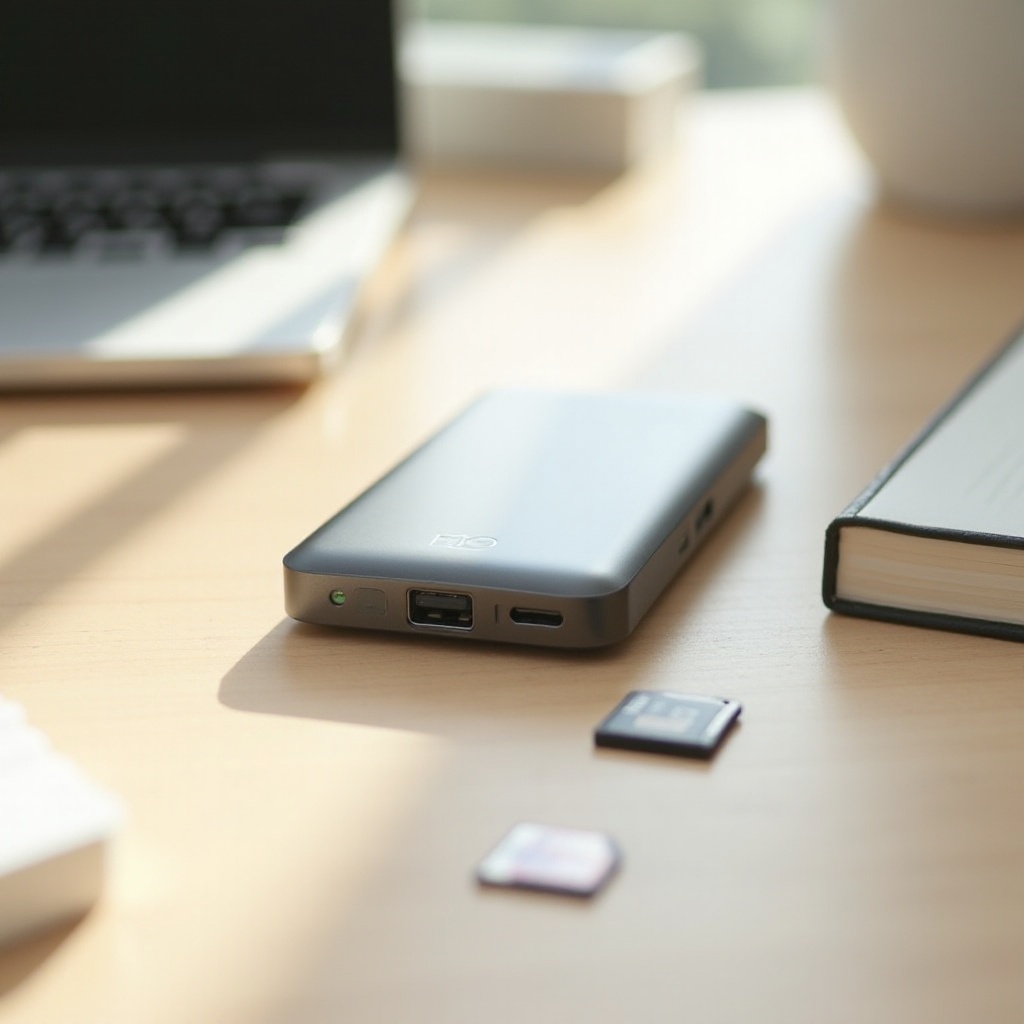
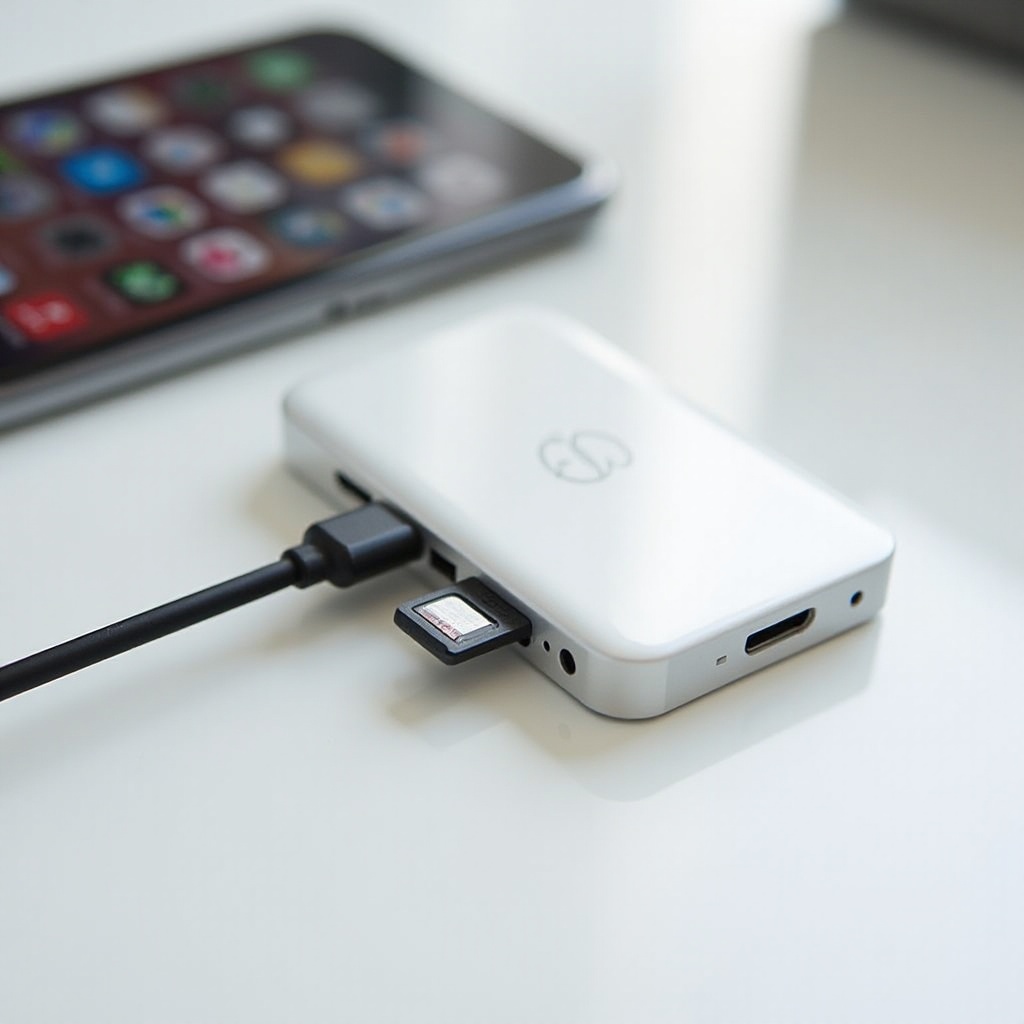
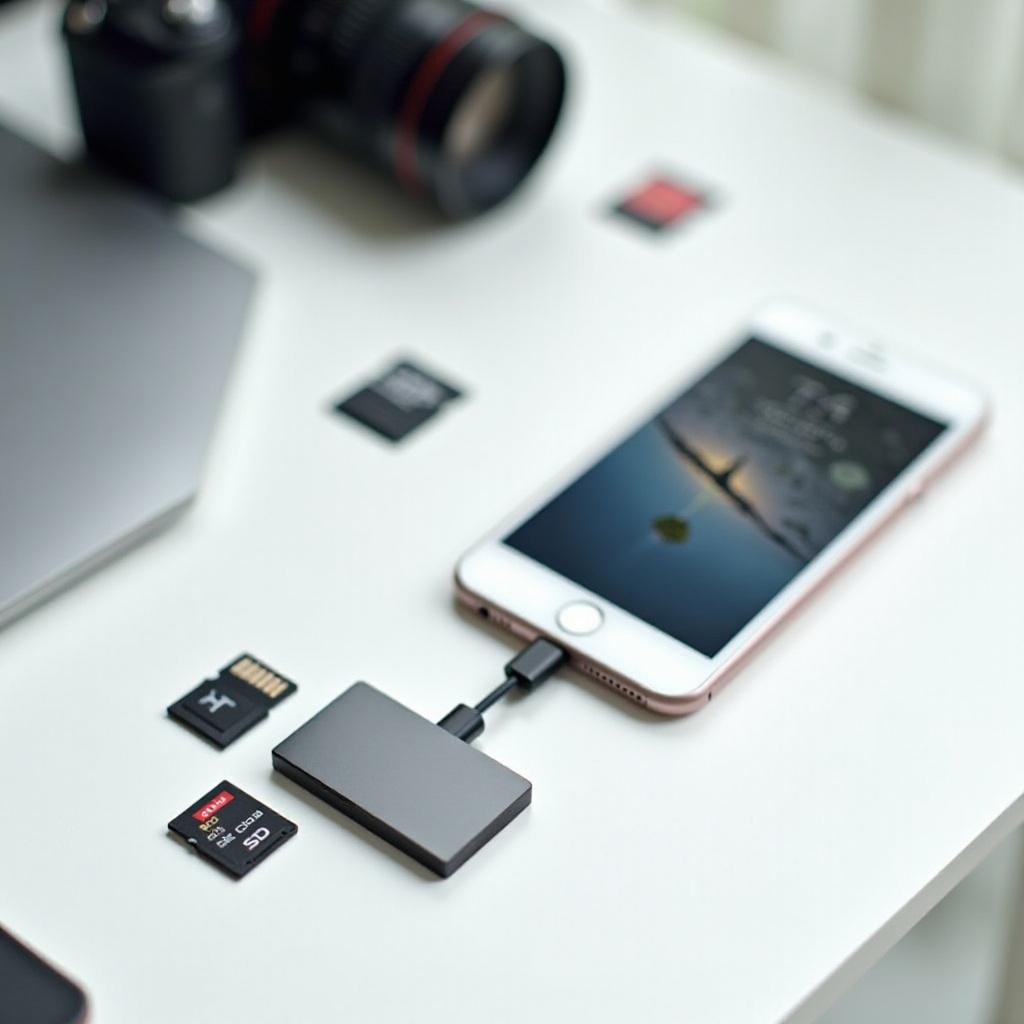
A photo card reader for iPhone is a small device that lets your phone read memory cards, such as SD or microSD, directly. One end connects to your iPhone’s port (Lightning or USB‑C), and the other end has one or more card slots.
Most readers work in a simple way:
- You insert the memory card from your camera or drone into the reader.
- You connect the reader to your iPhone.
- iOS detects the card and lets you view and import files.
On iPhone, you usually use:
- The Photos app to import pictures and videos into your photo library.
- The Files app to manage folders and other file types, like documents or audio.
Many readers are plug‑and‑play. You do not need to install a special app. The system handles it. More advanced readers may include an optional app for extra features such as backup, encryption, or direct cloud upload.
Most photo card readers for iPhone support popular formats like:
- SD and microSD (used in cameras, drones, and action cams)
- Sometimes CFexpress or other high‑end formats (for pro cameras)
The reader acts as a bridge between your memory card and the iPhone’s internal storage. It does not store files itself. It simply lets the phone access the card, so you can copy, move, or delete files as you wish.
Once you know how the accessory behaves, the next step is to match the reader with your iPhone’s specific charging and data port.
Lightning vs USB‑C iPhones: Which Photo Card Reader Do You Need?
Your iPhone’s charging port decides which photo card reader you should buy. Using the wrong connector means the reader will not plug in at all, or you will need an extra adapter that can cause loose connections or errors.
There are two main iPhone port types:
- Lightning – Used by many iPhones before the switch to USB‑C
- USB‑C – Used by the latest iPhone models
If you own a Lightning iPhone, you have two main options:
- A Lightning photo card reader designed for iPhone. These plug in directly and often carry phrases like for iPhone or MFi (Made for iPhone) in the product description.
- A Lightning to USB adapter plus a standard USB card reader. This works but creates a longer, more fragile chain of connections.
If you own a USB‑C iPhone, you gain more flexibility:
- You can use a USB‑C photo card reader for iPhone that plugs straight into the port.
- You can also use many standard USB‑C card readers designed for laptops and tablets, as long as they play nicely with iOS.
USB‑C readers often support faster speeds and more card formats. They may also connect to iPads and laptops, giving you one tool for many devices.
When you shop, always check:
- Connector type: Lightning or USB‑C
- iPhone compatibility: The product page should list iPhone models or iOS support
- Power needs: Some readers and cards draw more power than older iPhones can supply
Once you have picked the correct connector, you can focus on the practical features that affect everyday use, such as speed, durability, and card support.
Key Features to Look For in a Photo Card Reader for iPhone
Not all photo card readers for iPhone are equal. Some move files fast and last years. Others break easily or fail at the worst time. Look at these key features before you buy.
Supported Card Types and Capacities
Check which cards the reader supports:
- SD: Common in cameras and camcorders
- microSD: Used in drones, GoPros, and many action cameras
- Other formats: Some pro readers support CFexpress or other high‑speed cards
Also check capacity limits. A good reader should handle at least:
- 128 GB or 256 GB SD/microSD
- exFAT file system, which is used on many large cards
If the product is vague about max capacity, read user reviews to see what people tested.
Data Transfer Speeds and Real‑World Performance
Look for speed ratings such as:
- UHS‑I or UHS‑II for SD cards
- Read/write speed numbers in MB/s
Remember:
- Your card’s speed and your reader’s speed both matter.
- The iPhone port and its internal limits also affect transfer speed.
You will feel the difference when importing:
- Large RAW photo sets
- 4K or ProRes video clips
- Multiple cards in a row
A faster reader saves time and battery, especially for creators who move content every day.
Power Requirements and Pass‑Through Charging
Some card readers draw more power than others. This can cause:
- Accessory may not be supported messages
- Random disconnects during transfers
If you use high‑speed cards or a multi‑slot reader, consider:
- A reader with a power input port (Lightning or USB‑C) that supports pass‑through charging
- Using a powered USB‑C hub with a USB‑C iPhone
Pass‑through charging lets you keep the iPhone topped up while you transfer large files.
Build Quality, Cable Design, and Portability
Good build quality protects your card, your phone, and your data. Look for:
- Sturdy plastic or metal housing
- A short, flexible cable with solid strain relief
- A dust cap or cover for the connectors
For travel kits, a compact design is a big plus. Some card readers plug straight into the iPhone with no cable. These are very portable but can put more stress on the port if bumped. A short cable often gives a safer and more flexible connection.
App and File‑System Compatibility on iOS/iPadOS
Most modern photo card readers for iPhone work with:
- The Photos app for basic import
- The Files app for manual file handling
Still, check:
- Whether the reader needs a special app
- If the reader supports exFAT, the common format for larger cards
- Compatibility notes regarding iOS versions
Readers that work with the native Photos and Files apps usually give a smoother, more stable experience.
Once you know which features matter most to you, it becomes easier to match different reader types to different kinds of users.
Best Types of Photo Card Readers for Different iPhone Users
Different people use their iPhone and camera gear in different ways. The best photo card reader for iPhone will depend on how often you transfer files, how big those files are, and where you usually work.
Casual Users Importing Vacation and Family Photos
If you mainly shoot holidays, birthdays, and family events, you can:
- Pick a simple single‑slot SD or microSD reader
- Focus on ease of use and reliability over extreme speed
- Choose a compact design that fits easily in a small bag
You do not need a pro‑grade multi‑slot hub. One reliable SD reader that works every time is enough.
Mobile Content Creators and Influencers
Creators and influencers often:
- Shoot b‑roll and main clips on mirrorless cameras or drones
- Edit on iPhone in apps like CapCut, LumaFusion, and Instagram
- Post quickly while on location
They benefit from:
- Fast UHS‑II card readers (if their cards support it)
- USB‑C readers that take advantage of higher speeds on newer iPhones
- Durable builds that survive daily use
- Optional pass‑through charging to avoid low battery warnings mid‑import
For them, speed and stability are critical, because delays can affect posting schedules and client deadlines.
Professional Photographers and Videographers
Pros often handle:
- Multiple cards per shoot
- RAW sequences and long video clips
- On‑site backups for clients
They may need:
- Multi‑slot readers (SD, microSD, and possibly CFexpress)
- High‑speed, pro‑grade readers that keep up with fast cards
- Strong build quality and reliable connectors
- A setup that also works with laptops and iPads
A good card reader becomes part of a larger workflow that includes external drives and backup strategies, not just a basic accessory.
Drone, Action Cam, and 360‑Camera Owners
These users usually rely on microSD cards and often shoot:
- 4K or higher video
- High‑frame‑rate clips for slow motion
- 360° content that creates very large files
They should look for:
- Solid microSD support (either native or via SD adapter)
- Higher transfer speeds to move big video files fast
- Support for the file systems used by their devices
After you identify which group you fall into, you can set up a workflow that takes full advantage of your card reader and your iPhone.
How to Use a Photo Card Reader with Your iPhone Step by Step
After you choose a card reader, you want a smooth first import. This step‑by‑step guide covers the basics from setup to safe removal.
Preparing Your iPhone, Memory Card, and Reader
- Charge your iPhone to a comfortable level, especially before long imports.
- Check your storage: go to Settings → General → iPhone Storage to see free space.
- Confirm the card format: most cameras format in exFAT or FAT32, which iPhone supports.
- Insert the card into the reader before connecting it to the phone.
- Unlock your iPhone so it is ready to show prompts.
Importing Photos and Videos via the Photos App
- Plug the photo card reader for iPhone into the Lightning or USB‑C port.
- The Photos app may open automatically. If not, open it yourself.
- Tap the Import tab at the bottom (or check the prompt at the top).
- Browse the thumbnails of photos and videos on the card.
- Tap items to select them, or tap Import All for a full copy.
- Choose whether to Keep or Delete items on the card after import.
- Wait until the progress bar finishes before unplugging anything.
Your imported files will appear in Recent and other relevant albums.
Managing Files Manually with the Files App
For more control over folders and other file types:
- Open the Files app.
- Under Locations, look for your card (often labeled as the reader’s brand or a generic volume name).
- Tap to open it and browse folders.
- To move files, tap and hold a file, then choose Copy or Move.
- Navigate to a folder in On My iPhone or iCloud Drive.
- Tap and hold in the destination folder, then choose Paste.
This approach works well for:
- RAW files you want to store in specific folders
- Non‑photo content such as documents, logs, or audio files
Safely Ejecting the Card and Avoiding Data Loss
To protect your data:
- Close the Photos and Files apps after imports.
- Wait a few seconds to ensure all transfers complete.
- Gently unplug the card reader from your iPhone.
- Remove the card from the reader only after it is disconnected.
Avoid pulling the reader during transfers, as this can corrupt files or damage the card.
Once you master the basic process, you can confidently bring over even larger and heavier files without fear of corrupting your projects.
Handling Large RAW Photos and 4K/ProRes Video on iPhone
High‑quality content takes up space and demands more from your hardware. A solid photo card reader for iPhone helps, but you also need a smart workflow.
Optimizing Camera Settings for Smooth Imports
Consider these camera settings:
- Use efficient codecs when you can, such as HEVC for video, if your workflow supports it.
- For stills, decide if you really need full‑size RAW for every shot or if RAW+JPEG or HEIF is enough.
- Organize shoots into folders on your card to make selection easier later.
Better settings can cut transfer times and reduce storage pressure, while still giving you enough quality to edit and share.
Storage Management Tips for Big Projects
Large RAW and 4K/ProRes files fill iPhone storage fast. To cope:
- Check storage before each import.
- Move finished projects to external drives via a computer or a compatible USB‑C SSD (for USB‑C iPhones).
- Use iCloud Photos or another cloud service as a second backup, not as your only copy.
- Delete failed takes and duplicates as you review your footage.
Good storage hygiene keeps your iPhone from slowing down or running out of space mid‑shoot.
Editing and Sharing Directly from Your iPhone
With files on your phone, you can:
- Edit photos in apps like Photos, Lightroom, or VSCO.
- Cut video in CapCut, LumaFusion, or the built‑in Clips app.
- Export versions in platform‑friendly formats for Instagram, TikTok, YouTube, or client delivery.
Your photo card reader helps you build a true mobile studio: shoot on camera, import, edit, and publish, all centered around your iPhone.
As with any gear, problems can still appear, so it helps to know the most common issues and how to deal with them.
Common Problems and Troubleshooting Tips
Even a good photo card reader for iPhone can run into issues. Knowing the usual causes helps you solve them quickly and avoid losing data.
iPhone Not Detecting the Card Reader
If nothing happens when you plug in the reader:
- Make sure the card is fully inserted into the reader.
- Try another angle or reconnect the Lightning or USB‑C plug to ensure a firm fit.
- Restart your iPhone and try again.
- Test the card reader with a different card or device to check if it is faulty.
- Confirm that your iOS version meets the product’s minimum requirement.
If a message says Accessory may not be supported, the reader may draw too much power or lack proper certification.
SD Card Not Showing Up or Appearing Empty
When the reader is recognized but the card looks empty:
- Check if the card is formatted in exFAT or FAT32. NTFS and some proprietary formats will not appear.
- Try the card in a camera or computer to confirm it still works.
- Run a disk check on a computer if you suspect file system errors.
- Avoid cheap card adapters that may not make proper contact.
If your camera uses a special folder structure, the Photos app might not show everything, but the Files app often will.
Slow Transfers, Errors, or Corrupted Files
Slow or unstable transfers can come from:
- A failing or counterfeit memory card
- A damaged or low‑quality card reader
- Moving huge files on low battery or with many background apps running
To improve reliability:
- Use known brands for both card and reader.
- Close other apps during large transfers.
- Keep your phone charged or plugged into power.
- Replace cards that show repeated corruption issues.
When to Use a Powered Hub or Different Card Format
If you often see power errors or disconnects:
- For USB‑C iPhones, try a powered USB‑C hub that feeds extra power to the reader.
- For large or high‑speed cards, consider using a reader designed for those formats, not the cheapest option you can find.
When issues persist across different cards and devices, the reader itself may be defective and need replacement.
Once you understand how to avoid and fix the typical problems, you can focus on choosing the best reader, rather than worrying about every transfer.
Buying Guide: How to Choose the Right Photo Card Reader for Your iPhone in 2024
With all this information, it helps to have a simple checklist to make your final choice. The right photo card reader for iPhone should match your device, your workflow, and your budget.
Checklist for Compatibility and Safety
Before you buy, confirm:
- Correct connector (Lightning or USB‑C)
- Clear iPhone and iOS compatibility in the product description
- Support for your card type and capacity
- Positive reviews about stability and file integrity
- Relevant certifications, such as MFi for Lightning or USB‑IF for USB‑C
These checks reduce the risk of accessory not supported messages and random failures.
Budget vs Premium Options: What You Really Get
Cheaper readers can work, but you must weigh trade‑offs.
Budget readers often:
- Cost much less
- Offer basic single‑slot SD or microSD support
- May have weaker cables or housings
Premium readers often:
- Provide faster speeds and better electronics
- Include multiple slots and extra ports
- Use stronger materials and better strain relief
- Come with longer warranties
If you transfer files once a month, budget may be fine. If you rely on your reader for work, a premium model is worth the extra cost.
Future‑Proofing for Newer iPhones and Other Devices
To future‑proof your setup:
- If you plan to upgrade to a USB‑C iPhone, consider a USB‑C reader that works with iPads and laptops too.
- Choose a reader that supports high‑capacity cards and modern formats like exFAT.
- Look at brands that update their firmware or apps to support new devices.
One good, versatile reader can serve you for several device generations.
Where to Buy and How to Avoid Counterfeits
For safer purchases:
- Buy from official brand stores, trusted retailers, or the manufacturer’s website.
- Beware of listings with unclear branding or mismatched photos and descriptions.
- Read recent reviews that mention iPhone models similar to yours.
Avoiding counterfeits protects your data and your devices from damage.
Once you check compatibility, quality, and future needs, you can buy a photo card reader for iPhone with confidence and start building a smoother, faster mobile workflow.
Conclusion
A photo card reader for iPhone gives you direct control over your photos and videos. You skip the computer, move files faster, and keep your workflow simple. With the right reader, your iPhone becomes a powerful tool for editing, backing up, and sharing content wherever you are.
You learned how these readers work, how Lightning and USB‑C iPhones differ, and which features matter the most. You also saw how different user groups, from casual shooters to pros, can match the right reader to their needs. The step‑by‑step guide and troubleshooting tips help you avoid common mistakes and protect your data.
If you check connector type, card support, build quality, and real‑world reviews, you will find a reader that fits your workflow and budget. Then your iPhone and camera can work together as one smooth, fast, and reliable system, ready for every trip, shoot, and project you take on.
Frequently Asked Questions
Do I need a special photo card reader for a USB-C iPhone in 2024?
You do not need a special reader, but it must have a USB-C connector and be compatible with iOS. Many standard USB-C card readers for laptops also work with USB-C iPhones, as long as they use common storage standards like exFAT and do not need special drivers. Always check the product details or user reviews to confirm that it works with recent iPhone models.
Can any SD or microSD card work with a photo card reader for iPhone?
Most SD and microSD cards work if they use exFAT or FAT32 and stay within the reader’s capacity limits. Very old cards, extremely large cards, or cards formatted in unsupported file systems may not show up. For best results, use cards from trusted brands, format them in your camera, and avoid unknown or suspiciously cheap cards that can fail or corrupt your data.
Is it better to transfer photos with a card reader or wirelessly to my iPhone?
Both methods can work, but a photo card reader for iPhone usually offers faster, more reliable transfers, especially for large RAW files and 4K or ProRes video. It also avoids Wi-Fi dropouts and battery drain on your camera. Wireless transfer can be handy for a few quick images, but it is much slower for big batches. If you move large files often or work under time pressure, a card reader is usually the better choice.