
Introduction
Customizing your phone’s notification sound can significantly improve how you perceive message alerts. With the myriad of options available, adjusting these settings can make receiving notifications less intrusive and more personalized. This guide outlines the steps needed to change notification sounds, enhancing both functionality and user satisfaction.
Understanding Phone Notification Settings
Before altering notification sounds, it’s crucial to familiarize yourself with your phone’s notification settings. Both iOS and Android operating systems provide varied ways to customize sound alerts. By understanding these systems, users can ensure better integration and a seamless transition to personalized alerts.
Once you comprehend the framework of your device’s notification options, modifying settings becomes intuitive, allowing for easy manipulation that enhances the user experience.
How to Change Notification Sound on iOS Devices
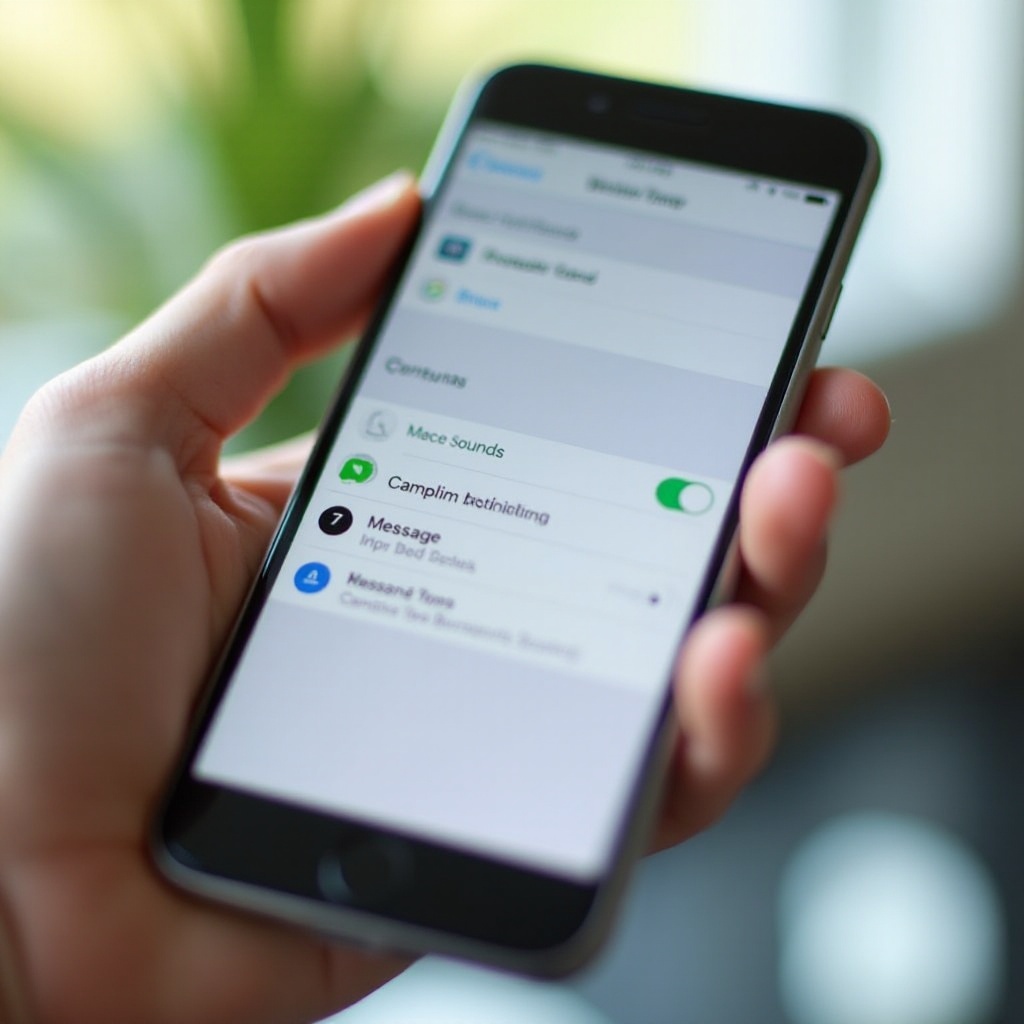
Apple devices provide a streamlined method for customizing notification sounds.
Accessing Sound Settings on iOS
- Open the ‘Settings’ app on your iPhone.
- Scroll to ‘Sounds & Haptics.
- Under ‘Sounds and Vibration Patterns,’ tap ‘Text Tone.
Customizing Notification Sounds for Messages
- Review the available tones and tap each to preview.
- Choose your preferred sound.
- For individual contacts, navigate to ‘Contacts,’ select the contact, tap ‘Edit,’ then ‘Text Tone.
Once you’ve adjusted your settings on iOS devices, transitioning to Android will further enhance your phone’s customization.
How to Change Notification Sound on Android Devices
Android allows a high degree of customization, offering users several options for sound modification.
Accessing Sound Settings on Android
- Open ‘Settings’ on your Android device.
- Tap ‘Apps & Notifications’ or ‘Sound & Notification,’ depending on your device.
- Select ‘Notifications’ and navigate to ‘Messages.
Using Custom Sounds with Third-Party Apps
- Download a sound customization app such as Zedge.
- Navigate within the app to ‘Notification Sounds.
- Browse or search for the desired sound.
- Follow the app’s prompts to set this sound for messages.
As customization options broaden with Android’s versatility, troubleshooting common issues ensure your phone remains responsive and enjoyable.
Troubleshooting Common Notification Sound Issues
Sometimes, phones may not behave as expected after changing sound settings.
Issues with Sound Settings Not Saving
- Double-check your operating system version; ensure it is updated.
- Revisit settings to verify new configurations.
- Restart your device if changes don’t take effect.
Notification Sounds Not Playing Correctly
- Check volume settings in ‘Sounds & Haptics’ (iOS) or ‘Sound & Notification’ (Android).
- Inspect potential conflicts with third-party apps.
- Consider performing a soft reset of the device.
Addressing these concerns guarantees your customizations work seamlessly, benefiting your broader phone usage experience.
Enhancing Your Phone Experience with Custom Sounds
Personalized notification sounds don’t just serve functional purposes; they enhance your overall interaction with your device.
Benefits of Personalized Sounds
Custom sounds can improve your responsiveness to notifications, reduce everyday stress, and integrate joyous elements into repetitive tasks.
Creative Ideas for Notification Sounds
Experiment with clips from favorite songs, recordings that evoke personal joy, or serene nature sounds to add a personal touch.
By exploring these adjustments, not only do you refine your device’s settings but also enhance everyday interactions, contributing to a satisfying mobile experience.
Conclusion
Adjusting your phone’s notification sounds opens pathways to increased personalization and satisfaction. These simple steps help ensure alerts are both functional and pleasant, tailored to individual preferences.
Frequently Asked Questions
How can I download new notification sounds for my phone?
Use the Apple Store or Google Play to download apps like Zedge that offer a wide range of sounds.
Why won’t my phone save the new notification sound settings?
Ensure your phone’s software is up-to-date and recheck settings for correct configuration.
Are third-party apps safe for downloading notification sounds?
Generally, yes. Always download from trusted sources and review app permissions before installation.