
Introduction
Email messages look broken when pictures refuse to appear. Buttons render as blank boxes. Newsletters show empty gaps. Receipts miss logos. If email images are not loading on iPhone, you can fix the problem quickly by checking privacy, network, and app settings in the right order. Apple Mail, Gmail, and Outlook handle images differently, and data and battery features can block downloads to save resources.
This guide gives you clear, step by step actions for Apple Mail, Gmail on iPhone, and Outlook for iOS. You will see why images get blocked, how to allow them safely, and how to rule out network, VPN, or corporate restrictions. We also cover when the sender causes the issue, and what you can do about it. Start with the quick checklist. Then move into the section for your mail app. Each section builds on the last so you can move from fast fixes to deeper solutions with confidence.
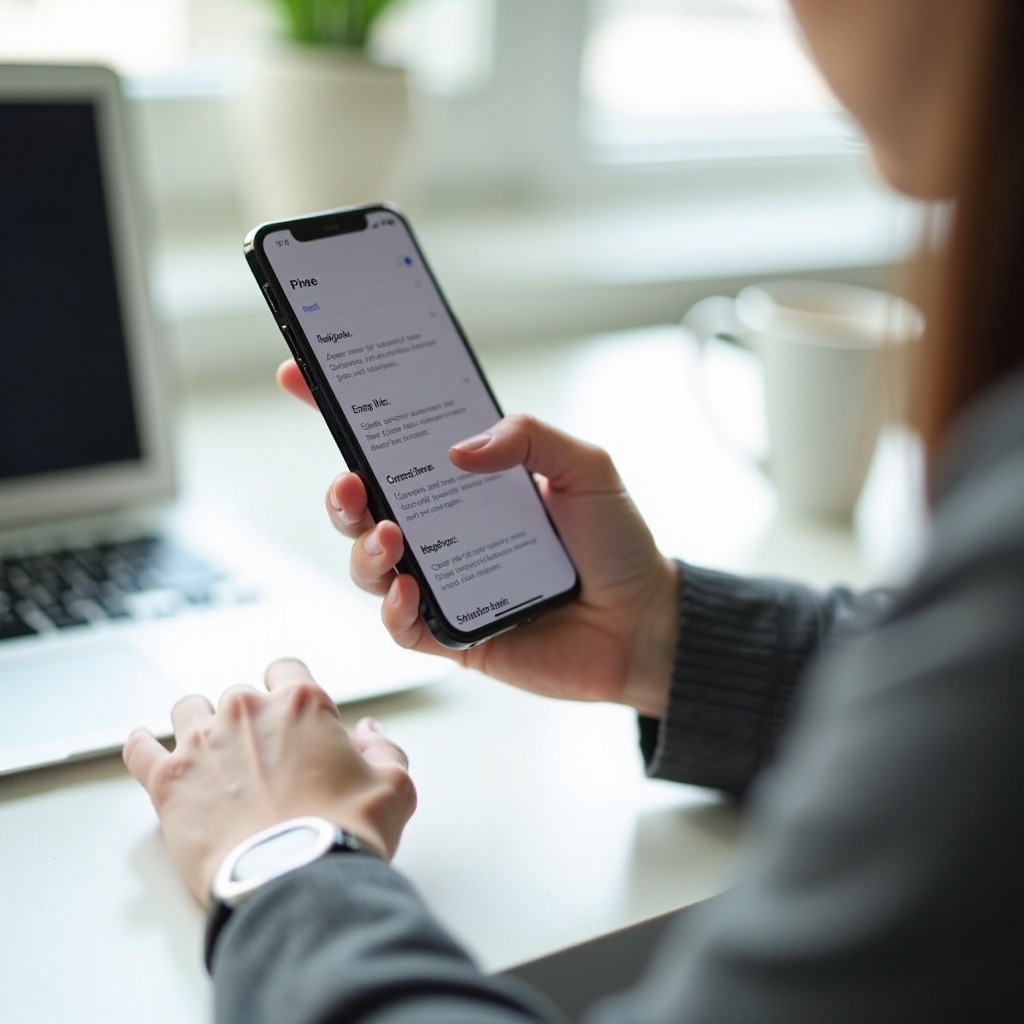
Quick checklist: Fix email images not loading on iPhone
Before diving into app specific settings, run this fast checklist. It isolates common causes and often solves the problem within minutes.
- Toggle Wi Fi and Cellular:
1) Turn Airplane Mode on, then off.
2) Test on Wi Fi and cellular separately to spot a network block. - Disable data and battery savers temporarily:
1) Turn off Low Data Mode for the active network.
2) Turn off Low Power Mode until you finish testing. - Restart and update:
1) Force quit your mail app, then reopen it.
2) Restart your iPhone.
3) Update iOS and your mail app from the App Store. - Check app image settings:
1) Apple Mail: allow remote images for the message or globally.
2) Gmail: set Images to Always display.
3) Outlook: turn off Block External Images. - Review privacy and filtering:
1) Temporarily disable VPN or iCloud Private Relay.
2) Pause content blockers or DNS filters. - Storage and time:
1) Free space if storage is critically low.
2) Set Date and Time to automatic.
If images start loading after any step, note the cause and decide whether to keep that setting or undo it. If not, continue to the next sections for deeper checks. Next, learn why the system might block images in the first place so your changes make sense.
Why iPhone blocks email images: privacy, data, and performance
When images do not load, your device is usually protecting your privacy or saving data. Remote images in emails often come from third party servers. Senders also embed tracking pixels, which are tiny images that record when you opened the message and your IP address. Apple Mail offers Mail Privacy Protection that hides your IP and can preload or block remote content to reduce tracking. Some organizations also enforce stricter controls through mobile device management.
Data saving features can also stop images. Low Data Mode reduces automatic downloads on Wi Fi or cellular. Low Power Mode slows background activity to extend battery life. Some apps block external images by default for safety, and some networks restrict remote content. Understanding these controls helps you choose the right balance of privacy and convenience. With that context, it is time to confirm whether your system settings are the root cause before you adjust each app.
Check your iPhone settings that stop images
You started with quick checks. Now verify device level settings that often prevent image downloads across apps. Fixing these clears the path for Apple Mail, Gmail, and Outlook to fetch pictures reliably.
- Low Data Mode, Low Power Mode, and Background App Refresh:
1) Low Data Mode can be set per Wi Fi network. Tap the i next to your Wi Fi, then toggle Low Data Mode. For Cellular Data, go to Settings > Cellular > Cellular Data Options and turn off Low Data Mode.
2) Low Power Mode reduces background activity and may delay image loads. Turn it off in Settings > Battery while testing.
3) Background App Refresh should be on for your mail app so it can fetch content in the background. Go to Settings > General > Background App Refresh and allow your mail app. - Date, time, and storage:
1) Set Settings > General > Date and Time to Set Automatically. Wrong time can break secure connections that serve images.
2) Free space if storage is nearly full. When iPhone runs low on storage, downloads may fail silently. - Cellular Data permissions per app:
1) Go to Settings > Cellular and ensure Mail, Gmail, and Outlook are allowed to use cellular data.
2) If you use a separate work profile app, confirm it has cellular access too.
Once your iPhone settings allow downloads, move to your specific mail app. Start with Apple Mail if you use the built in client. Then continue with Gmail or Outlook if you prefer those apps.
Apple Mail: Allow and load remote images safely
Apple Mail balances privacy and convenience. The app can block or load remote images depending on your settings and per message choices. Use these steps to control how images display.
- Mail Privacy Protection and Hide IP Address:
1) Go to Settings > Mail > Privacy Protection. You will see options such as Protect Mail Activity and Hide IP Address. With protection on, Mail may use proxy loading to hide your IP. Images should still appear in most cases, but some senders misconfigure links and cause failures. If images do not load, toggle Hide IP Address off briefly to test. Keep privacy on for daily use if images appear after testing. - Load remote images for a single message:
1) Open the email in Mail. If you see a banner like Load All Images or Load Remote Images, tap it. This loads pictures for only that message without lowering your global privacy.
2) To always load images, go to Settings > Mail and enable Load Remote Images. This allows images to display by default. - Force quit Mail, toggle accounts, and refresh mailboxes:
1) Force quit Mail, reopen, and pull down to refresh the inbox.
2) If one account breaks images, toggle the account off and on in Settings > Mail > Accounts > the account you are testing.
3) If images still fail, remove and re add the account. This clears corrupt cache entries that can block downloads.
If you use Gmail or Outlook instead of Apple Mail, adjust image policies inside those apps next. The next two sections walk through those settings.
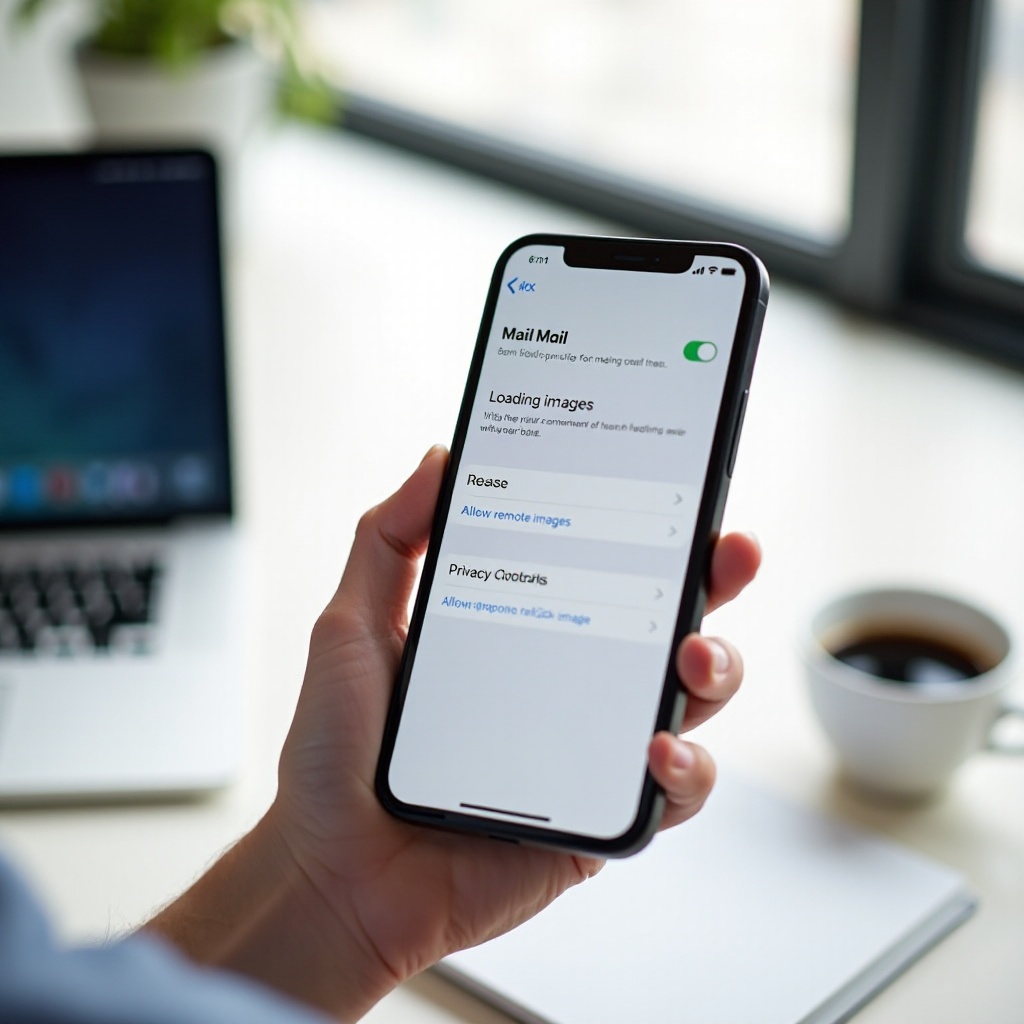
Gmail on iPhone: Images not showing in the Gmail app
The Gmail app controls image display on its own. It can show images automatically or ask before displaying them. Data controls may also limit downloads. Work through these steps.
- Gmail Images setting: Always display vs Ask before displaying:
1) Open Gmail > Menu > Settings > your account.
2) Find Images and set to Always display external images. If you prefer to approve each email, choose Ask before displaying external images. - Data Saver, background refresh, and notification fetch:
1) If you use Gmail Data Saver, turn it off while testing. Data Saver limits image downloads.
2) Ensure Settings > General > Background App Refresh includes Gmail, so the app can fetch content.
3) In iOS Settings > Gmail, confirm Mobile Data is on. - Clear cache, reinstall Gmail, or re add your Google account:
1) iOS does not offer a built in cache clear for Gmail, but reinstalling the app refreshes cached image rules.
2) If images load in a web browser but not in the app, remove and re add your Google account inside Gmail.
3) If you manage multiple accounts, test with a personal Gmail account to rule out admin policies.
If Gmail still fails, or if you also use Outlook, keep going. The Outlook app uses its own external content controls and may be restricted by your organization.
Outlook for iOS: Unblock external content
Outlook for iOS offers a simple control to block or allow images. Many organizations enforce external content policies. If you use a work or school account, some options may be locked by your admin.
- Block External Images and privacy controls:
1) Open Outlook > tap your avatar > Settings.
2) Find Block External Images and turn it off to allow images. If the toggle is missing or greyed out, your organization likely enforces the block.
3) Confirm that Focused Inbox is not hiding your test email. Check the Other tab or search for the message. - Organization policies, MDM profiles, and account types:
1) Microsoft 365, Exchange, and Outlook dot com accounts may follow admin rules. These can block external content, require a VPN, or route traffic through a secure gateway.
2) If you use a company portal or MDM profile, ask your IT team whether external images are blocked by policy. - Reset Outlook cache and re add accounts:
1) Sign out and back in, or remove and re add the account to refresh cached rules.
2) Update Outlook to the latest version.
3) If images appear on Outlook Web but not in the iOS app, capture details and share them with IT for review.
With app policies confirmed, the next step is to test network and filtering components that commonly block image servers. Even perfect app settings cannot load pictures if the connection filters them out.
Network, VPN, and content filters that break images
Even when apps allow images, your connection may block image hosts or tracking domains. Test without privacy layers and filtering to confirm the cause.
- iCloud Private Relay, VPNs, and secure web gateways:
1) Temporarily turn off iCloud Private Relay in Settings > your name > iCloud > Private Relay.
2) Disable your VPN and try loading the email again.
3) If you use a corporate VPN or a zero trust client, check if the tunnel is required for email. Test both on and off with IT approval. - DNS and content blockers, firewalls, and parental controls:
1) Pause content blockers or ad blockers. Some treat image CDNs as trackers.
2) If you use a custom DNS via an app or profile, switch to Automatic or your ISP default temporarily.
3) Check Screen Time content restrictions that could block web content requested by mail apps. - Reset Network Settings and test different networks:
1) If nothing works, go to Settings > General > Transfer or Reset > Reset > Reset Network Settings. You will need to rejoin Wi Fi networks.
2) Test on a different Wi Fi, a hotspot, and cellular. If images work on one network but not another, the network firewall or DNS is likely blocking image hosts.
After ruling out network blocks, proceed to advanced steps that refresh accounts and software components. These steps address persistent bugs and corrupted caches.
When images still will not load: advanced steps
If images still do not load, refresh your account data and software. These steps address corrupted caches, stale tokens, and app bugs.
- Remove and re add mail accounts and reindex mail:
1) In Apple Mail, go to Settings > Mail > Accounts. Remove the affected account, restart the iPhone, then add the account again.
2) In Gmail or Outlook, remove and re add your account from app settings. This resets sync and image authorization headers. - Update iOS and mail apps; check app permissions:
1) Update iOS to the latest version available for your device.
2) Update Mail related apps in the App Store.
3) In Settings, open each app and confirm Mobile Data is allowed. Some apps also need Local Network access for specific features; grant if prompted. - Test on Wi Fi vs cellular; try another mail app:
1) If Apple Mail fails but the Gmail app loads images on the same account, the issue is likely Mail settings or privacy. Adjust those rather than your network.
2) If no app loads images on the same network, suspect the network or VPN.
3) If only one sender fails, move to the next section about sender side issues.
If advanced steps do not help, gather details: the app used, account type, sample senders, and whether Wi Fi or cellular makes a difference. Share this with Apple, Google, Microsoft, or your IT team for targeted help.
When it is the sender’s fault and what you can do
Sometimes your phone works fine. The sender’s email setup breaks images. Recognizing this saves time and helps you request the right fix.
- Remote vs inline images and attachment fallbacks:
1) Remote images load from external servers. If the server is slow, down, or geofenced, images may fail.
2) Inline images are embedded in the email using Content ID. Some senders misconfigure them, causing blank placeholders in certain apps.
3) Ask the sender to attach critical images such as tickets or QR codes as standard attachments so you can view them offline. - Broken HTTPS links, expiring URLs, and permission errors:
1) Image URLs must use valid HTTPS with a non expired certificate. If a sender uses a broken link, no app can display it.
2) Marketing platforms sometimes generate links that expire or require cookies. When those links expire, images disappear on mobile.
3) Images stored on Google Drive, SharePoint, or a CDN may require authentication. If the link needs a logged in browser, your mail app cannot fetch it. - Ask senders for alt text, accessible HTML, or attached images:
1) Alt text lets you understand content if images fail or you keep them blocked for privacy.
2) Request senders to avoid tracking only pixels and to host images on stable, public CDNs.
3) If a newsletter routinely fails, whitelist it in your app when supported or subscribe using a webmail that loads images reliably.
Once you address sender issues, you can keep your device settings secure while ensuring key emails display correctly. That brings us to a final, balanced setup.
Conclusion
You have several layers to check when email images are not loading on iPhone: privacy controls, data and battery savers, app level image settings, and network filtering. Start with quick changes like toggling Low Data Mode, verifying each app’s image policy, and testing on a different network. Then move to targeted fixes in Apple Mail, Gmail, or Outlook. If images still fail, refresh accounts and update software. When only certain senders break, the problem likely lives on their side.
Aim for a setup that respects your privacy while keeping important images visible. Keep Mail Privacy Protection on if it does not break your messages. Allow images per sender in Gmail or Outlook when possible. With these steps, your inbox should look complete again.
Frequently Asked Questions
How do I show images in iPhone Mail without turning on remote images for everything?
Open the message and tap the prompt that says Load All Images or Load Remote Images. This loads pictures for that email only while Mail Privacy Protection stays on. For trusted newsletters, you can continue to load per message. If you want automatic images, enable Load Remote Images in Settings > Mail, and switch back later if you notice tracking or slowdowns.
Why do images load on Wi-Fi but not on cellular on my iPhone?
Cellular Data may be off for your mail app. Go to Settings > Cellular and enable data for Mail, Gmail, or Outlook. Also check Low Data Mode in Settings > Cellular > Cellular Data Options. Some carriers compress or block content on limited plans, and VPN or DNS filters may apply only on cellular. Weak signal or depleted data can also stall downloads.
Are tracking pixels the same as email images, and how can I block tracking but still see pictures?
Tracking pixels are tiny images used to record opens and IP data. They are images, but they serve analytics rather than content. To limit tracking while seeing pictures, use Mail Privacy Protection in Apple Mail. In Gmail, choose Ask before displaying external images and approve trusted senders. In Outlook, keep Block External Images on for unknown senders and load images per email when you trust the source.